


 Video Converter Ultimate
 บันทึกหน้าจอ
 ซ่อมวิดีโอ
 ดาวน์โหลดอย่างปลอดภัย
วิธีต่อวิดีโอบน TikTok เพื่อความสำเร็จของไวรัสและความประทับใจที่ยั่งยืน
หากคุณต้องการยกระดับการเล่น TikTok ของคุณและสร้างคอนเทนต์ที่สวยงามและน่าแชร์ คุณมาถูกที่แล้ว หนึ่งในฟีเจอร์ที่ทรงพลังที่สุดของ TikTok คือความสามารถในการรวม หรือ Stitch วิดีโอหลายคลิปเข้าด้วยกัน ทำให้คุณสร้างคอนเทนต์ที่ดึงดูดและมีความเคลื่อนไหวสูงซึ่งอาจกลายเป็นไวรัลได้ในเวลาไม่นาน ในคู่มือฉบับสมบูรณ์นี้ เราจะพาคุณไปดูขั้นตอนอย่างละเอียดเกี่ยวกับวิธีรวมวิดีโอบน TikTokแบบมืออาชีพ พร้อมแชร์ทิปและเทคนิคจากผู้เชี่ยวชาญที่จะช่วยให้คุณสร้างวิดีโอที่ลื่นไหล ดูสวยงาม และโดดเด่นท่ามกลางคอนเทนต์จำนวนมหาศาลบน TikTok เพราะฉะนั้น มาดำดิ่งและสำรวจโลกอันน่าตื่นเต้นของการ Stitch วิดีโอบน TikTok กันเลย!

ส่วนที่ 1 วิธีรวมวิดีโอโดยใช้ TikTok
TikTok เป็นแพลตฟอร์มโซเชียลมีเดียชื่อดังที่ให้ผู้ใช้สร้างและแชร์วิดีโอแบบสั้นที่ตั้งค่าเป็นเพลง เอฟเฟกต์เสียง และเสียงพากษ์ ด้วยอินเทอร์เฟซที่ใช้งานง่ายและเครื่องมือสร้างสรรค์ TikTok ได้กลายเป็นปรากฏการณ์ระดับโลกที่ดึงดูดความสนใจของผู้ใช้หลายล้านคนทั่วโลก ในขณะเดียวกัน เรามาเรียนรู้วิธีทำและวิธีดูวิดีโอต่อบน TikTok โดยทำตามขั้นตอนด้านล่าง:
ขั้นตอนที่ 1. เปิดแอป TikTok บนมือถือของคุณ แล้วเข้าสู่ระบบบัญชีของคุณ.
ขั้นตอนที่ 2. แตะไอคอน + ที่ด้านล่างของหน้าจอเพื่อสร้างวิดีโอใหม่.
ขั้นตอนที่ 3. เลือกวิดีโอที่คุณต้องการจะนำมา Stitch โดยแตะที่ตัวเลือก Edit ทางด้านขวาของหน้าจอบันทึกวิดีโอ.
ขั้นตอนที่ 4. เลือกจุดเริ่มต้นของวิดีโอที่คุณต้องการ Stitch โดยเลื่อนแถบสไลด์ไปยังตำแหน่งที่ต้องการ จากนั้นบันทึกวิดีโอของคุณโดยใส่เอกลักษณ์ของคุณเองลงไป เช่น การพากย์เสียง การแสดงปฏิกิริยา หรือคอนเทนต์เพิ่มเติมอื่น ๆ.
ขั้นตอนที่ 5. เมื่อคุณพอใจกับวิดีโอที่ Stitch แล้ว คุณสามารถเพิ่มคำบรรยาย เอฟเฟกต์ และองค์ประกอบสร้างสรรค์อื่น ๆ ได้.
ขั้นตอนที่ 6. แตะปุ่ม Next เพื่อไปยังหน้ารายละเอียดวิดีโอ ที่ซึ่งคุณสามารถเพิ่มคำอธิบายและแฮชแท็ก รวมถึงเลือกได้ว่าใครสามารถดูวิดีโอของคุณได้ สุดท้ายให้แตะปุ่ม Post เพื่อแชร์วิดีโอ Stitch ของคุณกับชุมชน TikTok.
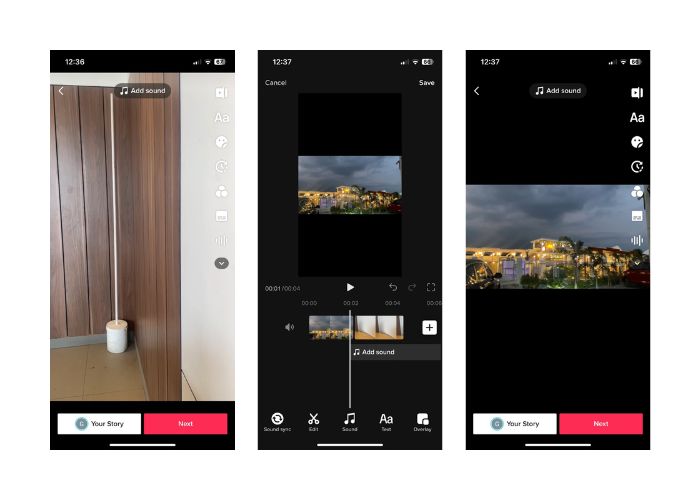
ตอนที่ 2 วิธีต่อวิดีโอบน TikTok
ขั้นตอนที่ 1. เปิดแอป TikTok บนมือถือของคุณแล้วเข้าสู่ระบบบัญชี.
ขั้นตอนที่ 2. แตะปุ่ม Upload แล้วเพิ่มวิดีโอที่คุณต้องการ Stitch เข้าด้วยกัน คุณสามารถเลือกได้ตั้งแต่วิดีโอ 2 คลิปขึ้นไปและรวมเป็นคลิปเดียว จะเลือกจากวิดีโอของคุณเองหรือวิดีโอของผู้ใช้ TikTok คนอื่นก็ได้ จากนั้นแตะ Next เพื่อยืนยันการเลือก.
ขั้นตอนที่ 3. เมื่อคุณเลือกวิดีโอแล้ว คุณจะเห็นไทม์ไลน์ของวิดีโอที่เลือกไว้ คุณสามารถตัดแต่งวิดีโอได้โดยการลากจุดเริ่มต้นและจุดสิ้นสุดบนไทม์ไลน์เพื่อเลือกช่วงที่คุณต้องการ Stitch.
ขั้นตอนที่ 4. หลังจากตัดแต่งวิดีโอแล้ว คุณสามารถเพิ่มข้อความ สติกเกอร์ เอฟเฟกต์ และองค์ประกอบสร้างสรรค์อื่น ๆ ให้กับวิดีโอที่ Stitch แล้วได้.
ขั้นตอนที่ 5. แตะปุ่ม Next เพื่อไปยังหน้าคำอธิบายวิดีโอและการตั้งค่าอื่น ๆ เพิ่มแคปชันและแฮชแท็ก และเลือกการตั้งค่าความเป็นส่วนตัวของวิดีโอตามที่คุณต้องการ.
ขั้นตอนที่ 6. สุดท้ายแตะปุ่ม Post เพื่อเผยแพร่วิดีโอ Stitch ของคุณบน TikTok วิดีโอของคุณจะพร้อมให้ผู้อื่นเข้ามาชมและมีส่วนร่วม.
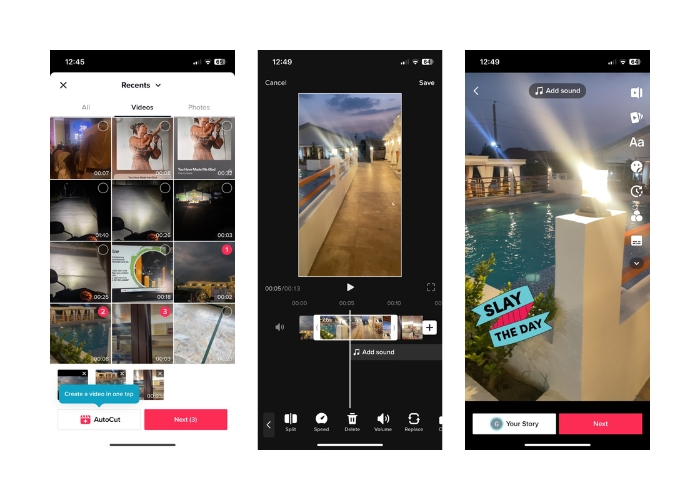
ส่วนที่ 3 วิธีรวมวิดีโอสำหรับ TikTok
1. FVC Video Converter Ultimate - สำหรับพีซี
FVC Video Converter Ultimate มักถูกใช้สำหรับการแปลงวิดีโอและการจัดการไฟล์มัลติมีเดีย มอบวิธีที่สะดวกให้ผู้ใช้แปลงและตัดต่อวิดีโอและไฟล์เสียงเพื่อตอบโจทย์การใช้งานต่าง ๆ ซึ่งรวมถึงการรวม แยก และตัดแต่งวิดีโอ หนึ่งในฟีเจอร์สำคัญของ FVC Video Converter Ultimate คือความสามารถในการรวมวิดีโอหลายคลิปให้กลายเป็นไฟล์วิดีโอเดียว ฟีเจอร์นี้ช่วยให้ผู้ใช้รวมคลิปวิดีโอสองคลิปหรือมากกว่านั้นเข้าด้วยกัน กลายเป็นวิดีโอที่เล่นต่อเนื่องอย่างลื่นไหล ผู้ใช้สามารถเลือกวิดีโอคนละฟอร์แมตได้ เช่น video to MP4, AVI, MKV, WMV, MOV, FLV และอื่น ๆ แล้วรวมเป็นไฟล์วิดีโอเดียวได้โดยไม่สูญเสียคุณภาพ ตอนนี้มาดูขั้นตอนการรวมวิดีโอสำหรับ TikTok กันเลย:
ขั้นตอนที่ 1. ติดตั้งและเปิดใช้งาน FVC Video Converter Ultimate
ดาวน์โหลดและติดตั้ง FVC Video Converter Ultimate บนคอมพิวเตอร์ของคุณ หากคุณยังไม่ได้ติดตั้ง ให้กดปุ่ม Free Download ด้านล่าง จากนั้นเปิดโปรแกรมเพื่อเริ่มใช้งาน.
ดาวน์โหลดฟรีสำหรับ Windows 7 ขึ้นไปดาวน์โหลดอย่างปลอดภัย
ดาวน์โหลดฟรีสำหรับ MacOS 10.7 ขึ้นไปดาวน์โหลดอย่างปลอดภัย
ขั้นตอนที่ 2. เพิ่มวิดีโอลงในซอฟต์แวร์
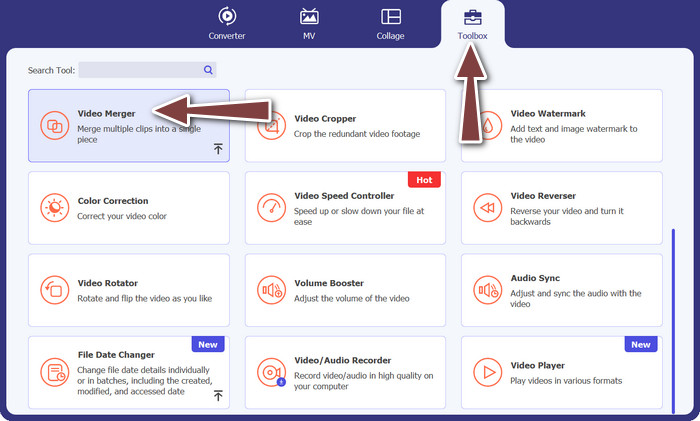
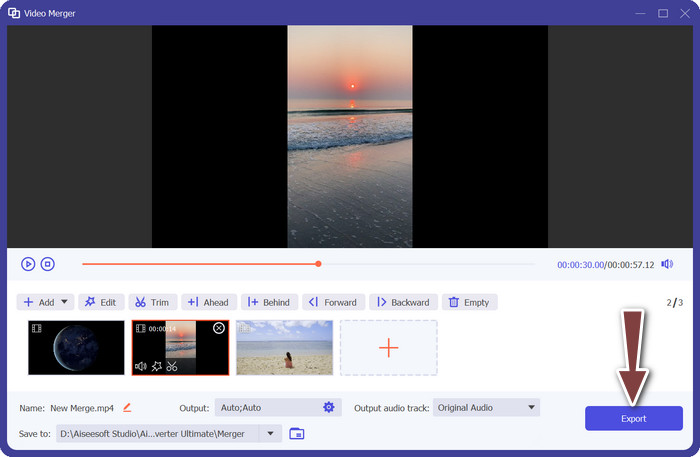
ไปที่แท็บ Toolbox แล้วเลือก Video Merger จากเมนู จากนั้นกดปุ่มเพิ่ม (Add) แล้วคุณจะสามารถเลือกวิดีโอหลายไฟล์ได้.
ขั้นตอนที่ 3. จัดลำดับวิดีโอ
เมื่อตัววิดีโอถูกเพิ่มเข้ามาแล้ว คุณสามารถจัดลำดับให้เป็นไปตามลำดับที่ต้องการได้ หรือจะใช้ปุ่ม Forward และ Backward ก็ได้ ลำดับนี้จะเป็นตัวกำหนดว่าคลิปวิดีโอจะถูกนำมารวมกันอย่างไรในไฟล์วิดีโอผลลัพธ์สุดท้าย.
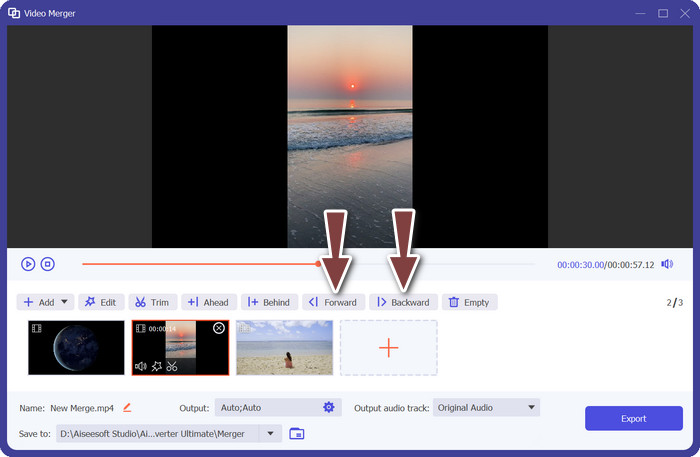
ขั้นตอนที่ 4. รวมวิดีโอ
หลังจากจัดลำดับและแก้ไขวิดีโอเรียบร้อยแล้ว คุณก็สามารถไปยังขั้นตอนการรวมวิดีโอให้เป็นไฟล์เดียวได้ ให้มองหาปุ่ม Export แล้วกดเลือก ซอฟต์แวร์จะเริ่มรวมวิดีโอตามลำดับที่คุณจัดไว้และสร้างไฟล์วิดีโอใหม่เป็นผลลัพธ์.
2. YouCut - สำหรับโทรศัพท์
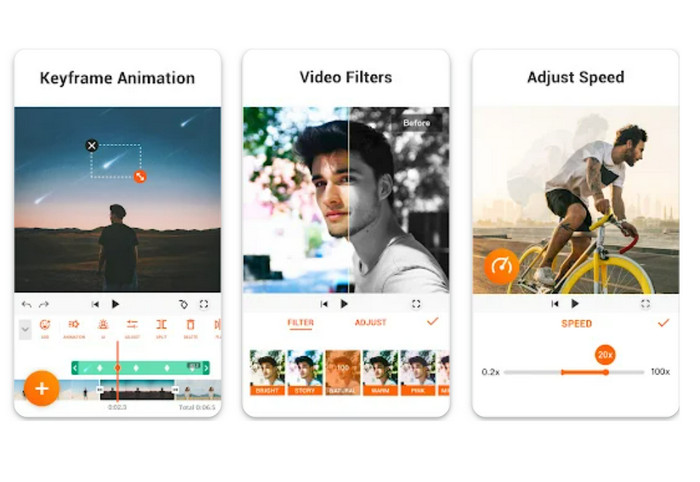
YouCut เป็นแอปตัดต่อวิดีโอยอดนิยม เพราะช่วยให้ผู้ใช้สามารถรวมคลิป เพิ่มไตเติลและเพลงประกอบ ปรับคุณภาพวิดีโอ และทำอย่างอื่นได้อีกมากมาย อินเทอร์เฟซที่ใช้งานง่ายและฟีเจอร์ตัดต่ออันทรงพลังของ YouCut ทำให้ได้รับเสียงชื่นชมอย่างกว้างขวาง ผู้ที่ต้องการสร้างวิดีโอแบบมืออาชีพโดยไม่อยากให้มีลายน้ำของแอปจะต้องชอบ เพราะโปรแกรมนี้ไม่มีวอเตอร์มาร์ก นั่นคือเหตุผลที่มันโดดเด่นและกลายเป็นหนึ่งในแอปรวมวิดีโอสำหรับ Androidแบบฟรีที่ดีที่สุด ลองดูขั้นตอนด้านล่างเพื่อเรียนรู้วิธีรวมวิดีโอ 2 คลิปเพื่อโพสต์ลง TikTok ด้วย YouCut.
ขั้นตอนที่ 1. ก่อนอื่นให้ไปที่ Google Play Store บนมือถือ Android ของคุณ ค้นหาและติดตั้งแอป YouCut - Video Editor & Video Creator.
ขั้นตอนที่ 2. หากต้องการเริ่มรวมวิดีโอ ให้ไปที่เมนูหลักแล้วเลือกตัวเลือก Video Merger.
ขั้นตอนที่ 3. เพิ่มวิดีโอที่คุณต้องการรวมโดยแตะปุ่ม Add คุณสามารถเลือกวิดีโอหลายคลิปพร้อมกันได้.
ขั้นตอนที่ 4. หลังจากนำเข้าคลิปวิดีโอแล้ว ให้จัดเรียงคลิปให้อยู่ในลำดับที่คุณต้องการให้เล่นบนไทม์ไลน์ คุณสามารถเปลี่ยนลำดับวิดีโอได้ง่าย ๆ ด้วยการลากแล้วปล่อย.
ขั้นตอนที่ 5. แตะตัวเลือก Export เพื่อทำการรวมวิดีโอหลังจากที่คุณจัดเรียงและแก้ไขจนเป็นที่พอใจแล้ว.
ส่วนที่ 4 คำถามที่พบบ่อยเกี่ยวกับการรวมวิดีโอโดยใช้ TikTok
ฉันสามารถต่อวิดีโอของตัวเองบน TikTok ได้หรือไม่?
ได้ คุณสามารถต่อวิดีโอของคุณเองบน TikTok ได้ ซึ่งช่วยให้คุณสร้างการต่อเนื่องหรือตอบสนองต่อเนื้อหาวิดีโอของคุณเอง หรือรวมวิดีโอหลายรายการเป็นเรื่องราวหรือลำดับที่สอดคล้องกัน
ฉันสามารถโต้ตอบกับวิดีโอขณะต่อวิดีโอบน TikTok ได้หรือไม่
ไม่ คุณไม่สามารถโต้ตอบกับวิดีโอได้ในขณะที่ต่อวิดีโอบน TikTok การต่อช่วยให้คุณสามารถรวมส่วนของวิดีโอของผู้ใช้รายอื่นเข้ากับวิดีโอของคุณเองได้ แต่ไม่มีคุณลักษณะการตอบสนองในตัวเช่นการดูเอต อย่างไรก็ตาม คุณสามารถเพิ่มเนื้อหาและปฏิกิริยาของคุณเองภายในส่วนวิดีโอที่ต่อเข้าด้วยกันเพื่อให้ความเห็นหรือการตอบสนองของคุณเองต่อวิดีโอต้นฉบับ
ฉันสามารถควบคุมลำดับการตัดต่อวิดีโอบน TikTok ได้หรือไม่?
ใช่ คุณสามารถควบคุมลำดับของวิดีโอที่เย็บต่อบน TikTok ได้ เมื่อคุณต่อวิดีโอ คุณสามารถเลือกตำแหน่งที่จะวางส่วนวิดีโอของคุณให้สัมพันธ์กับวิดีโอต้นฉบับได้ คุณสามารถเพิ่มส่วนวิดีโอของคุณก่อนหรือหลังส่วนที่ต่อเข้าด้วยกัน ทำให้คุณสามารถควบคุมลำดับการเล่นวิดีโอได้
สรุป
เราเข้าใจว่าการ Stitch วิดีโอบน TikTok เป็นวิธีที่สร้างสรรค์และสนุกในการนำส่วนหนึ่งของวิดีโอผู้ใช้อื่นมารวมกับวิดีโอของคุณเอง เพื่อสร้างคอนเทนต์ที่ไม่เหมือนใครและน่าติดตาม เมื่อคุณเรียนรู้วิธีรวมวิดีโอบน TikTokแล้ว คุณก็สามารถร่วมงานกับผู้ใช้คนอื่น ตอบสนองต่อวิดีโอต่าง ๆ เพิ่มปฏิกิริยาของคุณเอง รวมถึงปรับแต่งหน้าตาของวิดีโอ Stitch ให้เป็นสไตล์ของคุณได้อย่างเต็มที่.
-
 3 วิธีที่มีประสิทธิภาพในการเพิ่มวิดีโอและรูปภาพร่วมกันบน Tiktok
 ต้องการทราบวิธีการเพิ่มรูปภาพในวิดีโอ Tiktok หรือไม่? ในกรณีนั้น คลิกและอ่านบทความนี้เพื่อเรียนรู้วิธีเพิ่มรูปภาพในวิดีโอ Tiktok ของคุณอย่างง่ายดาย
-
 วิธีตัดต่อวิดีโอด้วย TikTok [คำแนะนำโดยละเอียด]
 คุณต้องการทราบวิธีย่อวิดีโอด้วย TikTok หรือไม่? แล้วเราจะมีวิธีง่ายๆ นอกจากนี้ คุณจะได้เรียนรู้วิธีการอื่นๆ โดยใช้แอปพลิเคชัน/โปรแกรมออฟไลน์
-
 การครอบตัดทำได้ง่าย: วิธีครอบตัดวิดีโอ TikTok เพื่อการมีส่วนร่วมอย่างเต็มที่
 เรียนรู้วิธีครอบตัดวิดีโอ TikTok ของคุณด้วยบทช่วยสอนง่ายๆ ของเรา! คุณสามารถสร้างวิดีโอที่ดึงดูดสายตาได้มากขึ้นด้วยการแตะและปัดเพียงไม่กี่ครั้ง
