


 Video Converter Ultimate
 บันทึกหน้าจอ
 ซ่อมวิดีโอ
 ดาวน์โหลดอย่างปลอดภัย
บีบอัด MPEG-4 | วิธีทำให้ไฟล์ MPEG-4 มีขนาดเล็กลงโดยไม่สูญเสียคุณภาพ
คุณเคยลองส่งไฟล์ MPEG-4 ขนาดใหญ่ให้คนอื่นหรือไม่? คุณอาจจำเป็นต้องใช้ตัวบีบอัดไฟล์เพื่อลดขนาดไฟล์ หากคุณยังไม่เคยมีประสบการณ์ในการบีบอัดไฟล์ คุณอาจอยากรู้ว่าเครื่องมือบีบอัดวิดีโอตัวไหนเหมาะกับความต้องการของคุณมากที่สุด อ่านต่อเพื่อเรียนรู้เพิ่มเติมเกี่ยวกับวิธีบีบอัดไฟล์ MPEG-4 โดยไม่ทำให้คุณภาพลดลง.

ส่วนที่ 1 วิธีที่ดีที่สุดในการบีบอัดไฟล์ MPEG-4 ออนไลน์ฟรี
สิ่งสำคัญคือต้องทราบว่ามีการ จำกัด ขนาดของไฟล์ MPEG-4 หากไฟล์ของคุณมีขนาดใหญ่เกินไปก็ยากที่จะส่งไฟล์ขนาดใหญ่ทางอีเมลโดยไม่มีการบีบอัด การลดขนาดไฟล์ดังกล่าวให้มีขนาดเล็กที่สุดโดยไม่จำเป็นต้องทำลายคุณภาพจึงมีความสำคัญมากขึ้นในชีวิตประจำวัน โชคดีที่มีเครื่องมือออนไลน์มากมายสำหรับบีบอัดไฟล์วิดีโอรูปแบบต่างๆ
ที่นี่เราขอแนะนำ Free Video Compressor เพื่อช่วยคุณลดขนาดไฟล์ MPEG-4 ขนาดใหญ่โดยไม่ทำลายคุณภาพ ถือได้ว่าเป็นวิธีที่ง่ายและรวดเร็วที่สุดในการบีบอัดไฟล์ MPEG-4 ในปัจจุบัน เครื่องมือออนไลน์นี้ทำงานได้อย่างสมบูรณ์แบบกับทุกไฟล์ MPEG-4 ผู้ใช้ยังสามารถบันทึกไฟล์ที่บีบอัดแล้วเป็นรูปแบบไฟล์ใดก็ได้ รวมถึง MOV, AVI, VOB และอื่น ๆ ต่อไปนี้คือ 4 ขั้นตอนง่าย ๆ ในการใช้งานตัวบีบอัดวิดีโอความเร็วสูงตัวนี้.
ขั้นตอนที่ 1. ไปที่เว็บไซต์ตัวบีบอัดวิดีโอออนไลน์
ลิงก์ด้านล่างนี้จะพาคุณไปยังสถานที่ที่เหมาะสม:
ไปที่เว็บไซต์ตัวบีบอัดวิดีโอออนไลน์
ขั้นตอนที่ 2. อัปโหลดไฟล์ของคุณ
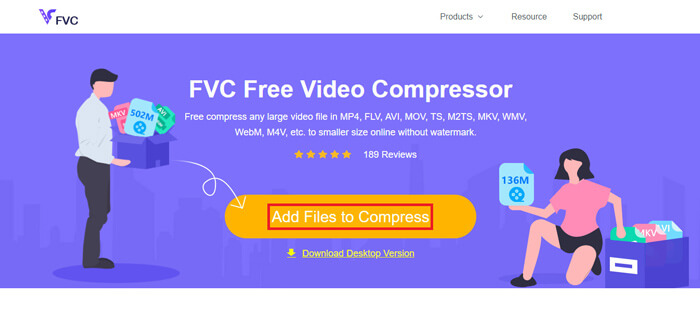
คลิกปุ่ม Add Files to Compress หากคุณใช้เครื่องมือนี้เป็นครั้งแรก คุณจำเป็นต้องติดตั้งตัวเรียกใช้งาน (launcher) ก่อน หลังจากนั้นให้หาไฟล์วิดีโอ MPEG-4 ของคุณแล้วกด Open ในหน้าต่างที่ปรากฏขึ้น.
ขั้นตอนที่ 3. กำหนดคุณสมบัติการบีบอัด
ตอนนี้คุณต้องกำหนดการตั้งค่าการบีบอัดเช่นขนาดรูปแบบความละเอียดและบิตเรต ตัวอย่างเช่นคุณสามารถลดความละเอียดของไฟล์ MPEG-4 เพื่อทำให้ไฟล์มีขนาดเล็กลง
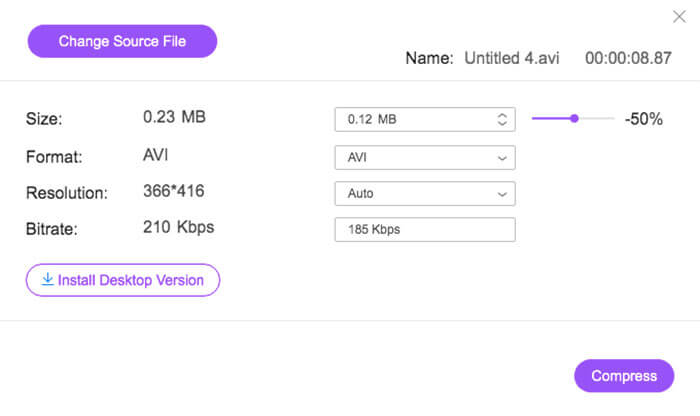
ขั้นตอนที่ 4. สุดท้ายให้กด Compress เพื่อเริ่มกระบวนการบีบอัด เมื่อดำเนินการเสร็จแล้ว ไฟล์ที่ถูกลดขนาดจะถูกดาวน์โหลดมายังคอมพิวเตอร์ของคุณโดยอัตโนมัติ โดยไม่มีลายน้ำ.
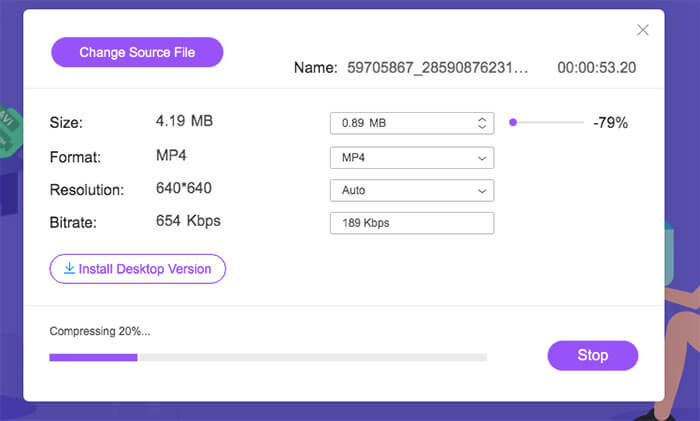
นอกจากการบีบอัดไฟล์ MPEG-4 แล้ว เครื่องมือนี้ยังช่วยให้คุณบีบอัดไฟล์ MXF, ทำให้ไฟล์ WebM มีขนาดเล็กลง และลดขนาดไฟล์วิดีโอรูปแบบอื่น ๆ ที่ใช้กันทั่วไปได้อย่างง่ายดาย.
ตอนที่ 2. วิธีการลดขนาดไฟล์ MPEG-4 ด้วย MP4Compress
คุณยังสามารถตรวจสอบ MP4Compress ซึ่งเป็นเครื่องมือที่ง่ายและมีประสิทธิภาพสำหรับการบีบอัดไฟล์ MPEG-4 MP4Compress เป็นเครื่องมือออนไลน์ฟรีที่ให้คุณบีบอัดไฟล์ MPEG-4 โดยตรงจากเว็บเบราว์เซอร์ของคุณ
ขั้นตอนที่ 1. เข้าเยี่ยมชมเว็บไซต์อย่างเป็นทางการโดยพิมพ์ https://www.mp4compress.com.
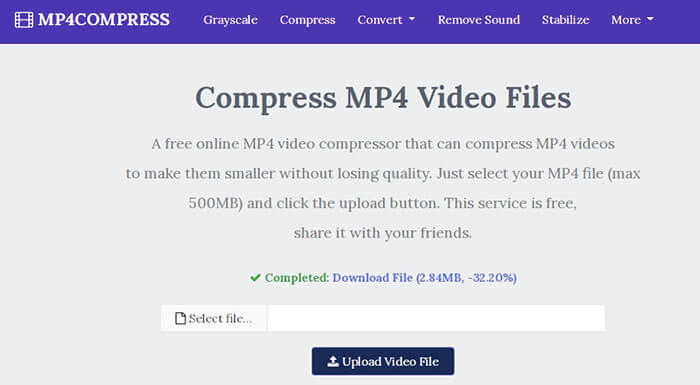
คลิกปุ่ม Select File... เพื่อเลือกไฟล์ MPEG-4 จากนั้นคลิก Upload Video File เพื่อเริ่มอัปโหลดไฟล์.
ขั้นตอนที่ 2. เมื่ออัปโหลดไฟล์สำเร็จแล้ว เครื่องมือนี้จะทำการบีบอัดไฟล์ สำหรับความเร็วในการบีบอัดนั้นจะขึ้นอยู่กับแบนด์วิดท์อินเทอร์เน็ตของคุณ.
ขั้นตอนที่ 3. เมื่อการบีบอัดเสร็จสิ้น คุณจะเห็นลิงก์ Download File จากนั้นคุณก็สามารถบันทึกไฟล์ที่ลดขนาดแล้วลงในคอมพิวเตอร์ของคุณได้.
ส่วนที่ 3 คำถามที่พบบ่อยเกี่ยวกับการบีบอัดไฟล์ MPEG-4
ไฟล์ MPEG-4 คืออะไร?
MPEG-4 เป็นรูปแบบคอนเทนเนอร์สื่อดิจิทัลที่กำหนดโดย Moving Picture Experts Group (MPEG) รองรับตัวแปลงสัญญาณวิดีโอและเสียงหลายประเภทและอาจมีวัตถุ 3 มิติสไปรต์ข้อความและสื่อประเภทอื่น ๆ ด้วยการพัฒนา MPEG-4 จะแบ่งออกเป็นหลายส่วน (แต่ละส่วนครอบคลุมลักษณะเฉพาะของข้อกำหนดทั้งหมด) รวมถึง MPEG-4 ส่วนที่ 2 (เช่นตัวแปลงสัญญาณวิดีโอ XviD), MPEG-4 ส่วนที่ 3 (เช่นตัวแปลงสัญญาณเสียง AAC) , MPEG-4 part 10 (ตัวแปลงสัญญาณวิดีโอ H.264), MPEG-4 part 14 (คอนเทนเนอร์สื่อ MP4) และอื่น ๆ
คอมเพรสเซอร์วิดีโอคืออะไร?
โปรแกรมบีบอัดวิดีโอเป็นเครื่องมือที่ช่วยให้คุณย่อขนาดไฟล์วิดีโอของคุณ อัตราการบีบอัดขึ้นอยู่กับตัวแปลงสัญญาณวิดีโอและบิตเรต เนื่องจากรูปแบบวิดีโอที่แตกต่างกันอาจใช้ตัวแปลงสัญญาณที่แตกต่างกันคุณสามารถเลือกที่จะเปลี่ยนรูปแบบไฟล์เพื่อลดขนาดไฟล์ได้
วิธีบีบอัดไฟล์ MPEG-4 บน Mac
บริการออนไลน์ที่อธิบายข้างต้นทำงานบนระบบปฏิบัติการใดก็ได้ดังนั้นคุณสามารถใช้บริการใดก็ได้เพื่อลดขนาดไฟล์ MPEG-4 บน Mac ของคุณ
สรุป
บทความนี้กล่าวถึงเครื่องมือออนไลน์ที่มีประสิทธิภาพหลักสองอย่างที่จะช่วยให้คุณทำการบีบอัด MPEG-4 ได้สำเร็จ ตอนนี้คุณรู้วิธีบีบอัดไฟล์ MPEG-4 ให้มีขนาดเล็กลงทางออนไลน์ฟรี ไปทดสอบเครื่องมือเพื่อค้นหาสิ่งที่เหมาะกับความต้องการของคุณมากที่สุด
-
 วิธีบีบอัดไฟล์วิดีโอ AVCHD ฟรีบน Windows และ Mac
 อ่านและรับ 2 วิธีง่ายๆในการบีบอัดไฟล์วิดีโอ AVCHD คุณสามารถใช้โปรแกรมบีบอัดวิดีโอออนไลน์และออฟไลน์เพื่อลดขนาดวิดีโอ AVCHD ได้ฟรีบนคอมพิวเตอร์ของคุณ
-
 2 วิธีด่วนในการลดขนาดไฟล์ OGV ขนาดใหญ่ [ฟรีและออนไลน์]
 ไม่สามารถส่งไฟล์ OGV ขนาดใหญ่ให้ผู้อื่นได้หรือไม่? บทความนี้จะแนะนำวิธีง่ายๆ 2 วิธีที่จะช่วยให้คุณบีบอัดไฟล์ OGV ได้อย่างง่ายดาย
-
 100% วิธีฟรีในการบีบอัดขนาดไฟล์ M4V จาก GB เป็น MB
 หากคุณกำลังค้นหาวิธีง่ายๆในการลดขนาดไฟล์ M4V ของคุณคุณควรเข้ามาอ่านบทความนี้ เราจะแบ่งปันวิธีที่ง่ายที่สุดในการบีบอัดไฟล์ M4V กับคุณ
