


 Video Converter Ultimate
 บันทึกหน้าจอ
 ซ่อมวิดีโอ
4 วิธีในการแก้ไขหรือแก้ไขข้อมูลเมตา MP3 บน Windows & Mac
ทุกคนคือ Musicphile ซึ่งหมายความว่าเรารักเสียงเพลงเพราะช่วยให้เรารู้สึกถึงอารมณ์ของนักร้องและนักเขียนแม้ว่าเราจะไม่เห็นพวกเขาด้วยสายตาก็ตาม ทุกคนสามารถเชื่อมต่อกันได้ผ่านเสียงเพลง และสามารถช่วยเราคลายความเครียด พัฒนาไอคิวของเรา และทำงานอย่างมีประสิทธิผลได้ทุกวัน เพลงส่วนใหญ่อยู่ในรูปแบบ MP3 เพราะเป็นคอนเทนเนอร์เสียงมาตรฐานสำหรับมัน แม้ว่าคุณจะสามารถเล่น MP3 บนอุปกรณ์ของคุณได้ แต่คุณจะไม่สามารถเล่นการจัดเรียงที่เหมาะสมได้อย่างถูกต้องหากข้อมูลเมตาไม่ถูกต้อง คุณไม่สามารถกำหนดอารมณ์ที่เหมาะสมได้หากคลังเพลงของคุณยุ่งเหยิง คุณจะทำอย่างไร? ทำไมคุณไม่ลองแก้ไขแท็กเพื่อจัดเรียงให้ถูกต้องล่ะ ถ้าคุณต้องการทราบวิธีการแก้ไขข้อมูลเมตา MP3 บน Windows และ Mac บทความนี้เป็นบทความที่เหมาะสำหรับคุณ เนื่องจากเราแสดงวิธีต่างๆ สี่วิธีที่คุณสามารถใช้ได้

ส่วนที่ 1 วิธีที่ดีที่สุดในการแก้ไขหรือแก้ไขข้อมูลเมตา MP3 บน Windows และ macOS [แนะนำ]
FVC Video Converter Ultimate ได้ก้าวไปอีกขั้นสู่การเป็นหนึ่งในโปรแกรมที่ดีที่สุดสำหรับการแก้ไขแท็ก MP3 บน Windows และ Mac เครื่องมือนี้รองรับการอัปโหลดไฟล์เสียงหลายรูปแบบ เช่น MP3, WAV, WMA, AAC และอีกมากมาย เพื่อแก้ปัญหาเมทาดาทาแบบเดียวกัน นอกจากนี้ยังสามารถลบเมทาดาทาที่ซ่อนอยู่ซึ่งโปรแกรมแก้ไขแท็กตัวอื่นไม่สามารถเข้าถึงได้อีกด้วย.
ไม่เพียงเท่านั้น ยังสามารถแปลงไฟล์ MP3 เป็นรูปแบบเสียงอื่นได้หากต้องการ และยังมีฟังก์ชันและคุณสมบัติมากมายที่อยู่ภายใน Toolbox คุณสามารถตรวจสอบได้หากคุณดาวน์โหลด คุณสามารถให้โปรแกรมนี้แก้ไขปัญหาโดยเร็วที่สุดภายในเวลาไม่กี่นาที ไม่แน่ใจว่าจริงหรือเปล่า โชคดีที่บทช่วยสอนที่เขียนไว้ด้านล่างนี้จะสอนวิธีแก้ไขข้อมูลเมตาของ MP3 เพื่อพิสูจน์ว่าคุณทำได้รวดเร็วดังที่เรากล่าวไว้
ขั้นตอนที่ 1 คลิกปุ่มดาวน์โหลดด้านล่าง จากนั้นเลือกระบบปฏิบัติการทั้งสองแบบที่คุณกำลังใช้งานอยู่ ดาวน์โหลดเสร็จแล้วให้ติดตั้งอย่างรวดเร็ว เปิดโปรแกรมขึ้นมาแล้วไปยังขั้นตอนถัดไป.
ดาวน์โหลดฟรีสำหรับ Windows 7 หรือใหม่กว่าดาวน์โหลดอย่างปลอดภัย
ดาวน์โหลดฟรีสำหรับ MacOS 10.7 หรือใหม่กว่าดาวน์โหลดอย่างปลอดภัย
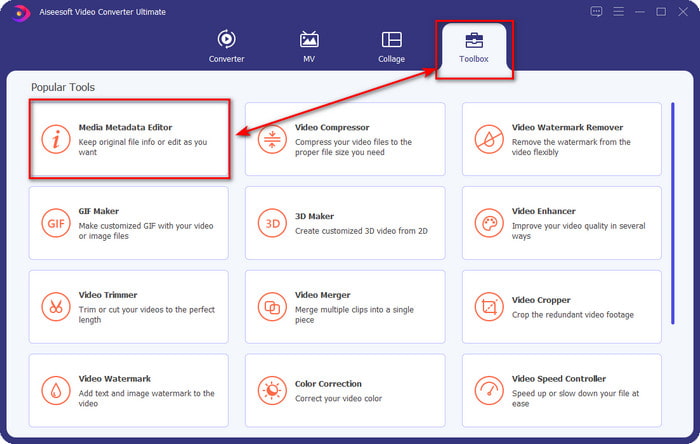
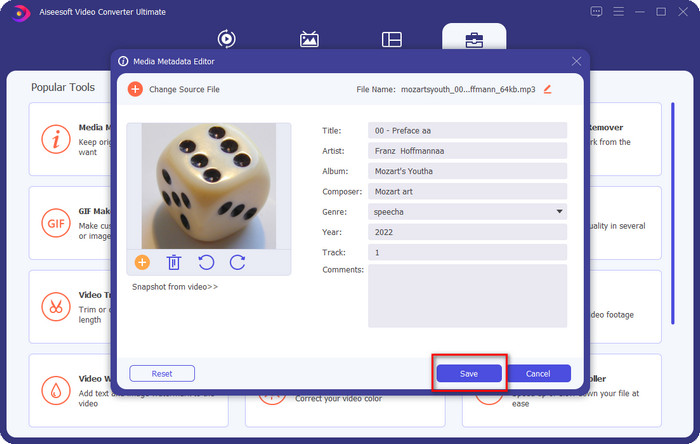
ขั้นตอนที่ 2 เลือกเมนู กล่องเครื่องมือ (Toolbox) และภายใต้เมนูนี้ให้คลิก ตัวแก้ไขเมทาดาทาสื่อ (Media Metadata Editor) อย่างที่ได้กล่าวไว้ในบทนำ ภายในกล่องเครื่องมือมีฟังก์ชันมากมายให้ใช้งาน ซึ่งโปรแกรมแก้ไขตัวอื่นไม่มีให้.
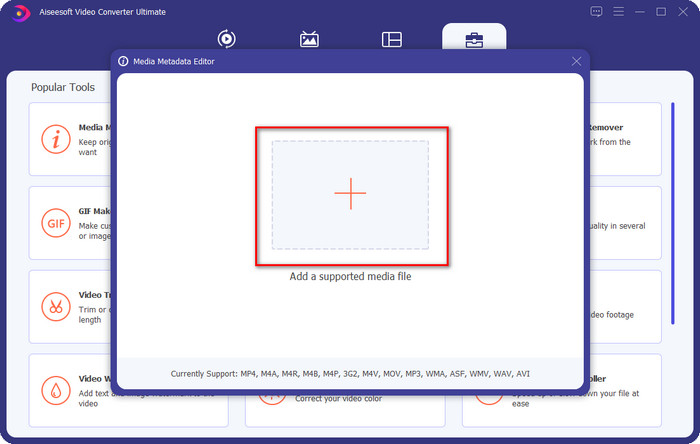
ขั้นตอนที่ 3 จะมีหน้าต่างขนาดเล็กแสดงขึ้นมาบนหน้าจอ ให้คลิกไอคอน + จากนั้นค้นหาไฟล์เสียงหรือไฟล์ MP3 ในโฟลเดอร์ที่ปรากฏบนจอ เลือกไฟล์แล้วกด Open เพื่ออัปโหลด.
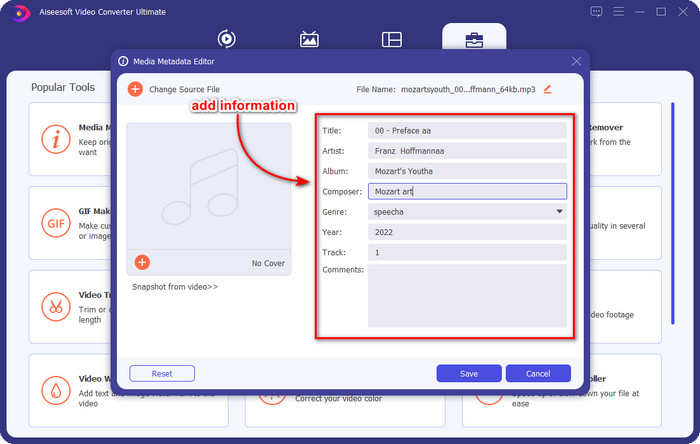
ขั้นตอนที่ 4 แก้ไขและปรับเมทาดาทาตามที่คุณต้องการ ให้คลิกแต่ละกล่องข้อความเพื่อเพิ่มข้อมูล.
ตัวเลือกเสริม ด้วยโปรแกรมนี้ คุณยังสามารถเพิ่มหรือแก้ไขเมทาดาทาปกอัลบั้มของไฟล์ MP3 ได้ โดยคลิกไอคอน + เลือกรูปภาพที่คุณต้องการใช้เป็นปกจากโฟลเดอร์ แล้วคลิก Open เพื่อดำเนินการต่อ.
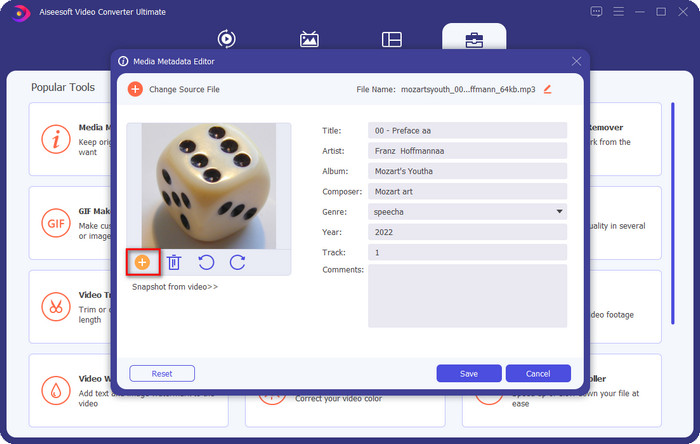
ขั้นตอนที่ 5 เมื่อคุณเพิ่มและแก้ไขเมทาดาทาของไฟล์ MP3 เสร็จแล้ว ให้กดปุ่ม Save เพื่อบันทึกการเปลี่ยนแปลงบนไฟล์เสียงของคุณ เพียงเท่านี้คุณก็แก้ไขแท็กเสียงได้อย่างง่ายดายด้วยความช่วยเหลือจากเครื่องมือขั้นสูงสุดนี้.
ส่วนที่ 2 3 วิธีฟรีในการเปลี่ยนแท็ก MP3 บนเดสก์ท็อป
iTunes
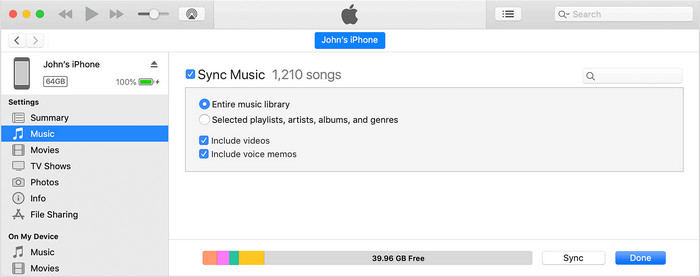
iTunes เป็นโปรแกรมที่ติดมากับระบบซึ่งช่วยให้คุณแก้ไขแท็ก MP3 บน macOS X ได้ ทำงานลักษณะเดียวกับ Groove Music ในการแก้ไขเมทาดาทาของไฟล์เสียง แต่ด้วยโปรแกรมนี้ คุณสามารถซื้อเพลงและเล่นเพลงได้อย่างรวดเร็ว นอกจากนี้เพลงที่มาจากแอปนี้มักจะมีแท็กติดมาด้วยอยู่แล้ว หากเพลงที่คุณดาวน์โหลดมาไม่มีแท็ก คุณก็สามารถใช้โปรแกรมนี้เพิ่มแท็กได้เช่นกัน ทำตามขั้นตอนด้านล่างเพื่อเรียนรู้วิธีใช้งาน.
ขั้นตอนที่ 1 เปิด iTunes บน Mac ของคุณ.
ขั้นตอนที่ 2 คลิกไฟล์เสียงแล้วเลือก Get Info.
ขั้นตอนที่ 3 แก้ไขแท็กตามต้องการแล้วคลิก OK เพื่อบันทึกการเปลี่ยนแปลง.
MP3Tag
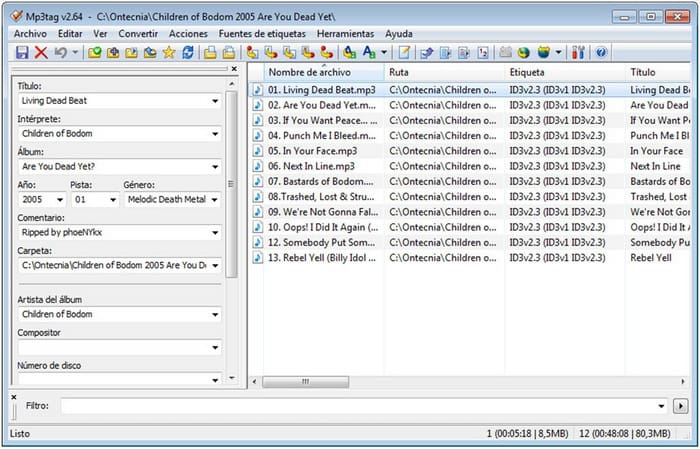
MP3 Tag เป็นโปรแกรมเฉพาะทางและถือเป็นตัวแก้ไขแท็ก MP3 ที่ยอดเยี่ยมซึ่งคุณสามารถดาวน์โหลดมาใช้บน Windows ได้ ด้วยโปรแกรมนี้ คุณสามารถเข้าถึงฐานข้อมูลเพลงแบบอัตโนมัติเพื่อให้ได้เมทาดาทาที่ถูกต้อง แม้ว่าโปรแกรมนี้จะไม่เหมือนซอฟต์แวร์ที่ติดมากับระบบตัวอื่น ๆ แต่เรายังสามารถเห็นได้ว่ายังสามารถปรับแก้เมทาดาทาได้ โดยรองรับรูปแบบไฟล์มาตรฐานทั่วไป หากคุณต้องการดาวน์โหลดและใช้โปรแกรมนี้ โปรดทำตามขั้นตอนด้านล่าง.
ขั้นตอนที่ 1 ดาวน์โหลดซอฟต์แวร์ลงในคอมพิวเตอร์ของคุณแล้วเปิดใช้งาน.
ขั้นตอนที่ 2 ลากและวางไฟล์ MP3 ไว้ตรงกลางหน้าต่าง จากนั้นคลิกที่ไฟล์เสียง แล้วคุณจะสามารถแก้ไขแท็กได้ทางด้านซ้ายมือ.
ขั้นตอนที่ 3 เพื่อบันทึกการแก้ไขที่คุณทำไว้ ให้คลิกไอคอน บันทึก (save).
กรูฟ มิวสิค
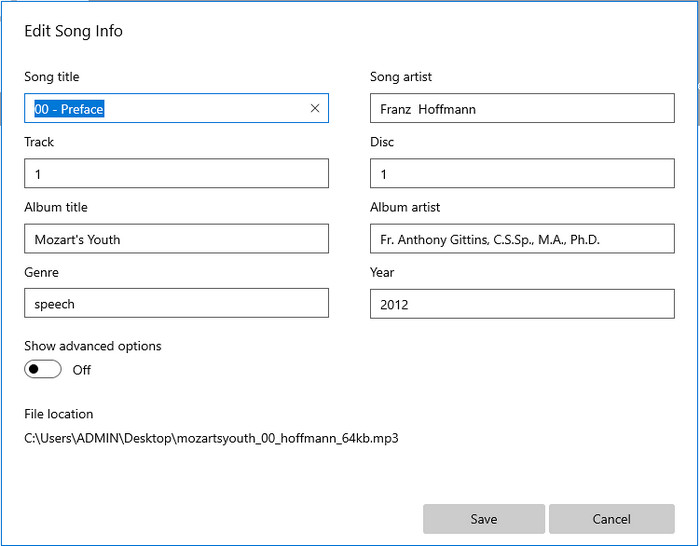
หากคุณมีพื้นที่ว่างในไดรฟ์ไม่มาก ยังเป็นไปได้หรือไม่ที่จะเรียนรู้วิธีแก้ไขแท็ก MP3 บน Windows 10? คำตอบคือเป็นไปได้ โดยใช้ Groove Music ซึ่งพร้อมช่วยผู้ใช้ Windows แก้ไขแท็กบนไฟล์เสียงของตน ด้วยโปรแกรมนี้ คุณสามารถเล่นไฟล์เสียงเกือบทุกประเภทที่บันทึกไว้ในไดรฟ์ได้อย่างสะดวก หากต้องการเรียนรู้วิธีใช้แอปที่ติดมากับระบบนี้ ให้ทำตามขั้นตอนด้านล่าง.
ขั้นตอนที่ 1 คลิกไอคอน windows บนหน้าจอและพิมพ์ Groove Music เพื่อเปิด หลังจากคลิกแล้ว โปรแกรมจะทำการตั้งค่าเริ่มต้นให้อัตโนมัติ.
ขั้นตอนที่ 2 คลิกขวาที่ไฟล์เสียงแล้วไปที่ Edit Info.
ขั้นตอนที่ 3 เปลี่ยนข้อมูลเมทาดาทาใน Edit Song Info แล้วคลิก Save เมื่อแก้ไขเสร็จเรียบร้อย.
ส่วนที่ 3 คำถามที่พบบ่อยเกี่ยวกับการแก้ไขข้อมูลเมตาใน MP3
แก้ไขข้อมูลเมตา MP3 ออนไลน์ได้อย่างปลอดภัยหรือไม่
ใช่ คุณสามารถแก้ไขข้อมูลเมตาใน MP3 ออนไลน์ได้หากต้องการ แต่จำไว้ว่ามีเว็บไซต์ที่มีเครือข่ายที่ไม่ปลอดภัย ดังนั้นการลงชื่อเข้าใช้จึงเป็นการตัดสินใจที่ไม่ถูกต้อง ดังนั้น เพื่อหลีกเลี่ยงปัญหานี้ คุณต้องใช้เครื่องมือที่เรานำเสนอด้านบนเพื่อแก้ไขข้อมูลเมตา mp3 ของคุณอย่างปลอดภัย
ข้อมูลเมตามีความสำคัญหรือไม่
แน่นอนว่าใช่ เมทาดาทามีบทบาทสำคัญอย่างมากในไฟล์มีเดียทุกไฟล์ที่เราใช้งาน ด้วยเมทาดาทาเราสามารถระบุได้ง่ายว่าในไฟล์นั้นมีอะไรอยู่บ้าง เช่น ตำแหน่ง เวลา วันที่ ข้อมูลประกอบ และอื่น ๆ อีกมากมาย ข้อมูลที่เราใส่ไว้ในบทความนี้เป็นเพียงแนวคิดพื้นฐานเกี่ยวกับเมทาดาทาเท่านั้น หากคุณต้องการรู้เพิ่มเติมเกี่ยวกับเมทาดาทา โปรดคลิกลิงก์นี้และอ่านบทความ เมทาดาทาคืออะไร.
ฉันสามารถดูข้อมูลเมตาใน MP3 ของฉันได้หรือไม่
แน่นอนว่าคุณสามารถทำได้ และหากคุณยังไม่รู้ว่าจะดูเมทาดาทาอย่างไร คุณสามารถอ่านบทความนี้และทำตามขั้นตอนที่ระบุไว้เพื่อดูเมทาดาทาได้อย่างถูกต้อง.
สรุป
โปรแกรมแก้ไขแท็ก .mp3 ที่ดีที่สุดทั้งสี่ตัวอยู่ใกล้มือคุณแล้ว หมายความว่าคุณสามารถเลือกใช้เครื่องมือใดก็ได้ตามความต้องการ ด้วยข้อมูลเชิงข้อเท็จจริงที่เราให้ไว้ในบทความนี้ ทำให้เราสามารถแก้ไขหรือปรับแท็กในไฟล์ MP3 ได้อย่างง่ายดาย แม้ว่าวิธีการที่เรานำเสนอจะดีเยี่ยมทั้งหมด แต่เรายังคงเลือกใช้ FVC Video Converter Ultimate เหนือกว่าโปรแกรมที่ติดมากับระบบหรือแอปของบุคคลที่สามตัวอื่น ๆ เนื่องจากโปรแกรมนี้มีฟังก์ชันแก้ไขแท็กที่ล้ำสมัยและทรงพลังที่สุดที่คุณต้องการ โดยไม่ต้องออกแรงมาก ดังนั้นหากคุณต้องการใช้โปรแกรมนี้ เพียงคลิกปุ่มดาวน์โหลดและทำตามขั้นตอนที่เราเขียนไว้ด้านบน.
-
 5 ตัวแก้ไขข้อมูลเมตา MP4 อันดับต้น ๆ [อัปเดต 2022]
 ฉันจะเปลี่ยนข้อมูลเมตา MP4 ได้อย่างไร วิธีที่ดีที่สุดในการเปลี่ยนข้อมูลเมตาของ MP4 คือการใช้ตัวแก้ไขแท็กที่รองรับรูปแบบ MP4 เช่นตัวอย่างที่เราแสดงรายการด้านล่าง
-
 เครื่องมือแก้ไขแท็กวิดีโอ AVI ยอดนิยม 5 อันดับแรกสำหรับปี 2022
 ตัวแก้ไขแท็ก AVI ที่ดีที่สุดที่ฉันสามารถใช้ได้คืออะไร ตลาดเครื่องมือแก้ไขแท็กสำหรับไฟล์ AVI นั้นกว้างเกินไป ดังนั้นวันนี้เราจะนำเสนอห้าบรรณาธิการที่ได้รับการคัดเลือกมากที่สุดในปี 2565
-
 4 ตัวแก้ไขข้อมูลเมตา MKV ที่มีประสิทธิภาพสำหรับ Windows & macOS
 ฉันไม่พบโปรแกรมแก้ไขข้อมูลเมตา MKV ในตลาด ฉันควรใช้อะไร มีปัญหาเดียวกัน? ถ้าใช่ โปรดอ่านบล็อกนี้ต่อไปเพื่อทราบเครื่องมือที่จะใช้
