


 Video Converter Ultimate
 บันทึกหน้าจอ
 ซ่อมวิดีโอ
เรียนรู้วิธีแก้ไขข้อมูลเมตา OGG อย่างง่ายดายด้วยขั้นตอนโดยละเอียด
ด้วยแท็กในไฟล์ OGG อุปกรณ์ที่คุณใช้อยู่สามารถเข้าใจสิ่งที่อยู่ในไฟล์ได้ เมื่อแนบข้อมูลเมตาแล้ว จะช่วยให้คุณจัดเรียงข้อมูลได้อย่างถูกต้องโดยกำหนดแท็กเพื่อค้นหาอย่างรวดเร็ว ดังนั้น หากไฟล์ OGG ของคุณไม่มีข้อมูลเมตา จำเป็นต้องเพิ่มเข้าไป แม้ว่าการค้นหาเครื่องมือแก้ไขแท็กสำหรับ OGG นั้นเป็นเรื่องง่าย แต่เราไม่แน่ใจว่าจะใช้งานได้อย่างปลอดภัยหรือไม่ แทนที่จะลองใช้และล้มเหลว เราจะทำการแก้ไขปัญหาตามเครื่องมือสำหรับคุณ ดังนั้น โปรดอ่านโพสต์นี้ต่อไปเพื่อทราบวิธีแก้ไขข้อมูลเมตา OGG ด้วยตนเองด้วยการรับประกันความสำเร็จ 100%

ส่วนที่ 1 แก้ไขข้อมูลเมตา OGG โดยไม่ต้องดาวน์โหลดโปรแกรมภายนอกบน Windows
บน Windows คุณสามารถแก้ไขข้อมูลเมทาดาทาของไฟล์ OGG ได้อย่างง่ายดายโดยไม่ต้องดาวน์โหลดเครื่องมือใด ๆ เพียงใช้เมนู Properties อย่างไรก็ตาม วิธีนี้อาจไม่ทรงพลังเท่าเครื่องมือเฉพาะทางที่แนะนำด้านล่าง แต่ก็ยังสามารถทำงานนี้ได้ ดังนั้น หากคุณต้องการทราบวิธีใช้ตัวแก้ไขเมทาดาทานี้ คุณสามารถทำตามขั้นตอนด้านล่างได้เลย.
ข้อดีของการใช้คุณสมบัติบน Windows:
◆ การดาวน์โหลดไม่จำเป็นต้องใช้เมื่อใดก็ได้ และคุณไม่มีอินเทอร์เน็ต
◆ ใช้งานง่ายและสามารถใช้ได้โดยผู้ใช้ที่ต้องการแก้ไขข้อมูลเมตา
◆ รองรับ OGG, MP3, WAV, WMA และรูปแบบอื่น ๆ อีกมากมาย
วิธีแก้ไขแท็ก OGG อย่างง่ายดายด้วยคุณสมบัติบน Windows:
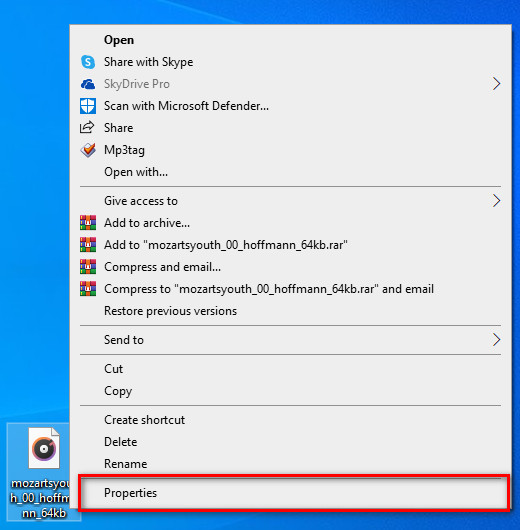
ขั้นตอนที่ 1. หาไฟล์ OGG บนเดสก์ท็อปของคุณ แล้วคลิกขวาที่ไฟล์ จากนั้นกด Properties.
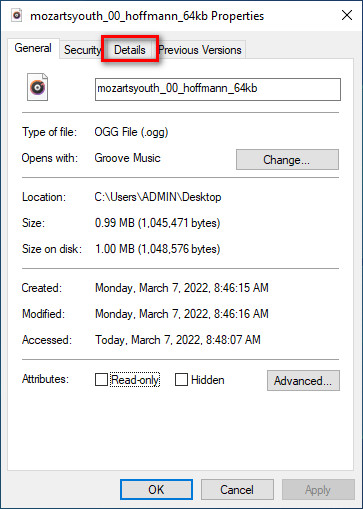
ขั้นตอนที่ 2. หลังจากที่คุณคลิก Properties แล้ว แผงหน้าต่างจะปรากฏขึ้นบนหน้าจอ ไปที่แท็บ Details จากนั้นแตะแท็กแต่ละรายการแล้วกรอกข้อมูลลงไป.
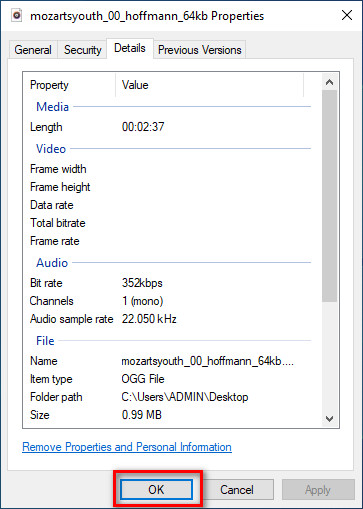
ขั้นตอนที่ 3. กด OK เพื่อบันทึกการเปลี่ยนแปลงที่คุณทำผ่าน Properties.
เคล็ดลับ: บางครั้งฟังก์ชันนี้ไม่บันทึกข้อมูลเมตาที่คุณเพิ่มลงในไฟล์ OGG ดังนั้น ถ้าเกิดเหตุการณ์นี้ คุณจะต้องทำซ้ำอีกครั้งและเริ่มต้นจากจุดเริ่มต้น
ส่วนที่ 2 ตัวแก้ไขแท็ก OGG ที่แนะนำมากที่สุดในการแก้ไขข้อมูลเมตา OGG บน Windows & Mac [อย่างมืออาชีพ]
วิธีที่ดีที่สุดในการแก้ไขไฟล์ OGG คือการใช้ตัวแก้ไขแท็กที่ทรงพลังแต่เรียบง่ายบน Windows และ Mac อย่าง FVC Video Converter Ultimate ด้วยเครื่องมือนี้ คุณสามารถเปลี่ยนแปลงเมทาดาทาของ OGG ได้เองภายในไม่กี่คลิก ไม่เหมือนกับการใช้ Properties ที่คุณอาจเจอปัญหาในการแก้ไขหรือซ่อมแซมแท็กของไฟล์มีเดีย แต่สำหรับเครื่องมือนี้ คุณจำเป็นต้องดาวน์โหลดและซื้อเวอร์ชันเต็มเพื่อเข้าถึงฟีเจอร์อันยอดเยี่ยมที่หาไม่ได้จากเครื่องมืออื่น.
นอกจากความสามารถในการแก้ไขข้อมูลเมตาแล้ว เครื่องมือนี้ยังให้คุณแปลงไฟล์ OGG ของคุณให้อยู่ในรูปแบบเสียงใหม่ในขณะที่ยังคงเสียงคุณภาพสูงที่จัดเก็บไว้ในไฟล์ OGG ของคุณ คุณยังสามารถทำการแก้ไขขั้นพื้นฐานในวิดีโอและเสียงของคุณได้หากต้องการ เช่น การตัด การตัดแต่ง การรวม การครอบตัด และอื่นๆ อีกมากมาย แต่ยังสามารถดำเนินการแก้ไขขั้นสูงได้อีกด้วย คุณสามารถตรวจสอบการแก้ไขขั้นสูงบนกล่องเครื่องมือ บางทีคุณอาจคิดว่าสิ่งที่ดีที่สุดเกี่ยวกับเครื่องมือนี้ มันเป็นไปตามความคาดหวังของทุกคน และชื่อ ultimate ไม่ใช่แค่ชื่อเท่านั้น แต่ยังเป็นความสามารถของเครื่องมือด้วย ดังนั้น หากคุณต้องการใช้เครื่องมือเพื่อแก้ไขข้อมูลเมตาของ OGG คุณสามารถคัดลอกขั้นตอนด้านล่างเพื่อให้สำเร็จได้เพียงปลายนิ้วสัมผัส
ข้อดีของการใช้ FVC Video Converter Ultimate [แนะนำ]:
◆ เป็นโปรแกรมแก้ไขแท็กระดับมืออาชีพที่สามารถจัดการข้อมูลเมตาของไฟล์เสียงของคุณได้อย่างง่ายดาย แม้ว่าคุณจะไม่ใช่มืออาชีพก็ตาม
◆ รองรับรูปแบบการอัปโหลดที่หลากหลาย เช่น OGG, MP3, WAV, WMA, AIFF และอีกมากมาย รวมถึงรูปแบบวิดีโอ
◆ เป็นตัวเลือกที่ดีที่สุดสำหรับผู้เริ่มต้นในการแก้ไขข้อมูลเมตา ความละเอียด คุณภาพ การตัด ฯลฯ
◆ สามารถดาวน์โหลดซอฟต์แวร์ได้ทั้งบนระบบ Windows และ Mac หากคุณทำได้
◆ ฟังก์ชันและคุณสมบัติเพิ่มเติมมีอยู่ใน Toolbox เพื่อช่วยคุณทำงานต่างๆ ที่เกี่ยวข้องกับวิดีโอและเสียง
วิธีแก้ไขแท็ก OGG อย่างมืออาชีพด้วย FVC Video Converter Ultimate:
ขั้นตอนที่ 1. กดปุ่มดาวน์โหลดด้านล่าง จากนั้นเลือกระบบปฏิบัติการที่คุณใช้งานอยู่ เมื่อติดตั้งไฟล์ดาวน์โหลดเสร็จแล้ว ให้คลิกไฟล์ซอฟต์แวร์ที่คุณดาวน์โหลดมาเพื่อติดตั้งลงในไดรฟ์ของคุณ ตั้งค่าตามที่คุณต้องการ และสุดท้ายคลิก Start Now เพื่อเปิดใช้งานเครื่องมือ.
ดาวน์โหลดฟรีสำหรับ Windows 7 หรือใหม่กว่าดาวน์โหลดอย่างปลอดภัย
ดาวน์โหลดฟรีสำหรับ MacOS 10.7 หรือใหม่กว่าดาวน์โหลดอย่างปลอดภัย
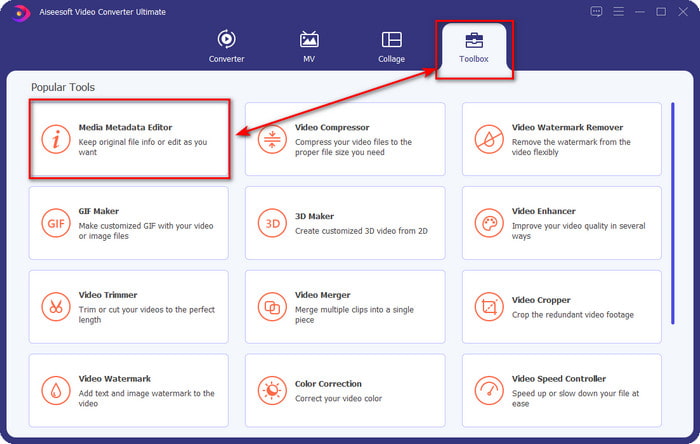
ขั้นตอนที่ 2. หลังจากเปิดซอฟต์แวร์บนเดสก์ท็อปแล้ว ให้ไปที่เมนู Toolbox แล้วหา Media Metadata Editor จากนั้นกดที่ฟีเจอร์นี้เพื่อดำเนินการต่อ.
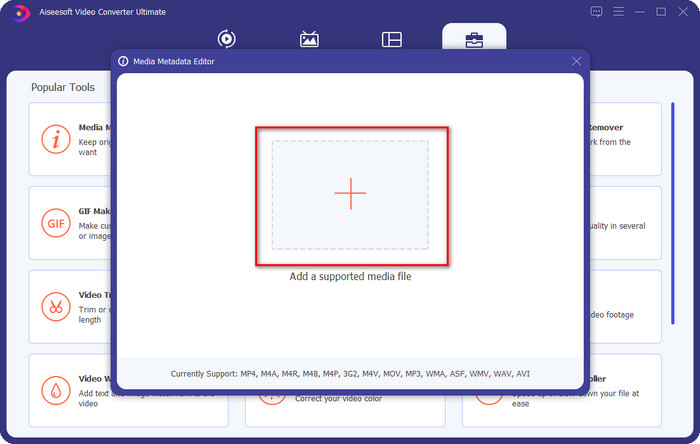
ขั้นตอนที่ 3. คลิกไอคอน + เพื่อค้นหาไฟล์ OGG ที่บันทึกไว้ในไดรฟ์เดสก์ท็อปของคุณ เลือกไฟล์นามสกุล .ogg แล้วคลิก Open เพื่ออัปโหลดไฟล์เข้าสู่เครื่องมือ.
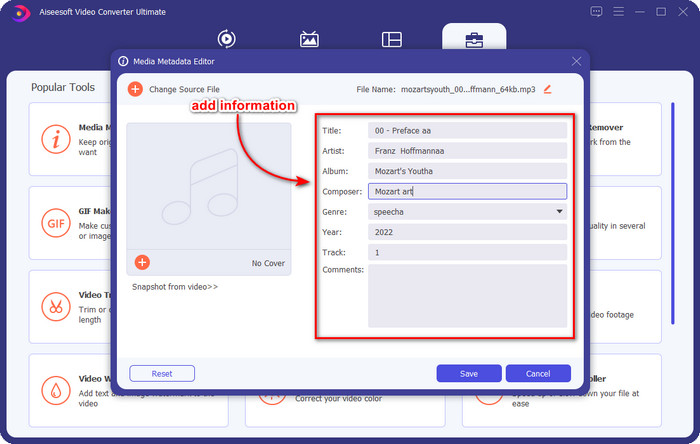
ขั้นตอนที่ 4. แก้ไขหรือลบเมทาดาทาในหน้าต่างขนาดเล็กที่จะปรากฏบนหน้าจอของคุณ โดยคลิกที่ textbox แต่ละช่องแล้วใส่ข้อมูลที่คุณต้องการใช้กับไฟล์ OGG คุณยังสามารถเพิ่มรูปภาพลงในไฟล์เสียง OGG ได้หากต้องการ แต่ต้องแน่ใจว่ารูปภาพนั้นถูกบันทึกไว้บนเดสก์ท็อปของคุณแล้ว.
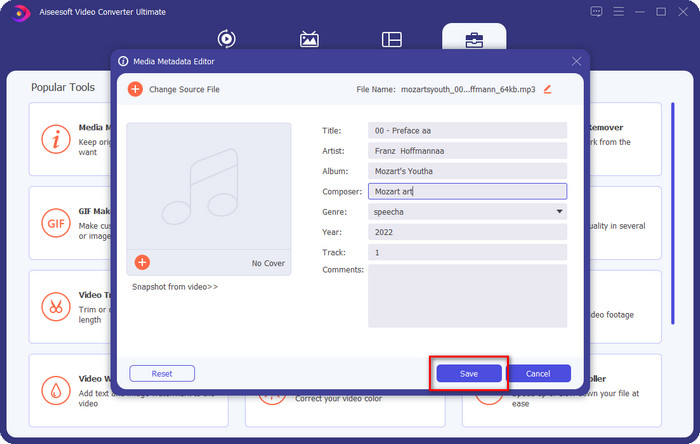
ขั้นตอนที่ 5. เมื่อคุณเพิ่มข้อมูลที่ต้องการลงในไฟล์ OGG เสร็จแล้ว ให้คลิก Save เพื่อบันทึกไฟล์พร้อมเมทาดาทาที่แก้ไขเรียบร้อย ด้วยวิธีนี้ คุณก็จะมีไฟล์ OGG ที่ปรับแต่งเมทาดาทาแล้วบนเดสก์ท็อปของคุณ โดยได้รับความช่วยเหลือจากตัวแก้ไขเมทาดาทา OGG ที่ดีที่สุดซึ่งสามารถใช้ได้อย่างปลอดภัยและรวดเร็วทั้งบนสองระบบปฏิบัติการ.
ส่วนที่ 3 คำถามที่พบบ่อยเกี่ยวกับการแก้ไขข้อมูลเมตา OGG
ฉันสามารถใช้ไฟล์ OGG บน Mac ได้หรือไม่
ไฟล์ OGG ไม่ได้รับการรองรับโดยตรงบนอุปกรณ์ Apple แต่คุณสามารถใช้แอปจากผู้พัฒนารายอื่นเพื่อเล่นไฟล์ OGG ที่เล่นไม่ได้บน Mac ได้ ต้องการรู้วิธีไหม หากใช่ ให้คลิกที่ลิงก์นี้ เพราะเราได้รวบรวมข้อมูลเกี่ยวกับ OGG และวิธีเล่นไฟล์ OGG บน Mac อย่างง่ายดาย ไว้ให้แล้ว.
OGG เป็นที่นิยมมากกว่า MP3 หรือไม่?
ในแง่ของความนิยม MP3 ได้รับการสนับสนุนมากกว่า OGG มากเพราะจะมีความยืดหยุ่นมากขึ้นหากเราเปรียบเทียบ ทั้งสองเป็นคอนเทนเนอร์เสียงที่ดีและมีจุดแข็งของเสียงที่แตกต่างกัน แต่ในด้านคุณภาพ OGG นั้นดีกว่า MP3 มากแต่รองรับน้อยกว่า
ฉันสามารถบันทึก OGG คุณภาพสูงได้หรือไม่
แน่นอน ว่าคุณสามารถบันทึกเสียงเป็นไฟล์ OGG ได้ แต่มีเครื่องมือใดรองรับรูปแบบ OGG บ้าง หากมี แล้วมันเป็นตัวบันทึก OGG ที่ดีที่สุดที่ฉันควรใช้หรือไม่ คำถามทั้งหมดนี้มีคำตอบอยู่แล้ว หากคุณคลิกที่ ลิงก์ นี้และอ่านต่อให้จบ.
สรุป
ยอดเยี่ยมใช่ไหม สิ่งที่คุณสามารถทำได้ในการแก้ไขเมทาดาทาของ OGG ด้วยวิธีการที่ระบุไว้ด้านบน หากคุณต้องการ ตัวเลือกเหล่านี้คือวิธีแก้ปัญหาที่เป็นที่รู้จักสำหรับการจัดการแท็กของไฟล์ OGG หากคุณยังไม่เชื่อข้อมูลที่เราเขียนไว้ คุณควรลองใช้ทั้งสองวิธี แล้วเรามั่นใจว่าคุณจะประสบความสำเร็จในการแก้ไขแท็กของไฟล์ OGG แต่หากคุณต้องการเครื่องมือระดับมืออาชีพสำหรับแก้ไขแท็กของ OGG คุณต้องใช้เครื่องมือขั้นสูงเพื่อจบงานให้เรียบร้อย FVC Video Converter Ultimate ถือเป็นตัวเลือกที่ดีที่สุดอย่างไม่ต้องสงสัยในการแก้ไขแท็กของมีเดียทุกประเภทที่คุณมี หากคุณคิดว่านี่คือเครื่องมือที่ใช่สำหรับคุณ เราขอแนะนำให้คุณอ่านขั้นตอนที่เราให้ไว้ข้างต้นเพื่อแก้ไขแท็กได้อย่างง่ายดาย.
-
 7 เครื่องมือแก้ไขแท็กเพลงยอดนิยมบน Windows, Mac และอุปกรณ์พกพา
 แท็กเพลงเป็นที่นิยมใช้สำหรับการจัดเรียงเพลงในห้องสมุดของคุณตามข้อมูลภายใน จะทำอย่างไรถ้าคุณต้องการเปลี่ยน อ่านรายละเอียดด้านล่างเพื่อทราบข้อมูลเพิ่มเติม
-
 4 ตัวแก้ไขข้อมูลเมตาของ AudioBook ที่แนะนำในปี 2022
 หากคุณไม่มีความคิดใดๆ เกี่ยวกับตัวแก้ไขแท็ก Audiobook บทความนี้จะช่วยคุณได้ รู้มากขึ้นโดยการอ่านแต่ละรายละเอียดด้านล่างและเครื่องมือที่จะใช้
-
 เครื่องมือแก้ไขแท็ก MP3 ฟรี 5 อันดับแรกที่มีจำหน่ายออนไลน์และออฟไลน์
 คุณต้องการทราบวิธีการแก้ไขแท็ก MP3 หรือไม่? ในกรณีนั้น ให้อ่านต่อ สำหรับวันนี้ เราขอเสนอเครื่องมือแก้ไขแท็ก MP3 ที่ดีที่สุด 5 รายการให้คุณ
