


 Video Converter Ultimate
 บันทึกหน้าจอ
 ซ่อมวิดีโอ
3 วิธีง่ายๆ ในการกรอวิดีโอบน iPhone ของคุณอย่างรวดเร็ว
ต้องการเพิ่มความเร็วในการเล่นวิดีโอบน iPhone ฟรี แต่ไม่รู้จะทำอย่างไร
หลังจากบันทึกวิดีโอแล้ว ระหว่างการตัดต่อขั้นพื้นฐาน คุณมักจะต้องเปลี่ยนความเร็วการเล่นวิดีโอ เมื่อต้องการเร่งความเร็ววิดีโอบน iPhone คุณสามารถใช้ฟีเจอร์ตัดต่อในตัวของแอปรูปภาพ (Photos) แอปตัดต่อวิดีโออย่างเป็นทางการอย่าง iMovie หรือโปรแกรมปรับความเร็ววิดีโอจากผู้พัฒนารายอื่น บทความนี้จะแบ่งปัน 3 วิธีที่ได้ผลในการเร่งความเร็ว (กรอเร็ว) วิดีโอบน iPhone.

ส่วนที่ 1 วิธีกรอวิดีโอสโลว์โมชั่นบน iPhone อย่างรวดเร็วด้วยแอพรูปภาพ
iOS มาพร้อมกับคุณสมบัติการแก้ไขพื้นฐานสำหรับผู้ใช้ iPhone และ iPad เพื่อแก้ไขวิดีโอหรือภาพถ่ายโดยตรง เมื่อคุณต้องการกรอวิดีโอสโลว์โมชั่นบนอุปกรณ์ iOS ของคุณอย่างรวดเร็ว คุณสามารถใช้ตัวแก้ไขในตัวในแอพรูปภาพเพื่อเปลี่ยนความเร็วในการเล่นวิดีโอได้อย่างง่ายดาย โปรดทราบว่าวิธีนี้ใช้ได้กับการเปลี่ยนความเร็ววิดีโอจากสโลว์โมเป็นความเร็วปกติเท่านั้น
ขั้นตอนที่ 1. เปิดแอป Photos บน iPhone ของคุณ แตะที่ Albums ด้านล่างหน้าจอ เลื่อนลงไปที่ตัวเลือก Media Types แล้วเลือก Slo-mo ที่นี่คุณจะพบวิดีโอ slo‑mo ที่ต้องการเร่งความเร็ว.
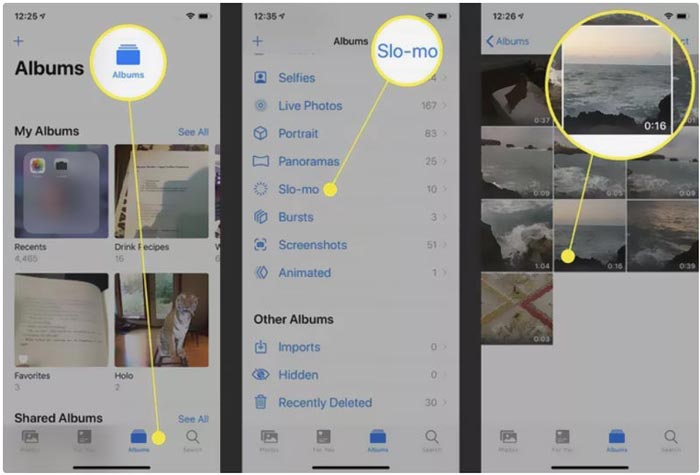
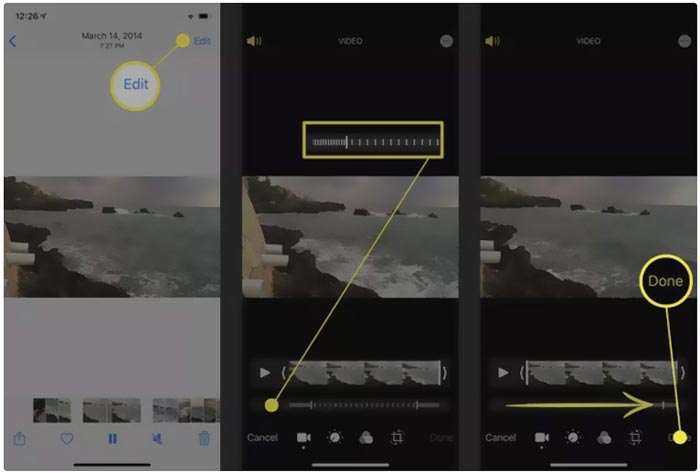
ขั้นตอนที่ 2. เปิดวิดีโอ slo‑mo แล้วแตะ Edit ที่มุมขวาบนเพื่อแสดงตัวเลือกการตัดต่อเพิ่มเติม.
ขั้นตอนที่ 3. จะมีเส้นตั้งหลายเส้นแสดงอยู่ใต้คลิปวิดีโอแบบสโลว์โมชัน ตอนนี้คุณสามารถแตะที่เส้นเหล่านั้นแล้วปรับเพื่อเร่งความเร็ววิดีโอได้อย่างอิสระ หลังจากนั้นให้แตะ Done เพื่อยืนยันการทำงานและบันทึกการเปลี่ยนแปลง.
ส่วนที่ 2 วิธีกรอวิดีโอบน iPhone และ iPad โดยใช้ iMovie
iMovie เป็นแอปตัดต่อวิดีโออย่างเป็นทางการสำหรับอุปกรณ์ iOS และ macOS เช่น iPhone, iPad และ Mac มาพร้อมฟีเจอร์ตัดต่อพื้นฐานครบถ้วน คุณสามารถเร่งหรือชะลอความเร็ววิดีโอบน iPhone ด้วย iMovie ได้อย่างง่ายดาย.
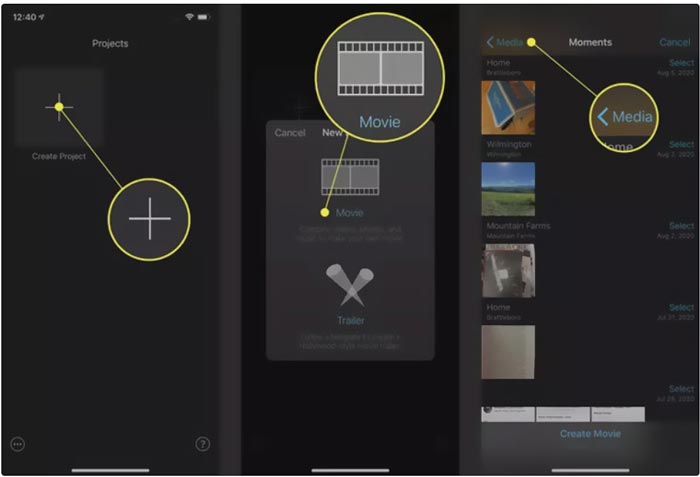
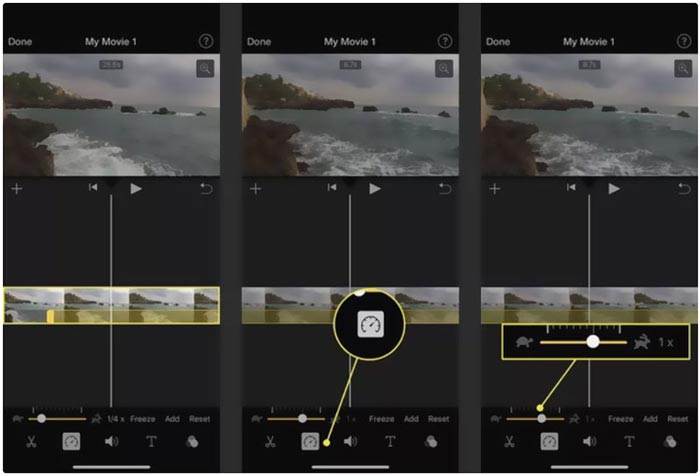
ขั้นตอนที่ 1. หากต้องการเร่งความเร็ววิดีโอบน iPhone ด้วย iMovie ให้ดาวน์โหลดและติดตั้งแอปจาก App Store จากนั้นสร้างโปรเจกต์ใหม่สำหรับการเปลี่ยนความเร็ววิดีโอ เลือกและโหลดวิดีโอที่คุณต้องการเร่งความเร็วเข้าไปในโปรเจกต์ที่สร้างไว้.
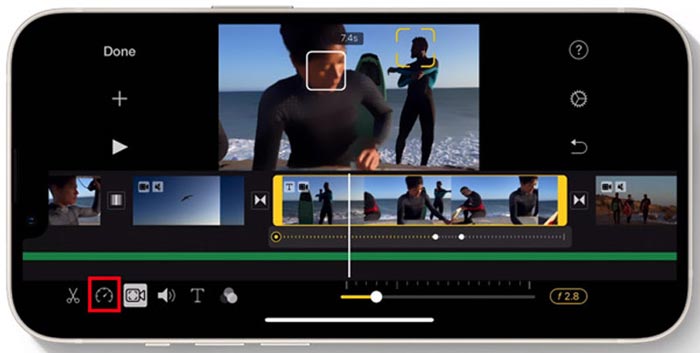
ขั้นตอนที่ 2. แตะไฮไลต์คลิปวิดีโอบนไทม์ไลน์เพื่อให้แสดงตัวเลือกการตัดต่อที่ด้านล่างหน้าจอ iPhone คุณสามารถแตะไอคอน นาฬิกา อันที่สองเพื่อเข้าถึงการตั้งค่าความเร็วการเล่น จากนั้นลากแถบไปทางขวาเพื่อเพิ่มความเร็วการเล่นวิดีโอได้อย่างง่ายดาย.
ส่วนที่ 3 วิธีการกรอวิดีโอที่บันทึกโดย iPhone
สำหรับวิดีโอที่ถ่ายด้วย iPhone เหล่านี้ คุณสามารถเลือกนำไปตัดต่อบนคอมพิวเตอร์และปรับความเร็วการเล่นได้อย่างสะดวก ที่นี่จะแนะนำซอฟต์แวร์ตัดต่อและแปลงวิดีโอแบบครบฟังก์ชัน Video Converter Ultimate เพื่อใช้เปลี่ยนความเร็ววิดีโอ.

FVC Video Converter Ultimate
5,689,200+ ดาวน์โหลด- เสนอเครื่องมือ Video Speed Controller เพื่อกรอวิดีโอไปข้างหน้าหรือสโลว์โมชั่น
- รองรับรูปแบบวิดีโอยอดนิยมทั้งหมดรวมถึง MP4, MOV, AVI, FLV และ MKV
- 10 ตัวเลือกการเปลี่ยนความเร็วในการเล่นวิดีโอเพื่อเพิ่มความเร็วหรือลดความเร็วของวิดีโอ
- ฟังก์ชันการแก้ไขต่างๆ เพื่อตัดต่อวิดีโอ ปรับแต่งรูปภาพ/เอฟเฟกต์เสียง และปรับปรุงคุณภาพ
ดาวน์โหลดฟรีสำหรับ Windows 7 หรือใหม่กว่าดาวน์โหลดอย่างปลอดภัย
ดาวน์โหลดฟรีสำหรับ MacOS 10.7 หรือใหม่กว่าดาวน์โหลดอย่างปลอดภัย
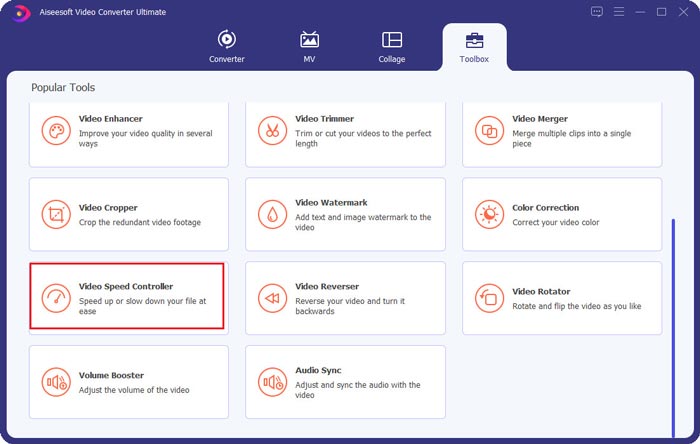
ขั้นตอนที่ 1. ดาวน์โหลดและเปิดโปรแกรม Video Converter Ultimate บนพีซี Windows 11/10/8/7 หรือ Mac ของคุณ คลิกที่ Toolbox เพื่อเข้าถึงเครื่องมือเพิ่มเติม จากนั้นค้นหาและเปิด Video Speed Controller เพื่อเร่งความเร็ววิดีโอ.
ขั้นตอนที่ 2. เพิ่มวิดีโอของคุณโดยคลิกไอคอนเครื่องหมายบวกขนาดใหญ่ จากนั้นคุณจะมีตัวเลือก 10 แบบในการเร่งหรือทำสโลว์โมชันวิดีโอ ด้วยเครื่องเล่นสื่อในตัว คุณสามารถดูตัวอย่างการเปลี่ยนความเร็วได้โดยตรง คุณสามารถเร่งวิดีโอให้เล่นที่ความเร็ว 1.25X, 1.5X, 2X, 4X หรือ 8X ตามต้องการ.
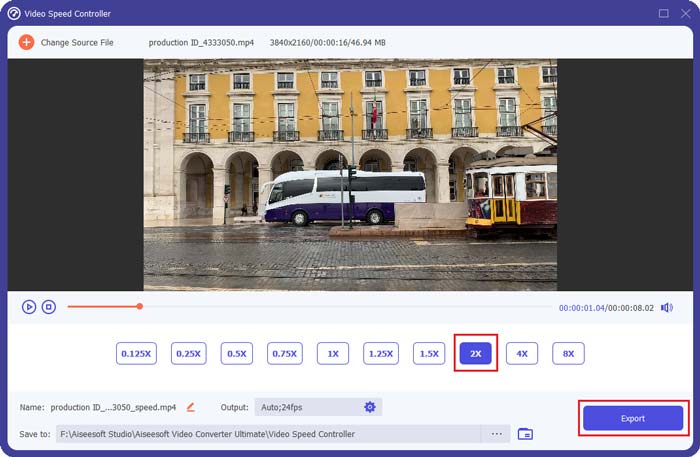
ขั้นตอนที่ 3. เมื่อคุณพอใจกับความเร็วการเล่นวิดีโอแล้ว ให้คลิกปุ่ม Export เพื่อบันทึกวิดีโอที่ตัดต่อแล้วลงในคอมพิวเตอร์ของคุณ.
ที่เกี่ยวข้อง:
2 วิธีง่าย ๆ ในการเร่งความเร็ววิดีโอบน TikTok
6 ตัวควบคุมความเร็ววิดีโอสุดฮิตสำหรับเร่งหรือชะลอวิดีโอ
ส่วนที่ 4 คำถามที่พบบ่อยเกี่ยวกับการเปลี่ยนความเร็วในการเล่นวิดีโอบน iPhone
วิธีกรอวิดีโอบน iPhone ออนไลน์อย่างรวดเร็ว
เมื่อคุณต้องการเพิ่มความเร็ววิดีโอบน iPhone ของคุณ คุณสามารถใช้ตัวเปลี่ยนความเร็ววิดีโอออนไลน์ เช่น Clideo, Kapwing, Media.io และอื่นๆ เพื่อทำงานให้เสร็จได้อย่างง่ายดาย
ฉันสามารถกรอวิดีโอบนแอพ TikTok อย่างรวดเร็วได้ไหม
ใช่. คุณสามารถเปิดแอพ TikTok แตะวิดีโอที่คุณต้องการเพิ่มความเร็วค้างไว้จนกว่าคุณจะเห็นเมนูเพิ่มเติมปรากฏขึ้นที่หน้าจอด้านล่าง ตอนนี้ คุณต้องเลื่อนเมนูเหล่านี้จากขวาไปซ้ายเพื่อค้นหาตัวเลือกความเร็ว เลือกและใช้เพื่อกรอวิดีโอ TikTok
ฉันสามารถกรอวิดีโอบน iPhone ของฉันมากกว่า 2X อย่างรวดเร็วได้หรือไม่
iMovie อนุญาตให้คุณเพิ่มความเร็ววิดีโอเป็น 2X เท่านั้น เมื่อคุณต้องการกรอวิดีโอที่เล่นด้วยความเร็วมากกว่า 2 เท่าบน iPhone คุณต้องพึ่งพาแอพของบุคคลที่สามบางตัว นอกจากนี้ คุณสามารถเลือกคัดลอกวิดีโอ iPhone ของคุณไปยังคอมพิวเตอร์ จากนั้นใช้ Video Speed Controller ที่แนะนำเพื่อปรับความเร็ววิดีโอ
สรุป
บทความนี้ได้อธิบายวิธีเร่งความเร็ววิดีโอบน iPhone ด้วยแอป Photos, iMovie และโปรแกรมปรับความเร็ววิดีโอจากผู้พัฒนารายอื่น คุณสามารถเลือกวิธีที่ต้องการเพื่อเร่งหรือชะลอความเร็วการเล่นวิดีโอได้ตามสะดวก.
-
 ตัวแปลงความละเอียดวิดีโอ 8 อันดับแรกที่ใช้ในหลายแพลตฟอร์ม [อัปเดต 2022]
 Don'คุณไม่มีความคิดเกี่ยวกับตัวแปลงความละเอียดวิดีโอที่ดีที่สุดบนอุปกรณ์ของคุณหรือไม่? ถ้าใช่ คุณสามารถอ่านบทความนี้ทั้งหมดเพื่อทราบข้อมูลเพิ่มเติมเกี่ยวกับตัวแปลงวิดีโอที่พร้อมใช้งาน
-
 3 วิธียอดนิยมในการเพิ่มตัวกรองบน GIF ด้วยโปรแกรมแก้ไข GIF ที่ดีที่สุด [รายการโปรด]
 คุณต้องการทราบวิธีเพิ่มตัวกรองใน GIF เพื่อให้ดีขึ้นหรือไม่? ในบล็อกนี้ คุณจะได้เรียนรู้เทคนิคต่างๆ ในการเพิ่มตัวกรองให้กับ GIF ของคุณได้อย่างง่ายดาย
-
 แอพกรองวิดีโอ 6 อันดับแรกที่คุณสามารถดาวน์โหลดได้บน Android และ iPhone [2022]
 คุณต้องการมีแอพมือถือตัวกรองวิดีโอที่ดีที่สุดหรือไม่? เราจะให้สิ่งที่คุณต้องการ บทความนี้จะนำเสนอรีวิวแอพตัวกรองล่าสุด 6 แอพที่คุณสามารถดาวน์โหลดได้
