


 Video Converter Ultimate
 บันทึกหน้าจอ
 ซ่อมวิดีโอ
 ดาวน์โหลดอย่างปลอดภัย
วิธีตัดวิดีโอออนไลน์ [บทช่วยสอนทีละขั้นตอน]
คุณจะทำให้วิดีโอยาวของคุณสั้นลงได้อย่างไร? หากคุณยังไม่รู้วิธีที่ดีที่สุดที่ควรทำ นั่นก็เป็นเหตุผลให้คุณอ่านคู่มือนี้ ระหว่างที่อ่านบทความนี้ เราจะให้ข้อมูลสำคัญทั้งหมดเกี่ยวกับการทำให้ความยาวของวิดีโอลดลง นอกจากนี้ เรายังจะแนะนำซอฟต์แวร์ตัดต่อวิดีโอทั้งแบบออนไลน์และออฟไลน์ที่คุณสามารถนำไปใช้ได้ ด้วยวิธีนี้ คุณจึงมีโอกาสมากขึ้นในการบรรลุเป้าหมายของคุณ ดังนั้นโดยไม่ต้องรออะไรอีก อ่านโพสต์นี้และเรียนรู้วิธีตัดวิดีโอออนไลน์.

ส่วนที่ 1 วิธีการที่ยอดเยี่ยมในการตัดวิดีโอออนไลน์
1. ในวิดีโอ
หนึ่งในเครื่องมือแก้ไขวิดีโอที่มีประโยชน์ที่คุณพบได้ทางออนไลน์คือเครื่องมือตัดแต่งวิดีโอในวิดีโอ ซอฟต์แวร์บนเว็บนี้มีรูปแบบที่ใช้งานง่าย หลังจากเยี่ยมชมเว็บไซต์แล้ว คุณไม่จำเป็นต้องติดตั้งเครื่องมือ สิ่งที่คุณต้องทำคือเพิ่มวิดีโอ และคุณสามารถดำเนินการตัดต่อได้เลย นอกจากนี้ เนื่องจากมีเลย์เอาต์ที่เรียบง่าย จึงมีวิธีการที่เข้าใจได้ด้วย ด้วยวิธีนี้ ไม่ว่าคุณจะเป็นผู้ใช้มืออาชีพหรือไม่ใช่มืออาชีพ คุณก็สามารถใช้ InVideo ได้ นอกจากนี้ InVideo สามารถเข้าถึงได้บนแพลตฟอร์มเว็บเกือบทั้งหมด คุณสามารถใช้เครื่องมือนี้บน Google Chrome, Mozilla Firefox, Internet Explorer และอื่นๆ อย่างไรก็ตาม InVideo มีข้อเสียอยู่บ้าง เมื่อใช้เวอร์ชันฟรี InVideo ไม่สามารถนำเสนอวิดีโอคุณภาพสูงได้ นอกจากนี้ยังสามารถให้คุณภาพวิดีโอต่ำเท่านั้นซึ่งไม่น่าพอใจ หากคุณต้องการคุณภาพวิดีโอที่ยอดเยี่ยม คุณต้องซื้อแผนการสมัครสมาชิก ทำตามขั้นตอนด้านล่างเพื่อตัด/ตัดแต่งวิดีโอของคุณโดยใช้ตัวตัดวิดีโอ InVideo
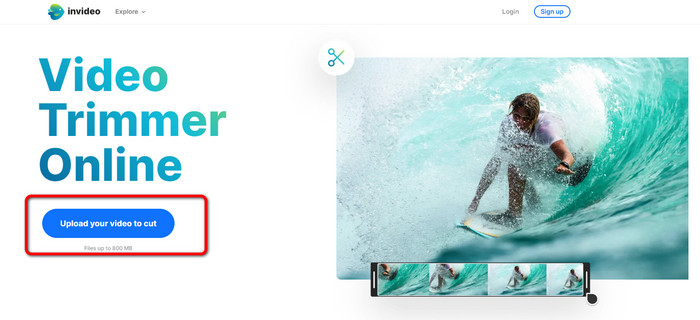
ขั้นตอนที่ 1. เปิดเบราว์เซอร์ของคุณและไปที่เว็บไซต์อย่างเป็นทางการของ InVideo จากนั้นหากคุณอยู่บนหน้าเว็บแล้ว ให้คลิกปุ่ม Upload your video to cut เมื่อหน้าต่างโฟลเดอร์ไฟล์ปรากฏบนหน้าจอ ให้เลือกวิดีโอที่คุณต้องการตัด/ครอปแล้วกดเปิด.
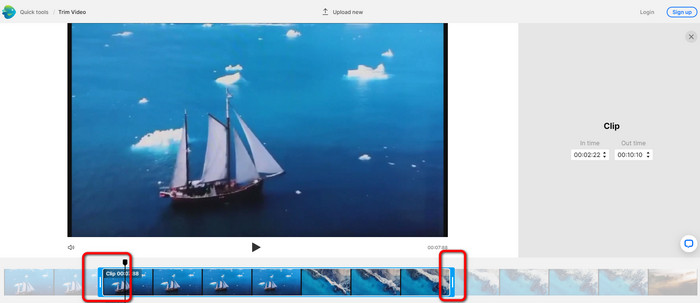
ขั้นตอนที่ 2. หลังจากเลือกวิดีโอแล้ว คุณจะถูกนำไปยังส่วนที่สามารถตัดวิดีโอได้ เพื่อครอปวิดีโอของคุณ ให้เลื่อนแถบเลื่อนที่ปลายทั้งสองด้านของวิดีโอไปยังช่วงเวลาที่คุณต้องการ.
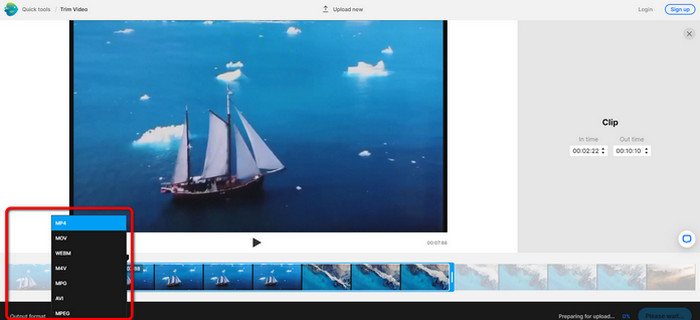
ขั้นตอนที่ 3. เมื่อคุณตัดวิดีโอเสร็จแล้ว คุณสามารถบันทึกได้ในหลายรูปแบบ ไปที่ตัวเลือก Output Format ที่มุมล่างซ้ายของอินเทอร์เฟซ จากนั้นเมื่อมีตัวเลือกรูปแบบปรากฏขึ้น ให้เลือกรูปแบบเอาต์พุตที่คุณต้องการ แล้วคลิก Done.
ขั้นตอนที่ 4. คุณต้องสมัครบัญชีกับ InVideo หรือเข้าสู่ระบบด้วยบัญชีที่มีอยู่ก่อนแล้ว ก่อนที่คุณจะสามารถบันทึกวิดีโอของคุณได้ วิดีโอของคุณจะพร้อมให้บันทึกในไม่กี่วินาทีหลังจากที่คุณกรอกข้อมูลบัญชีเรียบร้อยแล้ว.
2. เอซกิฟ
อีกหนึ่งตัวตัดวิดีโอออนไลน์ฟรีคือ Ezgif ซึ่งมีขั้นตอนง่าย ๆ สำหรับการทำให้วิดีโอสั้นลง Ezgif เป็นเครื่องมือออนไลน์ฟรี คุณจึงไม่ต้องกังวลเรื่องค่าใช้จ่าย นอกจากนี้ คุณยังสามารถใช้งานเครื่องมือนี้ได้บนทุกเบราว์เซอร์ รวมถึง Google, Edge, Firefox, Explorer และอื่น ๆ อย่างไรก็ตาม เครื่องมือนี้รองรับแบบออนไลน์เฉพาะไฟล์ GIF ดังนั้นหากคุณมีแผนจะตัดวิดีโอรูปแบบอื่น Ezgif ก็ไม่ใช่เครื่องมือที่เหมาะสม อีกทั้งยังมีโฆษณารบกวนจำนวนมากปรากฏบนหน้าจอขณะใช้งาน ทำให้เกิดความรำคาญระหว่างตัดต่อวิดีโอ.
ขั้นตอนที่ 1. ไปที่เว็บไซต์ของ Ezgif แล้วเลือกตัวเลือก Cut.
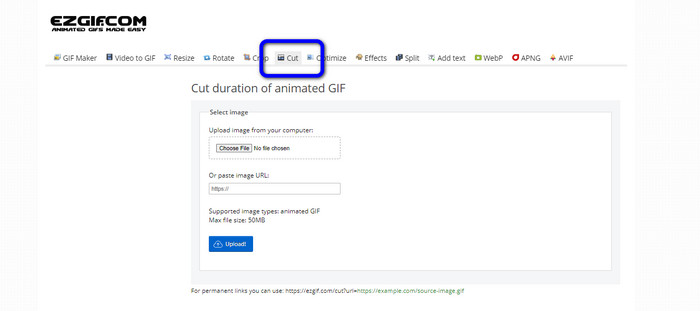
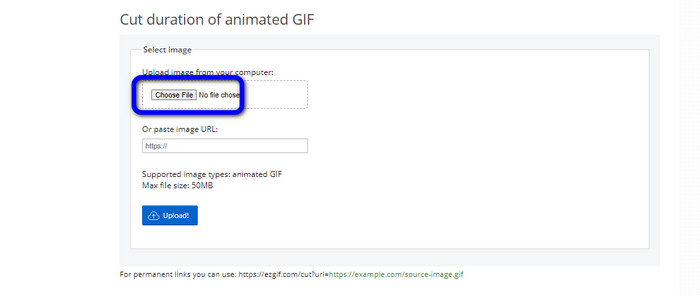
ขั้นตอนที่ 2. หลังจากนั้น คลิกปุ่ม Choose File แล้วเพิ่มไฟล์ GIF ที่คุณต้องการอัปโหลดจากโฟลเดอร์ในคอมพิวเตอร์.
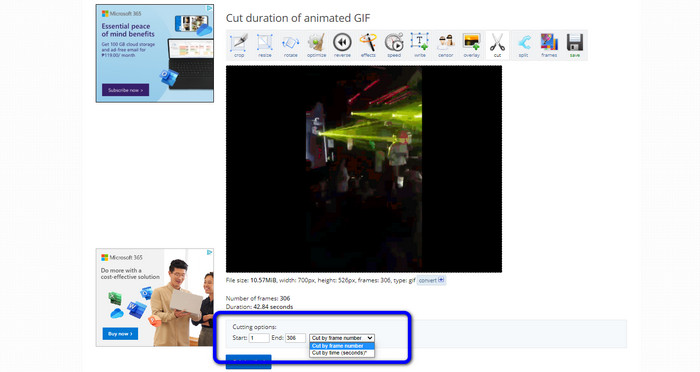
ขั้นตอนที่ 3. หลังจากอัปโหลดไฟล์ GIF แล้ว คุณก็สามารถตัดได้ทันที มี 2 วิธีในการตัดไฟล์ GIF คือ ตัดตามหมายเลขเฟรม หรือ ตัดตามเวลา ให้ตัดตามวิธีที่คุณต้องการ.
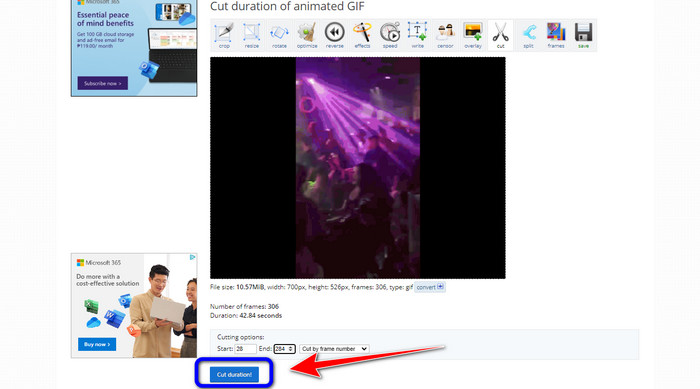
ขั้นตอนที่ 4. คลิกปุ่ม Cut Duration เพื่อเริ่มกระบวนการตัด.
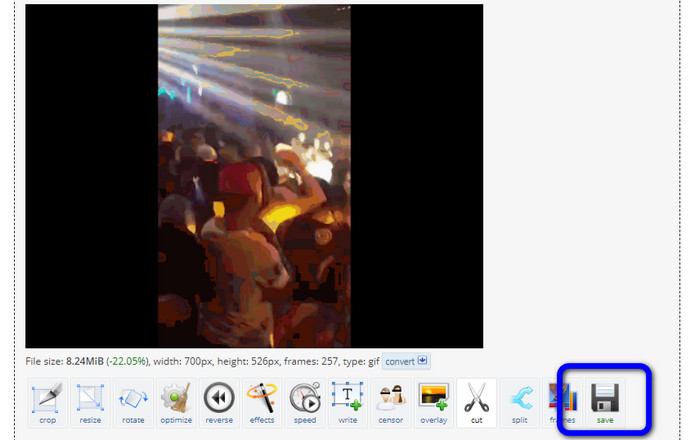
ขั้นตอนที่ 5. หลังจากนั้น ไฟล์ที่แก้ไขแล้วจะปรากฏขึ้น คลิกตัวเลือก Save เพื่อดาวน์โหลดไฟล์สุดท้ายลงในคอมพิวเตอร์ของคุณ.
3. Kapwing
ในการตัดวิดีโอ คุณยังสามารถใช้ตัวตัดวิดีโอ Kapwing ได้เช่นกัน เครื่องมือออนไลน์ตัวนี้สามารถตัดวิดีโอได้อย่างไม่ยุ่งยาก อีกทั้งคุณยังสามารถเข้าถึงได้จากหลากหลายเบราว์เซอร์ ไม่ว่าจะเป็น Chrome, Mozilla, Edge และอื่น ๆ นอกจากนี้ Kapwing ยังรองรับรูปแบบวิดีโอต่าง ๆ เช่น MP4, MOV, AVI, FLV, WEBM และอื่น ๆ ทำให้ผู้ใช้ทุกคนสะดวกยิ่งขึ้น อย่างไรก็ตาม Kapwing ก็มีข้อเสียอยู่บ้าง มีโฆษณารบกวนปรากฏบนหน้าจออยู่เสมอ อีกทั้งเวอร์ชันฟรียังอนุญาตให้อัปโหลดวิดีโอได้เพียงคุณภาพ 720p เท่านั้น และยังใส่ลายน้ำที่น่ารำคาญลงในวิดีโอหลังตัดต่อ หากคุณต้องการวิดีโอที่ไม่มีลายน้ำและฟีเจอร์ที่ดียิ่งขึ้น คุณต้องซื้อแพ็กเกจสมัครสมาชิก.
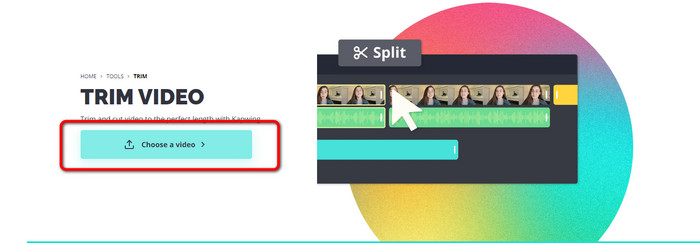
ขั้นตอนที่ 1. ไปที่เว็บไซต์ Kapwing จากนั้นคลิกตัวเลือก Choose a video เพื่อเข้าสู่หน้าหลักของเครื่องมือ.
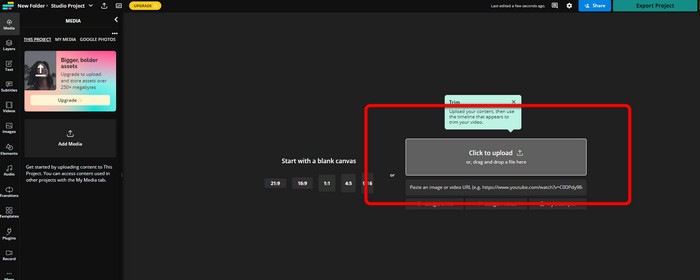
ขั้นตอนที่ 2. คลิกปุ่ม Click to upload เพื่อเพิ่มวิดีโอจากโฟลเดอร์ไฟล์.
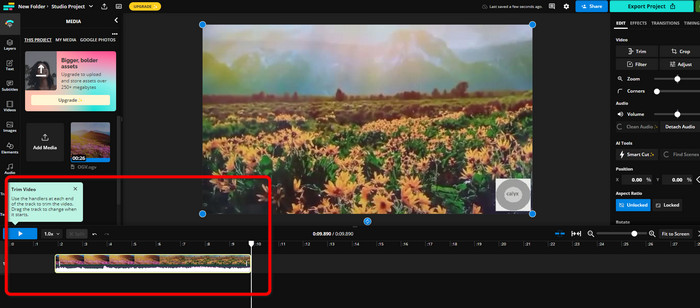
ขั้นตอนที่ 3. เมื่อวิดีโออยู่บนไทม์ไลน์แล้ว คุณสามารถคลิกที่ตัวปรับระยะทั้งสองด้านของคลิปเพื่อเริ่มตัดวิดีโอได้.
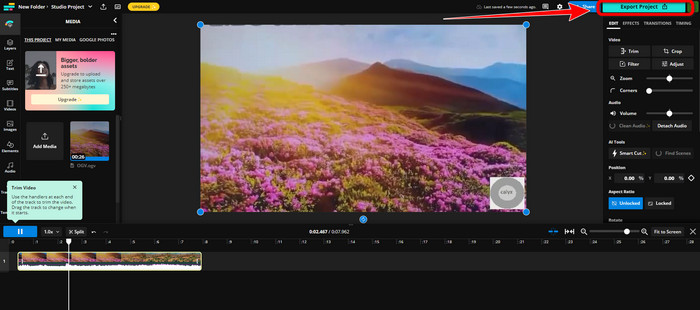
ขั้นตอนที่ 4. หากคุณตัดเสร็จแล้ว ให้ไปที่มุมขวาบนของอินเทอร์เฟซแล้วคลิกปุ่ม Export Project ด้วยวิธีนี้ คุณก็จะสามารถบันทึกวิดีโอที่แก้ไขแล้วลงบนเดสก์ท็อปได้.
ส่วนที่ 2 วิธีอื่นในการตัดแต่งวิดีโอออฟไลน์
ใช้ Video Converter Ultimate เพื่อแก้ไขวิดีโอแบบออฟไลน์ให้ได้คุณภาพดีที่สุด เครื่องมือนี้ช่วยให้การคลิปและ/หรือตัดวิดีโอของคุณเป็นเรื่องง่าย อีกทั้งยังมีอินเทอร์เฟซเรียบง่าย ใช้งานไม่ซับซ้อน เหมาะสำหรับผู้ใช้ทุกระดับ ผลงานที่เสร็จแล้วของคุณยังสามารถบันทึกได้หลากหลายรูปแบบ เช่น MOV, AVI, MP4, MKV และอื่น ๆ นอกจากนี้ยังมีสิ่งที่คุณทำได้อีกมากในระหว่างการตัดวิดีโอ คุณสามารถปรับค่าต่าง ๆ ได้โดยไปที่ตัวเลือก Output ไม่ว่าจะเป็นอัตราเฟรม ความละเอียด ตัวเข้ารหัส คุณภาพของวิดีโอ เป็นต้น นอกจากนี้ Video Converter Ultimate ยังไม่ใส่ลายน้ำลงในวิดีโอที่แก้ไขแล้วอีกด้วย ด้วยวิธีนี้คุณยังคงสามารถรับชมวิดีโอที่ตัดต่อแล้วได้โดยไม่มีสิ่งรบกวนใด ๆ และทั้งผู้ใช้ Windows และ Mac ก็สามารถใช้ Video Converter Ultimate ได้ หมายความว่าโปรแกรมนี้สะดวกสำหรับทั้งผู้ใช้ Windows และ Mac ทำตามคำแนะนำแบบละเอียดด้านล่างเพื่อเริ่มตัดวิดีโอ.
ขั้นตอนที่ 1. คลิกปุ่มดาวน์โหลดด้านล่างเพื่อดาวน์โหลด Video Converter Ultimate ลงในคอมพิวเตอร์ของคุณ เปิดโปรแกรมหลังจากติดตั้งเสร็จ.
ดาวน์โหลดฟรีสำหรับ Windows 7 หรือใหม่กว่าดาวน์โหลดอย่างปลอดภัย
ดาวน์โหลดฟรีสำหรับ MacOS 10.7 หรือใหม่กว่าดาวน์โหลดอย่างปลอดภัย
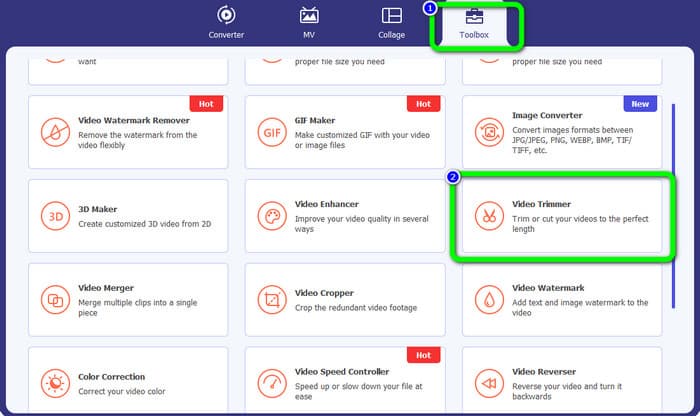
ขั้นตอนที่ 2. บนอินเทอร์เฟซ คลิกเมนู Toolbox แล้วเลือกเครื่องมือ Video Trimmer.
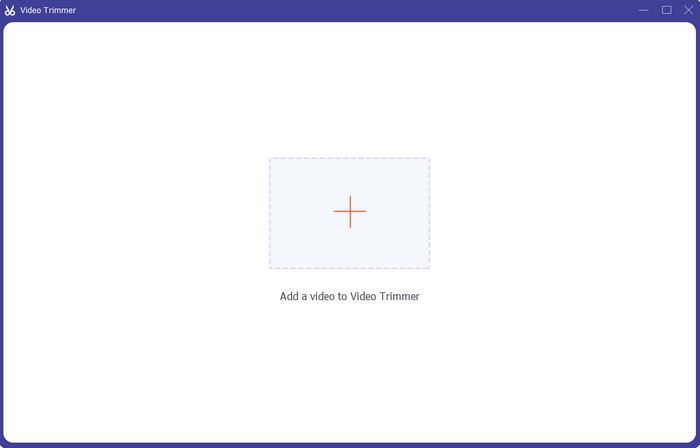
ขั้นตอนที่ 3. เมื่ออินเทอร์เฟซใหม่ปรากฏบนหน้าจอ ให้คลิกสัญลักษณ์ Plus เพื่อเพิ่มวิดีโอที่คุณต้องการแก้ไข.
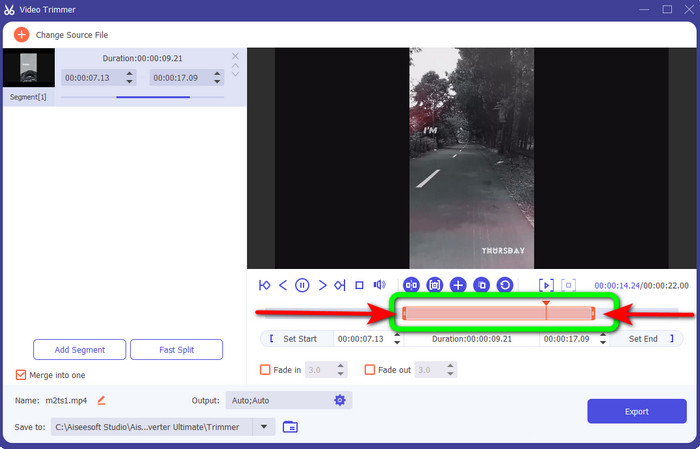
ขั้นตอนที่ 4. จากนั้นคุณก็สามารถเริ่มแก้ไขวิดีโอของคุณได้แล้วในส่วนนี้ คุณสามารถเลื่อนขอบปลายของคลิปวิดีโอเพื่อควบคุมว่าต้องการตัด/ครอปวิดีโอมากน้อยแค่ไหน โดยเลื่อนขอบด้านซ้ายและขวาตามความต้องการของคุณ.
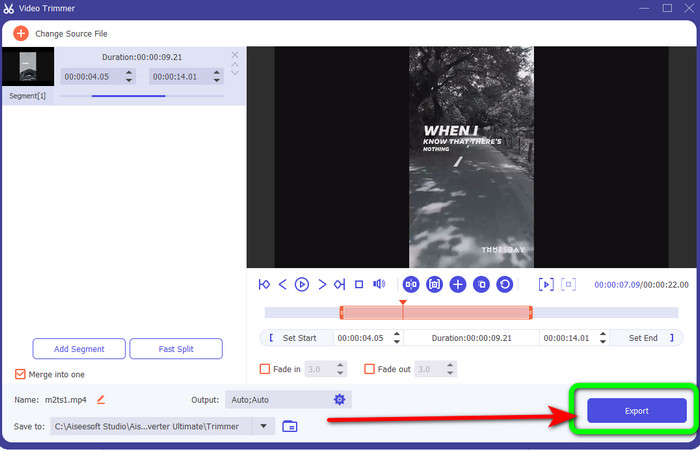
ขั้นตอนที่ 5. เมื่อคุณพอใจกับวิดีโอแล้ว ให้คลิกปุ่ม Export เพื่อดำเนินการส่งออก จากนั้นบันทึกวิดีโอสุดท้ายที่ตัดต่อเรียบร้อยแล้ว.
ส่วนที่ 3 คำถามที่พบบ่อยเกี่ยวกับวิธีตัดวิดีโอออนไลน์
จะตัดแต่งวิดีโอบน iPhone ได้อย่างไร?
หลังจากเริ่มต้น ให้แตะวิดีโอที่คุณต้องการแก้ไขในแอพรูปภาพ คลิกแก้ไข เปลี่ยนเวลาเริ่มต้นและหยุดโดยลากแถบเลื่อนที่แต่ละด้านของไทม์ไลน์วิดีโอ ใช้ปุ่มเล่นเพื่อดูตัวอย่างวิดีโอที่คุณแก้ไข เลือก บันทึกวิดีโอ หรือ บันทึกวิดีโอเป็นคลิปใหม่ หลังจากเลือก เสร็จสิ้น
วิธีการตัดวิดีโอใน Shotcut?
ลากไฟล์วิดีโอไปยังไทม์ไลน์หลังจากนำเข้าใน Shotcut วางตัวชี้ตำแหน่งที่จุดเริ่มต้นของส่วนที่คุณต้องการตัดแต่ง จากนั้นกดปุ่มทางลัด I กดปุ่ม O หลังจากเลื่อนตัวชี้ตำแหน่งไปที่บทสรุปของส่วน ตอนนี้ส่วนจะถูกแยกออกจากส่วนที่เหลือของวิดีโอ
ซอฟต์แวร์ที่ดีที่สุดในการตัดไฟล์ MP4 แบบออฟไลน์คืออะไร
หากคุณต้องการตัดไฟล์ MP4 แบบออฟไลน์ ให้ใช้ Video Converter Ultimate โปรแกรมดาวน์โหลดฟรีตัวนี้ช่วยให้คุณตัดไฟล์ MP4 ได้อย่างไม่ยุ่งยาก.
สรุป
เหล่านี้คือวิธีที่ดีที่สุดในการตัดวิดีโอออนไลน์ คุณสามารถใช้โปรแกรมตัดต่อวิดีโอทั้งหมดที่กล่าวมาข้างต้นสำหรับการตัดวิดีโอได้ อย่างไรก็ตาม เมื่อใช้เครื่องมือออนไลน์ บางครั้งอาจทำงานได้ไม่ดีนักเนื่องจากการเชื่อมต่ออินเทอร์เน็ตที่ไม่เสถียร ในกรณีนั้นให้ใช้ Video Converter Ultimate ซึ่งเป็นโปรแกรมดาวน์โหลดที่ช่วยให้คุณแก้ไขวิดีโอได้โดยไม่ต้องใช้อินเทอร์เน็ต.
-
 [4 วิธี] วิธีเพิ่มความเร็ววิดีโอออนไลน์ของคุณอย่างง่ายดาย
 คุณต้องการเร่งความเร็ววิดีโอออนไลน์หรือไม่? อ่านบทความนี้เพื่อให้คุณทราบข้อมูลเพิ่มเติมเกี่ยวกับการเร่งความเร็ววิดีโอด้วยวิธีต่างๆ ที่เป็นไปได้
-
 วิธีตัดและรวมเพลงออนไลน์ – 4 วิธีที่ดีที่สุดที่คุณควรรู้
 เมื่อคุณต้องการตัดและรวมเพลงออนไลน์เพื่อสร้างผลงานเพลง คุณสามารถเรียนรู้เพิ่มเติมเกี่ยวกับเครื่องมือออนไลน์ที่ดีที่สุด 4 อย่างในการตัดเพลงและรวมไฟล์จากบทความ
-
 ค้นพบเครื่องตัด MP4 ที่ดีที่สุดพร้อมขั้นตอนและข้อมูล
 คุณต้องการเรียนรู้วิธีตัดวิดีโอเช่น vloggers ที่คุณดูหรือไม่? จากนั้นอ่านโพสต์นี้ต่อไปเพื่อดูว่าคุณใช้เครื่องตัดหญ้า MP4 แบบใดได้บ้าง
