


 Video Converter Ultimate
 บันทึกหน้าจอ
 ซ่อมวิดีโอ
เคล็ดลับที่เป็นประโยชน์ในการสร้างวิดีโอสโลว์โมชั่นใน iMovie
iMovie is a great video editor available in every iOS and Mac operating system. This application is free to download and has different tools available that are very helpful in making significant changes in your video, especially when it talks about the playback speed of the video or making a slow-motion video. Since this application is user-friendly, it is difficult to understand and use to execute the slow motion you want to apply in your video. But to fully understand every detail to make slow-motion videos in iMovie, read this article and follow the steps carefully.

ส่วนที่ 1 วิธีการสร้างวิดีโอสโลว์โมชั่นใน iMovie โดยใช้ iPhone
ตามที่กล่าวไว้ข้างต้น iMovie ทำงานเฉพาะในระบบ iOS เช่น iPhone เท่านั้น ในการสร้างวิดีโอสโลว์โมชั่นที่ดีที่สุดโดยใช้แอปพลิเคชันนี้ นี่คือขั้นตอนที่มีให้ซึ่งจะแนะนำคุณเกี่ยวกับวิธีการใช้แอปพลิเคชันนี้เช่นกัน
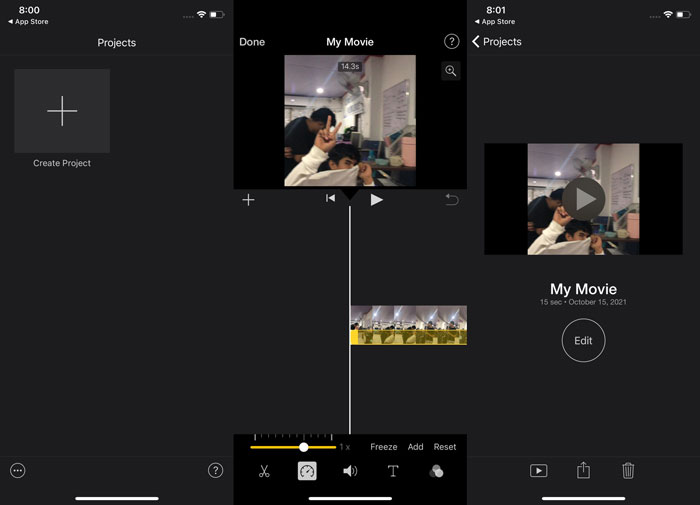
Step 1. Using your iPhone or iPad, launch the iMovie application. The Continue button will display if an overview of the UI is shown. Select the + plus sign icon from the Projects tab to edit a new video clip. To proceed, navigate to the New Projects window and select Movie.
Step 2. After selecting a video from your camera roll and pressing the Create Movie button at the bottom of the screen. The speed tool, which looks like a speedometer, can be discovered by tapping on a video clip in the timeline and then waiting for the editing tools to display before selecting one of the options. To fast forward or rewind your video clip, simply move the yellow bottom Slider to the right or left. You can accelerate items up to two times their original pace or slow them down to an eighth of their original speed.
Step 3. In the upper left corner of your phone's screen, hit Done when everything is complete. To save your completed film, click on the Share icon at the bottom of the page and choose a location to store it.
ส่วนที่ 2 วิธีการสร้างวิดีโอสโลว์โมชั่นใน iMovie โดยใช้ Mac
iMovie ยังใช้งานได้บน Mac ทำให้วิดีโอสโลว์โมชั่นยอดเยี่ยมที่สุดในวิธีที่ง่ายที่สุด หากต้องการทราบวิธีการบรรลุวิดีโอประเภทนี้ที่คุณต้องการ ให้ทำตามขั้นตอนต่อไปนี้:
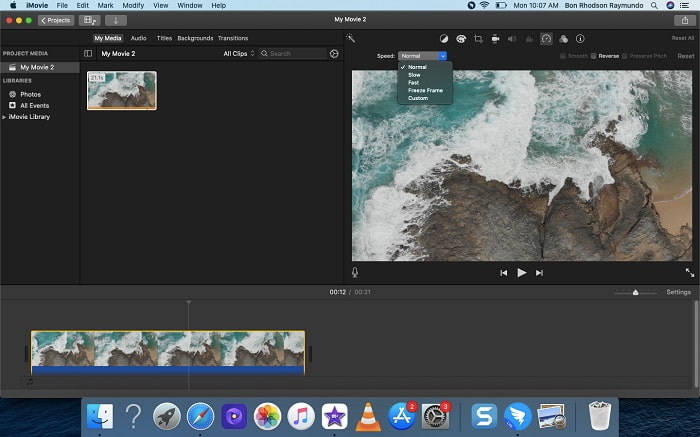
Step 1. Change the clip's speed in the iMovie program on your Mac by selecting it in the timeline and changing the clip's speed.
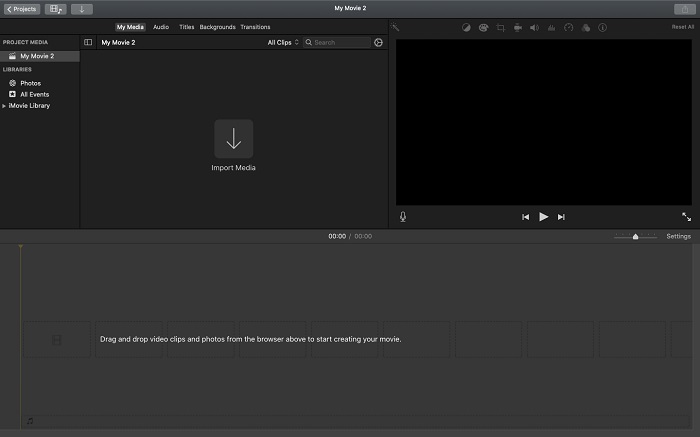
Step 2. The speed settings can be accessed by clicking on the Speed button located at the upper right corner of the screen. To fine-tune your download speed, just pick between Slow and Fast rates from a speed button on your computer's desktop.
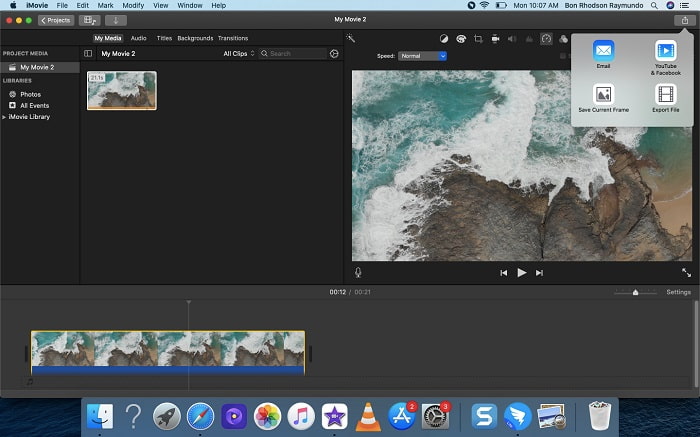
Step 3. To save the file to your computer's hard drive, click the Upload icon in the upper-right corner of the screen.
ส่วนที่ 3 ทางเลือกที่ดีที่สุดในการสร้างวิดีโอสโลว์โมชั่น
Besides using iMovie to make slow-motion videos, this best alternative benefits all desktop/laptop users. Video Converter Ultimate is a software that is free-to-download available in both Windows and Mac operating systems. It is accessible to use, and it has a user-friendly interface that prevents you from having a hard time analyzing tools to use in making slow-motion videos. It features one of the best tools, the Video Speed Controller, that you can use in adjusting the playback speed of a video, and with this, you can now make a slow-motion video from the normal speed video you have. To know more about the details on how to use this software in order to achieve the slow-motion you desire, here are the steps you need to know:
Step 1. Before using the software, you must first download it by clicking on the downlink below, based on your operating system. Installing it is as simple as downloading it to your desktop and clicking Start Now to begin.
ดาวน์โหลดฟรีสำหรับ Windows 7 หรือใหม่กว่าดาวน์โหลดอย่างปลอดภัย
ดาวน์โหลดฟรีสำหรับ MacOS 10.7 หรือใหม่กว่าดาวน์โหลดอย่างปลอดภัย
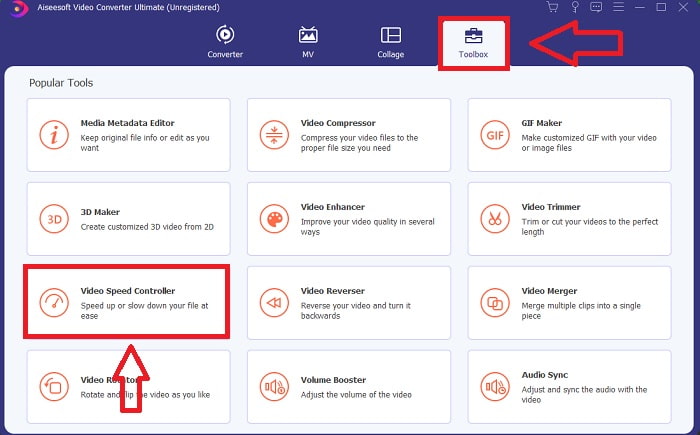
Step 2. It is possible to see the Converter feature on the main software interface when you have finished launching the program. Next, use the Toolbox feature to find what you're looking for in making slow-motion videos. If you want to change the speed of your video or simply make a slow-motion video, select Video Speed Controller from the list of available tools.
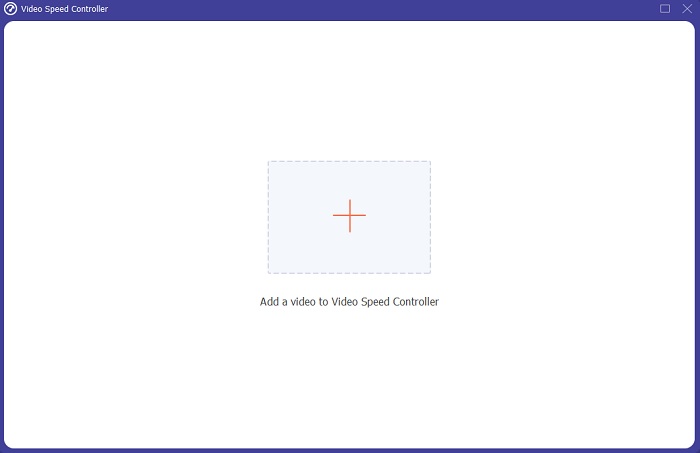
Step 3. Another window will open on your computer's screen after you proceed. To begin editing, click the plus sign +.
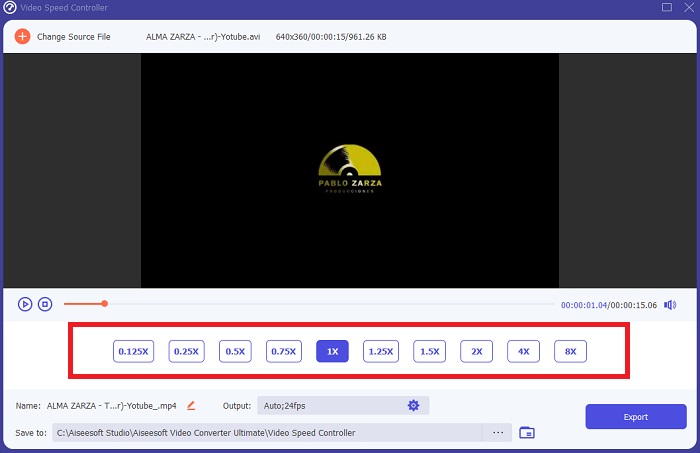
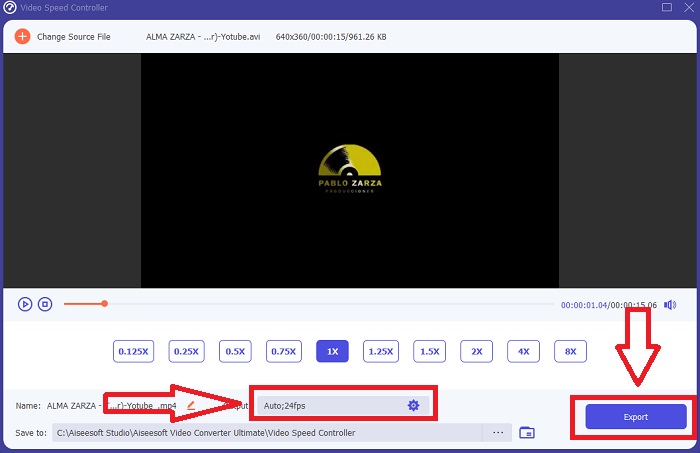
Step 4. To begin editing, choose how many times the video's frame rate will increase or decrease during playback to see how fast or slow it will be; this will define the slow-motion effect you'll apply to your video. Since you're making a slow-motion video, you will decrease the speed by choosing the video speed below the average speed. If you're happy with your video's speed, you can now fine-tune its quality by changing the format, resolution, frame rate, and so on. You will also have the option of renaming your video output.
Step 5. Click Export and choose a location in your computer's file system to save your work.
ที่เกี่ยวข้อง:
ส่วนที่ 4 คำถามที่พบบ่อยเกี่ยวกับการสร้างวิดีโอสโลว์โมชั่นใน iMovie
เกิดอะไรขึ้นถ้า iMovie ไม่ทำงาน
เว้นแต่จะมีตัวเลือก วิดีโอคลิปนั้นมีความยาวไม่เพียงพอที่จะรองรับการเล่นแบบเร่งความเร็ว เป็นไปได้ว่าคุณจะต้องแปลงวิดีโอของคุณ วิดีโอบางประเภท เช่น วิดีโอที่ถ่ายด้วย iPhone หรือใน H.264 บนกล้องวิดีโอ Flip จะต้องถูกแปลงก่อนที่จะเปลี่ยนความเร็ว ในเบราว์เซอร์ Project คลิกและดับเบิลคลิกไฟล์วิดีโอเพื่อเปิด หากคุณเห็นปุ่ม แปลงทั้งคลิป ในตัวตรวจสอบที่เปิดขึ้น ให้เลือกปุ่มนั้น ทำซ้ำคลิป จากนั้นดำเนินการกับกระบวนการสโลว์โมชั่น / กรอเดินหน้าอย่างเร็ว
คุณช่วยทำให้วิดีโอไทม์แลปส์ช้าลงใน iMovie ได้ไหม
วิดีโอเหลื่อมเวลาของคุณจะเริ่มเล่นทันทีที่คุณปล่อยปุ่มชัตเตอร์เพื่อสิ้นสุดการบันทึก แถบเลื่อนความเร็วไทม์แลปส์อยู่ที่ด้านล่างสุดของหน้าจอ เมื่อคุณหยุดบันทึกโดยกดปุ่มชัตเตอร์ วิดีโอเหลื่อมเวลาของคุณจะเริ่มเล่นโดยอัตโนมัติ แถบเลื่อนความเร็วไทม์แลปส์อยู่ที่ด้านล่างสุดของหน้าจอ
คุณทำให้วิดีโอ Youtube ช้าลงได้อย่างไร?
เล่นวิดีโอในแอป Youtube ค้นหาไอคอนรูปเฟือง หรือเรียกอีกอย่างว่าไอคอนการตั้งค่า คลิก ความเร็วในการเล่น และเลือกตัวเลือกที่สูงกว่าความเร็วปกติเพื่อเริ่มทำให้วิดีโอที่คุณเล่นช้าลง
สรุป
To wrap everything up, the iMovie is a great video editor that is only available in iOS and Mac operating systems. But what if you're using Windows to make a slow-motion video? We recommend using Video Converter Ultimate to achieve the slow-motion video you want. This software is available in Windows and Mac. In addition, it is free and has a variety of tools to use in editing a video. It also has featured a tool used most especially in adjusting the playback speed resulting in slow-motion videos. Other than its featured tools, it also supports different video formats so that you won't have a hard time converting your video.
-
 [ฟรีและจ่ายเงิน] GIF Speed Changer: ตัวเลือกยอดนิยมแห่งปี 2021
 คุณไม่พอใจกับ GIF ที่คุณสร้างทางออนไลน์เพราะมันน่าเบื่อและช้าไหม วันนี้จะเป็นวันโชคดีของคุณ เพราะเรานำเสนอบทความเกี่ยวกับตัวเปลี่ยนความเร็ว GIF และรายละเอียดที่ช่วยให้คุณใช้งานและเชี่ยวชาญ
-
 เครื่องเล่นวิดีโอ 4 อันดับแรกที่มีตัวควบคุมความเร็วในปี 2021
 คุณไม่ได้สังเกตความเร็วในการเล่นของทุกเครื่องเล่นสื่อทุกครั้งที่คุณเล่นวิดีโอใช่หรือไม่ บทความนี้เหมาะสำหรับคุณในการเรียนรู้ทุกอย่างเกี่ยวกับเครื่องเล่นวิดีโอด้วยการควบคุมความเร็ว
-
 3 วิธีในการเพิ่มความเร็ววิดีโอบน iPhone [พิสูจน์แล้ว&93;
 มีปัญหาในการปรับความเร็วในการเล่นวิดีโอของคุณเนื่องจากคุณใช้ iPhone? นี่เป็นบทความที่ยอดเยี่ยมที่จะช่วยคุณแก้ปัญหา
