


 Video Converter Ultimate
 บันทึกหน้าจอ
 ซ่อมวิดีโอ
5 ตัวแยกข้อมูลเมตาล่าสุดเพื่อดึงข้อมูลในไฟล์ [พิสูจน์แล้ว]
เมทาดาทาประกอบด้วยข้อมูลที่คุณมองไม่เห็นในไฟล์มีเดีย พูดง่าย ๆ ก็คือเป็นข้อมูลที่ถูกซ่อนอยู่ ไฟล์แต่ละไฟล์จะมีชุดเมทาดาทาที่แตกต่างกันไป และส่วนใหญ่แล้วคุณจำเป็นต้องดึงเมทาดาทาออกมาจากไฟล์ เพราะมันบอกถึงข้อมูลสำคัญต่าง ๆ ในไฟล์นั้น เพื่อทำสิ่งนี้ คุณจะต้องมีเครื่องมือที่สามารถดึงเมทาดาทาออกจากไฟล์ของคุณได้ โดยไม่ให้เสียเวลา มาดูกันว่าเครื่องมือดึงเมทาดาทาตัวไหนที่ใช้งานง่ายแต่มีประสิทธิภาพในการลบเมทาดาทาออกจากไฟล์ของคุณได้บ้าง.

ส่วนที่ 1 ตัวแยก/ตัวแก้ไขข้อมูลเมตาที่ด้านบนของบรรทัดบน Windows & Mac ออฟไลน์
FVC Video Converter Ultimate เป็นตัวอย่างโปรแกรมดึงเมทาดาทาที่ดีที่สุดที่คุณสามารถใช้บนเดสก์ท็อปได้แม้ไม่มีการเชื่อมต่ออินเทอร์เน็ต เครื่องมือนี้ช่วยให้คุณดึงเมทาดาทาทั้งหมดออกจากไฟล์ได้โดยไม่ต้องออกแรงมากเหมือนเครื่องมืออื่น นอกจากดึงออกแล้ว เครื่องมือนี้ยังช่วยให้คุณลบ แก้ไข หรือแม้แต่สร้างเมทาดาทาใหม่ให้กับไฟล์ของคุณได้อีกด้วย นอกจากนี้ เมื่อคุณดาวน์โหลดคอนเวอร์เตอร์ตัวนี้แล้ว คุณยังทำอย่างอื่นได้อีกมากมาย ถ้าอยากดูฟีเจอร์หลัก ๆ ก็ตรวจสอบได้จากรายการด้านล่างนี้.

FVC Video Converter Ultimate
5,689,200+ ดาวน์โหลด- สามารถแยก แก้ไข และเพิ่มข้อมูลเมตาในไฟล์วิดีโอและไฟล์เสียงได้อย่างรวดเร็ว แม้ว่าคุณจะไม่ใช่ผู้เชี่ยวชาญก็ตาม
- รองรับรูปแบบต่างๆ ที่คุณสามารถอัปโหลดบนเครื่องมือได้ รวมถึง MP4, MOV, AVI, MKV, FLV และอื่นๆ
- ส่วนต่อประสานกราฟิกกับผู้ใช้นั้นยอดเยี่ยมเมื่อเทียบกับตัวแยกข้อมูลอื่น ๆ ที่คุณสามารถหาได้ในตลาด
- ไม่มีการใช้ลายน้ำหลังจากที่คุณส่งออกไฟล์สื่อที่นี่
- ทำงานได้ดีที่สุดแม้ว่าคุณจะไม่มีหน่วย Windows หรือ Mac ระดับไฮเอนด์
ดาวน์โหลดฟรีสำหรับ Windows 7 หรือใหม่กว่าดาวน์โหลดอย่างปลอดภัย
ดาวน์โหลดฟรีสำหรับ MacOS 10.7 หรือใหม่กว่าดาวน์โหลดอย่างปลอดภัย
คุณสามารถมีสิ่งเหล่านี้ได้หากคุณใช้เครื่องมือขั้นสูงสุด และหากต้องการสอนวิธีดึงข้อมูลในไฟล์ของคุณโดยใช้เครื่องมือนี้ ให้ทำตามบทช่วยสอนที่เราให้ไว้ด้านล่าง
ขั้นตอนที่ 1. ดาวน์โหลดซอฟต์แวร์ลงบนเดสก์ท็อปของคุณโดยคลิกเลือกระบบปฏิบัติการที่คุณใช้อยู่ให้ถูกต้อง ไม่ว่าจะเป็น Windows หรือ Mac จากนั้นคลิกไฟล์เพื่อติดตั้งอย่างรวดเร็วลงบนเดสก์ท็อป และเปิดโปรแกรมเพื่อเริ่มกระบวนการดึงเมทาดาทา.
ดาวน์โหลดฟรีสำหรับ Windows 7 หรือใหม่กว่าดาวน์โหลดอย่างปลอดภัย
ดาวน์โหลดฟรีสำหรับ MacOS 10.7 หรือใหม่กว่าดาวน์โหลดอย่างปลอดภัย
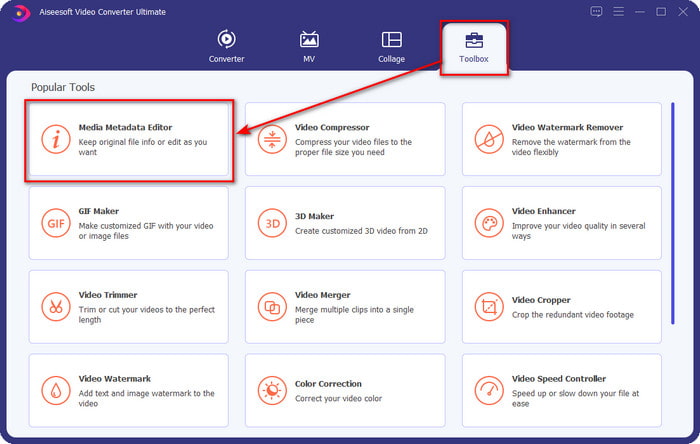
ขั้นตอนที่ 2. เมื่อคุณเปิดโปรแกรมแล้ว ให้ไปที่เมนู Toolbox จากนั้นมองหา Media Metadata Editor แล้วคลิกเลือก.
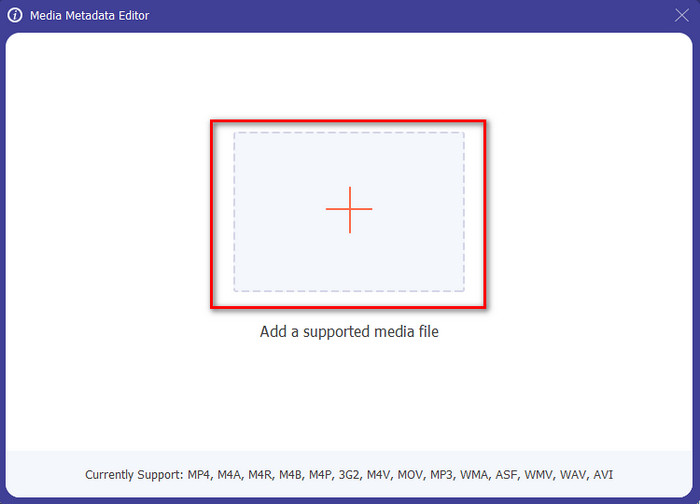
ขั้นตอนที่ 3. หลังจากคลิกแล้ว จะมีหน้าต่างใหม่ปรากฏขึ้น จากนั้นคลิกไอคอน + เพื่ออัปโหลดไฟล์มีเดียที่คุณต้องการ ค้นหาไฟล์มีเดียในโฟลเดอร์ที่แสดงขึ้นมา คลิกเลือกไฟล์ แล้วกด Open เพื่อใส่ไฟล์เข้ามา.
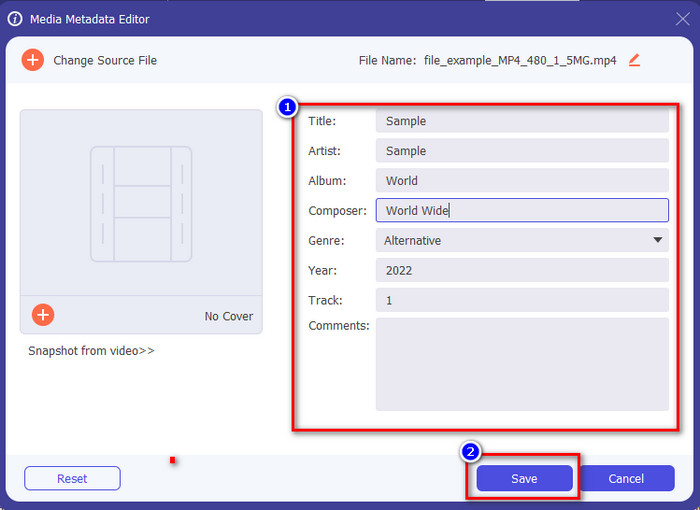
ขั้นตอนที่ 4. ตอนนี้คุณสามารถดึงหรือลบเมทาดาทาที่ไม่ต้องการออกจากไฟล์ได้แล้ว และยังสามารถเปลี่ยนแปลงข้อมูลเมทาดาทาได้ด้วยการกรอกลงในกล่องข้อความ เมื่อจัดการทุกอย่างเรียบร้อยแล้ว ให้คลิก Save เพื่อบันทึกการปรับเปลี่ยนเมทาดาทาของไฟล์ แค่นี้เองง่ายไหม เรารู้อยู่แล้วว่าเครื่องมือนี้ใช้งานง่ายมาก ลองใช้ดูได้เลย
ส่วนที่ 2 เครื่องมือแยกข้อมูลเมตา 4 อันดับแรกที่มีอยู่บนเว็บ
ก่อนที่เราจะแนะนำทางเลือกอื่นในการแยกข้อมูลเมตาในไฟล์ของคุณ คุณต้องรู้ว่าตัวแยกที่ประสบความสำเร็จทั้งหมดจำเป็นต้องมีการเชื่อมต่ออินเทอร์เน็ตเพื่อใช้งานหรือเข้าถึง ดังนั้น หากคุณมีการเชื่อมต่อที่ไม่เสถียร เครื่องมือนี้อาจไม่ใช่เครื่องมือที่ดีที่สุดในการแยกข้อมูลเมตา แต่ถ้าคุณต้องการทราบตัวกำจัดข้อมูลเมตาสี่อันดับแรก คุณสามารถอ่านรายละเอียดต่อไปนี้ด้านล่าง
อันดับ 1 โฟลเดอร์แบรนด์ – ตัวแยกข้อมูลเมตา
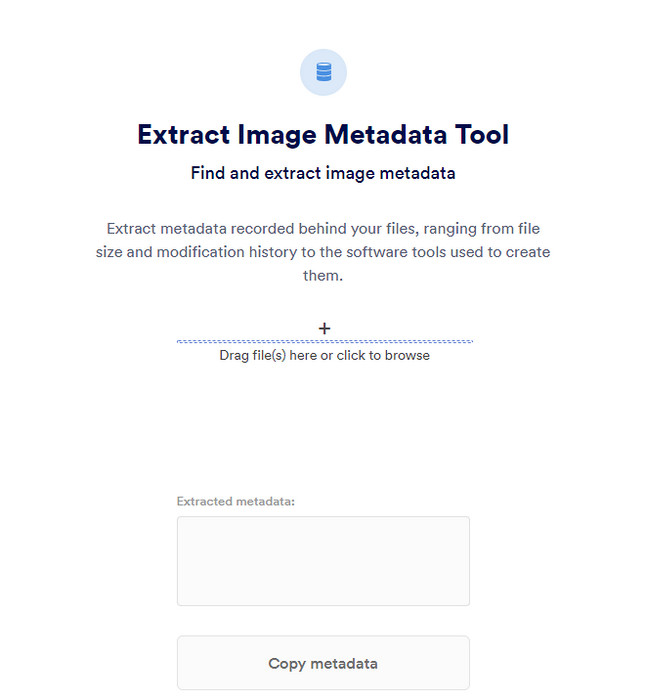
หากคุณต้องการใช้เครื่องมือดึงเมทาดาทาที่ใช้งานฟรีบนออนไลน์ Brand Folder – Metadata Extractor ก็เป็นตัวเลือกที่ให้บริการนี้แก่คุณ เครื่องมือนี้ถือเป็นตัวเลือกที่ดีสำหรับการลบข้อมูลในรูปภาพหรือไฟล์ PDF แบบฟรี ๆ และหลังจากดึงข้อมูลออกมาแล้ว คุณยังสามารถคัดลอกไปยังคลิปบอร์ดได้ด้วย นอกจากนี้ เว็บทูลนี้ยังมีฟังก์ชันหลายอย่างเกี่ยวกับไฟล์ที่คุณอาจต้องใช้ แม้จะเข้าถึงได้ฟรี แต่ก็มีข้อเสียคือ คุณสามารถดึงข้อมูลจากรูปภาพหรือ PDF ได้เพียงวันละ 5 ครั้งเท่านั้น หลังจากนั้นคุณจะไม่สามารถใช้งานได้ต่อในวันเดียวกัน.
ข้อดี
- เครื่องมือที่เข้าถึงได้ฟรีบนเว็บ
- ใช้งานง่ายแม้ว่าคุณจะไม่ใช่มือโปรในการดึงข้อมูล
- จะดึงข้อมูลบนรูปภาพและไฟล์โดยอัตโนมัติอย่างง่ายดาย
จุดด้อย
- คุณสามารถใช้ได้ห้าครั้งต่อวันเท่านั้น
- ไม่สามารถแยกข้อมูลเมตาของวิดีโอได้เนื่องจากไม่รองรับ
- บางครั้งคุณไม่สามารถใช้เครื่องมือนี้ได้เนื่องจากการเชื่อมต่ออินเทอร์เน็ตไม่ดี
ด้านบน 2. EXIF-Viewer
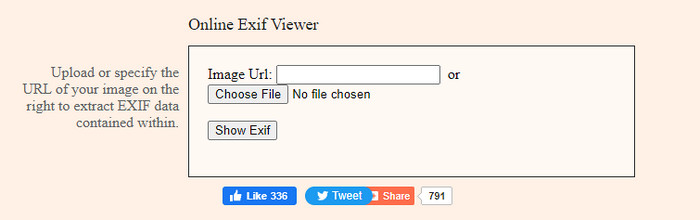
อีกหนึ่งเครื่องมือดึงเมทาดาทาออนไลน์ที่ทรงพลังคือ EXIF-Viewer เครื่องมือนี้ทำให้คุณสามารถดู ลบ และแก้ไขเมทาดาทาในไฟล์มีเดียของคุณได้ฟรี ถึงแม้หน้าตาโปรแกรม (GUI) จะดูไม่สวยงาม แต่ประสิทธิภาพของเครื่องมือก็ดีมากเมื่อเทียบกับเครื่องมือแรกในรายการ อย่างไรก็ตาม เมื่อคุณเข้าใช้งานเครื่องมือนี้ การเชื่อมต่อของคุณจะไม่ปลอดภัย และอาจมีคนขโมยข้อมูลของคุณได้หากคุณใช้เครื่องมือนี้ ดังนั้นควรระวังไฟล์ที่คุณอัปโหลด.
ข้อดี
- รองรับรูปแบบไฟล์มีเดียหลากหลายรูปแบบ
- มี GUI ที่เรียบง่าย
- เข้าถึงเครื่องมือได้ฟรีบนเว็บของคุณ
จุดด้อย
- การเชื่อมต่อไม่ปลอดภัยเมื่อคุณเข้าถึง
- เครื่องมือเว็บใช้เวลาในการโหลดข้อมูลเมตามากขึ้น
- โฆษณาอยู่บนเว็บไซต์
อันดับ 3 EXIFMeta
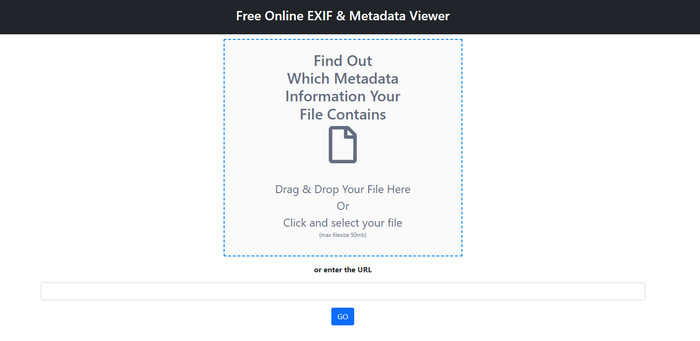
EXIFMeta เป็นอีกตัวอย่างหนึ่งของเครื่องมือดึงเมทาดาทาบนเว็บที่คุณสามารถใช้เพื่อแสดงข้อมูลที่ซ่อนอยู่ในไฟล์ของคุณ เว็บทูลนี้ยังรองรับไฟล์มีเดียหลายประเภทที่คุณสามารถอัปโหลดได้ เช่น รูปภาพ วิดีโอ เสียง และเอกสาร หากคุณใช้เครื่องมือนี้ คุณจะสามารถเห็นข้อมูลพื้นฐานของไฟล์มีเดียของคุณได้ แม้ว่าเว็บทูลนี้จะมีสิ่งต่าง ๆ ให้คุณทำกับเมทาดาทาได้หลายอย่าง แต่ประสิทธิภาพการทำงานก็ยังไม่ดีเท่าเครื่องมืออื่น นอกจากนี้ คุณต้องแน่ใจด้วยว่าไฟล์มีเดียของคุณมีขนาดน้อยกว่า 50MB จึงจะอัปโหลดไฟล์ไปยังเครื่องมือนี้ได้.
ข้อดี
- คุณสามารถอัปโหลดไฟล์สื่อต่างๆ ได้ที่นี่
- มันมี GUI ที่ดีกว่าเครื่องมือเว็บอื่น ๆ มาก
- ดูข้อมูลเมตาที่ฝังอยู่ในไฟล์สื่อของคุณด้วยความช่วยเหลือของเครื่องมือนี้
จุดด้อย
- คุณถูกจำกัดให้อัปโหลดไฟล์วิดีโอที่มีขนาดไม่เกิน 50MB
- บางครั้งอาจทำงานได้ไม่ดีถ้าคุณต้องการแยกข้อมูลเมตา
เครื่องมือเข้ารหัส 4 อันดับแรก – EXIF Metadata
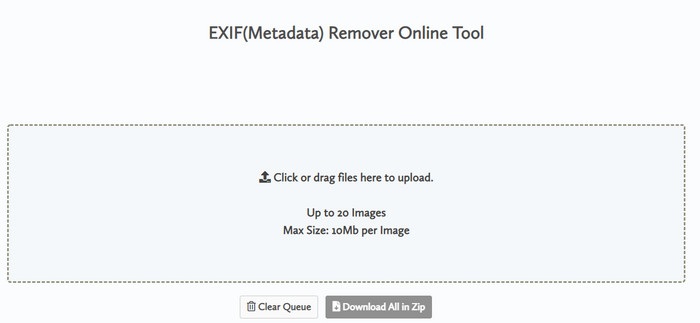
ด้วย Coding tools – EXIF Metadata คุณสามารถลบเมทาดาทาออกจากรูปภาพได้อย่างรวดเร็ว เครื่องมือดึงเมทาดาทานี้ใช้งานฟรีบนเว็บ หมายความว่าคุณใช้ได้ตราบใดที่มีการเชื่อมต่ออินเทอร์เน็ต เช่นเดียวกับเครื่องมือออนไลน์อื่น ๆ แต่ที่แตกต่างคือ เครื่องมือนี้ให้คุณใส่ไฟล์หลายไฟล์และลบเมทาดาทาออกพร้อมกันได้ แม้เว็บทูลนี้จะมีฟีเจอร์การดึงข้อมูลที่ดีมาก แต่อัพโหลดไฟล์จะใช้เวลานานหากไฟล์มีขนาดใหญ่และเครือข่ายของคุณช้า.
ข้อดี
- เข้าถึงได้อย่างปลอดภัยบนเบราว์เซอร์โปรดของคุณ
- GUI ที่เรียบง่ายและเข้าใจง่าย
- ไม่มีโฆษณาบนอินเทอร์เฟซเว็บ
จุดด้อย
- มันเก็บไฟล์ภาพของคุณไว้ 1 ชั่วโมงก่อนที่จะลบ
- ส่วนใหญ่เมื่ออัปโหลดจะล้มเหลว
- มีการจำกัดขนาดไฟล์ที่คุณสามารถอัปโหลดได้
ส่วนที่ 3 คำถามที่พบบ่อยเกี่ยวกับ Metadata Extractor
ฉันสามารถเพิ่มข้อมูลเมตาในไฟล์ของฉันได้หรือไม่
คุณสามารถอ่านขั้นตอนที่เราให้ไว้ในเครื่องมือขั้นสูงสุดเพื่อเพิ่มข้อมูลเมตาในไฟล์ใดๆ ได้สำเร็จ
มีใครเห็นข้อมูลเมตาของฉันไหม
น่าเสียดายที่เมื่อคุณโพสต์ไฟล์มีเดียบนอินเทอร์เน็ต คนอื่นสามารถดูเมทาดาทาในไฟล์ของคุณได้ ด้วยเมทาดาทา คนอื่นอาจทราบข้อมูลเกี่ยวกับรูปภาพและข้อมูลส่วนตัวอื่น ๆ เช่น ตำแหน่ง เวลา วันที่ อุปกรณ์ที่ใช้ และอื่น ๆ อีกมากมาย.
เหตุใดฉันจึงต้องแยกข้อมูลเมตา
หลายอย่างอาจเกิดขึ้น แต่เราดึงข้อมูลเมตาในไฟล์เพราะเราไม่ต้องการให้ใครมาบุกรุกความเป็นส่วนตัวของเรา แม้ว่าข้อมูลเมตาจะมีข้อดี แต่อย่าลืมว่าข้อมูลนั้นมีข้อเสียเช่นกัน ดังนั้น โปรดระวังว่าข้อมูลเมตาสามารถช่วยให้คุณทราบข้อมูลเกี่ยวกับไฟล์ได้ แต่ก็สามารถใช้เพื่อดึงข้อมูลเกี่ยวกับไฟล์โดยบุคคลอื่นได้
สรุป
เครื่องมือดึงเมทาดาทาที่เราแนะนำในบทความนี้สามารถทำงานได้ดีมากในการดึงเมทาดาทาออกจากไฟล์มีเดียของคุณ แม้ว่าคุณจะลบหรือแก้ไขเมทาดาทาแล้ว คุณก็ยังสามารถเปิดดูไฟล์มีเดียได้โดยไม่ทำให้ไฟล์เสียหาย จากการที่เราค้นคว้าเกี่ยวกับความแตกต่างของเครื่องมือต่าง ๆ เราพบว่า FVC Video Converter Ultimate เป็นตัวช่วยที่ยอดเยี่ยมที่สุดสำหรับงานนี้ ไม่ว่าคุณจะเป็นมืออาชีพหรือไม่ คุณก็สามารถลบหรือเปลี่ยนเมทาดาทาได้ง่าย ๆ เพียงไม่กี่คลิก ดังนั้นหากคุณยังไม่มีเครื่องมือใช้ เราขอแนะนำอย่างยิ่งให้ใช้เครื่องมือขั้นสูงตัวนี้เพื่อทำงานนี้ให้เสร็จอย่างไร้ที่ติ.
-
 4 อันดับเครื่องมือดูข้อมูลเมตาที่ดีที่สุดทั้งแบบออนไลน์และออฟไลน์ [อัปเดต 2025]
 ฉันสามารถตรวจสอบข้อมูลเมตาของไฟล์ของฉันได้หรือไม่ ได้ ด้วยความช่วยเหลือของโพสต์นี้ เราจะแนะนำให้คุณรู้จักกับผู้ดูข้อมูลเมตาต่างๆ ที่คุณสามารถใช้ได้
-
 5 อันดับโปรแกรมแก้ไขเมตาข้อมูลวิดีโอยอดนิยมสำหรับปี 2025 [บทวิจารณ์ที่ไม่ลำเอียง]
 คุณต้องการดูข้อมูลเมตาของวิดีโอของคุณหรือไม่? หากเป็นเช่นนั้น โปรดอ่านรายละเอียดด้านล่างเพื่อทำความเข้าใจหัวข้อนี้อย่างเต็มที่และทราบว่าเครื่องมือใดเหมาะกับคุณที่สุด
-
 7 เครื่องมือแก้ไขแท็กเพลงยอดนิยมบน Windows, Mac และอุปกรณ์พกพา
 แท็กเพลงเป็นที่นิยมใช้สำหรับการจัดเรียงเพลงในห้องสมุดของคุณตามข้อมูลภายใน จะทำอย่างไรถ้าคุณต้องการเปลี่ยน อ่านรายละเอียดด้านล่างเพื่อทราบข้อมูลเพิ่มเติม
