


 Video Converter Ultimate
 บันทึกหน้าจอ
 ซ่อมวิดีโอ
 ดาวน์โหลดอย่างปลอดภัย
วิธีลบลายน้ำ iStock บนวิดีโอและรูปภาพอย่างมีประสิทธิภาพด้วยขั้นตอน
เมื่อคุณต้องการมีไฟล์สื่อภาพที่มีลิขสิทธิ์ไว้ใช้งาน คุณสามารถเข้าใช้ iStock เพื่อดาวน์โหลดไฟล์เหล่านี้ได้ ทุกคนไม่สามารถใช้เว็บไซต์นี้ได้ฟรี นั่นหมายความว่าคุณจะต้องซื้อรูปภาพด้วยเงินจริง แม้ว่าคุณจะสามารถดาวน์โหลดไฟล์จากที่นี่ได้ฟรี แต่ไฟล์ที่คุณดาวน์โหลดจะมีลายน้ำติดมาด้วย การที่เว็บไซต์ใส่ลายน้ำเริ่มต้นลงบนไฟล์ เป็นการยืนยันว่าไฟล์นี้เป็นของเว็บไซต์ iStock คุณไม่รำคาญกับลายน้ำพวกนี้บ้างหรือ? ถ้าคุณรู้สึกเหมือนกัน ลองอ่านบล็อกนี้ให้จบ เราจะแสดงวิธีแก้ปัญหาที่เราพบทางอินเทอร์เน็ตให้คุณทราบ นอกจากนี้ เรายังจะแนบแพ็กเกจที่คุณสามารถเลือกใช้บนเว็บไซต์ดังกล่าว และอธิบายวิธีลบลายน้ำ iStockในแต่ละแบบให้ด้วย.

ส่วนที่ 1 วิธีการลบวิดีโอ iStock Watermarkon & รูปภาพด้วย 3 วิธีที่เป็นประโยชน์
วิธีที่ 1 การซื้อเครดิตใน iStock
เริ่มต้นด้วยการซื้อเครดิตบน iStock เครดิตใน iStock เป็นสกุลเงิน เว็บไซต์นี้รับรู้เครดิตเท่ากับเงินของคุณ คุณสามารถใช้เครดิตเพื่อซื้อไฟล์ใดก็ได้ในจำนวนที่กำหนด คุณสามารถบันทึกภาพ iStock โดยไม่มีลายน้ำได้หากคุณซื้อเครดิต หากต้องการทราบวิธีการดำเนินการ คุณสามารถอ่านขั้นตอนที่เราเพิ่มด้านล่างเพื่อช่วยเหลือคุณในการดำเนินการ
ขั้นตอนที่ 1. เปิดเว็บไซต์ทางการและเข้าสู่ระบบบัญชีของคุณบนเว็บไซต์นี้ หากคุณยังไม่มีบัญชี คุณสามารถสมัครบัญชีก่อนทำการซื้อเครดิตที่ต้องการได้.
ขั้นตอนที่ 2. บนหน้าเว็บไซต์ ให้กดที่ Pricing เพื่อดูว่าเครื่องมือนี้มีแพ็กเกจแบบใดให้เลือกบ้าง.
ขั้นตอนที่ 3. จะมีรายการเครดิตให้คุณเลือกซื้อ เลือกจำนวนเครดิตที่คุณต้องการ แล้วคลิก Purchase Credits.
ขั้นตอนที่ 4. กรอกข้อมูลและรายละเอียดการเรียกเก็บเงินที่คุณจะใช้สำหรับการซื้อเครดิตที่นี่.
วิธีที่ 2 ลบลายน้ำ iStock บนวิดีโอโดยใช้ FVC Video Converter Ultimate
หากต้องการลบลายน้ำ iStock บนวิดีโอ คุณจะต้องใช้ตัวลบลายน้ำขั้นสุดยอดอย่าง FVC Video Converter Ultimate นี่คือโปรแกรมลบลายน้ำยอดนิยมที่สามารถลบลายน้ำบนวิดีโอได้อย่างมีประสิทธิภาพ เครื่องมือนี้จะลบลายน้ำบนวิดีโอแบบเฟรมต่อเฟรม และไม่ทิ้งร่องรอยเมื่อคุณส่งออกไฟล์เสร็จ ดังนั้น หากคุณกำลังจะใช้ซอฟต์แวร์นี้บนเดสก์ท็อป เราสามารถรับรองได้ว่าคุณจะได้วิดีโอที่ไม่มีลายน้ำในเวลาไม่นาน อยากลองใช้ซอฟต์แวร์นี้หรือไม่? ถ้าใช่ คุณสามารถอ่านต่อและทำตามขั้นตอนที่เราเพิ่มไว้ด้านล่างเพื่อช่วยลบลายน้ำบนวิดีโอที่คุณบันทึกมาจาก iStock.
ขั้นตอนที่ 1. คลิกที่ปุ่มดาวน์โหลดที่เราใส่ไว้ด้านล่างเพื่อดาวน์โหลดโปรแกรมลงในเดสก์ท็อปของคุณ เลือกระบบปฏิบัติการที่ถูกต้องเพื่อให้ได้เวอร์ชันที่เหมาะสม ติดตั้งและตั้งค่าเครื่องมือหลังดาวน์โหลด จากนั้นคลิก Start Now เพื่อเปิดซอฟต์แวร์และเริ่มใช้งาน.
ดาวน์โหลดฟรีสำหรับ Windows 7 หรือใหม่กว่าดาวน์โหลดอย่างปลอดภัย
ดาวน์โหลดฟรีสำหรับ MacOS 10.7 หรือใหม่กว่าดาวน์โหลดอย่างปลอดภัย
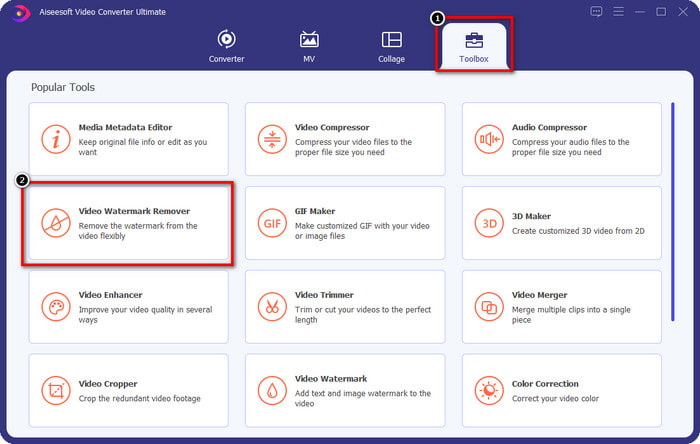
ขั้นตอนที่ 2. เมื่อคุณมีตัวลบลายน้ำ iStock ตัวนี้แล้ว ให้ไปที่เมนู Toolbox มองหา Video Watermark Remover เพื่อใช้ฟังก์ชันนี้.
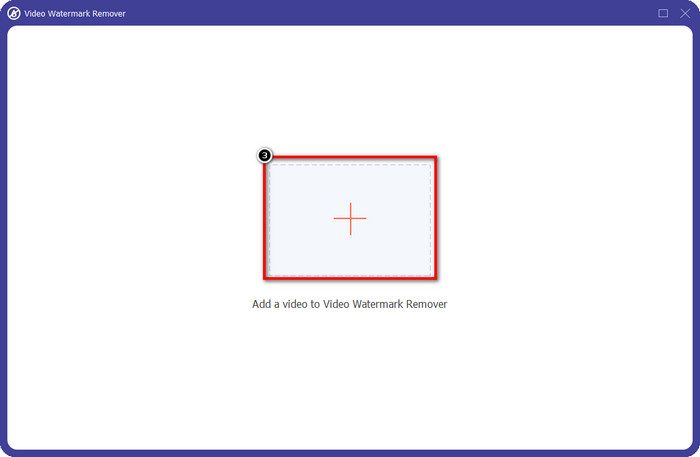
ขั้นตอนที่ 3. กดปุ่ม + เพื่ออัปโหลดไฟล์วิดีโอที่คุณดาวน์โหลดจาก iStock ซึ่งมีลายน้ำอยู่ ค้นหาไฟล์วิดีโอบนหน้าต่างตัวจัดการไฟล์ที่แสดงบนหน้าจอ จากนั้นกด Open เพื่ออัปโหลด.
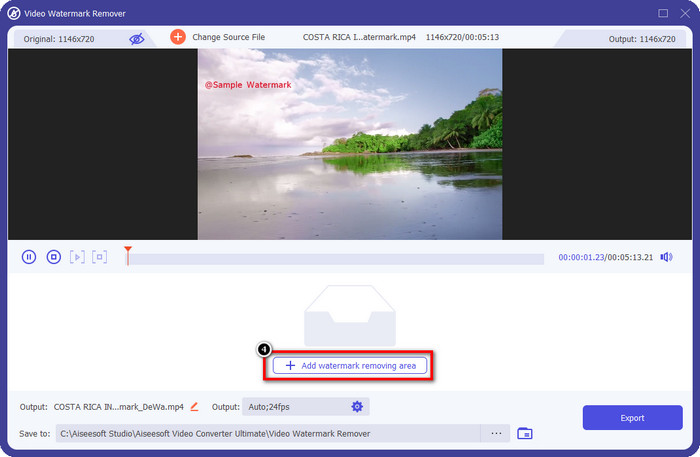
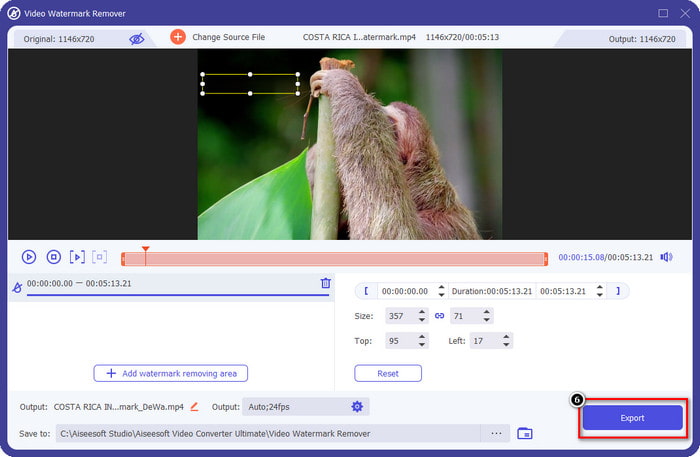
ขั้นตอนที่ 4. บนหน้าต่างใหม่ ให้เลือก Add Watermark Removing Area เพื่อกำหนดพื้นที่ลายน้ำบนวิดีโอที่คุณอัปโหลด.
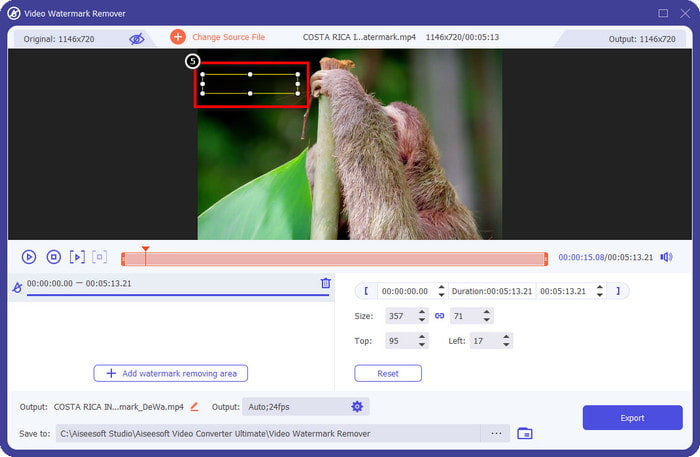
ขั้นตอนที่ 5. ที่ส่วนกลางด้านบน ปรับรูปร่างสี่เหลี่ยมให้ครอบบริเวณลายน้ำที่คุณต้องการลบ.
ขั้นตอนที่ 6. เมื่อทำทุกขั้นตอนเสร็จแล้ว ให้เริ่มส่งออกไฟล์โดยกดปุ่ม Export เพียงเท่านี้คุณก็ลบลายน้ำในวิดีโอของคุณเสร็จเรียบร้อยด้วยความช่วยเหลือของเครื่องมือขั้นสุดยอดนี้.
วิธีที่ 3 ลบลายน้ำ iStock บนรูปภาพโดยใช้ FVC Free Watermark Remover
สำหรับการจัดการลายน้ำบนรูปภาพ คุณจะต้องใช้ FVC Free Watermark Remover นี่คือเครื่องมือลบลายน้ำ iStock ออนไลน์ที่มีประสิทธิภาพ ซึ่งคุณสามารถใช้เพื่อลบลายน้ำบนรูปภาพได้อย่างสะดวก โดยไม่ต้องดาวน์โหลดอะไรลงบนอุปกรณ์ของคุณ อีกทั้งคุณไม่ต้องซื้อหรือสมัครแพ็กเกจใด ๆ เพราะใช้ได้ฟรี แม้จะเป็นเครื่องมือออนไลน์ แต่ประสิทธิภาพในการลบลายน้ำของมันก็ดีกว่าโปรแกรมลบลายน้ำบนภาพอื่น ๆ อย่างเห็นได้ชัด ยังไม่เชื่อที่เราบอกหรือ? มีเพียงวิธีเดียวที่จะพิสูจน์ให้คุณเห็นว่ามันทำงานได้ยอดเยี่ยม นั่นคือทำตามขั้นตอนที่เราใส่ไว้ที่นี่.
ขั้นตอนที่ 1. กรุณาคลิก ลิงก์ นี้เพื่อใช้เครื่องมือลบลายน้ำออนไลน์สำหรับรูปภาพได้ทันที.
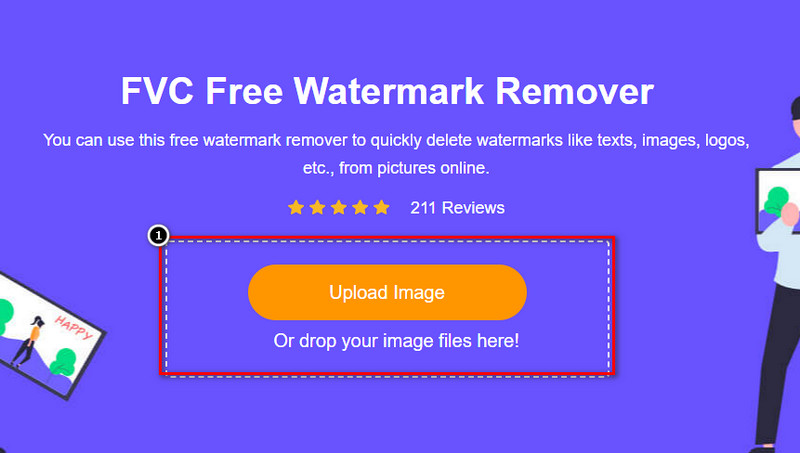
ขั้นตอนที่ 2. กด Upload Image เลือกรูปภาพที่มีลายน้ำ แล้วรอให้กระบวนการอัปโหลดเสร็จสิ้น.
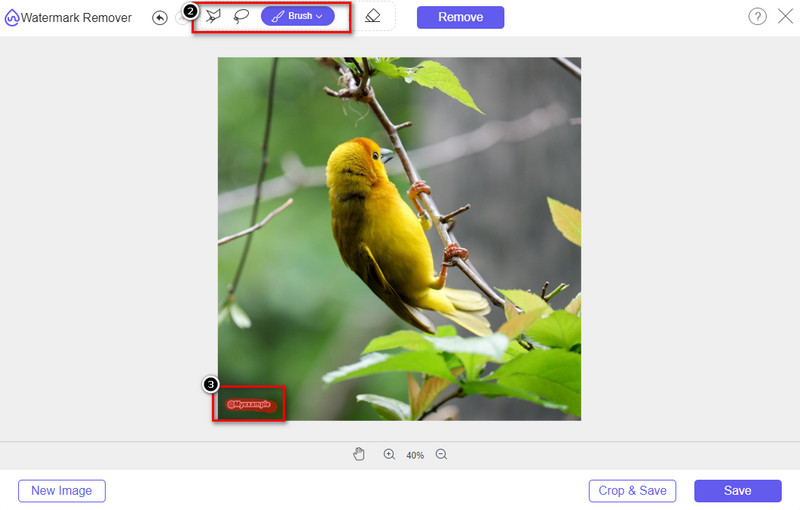
ขั้นตอนที่ 3. ใช้เครื่องมือ Draw วาดทับบนลายน้ำเพื่อไฮไลต์บริเวณที่ต้องการลบ.
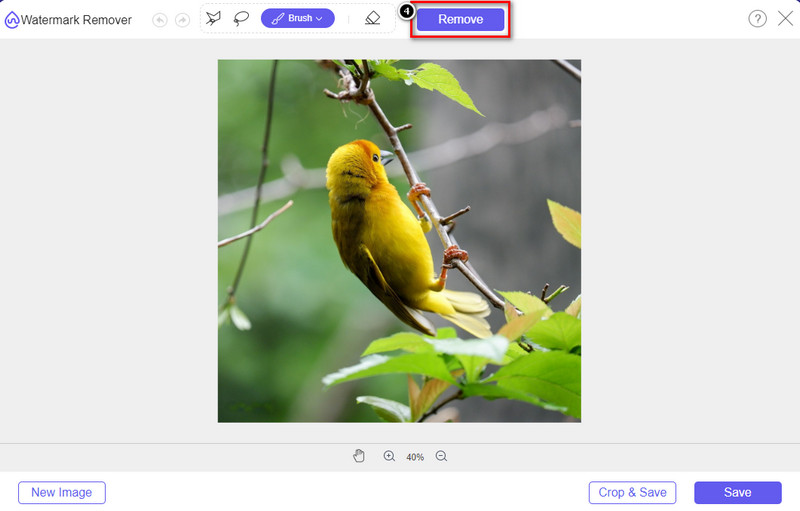
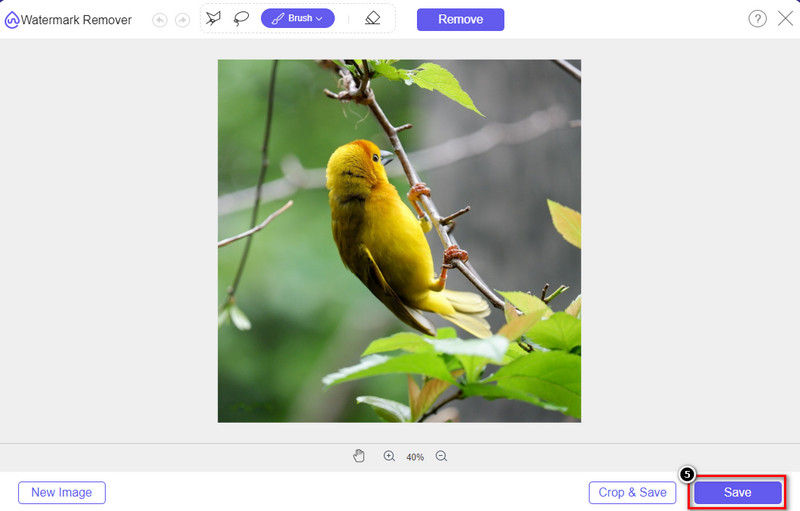
ขั้นตอนที่ 4. คลิก Remove เพื่อดูว่ารูปภาพจะมีลักษณะอย่างไรเมื่อไม่มีลายน้ำ.
ขั้นตอนที่ 5. สุดท้าย หากต้องการบันทึกไฟล์รูปภาพ ให้คลิก Save เพื่อส่งออกรูปภาพโดยไม่มีลายน้ำของ iStock.
ที่เกี่ยวข้อง:
วิธีลบลายน้ำออกจากวิดีโอที่ส่งออกจาก Renderforest
วิธีลบลายน้ำ Viva Video ออกจากวิดีโอ
ส่วนที่ 2 คำถามที่พบบ่อยเกี่ยวกับวิธีการลบ iStock Watermark
จะดาวน์โหลดภาพ iStock โดยไม่มีลายน้ำได้อย่างไร?
หากคุณต้องการดาวน์โหลดรูปภาพบน iStock ทันที เว็บไซต์จะใช้ลายน้ำกับรูปภาพ เว็บไซต์นี้ปกป้องทุกไฟล์เพื่อหลีกเลี่ยงปัญหาลิขสิทธิ์และการใช้ภาพบางภาพมากเกินไป หากคุณต้องการดาวน์โหลดภาพที่ไม่มีลายน้ำ คุณต้องซื้อเครดิต คุณสามารถทำตามขั้นตอนที่เราเพิ่มด้านบนเกี่ยวกับวิธีการทำ
ราคาของเครดิตเดียวใน iStock ราคาเท่าไหร่?
ราคาของเครดิตเดียวใน iStock มีมูลค่า $12 คุณสามารถใช้เครดิตเพื่อซื้อไฟล์มีเดียได้ที่นี่ และดาวน์โหลดไฟล์โดยไม่มีลายน้ำบนสื่อภาพที่คุณต้องการ ยิ่งคุณซื้อเครดิตมากเท่าไหร่ คุณก็จะได้ส่วนลดต่อเครดิต คุณสามารถตรวจสอบเครดิตที่มีอยู่ที่คุณอาจต้องการ
การซื้อไฟล์บน iStock นั้นไม่แพงหรือ?
เมื่อเทียบกับเว็บไซต์อื่นที่ให้บริการเหมือนกัน เว็บไซต์นี้เป็นหนึ่งในเว็บไซต์ที่ถูกที่สุดที่คุณสามารถใช้ซื้อไฟล์ลิขสิทธิ์ได้ เมื่อคุณซื้อไฟล์ที่นี่ คุณสามารถใช้มันได้อย่างไม่มีขีดจำกัด ซึ่งเมื่อคุณซื้อแล้ว ยังมีข้อจำกัดในการใช้งานไฟล์
สรุป
ตอนนี้คุณรู้วิธีลบลายน้ำ iStock บนวิดีโอและรูปภาพอย่างมีประสิทธิภาพแล้ว เราสามารถพูดได้ว่างานเสร็จแล้ว แล้วคุณชอบวิธีไหนมากที่สุด? คุณต้องการซื้อเครดิตเพื่อให้ไฟล์พร้อมโดยไม่มีลายน้ำหรือไม่? หรือคุณต้องการใช้เครื่องมือที่เราเพิ่มที่นี่ที่สามารถจัดการกับลายน้ำบนรูปภาพและวิดีโอ? ไม่ว่าคุณจะเลือกอะไร คุณจะยังคงมีไฟล์ที่สมบูรณ์แบบและพร้อมใช้งานโดยไม่รบกวนลายน้ำ
-
 วิธีลบลายน้ำด้วย Pixlr ในขั้นตอนโดยละเอียด [มีประสิทธิภาพ]
 ต้องการทราบวิธีลบลายน้ำด้วย Pixlr หรือไม่? ถ้าใช่ อ่านต่อด้านล่างเพื่อทราบวิธีการดำเนินการและทางเลือกอื่นที่คุณสามารถใช้ได้
-
 ลบลายน้ำแอนิโมติกาบนวิดีโอที่ส่งออกด้วย 3 วิธีที่ได้รับการพิสูจน์แล้ว
 คุณเคยสงสัยหรือไม่ว่าจะสามารถลบลายน้ำ Animatica บนวิดีโอที่คุณส่งออกได้หรือไม่? บทความนี้มีวิธีการ
-
 วิธีฟรีในการลบลายน้ำ VideoShop บนวิดีโอ [ได้อย่างง่ายดาย]
 ในการลบลายน้ำ VideoShop อุปกรณ์ของคุณจะต้องมีตัวลบลายน้ำ หากต้องการทราบว่าสิ่งเหล่านี้คืออะไร อ่านบทความนี้
