


 Video Converter Ultimate
 บันทึกหน้าจอ
 ซ่อมวิดีโอ
 ดาวน์โหลดอย่างปลอดภัย
วิธีที่ยอดเยี่ยมในการลบโลโก้ออกจากวิดีโอโดยใช้อุปกรณ์ของคุณ
การได้ดูวิดีโอโปรดของคุณเป็นเรื่องเพลิดเพลิน จนกระทั่งในวิดีโอนั้นมีวัตถุที่ไม่จำเป็น เช่น โลโก้ ลายน้ำ ตัวอักษร ฯลฯ หากคุณกำลังมองหาวิธีที่ยอดเยี่ยมและใช้งานได้จริง คุณจำเป็นต้องอ่านบทความนี้เพื่อเก็บไอเดียต่าง ๆ ด้วยแอปพลิเคชันที่มีประสิทธิภาพ คุณสามารถลองใช้หลายวิธีในการลบโลโก้ออกจากวิดีโอ ทั้งแบบออฟไลน์และออนไลน์ ด้วยตัวช่วยลบโลโก้เหล่านี้ คุณจะสนุกกับการดูภาพยนตร์ คลิปวิดีโอ สไลด์โชว์ และอื่น ๆ ได้อย่างเต็มที่ โดยจะไม่เจอปัญหาเดิมซ้ำอีก หากคุณต้องการเรียนรู้วิธีที่ได้ผลในการลบโลโก้ออกจากวิดีโอของคุณ อย่าข้ามการอ่านบทความให้ข้อมูลฉบับนี้.

ส่วนที่ 1: วิธีที่ดีที่สุดในการลบโลโก้ออกจากวิดีโอ
หากคุณกำลังมองหาโปรแกรมลบโลโก้แบบฟรี แอปพลิเคชันที่ดีที่สุดที่คุณสามารถใช้ได้คือ Video Converter Ultimate แอปนี้สามารถช่วยคุณลบโลโก้ออกจากวิดีโอของคุณได้ ไม่เพียงแต่โลโก้เท่านั้น แต่ยังรวมถึงวัตถุที่ไม่จำเป็นอื่น ๆ ในวิดีโอ เช่น ลายน้ำ ตัวอักษร รูปภาพ ฯลฯ นอกจากนี้ คุณยังลบโลโก้ได้ง่ายมาก เพราะมีขั้นตอนที่เรียบง่ายจนแม้แต่ผู้เริ่มต้นก็ทำตามได้.
นอกจากนี้ Video Converter Ultimate ยังมีกระบวนการลบที่รวดเร็ว ไม่เหมือนกับแอปพลิเคชันอื่นๆ ที่ต้องใช้เวลามากในการลบโลโก้ออกจากวิดีโอ เมื่อใช้แอปพลิเคชันนี้ คุณสามารถลบโลโก้ด้วยเครื่องมือง่ายๆ สองอย่าง เครื่องมือลบลายน้ำของวิดีโอ และเครื่องมือครอบตัดวิดีโอ นอกจากนี้ยังมีคุณสมบัติที่คุณสามารถเพลิดเพลินได้ เช่น ตัวแปลงวิดีโอ ตัวควบคุมความเร็วของวิดีโอ ตัวบีบอัดวิดีโอ การแก้ไขสี ตัวครอบตัดวิดีโอ ตัวสร้างภาพตัดปะ และอีกมากมาย หากคุณต้องการทราบสองวิธีในการลบโลโก้โดยใช้ Video Converter Ultimate ให้ทำตามขั้นตอนด้านล่าง
1. การใช้ฟังก์ชัน Video Watermark Remover
ขั้นตอนที่ 1: ขั้นแรก ให้คุณไปที่เว็บไซต์ของ Video Converter Ultimate แล้วดาวน์โหลดซอฟต์แวร์ หลังจากดาวน์โหลดเสร็จ ให้ดำเนินการติดตั้งและเปิดโปรแกรม Video Converter Ultimate บนเดสก์ท็อปของคุณ.
ดาวน์โหลดฟรีสำหรับ Windows 7 หรือใหม่กว่าดาวน์โหลดอย่างปลอดภัย
ดาวน์โหลดฟรีสำหรับ MacOS 10.7 หรือใหม่กว่าดาวน์โหลดอย่างปลอดภัย
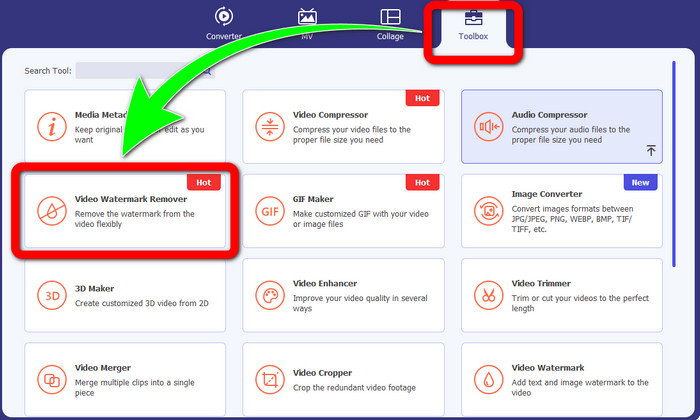
ขั้นตอนที่ 2: หลังจากเปิดซอฟต์แวร์แล้ว ให้ไปที่แถบ Toolbox จากนั้นมองหาเมนู Video Watermark Remover แล้วคลิก.
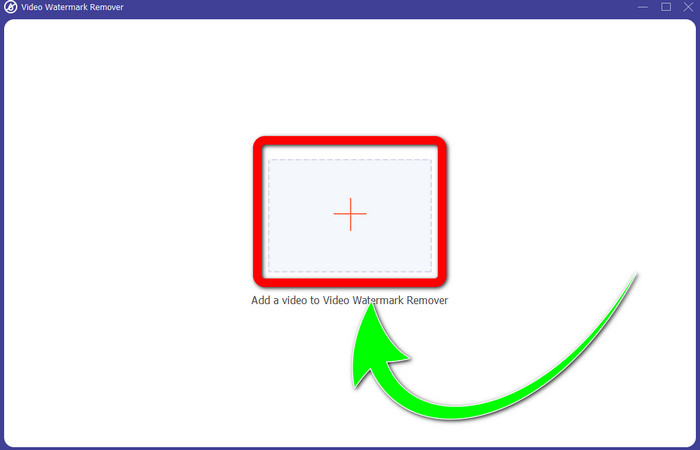
ขั้นตอนที่ 3: เมื่อคุณคลิก Video Watermark Remover แล้ว หน้าต่างใหม่จะปรากฏขึ้นบนเดสก์ท็อปของคุณ ให้กดปุ่มเครื่องหมายบวกแล้วนำเข้าวิดีโอที่มีโลโก้เข้ามา.
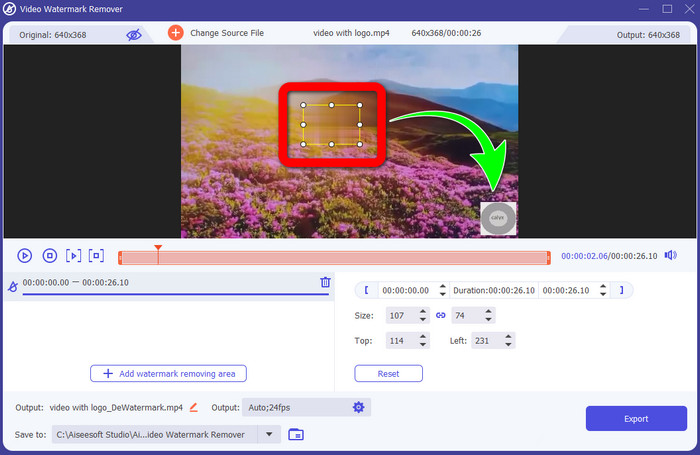
ขั้นตอนที่ 4: คลิกปุ่ม Add Watermark Removing Area จะมีกรอบขนาดเล็กปรากฏบนวิดีโอของคุณ ให้เลื่อนกรอบนั้นไปทับตำแหน่งโลโก้เพื่อปิดทับ.
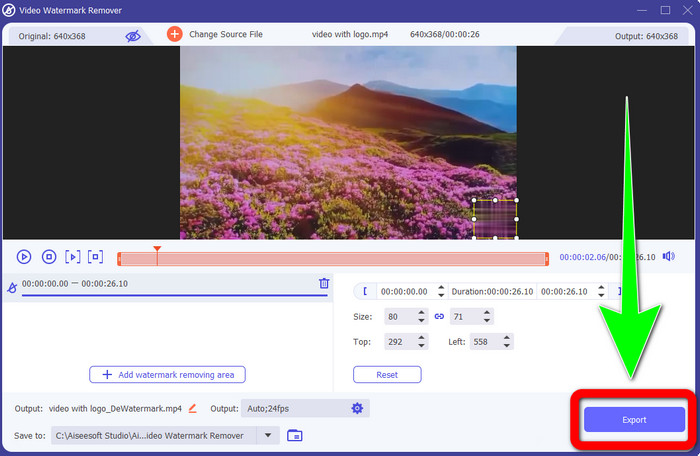
ขั้นตอนที่ 5: เมื่อจัดตำแหน่งกรอบให้ปิดทับโลโก้เรียบร้อยแล้ว ให้คลิกปุ่ม Export เพื่อบันทึกวิดีโอฉบับสุดท้ายของคุณ.
1. การใช้ฟังก์ชัน Video Cropper
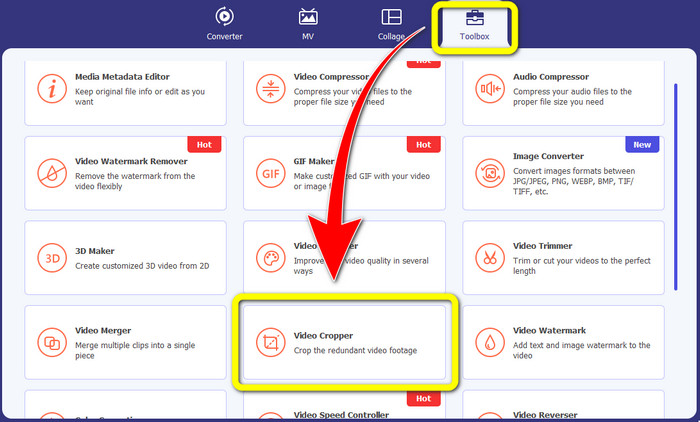
ขั้นตอนที่ 1: เปิด Video Converter Ultimate ไปที่ Toolbox แล้วคลิกปุ่ม Video Cropper จากนั้นจะมีหน้าต่างใหม่ปรากฏขึ้นบนหน้าจอของคุณ.
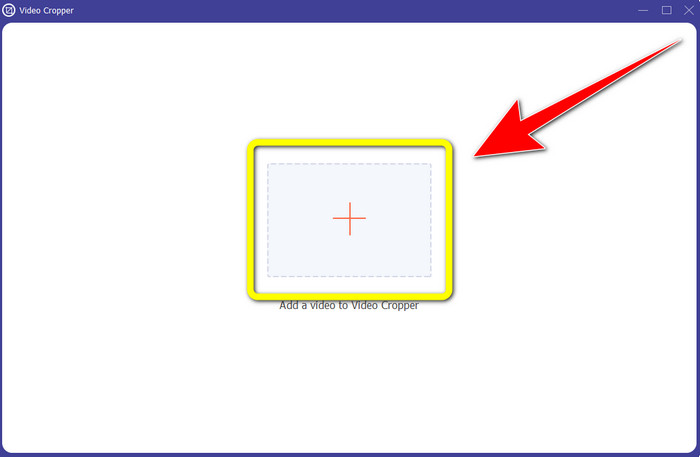
ขั้นตอนที่ 2: เมื่อหน้าต่างใหม่แสดงบนหน้าจอแล้ว ให้คลิกปุ่มเครื่องหมาย บวก เพื่อนำเข้าวิดีโอที่มีโลโก้ของคุณ.
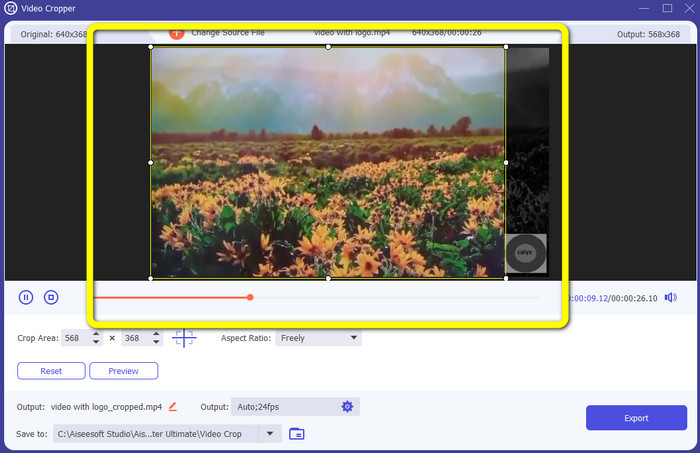
ขั้นตอนที่ 3: หลังจากนำเข้าวิดีโอแล้ว คุณสามารถครอปวิดีโอของคุณเพื่อตัดส่วนที่มีโลโก้ออกไปได้.
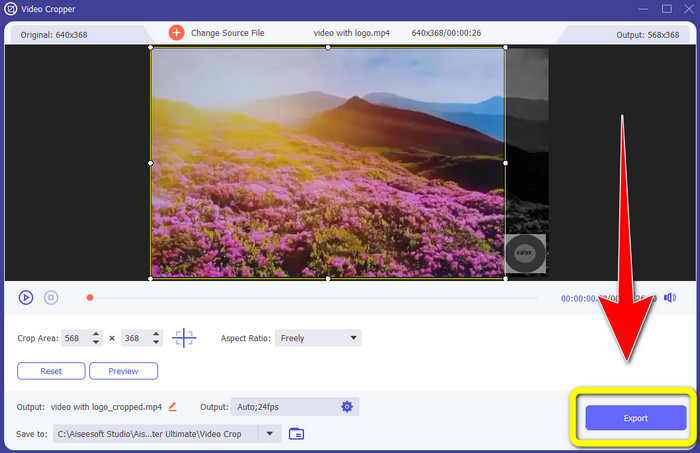
ขั้นตอนที่ 4: คลิกปุ่ม Export หลังจากครอปวิดีโอเสร็จ.
ส่วนที่ 2: วิธีลบโลโก้ออกจากวิดีโอออนไลน์
หากคุณกำลังมองหาแอปพลิเคชันเจ๋ง ๆ ที่จะช่วยคุณลบโลโก้ออกจากวิดีโอ คุณสามารถใช้ 123APPS ได้ แอปนี้ช่วยคุณลบโลโก้ออกจากวิดีโอได้อย่างรวดเร็วและง่ายดาย เหมาะอย่างยิ่งสำหรับผู้เริ่มต้น นอกจากนี้ เครื่องมือออนไลน์นี้ยังใช้ฟรี คุณจึงไม่ต้องกังวลเรื่องการซื้อเพิ่มเติม อีกทั้งหนึ่งในฟังก์ชันที่ดีของแอปนี้คือการกำจัดวัตถุที่น่ารำคาญในวิดีโอของคุณ เช่น ลายน้ำ ตัวอักษร รูปภาพ ฯลฯ นอกจากนี้ ยังรองรับไฟล์หลากหลายรูปแบบ เช่น MOV, WMV, AVI, MP4 และอื่น ๆ อย่างไรก็ตาม ทุกครั้งที่คุณอัปโหลดไฟล์จะใช้เวลานาน และขั้นตอนการลบก็ค่อนข้างช้า หากคุณต้องการลบโลโก้ออกจากวิดีโอของคุณ ให้ทำตามขั้นตอนง่าย ๆ ต่อไปนี้.
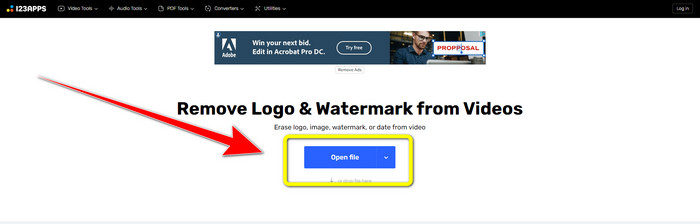
ขั้นตอนที่ 1: ไปที่เว็บไซต์ของ 123APPS คลิกปุ่ม Open file และเพิ่มวิดีโอที่มีโลโก้ TikTok ของคุณ.
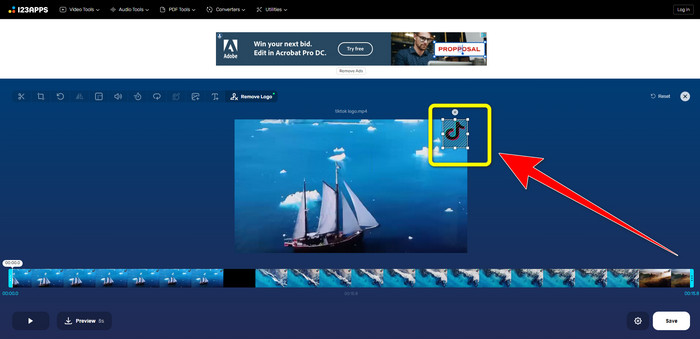
ขั้นตอนที่ 2: หลังจากเพิ่มวิดีโอแล้ว ให้ใช้เมาส์วาดกรอบบนหน้าจอครอบทับตำแหน่งโลโก้เพื่อทำการลบ.
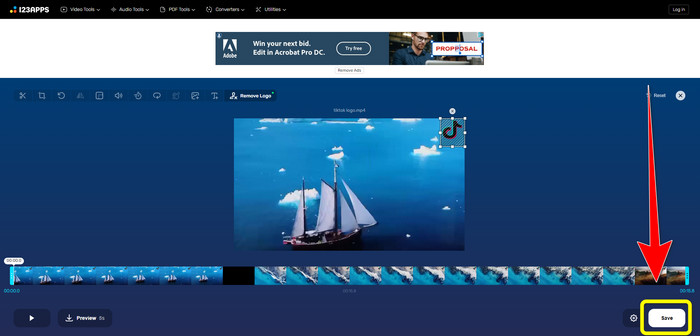
ขั้นตอนที่ 3: หลังจากครอบทับโลโก้เรียบร้อยแล้ว คุณสามารถคลิกปุ่ม Save เพื่อบันทึกวิดีโอฉบับสุดท้ายที่ไม่มีโลโก้ได้เลย.
ส่วนที่ 3: วิธีลบโลโก้ออกจากวิดีโอบน iPhone และ Android
วิธีลบโลโก้จากวิดีโอบน Android
หากคุณอยากรู้วิธีลบโลโก้ออกจากวิดีโอบน Android แอปที่คุณสามารถใช้ได้คือ Remove and Add Watermark ซอฟต์แวร์นี้ช่วยคุณลบโลโก้ออกจากวิดีโอได้ทันที นอกจากนี้ ยังไม่เพียงเชื่อถือได้สำหรับการลบวัตถุที่ไม่ต้องการในวิดีโอเท่านั้น แต่คุณยังสามารถลบโลโก้ออกจากรูปภาพได้ด้วย ซึ่งสะดวกต่อผู้ใช้มาก อีกทั้งเครื่องมือนี้ยังใช้งานง่าย ไม่ซับซ้อน และบันทึกวิดีโอได้รวดเร็ว หากต้องการลบโลโก้ออกจากวิดีโอของคุณ ให้ทำตามขั้นตอนง่าย ๆ ด้านล่าง.
ขั้นตอนที่ 1: ดาวน์โหลดแอป Remove and Add Watermark บนมือถือ Android ของคุณ.
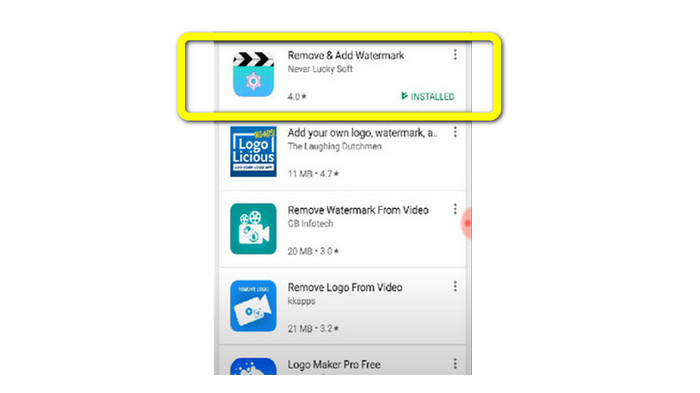
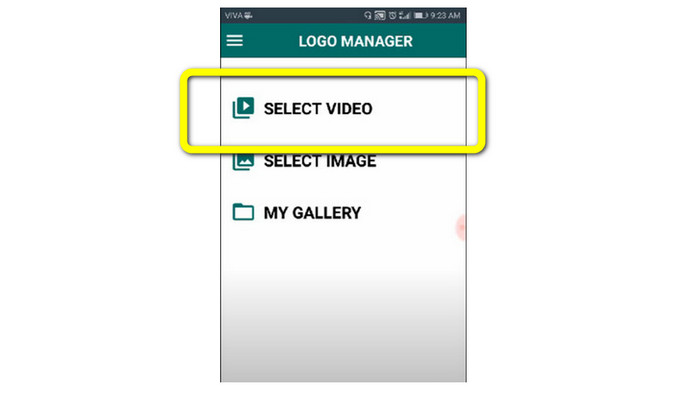
ขั้นตอนที่ 2: หลังจากดาวน์โหลดแอปแล้ว ให้แตะปุ่ม Select Video > Remove Logo เพื่อเพิ่มวิดีโอที่มีโลโก้.
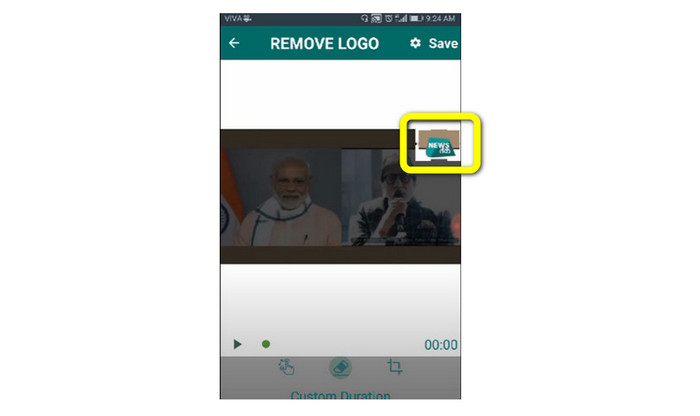
ขั้นตอนที่ 3: เมื่อคุณเพิ่มวิดีโอแล้ว จะมีกล่องขนาดเล็กปรากฏบนหน้าจอ ใช้กรอบกล่องนี้เพื่อลบโลโก้.
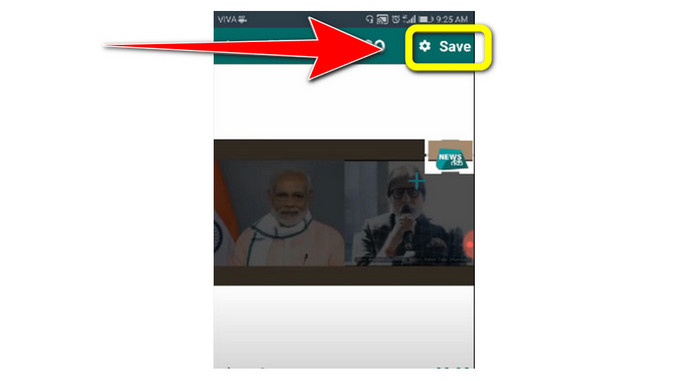
ขั้นตอนที่ 4: เมื่อครอบทับโลโก้เรียบร้อยแล้ว ให้แตะปุ่ม Save เพื่อบันทึกวิดีโอของคุณโดยไม่มีโลโก้.
วิธีลบโลโก้จากวิดีโอบน iPhone
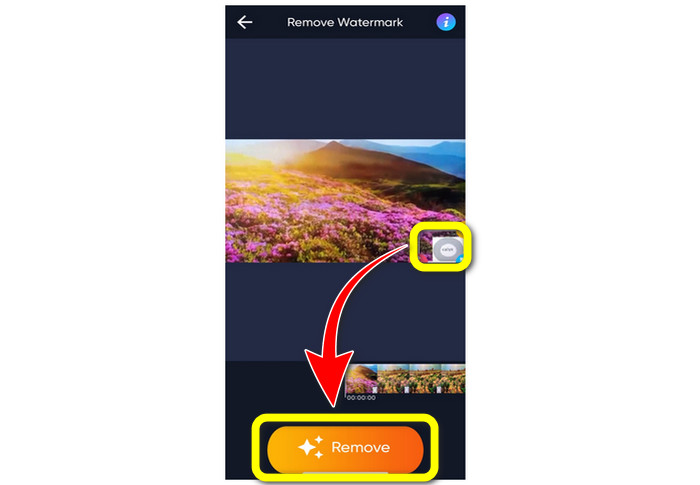
หากคุณต้องการลบโลโก้ออกจากวิดีโอบน iPhone แอปที่เหมาะที่สุดคือ Watermark Remover Retouch แอปนี้ช่วยให้คุณลบวัตถุที่ไม่จำเป็นออกจากวิดีโอ เช่น โลโก้ ลายน้ำ ตัวอักษร รูปภาพ ฯลฯ และยังสามารถลบได้อย่างรวดเร็ว เหมาะกับผู้ใช้มือใหม่ นอกจากนี้ ยังมีอินเทอร์เฟซที่เรียบง่าย ทำให้ใช้งานได้ไม่ยุ่งยาก หากคุณต้องการใช้แอปนี้เพื่อลบโลโก้ออกจากวิดีโอบน iPhone ให้ทำตามขั้นตอนง่าย ๆ ด้านล่าง.
ขั้นตอนที่ 1: ดาวน์โหลด Watermark Remover Retouch บน iPhone ของคุณ จากนั้นเปิดแอปและเพิ่มวิดีโอที่มีโลโก้.
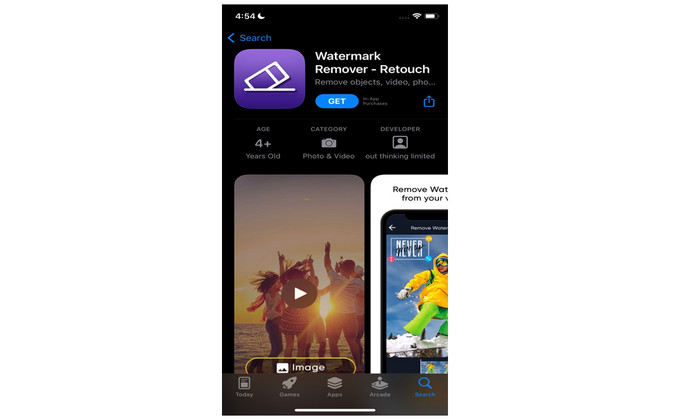
ขั้นตอนที่ 2: เมื่อเพิ่มวิดีโอแล้ว จะมีกล่องเล็ก ๆ ปรากฏบนวิดีโอ ให้ใช้กล่องนี้ครอบทับโลโก้ จากนั้นคลิกปุ่ม Remove และบันทึกวิดีโอของคุณโดยไม่มีลายน้ำ.
ที่เกี่ยวข้อง:
วิธีลบลายน้ำ Filmora ออกจากวิดีโอหรือโปรเจกต์ของคุณแบบฟรี ๆ
ทริกที่เร็วที่สุดในการลบลายน้ำ Adobe Stock ออกจากวิดีโอ [คู่มือสอนละเอียด[
ส่วนที่ 4: คำถามที่พบบ่อยเกี่ยวกับการลบโลโก้ออกจากวิดีโอ
การลบโลโก้ทางออนไลน์ปลอดภัยหรือไม่
ใช่แล้ว! แอปพลิเคชันออนไลน์มีความปลอดภัยในการใช้งาน สิ่งที่ดีที่สุดที่คุณต้องทำคือมองหาแอปพลิเคชันที่จะช่วยคุณลบโลโก้และใช้งานมัน
เป็นไปได้ไหมที่จะลบลายเซ็นออกจากวิดีโอของฉัน
ได้แน่นอน คุณสามารถลบลายเซ็นออกจากวิดีโอของคุณได้ด้วย Video Converter Ultimate ไม่ว่าจะเป็นลายเซ็น ลายน้ำ โลโก้ หรือข้อความ ก็สามารถลบออกได้อย่างง่ายดายด้วยแอปพลิเคชันทรงพลังนี้.
แอปพลิเคชันใดดีที่สุดที่ฉันสามารถใช้ลบโลโก้โดยใช้ Mac ของฉันได้
แอปที่ดีที่สุดที่คุณสามารถใช้เพื่อลบโลโก้บน Mac คือ Video Converter Ultimate แอปนี้มีให้ใช้ไม่เฉพาะบน Windows แต่ยังรองรับบน Mac ด้วย ซึ่งสะดวกต่อผู้ใช้มาก.
สรุป
บทความนี้ได้นำเสนอวิธีที่มีประสิทธิภาพและเชื่อถือได้ในการลบโลโก้ออกจากวิดีโอของคุณ ช่วยให้คุณสนุกกับการดูวิดีโอโปรดได้โดยไม่มีโลโก้มารบกวน และหากคุณต้องการวิธีที่ง่ายและไม่ซับซ้อนที่สุดในการลบโลโก้ออกจากวิดีโอ คุณควรเลือกใช้ Video Converter Ultimate.
-
 วิธีลบลายน้ำ Animaker โดยไม่มีค่าใช้จ่าย [วิธีที่พิสูจน์แล้ว]
 จะลบลายน้ำ Animaker ได้อย่างไร? ด้วยเครื่องมือที่ดีที่สุดที่เราสมัครเข้าร่วมบล็อกนี้ คุณสามารถใช้เครื่องมือเหล่านี้เพื่อกำจัดลายน้ำได้
-
 บทช่วยสอนเกี่ยวกับการลบลายน้ำออกจากกราฟแหล่งกำเนิด [100% การทำงาน]
 หากต้องการลบลายน้ำออกจาก Origin Graph คุณจะต้องขอความช่วยเหลือ ความช่วยเหลือที่คุณต้องการจะรวมอยู่ในบทความนี้ คุณสามารถอ่านเพื่อทราบ
-
 วิธีลบลายน้ำใน SmartDraw อย่างง่ายดาย [2 วิธีที่พิสูจน์แล้ว]
 จะลบลายน้ำใน Smart Draw ได้อย่างไร? หากคุณมีคำถามเดียวกัน คุณสามารถพึ่งพาบทความนี้ได้ตามที่เราอธิบายไว้!
