


 Video Converter Ultimate
 บันทึกหน้าจอ
 ซ่อมวิดีโอ
 ดาวน์โหลดอย่างปลอดภัย
วิธีที่ง่ายที่สุดในการลบโลโก้ ManyCam บนอุปกรณ์ของคุณ
คุณอยากเรียนรู้วิธีลบโลโก้ ManyCam บน Windows และ Mac หรือไม่? ถ้าใช่ บทความนี้จะแนะนำวิธีต่าง ๆ ในการลบโลโก้ออกจากวิดีโอที่คุณควรลองดู การดูวิดีโอโปรดที่มีลายน้ำหรือโลโก้ทับอยู่มักจะน่ารำคาญ คุณจะไม่สามารถเพลิดเพลินกับวิดีโอได้เต็มที่ และมันยังกลายเป็นสิ่งรบกวนสายตา บางครั้งคุณอาจมองไม่เห็นบางส่วนของวิดีโอเพราะมีลายน้ำ รูปภาพ ข้อความ หรือโลโก้บังไว้ โชคดีที่คุณสามารถใช้ซอฟต์แวร์ที่มาพร้อมฟังก์ชันลบลายน้ำเพื่อลบวัตถุที่ไม่ต้องการเหล่านี้ออกจากวิดีโอของคุณได้.
ด้วยความช่วยเหลือของแอปพลิเคชันเหล่านี้ คุณจะไม่ผิดหวังอีกต่อไป หากคุณสนใจที่จะทราบวิธีที่ดีที่สุดในการลบโลโก้ ManyCam ทางเลือกที่ดีที่สุดของคุณคืออ่านบทความนี้

ส่วนที่ 1: วิธีลบโลโก้ ManyCam โดยการเปิดใช้งานการสมัครสมาชิก
หากคุณต้องการเรียนรู้วิธีลบลายน้ำออกจาก ManyCam ที่นี่คือที่ที่เหมาะสม ManyCam เป็นซอฟต์แวร์ไลฟ์สตรีมที่ใช้ได้ทั้งบน Windows และ Mac แอปพลิเคชันนี้ช่วยให้คุณสร้างการออกอากาศที่มีเอกลักษณ์บนแพลตฟอร์มของคุณ สร้างวิดีโอสอน งานนำเสนอทางธุรกิจ ไลฟ์สตรีมเกม และอื่น ๆ อีกมากมาย นอกจากนี้ ยังมีฟีเจอร์ดี ๆ ให้ใช้งานอีกหลายอย่าง เช่น เพิ่มเพลง บันทึกหน้าจอ ใส่ฉากหลังเขียว (Green Screen) สตรีมเกม และอื่น ๆ สำหรับครีเอเตอร์ด้านคอนเทนต์ ManyCam เป็นเครื่องมือที่มีคุณค่าและมีประโยชน์มาก เพราะมีเครื่องมือสำคัญที่พวกเขาต้องใช้ เช่น การบันทึกหน้าจอ (screencasting) และการอัดวิดีโอหน้าจอ ทำให้การทำงานสะดวกขึ้น.
อย่างไรก็ตาม ทุกครั้งที่คุณสร้างหรือแก้ไขวิดีโอ จะมีโลโก้กล้องหลายตัวอยู่ที่ส่วนล่างของวิดีโอซึ่งสร้างความรำคาญใจ โชคดีที่คุณสามารถลบโลโก้นี้ได้โดยเปิดใช้งานการสมัครสมาชิก ManyCam ทำตามขั้นตอนด้านล่างเพื่อเรียนรู้วิธีลบโลโก้ manycam โดยเปิดใช้งานการสมัครสมาชิก
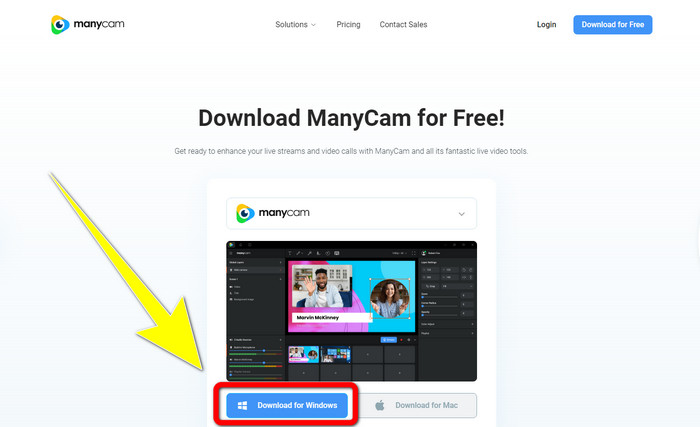
ขั้นตอนที่ 1: หากต้องการดาวน์โหลด ManyCam ให้คลิกปุ่ม Download for Windows จากนั้นดำเนินการติดตั้งโปรแกรม.
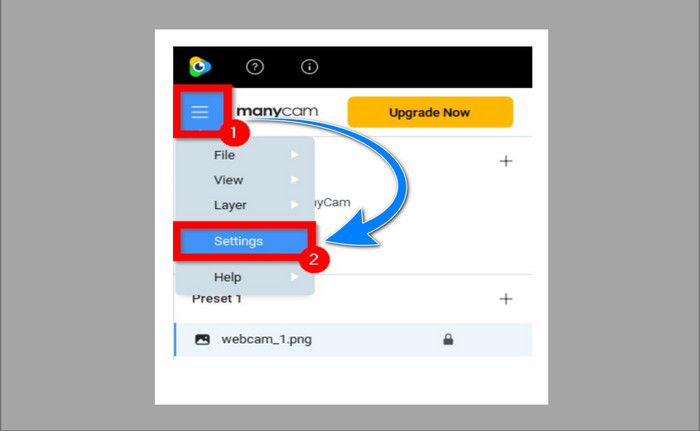
ขั้นตอนที่ 2: เปิดใช้งานแอปพลิเคชันบนคอมพิวเตอร์ของคุณ แล้วคลิกไอคอนเมนู (sandwich icon) ของ ManyCam จากนั้นไปที่ Settings > Account และเข้าสู่ระบบด้วยบัญชีที่คุณสร้างไว้หลังจากซื้อการสมัครใช้งาน (subscription).
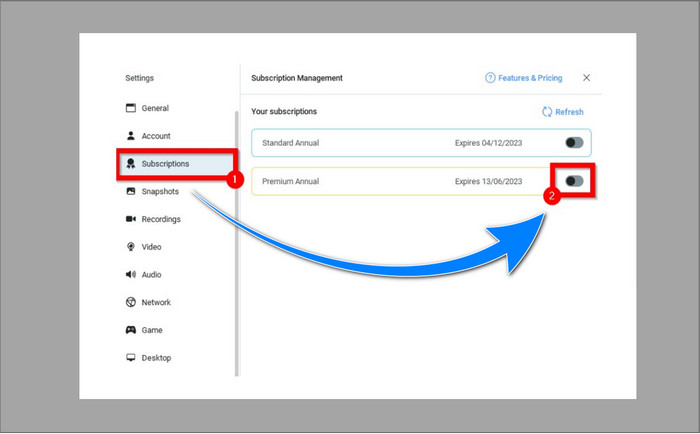
ขั้นตอนที่ 3: ไปที่แท็บ Subscription เพื่อตรวจสอบให้แน่ใจว่าการสมัครใช้งานถูกเปิดใช้งานแล้ว.
ขั้นตอนที่ 4: หากการสมัครใช้งานถูกเปิดใช้งานเรียบร้อยแล้ว จะมีข้อความ Pop-up ปรากฏขึ้น จากนั้นก็เป็นอันเสร็จสิ้น.
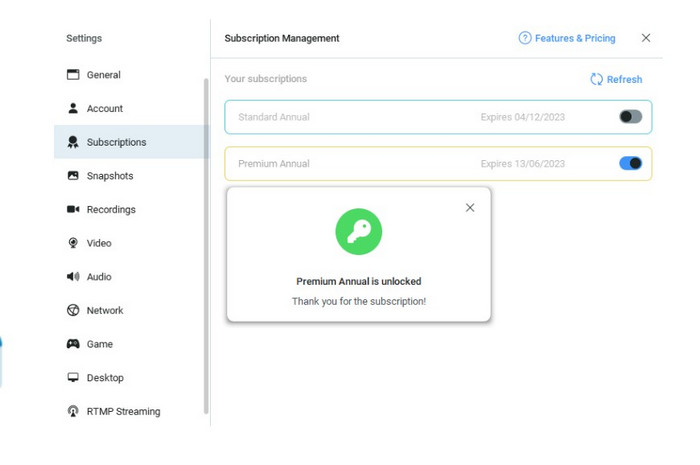
หากแอปพลิเคชัน ManyCam ของคุณเปิดใช้งานแล้ว ลายน้ำหรือโลโก้บนวิดีโอของคุณจะถูกลบออกโดยอัตโนมัติ คุณสามารถเพลิดเพลินกับการรับชมวิดีโอโปรดของคุณโดยไม่มีลายน้ำ
ส่วนที่ 2: วิธีลบโลโก้ ManyCam โดยไม่ต้องสมัครสมาชิก
คุณต้องการลบลายน้ำจาก ManyCam ฟรีหรือไม่? นอกจากใช้แอปพลิเคชัน ManyCam แล้ว คุณยังสามารถใช้แอปพลิเคชันอื่นเพื่อลบโลโก้ของ ManyCam ได้ด้วย แอปพลิเคชันที่เหมาะสมที่สุดที่คุณสามารถใช้คือ Video Converter Ultimate แอปนี้สามารถลบวัตถุที่ไม่ต้องการบนวิดีโอของคุณ เช่น ข้อความ ลายน้ำ โลโก้ เป็นต้น นอกจากนี้ Video Converter Ultimate ยังมีเครื่องมือตัดต่อวิดีโอหลากหลายให้ใช้งาน เช่น ตัวปรับความเร็ววิดีโอ (video speed controller) เครื่องมือเพิ่มคุณภาพวิดีโอ (video enhancer) การเพิ่มและลบลายน้ำ การปรับแต่งสี การเพิ่มเสียง (volume booster) และอื่น ๆ เครื่องมือที่ดีที่สุดที่คุณใช้เพื่อลบลายน้ำด้วย Video Converter Ultimate คือฟังก์ชัน Video Watermark Remover.
เครื่องมือนี้จะช่วยคุณกำจัดลายน้ำได้อย่างง่ายดาย นอกจากนี้ แอปพลิเคชันนี้สามารถใช้ได้ทั้งบน Windows และ Mac นอกจากนี้ คุณจะไม่ต้องลำบากกับการใช้แอปพลิเคชันนี้ นอกจากนี้ยังรองรับไฟล์เสียงและวิดีโอหลายรูปแบบ เช่น MP4, FLV, MOV, MKV, MP3, AAC และอื่นๆ หากคุณต้องการลบโลโก้ ManyCam โดยใช้ Video Converter Ultimate บทความนี้จะแสดงให้คุณเห็นสองวิธี วิธีเหล่านี้ใช้เครื่องครอบตัดวิดีโอและโปรแกรมลบลายน้ำวิดีโอ
1. การใช้ Video Cropper
ขั้นตอนที่ 1. ดาวน์โหลด FVC Video Converter Ultimate แล้วดำเนินการติดตั้งให้เสร็จสิ้น.
ดาวน์โหลดฟรีสำหรับ Windows 7 หรือใหม่กว่าดาวน์โหลดอย่างปลอดภัย
ดาวน์โหลดฟรีสำหรับ MacOS 10.7 หรือใหม่กว่าดาวน์โหลดอย่างปลอดภัย
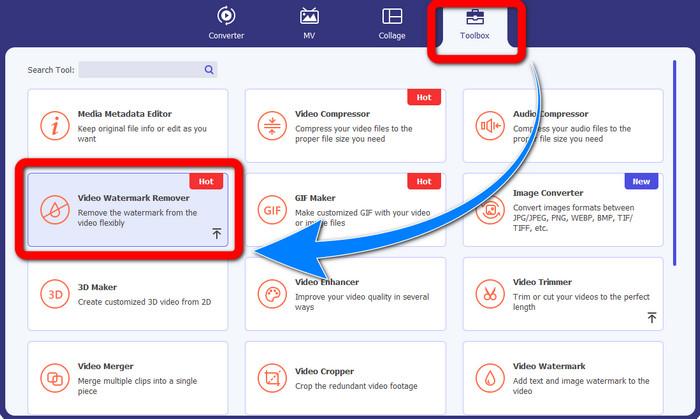
ขั้นตอนที่ 2: หลังการติดตั้ง ให้เปิดโปรแกรม แล้วคลิก Toolbox > Video Cropper.
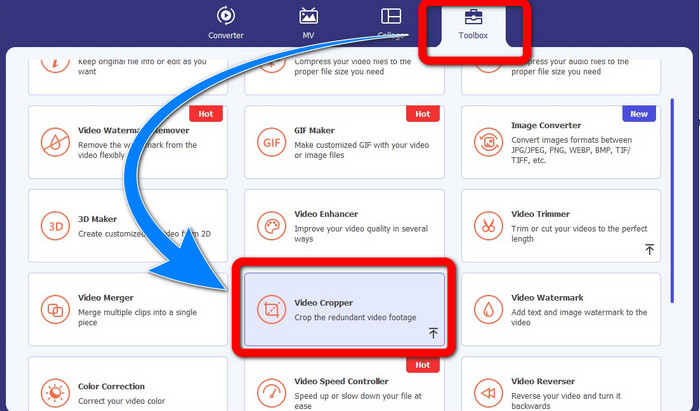
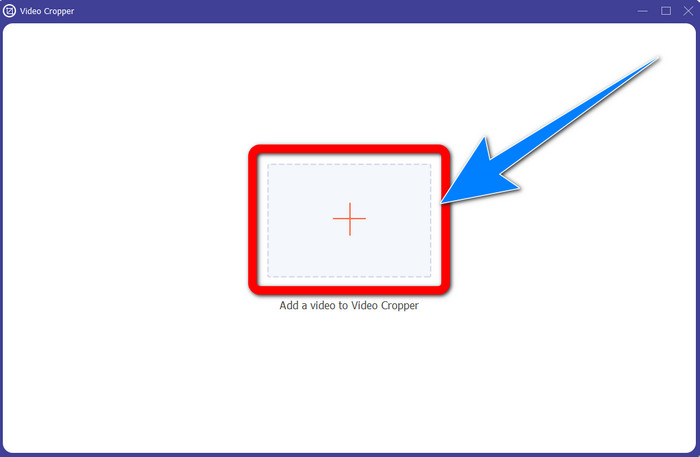
ขั้นตอนที่ 3: หลังจากคลิก Video Cropper จะมีหน้าต่างใหม่ปรากฏขึ้น ให้คลิกปุ่มสัญลักษณ์ เครื่องหมายบวก (Plus) แล้วเพิ่มวิดีโอที่มีลายน้ำจาก ManyCam เข้าไป.
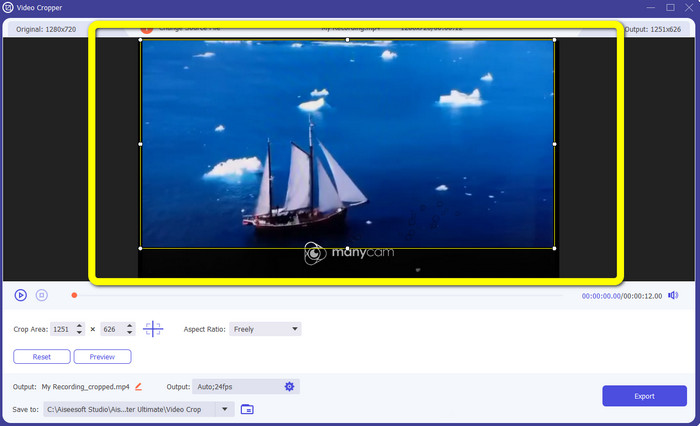
ขั้นตอนที่ 4: เมื่อเพิ่มไฟล์วิดีโอเรียบร้อยแล้ว คุณสามารถครอปวิดีโอเพื่อลบลายน้ำออกได้.
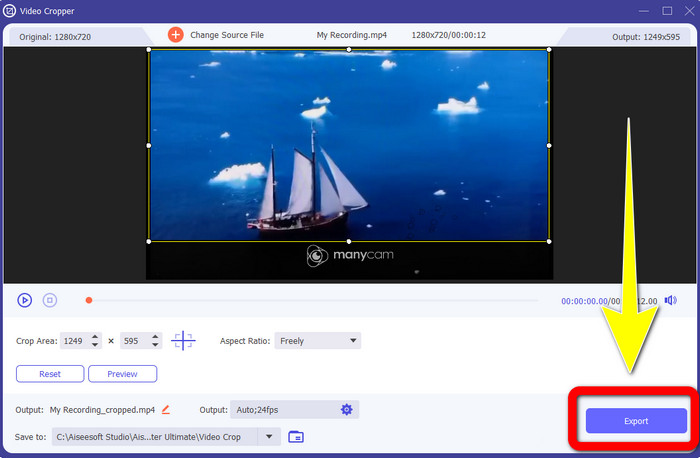
ขั้นตอนที่ 5: เมื่อคุณลบลายน้ำเสร็จแล้ว ให้คลิกปุ่ม Export เพื่อบันทึกผลงานสุดท้าย คุณก็สามารถดูวิดีโอโปรดของคุณโดยไม่มีลายน้ำได้แล้ว.
2. การใช้ Video Watermark Remover
ขั้นตอนที่ 1: เปิดโปรแกรม จากนั้นไปที่ Toolbox > Video Watermark Remover.
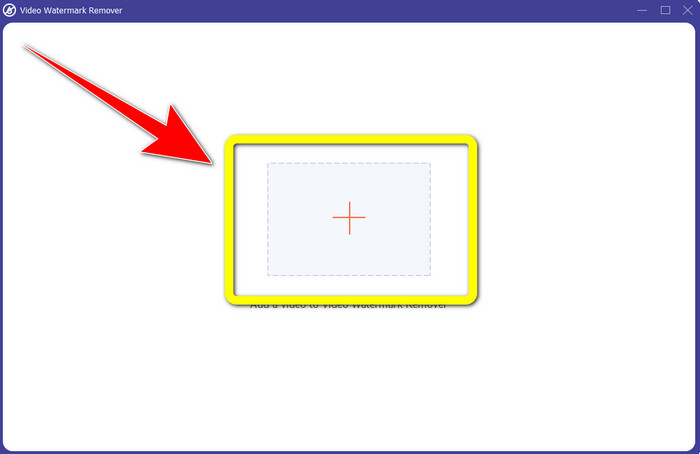
ขั้นตอนที่ 2: หลังจากคลิก Video Watermark Remover จะมีหน้าต่างใหม่ปรากฏขึ้น ให้คลิกปุ่มสัญลักษณ์ เครื่องหมายบวก (Plus) เพื่อเพิ่มวิดีโอที่มีลายน้ำจาก ManyCam.
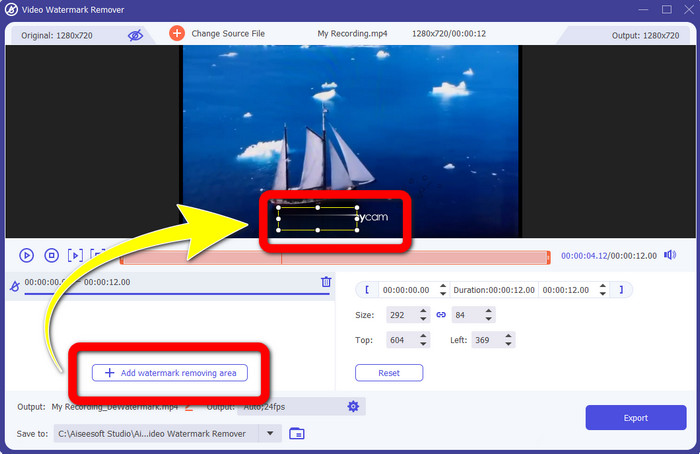
ขั้นตอนที่ 3: เมื่อคุณเพิ่มวิดีโอเรียบร้อยแล้ว ให้คลิก Add Watermark Removing Area จากนั้นจะมีกล่องปรากฏบนวิดีโอของคุณ ให้ลากกล่องไปยังตำแหน่งที่มีลายน้ำเพื่อให้กล่องครอบทับ.
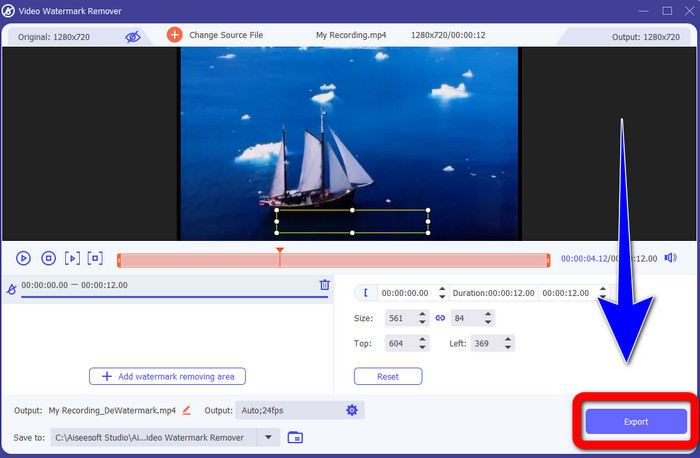
ขั้นตอนที่ 4: เมื่อคุณลบลายน้ำออกจากวิดีโอเสร็จแล้ว ให้คลิก Export เพื่อบันทึกไฟล์ออกมา วิธีนี้คือวิธีที่ดีที่สุดในการลบโลโก้ ManyCam ฟรี.
ส่วนที่ 3: คำถามที่พบบ่อยเกี่ยวกับการเอาโลโก้ ManyCam ออก
ใช้เวลานานเท่าใดในการลบโลโก้
คุณไม่ต้องรออีกต่อไปเพราะกระบวนการลบโลโก้หรือวัตถุที่ไม่จำเป็นจะใช้เวลาเพียงไม่กี่วินาที
ฉันสามารถลบโลโก้ ManyCam บนโทรศัพท์ของฉันได้ไหม
ใช่! คุณสามารถลบโลโก้ ManyCam บน Android หรือ iPhone ของคุณโดยใช้แอปพลิเคชันซอฟต์แวร์ต่างๆ ที่มีการลบลายน้ำ ค้นหาแอปพลิเคชันใน play store หรือ app store ของคุณ และลองใช้แอปพลิเคชันเหล่านั้นที่คุณสามารถดูได้ที่ผลลัพธ์ด้านบน
มีวิธีที่ดีที่สุดในการลบลายน้ำบน Mac ของฉันหรือไม่?
แน่นอน ทำได้! คุณสามารถใช้โปรแกรมที่มีฟังก์ชันลบลายน้ำเพื่อลบลายน้ำบน Mac ได้ แอปพลิเคชันนี้คือ Video Converter Ultimate ซึ่งใช้งานได้อย่างยอดเยี่ยมทั้งบน Windows และ Mac ซอฟต์แวร์นี้ช่วยลบวัตถุที่ไม่จำเป็นบนวิดีโอของคุณได้ เช่น โลโก้ ลายน้ำ รูปภาพ และข้อความ.
ฉันสามารถใช้เครื่องมือ Cropping จากแอปพลิเคชัน ManyCam เพื่อลบโลโก้ ManyCam ได้หรือไม่
น่าเสียดายที่ทำไม่ได้! การใช้เครื่องมือครอปเพื่อลบโลโก้ของ ManyCam นั้นไม่เกิดผล แม้ว่าคุณจะลองครอปวิดีโอเพื่อลบโลโก้ออก แต่มันก็ยังคงแสดงอยู่ วิธีเดียวที่จะลบโลโก้ได้คือการเปิดใช้งานการสมัครใช้งาน (subscription) บน ManyCam.
นอกจาก ManyCam มีวิธีอื่นในการลบลายน้ำบนวิดีโอของฉันหรือไม่
ใช่มี! นอกจาก ManyCam แล้ว ยังมีแอปพลิเคชันอื่นๆ ที่มีตัวลบลายน้ำที่คุณสามารถใช้ได้โดยไม่ต้องซื้อ หนึ่งในแอปพลิเคชั่นที่ดีที่สุดที่คุณสามารถใช้เพื่อลบลายน้ำบนวิดีโอของคุณคือ Video Converter Ultimate มันง่ายและใช้งานง่ายซึ่งเหมาะสำหรับผู้เริ่มต้น
สรุป
จากข้อมูลข้างต้น คุณสามารถเรียนรู้วิธีลบโลโก้ ManyCam บน Windows และ Mac ได้ คุณสามารถใช้แอป ManyCam เพื่อลบโลโก้ได้อย่างง่ายดายหลังจากเปิดใช้งานการสมัครใช้งานเรียบร้อยแล้ว นอกจากนี้ หากคุณต้องการใช้แอปที่มีฟังก์ชันลบลายน้ำได้ฟรี คุณควรใช้ Video Converter Ultimate แอปพลิเคชันนี้จะช่วยคุณได้มากในการลบวัตถุที่ไม่จำเป็นออกจากวิดีโอของคุณ.
-
 วิธีที่ง่ายที่สุดในการลบลายน้ำออกจากรูปภาพ
 คุณหงุดหงิดกับลายน้ำบนภาพถ่ายของคุณหรือไม่? ไม่ต้องกังวล! บทความนี้จะนำเสนอวิธีง่ายๆ ในการลบลายน้ำออกจากภาพถ่ายของคุณ
-
 วิธีลบลายน้ำ Powtoon โดยใช้ 4 วิธีที่มีประสิทธิภาพ
 อ่านบทความนี้เพื่อเรียนรู้วิธีลบลายน้ำ Powtoon โดยใช้เครื่องมือที่ดีที่สุดที่เรารวมไว้ที่นี่และบทช่วยสอน
-
 Apowersoft Watermark Remover Review - คุณสมบัติข้อดี & ข้อเสียและราคา
 Apowersoft Watermark Remover เป็นหนึ่งในการลบลายน้ำที่ดีที่สุดที่รองรับออนไลน์และออฟไลน์ คลิกที่นี่เพื่อทราบข้อมูลเพิ่มเติม!
