


 Video Converter Ultimate
 บันทึกหน้าจอ
 ซ่อมวิดีโอ
วิธีลบลายน้ำ TikTok บนเดสก์ท็อป ออนไลน์ iOS และ Android ได้อย่างง่ายดาย
TikTok กลายเป็นหนึ่งในแอปแชร์วิดีโอที่เติบโตเร็วที่สุดที่คุณสามารถดาวน์โหลดบนโทรศัพท์มือถือของคุณได้ แตกต่างจาก YouTube ตรงที่วิดีโอใน TikTok มักจะเป็นคลิปสั้น ๆ และด้วยเหตุนี้เองจึงทำให้การใช้แอปนี้กลายเป็นกระแสฮิต ผู้ใช้งานจำนวนมากพบปัญหาว่าเมื่อดาวน์โหลดวิดีโอจาก TikTok มักจะมีลายน้ำติดมาด้วยเสมอ แต่คุณรู้หรือไม่ว่าจริง ๆ แล้วคุณสามารถลบมันออกได้? คำถามคือจะลบอย่างไร? หากคุณอยากรู้ว่าจะลบลายน้ำ TikTok ได้อย่างไร คุณต้องติดตามขั้นตอนทั้งหมดไปกับเราเพื่อแก้ปัญหานี้ให้สำเร็จ.

ส่วนที่ 1 วิธีลบลายน้ำ TikTok บน Windows และ macOS ได้อย่างง่ายดาย
ต้องการวิธีที่มีประสิทธิภาพในการลบลายน้ำ Tiktok หรือไม่? Video Converter Ultimate อยู่ที่นี่และพร้อมที่จะช่วยเหลือคุณ เครื่องมือนี้ได้แก้ไขปัญหาของผู้ใช้ไปแล้วนับพันราย รวมถึงการเอาลายน้ำออก ด้วยเครื่องมือนี้ คุณสามารถลบลายน้ำของวิดีโอทั้งหมดและลายน้ำสิ้นสุดได้อย่างง่ายดาย คุณสงสัยในความสามารถของเครื่องมือหรือไม่? ตอนแรกเราสงสัยว่ามัน แต่เราพบว่านี่เป็นวิธีที่มีประสิทธิภาพมากที่สุดในการลบลายน้ำในวิดีโอ Tiktok ที่คุณดาวน์โหลดเนื่องจากการตรวจสอบอย่างละเอียด
ดังนั้น ตอนนี้ หากคุณมีความคิดแบบเดียวกับที่เราคิดก่อนหน้านี้ คุณสามารถลองอ่านและทำตามขั้นตอนด้านล่าง และเรียนรู้วิธีกำจัดลายน้ำ Tiktok โดยเร็วที่สุด คุณจะต้องดาวน์โหลดและโอนวิดีโอ Tiktok บนคอมพิวเตอร์ของคุณก่อนจึงจะทำตามขั้นตอนได้

FVC Video Converter Ultimate
5,689,200+ ดาวน์โหลด- เป็นเครื่องมือที่ดีที่สุดในการลบลายน้ำ Tiktok บนวิดีโอที่ส่งออกบน Tiktok
- รองรับคุณสมบัติขั้นสูง เช่น การตัด การครอบตัด การรวม การบีบอัด และอื่นๆ
- รองรับการอัปโหลดและส่งออกหลายรูปแบบเช่น MP4, MOV, MKV, AVI, MKV, FLV เป็นต้น
- เป็นตัวเลือกที่ดีที่สุดสำหรับผู้เริ่มต้นที่ต้องการขั้นตอนที่ง่ายและเป็นมืออาชีพ
ดาวน์โหลดฟรีสำหรับ Windows 7 หรือใหม่กว่าดาวน์โหลดอย่างปลอดภัย
ดาวน์โหลดฟรีสำหรับ MacOS 10.7 หรือใหม่กว่าดาวน์โหลดอย่างปลอดภัย
วิธีลบลายน้ำของ Tiktok โดยครอบตัดขอบของวิดีโอ
ขั้นตอนที่ 1. ก่อนอื่นให้ดาวน์โหลดเครื่องมือลงในคอมพิวเตอร์ของคุณโดยคลิกปุ่มดาวน์โหลดด้านล่าง เลือกแพลตฟอร์มที่คุณใช้งานอยู่ จากนั้นติดตั้งโปรแกรมได้ทันทีหลังดาวน์โหลดเสร็จ และเปิดใช้เครื่องมือหลังจากดำเนินการทั้งหมดแล้ว.
ดาวน์โหลดฟรีสำหรับ Windows 7 หรือใหม่กว่าดาวน์โหลดอย่างปลอดภัย
ดาวน์โหลดฟรีสำหรับ MacOS 10.7 หรือใหม่กว่าดาวน์โหลดอย่างปลอดภัย
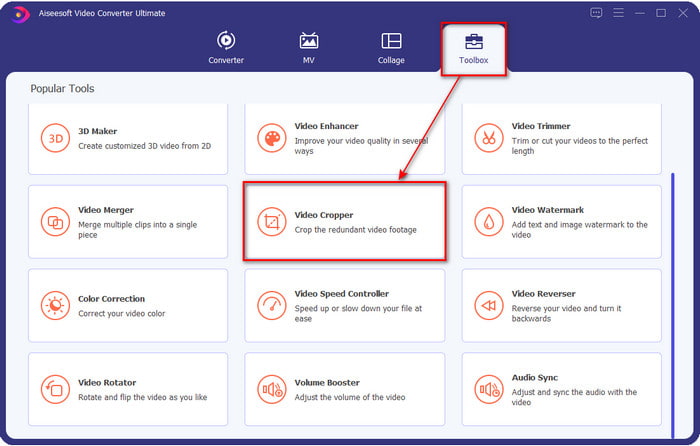
ขั้นตอนที่ 2. ที่แถบด้านบนของเครื่องมือ คลิก Toolbox ก่อน จากนั้นเลือก Video Cropper.
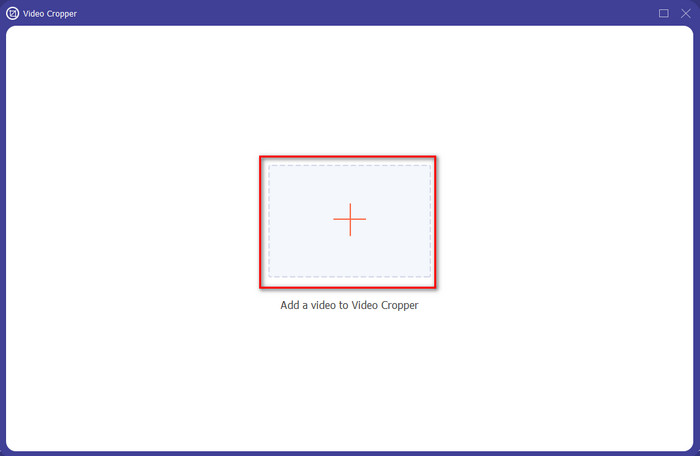
ขั้นตอนที่ 3. กดปุ่ม + เพื่ออัปโหลดวิดีโอ TikTok บนหน้าต่างใหม่ ค้นหาไฟล์ในโฟลเดอร์แล้วคลิก Open เพื่อไปยังขั้นตอนถัดไป.
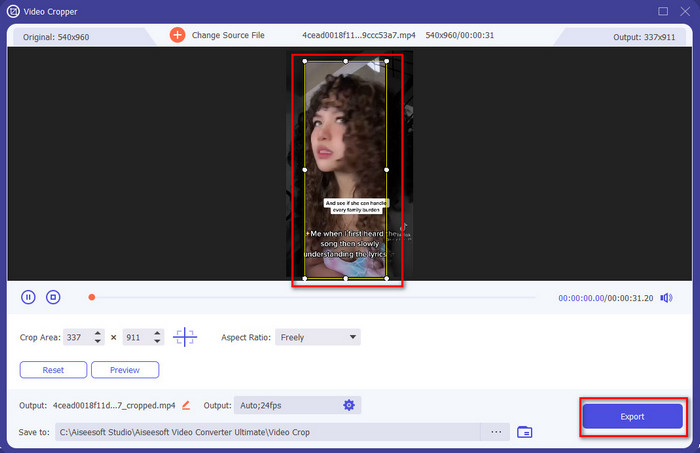
ขั้นตอนที่ 4. ปรับกรอบโดยลากจุดเล็ก ๆ และตรวจสอบให้แน่ใจว่าลายน้ำอยู่นอกกรอบ เมื่อทำเรียบร้อยแล้วให้คลิก Export เพื่อดาวน์โหลดวิดีโอ TikTok ลงในคอมพิวเตอร์ของคุณ.
ไม่บังคับ: ลบลายน้ำสิ้นสุดบนวิดีโอ Tiktok โดยการตัดวิดีโอ
เมื่อคุณได้ลบลายน้ำที่ด้านข้างของวิดีโอ Tiktok โดยการครอบตัด ตอนนี้ก็ถึงเวลาที่จะลบลายน้ำที่ส่วนท้ายของวิดีโอด้วยการตัดความยาวของวิดีโอ ยิ่งกว่านั้น เราได้ระบุขั้นตอนนี้เพื่อลบลายน้ำที่สิ้นสุด มาเรียนรู้วิธีลบลายน้ำออกจากวิดีโอ Tiktok ที่จบลงโดยไม่ชักช้า
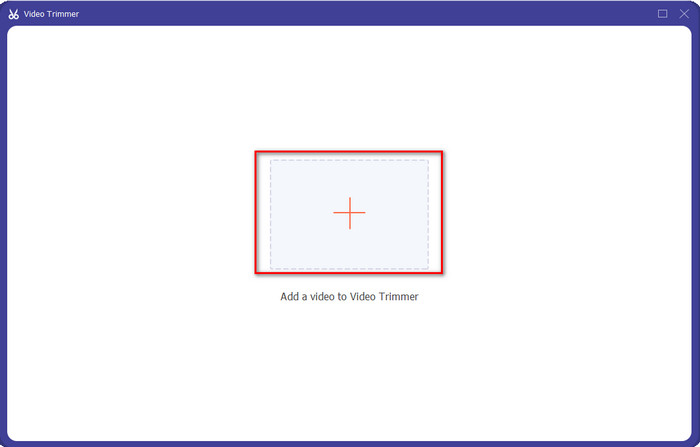
ขั้นตอนที่ 1. ที่หัวข้อ Toolbox ให้คลิก Video Cutter.
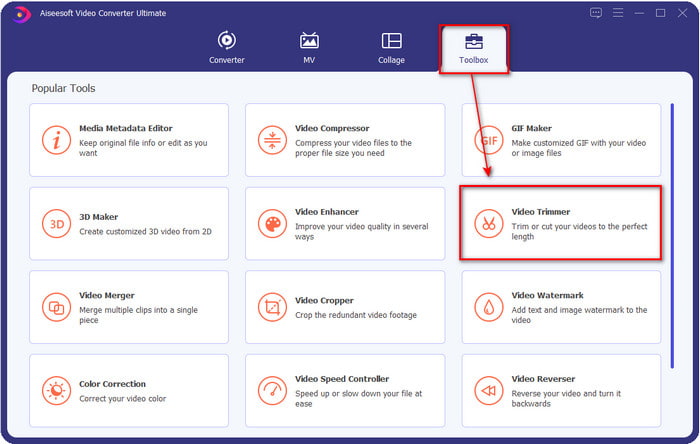
ขั้นตอนที่ 2. ค้นหาไฟล์โดยคลิกปุ่ม + เมื่อเจอวิดีโอที่คุณครอปไว้ก่อนหน้านี้แล้ว ให้คลิก Open เพื่อดำเนินการต่อ.
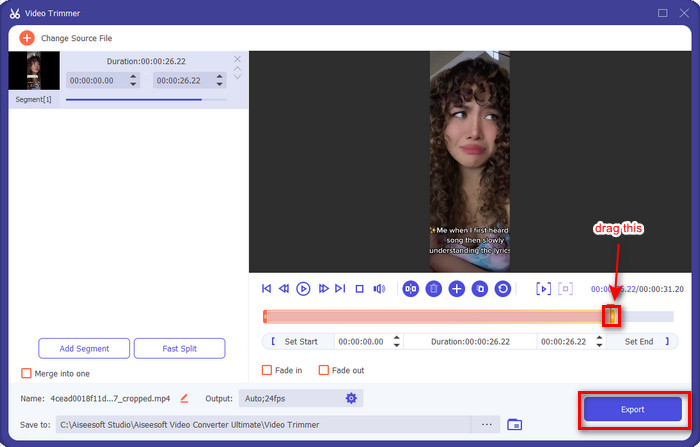
ขั้นตอนที่ 3. กดค้างและเลื่อนจุดเริ่มและสิ้นสุดการเล่นของวิดีโอเพื่อเอาลายน้ำช่วงท้ายออก จากนั้นวิดีโอจะถูกบันทึกโดยไม่มีลายน้ำตอนท้ายด้วยการคลิกปุ่ม Export เพียงเท่านี้คุณก็ลบลายน้ำช่วงท้ายได้สำเร็จแล้ว.
ที่เกี่ยวข้อง:
ส่วนที่ 2 วิธีลบโลโก้ TikTok บนโทรศัพท์ iPhone และ Android
ใช้ Cropper ในตัวของ Android
หากคุณเป็นผู้ใช้ Android คุณสามารถลบลายน้ำ Tiktok ได้ฟรีโดยใช้ตัวแก้ไขในตัวบนโทรศัพท์ของคุณ แม้ว่าจะมีเอดิเตอร์ในตัว แต่ฟีเจอร์การแก้ไขที่รองรับก็มีจำกัด แต่ถ้าคุณต้องการใช้ คุณสามารถไปที่แกลเลอรีของคุณเพื่อค้นหาวิดีโอ Tiktok ก่อน นอกจากนี้ โทรศัพท์ Android บางรุ่นเท่านั้นที่มีคุณลักษณะเหล่านี้ แต่คุณสามารถตรวจสอบได้ และหากมี ให้ทำตามขั้นตอนด้านล่าง
ขั้นตอนที่ 1. คลิก Edit จากนั้นคลิก Next.
ขั้นตอนที่ 2. หลังจากนั้นให้คลิก Crop & Rotate เลือกอัตราส่วนภาพที่แสดงไว้ แล้วกด check เพื่อไปต่อ.
ขั้นตอนที่ 3. กด Save เพื่อบันทึกการเปลี่ยนแปลงในผลลัพธ์สุดท้าย.
ใช้ Cropper ในตัวของ iOS
เช่นเดียวกับ Android คุณสามารถใช้ตัวครอบตัดในตัวบน iOS ของคุณและเรียนรู้วิธีลบลายน้ำ TikTok บน iPhone ของคุณ ขั้นแรก ดาวน์โหลดวิดีโอ TikTok บนอุปกรณ์ iOS ของคุณและเปิดในรูปภาพของคุณ จากนั้นทำตามขั้นตอนด้านล่าง
ขั้นตอนที่ 1. คลิก Edit แล้วจึงคลิกไอคอนcrop.
ขั้นตอนที่ 2. ปรับขนาดกรอบโดยเลื่อนให้ได้ตามต้องการ.
ขั้นตอนที่ 3. คลิก Done เพื่อบันทึกการเปลี่ยนแปลง.
ส่วนที่ 3 วิธีลบลายน้ำ TikTok บนเว็บ
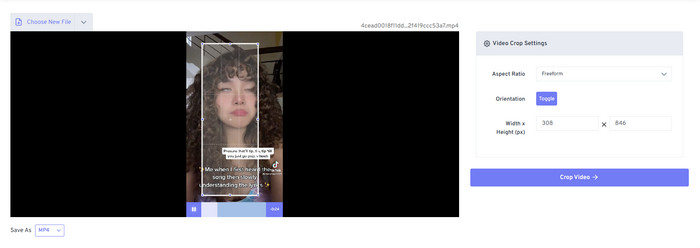
ต้องการใช้วิธีฟรีในการลบลายน้ำ TikTok ออนไลน์ใช่ไหม? หากใช่ คุณสามารถใช้ Free Video Convert – Video Cropper ได้ ตามชื่อเลยคือเป็นเครื่องมือฟรีและทุกคนเข้าถึงได้ คุณเพียงแค่ครอปลายน้ำออกจากวิดีโอ เครื่องมือนี้เหมาะอย่างยิ่งสำหรับผู้ที่ไม่อยากดาวน์โหลดโปรแกรมลบลายน้ำแต่ก็ต้องการลบลายน้ำออก อย่างไรก็ตาม หากอินเทอร์เน็ตของคุณไม่เสถียร คาดได้เลยว่าเว็บทูลนี้อาจไม่ใช่ตัวเลือกที่ดีที่สุด.
ขั้นตอนที่ 1. เปิดโปรแกรมค้นหา (เสิร์ชเอนจิน) ของคุณ ค้นหา video cropper แล้วคลิกเข้าไป.
ขั้นตอนที่ 2. กด Choose File เพื่อเพิ่มวิดีโอ TikTok ที่คุณต้องการ.
ขั้นตอนที่ 3. เลื่อนกรอบและตรวจสอบให้แน่ใจว่าไม่มีลายน้ำอยู่ในกรอบ จากนั้นกด Crop Video and Download เพื่อบันทึกลงในไดรฟ์ของคุณ.
ส่วนที่ 4. คำถามที่พบบ่อยเกี่ยวกับการลบ Tiktok Watermark
ทำไมถึงมีลายน้ำ Tiktok?
Tiktok ได้เพิ่มลายน้ำลงในวิดีโอที่ส่งออกเพื่อสร้างวิธีที่ง่ายแต่มีประสิทธิภาพในการโปรโมตแอปให้กับผู้ใช้รายอื่นที่ไม่ได้ใช้งาน ด้วยวิธีนี้ Tiktok จะไม่จ่ายเงินให้ใครโฆษณาแอพของพวกเขา หากผู้ใช้บันทึก โพสต์ออนไลน์ และดูโดยผู้อื่น
มีแอพที่เหมือน Tiktok ไหม?
มีแอพที่เหมือน Tiktok ที่คุณอยากใช้หากคุณชอบ Tiktok อยู่แล้ว เหล่านี้คือ Dubsmash, Clash, Lomotif และ Cheez ด้วยแอพเหล่านี้ คุณยังสามารถเพลิดเพลินกับการสร้างวิดีโอในขณะที่มีประสบการณ์ที่แตกต่างหรือใกล้เคียงกันบน Tiktok
ฉันสามารถถ่ายวิดีโอบน Tiktok ได้นานแค่ไหน?
ในการอัปเดตล่าสุด คุณสามารถบันทึกวิดีโอความยาว 3 นาทีได้หากต้องการ ด้วยวิธีนี้ ผู้ใช้ที่ต้องการบันทึกวิดีโอขนาดยาวสามารถทำได้ในเทคเดียว แทนที่จะตัดวิดีโอแล้วถ่ายใหม่
สรุป
ตอนนี้เราได้สอนวิธีลบลายน้ำ TikTok ให้คุณแล้ว ก็ถึงเวลาลงมือทำจริง เครื่องมือที่กล่าวถึงในบทความนี้ล้วนโดดเด่นในการลบลายน้ำออกจากทุกวิดีโอที่ส่งออกจาก TikTok แม้ว่าเครื่องมือเหล่านี้จะเป็นตัวเลือกที่ดีมาก แต่เรายังคงแนะนำให้ใช้ Video Converter Ultimate เพราะสามารถช่วยดึงลายน้ำ TikTok ออกได้แม้จะอยู่ชิดด้านข้างหรือขอบวิดีโอ ดังนั้นหากตอนนี้คุณยังสงสัยอยู่ว่าควรใช้ตัวไหนดี คุณควรอ่านวิธีการที่เราอธิบายไว้ด้านบนอีกครั้ง.
-
 2 ตัวแปลงมืออาชีพเพื่อแปลงรูปแบบ TRP เป็น WMV [คู่มือ]
 คุณเป็นหนึ่งในผู้ใช้ที่มีปัญหากับไฟล์ TRP หรือไม่? ถ้าเป็นเช่นนั้น มาอ่านบทความนี้ต่อเพื่อทราบวิธีการแปลง TRP เป็น WMV และเรียนรู้เพิ่มเติม
-
 3 วิธีที่น่าทึ่งและได้รับการพิสูจน์แล้วในการแปลง FLV เป็น MKV ฟรี
 กำลังมองหาวิธีแก้ปัญหาในการแปลง FLV เป็น MKV หรือไม่? ในกรณีดังกล่าว ให้อ่านรายละเอียดทั้งหมดด้านล่างต่อไปเพื่อกำหนดวิธีการแปลงไฟล์ FLV และเครื่องมือที่มี
-
 2 คำแนะนำจากผู้เชี่ยวชาญในการแปลง 3GP เป็น WMV บน Windows & Mac [2022]
 ต้องการทราบวิธีการแปลง 3GP เป็น WMV อย่างผู้เชี่ยวชาญหรือไม่? หากเป็นกรณีนี้ การอ่านข้อมูลต่อไปนี้จะช่วยคุณในการพิจารณาว่าตัวแปลง 3GP ใดที่คุณสามารถใช้ได้
