


 Video Converter Ultimate
 บันทึกหน้าจอ
 ซ่อมวิดีโอ
 ดาวน์โหลดอย่างปลอดภัย
วิธีที่ยอดเยี่ยมในการลบลายน้ำออกจาก Camtasia 9 ที่คุณต้องลอง
หากคุณกำลังมองหาวิธีที่ง่ายและดีที่สุดในการลบลายน้ำใน Camtasia 9 ที่นี่คือที่ที่เหมาะที่สุด มีวิดีโอดี ๆ มากมายที่เราอยากดู แต่บางคลิปกลับมีลายน้ำขนาดใหญ่ทำให้ดูน่ารำคาญ และทำให้เราไม่สามารถเพลิดเพลินกับเนื้อหาของวิดีโอได้อย่างเต็มที่ นอกจากนี้ ด้วยวัตถุที่ไม่จำเป็นเหล่านี้ ยังทำให้บางส่วนของวิดีโอถูกบดบังมองไม่เห็น ยิ่งทำให้ผู้ชมรู้สึกผิดหวังมากขึ้น โชคดีที่มีซอฟต์แวร์บางตัวที่มาพร้อมเครื่องมือลบลายน้ำ ให้คุณใช้ลบลายน้ำออกจากวิดีโอ เพื่อให้คุณเพลิดเพลินกับการชมหนังหรือวิดีโอโปรดได้โดยไม่ถูกรบกวน หากคุณต้องการเรียนรู้เพิ่มเติมเกี่ยวกับการลบลายน้ำออกจากวิดีโออย่างรวดเร็ว โปรดอ่านบทความนี้ตั้งแต่ต้นจนจบ.

ส่วนที่ 1: วิธีที่ดีที่สุดในการลบลายน้ำออกจาก Camtasia
การใช้ Video Converter Ultimate
หากคุณกำลังมองหาโปรแกรมที่ยอดเยี่ยมและเชื่อถือได้ซึ่งมีเครื่องมือลบลายน้ำ Video Converter Ultimate ถือเป็นซอฟต์แวร์ที่ดีเยี่ยมที่คุณสามารถใช้งานได้ คุณสามารถลบลายน้ำออกจากวิดีโอของคุณด้วยโปรแกรมนี้ นอกจากนี้ คุณยังสามารถใช้โปรแกรมนี้เมื่อลายน้ำในวิดีโอของคุณมาจากแอปอื่น ๆ เช่น Camtasia อีกด้วย ยิ่งไปกว่านั้น โปรแกรมนี้ใช้งานง่ายและไม่ซับซ้อน เหมาะอย่างยิ่งสำหรับผู้เริ่มต้น นอกจากนี้ยังมีเครื่องมือตัดต่อหลากหลายที่คุณสามารถใช้งานได้ เช่น ตัวบีบอัดวิดีโอ (Video Compressor) เครื่องมือเพิ่มคุณภาพวิดีโอ (Video Enhancer) เครื่องมือตัดวิดีโอ (Video Trimmer) ตัวบีบอัดเสียง (Audio Compressor) เครื่องย้อนวิดีโอ (Video Reverser) เครื่องมือหมุนวิดีโอ (Video Rotator) และอื่น ๆ อีกมากมาย บทความนี้จะแสดงวิธีลบลายน้ำออกจากวิดีโอของคุณด้วย Video Converter Ultimate อยู่ 2 วิธี.
1. การใช้ Video Watermark Remover
ขั้นตอนที่ 1: ดาวน์โหลด Video Converter Ultimate ลงในคอมพิวเตอร์ของคุณ จากนั้นดำเนินการติดตั้งโปรแกรมให้เสร็จสิ้น.
ดาวน์โหลดฟรีสำหรับ Windows 7 หรือใหม่กว่าดาวน์โหลดอย่างปลอดภัย
ดาวน์โหลดฟรีสำหรับ MacOS 10.7 หรือใหม่กว่าดาวน์โหลดอย่างปลอดภัย
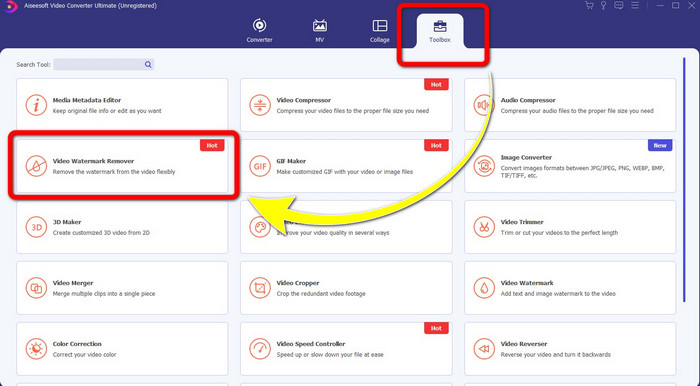
ขั้นตอนที่ 2: เมื่อติดตั้งเสร็จแล้ว ให้เปิดโปรแกรมแล้วไปที่ Toolbox > Video Watermark Remover จากนั้นจะมีหน้าต่างใหม่ปรากฏขึ้นบนหน้าจอของคุณ.
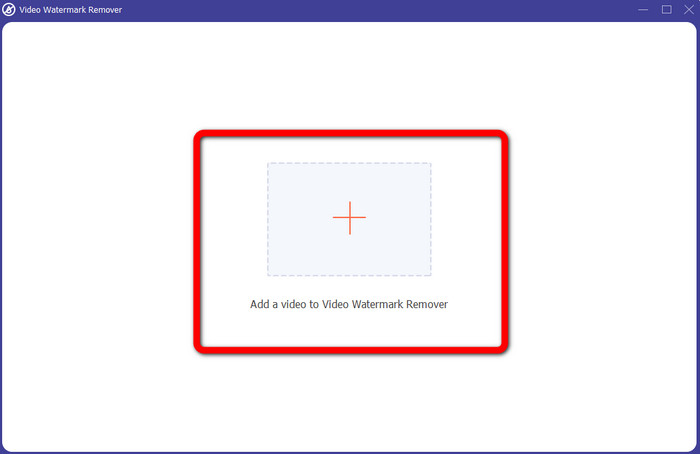
ขั้นตอนที่ 3: เมื่อหน้าต่างใหม่แสดงขึ้นมาแล้ว ให้คลิกปุ่มสัญลักษณ์ บวก แล้วเพิ่มวิดีโอที่มีลายน้ำเข้าไป.
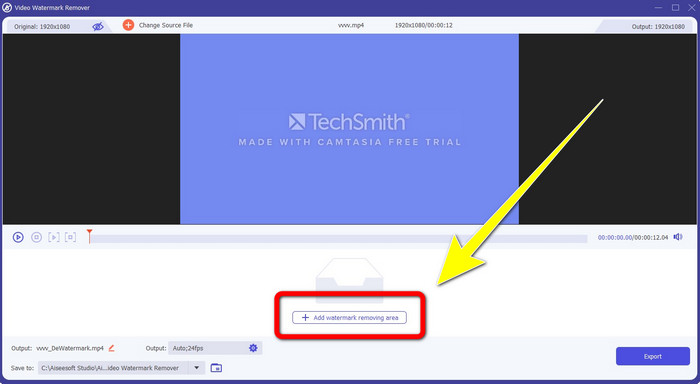
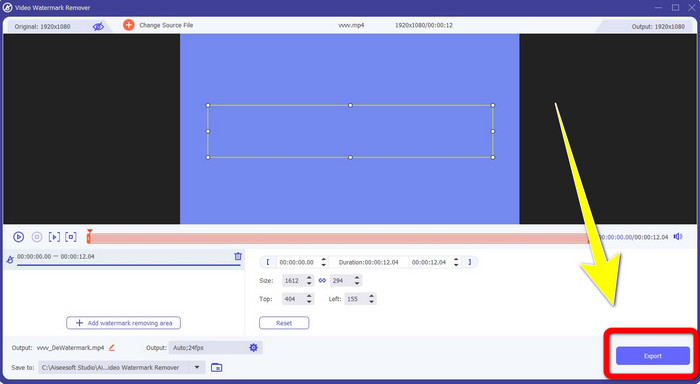
ขั้นตอนที่ 4: หลังจากเพิ่มวิดีโอที่มีลายน้ำแล้ว ให้คลิก Add Watermark Removing Area.
ขั้นตอนที่ 5: จะมีหน้าจอเป็นรูปกล่องแสดงขึ้นมาบนหน้าจอของคุณ ใช้กรอบกล่องนี้ครอบบริเวณลายน้ำบนวิดีโอของคุณ.
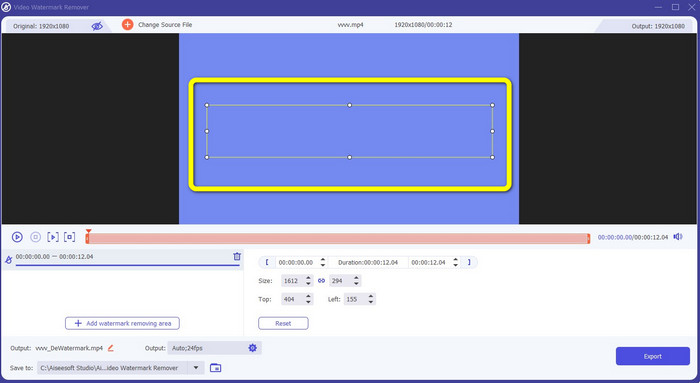
ขั้นตอนที่ 6: เมื่อคุณครอบลายน้ำเรียบร้อยแล้ว ลายน้ำก็จะหายไปจากวิดีโอของคุณ จากนั้นคลิก Export เพื่อบันทึกวิดีโอ วิธีนี้จะช่วยให้คุณลบลายน้ำในวิดีโอที่มาจาก Camtasia ได้.
2. การใช้คุณสมบัติครอบตัด
อีกวิธีหนึ่งที่คุณสามารถลองใช้ได้คือฟังก์ชันการครอปของ Video Converter Ultimate นี่เป็นหนึ่งในวิธีที่ง่ายที่สุดในการลบลายน้ำออกจากวิดีโอของคุณ โดยเฉพาะอย่างยิ่งหากลายน้ำอยู่แค่ที่มุมหรือขอบวิดีโอเท่านั้น ด้วยการครอปวิดีโอ คุณสามารถลบวัตถุที่ไม่ต้องการออกไปจากภาพได้ทันที ทำตามขั้นตอนง่าย ๆ เหล่านี้เพื่อเอาลายน้ำออกด้วยเครื่องมือครอป.
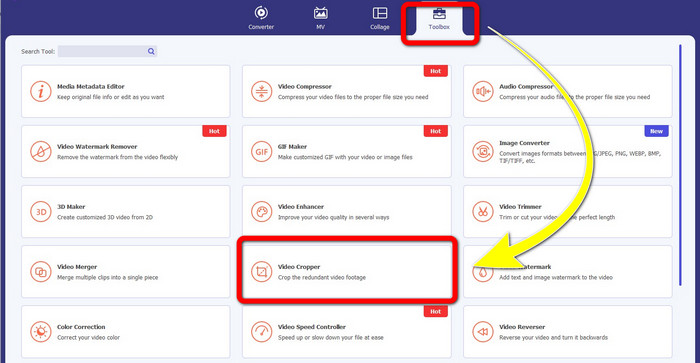
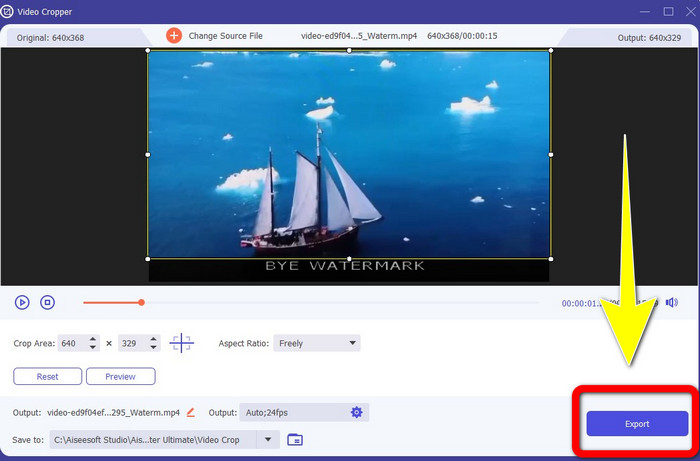
ขั้นตอนที่ 1: เปิด Video Converter Ultimate คลิกที่ Toolbox > Video Cropper จากนั้นจะมีหน้าต่างใหม่ปรากฏขึ้นบนหน้าจอของคุณ.
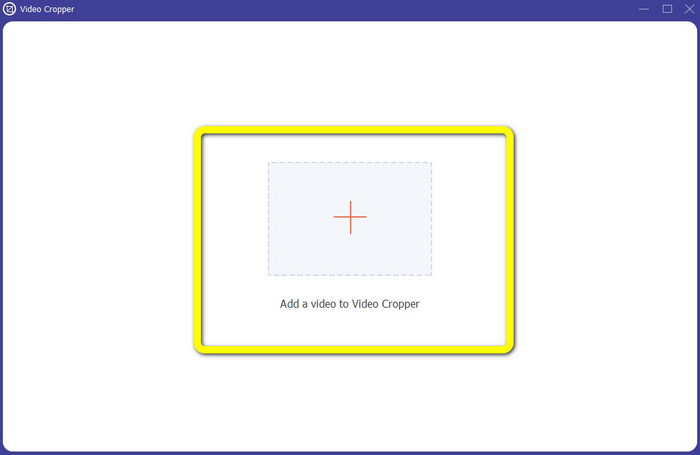
ขั้นตอนที่ 2: คลิกปุ่มสัญลักษณ์ บวก แล้วเพิ่มวิดีโอที่มีลายน้ำที่คุณต้องการลบเข้าไป.
ขั้นตอนที่ 3: เมื่อคุณเพิ่มวิดีโอที่มีลายน้ำเรียบร้อยแล้ว คุณก็สามารถครอปขอบของวิดีโอให้ครอบคลุมบริเวณที่มีลายน้ำได้ วิธีนี้จะทำให้คุณลบลายน้ำออกไป.
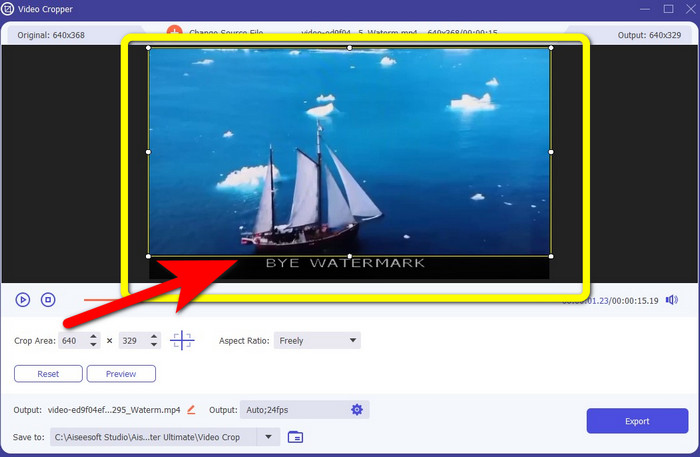
ขั้นตอนที่ 4: หากคุณครอปวิดีโอเสร็จแล้วและเห็นว่าลายน้ำหายไป ให้คลิก Export เพื่อบันทึกวิดีโอที่แก้ไขเรียบร้อย ตอนนี้คุณก็สามารถเพลิดเพลินกับการชมวิดีโอของคุณได้โดยไม่มีลายน้ำบนหน้าจอ.
ส่วนที่ 2: วิธีสร้างวิดีโอใน Camtasia โดยไม่มีลายน้ำ
คุณต้องการเรียนรู้วิธีผลิตวิดีโอจาก Camtasia แบบไม่มีลายน้ำหรือไม่ ก่อนอื่นเรามาทำความเข้าใจกันก่อนว่า Camtasia คืออะไร Camtasia เป็นเครื่องมือตัดต่อวิดีโอที่ใช้งานง่ายและมีประโยชน์ที่คุณสามารถใช้ได้ นอกจากนี้ยังเป็นซอฟต์แวร์บันทึกหน้าจออีกด้วย นอกจากนั้นยังมีฟีเจอร์ตัดต่อหลากหลายที่คุณสามารถใช้งานได้ เช่น คำอธิบายประกอบ (annotations) ทรานซิชัน (transitions) แอนิเมชัน (animations) เอฟเฟกต์เสียง (audio effects) เอฟเฟกต์วิดีโอ (video effects) และอื่น ๆ อีกมากมาย อีกทั้งคุณยังสามารถสร้างสไลด์โชว์ในโปรแกรมนี้ได้ด้วย.
ด้วยความช่วยเหลือของแอปพลิเคชันนี้ คุณสามารถทำให้วิดีโอของคุณน่าสนใจยิ่งขึ้นและไม่ซ้ำใครสำหรับผู้ชม ใน Camtasia คุณสามารถสร้างวิดีโอที่สวยงามที่คุณสามารถเพลิดเพลินได้ อย่างไรก็ตาม แอปพลิเคชันนี้มีลายน้ำหลังจากที่คุณส่งออกวิดีโอของคุณ เว้นแต่คุณจะซื้อแอปพลิเคชัน ทำตามขั้นตอนง่ายๆ เหล่านี้เพื่อเรียนรู้สิ่งต่างๆ ในแอปพลิเคชันนี้ โดยเฉพาะการสร้างวิดีโอใน Camtasia
ด้วยความช่วยเหลือของแอปพลิเคชันนี้ คุณสามารถทำให้วิดีโอของคุณน่าสนใจยิ่งขึ้นและไม่ซ้ำใครสำหรับผู้ชม ใน Camtasia คุณสามารถสร้างวิดีโอที่สวยงามที่คุณสามารถเพลิดเพลินได้ อย่างไรก็ตาม แอปพลิเคชันนี้มีลายน้ำหลังจากที่คุณส่งออกวิดีโอของคุณ เว้นแต่คุณจะซื้อแอปพลิเคชัน ทำตามขั้นตอนง่ายๆ เหล่านี้เพื่อเรียนรู้สิ่งต่างๆ ในแอปพลิเคชันนี้ โดยเฉพาะการสร้างวิดีโอใน Camtasia
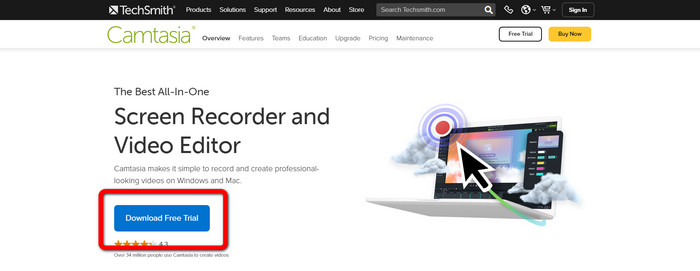
ขั้นตอนที่ 1: คุณต้องดาวน์โหลด Camtasia ลงในระบบ Windows ของคุณ คลิกปุ่ม Download Free Trial เพื่อรับตัวโปรแกรม จากนั้นเปิดโปรแกรมหลังจากขั้นตอนการติดตั้งเสร็จสิ้น.
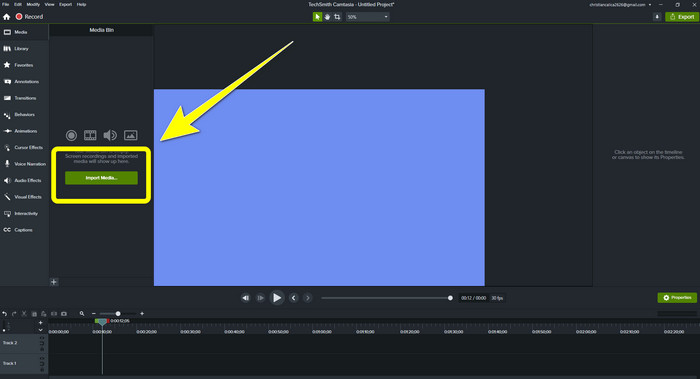
ขั้นตอนที่ 2: หลังจากเปิดโปรแกรมเรียบร้อยแล้ว ให้คลิกปุ่ม Import Media เพื่อเพิ่มไฟล์ที่คุณต้องการตัดต่อ.
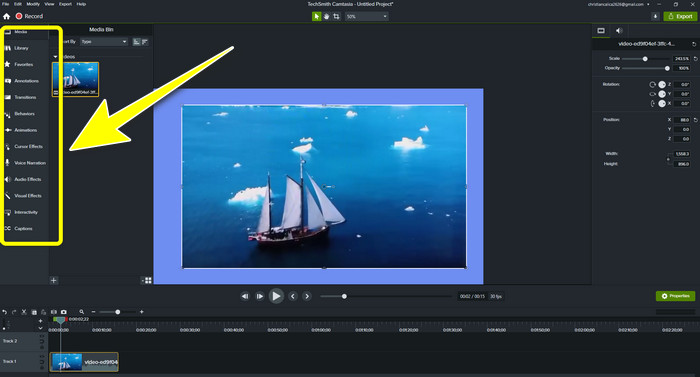
ขั้นตอนที่ 3: ตอนนี้คุณสามารถตัดต่อไฟล์ของคุณในโปรแกรมนี้ได้โดยใช้เครื่องมือตัดต่อต่าง ๆ เช่น การเพิ่มคำบรรยาย ทรานซิชัน แอนิเมชัน คำอธิบายประกอบ การกำหนดพฤติกรรม และอื่น ๆ.
ขั้นตอนที่ 4: หากคุณตัดต่อวิดีโอเสร็จและพอใจกับผลงานแล้ว ให้คลิกปุ่ม Export > Local File เพื่อบันทึกผลงานของคุณ.
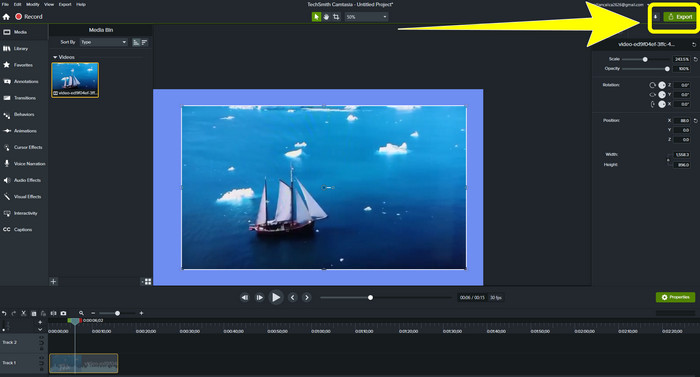
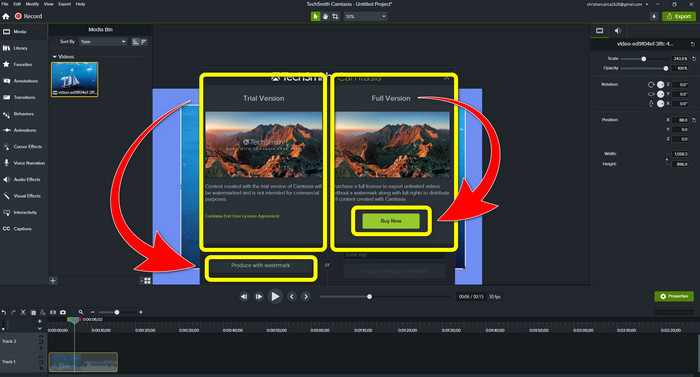
ขั้นตอนที่ 5: หลังจากคลิก Export > Local File Button จะมีหน้าต่างใหม่ปรากฏขึ้น หากคุณต้องการซื้อโปรแกรม ให้คลิกปุ่ม Buy เพื่อให้สามารถสร้างวิดีโอจาก Camtasia ได้โดยไม่มีลายน้ำ อย่างไรก็ตาม หากคุณใช้เพียงเวอร์ชันทดลองใช้งานฟรี วิดีโอของคุณจะมีลายน้ำหลังจากส่งออกและบันทึกไฟล์.
ที่เกี่ยวข้อง:
วิธีลบลายน้ำ Filmora ออกจากวิดีโอหรือโปรเจกต์ของคุณแบบฟรี ๆ
ทริกที่เร็วที่สุดในการลบลายน้ำ Adobe Stock ออกจากวิดีโอ [มีบทเรียนประกอบ]
ส่วนที่ 3: คำถามที่พบบ่อยเกี่ยวกับการลบลายน้ำ
มีตัวลบลายน้ำที่ยอดเยี่ยมที่ฉันใช้กับ Mac ได้หรือไม่
ได้อย่างแน่นอน! คุณสามารถใช้โปรแกรมที่มีฟังก์ชันลบลายน้ำอย่าง Video Converter Ultimate ได้ โปรแกรมนี้สามารถลบลายน้ำออกจากวิดีโอของคุณได้ นอกจากนี้ โปรแกรมยังสามารถใช้งานได้ทั้งบน Windows และ Mac ทำให้สะดวกมากยิ่งขึ้น.
มีวิธีลบลายน้ำออกจากรูปภาพหรือไม่?
ใช่แน่นอน! คุณสามารถใช้แอพพลิเคชั่นมากมายบนอุปกรณ์ของคุณเพื่อลบลายน้ำออกจากภาพถ่าย สิ่งที่ดีที่สุดที่คุณต้องทำคือค้นหาในเบราว์เซอร์ของคุณเกี่ยวกับเครื่องมือลบลายน้ำและค้นหาผลลัพธ์ 10 อันดับแรกในหน้าผลลัพธ์
ฉันสามารถลบลายน้ำโดยใช้โทรศัพท์ของฉันได้หรือไม่
ใช่คุณสามารถ! แอปพลิเคชันบางตัวที่มีการลบลายน้ำสามารถเข้าถึงได้บน Mac และ Windows และโทรศัพท์มือถือ เช่น โทรศัพท์ Android และ iPhone
ฉันจะลบลายน้ำโดยใช้เครื่องมือครอบตัดได้อย่างไร
การลบลายน้ำบนภาพถ่ายหรือวิดีโอของคุณโดยใช้เครื่องมือครอบตัดนั้นเป็นเรื่องง่าย โดยเฉพาะอย่างยิ่งถ้าลายน้ำอยู่ที่ขอบของรูปภาพ สิ่งที่คุณต้องทำคือครอบตัด กำจัดลายน้ำ เท่านี้ก็เรียบร้อย
สรุป
จากที่คุณเห็น บทความนี้ได้แสดงวิธีที่ดีที่สุดในการลบลายน้ำออกจาก Camtasia 9 นอกจากนี้ยังได้แนะนำโปรแกรมที่ยอดเยี่ยมและเชื่อถือได้ พร้อม 2 วิธีในการลบวัตถุที่ไม่จำเป็นออกจากวิดีโอของคุณ โปรแกรมนั้นก็คือ Video Converter Ultimate.
-
 5 วิธีในการลบลายน้ำออกจากวิดีโออย่างมืออาชีพ
 ต้องการลบลายน้ำออกจากวิดีโอเพื่อให้ดูเป็นมืออาชีพหรือไม่? อ่านบทความนี้ในขณะที่เราเพิ่มบทช่วยสอนเกี่ยวกับวิธีการทำ!
-
 3 จาก Shutterstock Watermark Remover ล่าสุดที่คุณต้องการ
 ไม่ชอบลายน้ำ Shutterstock ที่แนบมากับวิดีโอที่ส่งออกใช่หรือไม่ คุณสามารถใช้ตัวลบลายน้ำของ Shutterstock เพื่อลบออกได้อย่างมีประสิทธิภาพ
-
 วิธีที่ง่ายที่สุดในการลบลายน้ำออกจากรูปภาพ
 คุณหงุดหงิดกับลายน้ำบนภาพถ่ายของคุณหรือไม่? ไม่ต้องกังวล! บทความนี้จะนำเสนอวิธีง่ายๆ ในการลบลายน้ำออกจากรูปภาพของคุณ
