


 Video Converter Ultimate
 บันทึกหน้าจอ
 ซ่อมวิดีโอ
 ดาวน์โหลดอย่างปลอดภัย
วิธีหมุนวิดีโอบน Android ในไม่กี่นาทีด้วยวิธีที่ดีที่สุด
Do you love capturing life's precious moments on your Android device but hate it when the videos turn out tilted or upside down? It's a common problem, but fortunately, it's easy to fix. You don't need any advanced video editing skills. All you need is your Android device or an effective android app to rotate videos and a few minutes of your time.
ในตอนท้ายของโพสต์ คุณจะสามารถหมุนวิดีโอของคุณได้อย่างมืออาชีพ และไม่ต้องดูวิดีโอตะแคงอีกต่อไป ที่กล่าวว่ามาเริ่มต้นและเรียนรู้วิธีการหมุนวิดีโอบน Android!

ส่วนที่ 1 วิธีหมุนวิดีโอในคลังภาพ Android
แอปแกลเลอรีของ Android มีเครื่องมือมากมายสำหรับการตัดต่อวิดีโอที่สามารถช่วยให้คุณปรับปรุงวิดีโอให้ดีขึ้นได้ ด้วยแอปแกลเลอรี คุณสามารถตัดแต่ง ครอบตัด หมุน และแม้กระทั่งเพิ่มฟิลเตอร์และเอฟเฟ็กต์ให้กับวิดีโอของคุณ ไม่ว่าคุณจะต้องการลบส่วนที่ไม่ต้องการออก ปรับอัตราส่วนภาพ หรือเพิ่มความคิดสร้างสรรค์ แอพ Gallery ก็ช่วยคุณได้ และส่วนที่ดีที่สุด? คุณไม่จำเป็นต้องมีประสบการณ์การตัดต่อวิดีโอมาก่อนเพื่อใช้คุณสมบัติเหล่านี้ อินเทอร์เฟซใช้งานง่าย ทำให้ทุกคนสามารถสร้างวิดีโอที่น่าทึ่งได้จากอุปกรณ์ Android ของตน โปรดดูขั้นตอนที่กำหนดเพื่อเรียนรู้วิธีหมุนวิดีโอในคลังภาพบน Android
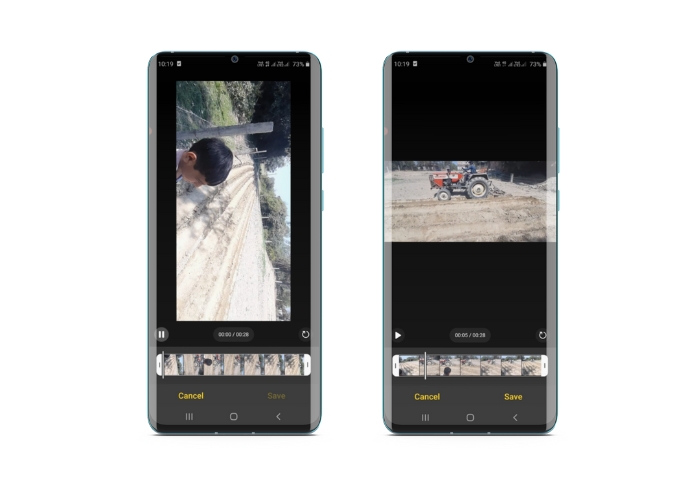
Step 1. Launch the Gallery app on your Android device. Find the video that you want to rotate and tap on it to open it.
Step 2. Tap on the edit icon (it looks like a pencil) located at the bottom of the screen. You will now see a range of editing tools at the bottom of the screen, including Trim, Crop, Filters, and Adjust.
Step 3. To rotate the video, select the Adjust tool. You will now see a range of adjustment options, including Brightness, Contrast, Saturation, and more. Look for the Rotate option and tap on it.
Step 4. Each tap on the Rotate button will rotate the video 90 degrees to the right. Therefore, you can use Android to rotate videos by 90 degrees. Keep tapping until the video is rotated to the desired orientation. Once you're happy with the rotation, tap on the save icon to apply the changes.
ส่วนที่ 2 วิธีหมุนวิดีโอใน PowerDirector Android App
PowerDirector เป็นแอปตัดต่อวิดีโอที่พร้อมใช้งานบนแพลตฟอร์ม Android เป็นแอปพลิเคชั่นที่อัดแน่นไปด้วยคุณสมบัติที่ช่วยให้ผู้ใช้สามารถแก้ไขวิดีโอบนสมาร์ทโฟนและแท็บเล็ตได้ แอปนี้ให้ผู้ใช้สามารถหมุนวิดีโอได้ทุกทิศทาง ไม่ว่าจะเป็นตามเข็มนาฬิกาหรือทวนเข็มนาฬิกา วิธีนี้จะเป็นประโยชน์อย่างยิ่งสำหรับวิดีโอที่ถ่ายผิดทิศทาง เช่น วิดีโอแนวตั้งที่ต้องหมุนเป็นโหมดแนวนอน ทำตามคำแนะนำง่ายๆ ด้านล่างเพื่อเรียนรู้วิธีการหมุนวิดีโอใน PowerDirector บนอุปกรณ์ Android
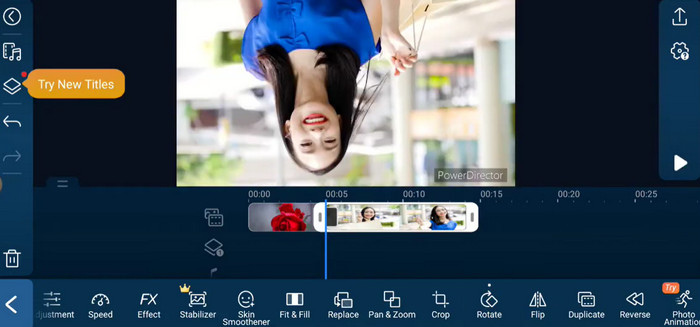
Step 1. Launch the PowerDirector app on your Android device. Next, tap on the Create a video project button to start a new project.
Step 2. Choose the video you want to rotate by tapping on the Add media button and browsing for the video in your device's storage. Then, drag and drop the video clip to the timeline.
Step 3. After that, please tap on the video clip in the timeline to select it. Now, tap on the Edit button that appears above the timeline.
Step 4. Tap on the Rotate button in the editing menu that appears. Use the Rotate left and Rotate right buttons to rotate the video in the desired direction. Lastly, tap on the Done button to save the changes you made to the video.
ส่วนที่ 3 วิธีหมุนวิดีโอใน VLC Android App
VLC is a renowned media player that can be used on many platforms, including Android. It's a powerful and flexible app that works with a lot of different media formats and has a lot of features, like the ability to rotate videos. Not only that, it comes with other useful features, such as the capability to adjust playback speed, add subtitles, and apply audio and video filters. Meanwhile, here are the steps on how to rotate videos in VLC on an Android device.
Step 1. Open the VLC app on your Android device. Next, tap on the Video button in the bottom menu bar.
Step 2. Select the video you want to rotate from your device's storage. After that, tap on the More options button in the top-right corner of the screen.
Step 3. At last, tap on Rotate to access the video rotation options. Choose the direction you want to rotate the video in (clockwise or counterclockwise).
ส่วนที่ 4 วิธีหมุนวิดีโอ Android บนคอมพิวเตอร์
Looking for a powerful video converter that can do it all? Look no further than FVC Video Converter Ultimate. This cutting-edge software is designed to give you complete control over your videos. With its ability to rotate videos, you can adjust the orientation of your video by 90 degrees, 180 degrees, or even 270 degrees or mimic an Android video full-screen rotate feature. But that's not all this app can do. It does the process without any loss of quality. Here is an instructional guide on how to use this program to rotate videos on your PC.
Step 1. Grab a copy of the program and install it
ขั้นแรก คุณต้องได้รับสำเนาของตัวติดตั้งโปรแกรมและตั้งค่าบนคอมพิวเตอร์ของคุณ หลังจากนั้นให้เริ่มทันที
ดาวน์โหลดฟรีสำหรับ Windows 7 ขึ้นไปดาวน์โหลดอย่างปลอดภัย
ดาวน์โหลดฟรีสำหรับ MacOS 10.7 ขึ้นไปดาวน์โหลดอย่างปลอดภัย
Step 2. Embed a video to rotate
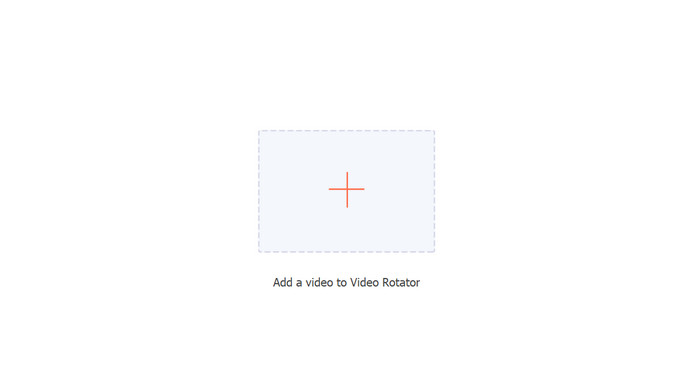
The program's Video Rotator can then be accessed from the Toolbox tab. If you select this option, you'll be prompted to add a video to your account. To upload a video, just hit the + button now.
Step 3. Choose a Rotating Approach
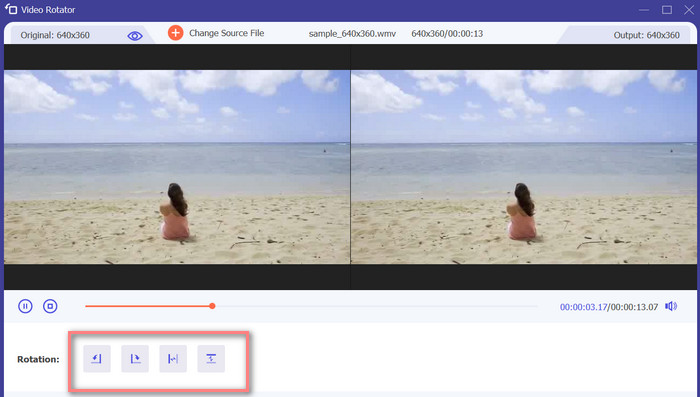
ในการเริ่มต้น ให้ตัดสินใจว่าต้องการให้วิดีโอหมุนอย่างไร พลิกแนวนอน พลิกแนวตั้ง หมุน 90 องศา และพลิก 90 องศา เป็นสี่ตัวเลือก เพียงเลือกวิธีการหมุนที่คุณต้องการ
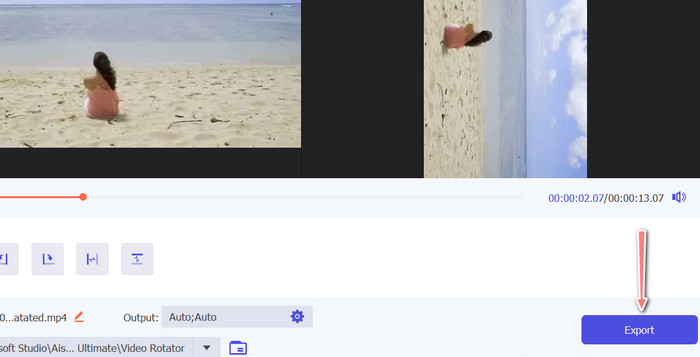
Step 4. Export the video file
Once you are done with all the changes, you may modify the audio and video settings from the output menu. Then, tick the Export button to finish the process.
ส่วนที่ 5 คำถามที่พบบ่อยเกี่ยวกับการหมุนวิดีโอบน Android
ฉันสามารถหมุนวิดีโอโดยใช้เครื่องเล่นวิดีโอเริ่มต้นของ Android ได้หรือไม่
No, the default video player on most Android devices does not have the ability to rotate videos. In this case, the gallery app can help you.
การหมุนวิดีโอบนอุปกรณ์ Android ของฉันจะส่งผลต่อคุณภาพหรือไม่
หากคุณใช้แอปตัดต่อวิดีโอคุณภาพสูงบนอุปกรณ์ Android การหมุนภาพยนตร์จะไม่ทำให้คุณภาพลดลง
การหมุนวิดีโอบนอุปกรณ์ Android ของฉันจะเปลี่ยนอัตราส่วนภาพหรือไม่
การหมุนวิดีโอบนอุปกรณ์ Android ของคุณอาจเปลี่ยนอัตราส่วนโดยขึ้นอยู่กับการวางแนวของวิดีโอต้นฉบับและระดับการหมุนที่ใช้
สรุป
Rotating videos on your Android device can be a useful tool when it comes to video editing and sharing. However, it is important to note that rotating a video may affect the aspect ratio and quality of the original video, depending on the Android app to rotate video used and the degree of rotation applied. Therefore, it is essential to use a reputable video editing app, like FVC Video Converter Ultimate, that does not compress or reduce the resolution of your video during the rotation process.
-
 คำแนะนำเกี่ยวกับวิธีการซ่อมแซมวิดีโอที่ไม่เล่นบนโทรศัพท์ Android
 ต้องการทราบว่าเหตุใดจึงไม่สามารถเล่นวิดีโอบนอุปกรณ์ Android ของคุณได้? และถ้าเป็นเช่นนั้น มีวิธีใดบ้างในการแก้ไขปัญหาด้วยตัวคุณเอง? อ่านต่อเพื่อทราบข้อมูลเพิ่มเติม
-
 วิธีที่ง่ายที่สุดในการเร่งความเร็ววิดีโอบนอุปกรณ์ Android ของคุณ [2023]
 คุณรู้หรือไม่ว่าคุณสามารถเพิ่มความเร็ววิดีโอบน Android ของคุณ? ดังนั้น หากคุณต้องการทราบวิธีเพิ่มความเร็ววิดีโอบนโทรศัพท์ Android ของคุณ ให้อ่านบทความนี้
-
 3 วิธีที่ยอดเยี่ยมในการตัดแต่งวิดีโอบน Android
 คุณต้องการใช้อุปกรณ์ Android ของคุณเพื่อตัดวิดีโอหรือไม่? โพสต์นี้เหมาะสำหรับคุณ เราจะหารือถึงวิธีการอันมีค่าเกี่ยวกับวิธีย่อวิดีโอบน Android
