


 Video Converter Ultimate
 บันทึกหน้าจอ
 ซ่อมวิดีโอ
 ดาวน์โหลดอย่างปลอดภัย
วิธีที่เร็วและง่ายที่สุดในการย่อวิดีโอด้วยเครื่องมือที่ดีที่สุด
การตัดแต่งหรือย่อวิดีโอมีความสำคัญเนื่องจากเน้นเฉพาะคลิปที่จำเป็นจากวิดีโอของคุณ การตัดแต่งวิดีโอหมายถึงการตัดส่วนต้นของส่วนท้ายของคลิปวิดีโอออก องค์ประกอบพื้นฐานของการแก้ไขนี้มีความจำเป็นเพื่อที่คุณจะได้ไม่เสียความสนใจของผู้ฟัง ดังนั้น หากคุณต้องการตัดหรือย่อวิดีโอที่มีความยาว คุณจะได้เรียนรู้วิธีย่อวิดีโอในบทความนี้

ส่วนที่ 1 2 วิธีในการย่อวิดีโอบน Trimmer โดยใช้แอพที่ดีที่สุด
FVC Video Converter Ultimate เป็นเครื่องมือเดสก์ท็อปที่ดีที่สุดสำหรับการตัดต่อความยาววิดีโอของคุณ เครื่องมือนี้มีอินเทอร์เฟซซอฟต์แวร์ที่ใช้งานง่ายและใช้งานได้ฟรี โปรแกรมแปลงไฟล์แบบออฟไลน์นี้ช่วยให้คุณเพิ่มเซกเมนต์ลงในไฟล์วิดีโอของคุณได้ นอกจากนี้ยังมีฟีเจอร์ที่คุณสามารถแบ่งวิดีโอออกเป็นหลายส่วนตามต้องการได้อย่างรวดเร็ว และถ้าคุณกำลังมองหาเครื่องมือที่สามารถรวมไฟล์หลายรูปแบบให้เป็นไฟล์เดียว แอปพลิเคชันนี้ก็สามารถทำให้คุณได้เช่นกัน.
นอกจากนี้ เครื่องมือนี้ยังมีฟีเจอร์ขั้นสูงอีกมากมาย เช่น ตัวสร้าง GIF การรวมวิดีโอ เครื่องมือลบลายน้ำวิดีโอ เป็นต้น และที่ยอดเยี่ยมไปกว่านั้นคือรองรับรูปแบบไฟล์จำนวนมาก เช่น MP4, WMV, FLV, AVI, MPG, WebM, MKV และรูปแบบอื่น ๆ อีกกว่า 1000 ชนิด ดังนั้น หากคุณต้องการใช้แอปนี้เพื่อลดความยาววิดีโอของคุณ เรามีสองวิธีให้คุณทำตาม.
วิธีที่ 1 ใช้ตัวตัดแต่งวิดีโอของ FVC
ขั้นตอนที่ 1. ก่อนอื่น ดาวน์โหลด FVC Video Converter Ultimate โดยคลิกปุ่ม ดาวน์โหลด ด้านล่าง จากนั้นทำตามขั้นตอนการติดตั้งและเปิดใช้งานโปรแกรม.
ดาวน์โหลดฟรีสำหรับ Windows 7 หรือใหม่กว่าดาวน์โหลดอย่างปลอดภัย
ดาวน์โหลดฟรีสำหรับ MacOS 10.7 หรือใหม่กว่าดาวน์โหลดอย่างปลอดภัย
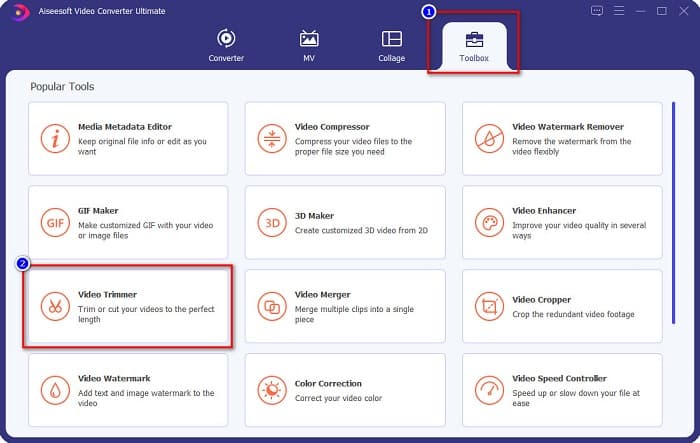
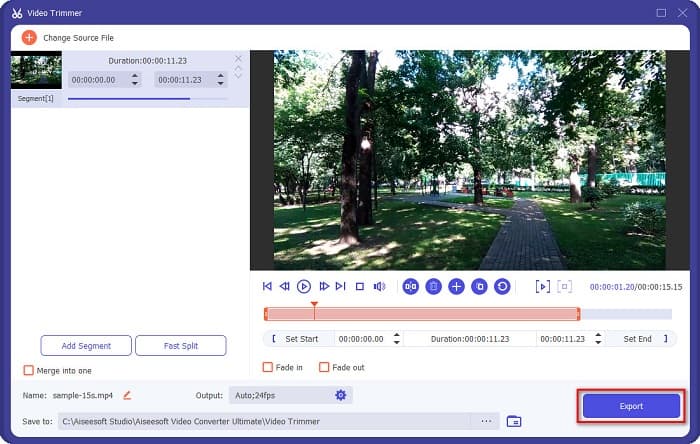
ขั้นตอนที่ 2. จากนั้นเลือกแถบ กล่องเครื่องมือ (Toolbox) ที่อยู่ด้านบนของอินเทอร์เฟซซอฟต์แวร์ แล้วในแถบกล่องเครื่องมือให้คลิก ตัวตัดวิดีโอ (Video Trimmer).
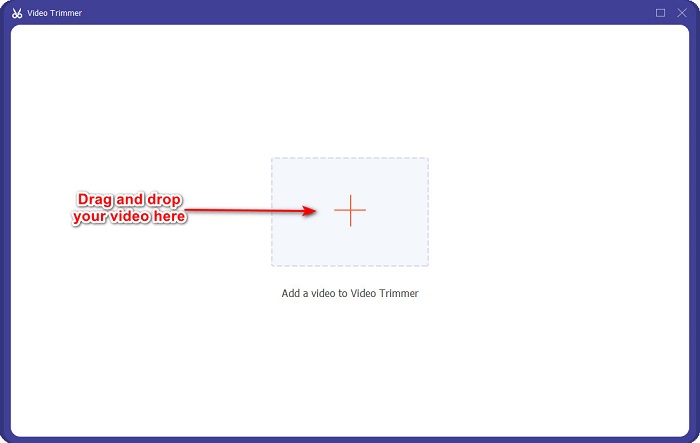
ขั้นตอนที่ 3. จากนั้น ในหน้าถัดไป ให้คลิกปุ่มสัญลักษณ์ + หรือ ลากและวาง วิดีโอของคุณมาที่สัญลักษณ์ +.
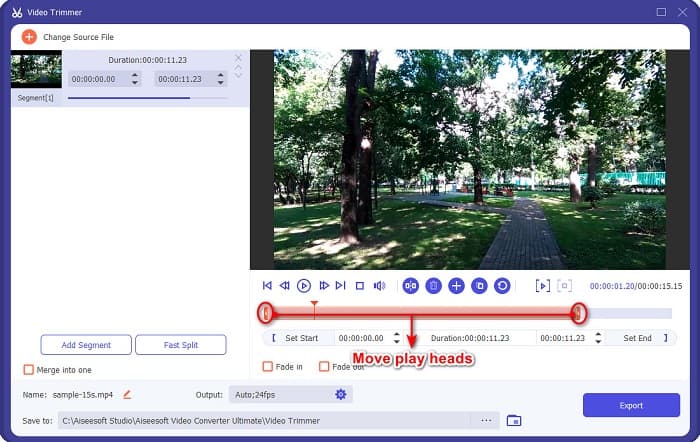
ขั้นตอนที่ 4. จากนั้น เลื่อนปุ่ม หัวเล่น (play head) ไปยังความยาวที่คุณต้องการ หัวลูกศร จะแสดงตำแหน่งของภาพตัวอย่างวิดีโอของคุณ และหัวเล่นจะแสดงความยาวของวิดีโอ คุณสามารถดูการเปลี่ยนแปลงชั่วคราวของวิดีโอได้ในหน้าตัวอย่าง.
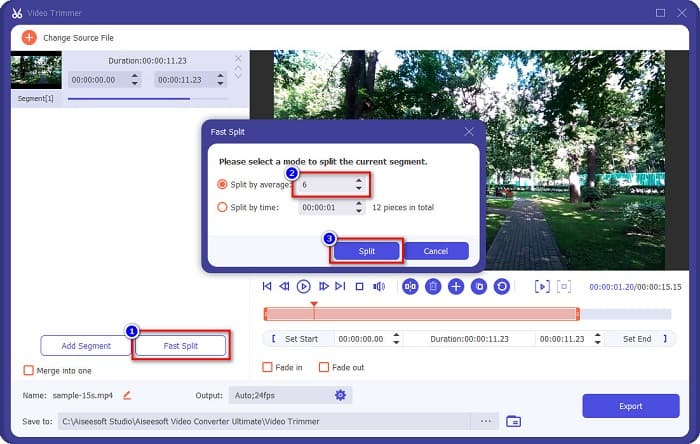
ตัวเลือกเพิ่มเติม หากคุณต้องการวิธีที่ง่ายกว่าในการแบ่งวิดีโอออกเป็นหลายส่วน:
1. คลิกปุ่ม แบ่งเร็ว (Fast Split).
2. เลือกจำนวนส่วนที่คุณต้องการให้วิดีโอถูกแบ่ง จากนั้นกด Split.
3. หากคุณไม่ต้องการแยกวิดีโอ ให้ไปยังขั้นตอนถัดไป
ขั้นตอนที่ 5. สุดท้ายให้คลิกปุ่ม ส่งออก (Export) เพื่อบันทึกการเปลี่ยนแปลงลงในวิดีโอของคุณ จากนั้นไฟล์ผลลัพธ์จะถูกบันทึกลงในคอมพิวเตอร์ของคุณโดยอัตโนมัติ.
วิธีที่ 2. ใช้ Video Speed Changer ของ FVC
FVC Video Converter Ultimate ยังมีคุณสมบัติที่คุณสามารถเปลี่ยนความเร็วของวิดีโอได้ 0.125x, 0.25x, 0.5x, 0.75x, 1.25x, 1.5x, 2x, 4x และ 8x ความเร็ว และหากคุณต้องการลดความยาวของวิดีโอ ให้ปรับวิดีโอของคุณให้เร็วขึ้น สำหรับขั้นตอนโดยละเอียดเพิ่มเติม ให้ทำตามคำแนะนำด้านล่าง
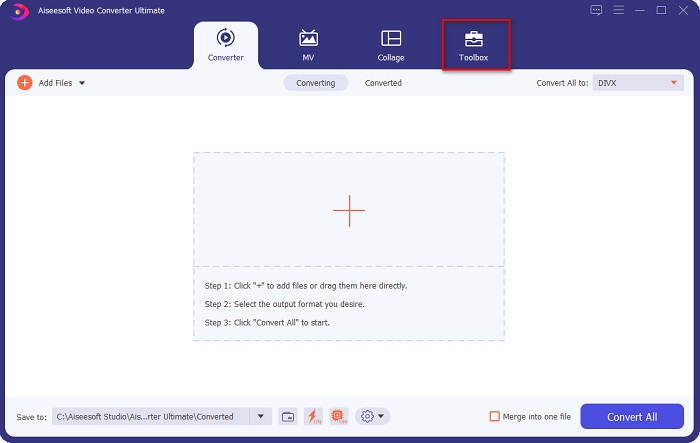
ขั้นตอนที่ 1. เปิด FVC Video Converter Ultimate และบนอินเทอร์เฟซหลักของซอฟต์แวร์ให้คลิกตัวเลือก กล่องเครื่องมือ (Toolbox).
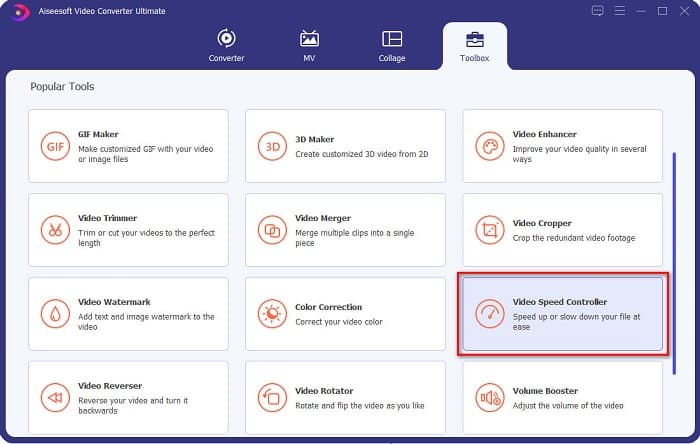
ขั้นตอนที่ 2. จากนั้นคลิก ตัวควบคุมความเร็ววิดีโอ (Video Speed Controller) แล้วไปยังขั้นตอนถัดไป.
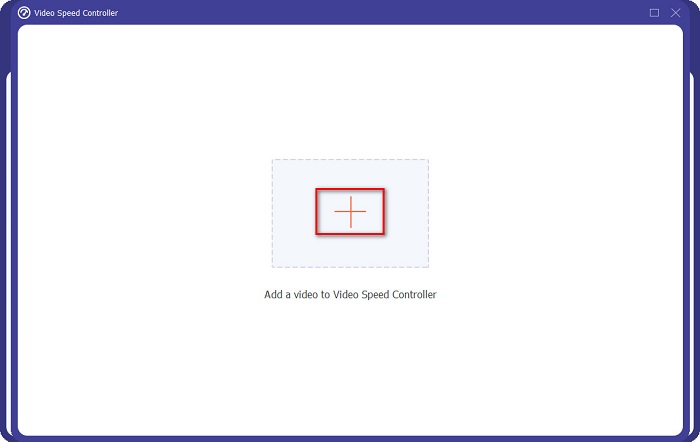
ขั้นตอนที่ 3. ต่อไป คลิกปุ่มสัญลักษณ์ + เพื่ออัปโหลดวิดีโอที่คุณต้องการตัด ความยาว โฟลเดอร์ในคอมพิวเตอร์ของคุณจะปรากฏขึ้น ให้เลือกวิดีโอและอัปโหลดมายังอินเทอร์เฟซของซอฟต์แวร์.
ขั้นตอนที่ 4. เมื่อต้องการลดความยาววิดีโอของคุณ ให้เลือกความเร็วตั้งแต่ 1.25 เท่า ไปจนถึง 8 เท่า.
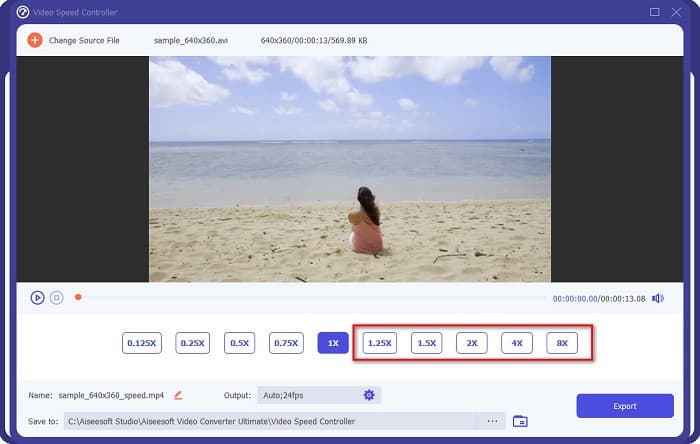
ขั้นตอนที่ 5. ในขั้นตอนสุดท้าย ให้คลิกปุ่ม Export เพื่อบันทึกการเปลี่ยนแปลงจากวิดีโอของคุณ จากนั้นไฟล์ผลลัพธ์จะถูกบันทึกลงในคอมพิวเตอร์ของคุณโดยอัตโนมัติ.
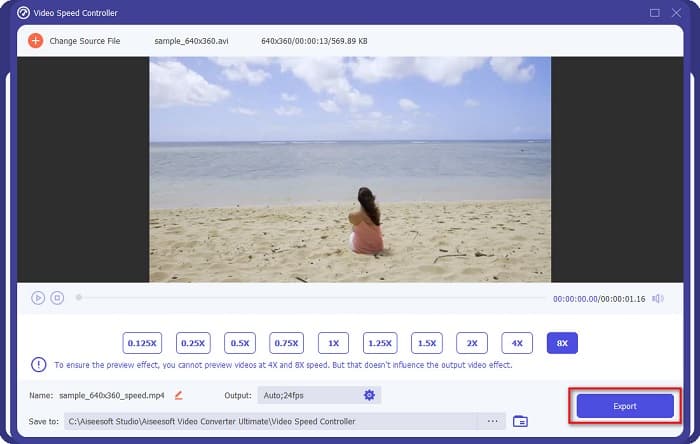
สำหรับความยาววิดีโอที่สั้นลง ให้เลือกความเร็ว 8x
ข้อดี
- รองรับรูปแบบไฟล์มากมาย รวมถึง MOV, MKV, AVI, MP4, WMV, WMA, MPEG และรูปแบบมากกว่า 1,000+
- มีอินเทอร์เฟซซอฟต์แวร์ที่ใช้งานง่าย
- ช่วยให้คุณสามารถแยกวิดีโอของคุณได้อย่างรวดเร็วด้วยการคลิกเพียงไม่กี่ครั้ง
- ดาวน์โหลดบนแพลตฟอร์มข้ามสื่อทั้งหมด เช่น Windows, Mac และ Linux
จุดด้อย
- ซื้อแอปก่อนเข้าถึงคุณสมบัติอื่นๆ
ส่วนที่ 2 2 เครื่องมือตัดแต่งวิดีโอออนไลน์ที่ต้องลอง
หากคุณต้องการตัดแต่งวิดีโอโดยไม่ต้องดาวน์โหลดอะไรเลย มีเครื่องมือตัดแต่งวิดีโอออนไลน์ที่คุณสามารถใช้ได้ เราแสดงรายการเครื่องตัดแต่งวิดีโอออนไลน์ที่ดีที่สุดที่หลายคนใช้ในส่วนนี้
ตัดต่อวิดีโอ
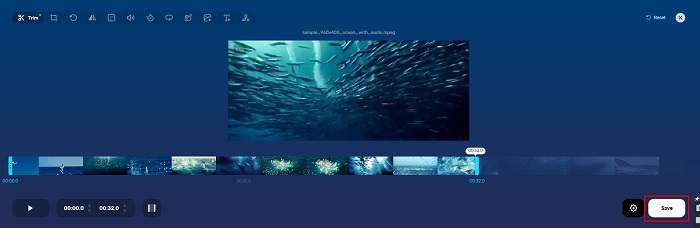
Trim Video เป็นเครื่องมือตัดวิดีโอออนไลน์ที่ใช้งานง่ายเพราะมีอินเทอร์เฟซผู้ใช้ที่เข้าใจง่าย นับเป็นเครื่องมือที่สะดวกเพราะไม่ต้องติดตั้งเหมือนเครื่องมือออนไลน์อื่น ๆ นอกจากนี้ยังมีฟีเจอร์ที่ให้คุณหมุนวิดีโอได้ 90, 180 หรือ 270 องศา อีกทั้งคุณไม่จำเป็นต้องกังวลเรื่องความปลอดภัยของข้อมูลเพราะเครื่องมือนี้มีการปกป้องความเป็นส่วนตัว อย่างไรก็ตาม เนื่องจากเป็นแอปพลิเคชันบนเว็บ จึงมีโฆษณาที่อาจรบกวนคุณได้.
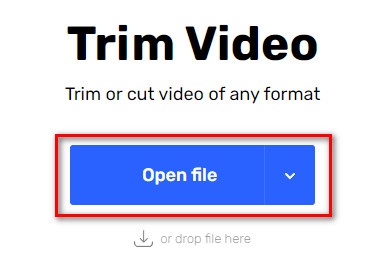
ขั้นตอนที่ 1. บนเบราว์เซอร์ของคุณ ให้ค้นหาโปรแกรมตัดวิดีโอออนไลน์ จากนั้นคลิกเว็บไซต์ Trim Video บนอินเทอร์เฟซหลักของซอฟต์แวร์ให้คลิกปุ่ม Open File.
ขั้นตอนที่ 2. จากนั้นปรับปุ่ม play head ไปยังความยาวที่คุณต้องการ.
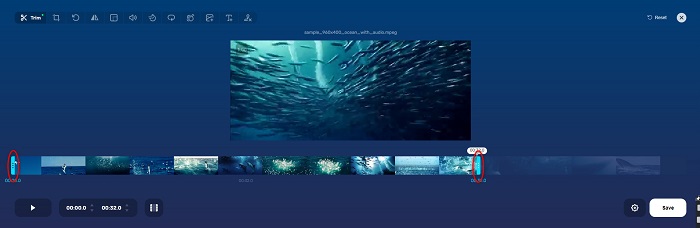
ขั้นตอนที่ 3. คลิกปุ่ม Save เพื่อเปลี่ยนความยาววิดีโอของคุณ.
ข้อดี
- มี GUI ที่ใช้งานง่าย
- มีคุณสมบัติในการครอบตัดและหมุนวิดีโอของคุณ
- มีความปลอดภัยในการใช้งาน
จุดด้อย
- มันมีโฆษณาที่น่ารำคาญ
- มีกระบวนการโหลดและอัปโหลดช้า
Clideo
เครื่องมือตัดวิดีโอออนไลน์อีกตัวหนึ่งคือ Clideo เครื่องมือออนไลน์นี้มีอินเทอร์เฟซที่เรียบง่าย ทำให้ใช้งานได้สะดวก นอกจากนี้ยังรองรับรูปแบบไฟล์มาตรฐานส่วนใหญ่ เช่น AVI, MP4, VOB, MPG, MOV เป็นต้น อีกทั้งยังมีการรักษาความปลอดภัยในระดับสูง ซึ่งหมายความว่าข้อมูลของคุณจะปลอดภัยและผู้อื่นไม่สามารถเข้าถึงได้ นอกจากนี้ Clideo ยังไม่มีโฆษณาที่จะมารบกวนคุณ.
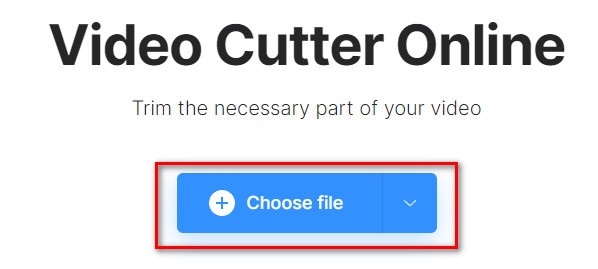
ขั้นตอนที่ 1. บนเบราว์เซอร์ที่คุณใช้ ให้ค้นหาโปรแกรมตัดวิดีโอ Clideo และบนหน้าต่างแรกของซอฟต์แวร์ให้คลิกปุ่ม Choose File โฟลเดอร์ในคอมพิวเตอร์ของคุณจะปรากฏขึ้น ให้คุณเลือกวิดีโอที่ต้องการย่อความยาว.
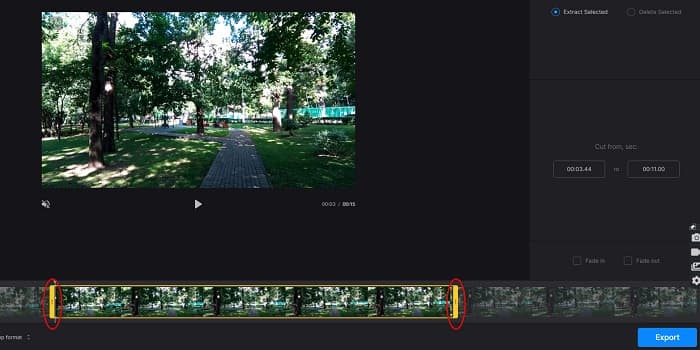
ขั้นตอนที่ 2. เลื่อนปุ่ม play head ไปยังความยาวที่คุณต้องการให้วิดีโอของคุณมี.
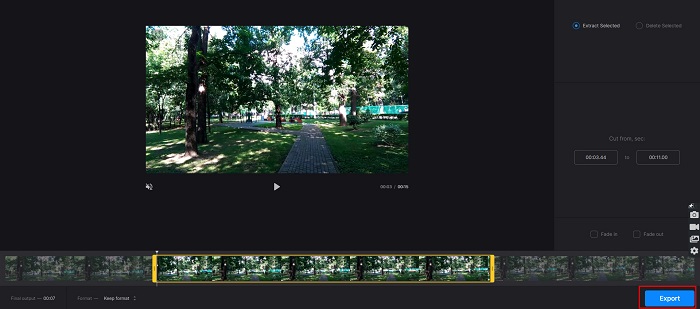
ขั้นตอนที่ 3. สำหรับขั้นตอนสุดท้าย คลิกปุ่ม Export เพื่อเปลี่ยนความยาววิดีโอของคุณ.
ข้อดี
- มีอินเทอร์เฟซที่ใช้งานง่าย
- มีความปลอดภัยในการใช้งาน
- ไม่มีโฆษณาใด ๆ
จุดด้อย
- คุณอาจประสบกับกระบวนการที่ช้าเมื่อการเชื่อมต่ออินเทอร์เน็ตของคุณช้า
ส่วนที่ 3 คำถามที่พบบ่อยเกี่ยวกับวิธีการย่อวิดีโอ
วิธีย่อวิดีโอบน iPhone
ขั้นแรก เปิดแอปรูปภาพแล้วเลือกวิดีโอที่คุณต้องการตัดต่อ จากนั้นแตะแก้ไข หลังจากนั้น เลื่อนแถบเลื่อนไปยังความยาววิดีโอที่คุณต้องการแล้วแตะ เสร็จสิ้น เพื่อบันทึกการเปลี่ยนแปลงจากวิดีโอของคุณ
การตัดแต่งวิดีโอของคุณส่งผลต่อคุณภาพหรือไม่?
ไม่ เครื่องมือตัดแต่งส่วนใหญ่ไม่ส่งผลต่อคุณภาพของวิดีโอของคุณ แต่ถ้าคุณมั่นใจในเครื่องมือที่ไม่ส่งผลต่อคุณภาพเมื่อคุณย่อวิดีโอ ให้ใช้ FVC Video Converter Ultimate
การย่อวิดีโอของคุณส่งผลต่อขนาดไฟล์หรือไม่
ใช่. ยิ่งวิดีโอของคุณสั้นเท่าใด ขนาดไฟล์ก็จะยิ่งน้อยลงเท่านั้น ในทางตรงกันข้าม หากวิดีโอของคุณยาว วิดีโอจะมีขนาดไฟล์ที่ใหญ่มาก
สรุป
ทั้งหมดนี้คือวิธีการย่อความยาววิดีโอโดยใช้ตัวตัดวิดีโอและตัวปรับความเร็ววิดีโอ เครื่องมือทั้งหมดที่กล่าวมาสามารถให้ผลลัพธ์ที่ดีและรับประกันประสิทธิภาพการทำงานที่ยอดเยี่ยม แต่ถ้าคุณกำลังมองหาเครื่องมือที่ดีที่สุดที่มีฟีเจอร์มากมายให้ใช้ และเป็นที่นิยมอย่างกว้างขวางเมื่อต้องการย่อความยาววิดีโอของคุณแล้ว FVC Video Converter Ultimate ก็คือเครื่องมือที่ดีที่สุดสำหรับคุณ.
-
 วิธีตัดและรวมเพลงออนไลน์ – 4 วิธีที่ดีที่สุดที่คุณควรรู้
 เมื่อคุณต้องการตัดและรวมเพลงออนไลน์เพื่อสร้างผลงานเพลง คุณสามารถเรียนรู้เพิ่มเติมเกี่ยวกับเครื่องมือออนไลน์ที่ดีที่สุด 4 อย่างในการตัดเพลงและรวมไฟล์จากบทความ
-
 ค้นพบเครื่องตัด MP4 ที่ดีที่สุดพร้อมขั้นตอนและข้อมูล
 คุณต้องการเรียนรู้วิธีตัดวิดีโอเช่น vloggers ที่คุณดูหรือไม่? จากนั้นอ่านโพสต์นี้ต่อไปเพื่อดูว่าคุณใช้เครื่องตัดหญ้า MP4 แบบใดได้บ้าง
-
 เครื่องตัด MP3 5 ชิ้นเพื่อตัดเสียงได้อย่างง่ายดาย [อัปเดต 2022]
 คุณต้องการเครื่องตัด MP3 เพื่อตัดเสียงหรือไม่? ในกรณีนั้น โปรดอ่านบทความนี้เพราะเรามีเครื่องมือที่คุณสามารถพึ่งพาได้ซึ่งให้การตัดเสียงที่ง่ายดาย
