


 Video Converter Ultimate
 บันทึกหน้าจอ
 ซ่อมวิดีโอ
 ดาวน์โหลดอย่างปลอดภัย
คำแนะนำเกี่ยวกับวิธีเพิ่มความเร็ววิดีโอบน Instagram อย่างง่ายดาย
ด้วย Instagram เราสามารถอัปโหลดหรือโพสต์วิดีโอได้อย่างง่ายดายโดยแทบไม่จำกัดความยาวเท่าที่เราต้องการ ถึงแม้ว่าจะสามารถแชร์ช่วงเวลาต่าง ๆ บน Instagram ได้ แต่แอปจะกำหนดมาตรฐานความยาววิดีโอที่คุณต้องปฏิบัติตาม หรืออาจต้องตัดต่อให้สั้นลง หากคุณต้องการแชร์วิดีโอแบบเต็ม ๆ โดยไม่ต้องตัด เราขอแนะนำให้คุณเร่งความเร็ววิดีโอ แค่เปลี่ยนการเล่นแบบปกติให้เป็นแบบเร็วขึ้น คุณก็สามารถแชร์วิดีโอทั้งคลิปได้โดยไม่ต้องตัด เพราะระยะเวลาวิดีโอจะสั้นลงกว่าก่อนหน้า ที่นี่เราจะอธิบายวิธีเร่งความเร็ววิดีโอบน Instagram ให้เหมือนมืออาชีพ อ่านบทความนี้ให้จบเพื่อเรียนรู้วิธีทำให้ระยะเวลาวิดีโอสั้นลงได้อย่างมีประสิทธิภาพ.

ส่วนที่ 1 วิธีเพิ่มความเร็ววิดีโอบน Instagram โดยใช้ Reel
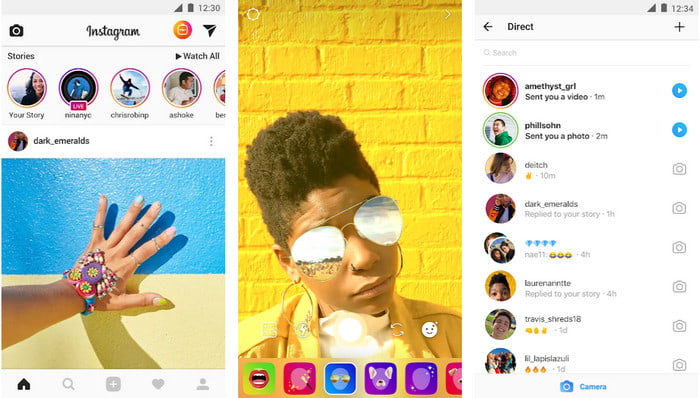
คุณสมบัติ Reel สามารถเพิ่มความเร็ววิดีโอสำหรับ Instagram ได้ฟรี ฟีเจอร์นี้พร้อมใช้งานบนอุปกรณ์ iOS และ Android เพื่อจับภาพวิดีโอเคลื่อนไหวความเร็วสูงสูงสุด 3 เท่า แม้ว่าจะสามารถถ่ายวิดีโอที่เร่งความเร็วได้ แต่ก็ยังมีคุณสมบัติอื่นๆ เช่น การเพิ่มเพลง การตั้งค่าระยะเวลาของวิดีโอ ตัวจับเวลา ฯลฯ หากต้องการทราบวิธีใช้คุณสมบัตินี้ คุณต้องทำตามขั้นตอนที่เราเพิ่มด้านล่างเพื่อเพิ่มความเร็วให้กับวิดีโอของคุณ ต้องการถ่ายบน Instagram อย่างมืออาชีพ
ขั้นตอนที่ 1. หลังจากคุณดาวน์โหลด Instagram บนอุปกรณ์ของคุณแล้ว ให้เปิดแอป.
ขั้นตอนที่ 2. ปัดหน้าจอไปทางซ้ายแล้วมองหาคำว่า REEL.
ขั้นตอนที่ 3. ตอนนี้คุณสามารถแตะที่ตัวเลือกความเร็วในบริเวณนี้ แล้วเปลี่ยนเป็นความเร็วที่คุณต้องการได้ ง่าย ๆ แค่นี้คุณก็สามารถถ่ายวิดีโอแบบความเร็วสูงได้แล้ว.
ส่วนที่ 2 ซอฟต์แวร์ 3 อันดับแรกเพื่อเพิ่มความเร็ววิดีโอสำหรับ Instagram ออนไลน์และออฟไลน์
FVC Video Converter Ultimate
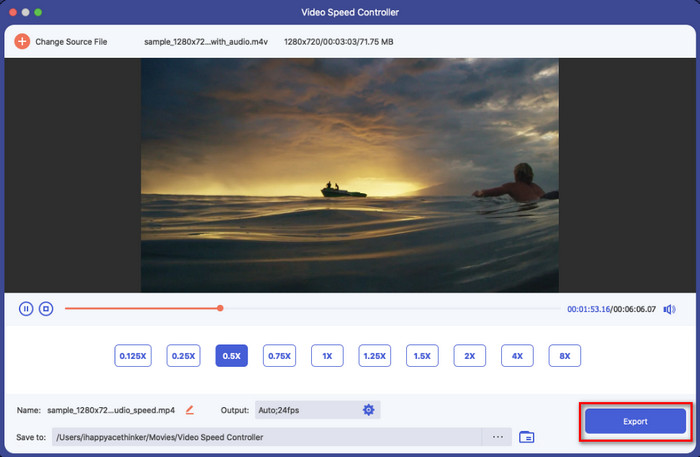
FVC Video Converter Ultimate เป็นซอฟต์แวร์เดสก์ท็อปที่โดดเด่นอย่างมาก ซึ่งคุณสามารถใช้เร่งความเร็ววิดีโอบน Instagram ได้ทันที โปรแกรมนี้เปิดโอกาสให้ผู้ใช้ทำสิ่งต่าง ๆ มากมายเพื่อให้วิดีโอดียิ่งขึ้นเมื่อแปลงให้เป็นแบบเล่นเร็ว ภายในไม่กี่คลิก คุณก็สามารถเปลี่ยนความเร็วของวิดีโอปกติได้อย่างง่ายดาย โดยไม่ต้องกังวลเรื่องคุณภาพและความลื่นไหลของวิดีโอ น่าทึ่งใช่ไหม? เครื่องมือนี้ยังช่วยให้คุณชะลอความเร็ววิดีโอได้อย่างรวดเร็วเช่นกัน ไม่ว่าคุณจะเร่งหรือหน่วงความเร็ว เครื่องมือนี้ก็ยังทำงานได้ดีเยี่ยม.
ต้องการมากขึ้น? ซอฟต์แวร์นี้รองรับรูปแบบวิดีโอมากกว่า 1,000 รูปแบบ ดังนั้นคุณจึงไม่ต้องกังวลหากคุณคิดว่ารูปแบบวิดีโอไม่รองรับเพราะอยู่ที่นี่ นอกจากนี้ยังมีคุณลักษณะการแก้ไขเพิ่มเติมที่คุณอาจต้องการใช้ โดยเฉพาะอย่างยิ่งหากคุณต้องการสร้างความประทับใจให้ผู้ที่กำลังจะดู ทำตามขั้นตอนที่ระบุภายในเวลาไม่ถึงนาที คุณสามารถเปลี่ยนความเร็วของวิดีโอได้สำเร็จ
ขั้นตอนที่ 1. ดาวน์โหลดและติดตั้งตัวแปลงเวอร์ชัน Ultimate ลงในไดรฟ์ของคุณ แล้วเลือกให้ตรงกับระบบปฏิบัติการที่คุณใช้อยู่ จากนั้นให้เปิดโปรแกรม และทำความคุ้นเคยกับหน้าตาอินเทอร์เฟซของเครื่องมือ เพื่อที่คุณจะได้ทำตามขั้นตอนถัดไปได้ง่ายขึ้น.
ดาวน์โหลดฟรีสำหรับ Windows 7 หรือใหม่กว่าดาวน์โหลดอย่างปลอดภัย
ดาวน์โหลดฟรีสำหรับ MacOS 10.7 หรือใหม่กว่าดาวน์โหลดอย่างปลอดภัย
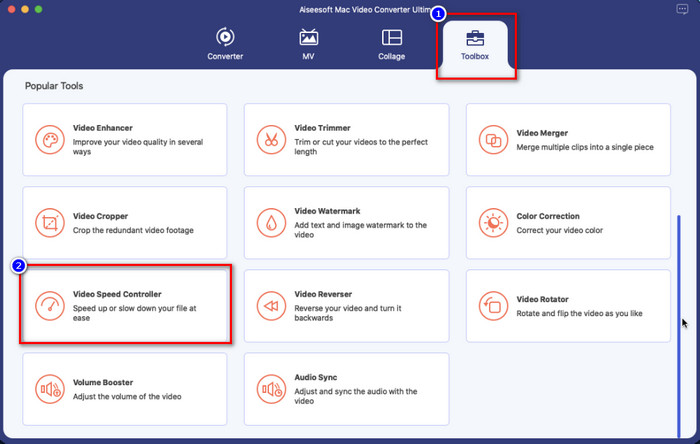
ขั้นตอนที่ 2. คลิกที่ส่วน Toolbox เพื่อเปิด จะมีรายการฟีเจอร์และฟังก์ชันต่าง ๆ ให้เลือกใช้งาน จากนั้นคลิก Video Speed Controller เพื่อเปลี่ยนความเร็วของวิดีโอที่คุณต้องการ.
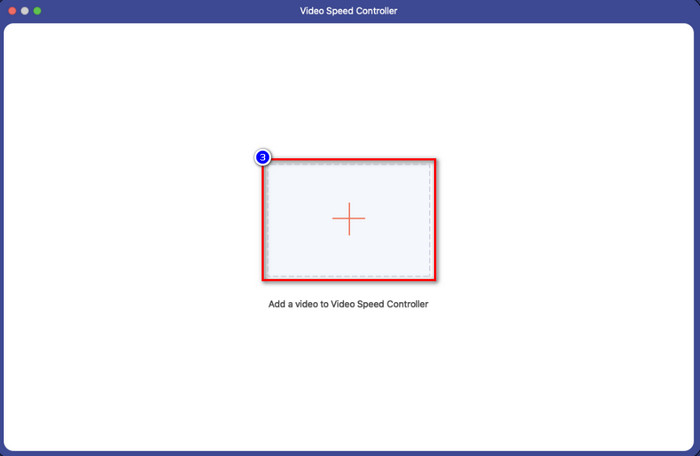
ขั้นตอนที่ 3. คลิกไอคอน + แล้วโฟลเดอร์บนคอมพิวเตอร์ของคุณจะปรากฏขึ้น ค้นหาวิดีโอที่ต้องการเร่งความเร็ว แล้วคลิก Open เพื่อเพิ่มวิดีโอลงในโปรแกรม.
ขั้นตอนที่ 4. เมื่อคุณอัปโหลดวิดีโอแล้ว ให้เลือกความเร็วที่ต้องการจากตัวเลือกที่มีอยู่ในส่วนนี้ คลิกแต่ละตัวเลือกเพื่อดูพรีวิวว่าความเร็วนั้นใช่ตามที่คุณต้องการสำหรับวิดีโอที่จะโพสต์ลง Instagram หรือไม่.
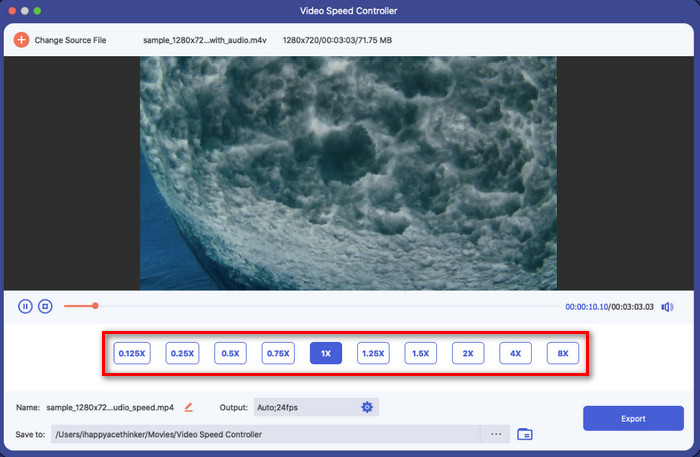
ขั้นตอนที่ 5. สุดท้าย เมื่อต้องการบันทึกวิดีโอที่คุณเปลี่ยนความเร็วแล้ว ให้คลิก Export จากนั้นการแปลงความเร็วการเคลื่อนไหวของวิดีโอจะเริ่มต้นในไม่ช้า เมื่อการแปลงเสร็จสิ้น จะมีโฟลเดอร์เด้งขึ้นมาบนหน้าจอ ซึ่งหมายความว่าวิดีโอภายในโฟลเดอร์นั้นคือวิดีโอที่คุณได้เปลี่ยนความเร็วเรียบร้อยแล้ว.
iMovie
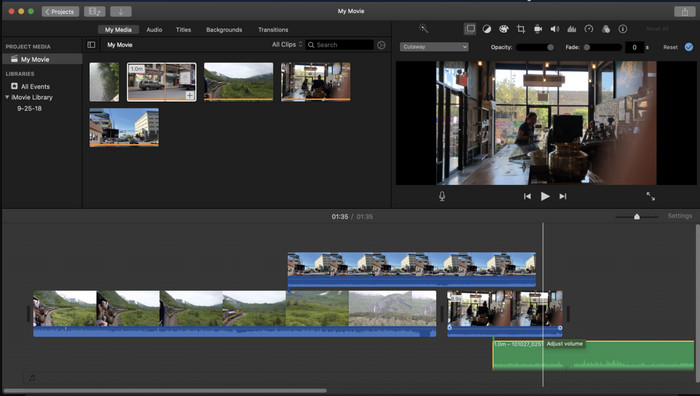
สำหรับอุปกรณ์ Mac การดาวน์โหลดโปรแกรมเพิ่มเติมอาจไม่จำเป็นเลย โดยเฉพาะหากคุณมี iMovie อยู่แล้ว โปรแกรมตัดต่อวิดีโอที่มาพร้อมเครื่องนี้สามารถช่วยให้คุณเปลี่ยนความเร็ววิดีโอที่ต้องการอัปโหลดหรือแชร์บน Instagram ได้ ดังนั้นหากคุณต้องการเร่งความเร็ววิดีโอและคุณเป็นผู้ใช้ Mac เราขอแนะนำให้ลองใช้โปรแกรมตัดต่อวิดีโอตัวนี้ เพราะใช้งานได้ฟรี แม้ซอฟต์แวร์นี้จะใช้ฟรี แต่ก็ยังมีผู้ใช้บางส่วนที่รู้สึกว่าการใช้งานค่อนข้างแข็งและต้องอาศัยความชำนาญในการจัดการโปรแกรมตัดต่อประเภทนี้ หากคุณกำลังมองหาวิธีเร่งความเร็ววิดีโอบน Instagram ก่อนโพสต์ ให้ทำตามขั้นตอนด้านล่างนี้.
ขั้นตอนที่ 1. เปิด iMovie บน Mac ของคุณ แล้วเพิ่มวิดีโอที่ต้องการลงใน Timeline.
ขั้นตอนที่ 2. คลิปที่คุณอัปโหลด แล้วจะมีไอคอนรูปมาตรวัดความเร็ว (speedometer) ปรากฏขึ้นบนหน้าจอของคุณ
ขั้นตอนที่ 3. เลือกความเร็วที่ต้องการเพิ่มให้กับวิดีโอจากเมนูความเร็ว จากนั้นจึง Export เพื่อบันทึกวิดีโอที่คุณเร่งความเร็วลงใน Mac.
Clideo
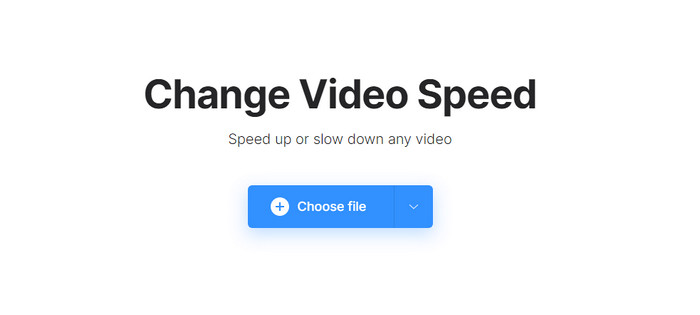
หนึ่งในโปรแกรมตัดต่อวิดีโอที่ใช้งานง่ายที่สุดตัวหนึ่งคือ Clideo เครื่องมือออนไลน์นี้ถือเป็นโซลูชันแบบครบจบในที่เดียว หากคุณไม่ต้องการดาวน์โหลดโปรแกรมตัดต่อวิดีโอลงในคอมพิวเตอร์เพื่อประหยัดพื้นที่ ถึงแม้คุณจะไม่ต้องดาวน์โหลดตัวเครื่องมือเว็บ แต่คุณยังคงต้องมีการเชื่อมต่ออินเทอร์เน็ตที่เสถียรเพื่อใช้งานออนไลน์และเร่งความเร็ววิดีโอที่ต้องการ หากคุณลองใช้เครื่องมือนี้เพื่อเปลี่ยนความเร็ววิดีโอ คุณจะพบว่าสามารถทำงานเสร็จได้ภายในเวลาไม่นาน จริงอยู่ที่เครื่องมือเว็บนี้ยอดเยี่ยมสำหรับการเร่งความเร็ววิดีโอแบบออนไลน์ แต่ประสิทธิภาพยังไม่ดีเท่าซอฟต์แวร์สองตัวแรก หากต้องการเรียนรู้วิธีใช้เครื่องมือนี้เพื่อเร่งความเร็ววิดีโอบน Instagram คุณสามารถอ่านและทำตามขั้นตอนต่อไปนี้.
ขั้นตอนที่ 1. เปิดเว็บเบราว์เซอร์ของคุณและค้นหา Clideo จากนั้นเปิดฟังก์ชันตัวควบคุมความเร็ว (speed controller) เพื่อเริ่มใช้งาน คลิก Choose File เพื่อเพิ่มวิดีโอที่คุณต้องการเร่งความเร็ว.
ขั้นตอนที่ 2. ในส่วนนี้ คุณสามารถลากแถบเลื่อน (slider)ไปทางซ้ายเพื่อเร่งความเร็ววิดีโอ หรือเลือกค่าความเร็วจากตัวเลือกที่มีให้ ไม่ว่าทางไหนก็ให้ผลลัพธ์เหมือนกัน.
ขั้นตอนที่ 3. หลังจากเลือกความเร็วที่คุณต้องการแล้ว ให้คลิก Export.
ส่วนที่ 3 คำถามที่พบบ่อยเกี่ยวกับวิธีเพิ่มความเร็ววิดีโอสำหรับ Instagram
ระยะเวลามาตรฐานของวิดีโอบน Instagram คืออะไร?
คุณสามารถอัปโหลดวิดีโอได้ตั้งแต่ 3 วินาทีถึง 10 นาที ไม่มาก แต่ก็ยังดีอยู่ หากวิดีโอที่คุณต้องการถ่ายยาว ให้ลองเพิ่มความเร็วอีกเล็กน้อยเพื่อประหยัดเวลาในระยะเวลาของวิดีโอเพื่อโพสต์วิดีโอทั้งหมดบน Instagram ในเวลาน้อยกว่า 10 นาที
Hyperlapse สามารถเพิ่มความเร็ววิดีโอของฉันบน Instagram ได้สูงเพียงใด
คุณสามารถใช้ Hyperlapse เพื่อถ่ายวิดีโอแบบเคลื่อนไหวเร็วบน Instagram ได้ตั้งแต่ความเร็ว 1 ถึง 12x นอกจากการควบคุมความเร็วแล้ว ยังรองรับการรักษาเสถียรภาพเพื่อให้วิดีโอของคุณมีเสถียรภาพมากขึ้นและลดความสั่นไหวของวิดีโอที่คุณกำลังถ่าย
ฉันสามารถส่งออกวิดีโอที่ฉันเพิ่มความเร็วบน Instagram ได้หรือไม่
ได้ คุณสามารถบันทึกวิดีโอที่คุณเร่งความเร็วบน Instagram ลงในโทรศัพท์ของคุณ หลังจากที่คุณถ่าย คุณสามารถแตะบันทึกจากอุปกรณ์เพื่อบันทึกวิดีโอในเวอร์ชันเร่งความเร็วที่คุณเลือก ค้นหาวิดีโอที่คุณเพิ่มความเร็วในแอพรูปภาพ คลังของคุณสำหรับรูปภาพทั้งหมด รูปภาพสด และไฟล์วิดีโอ
สรุป
บทความนี้มีคำอธิบายที่ชัดเจนและขั้นตอนสำหรับคุณในการจัดการวิดีโอเร่งความเร็วสำหรับ Instagram ในขณะที่เราแก้ไขปัญหาของคุณด้วยการเปลี่ยนความเร็วบน Instagram ตอนนี้คุณสามารถจัดการได้อย่างอิสระ ทำตามขั้นตอนที่เราเพิ่มด้านบนเพื่อเพิ่มความเร็วหรือแปลงวิดีโอความเร็วปกติเป็นการเพิ่มความเร็วโดยใช้เครื่องมือขั้นสูงสุด คุณจะเลือกทางไหน? ไม่ว่าคุณจะตัดสินใจอะไร คุณก็จะได้รับความเร็วที่ต้องการก่อนที่จะโพสต์หรือแชร์บน Instagram ของคุณ
-
 วิธีเพิ่มความเร็ววิดีโอด้วยซอฟต์แวร์ 5 อันดับแรก [Windows/Mac/Linux]
 คุณต้องการทราบวิธีเพิ่มความเร็ววิดีโออย่างง่ายหรือไม่? จากนั้นอ่านบทความนี้ในขณะที่เราอธิบายวิธีเพิ่มความเร็วอย่างมีประสิทธิภาพบน Windows, Mac และ Linux
-
 วิธีที่ง่ายที่สุดในการเพิ่มความเร็ววิดีโอบนอุปกรณ์ Android ของคุณ [2021]
 คุณรู้หรือไม่ว่าคุณสามารถเพิ่มความเร็ววิดีโอบน Android ของคุณ? ดังนั้น หากคุณต้องการทราบวิธีเพิ่มความเร็ววิดีโอบนโทรศัพท์ Android ของคุณ ให้อ่านบทความนี้
-
 วิธีเพิ่มความเร็ววิดีโอใน Premiere Pro และทางเลือกอื่น
 คุณต้องการทราบวิธีใช้ Premiere Pro เพื่อเพิ่มความเร็ววิดีโอหรือไม่? ถ้าอย่างนั้นคุณก็มาถูกบทความแล้ว เพราะเรามีขั้นตอนและทางเลือกอื่นๆ ในราคาที่เอื้อมถึง
