


 Video Converter Ultimate
 บันทึกหน้าจอ
 ซ่อมวิดีโอ
บทแนะนำแบบง่ายเกี่ยวกับวิธีการซิงค์เสียงและวิดีโอใน Adobe Premiere Pro
หากคุณเป็นมืออาชีพ คุณคงเคยใช้ Adobe Premiere Pro เป็นซอฟต์แวร์ตัดต่อวิดีโอที่มีประสิทธิภาพยอดเยี่ยมอยู่แล้ว ผู้ใช้ Adobe จำนวนมากชื่นชอบซอฟต์แวร์ตัวนี้เพราะสามารถให้ผลลัพธ์ที่ดีที่สุดสำหรับการนำไปใส่ในวิดีโอของคุณ แต่คุณรู้หรือไม่ว่าคุณยังสามารถใช้เครื่องมือนี้สำหรับการซิงค์เสียงกับวิดีโอได้ด้วย? ดังนั้น หากคุณยังไม่รู้วิธีทำ วันนี้ถือว่าเป็นวันโชคดีของคุณ เราจะทดลองทำไปพร้อมกันว่าเราจะซิงค์ได้ง่ายแค่ไหน จากนี้คุณไม่จำเป็นต้องอ่านคู่มืออีกต่อไป เพราะบทความนี้จะอธิบายให้เข้าใจได้ง่ายว่าจะซิงค์เสียงใน Premiere อย่างง่ายดายและมีประสิทธิภาพ พร้อมทั้งแนะนำเครื่องมือทางเลือกอีกตัวหนึ่งด้วย.

ส่วนที่ 1 วิธีซิงค์เสียงและวิดีโอใน Adobe Premiere Pro
ก่อนที่เราจะเริ่ม มาทำความรู้จัก Adobe Premiere Pro แบบคร่าว ๆ กันก่อน ตามที่กล่าวไว้ข้างต้น เครื่องมือนี้ถูกใช้โดยบรรดานักตัดต่อมืออาชีพที่ชื่นชอบการสร้างวิดีโอสุดตระการตา อย่างไรก็ตาม เครื่องมือนี้ค่อนข้างใช้เวลาศึกษานาน เพราะมีฟีเจอร์ขั้นสูงจำนวนมากที่ผู้เริ่มต้นอาจไม่เข้าใจ แม้การเรียนรู้การใช้งานจะกินเวลา แต่ก็คุ้มค่าที่จะศึกษาให้เข้าใจหากคุณมีเวลาว่าง นอกจากนี้ ขั้นตอนต่าง ๆ ที่ระบุด้านล่างจะถูกย่อยให้ง่ายขึ้น เพื่อให้คุณเข้าใจและเรียนรู้วิธีซิงค์เสียงและวิดีโอใน Premiere ได้ หากคุณทำตามขั้นตอนต่อไปนี้.
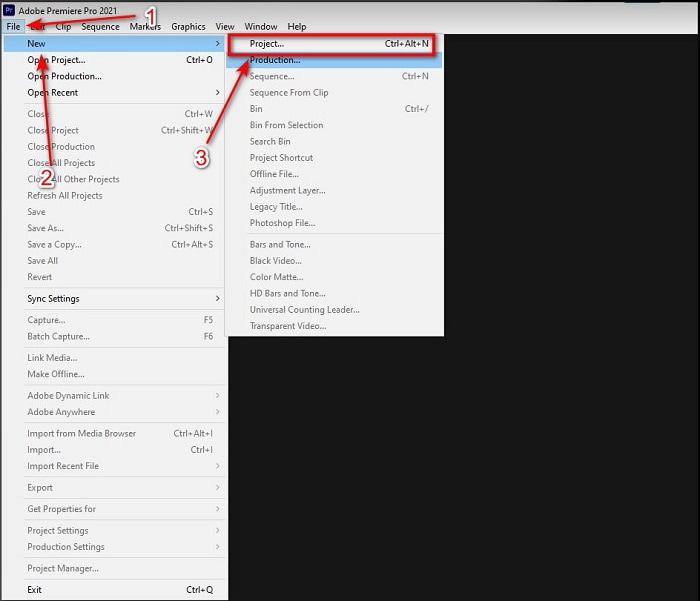
ขั้นตอนที่ 1. ก่อนอื่น คุณต้องซื้อโปรแกรมและดาวน์โหลดลงในไดรฟ์คอมพิวเตอร์ของคุณ จากนั้นเปิดโปรแกรมหลังจากดาวน์โหลดเสร็จแล้ว คลิกที่ File ใต้เมนูนั้นเลือก New แล้วคลิก Project เพื่อดำเนินการต่อ จากนั้นกด OK บนหน้าต่างใหม่ที่เด้งขึ้นมา.
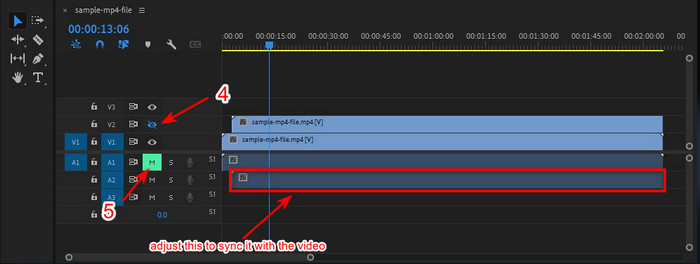
ขั้นตอนที่ 2. เพิ่มวิดีโอและไฟล์เสียงชุดเดียวกันลงใน Timeline สองครั้ง จากนั้นคลิก Toggle Track Output ของวิดีโอตัวที่สอง และปิดเสียงแทร็กที่สองโดยคลิก Mute Track แล้วปรับแทร็กเสียงเพื่อให้มั่นใจว่าสามารถซิงค์กับวิดีโอได้อย่างพอดี.
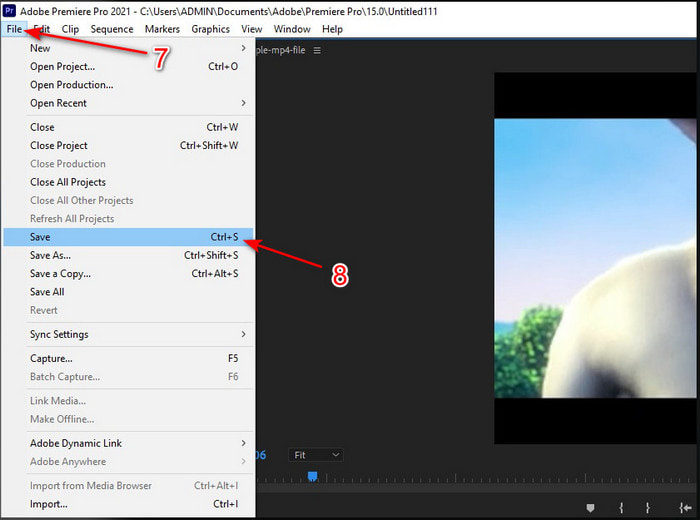
ขั้นตอนที่ 3. คลิก File ด้านบนอีกครั้งและเลือก Save เพื่อส่งออกไฟล์มีเดียไปยังไดรฟ์คอมพิวเตอร์ของคุณ.
ข้อดี
- เครื่องมือนี้มีคุณลักษณะการแก้ไขขั้นสูง
- ด้านบนของตัวแก้ไขบรรทัดที่คุณสามารถดาวน์โหลดได้
- ทางเลือกที่ดีที่สุดในการสร้างผลงานอย่างมืออาชีพ
จุดด้อย
- ไม่ใช่ตัวเลือกที่ดีที่สุดสำหรับผู้เริ่มต้นที่ไม่มีแนวคิดในการแก้ไข
- ซอฟต์แวร์มีราคาแพงมากเมื่อเทียบกับโปรแกรมแก้ไขอื่นๆ ที่มีคุณลักษณะเกือบเหมือนกัน
ส่วนที่ 2 วิธีที่ง่ายที่สุดในการซิงค์เสียงสำหรับผู้เริ่มต้นและมืออาชีพด้วย Video Converter Ultimate
เช่นเดียวกับ Adobe Premiere Pro ตัวแปลงวิดีโอสุดล้ำตัวนี้ก็สามารถสร้างผลงานคุณภาพสูงและมีฟีเจอร์ตัดต่อขั้นสูงที่คุณจะต้องชื่นชอบเช่นกัน แต่ใช้งานง่ายกว่า Premiere Pro มาก Video Converter Ultimate คือเพื่อนซี้ของเหล่านักตัดต่อที่ชอบตัดต่อวิดีโอ ปรับแต่ง เพิ่มคุณภาพ สร้าง GIF และอื่น ๆ อีกมากมาย ซอฟต์แวร์นี้ตอบโจทย์ปัญหาของผู้ใช้อินเทอร์เน็ตแทบทุกอย่าง รวมถึงเรื่องการซิงค์ด้วย และด้วยความที่ใช้งานง่าย จึงมีผู้ใช้ดาวน์โหลดไปแล้วกว่าหนึ่งล้านคนและหลงรักมัน ดังนั้น หากคุณอยากทำให้ชีวิตง่ายขึ้น แทนที่จะใช้ premiere pro sync audio ทำไมไม่ลองใช้ตัวนี้ดูล่ะ? ทำตามขั้นตอนด้านล่างนี้ได้เลย.
ขั้นตอนการซิงค์เสียงและวิดีโอด้วย Video Converter Ultimate:
ขั้นตอนที่ 1. ดาวน์โหลดซอฟต์แวร์ลงในคอมพิวเตอร์ของคุณ และเลือกให้ตรงกับระบบที่ใช้ ไม่ว่าจะเป็น PC หรือ Mac จากนั้นติดตั้งโปรแกรม ตั้งค่าต่าง ๆ แล้วคลิก Start Now เพื่อไปต่อ.
ดาวน์โหลดฟรีสำหรับ Windows 7 หรือใหม่กว่าดาวน์โหลดอย่างปลอดภัย
ดาวน์โหลดฟรีสำหรับ MacOS 10.7 หรือใหม่กว่าดาวน์โหลดอย่างปลอดภัย
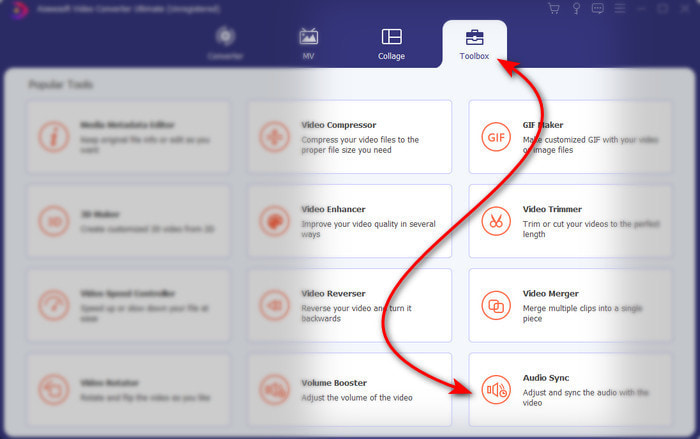
ขั้นตอนที่ 2. เปิดโปรแกรมหลังจากทำขั้นตอนแรกเสร็จ แล้วไปที่ส่วน Toolbox จากนั้นกด Audio Sync ที่อยู่ด้านล่าง.
ขั้นตอนที่ 3. กดปุ่ม + เพื่อเพิ่มวิดีโอและเสียงที่คุณต้องการซิงค์ หลังจากเลือกไฟล์จากโฟลเดอร์แล้วให้คลิก Open เพื่อดำเนินการต่อ.
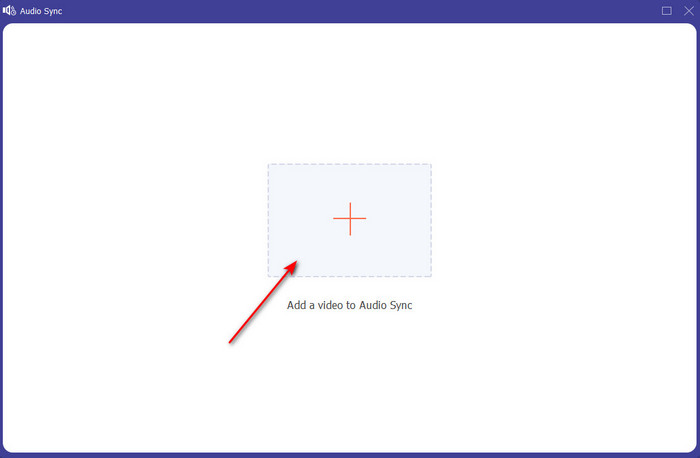
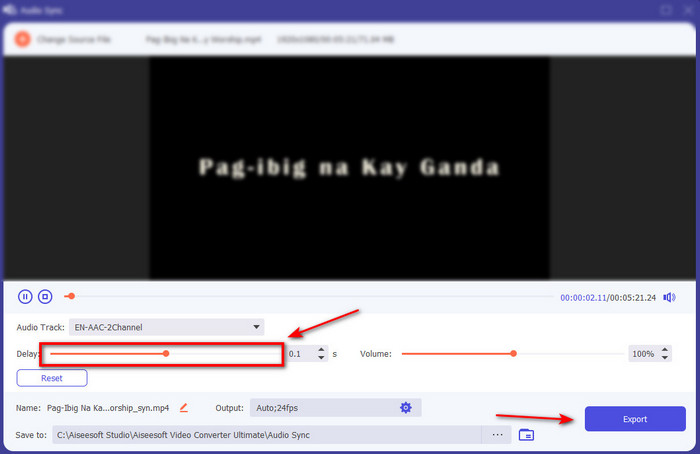
ขั้นตอนที่ 4. เพื่อให้เสียงซิงค์กับวิดีโอ ให้ปรับ Delay slider ให้ตรงกับวิดีโอ นอกจากนี้ คุณยังสามารถเพิ่มความดังของเสียงได้ด้วยการปรับแถบปรับระดับเสียง เมื่อเรียบร้อยแล้วให้คลิก Export เพื่อบันทึกผลงานสุดท้าย.
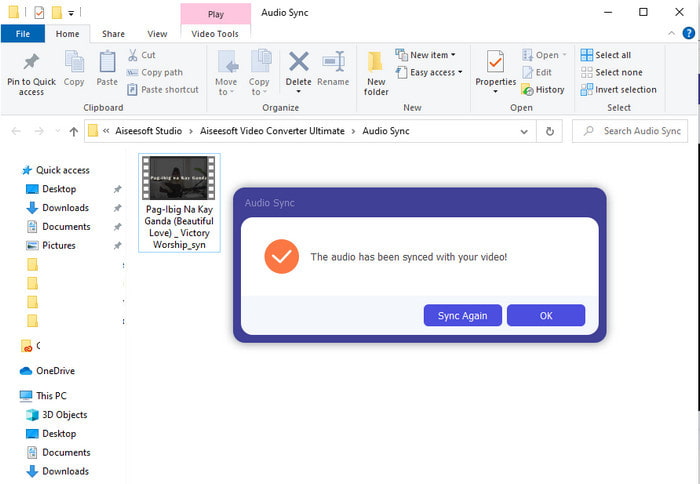
ขั้นตอนที่ 5. หลังจากเสร็จสิ้น จะมีโฟลเดอร์ปรากฏบนหน้าจอของคุณ ซึ่งภายในจะมีไฟล์วิดีโอที่ซิงค์เสียงเรียบร้อยแล้ว คลิกไฟล์นั้นเพื่อเปิดดู รับชม และเพลิดเพลินกับวิดีโอที่เสียงตรงกัน.
ข้อดี
- ทางเลือกที่ดีที่สุดในการทำให้วิดีโอของคุณดูยอดเยี่ยม
- ประสบการณ์โดยรวมในขณะที่ใช้เครื่องมือนี้เป็นสิ่งที่ดีที่สุดและยังใช้งานง่าย
- สามารถใช้ได้กับทุกแพลตฟอร์มไม่ว่าจะเป็น PC หรือ Mac
จุดด้อย
- เช่นเดียวกับ Premiere Pro เครื่องมือนี้ได้รับการจ่ายเงิน แต่มีราคาถูกกว่า Premiere Pro มาก
- ต้องดาวน์โหลดลงในไดรฟ์ก่อนจึงจะสามารถเข้าถึงได้
ส่วนที่ 3 คำถามที่พบบ่อยเกี่ยวกับการซิงค์เสียงและวิดีโอใน Premiere
ฉันสามารถใช้ Premiere เป็นเครื่องบันทึกหน้าจอได้หรือไม่?
หากคุณพยายามจะอัดหน้าจอด้วย Premiere Pro ขอให้ยอมแพ้ได้เลย เพราะโปรแกรมนี้ไม่สามารถทำได้ อย่างไรก็ตาม เรามีตัวช่วยลับสำหรับอัดหน้าจอมาแนะนำให้คุณเลือกใช้ ดังนั้น หากคุณอยากรู้ว่า 5 สุดยอดโปรแกรมอัดหน้าจอ ที่ดีที่สุดสำหรับใช้บน PC, Mac, ออนไลน์, iOS และ Android มีอะไรบ้าง ลองเข้าไปดูได้.
Adobe Premiere Pro ฟรีหรือไม่
ใช่ คุณสามารถดาวน์โหลดเครื่องมือนี้ได้ฟรี แต่คุณสามารถเข้าถึงเครื่องมือนี้ได้เพียง 7 วันในการทดลองใช้เท่านั้น ดังนั้น หากช่วงทดลองใช้สิ้นสุดลง คุณต้องสมัครใช้งาน Adobe Premiere Pro อีกครั้งเพื่อใช้งานฟีเจอร์การแก้ไขรอบปฐมทัศน์ที่ Pro นี้มีให้อย่างเต็มที่
ฉันสามารถใช้เว็บไซต์อื่นเพื่อดาวน์โหลด Premiere Pro ได้หรือไม่
ไม่ เพราะการดาวน์โหลดแอปทั้งหมดกับเว็บไซต์อื่นเป็นสิ่งผิดกฎหมาย นอกจากนี้ หากคุณใช้เว็บไซต์อื่นเพื่อดาวน์โหลด Premiere Pro ก็มีโอกาสที่เว็บไซต์ดังกล่าวจะมีสปายแวร์ ไวรัส หรือแย่กว่านั้นมาก ดังนั้น หากคุณต้องการรักษาความปลอดภัยให้ดาวน์โหลดซอฟต์แวร์ไปยังเว็บไซต์หลักอย่างเป็นทางการเท่านั้น
ฉันสามารถซื้อการเข้าถึงตลอดชีพบน Adobe Premiere Pro ได้หรือไม่
แม้ว่าคุณจะสามารถซื้อสิทธิ์การเข้าถึงรายเดือนบน Adobe Premiere Pro ได้ แต่คุณจะไม่สามารถซื้อสิทธิ์การเข้าถึงแบบตลอดชีพได้ แต่คุณสามารถซื้อกับเว็บไซต์อื่นได้ อย่างไรก็ตาม มันผิดกฎหมายและมีโอกาสที่ไฟล์ที่คุณจะดาวน์โหลดเสียหาย มีไวรัส หรือเป็นการหลอกลวง ดังนั้น หากคุณต้องการใช้และซื้อ Adobe Premiere Pro เราแนะนำให้ทุกคนซื้อบนเว็บไซต์หลัก
สรุป
หลังจากอ่านบทความนี้ 5 นาที เราก็รู้วิธีใช้ Adobe Premiere pro เพื่อซิงค์เสียงกับวิดีโอแล้ว อย่างไรก็ตาม มีวิธีที่ง่ายกว่าในการซิงค์โดยใช้ Video Converter Ultimate เนื่องจากเครื่องมือนี้มอบการปรับวิดีโอและเสียงที่ไม่ซิงค์ได้เร็วกว่ามากในขณะที่มีคุณภาพดีที่สุด ดังนั้นตอนนี้ หากคุณมีเงินเป็นจำนวนมาก ให้เลือก Adobe Premiere Pro แต่ถ้าคุณต้องการประหยัดเงินได้มากในขณะที่มีฟังก์ชันเดียวกัน คุณจะต้องเป็น Video Converter Ultimate
-
 วิธีทำให้วิดีโอช้าลง: เคล็ดลับที่สมบูรณ์แบบ [เดสก์ท็อป/โทรศัพท์มือถือ]
 คุณเบื่อกับการค้นหาเครื่องมือที่ดีที่สุดที่ช่วยทำให้วิดีโอออนไลน์ช้าลงหรือไม่? อ่านบทความนี้โดยเฉพาะเพื่อให้คุณได้รับความรู้ความเข้าใจตามรายการด้านล่าง
-
 Windows Media Player | เรียนรู้วิธีเพิ่มความเร็ววิดีโอ [พิสูจน์แล้ว]
 คุณต้องการทำให้คลิปวิดีโอของคุณช้าลงโดยใช้ Windows Media Player แต่กำลังประสบปัญหาเกี่ยวกับวิธีการทำหรือไม่ บทความนี้เหมาะสำหรับการอ่านและสามารถให้ความกระจ่างในมุมมองของคุณเกี่ยวกับวิธีเพิ่มความเร็ววิดีโอโดยใช้ Windows Media Player
-
 วิธีเปลี่ยนวิดีโอสโลว์โมชั่นเป็นความเร็วปกติ [ขั้นตอนง่าย ๆ ]
 ต้องการทราบวิธีการย้อนกลับวิดีโอสโลว์โมชั่นที่คุณดาวน์โหลดจากอินเทอร์เน็ตหรือบันทึกแบบสโลว์โมชั่นโดยไม่ได้ตั้งใจหรือไม่? เรียนรู้วิธีแปลงวิดีโอสโลว์โมชั่นเป็นความเร็วปกติบน Mac, Windows, iOS และ Android
