


 Video Dönüştürücü Ultimate
 Ekran kaydedicisi
 Video Onarımı
Adımlarla Windows/Mac/iPhone/Android'de GIF'e Filtre Nasıl Eklenir
GIF'inize nasıl filtre ekleyerek hareket katacağınızı mı merak ediyorsunuz? Endişelenmeyin, çünkü bu makale masaüstü ve telefonda kullanabileceğiniz, filtre özelliği sunan en çok tercih edilen GIF düzenleyicilerini tanıtıyor. Burada verdiğimiz bilgiler, GIF'e filtre ekleme konusunda güvenilir kanıtlar sunacaktır. Daha fazla uzatmadan, işletim sisteminizde kullanabileceğiniz GIF filtre yazılımlarını birlikte inceleyelim.

Bölüm 1. GIF'e Neden Filtre Eklemem Gerekiyor?
GIF'i web'de paylaşıyorsanız, özelleştirmenize bağlı olarak rengi geliştirmek için önce GIF'e bir filtre eklemelisiniz. Araştırmaya göre, filtrelenmiş GIF, izleyicileri olmayan GIF'lerden daha fazla çekiyor. Bu nedenle, geniş bir kitleyi çekmek istiyorsanız, sahip olduğunuz GIF düzenleyici ile yaptığınız her GIF'e bir filtre eklemeye başlamalısınız. Şimdi, GIF'inize nasıl filtre ekleyeceğiniz hakkında hiçbir fikriniz yoksa, makalenin tamamını okumanızı şiddetle öneririz.
Bölüm 2. Windows ve Mac'te Olağanüstü GIF Düzenleyici ile GIF'e Filtreler Ekleyin [En Kolay Yol]
Video Converter Ultimate, piyasada gördüğümüz ve seçtiğimiz en iyi GIF düzenleyicisidir. Birden fazla düzenleme özelliği sunduğu, örneğin video veya GIF üzerine filtre ekleme imkânı verdiği için tam anlamıyla hepsi bir arada GIF düzenleyiciniz olarak bilinir. Bu aracı kullanmak için profesyonel olmanıza gerek yok; ama en güzeli ne biliyor musunuz? Sadece birkaç dokunuşla profesyonel bir çıktı elde edersiniz. Şimdi, GIF'e filtre eklemek istiyorsanız, tek bir zorlanma yaşamadan aşağıdaki eğitimi takip edebilirsiniz.
Adım 1. GIF düzenleyiciyi kullanmak için aşağıdaki indirme düğmesine basın ve hangi işletim sistemini kullandığınızı seçin. İndirdikten sonra, kurulum adımlarını izleyerek yazılımı yükleyin ve ardından GIF'e filtre eklemeye başlamak için açın.
Ücretsiz İndirWindows 7 veya üstü içinGüvenli İndirme
Ücretsiz İndirMacOS 10.7 veya üstü içinGüvenli İndirme
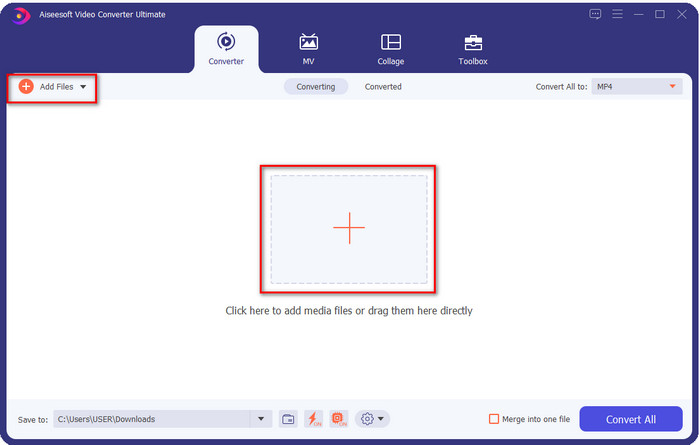
Adım 2. Ortadaki + simgesine tıklayarak eklemek istediğiniz GIF'i yükleyin; isterseniz Dosya Ekle seçeneğine de tıklayabilirsiniz, iki seçenek de aynı işlevi görür. Ekranınızda açılacak masaüstü klasöründen .gif dosyasını bulun ve yüklemek için Aç düğmesine tıklayın.
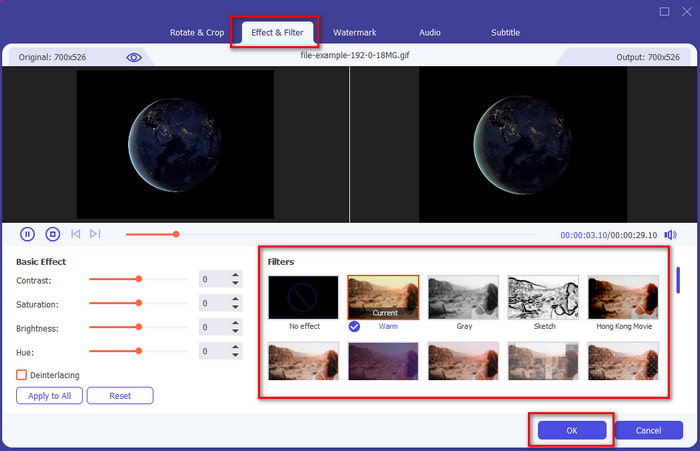
Adım 3. GIF'e filtre eklemek için yeni bir pencere açmak üzere sihirli değnek simgesine tıklayın. Altındaki Efekt & Filtreler bölümüne gidin; burada GIF'inizi internetteki diğer GIF'lerden daha iyi gösterecek farklı filtre setlerini göreceksiniz. Filtrelerin her birine tek tek tıklayarak deneme yapabilirsiniz; filtreden memnun kalırsanız, filtreyi GIF'e başarıyla uygulamak için Tamam düğmesine tıklamanız gerekir.
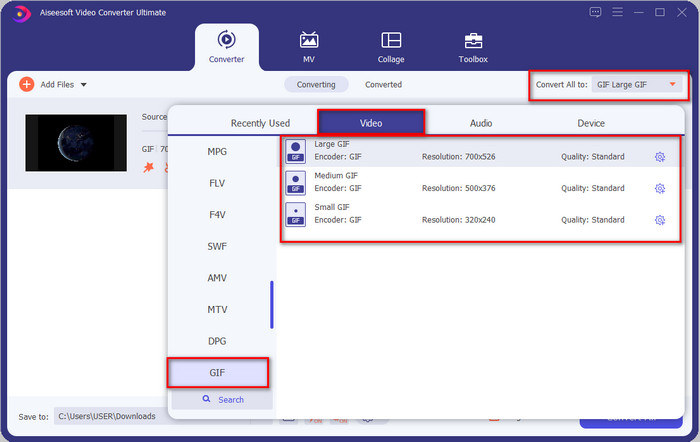
GIF'in formatını korumak istiyorsanız, Tümünü Dönüştür seçeneğine tıklayın ve GIF formatını arayın. Sahip olmak istediğiniz GIF formatını seçin ve tıklayın.
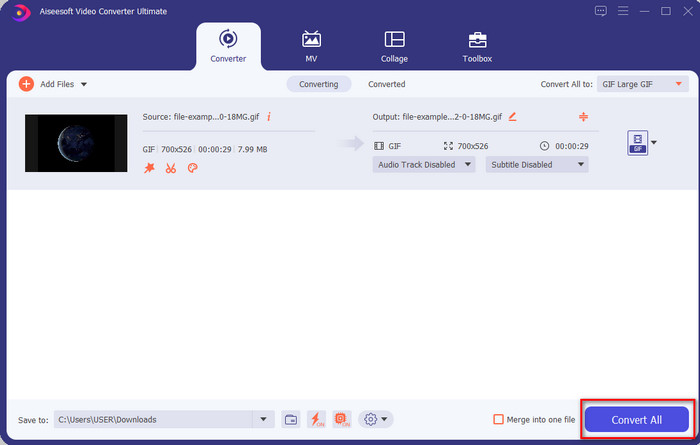
Adım 4. Üzerine filtre eklenmiş GIF'i indirmek için Tümünü Dönüştür düğmesine tıklayın. Kolay, değil mi? Video Converter Ultimate ile GIF ile ilgili neredeyse her şeyi tek bir damla ter dökmeden yapabilirsiniz.
Bölüm 3. Android Cihazlarda Kullanılabilen GIF Maker- Editor ile GIF'e Filtre Ekleme
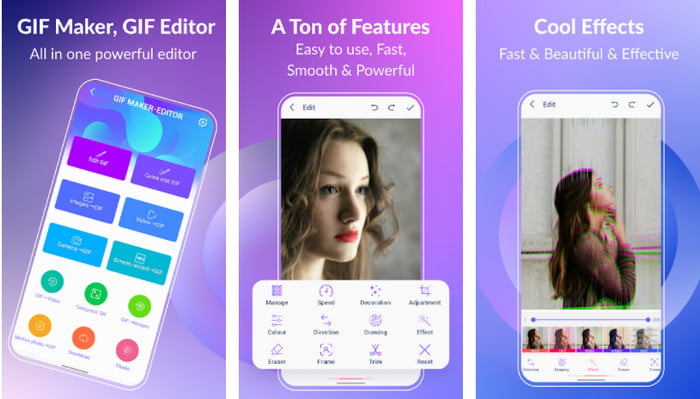
GIF Maker-Editor, Android cihazınıza indirebileceğiniz hepsi bir arada bir araçtır. Bu araç, güzel GIF'ler oluşturmanıza yardımcı olmak için farklı filtreleri destekler. Araç harika olsa da, içindeki reklamlar aniden karşınıza çıkabilir; bu yüzden yanlışlıkla tıklamamaya dikkat etmelisiniz. Şimdi, GIF'lerinize GIF renk filtresi eklemenin adımlarına geçelim.
Adım 1. Aracı Play Store'dan indirin ve açın.
Adım 2. GIF Düzenle seçeneğine tıklayın ve görsel galerinizde bulunan GIF'i seçin.
Adım 3. Seçenekler arasında kaydırarak efektleri bulun ve tıklayın. İstediğiniz filtreyi seçin, onay simgesine ve ardından GIF'i kaydetmek için Tamam seçeneğine tıklayın.
Bölüm 4. iPhone Cihazlarında Kullanılabilen GIF Maker ile GIF'e Filtre Nasıl Uygulanır
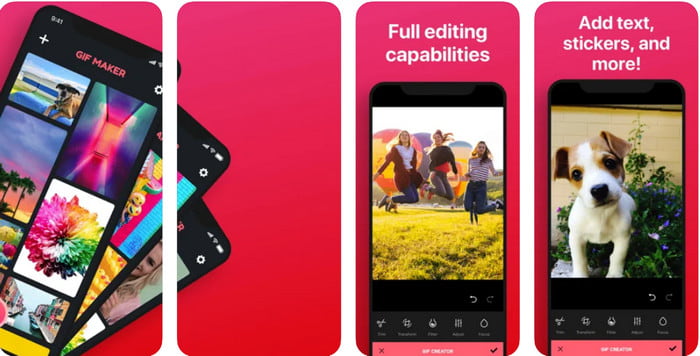
GIF Maker, iPhone'unuza indirebileceğiniz hepsi bir arada GIF düzenleyicisidir. Bu araçla, sadece birkaç dokunuşla kendi özel GIF'lerinizi oluşturabilirsiniz. Ancak, GIF formatı desteklenmediği için doğrudan GIF kullanamazsınız; fakat bu bağlantıya tıklayıp GIF'leri canlı duvar kâğıdına dönüştürmeyi öğrenebilirsiniz. GIF'i canlı duvar kâğıdına dönüştürdükten sonra, GIF'lere filtre eklemek için sonraki adımları takip edebilirsiniz.
Bu aracın ücretsiz sürümü, dışa aktardığınız GIF'e bir filigran bırakacaktır.
Adım 1. Uygulamayı App Store'dan ücretsiz olarak indirebilirsiniz.
Adım 2. Aracı açın, + simgesine tıklayın, Kitaplıktan Canlı Fotoğraf Seç seçeneğine dokunun ve yüklemek için canlı fotoğrafı seçin.
Adım 3. Canlı fotoğrafı yükledikten sonra Filtre seçeneğine tıklayın ve GIF'inize eklemek istediğiniz filtreyi seçin. Videoya uygulamak için onay işaretine tıklayın ve dosyayı dışa aktarmak için tekrar onay işaretine tıklayın.
Bölüm 5. GIF'e Filtre Ekleme Hakkında SSS
Filtreler GIF'in rengini etkiler mi?
Filtreyi eklerseniz, renk kombinasyonu GIF'i veya herhangi bir ortamı etkiler. Bu filtreler, sahip olmak istediğiniz renk kombinasyonunu düzeltmek için kullanılır, bu nedenle renk, GIF'in ham görselinden çok daha derin veya daha açık olursa şaşırmayın.
Instagram'da bulunan efektler nelerdir?
Instagram’da kullanabileceğiniz çok sayıda video filtresi vardır; bunların neler olduğunu merak ediyorsanız, bu bağlantıya tıklayarak Instagram’daki en iyi 10 filtre seçkisini öğrenebilirsiniz.
Filtreler aracılığıyla yüksek kaliteli bir video yapabilir miyim?
Videodaki renkleri öne çıkararak daha yüksek kaliteli görünmesini sağlayabilirsiniz. Ancak, filtreler yalnızca videonun renklerini iyileştirebilir, genel kalitesini yükseltemez. Yine de, videonuzun kalitesini artırmak istiyorsanız, bu yazıyı okuyup video kalitesi nasıl yükseltilir öğrenebilirsiniz.
Sonuç
Artık GIF'e nasıl filtre ekleyeceğimize dair bir fikrimiz olduğuna göre, yukarıda sunduğumuz araçları denemelisiniz. Araçlar GIF'inizi filtrelemede farklı güçler sunsa da, yine de Video Converter Ultimate'ın size harika bir filtrelenmiş GIF yapmak için kullanabileceğiniz en iyi filtreleri sunacağına inanıyoruz. Sadece bu değil, bu araçla kesebilir, birleştirebilir, kırpabilir, kişisel GIF'ler oluşturabilir ve daha fazlasını yapabilirsiniz. Verdiğimiz bilgilerle ikna olmadınız mı? Bu aracın GIF düzenleme ile ilgili en iyi seçim olduğunu kanıtlamanın bir yolu olduğunu düşünüyoruz ve bu, yukarıdaki indirme düğmesine tıklayarak ve sunduğumuz ve keyif aldığımız öğreticiyi takip etmek!
-
 Bilgisayarınızda / Telefonunuzda Ücretsiz Olarak Videoya Ses ve Müzik Ekleme
 Bu makale, videoya ücretsiz olarak ses eklemenin 4 kolay yolunu gösterir. Videonuza eklemek istediğiniz ses parçası ne olursa olsun, burada tatmin edici sonuçlar elde edebilirsiniz.
-
 GIF'i Video Formatına Dönüştürün: GIF Mem'lerini Videoya Dönüştürün [2021]
 Aşağıda listelenen araçlar yardımıyla GIF'in video formatına nasıl dönüştürüleceğini belirleyin. Hangisini seçin ve onlar hakkında yeterli kanıt topladıkça nasıl yapılacağını öğrenin.
-
 Android ve iOS Cihazlar için Video Uygulamalarına Muhteşem GIF
 Telefonunuzu kullanarak GIF'leri istediğiniz herhangi bir video formatına dönüştürebileceğinizi biliyor muydunuz? Android veya iOS'unuzdaki en iyi uygulamaları seçin.
