


 Video Dönüştürücü Ultimate
 Ekran kaydedicisi
 Video Onarımı
 Güvenli İndirme
MP4 - M4V - Asla Kaçırmamanız Gereken 4 Verimli MP4 - M4V Dönüştürücü
Dosya uzantısını MP4'ten M4V'ye doğrudan değiştirebilir misiniz? MP4 ve M4V arasındaki farklar nelerdir? MP4'ü M4V olarak yeniden adlandırdığınızda, M4V dosyalarını büyük olasılıkla medya oynatıcıların çoğunda sorunsuz bir şekilde oynatabilirsiniz. Ancak bir dosya uzantısını değiştirmek, bunun yerine dosyayı M4V'ye dönüştürmez. Makaleden 4 verimli MP4 - M4V dönüştürücüler hakkında daha fazla bilgi edinin ve istediğinizi buna göre seçin.

Adım 1: 4 Windows / Mac'te MP4'ü M4V'ye Dönüştürme Yöntemleri
Yöntem 1: MP4'ü Ücretsiz Çevrimiçi M4V'e Dönüştürme
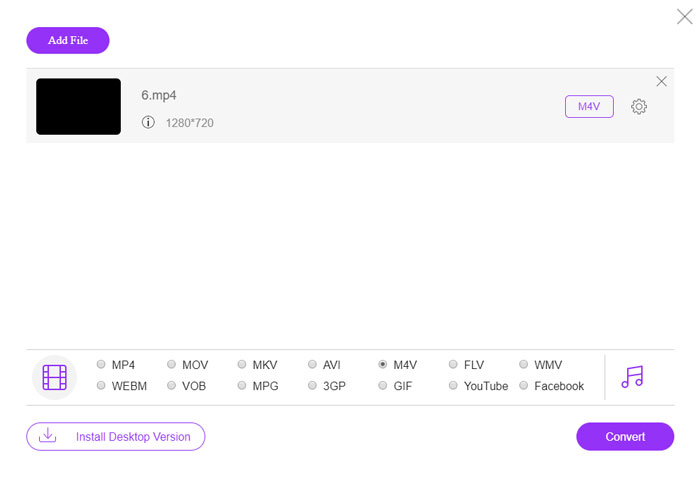
MP4'ü çevrimiçi olarak ücretsiz ve herhangi bir kısıtlama olmadan M4V’ye dönüştürmek istediğinizde, FVC Free Online Video Converter, çoğu video formatını dönüştürebilen, video/ses ayarlarını ince ayar yapmanıza olanak tanıyan ve hatta orijinal video kalitesini zahmetsizce koruyabilen çok yönlü bir video dönüştürücüdür.
- 1. MP4'ü M4V'ye dönüştürün, AVI, MKV ve daha fazlası orijinal kalitede.
- 2. Kare hızını, video codec bileşenini, video kalitesini, ses codec bileşenini ve daha fazlasını ayarlayın.
- 3. Video dosyalarını tıklamayla dönüştürmek için basit ve sezgisel bir arayüz sağlayın.
- 4. Videoları filigran, boyut kısıtlaması vb. Olmadan dönüştürmenizi sağlar.
Adım 1. Çevrimiçi MP4'ten M4V’ye dönüştürücüye gidin, dönüştürmek istediğiniz MP4 dosyalarını yüklemek için Add Files to Convert düğmesine tıklayabilirsiniz. İlk seferinde video dönüştürücü yükleyicisini indirmeniz gerekir.
Dosyaları toplu dönüştürmek için Masaüstü Sürümü indirin.

Adım 2. Kullanıcı arayüzünden M4V dosya formatını seçin. Video ayarlarını ince ayar yapmanız gerektiğinde, isteğe bağlı olarak video kodlayıcıyı, çözünürlüğü, video bit hızını, kare hızını, örnekleme hızını ve diğer birçok ayarı değiştirebilirsiniz.

Adım 3. Ardından MP4'ü M4V’ye dönüştürmek için Convert düğmesine tıklayabilirsiniz. İstediğiniz dosyayı elde etmek birkaç saniye sürebilir; sonrasında videoyu bilgisayarınıza kaydedebilir veya sosyal medya sitelerinde paylaşabilirsiniz.
Yöntem 2: MP4'i VLC Media Player ile M4V'ye Dönüştürme
VLC Media Player, videoları Windows ve Mac'te dönüştürmenize olanak tanıyan açık kaynaklı bir MP4'ten M4V'e dönüştürücüdür. Videoları farklı formatlar arasında dönüştürebileceğiniz formatların ve kodeklerin çoğu için çalışır. İşte bilmeniz gereken ayrıntılı süreç.
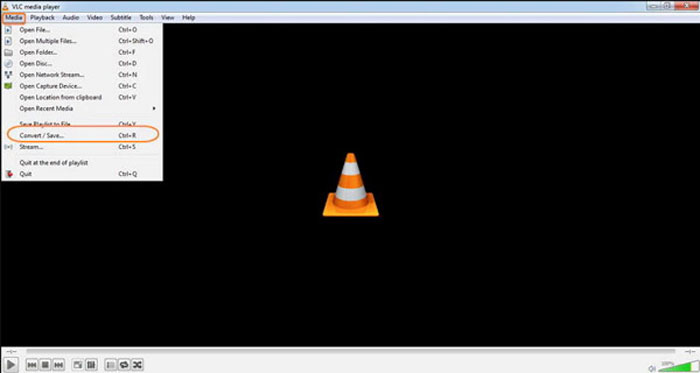
Adım 1. Bilgisayarınızda VLC Media Player’ı açın, Media menüsünü seçin ve Medya iletişim kutusuna girmek için Convert/Save seçeneğini tıklayın. Ardından, dosyalara göz atmak için Add düğmesine tıklayabilirsiniz.
Adım 2. Videoları içe aktardıktan sonra, Convert/Save düğmesine tıklayabilir veya klavyenizde Enter tuşuna basabilirsiniz. Sonrasında çıktı formatı olarak M4V’yi seçebilir ve diğer parametreleri ayarlayabilirsiniz.
Adım 3. Dönüştürülen ve kaydedilecek bir hedef dosya adı seçin. Bir konum seçmek için Gözat (Browse) seçeneğine tıklayın. final gibi bir ad verin ve MP4'ü M4V’ye dönüştürmek için Start düğmesine tıklamadan önce Kaydet’e tıklayın.
Yöntem 3: MP4'ü FFmpeg ile M4V'ye Dönüştürme
FFmpeg, videoyu codec ile dönüştürmenizi sağlayan bir MP4 - M4V dönüştürücüdür. Codec bileşenine aşinaysanız, video dosyalarını orijinal kalitede değiştirebilirsiniz. Aşağıdaki gibi MP4'ü M4V'ye dönüştürme yöntemi hakkında daha fazla bilgi edinin.
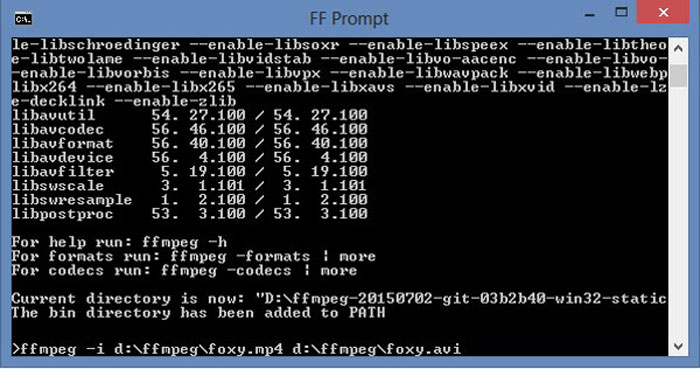
Adım 1. Windows bilgisayarınızda komut istemi penceresini açın ve ücretsiz video dönüştürücüyü kurmak için komut satırıyla FFmpeg’i yükleyin. Videoyu kod dönüştürmek (transcode) için bir dizi komut satırına sahiptir.
Adım 2. MP4’ü M4V’ye dönüştürmek için aşağıdaki komutu girin. Ayrıca, istediğiniz videoyu elde etmek için video codec’ini, kare hızını ve diğer ayarları da ince ayar yapabilirsiniz.
ffmpeg \-i input.mp4 \
-vcodec kopyası \
-acodec kopyası \
output.m4v
Yöntem 4: MP4'i HandBrake ile M4V'ye Dönüştürme
HandBrake, başka bir açık kaynaklı MP4'ten M4V'e dönüştürücüdür. Yalnızca video dosyalarını dönüştürmenize olanak sağlamakla kalmaz, aynı zamanda Windows ve Mac'inizdeki DRM korumasını da kaldırır. Tabii ki, ihtiyacınıza göre video dosyalarını DVD diskinden de çıkarabilirsiniz.
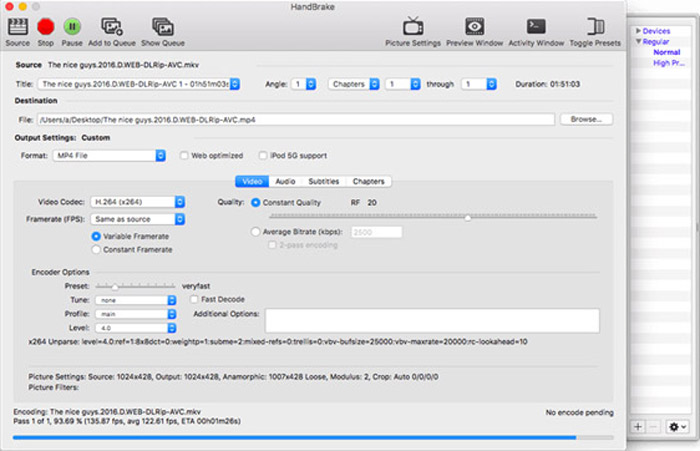
Adım 1. HandBrake’i indirin ve kurun, ardından programı bilgisayarınızda başlatın. MP4 videolarını programa seçmek için üstteki Source seçeneğini tıklayın.
Adım 2. Output Settings seçeneğine gidin ve formatı MP4 dosyaları olarak ayarlayın. Elbette video codec’i, kalite, FPS, bit hızı, ön ayar ve diğer kodlayıcı seçeneklerini de ayarlayabilirsiniz.
Adım 3. Ardından, MP4'ü zahmetsizce M4V’ye dönüştürmek için Start düğmesine tıklayabilirsiniz. İstediğiniz M4V dosyalarını elde ettiğinizde, videoları iTunes’a kaydedebilir veya iOS cihazlarına aktarabilirsiniz.
MP4 ve M4V
2001 yılında Moving Picture Experts Group (MPEG) tarafından piyasaya sürülen MP4 formatı, video, ses, altyazı ve görüntü verilerini ayrı parçalarda kaydetmenize yardımcı olabilir. MPEG-4 Part 14'ün kısaltmasıdır. Ayrıca, video akışı ve paylaşımı için kullanılan en popüler formatlardan biridir.
M4V, aynı zamanda MPEG 4 kullanan Apple tarafından geliştirilmiştir. M4V dosyaları genellikle, müzik videoları, TV bölümleri vb. gibi Apple iTunes mağazasından indirilen videoları depolamak için kullanılır. Kullandığı için bazı M4V dosyalarını kopyalamaya karşı korumalı bulabilirsiniz. Apple'ın FairPlay DRM telif hakkı koruması.
2. Adım: MP4'ü M4V'ye Dönüştürmeyle ilgili SSS
1. MP4 ve M4V arasındaki Farklar Nelerdir?
Yukarıda belirtildiği gibi, MP4 ve M4V arasındaki en büyük fark DRM Fairplay kısıtlamasıdır. M4V dosya formatı, Apple tarafından iTunes Store'daki video dosyalarını kodlamak için geliştirilmiş bir video kapsayıcı formatıdır. Videoları iOS cihazları veya MacBook'unuz için oynatmanız gerektiğinde bunun yerine MP4'ü M4V'ye dönüştürebilirsiniz.
2. M4V'yi MP4'e Dönüştürmek İçin Aynı Yöntemleri Kullanabilir misiniz?
Hayır. iTunes Store’un DRM koruması nedeniyle M4V’yi doğrudan MP4'e dönüştüremezsiniz. Çoğu medya oynatıcı için işe yarar şekilde, yalnızca MP4 dosya uzantısını M4V olarak değiştirebilirsiniz. Ancak M4V’nin DRM koruması, videoları yalnızca yetkili bir cihazda oynatmanıza izin verir. Bu korumayı kaldırmak için profesyonel bir video dönüştürücü kullanmanız gerekir.
3. Mac'te QuickTime Player ile MP4'ü M4V'ye dönüştürebilir miyim?
Evet. QuickTime Player çıktı biçimi olarak M4V'yi desteklemediğinden, MP4'ü QuickTime Player ile M4V'ye dönüştürmeniz gerektiğinde, istediğiniz videoyu MacBook'unuzda kolayca ücretsiz olarak almak için bazı eklentiler yüklemeniz gerekir.
Sonuç
Videoları diğer iOS aygıtları için iTunes Kitaplığına aktarmanız gerektiğinde bunun yerine MP4'ü M4V'ye dönüştürmelisiniz. M4V dosyalarını kolaylıkla dönüştürmek için en sık kullanılan 4 yöntem hakkında daha fazla bilgi edinin. MP4 videolarını çevrimiçi olarak orijinal video kalitesiyle dönüştürmeniz gerekiyorsa, FVC Free Online Video Converter, göz önünde bulundurmanız gereken en iyi seçenektir.
-
 M4V'yi DRM'li / DRM'siz MP4'e Dönüştürme
 Bu gönderi, herhangi bir oynatıcı için M4V'yi MP4'e dönüştürmek için ayrıntılı kılavuzdur. M4V videolarını, korumalı M4V dosyalarını bile MP4 olarak değiştirebilirsiniz, böylece M4V videolarını sınırsız oynatabilirsiniz.
-
 MP3 ve MP4 Arasındaki Fark Nedir?
 MP3 veya MP4, hangisi daha iyi? MP3 ve MP4 arasındaki fark nedir? Bu makale MP3 ile MP4'ü görüntüleyebileceğiniz tüm yönlerden karşılaştıracaktır.
-
 MP4 Mac / Windows için WMV'ye Nasıl Dönüştürülür
 Bu gönderi, MP4 videosunun Mac veya Windows'ta WMV formatına nasıl dönüştürüleceğini paylaşıyor. Ayrıca size hem masaüstü yazılımı hem de web tabanlı çevrimiçi dönüştürücüler dahil olmak üzere çeşitli seçenekler sunacağız. En iyi MP4'ten WMV'ye dönüştürme araçlarını öğrenmeye hazır mısınız?

