


 Video Dönüştürücü Ultimate
 Ekran kaydedicisi
 Video Onarımı
 Güvenli İndirme
Web ve Masaüstünde Bir Resmi Yeniden Boyutlandırmanın En Etkili 6 Yolu
İndirebileceğimiz milyarlarca prestijli fotoğrafla çoğumuz güzel fotoğraflar çekeriz, ancak boyutlarının en çok tercih ettiğimiz şey olmadığı durumlar vardır. Kullanıcılar, resmin ÜFE'sini değiştiren düzenleyiciyi kullanarak resmin yüksekliğini, genişliğini ve en boy oranını ayarlayarak sahip oldukları resmi yeniden boyutlandırmaya çalıştılar. Sonuç herkesin beklediği gibi değil; yüksek çözünürlüklü görüntüler pikselli hale gelir.
Neden mi? Çünkü yeniden boyutlandırma için kullandıkları düzenleyici, yeniden boyutlandırılmış sürümdeki piksel boşluklarını oluşturamaz veya dolduramaz. Bu nedenle bu konuyla ilgili sorular popüler hâle geldi ve biz de bu sorunu çözmenize yardımcı olmak için buradayız. Bu blog yazısında, son çıktıda hiçbir bozulma kalmadan bir resmi nasıl yeniden boyutlandıracağınız konusunda bizzat deneyim kazanmanızı sağlayacağız.

Bölüm 1. Görüntüyü Çevrimiçi Olarak Yeniden Boyutlandırmak için Web Üzerinden Erişebileceğiniz En İyi Fotoğraf Boyutlandırıcıları [3 Ücretsiz Araç]
Buraya eklediğimiz bu çevrimiçi araçlar, cihazınızda bulunan farklı web tarayıcılarında mevcuttur. Ayrıca bunlar ücretsizdir, ancak herhangi bir sınırlama olmaksızın kullanmak için satın almanız gereken bir araç vardır. Yine de bunlar, sahip olduğunuz görüntüyü yeniden boyutlandırmaya başlamak için erişebileceğiniz yetenekli çevrimiçi araçlardır. Bunları nasıl kullanacağınızı öğrenmek için adımları okuyun.
1. FVC Free Image Upscaler - Web'deki En İyi Görüntü Boyutlandırıcı [Olumlu Seçenek]
FVC Free Image Upscaler Online, kaliteden ödün vermeden görüntüleri hızlıca yeniden boyutlandırabilen yapay zekâ tabanlı bir web aracıdır. Gerçekten de, buraya yüklediğiniz her görüntü dosyası web aracı tarafından otomatik olarak yeniden boyutlandırılır. Çevrim içi bir araç olmasına rağmen, yeniden boyutlandırma performansı hızlı ve etkilidir. Ayrıca, burada yeniden boyutlandırma işlemini tamamladıktan sonra yüklediğiniz her görüntü sunucudan otomatik olarak silinir. Farklı cihazlar kullanıyor olsanız bile, internet bağlantınız olduğu sürece erişebileceğiniz, son derece sade ve çok yönlü bir yeniden boyutlandırıcısı vardır. Bu yazılımın bu görevde nasıl performans gösterdiğini görmek ister misiniz? Öyleyse, aşağıdaki adımları okuyun ve görüntü boyutunu hızlı ve etkili bir şekilde değiştirmek için bunları uygulayın.
FVC Free Image Upscaler ile Resim Nasıl Yeniden Boyutlandırılır:
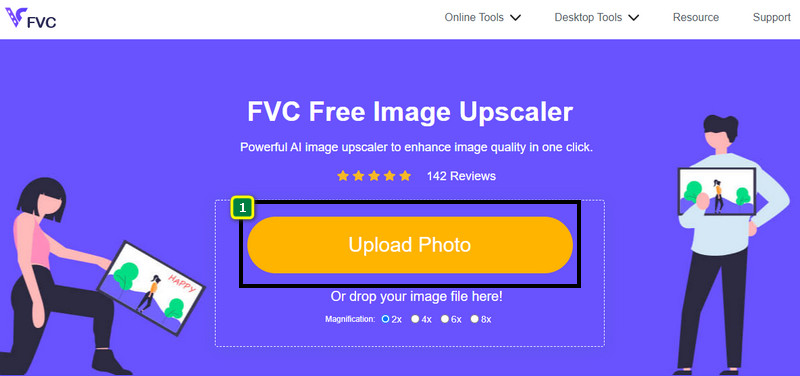
Adım 1. Web aracına erişmek için bu bağlantıya tıklayabilirsiniz; bu bağlantı sizi yeniden boyutlandırıcının resmi web sitesine otomatik olarak yönlendirecektir.
Adım 2. Ekranınızda bir klasör açılması için Add Image’e tıklayın, yüklemek istediğiniz görüntü dosyasını seçin ve Open’a basın.
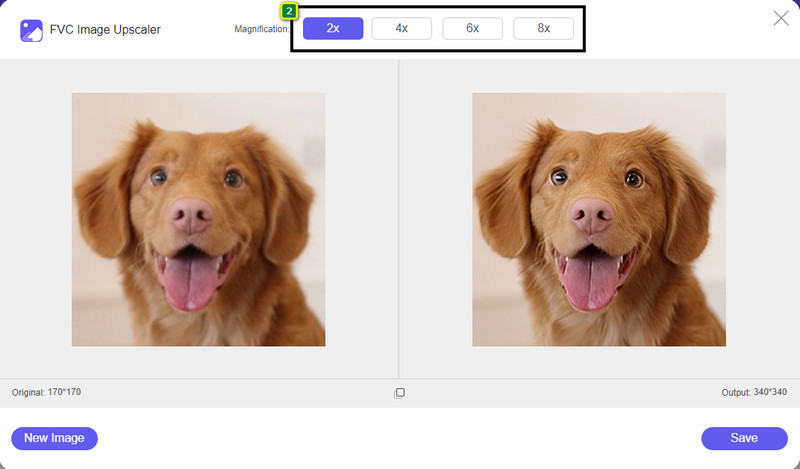
Adım 3. Resmin boyutunu değiştirmek için, resminize uygulamak istediğiniz yakınlaştırma türünü seçmelisiniz. 2x, 4x, 6x ve 8x’e tıkladığınızda, resmin genel boyutlarının değiştiğini görebilirsiniz.
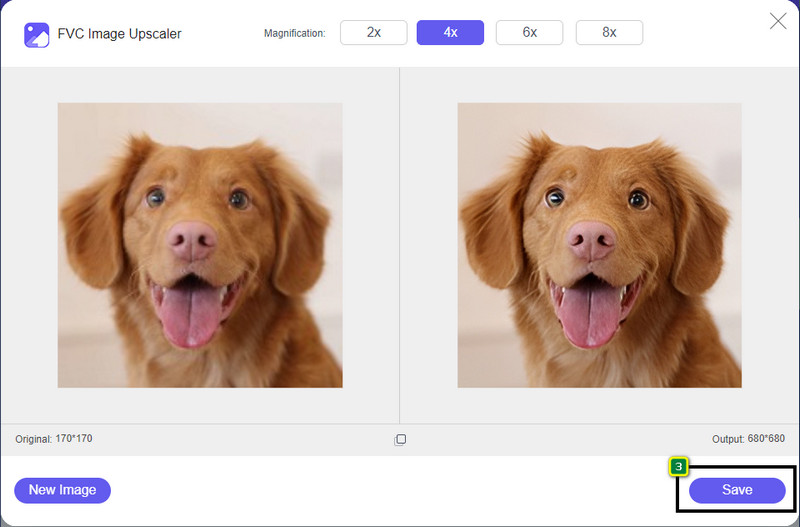
Adım 4. Uygulamak istediğiniz yakınlaştırmayı seçtikten sonra, artık Save’e basarak yeniden boyutlandırılmış sürümü masaüstü sürücünüze indirebilirsiniz.
2. Funky Olun - Fotoğraf Düzenleyici [Ücretsiz ve Ücretli]
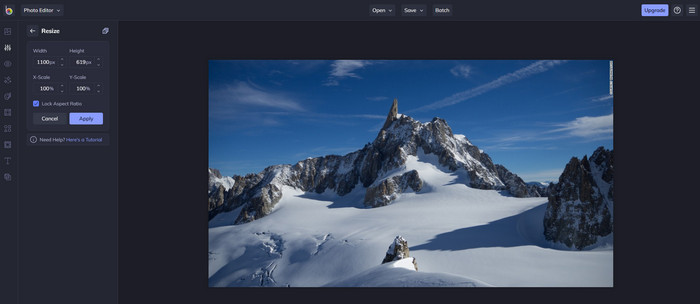
Be Funky - Photo Editor, görselleriniz üzerinde olağanüstü işler çıkarabileceğiniz yaratıcı bir platformdur. BMP dosyalarını kalite kaybı olmadan yeniden boyutlandırabilir. Bu araç, çevrim içi olarak erişebileceğiniz en iyi resim düzenleyicilerinden biri olarak kabul edilir. Photoshop’a benzer bir arayüze sahip olsa da sunduğu özellikler basit ve anlaşılırdır; bu nedenle kullanıcı dostu olduğunu da söyleyebiliriz. Dolayısıyla, görüntünüzü çevrim içi olarak kolayca yeniden boyutlandırmak için bu aracı denemek isterseniz, burada yer verdiğimiz adımları takip edin.
Be Funky ile Resim Nasıl Yeniden Boyutlandırılır:
Adım 1. Web tarayıcınızda adını aratın ve ardından Get Started and Edit Photo’ya tıklayın.
Adım 2. BMP veya burada yeniden boyutlandırmak istediğiniz diğer herhangi bir görüntüyü yüklemek için Open’a basın.
Adım 3. Edit bölümüne gidin ve Resize seçeneğine tıklayın.
Adım 4. Burada resmin genişliğini ve yüksekliğini veya x ve y ölçeğini serbestçe değiştirebilirsiniz. Ardından, yeniden boyutlandırılmış sürümün nasıl göründüğünü görmek için Apply’a basın.
3. Basit Görüntü Boyutlandırıcı [Ücretsiz]
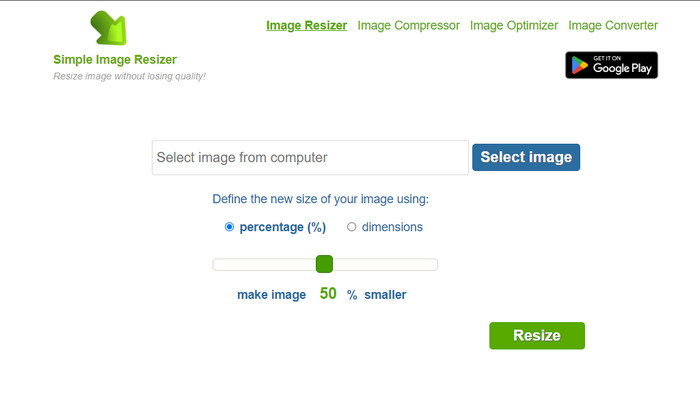
Simple Image Resizer, bir resmin yeni boyutunu yüzdeyi veya ölçüyü değiştirerek tanımlayarak yeniden boyutlandırmanıza olanak tanır. Bu, bu makaleye eklediğimiz son görüntü yeniden boyutlandırıcıdır. Basit arayüzü ve kullanım kolaylığı, onu listeye eklememizin başlıca nedeni oldu. Yeniden boyutlandırma özelliğine ek olarak, burada görüntünüzü optimize edebilir, sıkıştırabilir ve ücretsiz olarak dönüştürebilirsiniz; ancak sitede can sıkıcı reklamlar bulunmaktadır. Bu çevrim içi yeniden boyutlandırıcıyı denemek isterseniz, aşağıdaki adımları izleyin.
Simple Image Resizer ile Resim Nasıl Yeniden Boyutlandırılır:
Adım 1. Bu web yeniden boyutlandırıcıyı kullanmaya başlamak için tarayıcınızda adını aratın.
Adım 2. Yeniden boyutlandırmak istediğiniz fotoğrafı eklemek için Select Image’e basın.
Adım 3. Yeniden boyutlandırma için kullanmayı tercih ettiğiniz yöntemi seçin ve yüzdeyi veya ölçüyü değiştirin. Her iki yöntem de temelde aynı işi yapar.
Adım 4. Son çıktıyı masaüstünüze kaydetmek için Resize’a tıklayın.
Bölüm 2. Windows ve Mac'te Bir Görüntü Nasıl Yeniden Boyutlandırılır [Ücretli ve Ücretsiz Çevrimdışı]
İlk 3'lü çevrimiçi araçtan farklı olarak, tanıttığımız sonraki araçlar internete bağlı değildir, yani internetiniz olmasa bile sorunsuz bir şekilde kullanabilirsiniz. Çünkü indirilebilirler veya masaüstünüze önceden yüklenmişler. Her birine eklediğimiz bilgileri okuyarak bunları bugün nasıl kullanacağınızı öğrenin.
1. Adobe Photoshop [Windows ve Mac]
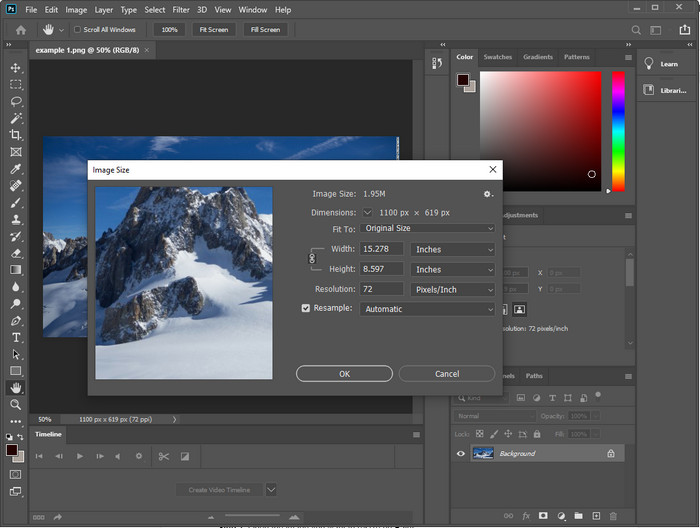
Cihazınıza indirebileceğiniz ilk çevrimdışı görüntü yeniden boyutlandırıcı tercihimiz Adobe Photoshop’tur. Neden mi? Çünkü yeniden boyutlandırma yaptığınızda yeni piksel verileri oluşturur ve sürecin sonunda düşük kaliteli bir çıktı almanızı önler. Ayrıca bu yazılım, her türlü raster ve vektör görüntüyü kolaylıkla işleyebilen profesyonel bir resim düzenleyici olarak bilinir. Yazılım profesyonel bir araç olmasına rağmen, sadece yeniden boyutlandırma için kullanacaksanız satın almak biraz fazla olabilir. Ancak, Photoshop’ta bir resmi nasıl yeniden boyutlandıracağınızı merak ediyorsanız, aşağıya bakın.
Adobe Photoshop ile Resim Nasıl Yeniden Boyutlandırılır:
Adım 1. Resmî web sitesini ziyaret ederek yazılımı masaüstünüze indirin ve yükleyin.
Adım 2. File’a tıklayın ve Open’a bastıktan sonra klasörden görüntüyü bulun.
Adım 3. Üst kısımdaki Image menüsüne basın, ardından Image Size’ı seçin.
Adım 4. Genişlik (Width) ve Yükseklik (Height) ölçülerini tercihlerinize göre değiştirin ve değişiklikleri uygulamak için OK’ye tıklayın.
Adım 5. File’a geri dönün ve görüntüyü masaüstünüze kaydedin.
2. Paint [Windows'ta Varsayılan Uygulama]
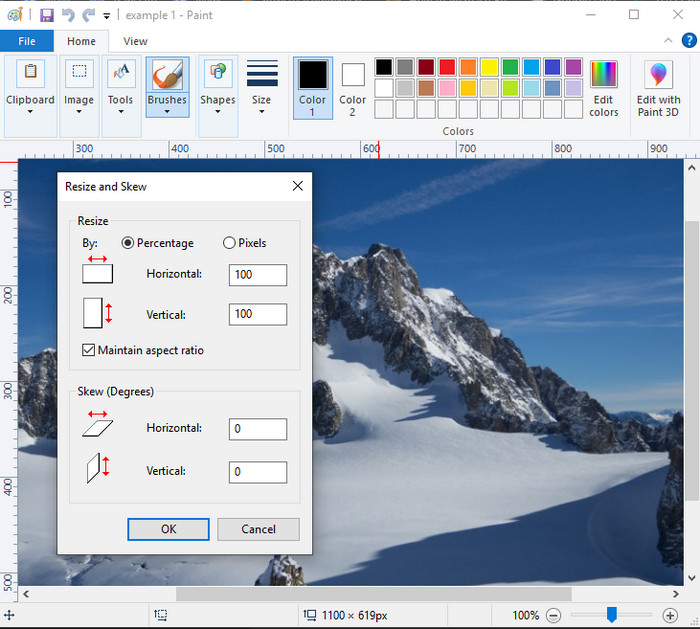
Paint, boş bir tuval üzerinde çizim yapabileceğiniz bir uygulama olarak bilinir. Farklı Windows kullanıcıları genellikle boş bir sayfada bir şeyler oluşturmak, görüntülere ayrıntı eklemek ve bunları uygun şekilde yeniden boyutlandırmak için kullanır. Özel bir düzenleyici olmasa da, yerel sürücünüzdeki herhangi bir raster görüntüyü yeniden boyutlandırabilir. Bu aracı kullanmanın avantajı, Windows’ta yazılımı indirmenize gerek olmamasıdır; çünkü önceden yüklü olarak gelir. Bu uygulamayla düşük çözünürlüklü resimler nasıl yeniden boyutlandırılır öğrenmek isterseniz, aşağıya eklediğimiz öğreticiyi okuyun.
Paint ile Resim Nasıl Yeniden Boyutlandırılır:
Adım 1. Yeniden boyutlandırmak istediğiniz resmi Paint’te açın.
Adım 2. Görüntüyü açtıktan sonra, burada açtığınız resmi yeniden boyutlandırmaya başlamak için iki kare simgesine tıklayın.
Adım 3. Resmi yeniden boyutlandırmak için, yüzdeye veya piksele göre değiştirebilirsiniz. Sayıyı değiştirdikten sonra değişiklikleri uygulamak için OK’ye basın.
Adım 4. Burada yeniden boyutlandırdığınız görüntüyü dışa aktarmak için kaydet simgesine tıklayın.
3. Önizleme [Mac'te Varsayılan Uygulama]
Preview, Mac üzerinde bir resmi nasıl yeniden boyutlandıracağınız konusunda güvenebileceğiniz özel bir uygulamadır. Eğer macOS’unuza bir uygulama indirmek istemiyorsanız, bu uygulamayı kullanmanız daha iyi olur. Göz ardı edilen bir çözüm olsa da, masaüstünüzdeki fotoğrafınızı yeniden boyutlandırabilir. Bu uygulamayı kullanmayı öğrenmek, yazılımın tüm potansiyelini en üst düzeye çıkarmak için sizin açınızdan büyük bir avantaj olacaktır. Bu aracın nasıl çalıştığıyla ilgileniyorsanız, bir sonraki eklediğimiz bilgilere geçin.
Preview ile Resim Nasıl Yeniden Boyutlandırılır:
Adım 1. Mac’inizdeki resme sağ tıklayın, Open with’e tıklayın ve Preview’u seçin.
Adım 2. Üst kısımda Tools’a tıklayın, ardından Adjust Size’ı seçin.
Adım 3. Görüntü ölçülerini ihtiyaçlarınıza göre değiştirin ve yaptığınız değişiklikleri kaydetmek için OK’ye basın.
Bölüm 3. Ek: Android ve iPhone'da İndirebileceğiniz En İyi Görüntü Boyutlandırıcı
1. Fotoğraf ve Resim Boyutlandırıcı [Android]
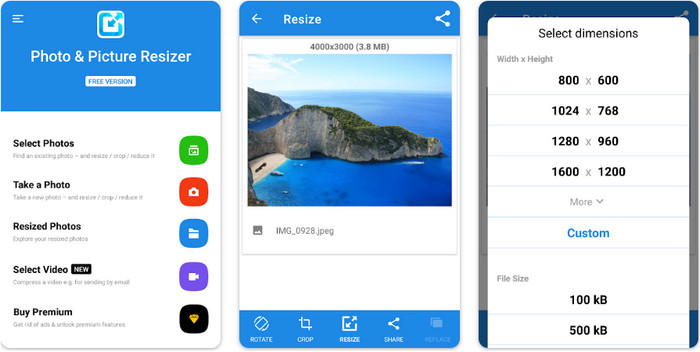
Photo & Picture Resizer, Android cihazınızdaki görüntüleri yeniden boyutlandırmanın en hızlı ve en kolay yollarından biridir. Yeniden boyutlandırma yapmak isteyen deneyimsiz kullanıcılar bile bunu resim yeniden boyutlandırıcıları olarak indirip kullanabilir. Uygulama ücretsizdir; ancak ek özelliklerini kullanmak isterseniz satın almanız gerekir. Genel olarak, yeniden boyutlandırma özellikleri harikadır ve ilk denemede ustalaşabilirsiniz.
2. Resim Boyutlandırıcı Ücretsiz [iPhone]
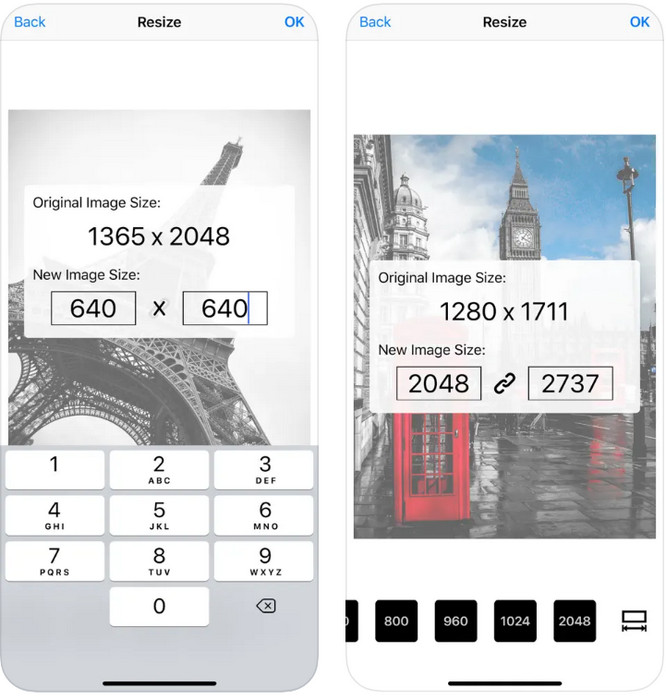
Image Resizer Free, iOS 7.0 veya üstü sürümlerde indirebileceğiniz iOS tabanlı bir uygulamadır. Bu uygulama, birçok iOS kullanıcısının tercih ettiği, tam olarak amacına yönelik bir resim yeniden boyutlandırıcıdır. Ana işlevi olan yeniden boyutlandırma dışında ek özellikleri yoktur. Araç kullanıcı dostu olmasına rağmen, birçok kullanıcı, orijinal resmi yeniden boyutlandırılmış sürümle üzerine yazamadığından şikâyet etmektedir.
Bölüm 4. Resmin Nasıl Yeniden Boyutlandırılacağına İlişkin SSS
Yeniden boyutlandırmak, raster veya vektör için hangi format daha iyidir?
Raster formatları, görüntünün görünümünü oluşturmak için küçük piksellerden oluşur ve boyutunu veya boyutunu değiştirdiğinizde, bu pikseller uzar ve görünür hale gelir. Vektör görüntüsünü yeniden boyutlandırmanızın aksine, görüntü üzerinde karışıklık yaratmadan yeniden boyutlandırmak ve büyütmek için özel olarak yapılmıştır.
BMP'yi çevrimiçi olarak yeniden boyutlandırabilir miyim?
Evet, buraya eklediğimiz çevrimiçi çözümü kullanarak BMP'yi yeniden boyutlandırabilirsiniz. Ancak, görüntüyü büyüttüğünüzde, BMP, raster görüntüler oldukları için pikselleşme eğilimi gösterir. Bu nedenle, BMP dosyasını yeniden boyutlandırma probleminden kaçınmak istiyorsanız, FVC Free Image Upscaler Online'ı seçseniz iyi olur, çünkü yeniden boyutlandırılmış BMP'nin son çıktısında pikselleşme bırakmaz.
Resmi yeniden boyutlandırdıktan sonra dosya boyutu artıyor mu?
Evet öyle. Temel olarak, yeniden boyutlandırdığınız görüntü, gerçek çıktıya ek piksel verileri eklediğinden. Ancak dosya boyutu, orijinal dosya boyutundan pek farklı değildir.
Sonuç
Sizce hangi resim yeniden boyutlandırma tekniği size daha uygun? Buraya eklediğimiz yeniden boyutlandırıcılar arasından seçim yapın. İnternet bağlantısıyla ilgili sorunlar yaşıyorsanız, yeniden boyutlandırma performansı nedeniyle FVC Free Image Upscaler Online’ı kullanmanızı özellikle tavsiye ederiz. Bu web yeniden boyutlandırıcıyı kullanırsanız, yeniden boyutlandırma konusunda hiçbir zorluk yaşamazsınız.
-
 1440p Görüntü – İhtiyacınız Olan Her Şey Dahil Bilgiler [2022 Güncellendi]
 1440p görüntüler hakkında bilgi edinmek ister misiniz? Veya nereden temin edebilirsiniz? Görüntünüzü 1440p'ye mi çeviriyorsunuz? Hepsini tanımak için bunu okuyun.
-
 En İyi 3 Fotoğraf Çözücü Kullanarak Bir Görüntünün Piksel Çözme Eğitimi
 Piksellenmiş görüntüleri işlemede sorun mu yaşıyorsunuz? Bugün sorunu çözdük ve buraya eklediğimiz araçları kullanabilirsiniz.
-
 3 Yol Kullanarak Fotoğraftaki Görüntüyü Netleştirme [Hızlı Eğitim]
 Netleştirilmemiş görüntüyle ilgili sorun mu var? Burada, eklediğimiz üç yolu kullanarak Photoshop'ta görüntülerin nasıl netleştirileceğini tanıtacağız.
