


 Video Dönüştürücü Ultimate
 Ekran kaydedicisi
 Video Onarımı
 Güvenli İndirme
Çevrimdışı ve Çevrimiçi Araçları Kullanarak F4V'yi MP4'e Kolayca Dönüştürme
FLV dosya biçimi, Adobe Flash tarafından kullanılan standart biçimlerden biridir, ancak daha yüksek kalitede bir video oynatmak istiyorsanız F4V dosyanızı MP4 gibi diğer biçimlere dönüştürmeniz gerekir. MP4 biçimini iPhone, iPad, Android ve bilgisayarlar gibi neredeyse tüm cihazlarda oynatabilirsiniz. Bu nedenle, yüksek kaliteli bir videoyu tercih ediyorsanız, çevrimdışı ve çevrimiçi araçların yardımıyla F4V’yi MP4’e dönüştürmek için en etkili yöntemleri size sunacağız.

Bölüm 1: Mac ve Windows'ta F4V'yi MP4'e Dönüştürmenin Temel Yöntemi
Bir Mac kullanıcısıysanız ve video dosyalarını dönüştürmeyi seviyorsanız, Video Converter Ultimate kullanabilirsiniz. Bu çevrimdışı dönüştürücü, Mac ve Windows’ta F4V’yi MP4’e dönüştürme konusunda mükemmeldir; bu da onu tüm kullanıcılar için kullanışlı hale getirir. Ayrıca AVI, MP4, MOV, FLV, VOB, MTS, SWF, MKV, WMV ve daha fazlasını desteklediği için neredeyse tüm video dosyalarını dönüştürebilir. Bunun yanı sıra, bu uygulamada F4V dosyalarını dönüştürmek kolaydır çünkü temel dönüştürme yöntemlerine sahip, takip etmesi kolay bir arayüzü vardır. Bu sayede, özellikle yeni başlayanlar için kullanıma uygun olduğundan emin olabilirsiniz. Üstelik dönüştürme hızı açısından da her zaman tatmin olacaksınız. Video Converter Ultimate, diğer dönüştürücülerden 30 kat daha hızlı, ultra hızlı bir dönüştürme süreci sunar. Ayrıca, toplu dönüştürme özelliği sayesinde aynı anda birden fazla video dosyasını dönüştürebilirsiniz. Dahası, bu uygulamada video dönüştürmenin dışında da pek çok şey yapabilirsiniz. İsterseniz bu araçla bir müzik videosu da oluşturabilirsiniz. Bu uygulama, basit, mutlu, karlı gece, düzenli ve daha fazlası gibi çeşitli temalar sunan bir Müzik Video oluşturucu içerir. Ayrıca, farklı şablonlar ve filtrelerle kolaj yapabileceğiniz bir Kolaj oluşturucu özelliğine de sahiptir. FVC Video Converter Ultimate’ı kullanırken daha birçok harika özelliği deneyimleyebilirsiniz.
Özellikler
◆ MP4, F4V, MOV, AVI, MKV, WMV, VOB, vb. gibi 100'den fazla video dosyası formatını dönüştürün.
◆ Ücretsiz şablonlar ve filtrelerle bir Kolaj oluşturun.
◆ Çeşitli temalarla harika bir Müzik Videosu yapın.
◆ Bir videoyu istenen dosya boyutuna sıkıştırın.
◆ Videonun hızını, ortalama video hızından 0,125x ila 8x arasında daha hızlı ayarlayın.
◆ Videoya filigran ekleyin ve kaldırın.
◆ BMP, PNG, JPG, TIF vb. gibi görüntü dosyası formatlarını dönüştürün.
FVC Video Converter Ultimate kullanarak F4V'yi hızlı bir şekilde MP4'e dönüştürmek için aşağıdaki basit yöntemleri izleyin.
Adım 1: Aşağıdaki İndir düğmesine tıklayarak masaüstünüze Video Converter Ultimate indirin. Ardından, kurulum işlemine geçin ve uygulamayı başlatın.
Ücretsiz İndirWindows 7 veya üstü içinGüvenli İndirme
Ücretsiz İndirMacOS 10.7 veya üstü içinGüvenli İndirme
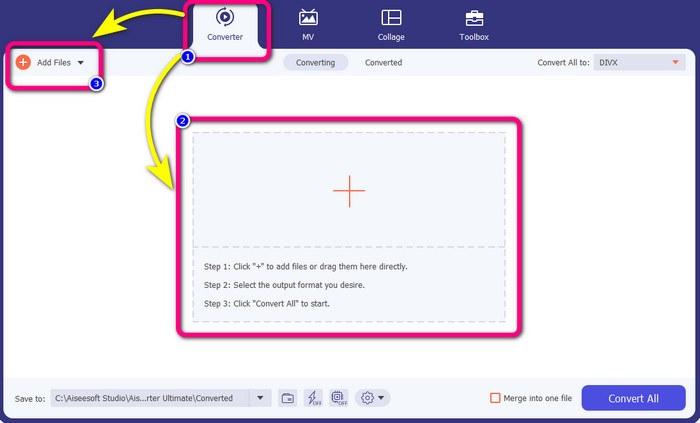
Adım 2: F4V videonuzu dönüştürmek için Çevirici seçeneğine gidin ve F4V dosya biçimindeki videonuzu eklemek için Artı simgesini veya Dosya Ekle düğmesini seçin.
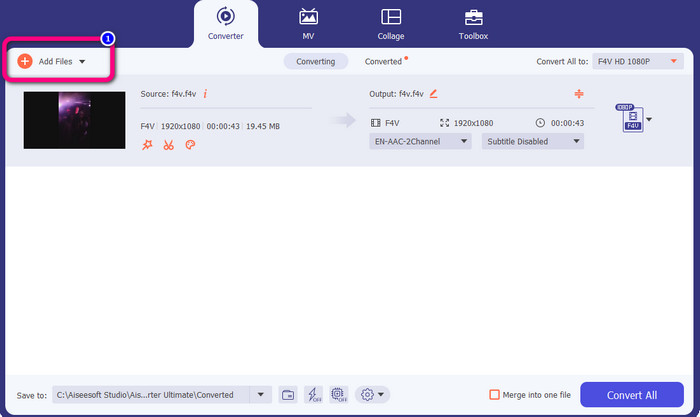
Adım 3: Aynı anda daha fazla F4V dosyasını dönüştürmek istiyorsanız, Dosyalar Ekle düğmesine basın ve başka bir F4V dosyası ekleyin.
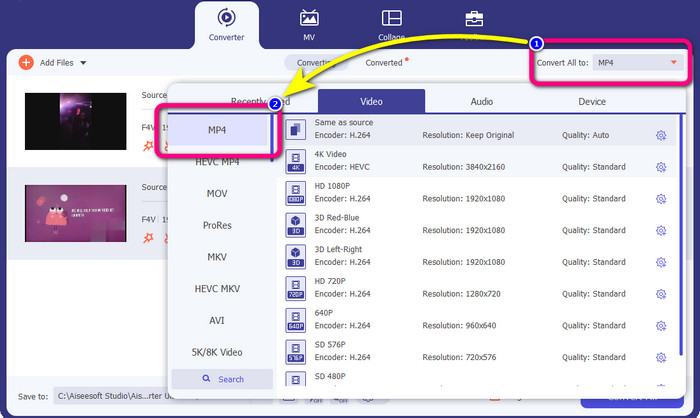
Adım 4: Çıktı biçimini değiştirmek için Tümünü Dönüştür seçeneğindeki düğmeye gidin. Biçim seçeneklerini göreceksiniz ve MP4 biçimini seçin. Ayrıca, tercih ettiğiniz video kalitesini de seçebilirsiniz.
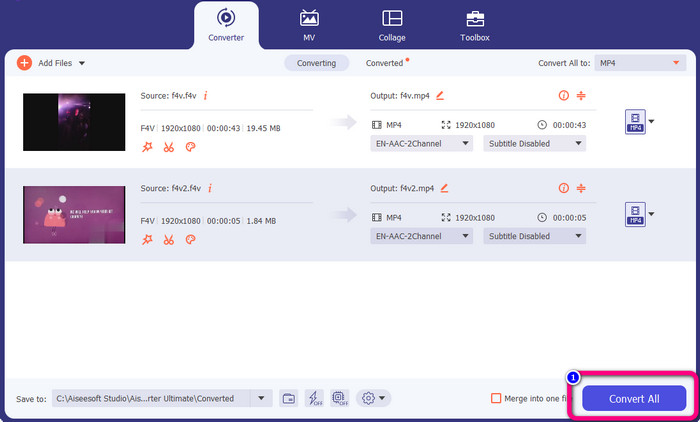
Adım 5: Çıktı biçimlerini değiştirmeyi bitirdiyseniz, Tümünü Dönüştür düğmesine tıklayarak dosyaları dönüştürebilirsiniz. Dönüştürme işlemi başlayacak ve F4V videonuz sadece birkaç saniye içinde bir MP4 dosyasına dönüşecektir.
Bölüm 2: VLC Kullanarak F4V'yi MP4'e Dönüştürmek İçin Basit Adımlar
Bu bölümde, VLC Media Player kullanarak F4V'yi MP4'e nasıl dönüştüreceğinizi öğreneceksiniz. Evet! Doğru okudun! Video oynatmanın yanı sıra VLC, dosyaları dönüştürmek için kullanabileceğiniz başka bir araçtır. Ayrıca MP4, WEBM, OGG, TS, ASF ve daha fazlası gibi çeşitli dosya formatlarını destekler. Ancak kafa karıştırıcı bir arayüze sahip olduğu için bu araç hakkında yeterince bilgi sahibi olmanız gerekiyor. Öğreticileri izleyin veya bazı ileri düzey kullanıcılardan VLC kullanarak dosyaları dönüştürme hakkında fikir edinmelerini isteyin. Ayrıca, bu dönüştürücüyü indirmek zaman alıcıdır. VLC Media Player kullanarak F4V'yi MP4'e dönüştürmek için aşağıdaki prosedürleri izleyin.
Adım 1: Bilgisayarınıza VLC Media Player indirin. Kurulum işleminden sonra uygulamayı başlatın.
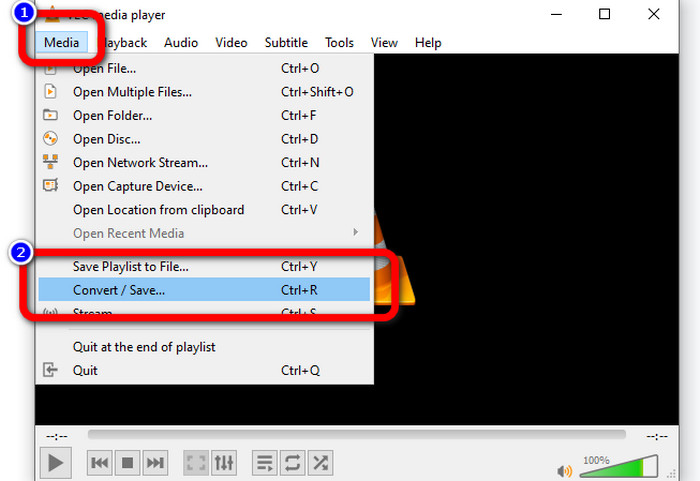
Adım 2: Medya > Dönüştür/Kaydet düğmesine gidin. Ardından F4V videonuzu eklemek için Ekle düğmesine tıklayın.
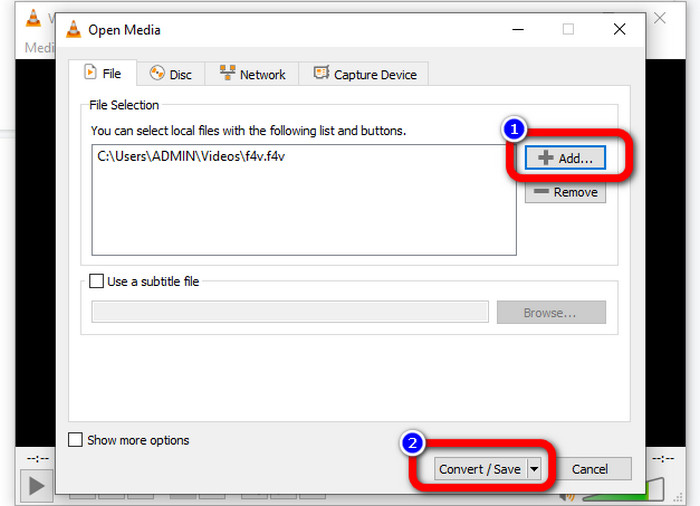
Adım 3: F4V videosunu ekledikten sonra, arayüzün alt kısmındaki Dönüştür/Kaydet düğmesine tekrar tıklayın.
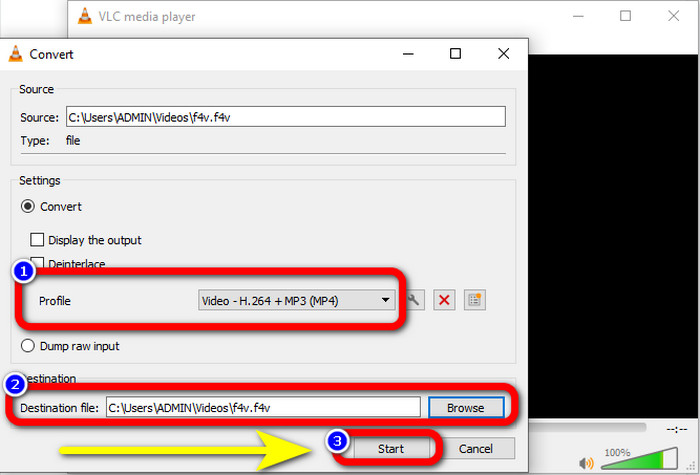
Adım 4: Profile gidin ve MP4 dosya biçimini seçin. Ardından, videonuzu kaydetmek istediğiniz bir dosya konumu ayarlamak için Gözat seçeneğine gidin. Dönüştürme işlemine devam etmek için Başlat düğmesine basın.
Bölüm 3: El Freni Kullanarak F4V'yi MP4'e Dönüştürmenin Kolay Yolu
Windows’ta başka bir F4V’den MP4’e dönüştürücü arıyorsanız, Handbrake kullanabilirsiniz. MP4, MKV, WEBM vb. gibi çeşitli video biçimlerini destekleyen çevrimdışı bir araçtır. Ancak, çok fazla ve kafa karıştırıcı seçeneğe sahip olduğu için bu araç karmaşık olabilir. F4V dosyanızı MP4 biçimine dönüştürmek için aşağıdaki adımları kullanın.
Adım 1: Windows bilgisayarınıza Handbrake indirin. Ardından, kurulum işlemini bitirdiğinizde uygulamayı başlatın.
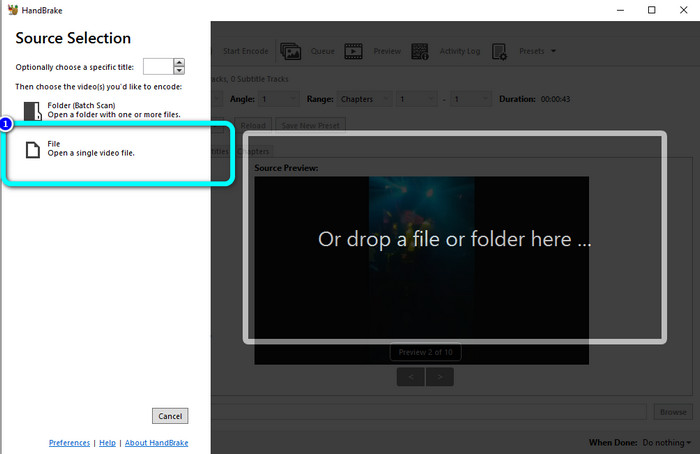
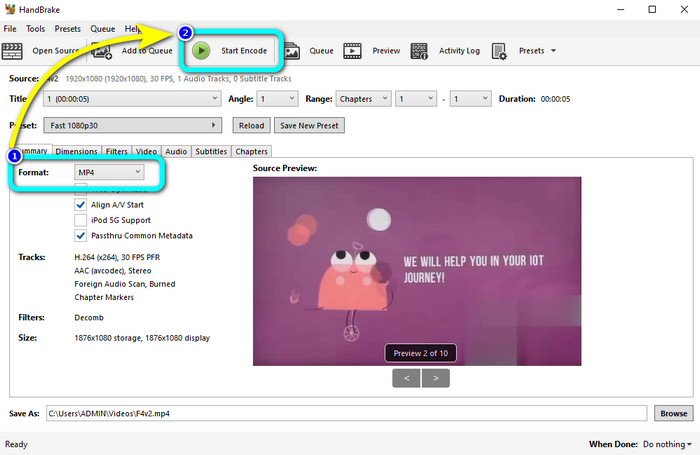
Adım 2: F4V dosyanızı eklemek için Dosya düğmesine tıklayın.
Adım 3: Biçim seçeneklerine gidin ve MP4 dosya biçimini seçin. Ardından Start Encode düğmesine basın. Dönüştürme işlemini bekleyin ve son videonuzu kaydedin.
Bölüm 4: F4V'yi Ücretsiz Çevrimiçi MP4'e Dönüştürmek İçin Ayrıntılı Adımlar
F4V’yi ücretsiz olarak MP4'e dönüştürmek için çevrimiçi bir uygulama mı kullanmak istiyorsunuz? FVC Free Video Converter Online kullanın. F4V dosyanızı tek kuruş harcamadan dönüştürebilirsiniz. Ayrıca, bu dönüştürücü, profesyonel olmayan kullanıcılar için uygun, son derece basit bir arayüze sahiptir. FLV, WMA, MOV, AVI, WMV ve daha fazlası gibi çeşitli video biçimlerini destekler. En iyi yanı ise, video dosyalarını kalite kaybı olmadan dönüştürebilmenizdir. F4V’yi MP4’e kolayca dönüştürmek için aşağıdaki ayrıntılı adımları izleyin.
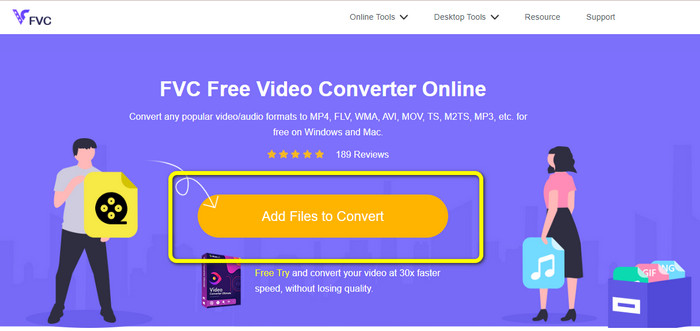
Adım 1: FVC Free Video Converter Online web sitesini ziyaret edin. F4V video dosyanızı yüklemek için Dönüştürülecek Dosyalar Ekle düğmesine basın.
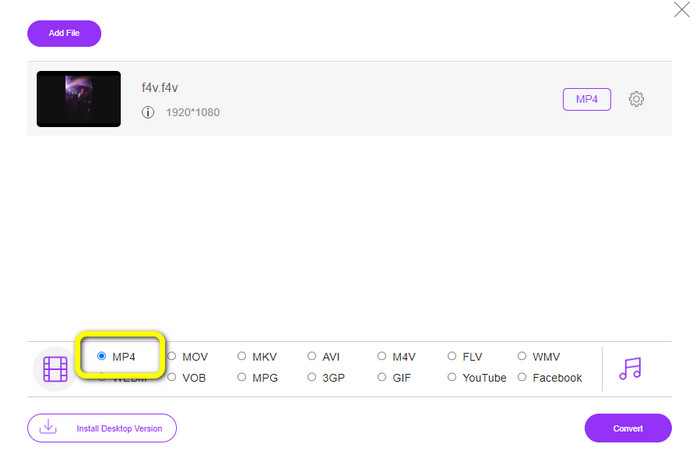
Adım 2: Videoyu yükledikten sonra, arayüzün alt kısmına gidin ve MP4 dosya biçimine tıklayın.
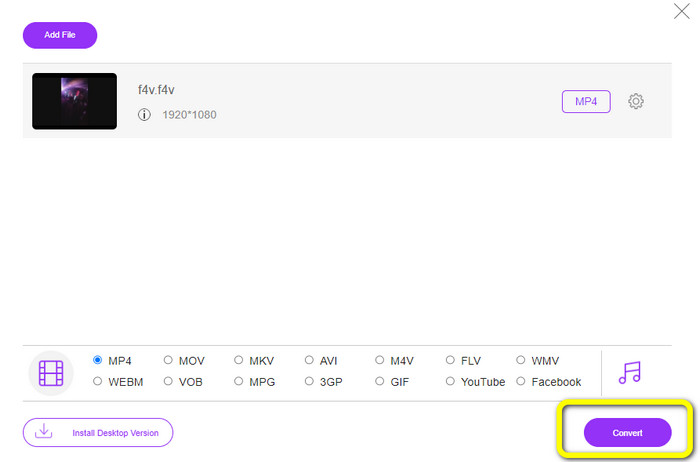
Adım 3: Son olarak, Dönüştür düğmesine basın. Dönüştürme işlemini bekleyin ve dosyanızı istediğiniz konuma kaydedin.
Bölüm 5: F4V ve MP4
Bu iki dosya biçimi hakkında aşağıdaki ek bilgilere bakın.
| F4V | MP4 | |
| Dosya uzantısı | .f4v | .mp4 |
| Tarafından geliştirilmiş | elma | Hareketli Resim Uzmanları Grubu |
| Tanım | Bu orijinal flash dosya biçimidir. Ayrıca flash player 9'u destekleyen ISO tabanlı medya dosyası biçimini temel alır. Ayrıca, F4V dosyaları iOS cihazlarda oynatılamaz, ancak flash'ı destekleyen tarayıcılarda oynatabilirsiniz. | Bu bir multimedya dosyasıdır. Kapsayıcı, altyazı verilerini, sesi ve videoyu depolayabilir. Ayrıca, diğer konteyner formatları gibi, MP4 de internette akışa izin verir. |
| İlişkili Programlar | XVLC Medya Oynatıcı Görüntülü LAN Windows Media Player FFDGöster Microsoft Windows Fotoğraf Galerisi Görüntüleyici | Apple QuickTime Oynatıcı Görüntülü LAN VLC medya oynatıcı elma iTunes Microsoft Windows Medya Oynatıcı |
Daha fazla okuma:
F4V’yi WMV’ye Dönüştürmek için En Sevilen 2 Dönüştürücü Seçeneği [2023]
F4V’yi FLV’ye Dönüştürmenin En Hızlı 2 Yolu [Çevrimiçi ve Çevrimdışı]
Bölüm 6: F4V'yi MP4'e Dönüştürmeyle İlgili SSS
1. MP4'ü F4V'ye dönüştürebilir miyim?
Evet yapabilirsin! Video Converter Ultimate'ı kullanabilirsiniz. Bu uygulama, MP4 dosyanızı anında F4V formatına dönüştürebilir.
2. F4V ile FLV arasındaki fark nedir?
Bu iki format arasındaki temel fark, F4V'nin H.264 tarafından kodlanan yüksek kaliteli videoları desteklemesi, ancak FLV formatının genellikle H.263 kullanmasıdır.
3. F4V'yi MP4'e dönüştürmek için FFmpeg nasıl kullanılır?
FFmpeg'i bilgisayarınıza indirin. Komut istemini açın. Komut satırını değiştirmek için Masaüstü yazın. Dönüştürme komutu FFmpeg-i ile başlar, ardından videonun adını ve dosya biçimini yazın. Ayrıca çıktı dosyasının türü. Enter tuşuna basın ve dönüştürme işlemini bekleyin. Bundan sonra, dosyanızı masaüstünüzde görebilirsiniz.
Sonuç
Bu rehber yazı, F4V’yi MP4'e çevrimiçi ve çevrimdışı dönüştürmek için ayrıntılı talimatlar gösterir. Kullanıcılar, videoları dönüştürmenin daha basit ve hızlı bir yolunu tercih eder. Bu durumda, diğer dönüştürücülerden 30 kat daha hızlı dönüştürme hızına sahip olduğu için video dosyalarınızı anında dönüştürmek üzere Video Converter Ultimate kullanabilirsiniz. Ayrıca, yalnızca birkaç tıklama ile videoyu basit bir şekilde dönüştürmek için FVC Free Video Converter Online kullanabilirsiniz.
-
 F4V'yi AVI Formatına Dönüştürmek için 4 En Yeni Çevrimiçi ve Çevrimdışı Dönüştürücü
 F4V'yi AVI'ye veya başka bir video formatına dönüştürmek için hangi dönüştürücüyü kullanmanız gerektiğine dair bir fikriniz yok mu? Ardından, mevcut araçla nasıl dönüştürüleceğini öğrenirken bu makaleyi okuyun.
-
 Kaliteyi Kaybetmeden F4V'yi MOV'a Dönüştürme [Çözüldü]
 F4V gibi bazı video formatlarını kabul etmekte zorlanıyorsanız. F4V ve MOV video formatı hakkında daha fazla bilgi edinmek ve farklı yöntemler kullanarak F4V'yi MOV'a nasıl dönüştüreceğinizi öğrenmek için bu makaleyi okuyun.
-
 DIVX'i Hemen MP4'e Dönüştürmenin Başarılı Yöntemleri
 DIVX'i MP4'e nasıl dönüştürebilirim? En iyi çözümü arıyorsanız, doğru makaledesiniz. DIVX'i kolayca MP4'e nasıl dönüştüreceğinizi göstereceğiz.
