


 Video Dönüştürücü Ultimate
 Ekran kaydedicisi
 Video Onarımı
 Güvenli İndirme
Chromebook'ta MP4 Oynatmanın En İyi 3 Yolu
Chromebook artık MP4 videoları oynatmıyor mu? Son zamanlarda, birçok kullanıcı videonun Chromebook'ta oynatılmaması sorunundan şikayet etti. Aynı durumla mı karşı karşıyasın?
Chromebook, Google tarafından üretilen bir dizüstü bilgisayardır. Chrome OS ile çalışır ve birçok dosya türünü ve bulut depolama hizmetini destekler. Videoları Google Drive’a ve Google’ın bulut depolamasına kaydedip izleyebilirsiniz. Chromebook’ta MP4 oynatmayı biliyor musunuz?

Chromebook, medya dosyalarını oynatmak için yerleşik bir video oynatıcıya sahiptir. Ancak, bazı MP4 dosyaları bu oynatıcı tarafından oynatılamayabilir. Bunu göz önünde bulundurarak, bu yazı size Chromebook’ta MP4 dosyalarını oynatmanıza yardımcı olacak 3 etkili yol paylaşmak istiyor.
Bölüm 1. Chromebook'ta Google Drive ile MP4 Nasıl Oynanır?
Yerel Chrome OS video oynatıcı MP4 kapsayıcı codec bileşeninizi okuyamadığında, Chromebook'ta MP4 oynatamaz. Bu durumda, MP4 dosyalarını Google Drive üzerinden oynatmayı seçebilirsiniz. Chromebook, MP4 videolarını Google Drive, Dropbox ve diğer bulut depolama hizmetlerinde saklamanıza olanak tanır. MP4 videoyu Chromebook'ta Google Drive ile açabilirsiniz.
MP4'i Chromebook'ta oynatmak istediğinizde, önce MP4 dosyalarını Google Drive'a yüklemelisiniz. Ardından MP4'ü Google Drive'da bulabilir ve oynatabilirsiniz.
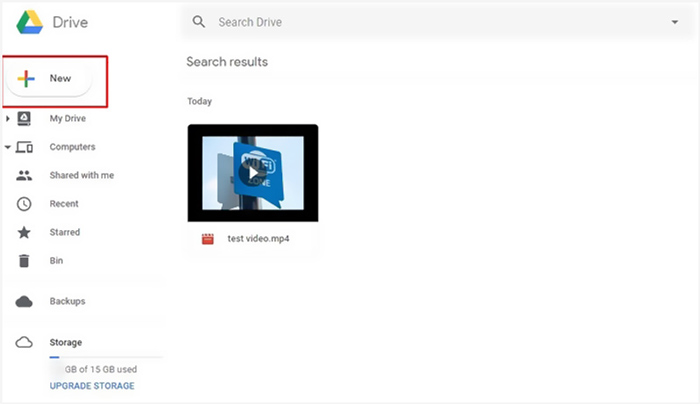
MP4 dosyalarını Chromebook'ta Google Drive üzerinden oynatmak için iyi bir ağ bağlantınızın olması gerektiğini unutmayın.
Bölüm 2. MP4'ü Chromebook'ta Oynatmak için Chrome OS için VLC'yi yükleyin
Yukarıdaki yönteme ek olarak, Chromebook’unuzda MP4 oynatmak için üçüncü taraf bir medya oynatıcı da edinebilirsiniz. Chromebook Chrome OS çalıştırdığından çok fazla iyi oynatıcı seçeneğiniz olmayabilir. Neyse ki, popüler VLC Media Player, Chromebook’ta her tür video ve ses dosyasının keyfini çıkarmanızı sağlayan bir Chrome OS sürümü sunuyor. Chromebook’ta MP4 oynatmak için ona güvenebilirsiniz.
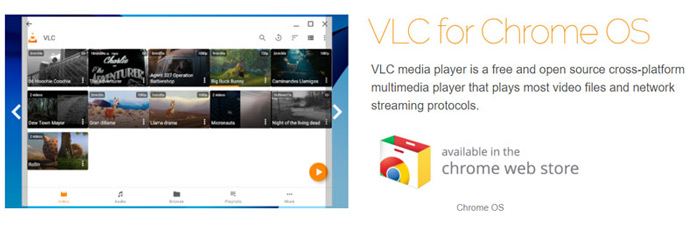
Chromebook’unuzda Chrome Web Store'u açın ve VLC’yi arayın. VLC for Chrome OS uygulamasını bulduğunuzda, yüklemek için talimatları izleyin. Ardından Chromebook’ta MP4 dosyalarını VLC ile oynatabilirsiniz. Çoğu medya dosyasını, ağ akışlarını ve DVD’leri yüksek uyumlulukla destekler. MP4’ün yanı sıra, Chrome OS için VLC; MOV, MKV, AVI, OGG, TS, M2TS, AAC, MP3, FLAC ve daha fazlasını da oynatabilir.
Bölüm 3. Chromebook'ta MP4 Oynatma için Video Formatını Dönüştürme
MP4, video ve ses codec bileşenleri için bir dosya kapsayıcısıdır. Chromebook yalnızca H.264 veya MPEG-4 sıkıştırma codec bileşeniyle kodlanmış MP4 videoyu destekler. Bu nedenle, Chromebook'ta MP4 oynatmak istediğinizde, MP4'ü Chromebook tarafından desteklenen bir biçime dönüştürmelisiniz. MP4'ün yanı sıra Chromebook, belirli codec bileşenine sahip 3GP, WebM, MOV ve AVI'daki videoları da destekler.
MP4'ü Chromebook tarafından desteklenen bir formata dönüştürmek için, profesyonel video–Chromebook dönüştürücüsü Video Converter Ultimate’a güvenebilirsiniz. MP4’ü doğrudan Chromebook’un desteklediği formata dönüştürmeniz için özel bir Chromebook kategorisine sahiptir. Daha da önemlisi, videoyu kalite kaybı olmadan dönüştürebilir.
- • MP4 videoyu kaliteden ödün vermeden Chromebook destekli dosyaya dönüştürün.
- • 8K/5K/4K, 1080p/720p HD ve SD videoyu MOV, MP4, AVI, FLV, MP3 ve daha fazlası gibi 500'den fazla formata dönüştürün.
- • Güçlü düzenleme özellikleri, filtreler ve çeşitli efektler ekleyin ve kaliteyi artırın.
- • Eşi görülmemiş donanım hızlandırma ve çok çekirdekli işlemci optimizasyonunu destekler.
Adım 1. Önce bu MP4’ten Chromebook’a dönüştürücüyü bilgisayarınıza ücretsiz olarak yüklemelisiniz. Hem Windows 10/8/7 PC hem de Mac ile uyumludur.
Ücretsiz İndirWindows 7 veya üstü içinGüvenli İndirme
Ücretsiz İndirMacOS 10.7 veya üstü içinGüvenli İndirme
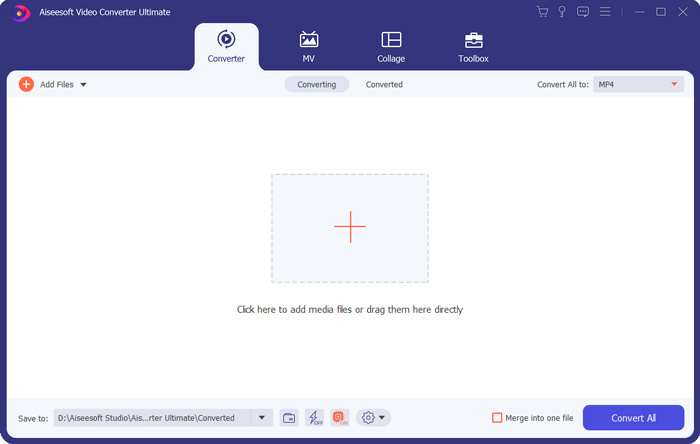
Adım 2. Programı başlatın ve Dönüştürücü (Converter) özelliğini kullandığınızdan emin olun. Ardından MP4 dosyanızı içe aktarmak için büyük + simgesine veya Dosya Ekle (Add Files) düğmesine tıklayın. Aynı anda bir veya birden fazla video ekleyip dönüştürebilirsiniz.
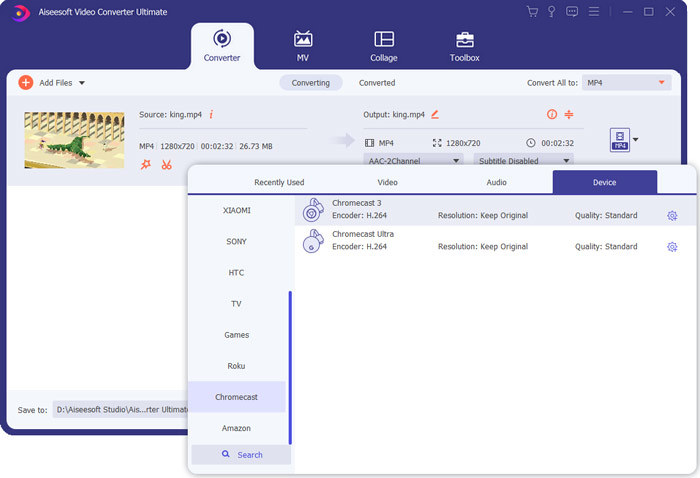
Adım 3. İçe aktarılan videonun sağ tarafındaki format simgesine tıklayın. Açılır listeden uygun bir çıkış formatı seçin. Burada Cihaz (Device) sekmesine tıklayarak Chromebook tarafından desteklenen bir format bulabilirsiniz.
Adım 4. Son dönüştürmeden önce, videoyu düzenlemek, kalitesini artırmak ve çıktı efektlerini özelleştirmek için farklı düzenleme özelliklerini kullanabilirsiniz. Tüm bu işlemlerden sonra, MP4'ü Chromebook’a dönüştürmeye başlamak için sadece Tümünü Dönüştür (Convert All) düğmesine tıklayabilirsiniz.
Yalnızca birkaç tıklamayla videoyu Chromebook destekli bir dosyaya kolayca dönüştürebilirsiniz. Ardından oynatmak için Chromebook'unuza aktarabilirsiniz.
Bölüm 4. Chromebook'ta MP4 Oynatma ile İlgili SSS
Soru 1. Chromebook'ta hangi video formatları oynatılır?
Chromebook'lar birçok dosya türünü, harici cihazı ve bulut depolama sistemini destekleyebilir. Video formatları için MP4, MOV, M4V, MKV, OGG, 3GP, OGM, WebM, WAV, AVI ve daha fazlasını oynatabilir.
Soru 2. Google Play'i Chromebook'ta neden kullanamıyorum?
Chromebook'ta Google Play'i kullanmanıza izin verilir. Ancak önce bu özelliği etkinleştirmeniz gerekir. Chromebook'ta Ayarlar'a gidebilir, Google Play Store bölümünü seçebilir ve ardından özelliği açabilirsiniz. Bundan sonra, Google Play'i Chromebook'ta normal şekilde kullanabilirsiniz.
Soru 3. Flash player Chrome'da nasıl etkinleştirilir?
Flash player'ı Google Chrome'da kullanmak istediğinizde adres çubuğunun sol tarafında bulunan kilit simgesine tıklayabilirsiniz. Flash kutusunu tıklayın ve ardından İzin Ver düğmesini seçin. Değişikliği kaydetmek için Yeniden Yükle'yi tıklayın. Bunu yaparak, Chrome'da flash player'ı kullanabilirsiniz.
Sonuç
Chromebook’ta MP4 oynatamıyor musunuz? Bu yazıyı okuduktan sonra, sorunu çözmek için 3 faydalı ipucu öğrenebilirsiniz. Chromebook’ta MP4 oynatma hakkında daha fazla sorunuz varsa, bize bir mesaj bırakabilirsiniz.
-
 ARF Dosyalarını WebEx ARF Player ile Açma ve Dönüştürme Eğitimi
 WebEx ARF Player'ı kullanmak için ayrıntılı adımlar aşağıda verilmiştir. Windows ve Mac bilgisayarınızda WebEx ARF dosyalarını kolaylıkla oynatabilir ve dönüştürebilirsiniz. Dahası, oynatma deneyimini bir 3. ARF oynatıcıyla da iyileştirebilirsiniz.
-
 MP4 Dosyalarını Yüksek Görsel Kalitede Oynatmak için En İyi MP4 Oynatıcınızı Edinin
 En son 10 MP4 video oynatıcı yazılımının önerilerinden en iyi MP4 oynatıcınızı okuyun ve edinin. MP4 video dosyalarını Windows ve Mac'te gecikmeden sorunsuz bir şekilde oynatabilirsiniz.
-
 AVI VS MP4 - AVI ve MP4 Formatları arasındaki Farklılıklar ve Benzerlikler - FVC
 Hangisi daha iyi bir video formatı, AVI veya MP4? Ayrıntılı karşılaştırmayı elde etmek istiyorsanız, bu AVI VS MP4 makalesine bakabilirsiniz. AVI ve MP4 arasındaki farklılıkları ve benzerlikleri birçok açıdan bilebilirsiniz.
