


 Video Dönüştürücü Ultimate
 Ekran kaydedicisi
 Video Onarımı
 Güvenli İndirme
Spotify Şarkınızı Zil Sesinize Nasıl Ayarlayabilirsiniz - Tam Adımlı Bir Kılavuz
Spotify, dünya çapındaki kullanıcılara çok geniş bir müzik, podcast ve diğer ses içerikleri kütüphanesi sunar. Milyonlarca şarkı, insanların isteğe bağlı olarak dinlemesine açıktır. Sunulan bu güzel müzikleri akıllı telefon zil sesiniz yapmak istiyorsanız, önce seçtiğiniz ses dosyasını cihazınıza indirmeniz gerekir. İyi olan şu ki, bu işlem karmaşık değildir. Bu makalede, Spotify şarkısını zil sesi yapma işleminin tüm adımlarını üç bölüme ayırarak açıklayacak ve her bir bölümü sizin için ayrıntılı şekilde analiz edeceğiz. Zil seslerinizi hazırlarken, sesin bir kısmını kırpmanız gerekebilir. Bunu göz önünde bulundurarak, size en profesyonel ses ve video düzenleme araçlarından birini de önereceğiz. Ayrıca, zil sesi ayarlama ile ilgili sık sorulan bazı soruları da yanıtlayacağız.

Bölüm 1. Zil Sesi için Spotify Şarkısını İndirin
Spotify'ı zil sesleri için kullanabilir misiniz? Cevap elbette evet. Resmi olarak devam etmeden önce bilmeniz gereken şey, şu anda Spotify üzerinden doğrudan cihazınıza müzik indirip bunları zil sesleriniz olarak ayarlayamayacağınızdır. Bu nedenle, bazı araçların yardımına ihtiyacımız var. Anketimize göre, Spotify Downloader oldukça iyi bir seçim. Tek yapmanız gereken tarayıcınızda resmi web sitesini açmak, en sevdiğiniz müziğin bağlantısını kopyalamak ve ilgili bölüme yapıştırmaktır. Böylece dosyayı doğrudan bilgisayarınıza indirebileceksiniz. Bununla ilgili herhangi bir sorun yaşarsanız, aşağıdaki bölümde adımları açıklayacağız.
Spotify Downloader ile Spotify şarkılarını zil sesi olarak indirmek için yapmanız gerekenler şunlardır.
Adım 1. Tarayıcınızı kullanarak resmi Spotify Downloader web sitesine girin.
Adım 2. Telefonunuzda Spotify uygulamasını açın. Ardından, indirmek istediğiniz sesi bulun.
Adım 3. Üç nokta simgesine dokunun ve Paylaş > Bağlantıyı Kopyala seçeneklerini seçin.
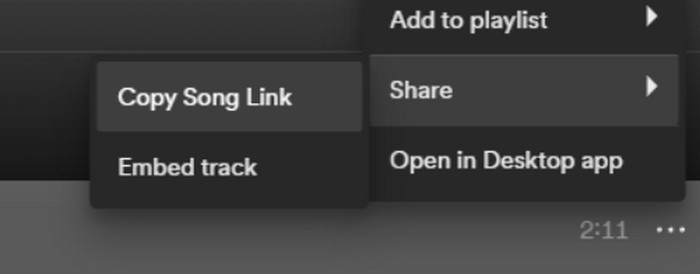
Adım 4. Şimdi Spotify Downloader sayfasına gelebilirsiniz. Kopyaladığınız bağlantıyı yapıştırın ve Göndere tıklayın.
Adım 5. İşlem bittiğinde, İndir’e tıklayın.

Bölüm 2. Bir Spotify Şarkısını Zil Sesi Yapın
En sevdiğiniz müziği cihazınıza indirdikten sonra düzenlemeye başlayabilirsiniz. Şarkının doruk noktasını veya şarkının en sevdiğiniz bölümünü düzenleyebilir ve bir Spotify şarkısını zil sesiniz yapabiliriz. iPhone ve Android telefonların farklı zil sesi ses formatlarını desteklediğini belirtmek gerekir. Şu anda iPhone yalnızca M4R formatındaki zil seslerini desteklerken, Android telefonlar şu anda MP3, M4A, WAV ve OGG'yi destekliyor. Ses dosyanızın formatının yukarıdaki gereksinimleri karşılamadığını düşünüyorsanız, size yardımcı olması için profesyonel bir format dönüştürücü kullanabilirsiniz.
Bu durumda, tek noktadan şarkı düzenleme işlemini gerçekleştirmek için hepsi bir arada bir ses düzenleme aracı olan, FVC tarafından seçilen Video Converter Ultimate’ı denemenizi öneriyoruz. Temel format dönüştürmenin yanı sıra, sesin uzunluğunu düzenlemeyi, ses seviyesini ve ses parçasını ayarlamayı, ayrıca zil seslerinize giriş (fade-in) veya çıkış (fade-out) efektleri eklemeyi de destekler. Dosyalarınızı işlerken neredeyse hiç bekleme yaşamazsınız. Sesinizin parametrelerini son derece verimli şekilde değiştirmenize yardımcı olacaktır.
Ücretsiz İndirWindows 7 veya üstü içinGüvenli İndirme
Ücretsiz İndirMacOS 10.7 veya üstü içinGüvenli İndirme
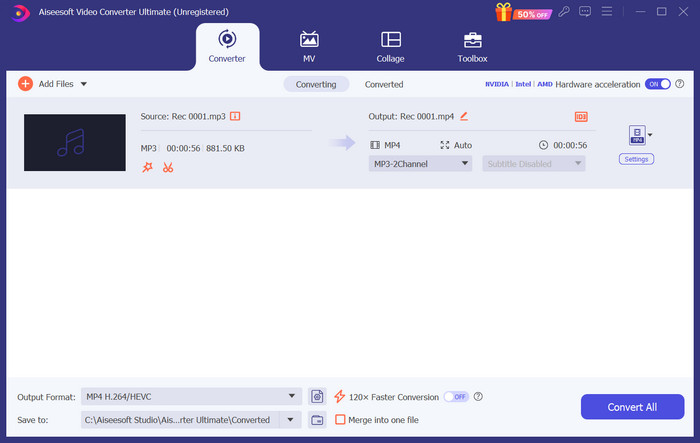
Burada, FVC Video Converter Ultimate ile Spotify'dan zil sesi oluşturmayı öğreteceğiz.
Adım 1. Bilgisayarınıza FVC Video Converter Ultimate’ı indirin ve kurun. Favori şarkınızı cihazınızda sakladığınızdan emin olun.
Adım 2. Bu yazılımı masaüstünüzde açın ve Spotify şarkısını bu platforma yüklemek için Dosya Ekleye tıklayın.
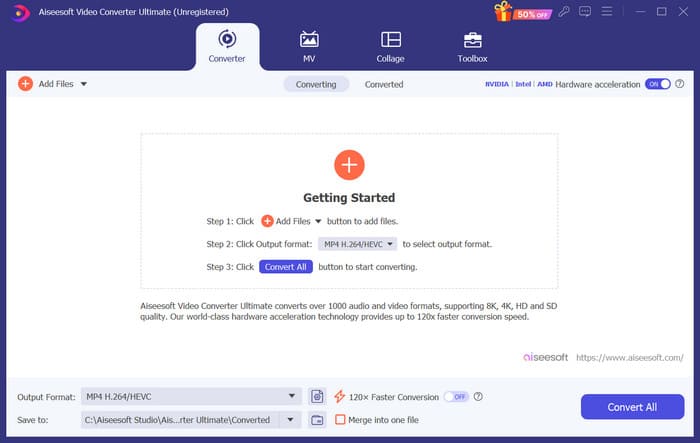
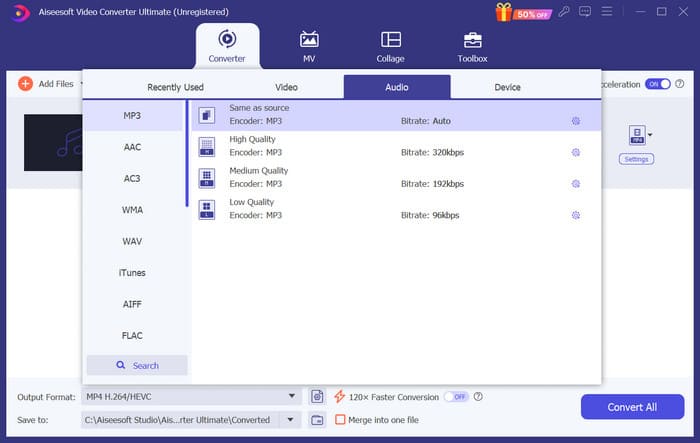
Adım 3. Zil sesinizin formatını dönüştürmek için, Çıkış Formatı yanındaki menüyü açın. Ardından, Ses başlığı altındaki tüm seçenekler arasından hedef formatınızı seçebilirsiniz.
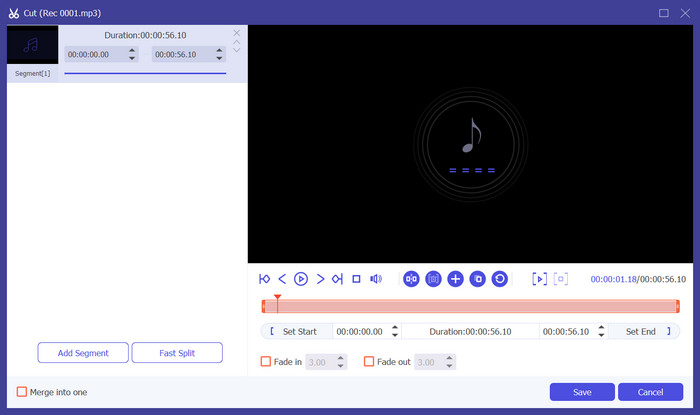
Adım 4. Şarkının bir kısmını telefon zil sesiniz olarak seçmek için Kese tıklayın. Ardından kırpma sayfasına gireceksiniz. Saklamak istediğiniz bölümü seçmek için kaydırıcıyı sürükleyin. Bu pencerede, zil sesinize giriş ve çıkış efektleri de ekleyebilirsiniz.
Adım 5. Dosyanızın ses seviyesini veya Ses Parçasını değiştirmek için Düzenleye tıklayın. Yeni sayfada düzenleme sonucunu doğrudan önizleyebilirsiniz. Değişiklikleri kaydetmek için Tamama tıklayın.
Adım 6. Zil sesinizi ayarlamayı bitirdiğinizde, dosyayı dışa aktarmak için Tümünü Dönüştüre tıklayın.
Bölüm 3. Spotify Şarkısını Zil Sesi Olarak Ayarlama
Artık yeni zil sesimiz hazır ve doğru uzunlukta düzenlediğimize göre, son adımı atmamız gerekiyor: Spotify şarkısını telefonunuzda gelen aramalar için zil sesi olarak ayarlayın. Farklı cihazların farklı şekilde çalıştığını göz önünde bulundurarak, hem iPhone hem de Android telefonlardan cihazınıza nasıl ayarlayacağınız konusunda size rehberlik edeceğiz.
Android
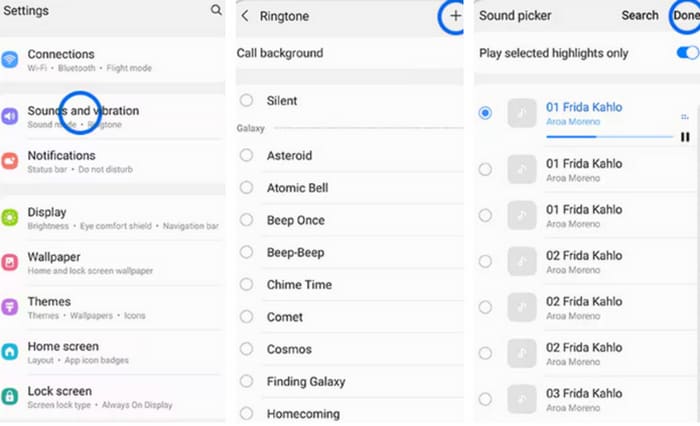
Bu bölümde, Spotify şarkılarını Android telefonunuzda zil seslerine ayarlama konusunda size rehberlik edeceğiz. Örnek olarak bir Samsung telefon kullanacağız. Başlamadan önce, Spotify şarkınızı telefonunuza aktarmalısınız. USB kablosu veya Bluetooth ile dönüştürme, başvurulabilecek iki yoldur.
Adım 1. Telefonunuzda Ayarlara gidin ve Sesler & titreşim > Telefon zil sesi > Benim Seslerim seçeneğine dokunun.
Adım 2. Ekleye dokunun ve cep telefonunuzdaki tüm dosyalar arasından düzenlenmiş Spotify şarkısını seçin.
Adım 3. Ayarı kaydetmek için Bittiye dokunun. Artık bir Spotify şarkısını Samsung zil sesi olarak başarıyla eklediniz.
iPhone
Eğer iPhone’unuz için zil sesi yapmak istiyorsanız, üçüncü taraf araçlar kullanmanız gerekebilir. En popüler araç GarageBand’dir ve Spotify şarkılarını iPhone zil sesi olarak nasıl ayarlayacağınızı açıklayacağız.
Adım 1. iPhone’unuza GarageBand’i indirin ve çalıştırın. Projeyi seçin.
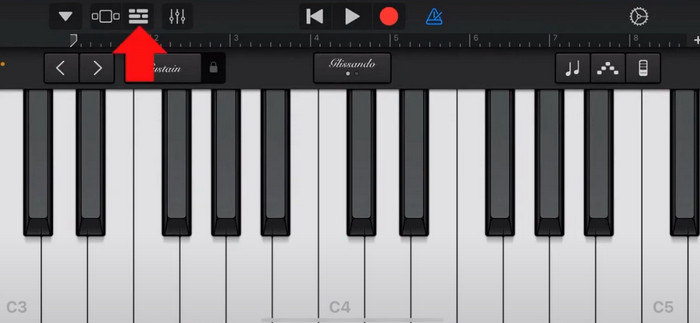
Adım 2. Ardından, Döngü > Dosyaları seçin. Spotify şarkınızı seçmek için Dosyalar uygulamasından ögeleri tara seçeneğini seçin.
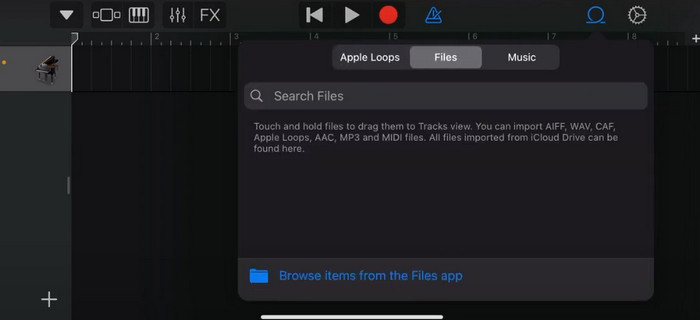
Adım 3. Kırpılmış Spotify dosyasını zaman çizelgesine yerleştirin.
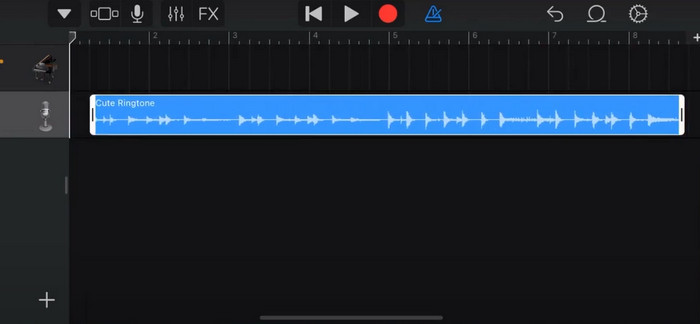
Adım 4. Metronomu devre dışı bırakın. Ardından aşağı ok simgesine dokunun ve Benim Şarkılarım’ı seçin.
Adım 5. Şarkı klibini basılı tutun ve Paylaş’a dokunun.
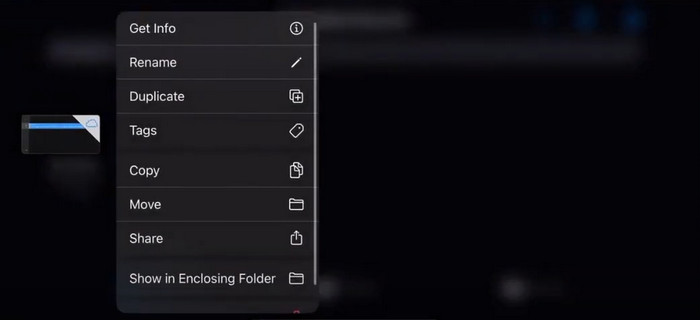
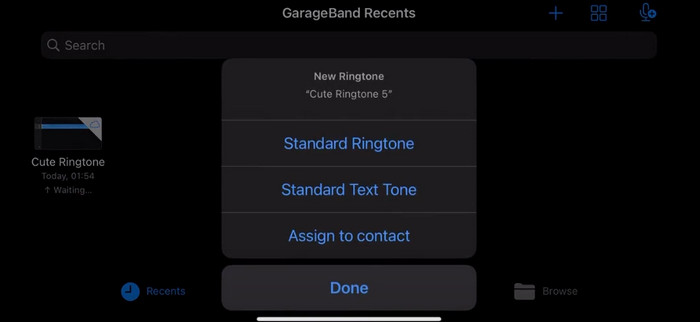
Adım 6. Zil Sesi > Dışa Aktar’ı seçin. Ardından Sesi kullan > Standart Zil Sesi’ne dokunun.
Bölüm 4. Spotify Şarkısını Zil Sesi Yapmanın SSS'leri
Spotify şarkısını doğrudan zil sesi olarak kullanabilir miyim?
Spotify, kullanıcıların uygulamadaki bir şarkıyı doğrudan mobil cihazda zil sesi olarak kullanmalarına izin vermez. Ancak, bir Spotify şarkısını zil sesi olarak ayarlamak için kullanabileceğiniz alternatif yöntemler vardır. Beğendiğiniz şarkıyı iTunes veya Google Play Müzik gibi bir dijital müzik mağazasından satın alabilirsiniz. Spotify şarkılarını MP3 dosyalarına dönüştürmenize olanak tanıyan üçüncü taraf araçlar mevcuttur.
iTunes olmadan iPhone'um için özel bir zil sesi nasıl oluşturabilirim?
iTunes kullanmadan iPhone'unuz için özel bir zil sesi oluşturmak istiyorsanız, iOS aygıtlarında bulunan bir müzik uygulaması olan GarageBand'i kullanabilirsiniz. Bu yöntem, aygıtınızdaki favori ses kliplerinizle zil sesinizi kişiselleştirmenize olanak tanır.
Bilgisayar olmadan Spotify'ı iPhone zil sesine nasıl dönüştürebilirim?
Bir Spotify şarkısını bilgisayar kullanmadan doğrudan bir iPhone zil sesine dönüştürmek zordur. Ancak benzer bir sonuç elde etmek için bazı alternatif yöntemler bulabilirsiniz. Örneğin, bir zil sesi oluşturma uygulaması kullanabilir veya GarageBand'i seçebilirsiniz.
Sonuç
Yukarıda, gelen aramalar için bir Spotify şarkısını zil sesi olarak ayarlama konusunda size eksiksiz bir genel bakış sunduk. Tüm adımları ele aldık ve şarkınızı kişiselleştirmenize yardımcı olmak için, FVC tarafından önerilen son teknoloji ses düzenleme aracı Video Converter Ultimate’ı sağladık. İsterseniz, bu araç sayesinde kolayca bir videoyu da zil sesi yapabilirsiniz. Gerekli yönergeleri almış olduğunuza inanıyoruz.
-
 En İyi İzlenecek Yol WAV'ı Kısa Sürede Zil Sesine Dönüştürme
 Zahmetsizce WAV'ı zil sesine dönüştürmek mi istiyorsunuz? Kullanıcı dostu araçlarımız işi halleder! Anında yüksek kaliteli ses dönüştürmenin keyfini çıkarın - teknik açıdan baş ağrısı yok. Onları bugün deneyin!
-
 iPhone ve Android'de Sesli Not Nasıl Zil Sesi Yapılır
 Sesli notu zil sesine dönüştürmek istiyorsanız bu makaleyi okuyun. İster iPhone kullanıcısı olun ister Android kullanıcısı, içeriklerimizde çözümler bulabilirsiniz.
-
 Herhangi Bir Sesi Kolayca Kesmek İçin 5 MP3 Kesici [2024 Güncellendi]
 Sesi kırpmak için bir MP3 kesiciye ihtiyacınız var mı? Bu durumda bu makaleyi okuyun çünkü kolay ses kesme için kullanabileceğiniz araçları sağlıyoruz.
