Kullanici rehberi

Video/Ses Dönüşüm Çözümleri

Başlamak

FVC Free FLV to Audio Converter, en iyi ücretsiz videodan sese dönüştürücüdür. FLV video dosyasından ses parçalarını çıkarabilir. Dahası, ses dosyalarını farklı ses formatları arasında dönüştürmeyi destekler.
Ana arayüz

Indirin ve yükle

Bilgisayarınızın işletim sistemine göre kurulum paketini indirin. Ardından, kurulum dosyasına çift tıklayın ve programı kurmak için ekrandaki talimatları izleyin.

Tercihler

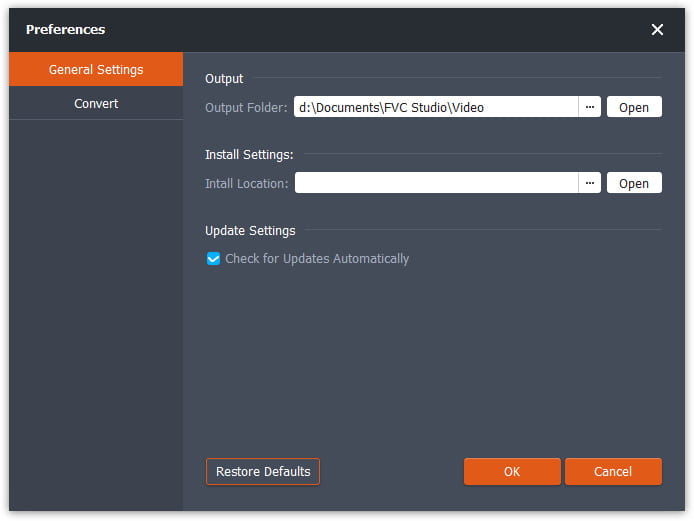
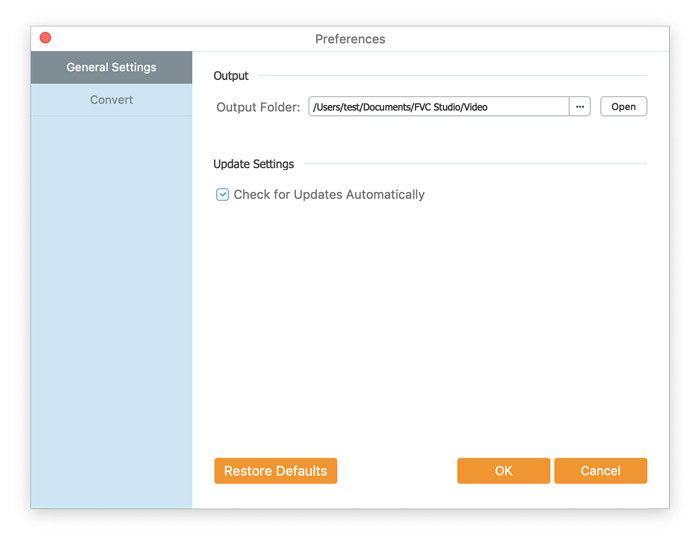
Before you start the conversion, it’s recommended to tweak the default settings. You can click the Menu icon and click on Preferences… to configure the specific settings. For example, you are free to choose the output folder to store your converted files.

Tercihler

FLV'yi Sese Dönüştür

Artık FLV dosyalarını ses biçimlerine dönüştürmek için bu adımları takip edebilirsiniz.

Step 1. Launch FVC Free FLV to Audio Converter

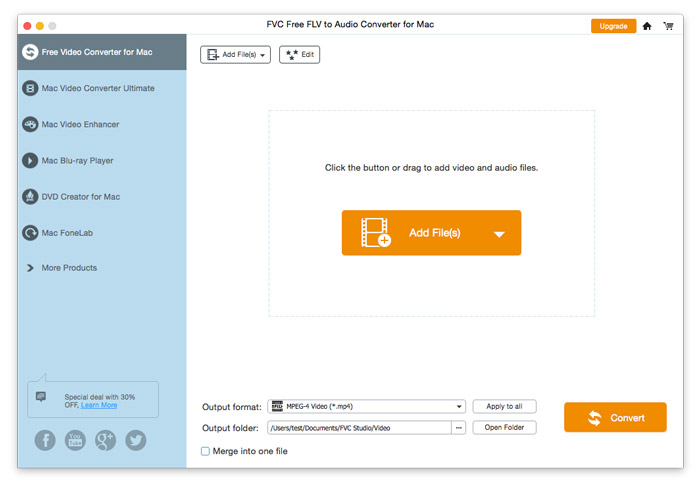
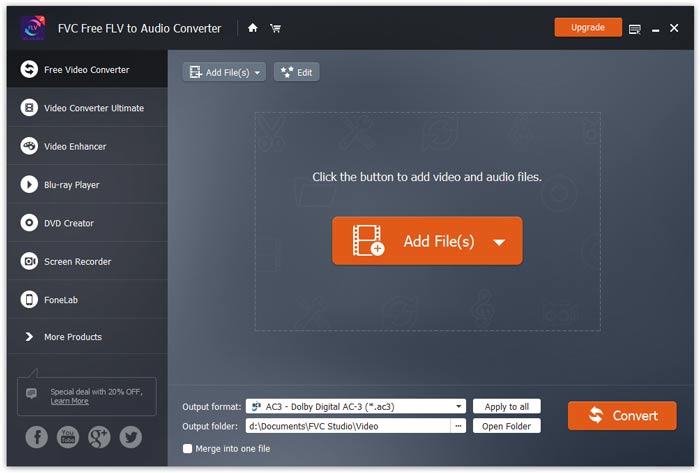
FVC Free FLV to Audio Converter'ı başlatın ve temiz arayüzünü göreceksiniz.

Ana arayüz

Step 2. Add an FLV file into the program

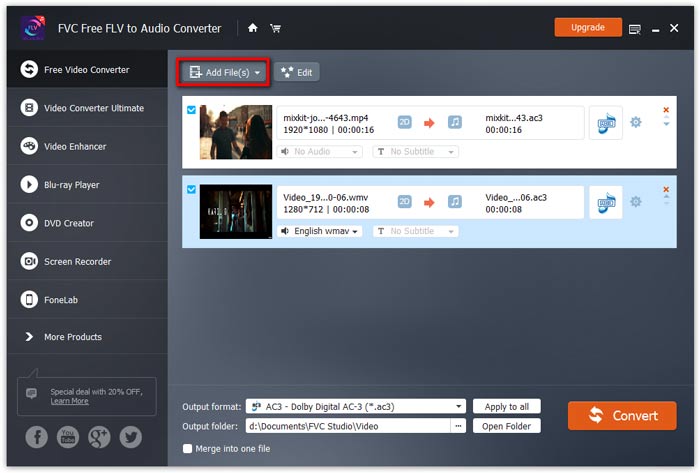
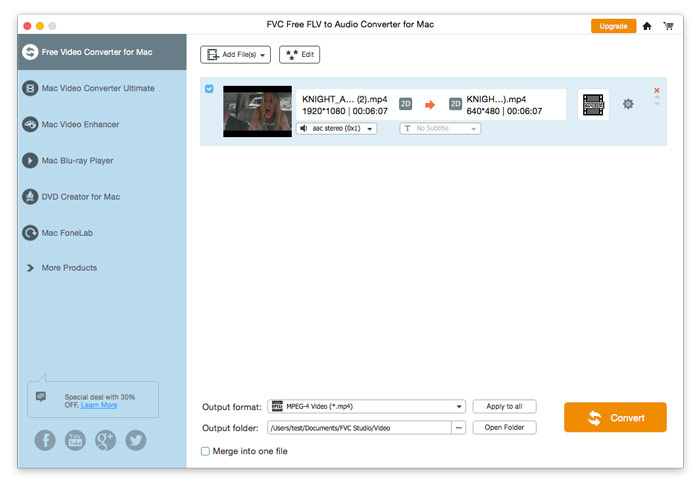
Click the Add File(s) button and choose FLV files you want to process in the dialogue opening subsequently. After the files are added to the program, they will be displayed on the file list.

FLV Dosyaları Ekle

Step 3. Select the output format

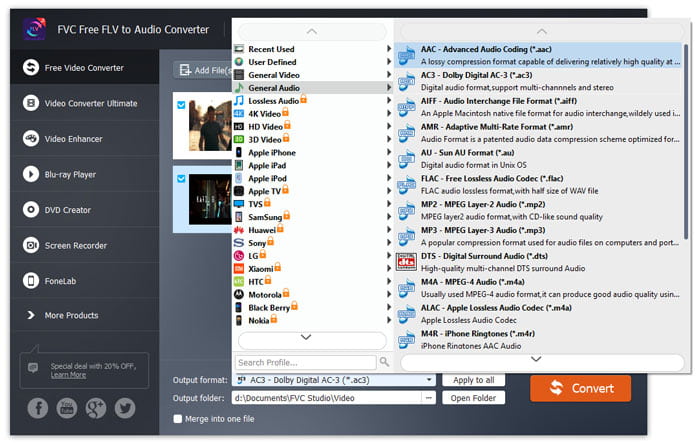
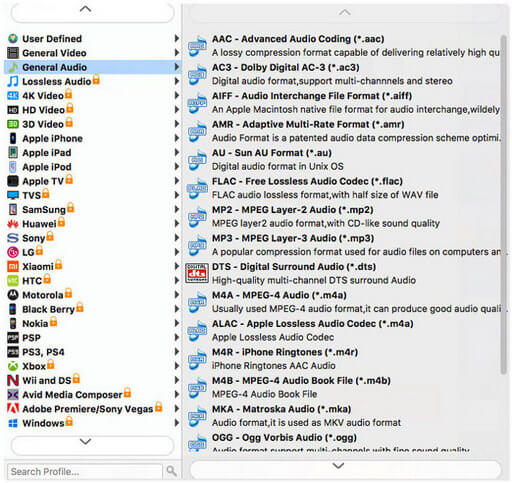
Click to open Output format drop-down list, then choose the audio format from the General Audio profile list. It can convert your FLV files to MP3, WMA, AAC, M4A, and so on.

Ses Biçimini Seçin

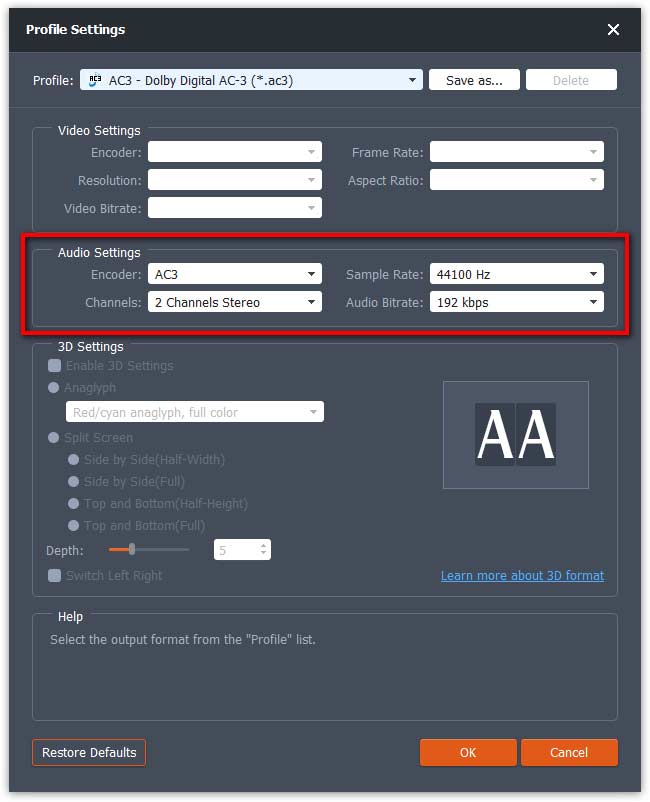
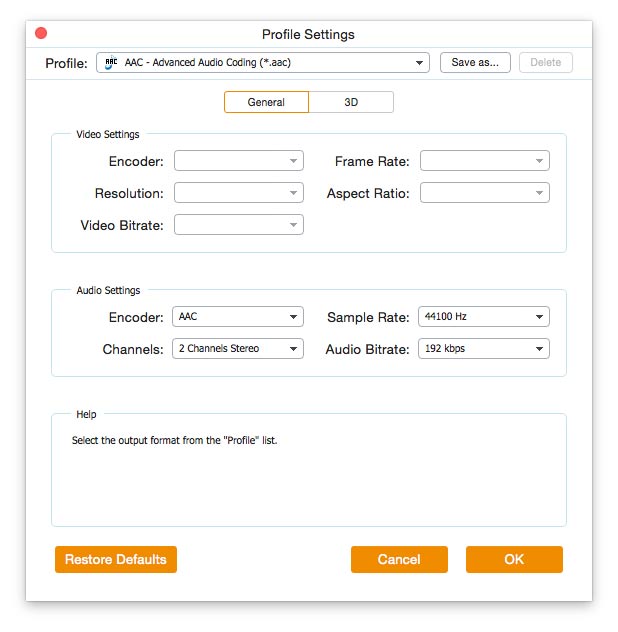
If you’re not satisfied with the original profile parameter settings, you can click the Cogwheel icon and adjust the encoder, channel, sample rate, and audio bitrate in the Profile settings window.

Profil ayarları

Step 4. Start converting FLV to Audio

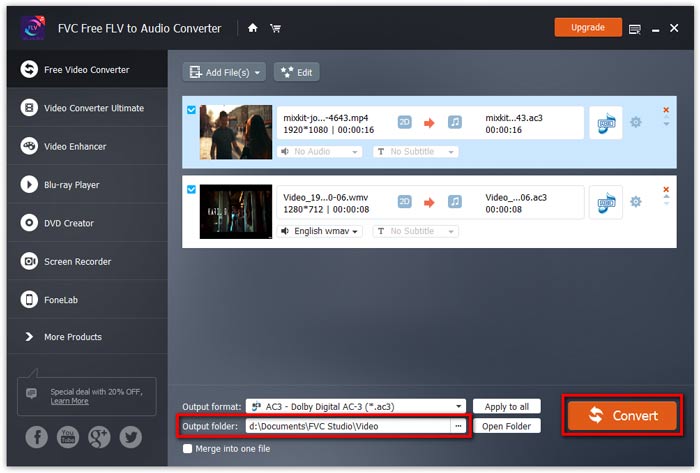
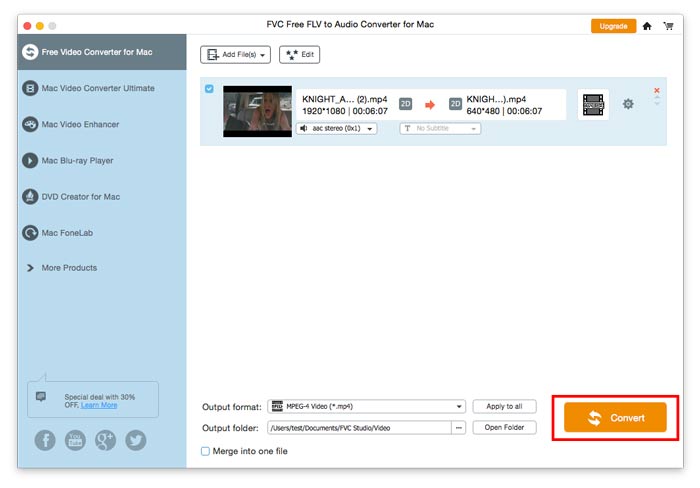
Go to Output folder to choose the destination folder for saving output files, and then click OK button to return to the main window. Finally, click the Convert button to start the conversion.

Dönüşümü Başlat

Kullanici rehberi

Video/Ses Dönüşüm Çözümleri

Başlamak

FVC Free FLV to Audio Converter, en iyi ücretsiz videodan sese dönüştürücüdür. FLV video dosyasından ses parçalarını çıkarabilir. Dahası, ses dosyalarını farklı ses formatları arasında dönüştürmeyi destekler.

Ana arayüz

Indirin ve yükle

Bilgisayarınızın işletim sistemine göre kurulum paketini indirin. Ardından, kurulum dosyasına çift tıklayın ve programı kurmak için ekrandaki talimatları izleyin.

Tercihler

Before you start the conversion, it’s recommended to tweak the default settings. You can click the Menu icon and click on Preferences… to configure the specific settings. For example, you are free to choose the output folder to store your converted files.

Tercihler

FLV'yi Sese Dönüştür

Artık FLV dosyalarını ses biçimlerine dönüştürmek için bu adımları takip edebilirsiniz.

Step 1. Launch FVC Free FLV to Audio Converter

FVC Free FLV to Audio Converter'ı başlatın ve temiz arayüzünü göreceksiniz.

Ana arayüz

Step 2. Add an FLV file into the program

Click the Add File(s) button and choose FLV files you want to process in the dialogue opening subsequently. After the files are added to the program, they will be displayed on the file list.

FLV Dosyaları Ekle

Step 3. Select the output format

Click to open Output format drop-down list, then choose the audio format from the General Audio profile list. It can convert your FLV files to MP3, WMA, AAC, M4A, and so on.

Ses Çıkışını Seçin

If you’re not satisfied with the original profile parameter settings, you can click the Cogwheel icon and adjust the encoder, channel, sample rate, and audio bitrate in the Profile settings window.

Profil ayarları

Step 4. Start converting FLV to Audio

Go to Output folder to choose the destination folder for saving output files, and then click OK button to return to the main window. Finally, click the Convert button to start the conversion.

Dönüşümü Başlat