


 Video Dönüştürücü Ultimate
 Ekran kaydedicisi
 Video Onarımı
 Güvenli İndirme
En İyi Çevrimdışı ve Çevrimiçi GIF Birleştiriciler | GIF'leri Sorunsuz Bir Şekilde Birleştirme
Have you ever wanted to make an amusing and memorable image by splicing together several GIFs? Good news! Merging GIFs has never been simpler or more convenient than using the top-rated online and offline GIF combiner tools. With these potent apps, you can easily combine your preferred GIFs to make something totally new and unique that is sure to attract people's attention. In this tutorial guide, we'll demonstrate both online and offline methods for combining GIFs and offer advice on how to maximize the effectiveness of each method. Now is the time to begin exploring the fascinating field of GIF mashups.

Bölüm 1. Çevrimdışı En İyi GIF Birleştirici
Using an offline program for combining GIFs offers several advantages for users, such as not requiring an internet connection, providing better control over the process, ensuring more privacy and security, and allowing for faster processing. With an offline program, you can create and combine GIFs at your own pace and customize the output to your liking. That said, we would like to recommend FVC Video Converter Ultimate.
Bu araç, kullanıcıların birden çok GIF'i bir araya getirmesine ve ortaya çıkan GIF'in boyutunu, hızını ve oynatma ayarlarını yapmasına olanak tanır. Onu rakiplerinden ayıran şey, kullanıcıların GIF'leri birleştirmenin yanı sıra diğer video düzenleme görevlerini gerçekleştirmelerine olanak tanıyan bir GIF Maker özelliği içeren çok işlevli bir video düzenleme yazılımı olmasıdır. Ek olarak, adım adım talimatlar sağlayan kullanıcı dostu bir arayüze sahiptir, bu da onu ileri düzey ve acemi kullanıcılar için erişilebilir kılar. Basitleştirilmiş kılavuzu takip ederek PC'de veya diğer formatlarda birden fazla GIF'i MP4'te nasıl birleştireceğinizi öğrenin.
Compatibility: Windows 11/10/8/7 & Mac OS X 10.12 or higher
Rating: 9.8 / 10
Pricing: $49.96 Lifetime
Öne Çıkan Özellikler:
◆ Video dönüştürme: FVC Video Converter Ultimate, videoları MP4, AVI, WMV, MKV ve daha fazlası dahil olmak üzere çok çeşitli biçimlere dönüştürebilir.
◆ Ses çıkarma: Kullanıcılar, video dosyalarından ses parçalarını çıkarabilir.
◆ GIF'leri Birleştirme: FVC Video Converter Ultimate, kullanıcıların birden çok GIF'i birleştirmelerine, oynatma hızını ayarlamalarına ve diğer ayarları özelleştirmelerine olanak tanıyan yerleşik bir GIF Oluşturma aracı içerir.
◆ Yüksek kaliteli çıktı: FVC Video Converter Ultimate, dönüştürme işlemi sırasında kaynak dosyaların orijinal kalitesini koruyarak yüksek kaliteli çıktı sağlama iddiasındadır.
◆ Toplu işleme: Kullanıcılar aynı anda birçok dosyayı dönüştürüp birleştirerek zamandan tasarruf edebilir ve verimliliği artırabilir.
Steps on how to combine GIFs with this GIF merger:
Step 1. First you have to get the program by ticking any of the Free Download buttons below corresponding to your computer’s operating system. After that, open the installer and follow the setup wizard to properly install the GIF merger on your computer. Launch the program afterward.
Ücretsiz İndirWindows 7 veya üzeri içinGüvenli İndirme
Ücretsiz İndirMacOS 10.7 veya üzeri içinGüvenli İndirme
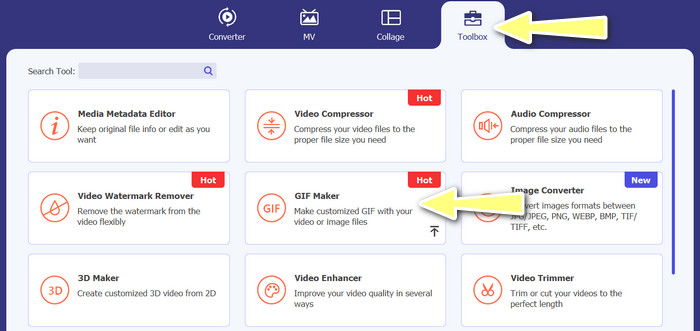
Step 2. Next, go to the Toolbox tab located from the upper interface of the program. Then, you will be redirected to a collection of options offered by the program. From here, select GIF Maker and add GIF files by ticking the Photos to GIF button. Afterward, choose all the GIF files you wish to merge into one.
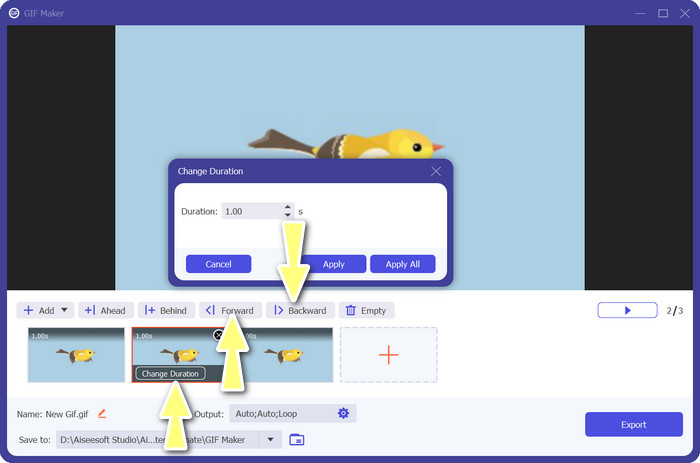
Step 3. From the editing panel, hover your mouse to each GIF to see the Change Duration option and adjust the length of each GIF. Also, you can change the sequence by choosing between the Backward and Forward buttons from the main menu.
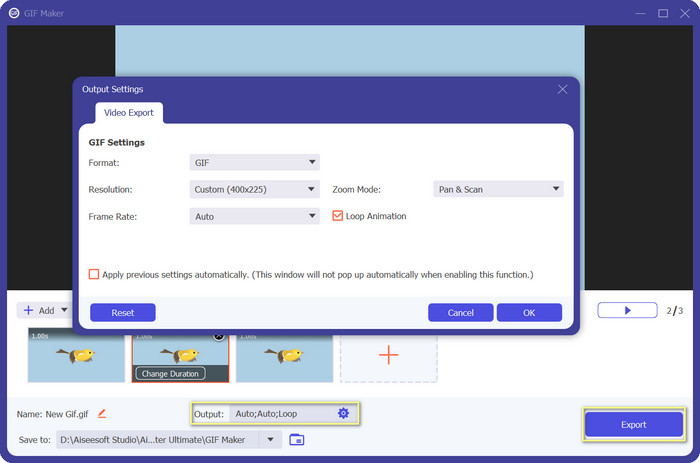
Step 4. Next, you may adjust other settings, such as the format, resolution, frame rate, and zoom mode, from the Output settings. Finally, hit the Export button to produce the final output.
Bölüm 2. Çevrimiçi En İyi 4 GIF Birleştirici
GIF'leri bir araya getirmek için bazı çevrimiçi alternatifler de vardır. Bu nedenle, bilgisayarınıza herhangi bir program indirmeden GIF'lerinize kolayca katılabilirsiniz. Aşağıda tanıtılan programları kontrol ederek bunları kontrol edin.
1. EZGIF
EZGIF, GIF oluşturmak ve değiştirmek için yaygın olarak kullanılan bir web hizmetidir. GIF Birleştirici işlevi, oynatma hızını ve diğer parametreleri değiştirme seçeneğiyle birçok GIF'i tek bir GIF'te birleştirmenizi sağlar. Aşağıda, GIF'leri bir araya getirmek için EZGIF'in nasıl kullanılacağına ilişkin basit bir kılavuz bulunmaktadır.
Step 1. Launch your favorite web browser and visit the program's official site. From here, go to the GIF Maker option.
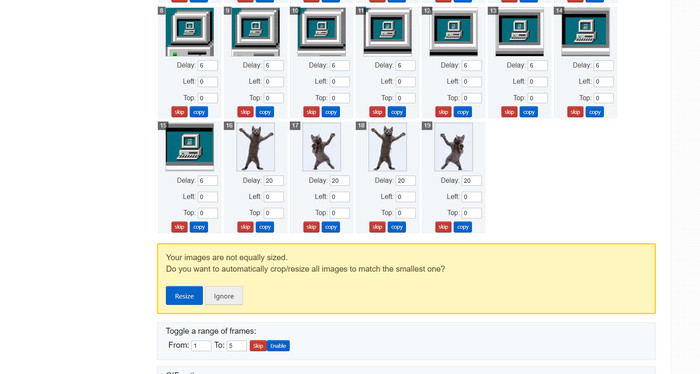
Step 2. Next, upload the GIF files you'd like to combine, and the tool will load each and every frame of your GIF file from the next page.
Step 3. Now, you can adjust which frame of a GIF you wish to include or exclude.
Step 4. Other options are available on the below page. If you are satisfied with the settings, tick the Make a GIF button.
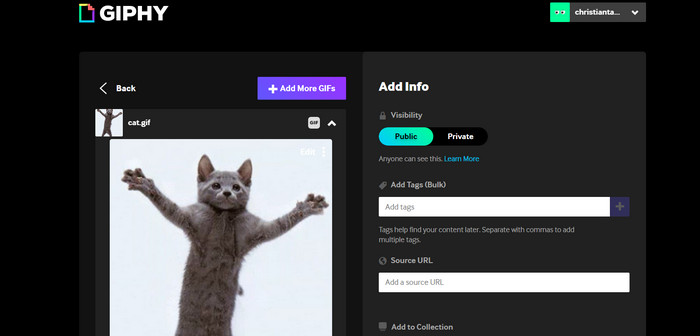
2. GIPHY
Çoğu kişi GIPHY'yi GIF aramak ve paylaşmak için bir yer olarak bilse de, sitenin ayrıca kullanıcıların GIF'leri birleştirmesine ve metin veya çıkartma eklemesine olanak tanıyan bir GIF Oluşturucuya sahip olduğunun farkında olmayabilir. Öte yandan, GIF'leri GIPHY ile birleştirmek için adım adım bir işlem var.
Step 1. To start making GIFs, head over to the GIPHY website and use the Create tab. Choose GIF Creator from the menu that appears.
Step 2. Select the GIFs you wish to combine from your computer by clicking the Choose Files button.
Step 3. The selected GIFs can be dropped onto the timeline at the screen's base. Simply by dragging the GIFs into a new order, you can change their display order.
Step 4. To change the length of each GIF, use the slider provided. Using GIPHY's editing tools, you can personalize your GIF with text, stickers, and more. After you're happy with the outcome, select Create GIF to save the combined GIF to your computer.
3. Kapwing
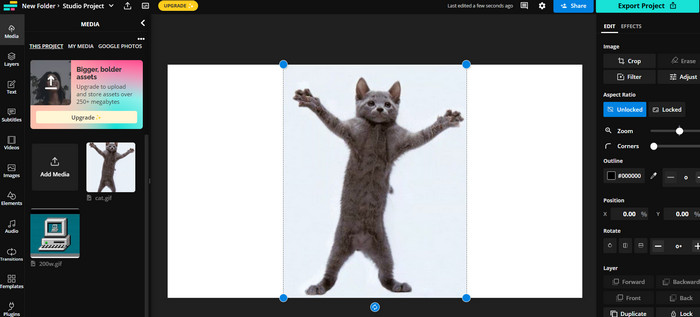
Kapwing is a free, web-based service that allows users to edit videos and create GIF from images. It allows users to submit several GIFs, combine them into one, select the playback speed, and change other parameters. To learn how to put two GIFs together with Kapwing, take a look at the instructions below.
Step 1. Go to Kapwing's website and click on Get Started to get started. Click on Click to Upload and select the GIFs you want to merge from your computer.
Step 2. Drag and drop the selected GIFs onto the timeline at the bottom of the screen. You can rearrange the order of the GIFs by dragging them to the desired position.
Step 3. Adjust the playback speed and duration of each GIF by using the editing tools provided by Kapwing. You can also add text, stickers, and other elements to your GIF by using the editing tools provided by Kapwing.
Step 4. Once you are satisfied, click on Publish to save your merged GIF to your computer.
4. Görüntü çevirme
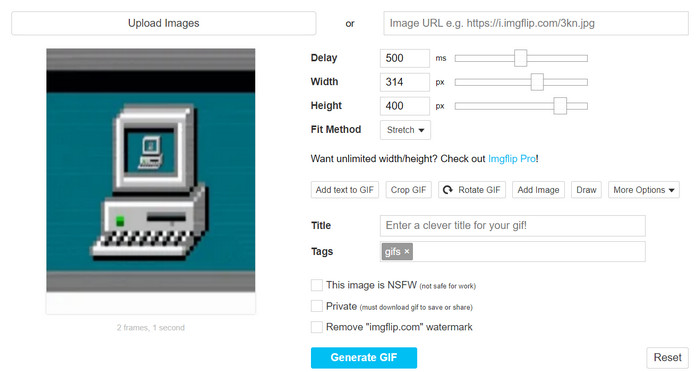
Popüler çevrimiçi mem ve GIF yaratıcısı Imgflip ayrıca bir GIF Oluşturucuya sahiptir. Kullanıcılar aynı anda metin kaplamaları ekleyebilir, oynatma hızını değiştirebilir ve çok sayıda GIF yayınlayabilir. Adımlara bakın ve GIF'leri tek bir GIF'te nasıl birleştireceğiniz konusunda bilgi edinin.
Step 1. Go to Imgflip's website and click on Create at the top of the page. Click on Video to GIF in the dropdown menu.
Step 2. Click on Upload Video and select the GIFs you want to merge from your computer. After your GIFs are uploaded, click on Join GIFs at the top of the page.
Step 3. Arrange the order of the GIFs by dragging and dropping them to the desired position. Adjust the playback speed and other settings as desired.
Step 4. Once satisfied with the final result, click Create GIF to save your merged GIF to your computer.
Bölüm 3. GIF Birleştiriciler hakkında SSS
Farklı boyuttaki GIF'leri birleştirebilir miyim?
Evet, çoğu GIF birleştirme, farklı boyut ve en boy oranlarındaki GIF'leri birleştirmenize izin verir. Ancak, tek tek GIF'lerin boyutlarına bağlı olarak son çıktının kırpılabileceğini veya yeniden boyutlandırılabileceğini fark etmek önemlidir.
Benim olmayan GIF'leri birleştirmek yasal mı?
Telif hakkı yasalarına saygı duymak ve yalnızca kullanma hakkınız olan GIF'leri birleştirmek önemlidir. Bu, kamu malı olan veya kendi oluşturduğunuz GIF'leri içerebilir.
Birleştirilmiş GIF'ime metin veya çıkartma ekleyebilir miyim?
Yes, most GIF mergers offer editing features that allow you to add text, stickers, and watermarks to your GIF. This can help enhance the visual appeal and message of your GIF.
Sonuç
In a world where visual content is becoming increasingly important, GIF merging is a valuable skill to acquire. With the ability to combine GIFs into one file, you can create something truly unique that will grab the audience's attention and make them want to engage with your content.
-
 Tüm Platformlarda Bulunan En İyi 5 GIF Boyutlandırıcı [2023]
 Kullanabileceğiniz GIF boyutlandırıcılarını bilmek ister misiniz? Bu durumda, aşağıdaki bilgiler tüm platformlarda GIF'lerinizde kullanabileceğiniz yeniden boyutlandırıcılardan bahsedecektir.
-
 Windows ve Mac'te En İyi Animasyonlu GIF Döngüsü ile GIF Döngü
 En iyi döngü GIF'inin sırrını bilmek ister misiniz? Bir tane yapmak ister misin? Eğer öyleyse, doğru yerdesiniz. Bu nedenle, mevcut en iyi ilmek yapıcı ile bir ilmek oluşturmayı öğrenin.
-
 Windows / Mac / Online'da MP4 Dosyalarını Birleştirmenin En İyi 6 Yolu
 Projeniz için ham MP4 dosyalarınızı birleştirmek mi istiyorsunuz? Bu gönderi, MP4 videolarını Windows, Mac ve çevrimiçi olarak kolaylıkla birleştirmenize yardımcı olacak en iyi 6 yolu bir araya getiriyor.
