


 Video Dönüştürücü Ultimate
 Ekran kaydedicisi
 Video Onarımı
 Güvenli İndirme
MOV'u GIF'e Dönüştürme: Çevrimiçi Varlığı Artırmak İçin Kapsamlı Bir Kılavuz
Günümüzün hızlı tempolu dijital dünyasında hedef kitlenizin dikkatini canlı tutmak, ilgi çekici görsel içeriğin oluşturulmasını gerektirir. Animasyonlu GIF'ler, karmaşık kavramları, duyguları ve marka mesajlarını eğlenceli ve akılda kalıcı bir şekilde iletme yetenekleri nedeniyle yaygın olarak kullanılmaktadır. Ancak tüm video formatlarına birden fazla platform ve cihaz üzerinden erişilemez. Bunu yapmak için bir MOV'dan GIF'e dönüştürücü kullanabilirsiniz.
MOV dosyalarınızı animasyonlu GIF’lere dönüştürerek, web sitenizde, sosyal medyada ve mesajlaşma uygulamalarında kolayca paylaşılabilen hafif ama yüksek kaliteli animasyonlar oluşturabilirsiniz. GIF’lerinize metin, filtreler ve marka ögeleri ekleyerek tanıtım etkilerini daha da artırabilirsiniz. MOV’dan GIF’e dönüştürme karmaşık görünebilir, ancak süreci basitleştiren çok sayıda çevrimiçi ve çevrimdışı dönüştürücü yazılım bulunmaktadır. Bu makale, MOV’u GIF’e nasıl dönüştüreceğinizi gösterecek ve bunu yapmanın avantajlarını daha ayrıntılı olarak ele alacaktır.

Bölüm 1. MOV'u Çevrimdışı GIF'e Dönüştür
Çevrimdışı araçlar bir kerelik kurulum gerektirse de, dosya dönüştürme süreçleri üzerinde daha fazla esneklik ve kontrol sunarlar. Optimum performans ve güvenlik sağlamak için saygın bir yazılım sağlayıcısı seçmek ve yazılımı güncel tutmak önemlidir. Bununla birlikte, burada MOV'u Mac, Windows ve iPhone'da GIF'e dönüştürmenize yardımcı olacak programların bir listesini sağladık. Daha fazlasını öğrenmek için onlara göz atın.
FVC Free Video Converter, MOV video dosyalarını GIF resim dosyalarına dönüştürme yeteneğine sahiptir. MOV dosyanızı seçip GIF dosyası için çıktı ayarlarını belirlemeniz için basit ve sezgisel bir arayüz sunarak bu süreci kolaylaştırır. FVC Free Video Converter ile MOV’u GIF’e dönüştürürken, GIF dosyasının çıkış boyutunu ve kalitesini, ayrıca kare hızını ve diğer ayarları belirleyebilirsiniz. Yazılım, GIF dosyasını kaydetmeden önce önizleme yapmanıza olanak tanıyan bir önizleme işlevi de sunar. Genel olarak, FVC Free Video Converter, MOV videolarını çeşitli amaçlar için GIF görüntülerine dönüştürmek isteyen herkes için kullanışlı bir araçtır. Bu program hakkında daha fazla bilgi edinmek için temel özelliklerini inceleyin.
Öne Çıkan Özellikler:
◆ Aynı anda birden çok videoyu dönüştürün.
◆ Hızlandırma teknolojileriyle yüksek hızlı dönüşüm.
◆ Kullanıcılar tarafından kullanımı kolay olacak şekilde tasarlanmıştır.
Adım 1. Programı bilgisayarınıza edinin
MOV’u GIF’e dönüştürmeyi öğrenmek için lütfen FVC Free Video Converter’ı bilgisayarınıza indirip kurun. Aşağıdaki Ücretsiz İndir düğmesine tıklayarak bu programı edinebilirsiniz. Mac ve Windows kurulum dosyaları arasında seçim yapabilirsiniz.
Ücretsiz İndirWindows 7 veya üzeri içinGüvenli İndirme
Ücretsiz İndirMacOS 10.7 veya üzeri içinGüvenli İndirme
Adım 2. Hedef MOV dosyalarını ekleyin
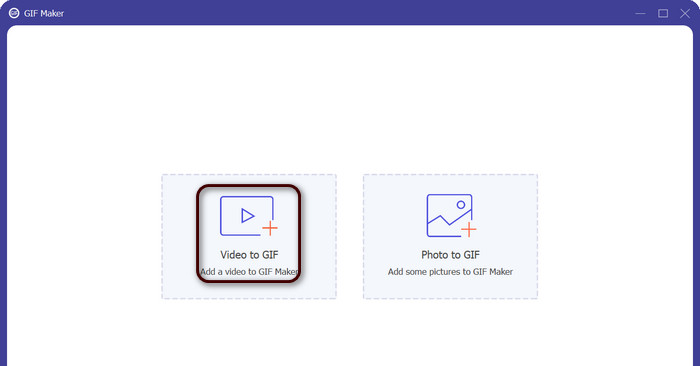
Programı başlatarak ana arayüzü görüntüleyin. Buradan, Araç Kutusu sekmesine gidin ve GIF Oluşturucu aracına tıklayın. Ardından hedef MOV dosyalarınızı eklemek için Videodan GIF’e düğmesine basın.
Adım 3. Videoyu düzenleyin
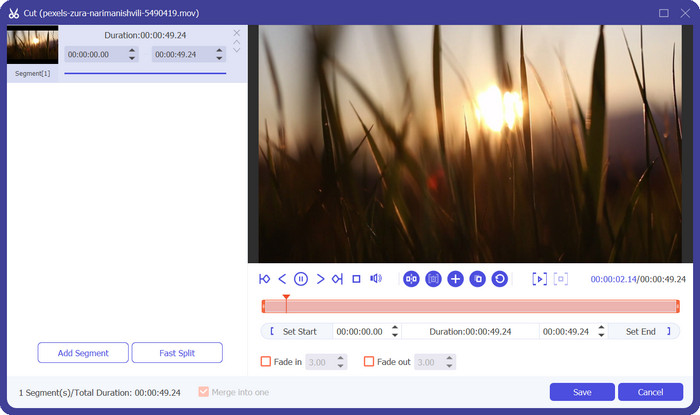
Videonun bazı kısımlarını kesmek isterseniz, Kes düğmesini işaretleyin. Şimdi, GIF’inizde kullanmak istediğiniz video bölümünü seçmek için kaydırma çubuğunu kullanın veya belirli başlangıç ve bitiş sürelerini girin. Sonraki adımda, çıktı boyutu, kare hızı ve kalite dahil olmak üzere GIF ayarlarını özelleştirin. Ayrıca Düzenle düğmesine tıklayarak GIF’e metin veya çıkartmalar ekleyebilirsiniz.
Adım 4. MOV’u GIF’e dönüştürün
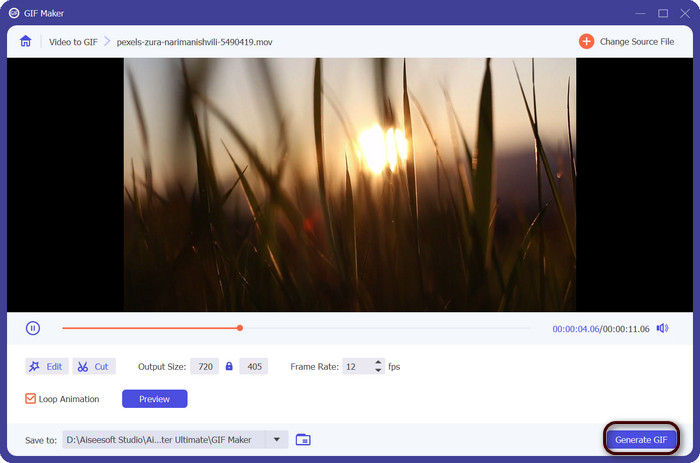
GIF’in istediğiniz gibi göründüğünden emin olmak için önizleyin. GIF’inizi oluşturmak için GIF Oluştur düğmesine tıklayın. GIF, çıktı ayarlarında belirttiğiniz konuma bilgisayarınıza kaydedilecektir.
2. FFmpeg
FFmpeg, geliştiricilere, medya uzmanlarına ve amatörlere ses ve video dosyalarıyla çalışmak için çeşitli özellikler sağlayan çok yönlü ve güçlü bir yazılım aracıdır. Platformlar arası uyumluluğu ile farklı işletim sistemlerinde kullanabileceğiniz FFmpeg, esneklik ve çok yönlülük gerektiren projeler için ideal bir çözümdür. FFmpeg'in göze çarpan özelliklerinden biri, MP4, MOV, AVI ve daha fazlası gibi popüler formatlar dahil olmak üzere çeşitli ses ve video dosyası formatlarıyla başa çıkabilmesidir. Aşağıdaki talimatları kullanarak MOV'u GIF'e nasıl dönüştüreceğinizi öğrenin.
Öne Çıkan Özellikler:
◆ Dönüştürme ve kod dönüştürme.
◆ Çok çeşitli video ve ses formatları için destek.
◆ Akış ve yayın.
◆ Komut satırı arabirimi.
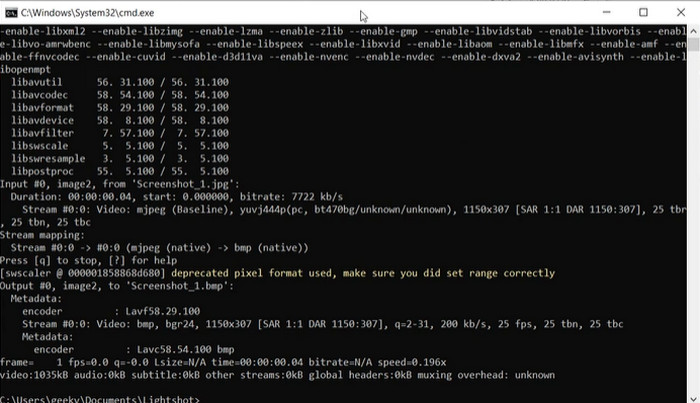
Adım 1. Bilgisayarınızda bir komut istemi veya terminal penceresi açın. Ardından, FFmpeg ile MOV’dan GIF’e dönüştürme işlemini başlatmak için MOV dosyanızın bulunduğu dizine gidin.
Adım 2. Şu komutu girin: ffmpeg -i input.mov output.gif. Burada input.mov değerini MOV dosyanızın adıyla, output.gif değerini ise GIF dosyanız için istediğiniz adla değiştirin. İsteğe bağlı olarak, komuta ek bayraklar ekleyerek çıktıyı özelleştirebilirsiniz. Örneğin, çıktı GIF’inin kare hızını -r bayrağıyla ayarlayabilirsiniz; şu şekilde: ffmpeg -i input.mov -r 10 output.gif. Bu, kare hızını saniyede 10 kareye ayarlayacaktır.
Adım 3. Komutu çalıştırmak için Enter tuşuna basın. FFmpeg, MOV dosyanızı GIF’e dönüştürecek ve ortaya çıkan dosya, giriş dosyanızla aynı dizine kaydedilecektir. MOV dosyasını GIF’e bu şekilde dönüştürebilirsiniz.
3. Photoshop
Adobe Systems'in Photoshop'u, dijital görüntüleri düzenlemek ve tasarlamak için endüstri standardı bir yazılımdır. Fotoğrafçılık, grafik tasarım ve sanat alanlarındaki çok sayıda profesyonel, dijital fotoğraflar, grafikler ve sanat eserleri oluşturmak ve değiştirmek için buna güveniyor. Neyse ki, Photoshop'un birçok aracı, MOV videolarını GIF'lere dönüştürmeyi kolaylaştırır. Öne çıkan özelliklerden bazıları şunlardır:
Öne Çıkan Özellikler:
◆ Video dosyalarını içe aktarmak için video zaman çizelgesi özelliği.
◆ GIF'leri farklı boyut ve çözünürlüklerde dışa aktarın.
◆ Bir animasyon paneliyle kare kare animasyonlar oluşturun.
Adım 1. Bilgisayarınızda Photoshop’u açın ve Dosya > İçe Aktar > Video Karelerini Katmanlara yolunu izleyin. Video Katmanlara Aktar iletişim kutusunda MOV dosyanızı seçin ve Aç’a tıklayın.
Adım 2. Video Katmanı iletişim kutusunda, videonun tamamını kullanmak istiyorsanız Baştan Sona seçeneğini, yalnızca bir kısmını kullanmak istiyorsanız Yalnızca Seçilen Aralık seçeneğini işaretleyin. Ardından Tamam’a tıklayın.
Adım 3. Photoshop, video karelerini katmanlar olarak içe aktaracaktır. Animasyon panelini açmak için Pencere > Zaman Çizelgesi yolunu izleyin. Animasyon panelinde Kare Animasyonu Oluştur düğmesine tıklayın.
Adım 4. Animasyon panelinin sağ üst köşesindeki menü simgesine tıklayın ve Katmanlardan Kareler Yap seçeneğini seçin. Animasyon panelinde, her karenin altındaki süreye tıklayıp yeni bir değer girerek karelerin süresini ayarlayabilirsiniz.
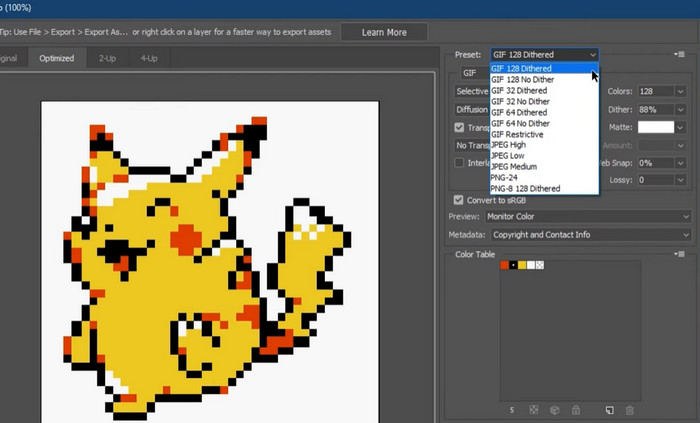
Adım 5. GIF’inizden memnun kaldığınızda, Dosya > Dışa Aktar > Web için Kaydet (Eski) yolunu izleyin. Web için Kaydet iletişim kutusunda dosya türü olarak GIF seçeneğini belirleyin. Boyut, renk paleti ve optimizasyon seçenekleri gibi ayarları tercihinize göre düzenleyin. GIF’i kaydetmek için Kaydet’e tıklayın. Photoshop’ta MOV’u GIF olarak bu şekilde dışa aktarabilirsiniz.
Bölüm 2. MOV'u Çevrimiçi GIF'e Dönüştür
Dosyaları dönüştürmek için çevrimiçi programları kullanmak, herhangi bir yazılım yüklemeye veya karmaşık arayüzlerde gezinmeye gerek kalmadan dosyaları dönüştürmenin kolay ve erişilebilir bir yolunu sunar. Hangi programı kullanacağınızı merak ediyorsanız, aşağıdaki en iyi MOV'dan GIF'e çevrimiçi dönüştürücülere göz atabilirsiniz.
1. Ücretsiz Çevrimiçi Video Dönüştürücü
FVC tarafından sunulan Ücretsiz Çevrimiçi Video Dönüştürücü, kullanıcıların video dosyalarını hızlı ve kolay dönüştürmesine olanak tanıyan basit ve kullanıcı dostu bir arayüz sunar. Kullanıcılar giriş dosyasını seçip istedikleri çıktı formatını ve kalitesini belirleyebilirler. Araç ayrıca video çözünürlüğü, bit hızı ve kare hızı gibi çeşitli ayarların özelleştirilmesine de imkân tanır.
Adım 1. Bir web tarayıcısı açarak FVC Free Video Converter Online web sitesine gidin.
Dosyaları toplu dönüştürmek için Masaüstü Sürümü indirin.
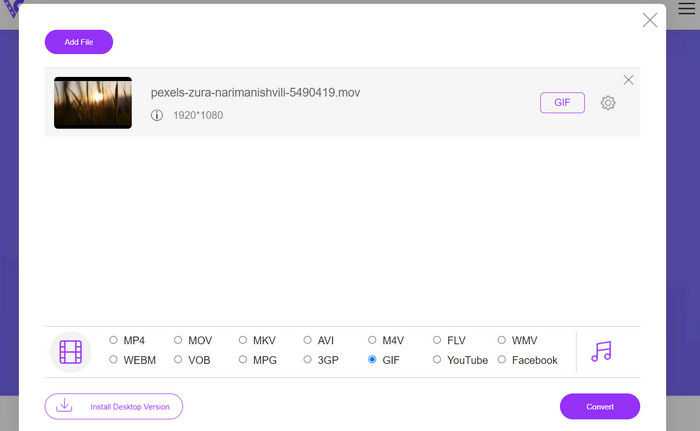
Adım 2. Ardından, dönüştürmek istediğiniz MOV video dosyasını yüklemek için Dönüştürülecek Dosyaları Ekle düğmesine tıklayın. Dosyayı ayrılmış alana sürükleyip bırakabilirsiniz de.
Adım 3. Çıkış formatını seçmek için GIF radyo düğmesini işaretleyin. Dönüştürme işlemini başlatmak için Dönüştür düğmesine basın.
2. CloudConvert
CloudConvert, kullanıcıların videolar, resimler, belgeler ve daha fazlası dahil olmak üzere çeşitli dosya türlerini dönüştürmesine olanak tanıyan bir çevrimiçi dosya dönüştürme web uygulamasıdır. MP4, MOV, GIF ve diğerleri gibi popüler formatlar dahil olmak üzere 200'den fazla dosya formatını destekleyen çok çeşitli dönüştürme seçenekleri sunar.
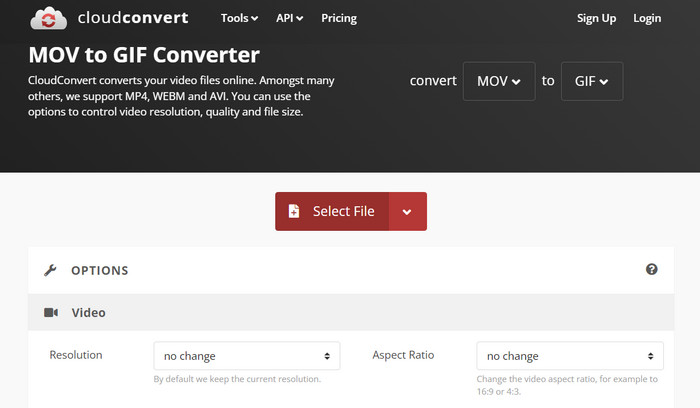
Adım 1. MOV’dan GIF’e dönüştürme için CloudConvert’i kullanmak üzere bir web tarayıcısı açın ve CloudConvert web sitesine gidin. MOV dosyanızı yüklemek için Dosya Seç düğmesine tıklayın.
Adım 2. Dosya yüklendikten sonra, açılır menüden çıktı formatı olarak GIF seçeneğini işaretleyin. İsteğe bağlı olarak kare hızı ve görüntü boyutu gibi çıktı ayarlarını özelleştirebilirsiniz.
Adım 3. Dönüştürme işlemini başlatmak için Dönüştür düğmesine tıklayın. İşlem tamamlandığında, dönüştürülen GIF dosyasını bilgisayarınıza indirebilirsiniz. Bu çevrimiçi, ücretsiz MOV’dan GIF’e dönüştürücünün çalışma şekli budur.
3. EZGIF
EZGIF, GIF'lerle çalışmak için çok çeşitli seçenekler sunan esnek bir web uygulamasıdır. Program, video dosyalarından, hareketsiz fotoğraflardan ve hatta diğer GIF'lerden GIF oluşturmak, düzenlemek ve optimize etmek için ücretsiz bir kaynaktır. EZGIF'in video dosyalarını hızla GIF'lere dönüştürme yeteneği, en çekici satış noktalarından biridir. Kullanıcılar videoları MP4, AVI veya MOV gibi formatlarda yükleyebilir ve kare hızı ve görüntü boyutu gibi kendi beğenilerine göre ayarlayabilecekleri ayarlarla GIF'lere dönüştürebilirler. Aşağıdaki adımları izleyerek MOV'dan GIF'e dönüştürme için EZGIF'i kullanın.
Adım 1. Web tarayıcınızı başlatın ve videonuzu animasyonlu GIF’e dönüştürmek için EZGIF sitesine gidin.
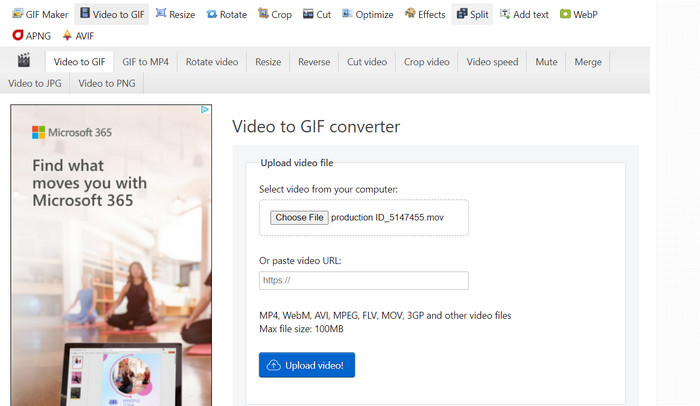
Adım 2. Bir MOV dosyasını GIF’e dönüştürmek için sadece Dosya Seç düğmesine tıklayın ve dönüştürmek istediğiniz dosyayı bulun.
Adım 3. Dosya yüklendikten sonra, GIF için başlangıç ve bitiş zamanlarını ayarlamak için sunulan kaydırıcıları kullanın. Ayrıca GIF’in boyutunu ve altyazısını da değiştirebilirsiniz. Dönüştürmeyi başlatmak için GIF’e Dönüştür seçeneğini belirleyin.
Daha Fazla Okuma
[Ücretsiz ve Çevrimiçi] MOV’u MP4’e Dönüştürmenin 4 Yöntemi
Windows ve Mac’te En İyi Animasyonlu GIF Döngüleyici ile GIF Döngüye Alma
MOV ve GIF
MOV formatı bir film, TV programı, kısa video klip veya ev filmi depolamak için kullanılabilir. Aslında 1991'de Apple tarafından tanıtılan QuickTime Dosya Formatında (QTFF) kaydedilmiştir. MOV dosyaları genellikle insanlar bir videoyu yüksek kalitede kaydetmek istediğinde kullanılır.
GIF, web grafikleri için yaygın bir görüntü formatıdır. Küçük resimleri ve metin içeren resimleri kaydetmenin yanı sıra GIF, web sitelerinde temel animasyonları da içerebilir ve görüntüleyebilir. Kayıpsız bir formattır ve GIF sıkıştırması görüntü netliğini bozmaz.
Bölüm 3. MOV'dan GIF'e dönüştürme hakkında SSS
Bir MOV'u GIF'e dönüştürürken hangi ayarları kullanmalıyım?
Bir MOV'u GIF'e dönüştürürken kullanmanız gereken ayarlar, özel ihtiyaçlarınıza bağlı olacaktır. Genel olarak, GIF'i kullanım amacınıza göre optimize etmek için kare hızını, görüntü boyutunu ve renk derinliğini ayarlamak isteyeceksiniz.
Bir MOV dosyasının bir bölümünü GIF'e dönüştürebilir miyim?
Evet, çoğu araç bir MOV dosyasının belirli bir bölümünü GIF'e dönüştürmek için seçmenize izin verir. Bu, yalnızca isterseniz yararlı olabilir
MOV dosyalarından oluşturulan GIF'lerin bazı yaygın kullanımları nelerdir?
MOV dosyalarından oluşturulan GIF'ler, sosyal medya gönderileri, web sitesi animasyonları ve e-posta pazarlama kampanyaları dahil olmak üzere çok çeşitli amaçlar için kullanılabilir.
Sonuç
MOV’dan GIF’e dönüştürme, sosyal medya için ilgi çekici içerikler oluşturmaktan ürün özelliklerini göstermeye veya öğretici hazırlamaya kadar çok çeşitli amaçlar için faydalı bir işlemdir. Bu dönüştürmeyi gerçekleştirmek için EZGIF ve CloudConvert gibi çevrimiçi araçlardan, Photoshop ve Adobe After Effects gibi daha gelişmiş masaüstü uygulamalarına kadar pek çok araç mevcuttur.
-
 Görüntüyü Animasyonlu GIF Olarak Değiştirmenin En İyi 5 Yolu [Güncellenmiş 2023]
 GIF'e dönüştürücü bir resme mi ihtiyacınız var? Bu makale, piyasada bulabileceğimiz en iyi beş dönüştürücüyü sağlayacaktır. Öyleyse, bu makaleyi okuyarak bu araçları öğrenelim.
-
 Bu İnanılmaz Dönüştürücüleri Kullanarak MOV'u WMV'ye Kolayca Dönüştürün
 MOV dosyanızı WMV dosyasına dönüştürmek ister misiniz? Kullanmanızı önerdiğimiz bu çevrimiçi ve çevrimdışı dönüştürücüleri kullanarak MOV'u WMV'ye kolayca dönüştürmenin basit yolları burada.
-
 İçeriğinizi Renklendirmek İçin GIF'leri Nasıl Keseceğinize İlişkin En İyi Kılavuz
 Mutlaka okunması gereken bu kılavuzu kaçırmayın. Çevrimiçi ve çevrimdışı harika GIF kesicilerle hedef kitlenizin dikkatini çekmek için GIF'leri nasıl kırpacağınızı ve keseceğinizi öğrenin.
