


 Video Dönüştürücü Ultimate
 Ekran kaydedicisi
 Video Onarımı
 Güvenli İndirme
Bu Harika Araçlarla Ateşe Dayanıklı Filigranı Profesyonelce Kaldırın
Shootproof, bir müşteri fotoğraf galerisi ve portföy web sitesidir. Çevrim içi olarak harika görseller arıyorsanız, Shootproof bu konuda size yardımcı olabilir. Bu site, satıcıların ürettiği tonlarca güzel görsel sunar. Shootproof, fotoğrafçılar için bilinen bir galeri paylaşım platformudur. Ayrıca fotoğrafçıların fotoğrafları için çevrim içi bir mağaza oluşturmasına da imkân tanır. Ancak birçok satıcı, başkalarının görselleri kolayca sahiplenmesini engellemek için fotoğraflarına filigran ekler. Bu nedenle, siz de Shootproof filigranını kaldırma yolunu arayan kullanıcılardan biriyseniz, bu yazıyı okumaya devam edin.

Bölüm 1. Sürtünmeye Dayanıklı Filigranı Zahmetsizce Kaldırma Üzerine 2 Yöntem
Uygun bir filigran çıkarıcınız varsa, Shootproof filigranını kaldırmak zor değildir. Ve en iyi filigran çıkarıcıyı seçmenize yardımcı olmak için çevrimiçi olarak en çok kullanılan ücretsiz filigran çıkarıcıyı aradık. Bu aracı bilmek için, bu bölümü her şey dahil olarak okuyun.
FVC Ücretsiz Filigran Sökücü
FVC Free Watermark Remover, bilinen çevrim içi filigran kaldırma araçları arasında yer alır. Bu çevrim içi uygulama ücretsizdir ve güvenle kullanılabilir. Ayrıca Google, Firefox ve Safari gibi tüm web tarayıcılarından erişilebilir. PNG, JPEG, JPG, BMP ve daha fazlası dâhil olmak üzere standart görüntü formatlarını destekler. Filigran kaldırma özelliğinde ise, görselinizdeki filigranı kaldırmak için farklı seçim araçları arasından seçim yapabilirsiniz.
Ayrıca, kullanımı kolay olduğu için birçok yeni başlayan bu filigran sökücüyü kullanabilir. Ayrıca, resminizi dışa aktardığınızda orijinal dosya biçimine sahip olacaktır. Bu araç ayrıca oturum açmanızı veya kaydolmanızı gerektirmez.
FVC Free Watermark Remover kullanarak Shootproof filigranı nasıl kaldırılır:
Adım 1. Önce tarayıcınızı açın ve arama kutusuna FVC Free Watermark Remover yazın.
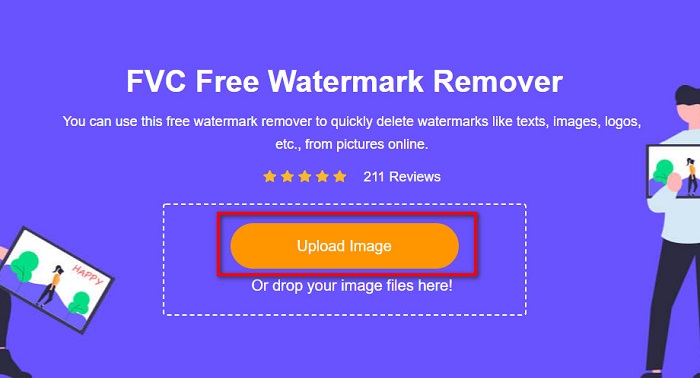
Adım 2. Ardından, kaldırmak istediğiniz filigranı içeren görseli yüklemek için ana arayüzdeki Upload Image düğmesine tıklayın.
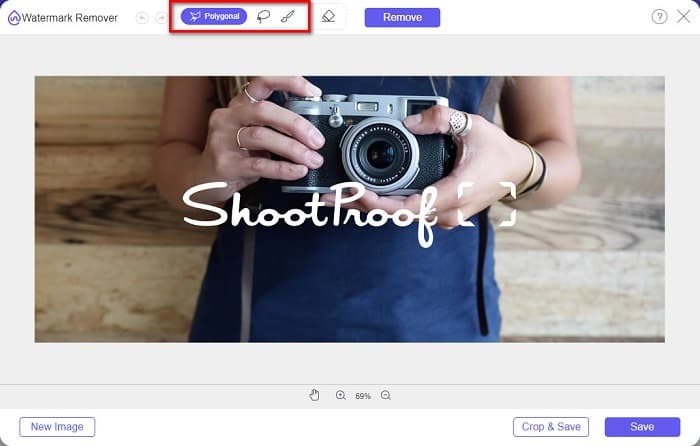
Adım 3. Sonra, görselinizdeki filigranı kaldırmak için kullanmak istediğiniz seçim aracını seçin. Polygonal, Lasso ve Brush arasından seçim yapabilirsiniz.
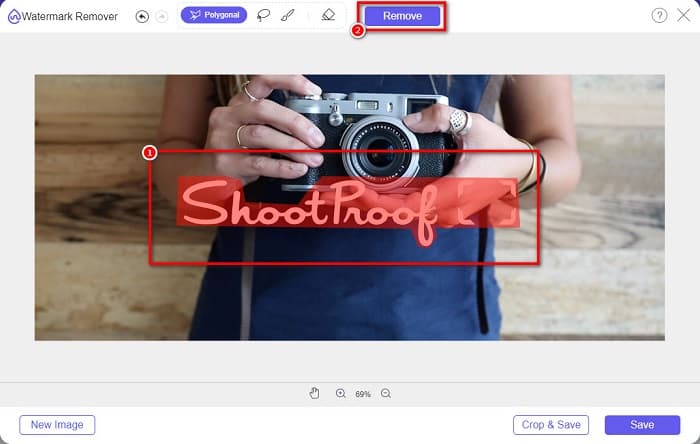
Adım 4. Daha sonra, görselinizdeki filigranın bulunduğu alanı işaretleyin. Seçtikten sonra Remove düğmesine tıklayın. Filigranın artık kaybolduğunu göreceksiniz.
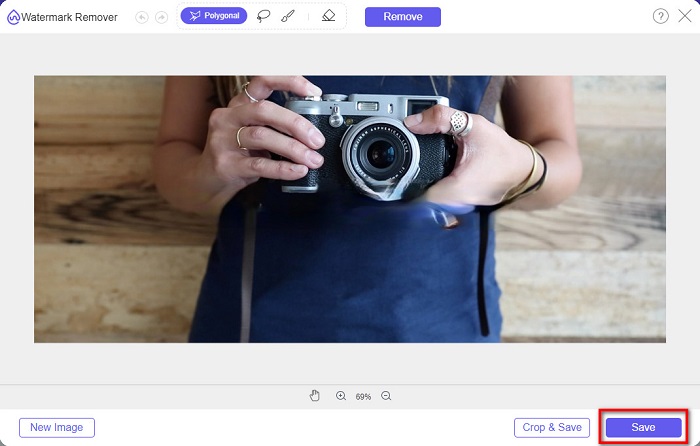
Adım 5. Son olarak, çıktınızı cihazınıza kaydetmek için Save düğmesine tıklayın. Hepsi bu kadar! Bu basit adımlarla, filigransız bir Shootproof görseline sahip olabilirsiniz.
Apowersoft Çevrimiçi Filigran Kaldırıcı
Apowersoft Online Watermark Remover, görsellerinizdeki herhangi bir filigranı kaldırmak için bilinen bir çevrim içi uygulamadır. Sezgisel bir arayüze sahip olduğu için kullanıcı dostu bir çevrim içi araçtır. Ayrıca PNG ve JPG gibi en yaygın görüntü formatlarını destekler. Bu çevrim içi aracı kullanırken dosyalarınızın güvenliği konusunda endişelenmenize gerek yoktur; kullanımı güvenlidir. Bunun yanında, videolardaki filigranları kaldırma işlevi de vardır. Ancak internet bağlantınız yavaşsa yükleme ve dışa aktarma sürecinde yavaşlık yaşayabilirsiniz.
Apowersoft Online Watermark Remover kullanarak Shootproof filigranı nasıl kaldırılır:
Adım 1. Tarayıcınızda Apowersoft Online Watermark Remover araması yapın, ardından ana sayfalarına gidin. Ana arayüzde Remove Watermark From Image seçeneğine tıklayın.
Adım 2. Sonraki arayüzde bir watermark remover box (filigran kaldırma kutusu) göreceksiniz ve bunu filigranlı alanın üzerine yerleştirin.
Adım 3. Görselinizdeki filigranı kaldırmak için Erase düğmesine tıklayın.
Bölüm 2. Ateşe Dayanıklı Filigran Özelliğini Kullanmaya İlişkin İpuçları
Shootproof'un filigran özelliğini kullanarak resminize filigran ekleyebilir ve kaldırabilirsiniz. Diğer kullanıcıların fotoğrafınıza sahip olmasını önlemek istiyorsanız, resminize filigran görevi gören metin ekleyebilirsiniz.
Shootproof'a filigran nasıl eklenir:
Adım 1. Photos bölümüne gidin, ardından Watermarks seçeneğine tıklayın.
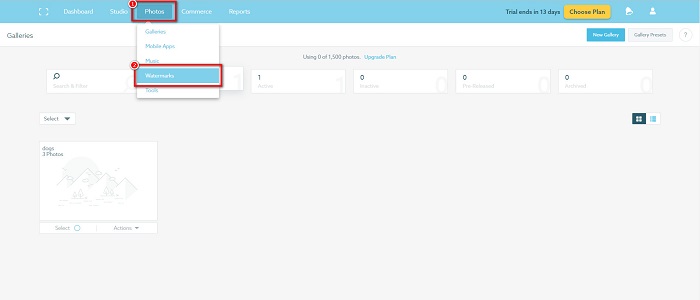
Adım 2. Sonrasında, metin veya görsel filigran arasında seçim yapın.
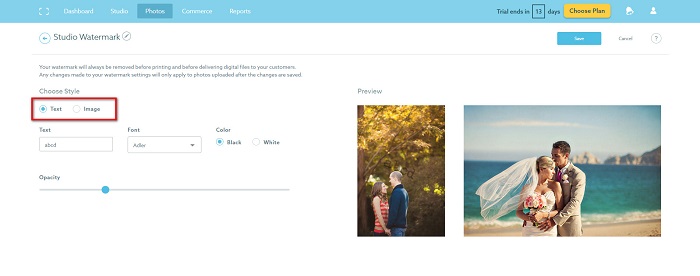
Resim filigranını kullanmak istiyorsanız, şeffaf bir arka plana sahip yüksek çözünürlüklü bir PNG dosyası yüklemeniz önerilir. JPG dosyalarını da kullanabilirsiniz.
Adım 3. Ardından, Watermark Settings (Filigran Ayarları) kısmını düzenleyin. Filigran Ayarları’nda, filigranın fotoğrafınızdaki konumunu seçebilirsiniz. Ayrıca filigranın boyutunu ve opaklığını da ayarlayabilirsiniz.
Adım 4. Son olarak, yaptığınız ayar değişikliklerini uygulamak için Save düğmesine tıklayın.
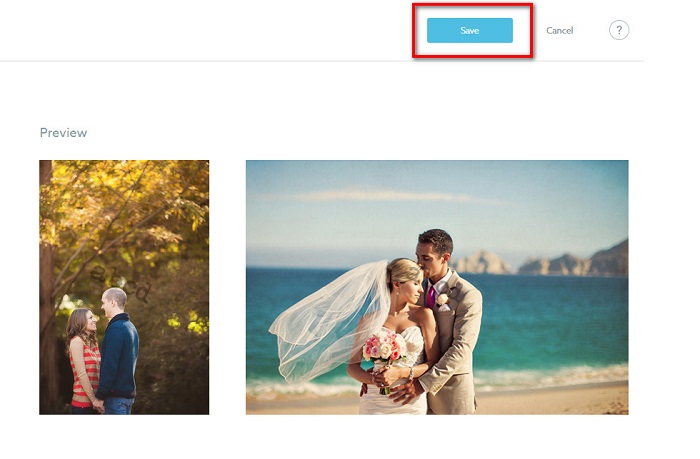
Yüklediğiniz resimlere bir filigran uygulayın.
Filigran sayfasında, bir Varsayılan Filigran seçebilirsiniz. Ayrıca gelecekteki tüm yüklemeleriniz için filigranları da açabilirsiniz. Yeni resimler yüklemeden önce bunu değiştirebilirsiniz.
Web tabanlı yükleyici veya Masaüstü Yükleyici aracılığıyla galerinize yeni fotoğraflar yüklediğinizde, yükleme ekranında kullanmak istediğiniz filigranı seçebilirsiniz.
Shootproof'ta filigran nasıl kaldırılır
Mevcut bir filigranı düzenlemenin veya eklemenin yalnızca gelecekteki yüklemelerinizi etkileyeceğini daima unutmayın. Yaptığınız değişiklikler galerinizde bulunan resimleri etkilemeyecektir. Ancak filigranı değiştirmek veya Shootproof filigranı kaldırmak isterseniz, galerinizde güncellemek için filigranı yenileyebilirsiniz. Shootproof filigranını nasıl kaldırabileceğiniz veya değiştirebileceğiniz aşağıda açıklanmıştır.
Adım 1. Photos > Galleries yolunu izleyin, ardından galerinizin üzerine tıklayın.
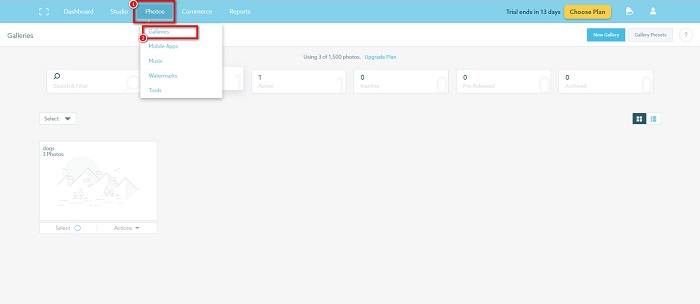
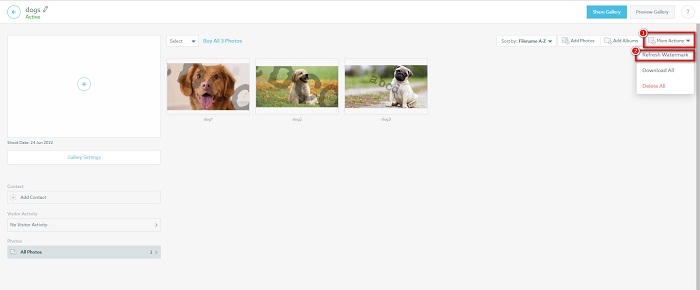
Adım 2. Galeride, arayüzün sağ üst köşesindeki More Actions düğmesine tıklayın.
Adım 3. Sonra, yüklediğiniz her görseldeki filigranları kaldırmak için Refresh Watermark seçeneğini belirleyin.
Adım 4. Filigranı kaldırmak için, kaydırma çubuğunu kapalı konuma getirin. Yalnızca filigranı değiştirmek istiyorsanız, New Watermark seçeneğini seçin.
Adım 5. Son olarak, yaptığınız değişiklikleri kaydetmek için Apply Change seçeneğine tıklayın.
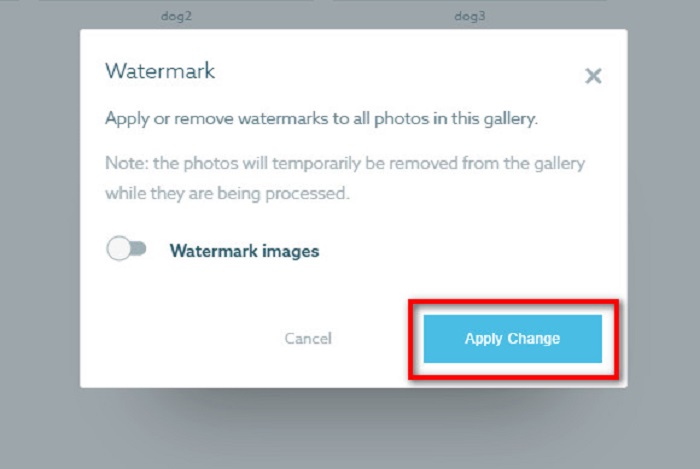
Fotoğrafların otomatik olarak işleniyor olarak görüntüleneceğini göreceksiniz. Değişiklikler uygulandığında resimlerin galerinize döneceğini göreceksiniz.
İlgili:
Kaçırmamanız Gereken Öne Çıkan Arnold Maya Filigran Kaldırıcılar
123rf Filigran Kaldırıcılar – Nihai Araçların Ayrıntılı İncelemesi
Bölüm 3. Shootproof Remove Filigranı hakkında SSS
Dijital filigranları kaldırabilir misiniz?
Görünmez dijital filigranları kaldırmak zordur. Örneğin, Digimarc Photoshop eklentisi tarafından gömülü olanları kaldırmak zordur. Kırpma, yeniden boyutlandırma, parazit ekleme ve orta düzeyde bulanıklaştırma dijital filigranlarla çalışmayabilir.
Bir videodan logo filigranını kaldırabilir misiniz?
Evet. Videonuzdaki bir logo filigranını kaldırmak mümkündür. Birçok filigran kaldırıcı, videolarınızdaki logoları kaldırmanıza olanak tanır. Videonuzdaki bir logoyu kaldırmak istiyorsanız Video Converter Ultimate'ı kullanın.
Bir ekran görüntüsü alırsanız Shootproof gösteriyor mu?
Shootproof, satıcının fotoğraflarını korumak için çeşitli önlemler alır. Ancak Shootproof, insanların galerinizdeki görselinizin ekran görüntüsünü almasını engelleyemez.
Sonuç
Hepsi bu kadar! Yukarıda belirtilen yöntemleri uygulayarak artık görselinizden Shootproof filigranını kaldırabilirsiniz. Shootproof üzerindeki filigranı kaldırmak ücretsiz olsa da, süreci takip etmek biraz zor olabilir. Bu nedenle, görselinizdeki Shootproof filigranını kolayca kaldırmak istiyorsanız, FVC Free Watermark Remover kullanın.
-
 Olağanüstü Photobucket Filigran Sökücü Çevrimiçi ve Çevrimdışı
 Bu harika Photobucket filigran çıkarıcıyı kullanarak Photobucket filigranını fotoğraflarınızdan nasıl çıkaracağınızı öğrenin. Yolları öğrenmek için bu makaleyi okuyun.
-
 Basit Adımlarla PDF'den Filigranı Kolayca Kaldırın
 Bu basit adımları izleyerek Filigranı PDF'den kaldırın. Bu harika araçları kullanarak PDF dosyanızdan filigranları nasıl kolayca kaldıracağınızı öğrenin.
-
 Mezuniyet Fotoğraflarından Filigranı Kaldırmanın Kolay Yolları
 Mezuniyet fotoğraflarından filigranları kaldırmanın en iyi yollarını bilmek ister misiniz? Bu makaleyi okuyarak, dereceli resimlerdeki filigranların nasıl kolayca kaldırılacağını öğrenebileceksiniz.
