


 Video Dönüştürücü Ultimate
 Ekran kaydedicisi
 Video Onarımı
 Güvenli İndirme
MP4 Dosyalarını Tıklamalarla MKV'ye Dönüştürmek için 4 En İyi Ücretsiz MP4 - MKV Dönüştürücüler
Bir MP4 videoya altyazı eklemek istiyorsanız, bunun yerine MP4'ü MKV'ye dönüştürseniz iyi olur. MKV, sınırsız sayıda ses, resim ve altyazı parçasını destekleyen bir Matroska video dosyasıdır. MP4'ü MKV dosyalarına dönüştürmek zor değil. Makaleden en iyi 4 yöntem hakkında daha fazla bilgi edinebilirsiniz. Dahası, altyazıları eklemek ve videoyu bilmeniz gereken kolaylıkla düzenlemek için mükemmel bir yöntem.

Bölüm 1: 3 MP4'ü MKV'ye Dönüştürmenin En İyi Yöntemleri
İlk 1: MP4'ü MKV'ye Çevrimiçi Ücretsiz Olarak Dönüştürme
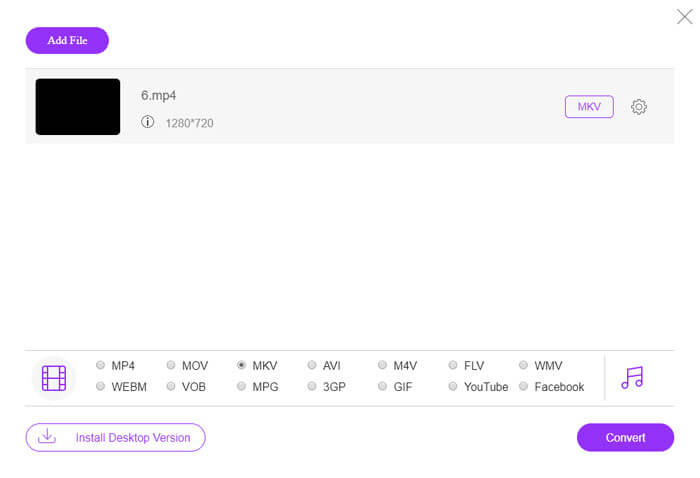
MP4 dosyalarını çevrimiçi olarak MKV’ye dönüştürmek istediğinizde, FVC Free Online Video Converter, MP4, MKV ve daha fazlası gibi çoğu video formatını ücretsiz dönüştürebilen çok yönlü bir video dönüştürücüdür. Ayrıca çıktı için video ve ses ayarlarını ince ayar yapmanızı sağlar. Dahası, toplu dönüştürmeyi destekler; böylece bir grup video veya sesi kolaylıkla dönüştürebilirsiniz.
- 1. MP4'ü MKV, AVI, FLV ve diğer medya formatlarına / ön ayarlarına dönüştürün.
- 2. Video kodekini, kare hızını, video formatını ve video formatını ayarlayın.
- 3. Dönüştürme, filigran veya başka bir kısıtlama olmaksızın basittir.
- 4. MP4'ü 3 adımda MKV dosyalarına dönüştürmek için kolay bir arayüz sağlayın.
Adım 1. FVC Free Online Video Converter sitesine gidin; buradan programa MP4 dosyasını eklemek için Add Files to Convert düğmesine tıklayabilirsiniz. Çevrimiçi MP4’ten MKV’ye dönüştürücüyü ilk kez kullanıyorsanız, önceden yükleyiciyi indirmeniz gerekir.
Dosyaları toplu dönüştürmek için Masaüstü Sürümü indirin.

Adım 2. MP4 videoları içe aktardıktan sonra, çıkış formatı olarak MKV seçeneğini belirleyebilirsiniz. Video kodlayıcı, kare hızı, çözünürlük ve diğer ayarlar gibi video ve ses ayarlarını yapılandırmak için Gear simgesine tıklayabilirsiniz.

Adım 3. Bundan sonra, MP4'ü istediğiniz kalitede MKV’ye dönüştürmek için Convert düğmesine tıklayabilirsiniz. Bilgisayarınızda istediğiniz MKV dosyasını elde etmeniz sadece birkaç saniye sürer. Videoyu bilgisayarınıza kaydetmeden önce çıktıyı önizleyebilirsiniz.
İlk 2: MP4'ü VLC Media Player ile MKV'ye Dönüştürme
VLC Media Player, MKV dosyaları için bir medya oynatıcı olmanın ötesinde, çoğu video ve ses formatı için kendi codec setine de sahiptir. Çıktı olarak MKV seçeneğiniz yoksa, aşağıda açıklandığı gibi VLC ile MP4’ü MKV dosyalarına dönüştürmek için bazı eklentileri de arayabilirsiniz.
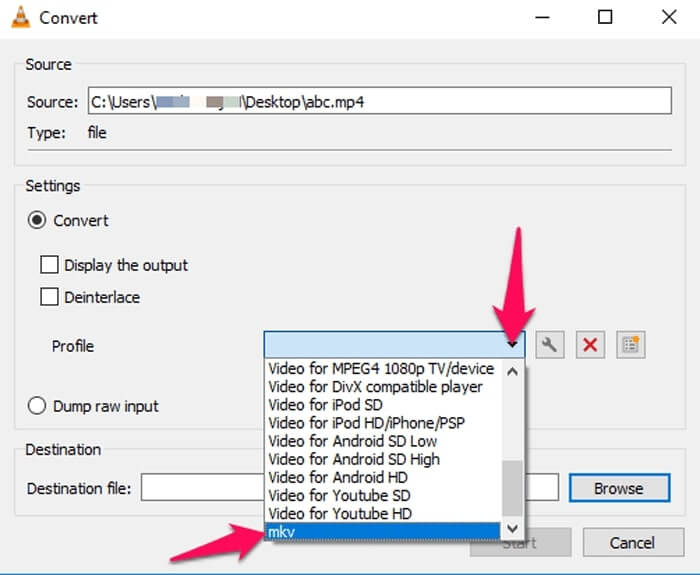
Adım 1. VLC Media Player’ı başlatın ve programı bilgisayarınızda açın. Media menüsüne tıklayın ve MP4 dosyasını içe aktarmak için Convert/Save... seçeneğini seçin.
Adım 2. Open Media penceresinde, File seçeneğine ve ardından Add simgesine tıklayın. Klasörünüzden MP4 dosyasını seçin. Ardından, Convert/Save açılır menüsünden Convert düğmesini seçin.
Adım 3. Bundan sonra, çıktı formatı olarak MKV’yi seçebilirsiniz. Dönüştürülen dosya için bir hedef konum belirlemek üzere Browse seçeneğine tıklayın. Ardından MP4'ü MKV’ye dönüştürmek için Start seçeneğini seçin.
İlk 3: MP4'ü Bir URL'den MKV'ye Dönüştürme
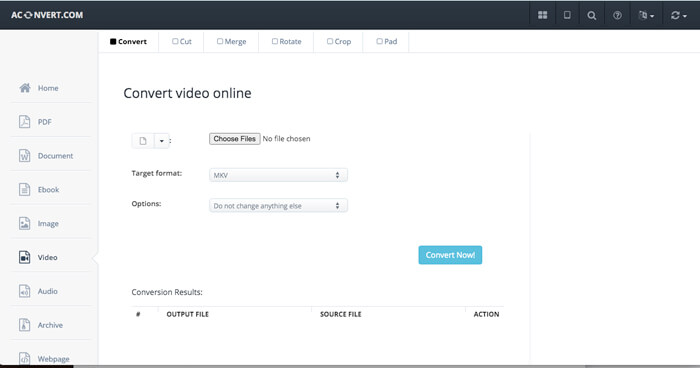
Çevrimiçi bir MP4'ü doğrudan MKV'ye dönüştürmek mümkün mü? AConvert, istediğiniz formata dönüştürmek için videonun URL'sini girebileceğiniz MKV çevrimiçi dönüştürücüye bir dizi videoya sahiptir. Tabii ki, video ayarlarını değiştirmenize de olanak tanır.
Adım 1. Herhangi bir tarayıcıda aconvert.com’a gidin, sol üst köşedeki Convert menüsünü seçebilirsiniz. Açılır listeden Online File seçeneğini belirlemek için oka tıklayın.
Adım 2. Target format olarak MKV formatını seçin. Ardından MP4'ü MKV’ye dönüştürürken video boyutu, video bit hızı, kare hızı, görüntü oranı ve diğer ayarları düzenlemek için Options düğmesine tıklayın.
Adım 3. Ardından, toplu dönüştürmeyi başlatmak için Convert Now! düğmesine tıklayın. Çıktı dosyaları, bilgisayarınıza indirebileceğiniz Conversion Results bölümünde listelenecektir.
Bölüm 2: MP4'ü MKV'ye Dönüştürmenin Nihai Yöntemi
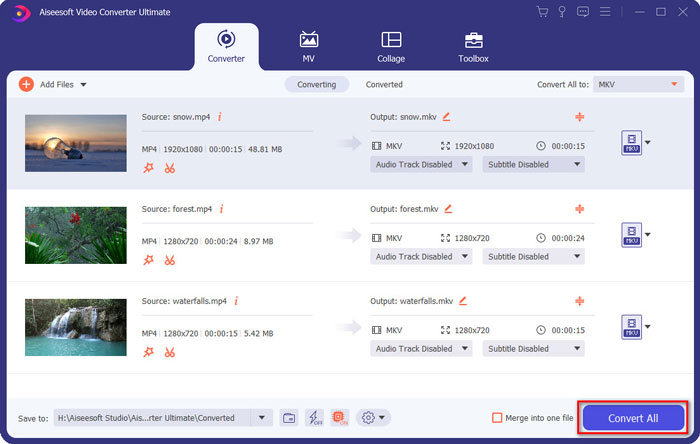
MP4'ü doğrudan altyazılı MKV'ye dönüştürmenin bir yöntemi var mı? FVC Video Converter Ultimate, video / ses ayarlarını değiştirmenize, video dosyalarını düzenlemenize, altyazı / ses parçası eklemenize ve hatta DVD'den dosyaları kolaylıkla kopyalamanıza olanak tanıyan nihai bir MP4'ten MKV'ye dönüştürücüdür.
- 1. MP4'ü orijinal kalitede toplu işlemde MKV'ye dönüştürün.
- 2. Kare hızını, video kalitesini, video kodunu ve diğerlerini değiştirin.
- 3. Videoları klip ile düzenleyin, döndürün, kırpın, kesin, sıkıştırın, video filtreleri vb.
- 4. Herhangi bir 4K / 1080p HD video formatı ve DVD dosyası için yerleşik medya oynatıcı.
Ücretsiz İndirWindows 7 veya üstü içinGüvenli İndirme
Ücretsiz İndirMacOS 10.7 veya üstü içinGüvenli İndirme
Adım 1. Programı bilgisayarınıza indirip yükledikten sonra, Add File seçeneğine tıklayabilir ve Add File veya Add Folders seçeneklerini belirleyebilir ya da birden fazla video ve ses dosyasını doğrudan bu programa sürükleyip bırakabilirsiniz.

Adım 2. Ardından, çıktı olarak MKV dosyasını seçebilir ve çözünürlük, kare hızı, ses codec’i ve diğer ayarlar gibi profil ayarlarını ihtiyacınıza göre düzenleyebilirsiniz.

Adım 3. Altyazı veya ses parçası eklemeniz gerektiğinde, MP4'ü MKV’ye dönüştürmek için Convert All düğmesine tıklamadan önce, istediğiniz altyazıyı veya ses kanalını seçmek için ses kanalı veya altyazı bölümüne tıklayabilirsiniz.
MP4 ve MKV
2001 yılında Moving Picture Experts Group (MPEG) tarafından piyasaya sürülen MP4 formatı, video, ses, altyazı ve görüntü verilerini ayrı parçalarda kaydetmenize yardımcı olabilir. MPEG-4 Part 14'ün kısaltmasıdır. Ayrıca, video akışı ve paylaşımı için kullanılan en popüler formatlardan biridir.
2002'de piyasaya sürülen Matroska multimedya kap formatı, bir dizi video, ses, görüntü ve altyazı parçasını içerebilen açık kaynaklı bir formattır. Böylece kısa video klipleri, TV şovlarını ve filmleri kolayca saklamak için kullanabilirsiniz. Anime hayran aboneliği için oldukça popülerdir.
Bölüm 3: MP4'ü MKV'ye Dönüştürme Hakkında SSS
1. MKV'nin Avantajı Nedir?
MP4 dosya formatına benzer şekilde, MKV başka bir genel kapsayıcı formatıdır. Her biri farklı sıkıştırma formatı kullanan birkaç farklı parça tutabilir. SRT, PGS / SUP, VobSub ve SSA gibi altyazıları düzenleyebilirsiniz. MP4'ü MKV'ye dönüştürdüğünüzde, videoları istediğiniz bir altyazı ve buna göre ses parçasıyla her zaman özelleştirebilirsiniz.
2. MKV Dosyaları Kolaylıkla Nasıl Düzenlenir?
Elbette, video / ses ayarlarını düzenlemek veya hatta FVC Video Converter Ultimate gibi ses parçalarını ve altyazıları düzenlemek için profesyonel bir MP4'ten MKV'ye dönüştürücü kullanabilirsiniz. Ayrıca, Windows, Mac ve Linux'ta altyazıları kolaylıkla düzenlemek ve yönetmek için ücretsiz giriş seviyesi MKVToolNix'i kullanabilirsiniz.
3. MP4'ü MKV'ye Dönüştürmek İçin Önemli Olan Nedir?
MP4'ü MKV'ye dönüştürmeniz gerekiyorsa, çıkış videosunun boyutuna dikkat etmelisiniz. Genellikle MKV dosyası, özellikle altyazıları ve ses parçalarını eklemeniz gerektiğinde, MP4'ten çok daha büyüktür. Çevrimiçi video dönüştürücüleri kullandığınızda, tüm MKV videolarını doğru bir şekilde dönüştüremeyebilirsiniz.
Sonuç
Çevrimiçi akış videolarını yerelleştirmek istediğinizde, MP4'ü kolaylıkla MKV'ye dönüştürmek için en iyi yöntemler hakkında daha fazla bilgi edinebilirsiniz. En sık kullanılan 3 çevrimiçi yöntemi ve makaledeki nihai çözümü kontrol edin. MP4 dosyalarını Windows ve Mac'te MKV'ye dönüştürmekle ilgili herhangi bir sorunuz varsa, makaleye yorum bırakabilirsiniz.
-
 Kaliteyi Kaybetmeden M2TS'yi MKV'ye Dönüştürme
 Orijinal kaliteyi korurken M2TS'yi MKV'ye dönüştürmek ister misiniz? Bu gönderi, M2TS'yi kayıpsız bir şekilde MKV'ye çevirmenin ücretsiz ve çevrimiçi yöntemlerini gösterir.
-
 MKV vs MP4: Farklar Nelerdir ve Nasıl Dönüştürülür?
 MKV ve MP4 arasında nasıl seçim yapılır? Video kalitesi için hangi format daha iyidir? Bu yazıda, bir seçim yapmanıza yardımcı olmak için MKV ile MP4 arasında ayrıntılı bir karşılaştırma yapacağız.
-
 MP4 Mac / Windows için WMV'ye Nasıl Dönüştürülür
 Bu gönderi, MP4 videosunun Mac veya Windows'ta WMV formatına nasıl dönüştürüleceğini paylaşıyor. Ayrıca size hem masaüstü yazılımı hem de web tabanlı çevrimiçi dönüştürücüler dahil olmak üzere çeşitli seçenekler sunacağız. En iyi MP4'ten WMV'ye dönüştürme araçlarını öğrenmeye hazır mısınız?

