


 Video Dönüştürücü Ultimate
 Ekran kaydedicisi
 Video Onarımı
 Güvenli İndirme
MP4'ü MOV'a Ücretsiz Dönüştürmenin En İyi 4 Yolu
MP4, çoğu oynatıcı, düzenleyici ve cihaz tarafından yüksek düzeyde desteklenen, en popüler video formatlarından biridir. Ancak bazı durumlarda yine de MP4’ü MOV’a dönüştürmeniz gerekir. Peki, MP4 nasıl MOV’a çevrilir biliyor musunuz?

İnternette Google’da MP4’ü MOV’a nasıl dönüştüreceğinizi aradığınızda, aralarında bazı ücretsiz çevrimiçi dönüştürme araçlarının da bulunduğu birçok video dönüştürücünün bu video dönüşümünde size yardımcı olabildiğini görebilirsiniz. Bu yazıda, MP4’ü MOV’a dönüştürmeyi kolayca gerçekleştirmenize yardım edecek 4 ücretsiz yöntemden bahsedeceğiz.
Bölüm 1. MP4'ü Kalite Kaybı Olmadan Mac / PC'de MOV'a Dönüştürme
Piyasada çok sayıda MP4’ten MOV’a dönüştürme yazılımı sunulsa da, bunların çoğu dönüştürme sırasında görüntü ve ses kalitesinde bir miktar kayba neden olur. MP4’ü MOV’a kalitesiz dönüştürmeden çevirmek istiyorsanız, Free Video Converter’ı seçmelisiniz.
Free Video Converter, her türlü video ve ses dönüşümüyle başa çıkmak için özel olarak tasarlanmıştır. MP4, MOV, MKV, FLV, AVI, WMV, MP3, AAC, FLAC ve daha fazlası dahil olmak üzere neredeyse tüm video / ses formatlarını yüksek oranda destekler. Orijinal kaliteyi korurken MP4'ü Mac veya Windows PC'de MOV'a dönüştürmenizi sağlar.
Ücretsiz İndirWindows 7 veya üstü içinGüvenli İndirme
Ücretsiz İndirMacOS 10.7 veya üstü içinGüvenli İndirme
Adım 1. Yukarıdaki indirme düğmesine çift tıklayın ve ardından talimatları izleyerek bu ücretsiz MP4’ten MOV’a dönüştürücüyü Mac/PC’nize kurup çalıştırın. Sisteminizle uyumlu doğru sürümü indirdiğinizden emin olun.
Adım 2. Ana pencereye girdiğinizde, dönüştürmek istediğiniz MP4 dosyalarını içe aktarmak için Dosya(lar) Ekle’ye tıklayabilirsiniz. Bu ücretsiz MP4’ten MOV’a dönüştürücü, aynı anda bir veya daha fazla MP4 dosyasını dönüştürmenize olanak tanıyan toplu dönüştürme özelliğiyle donatılmıştır.
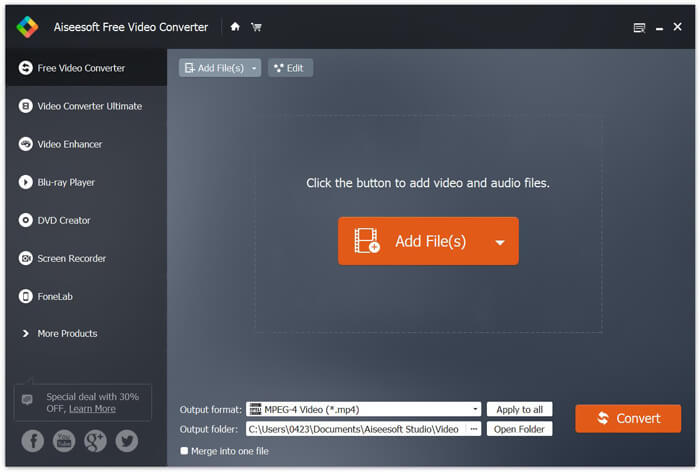
Adım 3. Çıktı biçimine tıklayın ve açılır listeden hedef formatınız olarak MOV’u seçin. Ardından MP4’ten MOV’a dönüştürme işlemini başlatmak için sadece Dönüştür düğmesine tıklayabilirsiniz.
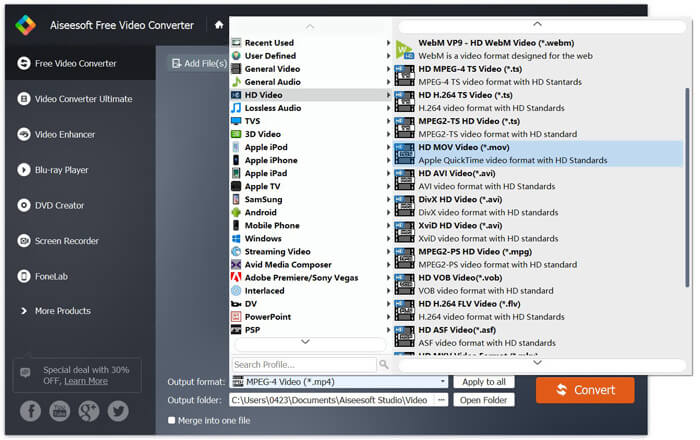
Sadece birkaç saniye sonra, orijinal MP4, MOV formatına dönüştürülecektir. MOV'un yanı sıra, MP4'ü yüksek kalitede MKV, FLV, AVI vb. Formatlara dönüştürebilirsiniz. Bu ücretsiz video dönüştürücü aynı zamanda bazı temel düzenleme özelliklerini de taşır. Son MP4'ten MOV'a dönüştürmeden önce, bunları MP4 videolarınızı düzenlemek için kullanabilirsiniz.
Bölüm 2. MP4'i Çevrimiçi Video Dönüştürücü ile MOV Ücretsiz Olarak Değiştirme
Yukarıda belirtildiği gibi, piyasada MP4'ü MOV'a çevirmenize yardımcı olabilecek birçok ücretsiz çevrimiçi video dönüştürücü vardır. İşte bu yazıda, MP4'ü çevrimiçi olarak MOV'a nasıl değiştireceğinize dair 2 yöntem sunacağız.
1. FVC Ücretsiz Çevrimiçi Video Dönüştürücü
MP4'ü çevrimiçi ve ücretsiz olarak MOV’a dönüştürmek istiyorsanız, FVC Free Online Video Converter en iyi seçiminiz olacaktır. Yalnızca 3 basit adımda dönüşümü tamamlayabilir ve saniyeler içinde kayıpsız dönüştürülmüş dosyayı elde edebilirsiniz.
Adım 1. Yukarıdaki bağlantıya tıklayın ve FVC Free Online Video Converter sayfasına gidin. Ardından, pankartın ortasındaki Dönüştürülecek Dosyaları Ekle seçeneğine tıklayın. Daha sonra bilgisayarınıza FVC başlatıcısını indirip kurun.
Dosyaları toplu dönüştürmek için Masaüstü Sürümü indirin.

Adım 2. Dönüştürmek istediğiniz videoyu seçip yükledikten sonra, dönüştürülen video dosyası için çıktı formatı olarak MOV’u seçmeniz gerekir.
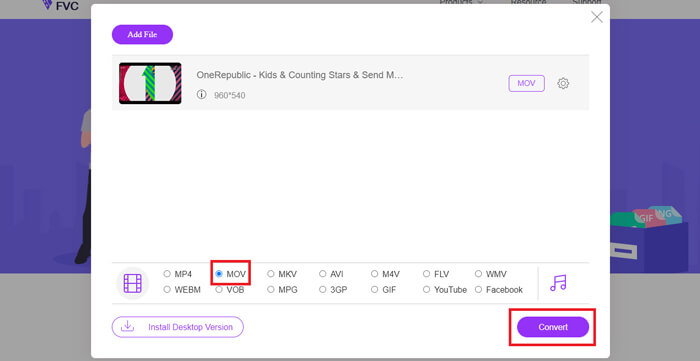
Adım 3. Dönüştür düğmesine tıklayın. Dilerseniz dönüştürülen dosyayı masaüstüne kaydetmeyi seçebilirsiniz. Bundan sonra, MOV videonuzu elde etmek için kısa bir süre beklemeniz yeterli.
2. CloudConvert
CloudConvert, çok popüler ve kullanımı kolay bir çevrimiçi video dönüştürme aracıdır. Ses, video, belge, e-kitap, arşiv, resim, hesap tablosu veya sunum biçimleri dahil olmak üzere 200'den fazla biçimi dönüştürme yeteneğine sahiptir. Dahası, bu güvenilir çevrimiçi dönüştürücü verilerinizi ve gizliliğinizi koruyacaktır.
Adım 1. Tarayıcınızı açın ve CloudConvert’in resmi sitesine gidin. Sade bir arayüzle tasarlanmıştır ve size rahat bir dönüştürme deneyimi sunar.
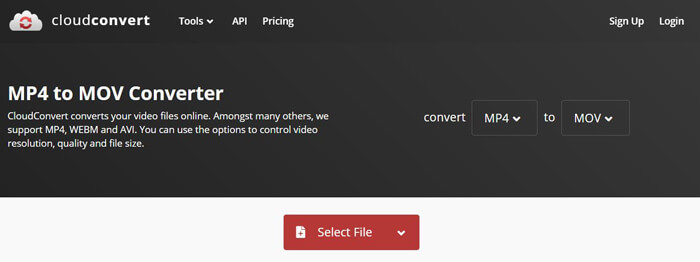
Adım 2. Dönüştürmek istediğiniz MP4 dosyasını yüklemek için Dosya Seç düğmesine tıklayın. Burada dosyayı bilgisayardan, URL’den, Google Drive, OneDrive veya Dropbox’tan ekleyebilirsiniz. Bu adımda dönüştürme için daha fazla dosya eklemenize de izin verilir.
Endişelenmeniz gereken bir şey, bu ücretsiz MP4'ten MOV'a dönüştürücü yalnızca bir videoyu 1 GB'tan daha az dönüştürmenize izin veriyor. Daha büyük dosyaları dönüştürmek için bir paket satın almanız gerekir.
Adım 3. MP4 dosyanızın yüklenmesi ve dönüştürülmesini başlatmak için Dönüştür düğmesine tıklayın. Ardından dönüştürülen MOV videoyu bilgisayarınıza kaydetmek için İndir düğmesine tıklayabilirsiniz.

MP4'ü çevrimiçi olarak MOV'a dönüştürmek için CloudConvert'ı kullanarak, özellikle büyük bir dosyayı dönüştürürken video yükleme, dönüştürme ve indirme işlemlerine daha fazla zaman ayırmanız gerekir.
Bölüm 3. MP4'i VLC Media Player ile MOV'a Dönüştürme
VLC Media Player, popüler ve açık kaynaklı bir multimedya oynatıcıdır. Sadece bir medya oynatıcı olmanın ötesinde, VLC çeşitli video dönüştürmeleri yapmanıza yardımcı olan bir video dönüştürme aracı olarak da çalışabilir. Bilgisayarınızda VLC yüklüyse, MP4 dosyanızı MOV videoya dönüştürmek için ona güvenebilirsiniz.
Adım 1. Bilgisayarınızda VLC Media Player’ı açın. Eğer VLC’niz yoksa, resmi sitesine giderek ücretsiz olarak indirebilirsiniz.
Adım 2. Menü çubuğundaki Ortam düğmesine tıklayın ve açılır listeden Dönüştür/Kaydet seçeneğini seçin.
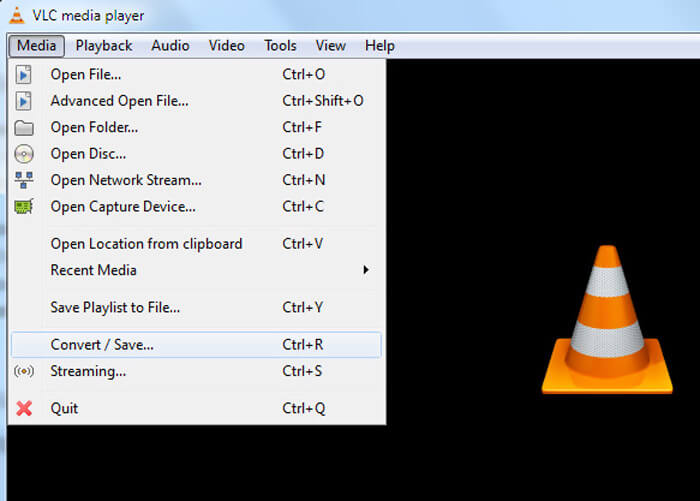
Adım 3. Yeni bir <spanOrtam Aç penceresi açılacaktır. Burada dönüştürmek istediğiniz MP4 dosyasını içe aktarmak için Dosya > Ekleye tıklayabilirsiniz.
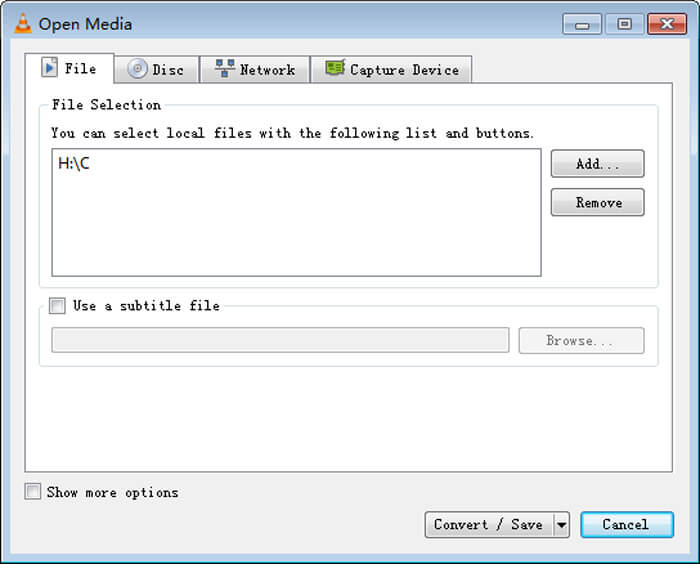
Adım 4. İşlemi onaylamak için alttaki Dönüştür/Kaydet düğmesine tıklayın. Daha sonra, dönüştürülen video için hedef klasörü ve çıktı formatını seçebileceğiniz bir Dönüştür penceresine yönlendirileceksiniz.
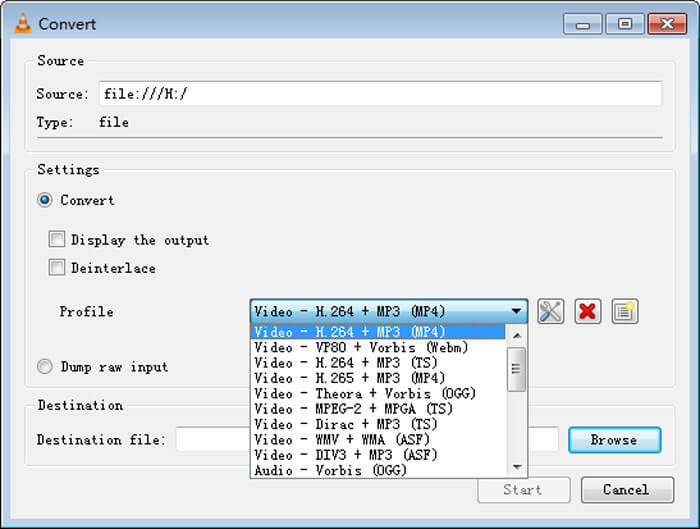
Adım 5. Profil açılır listesinden çıktı formatı olarak MOV’u seçin. Ardından, VLC’de MP4’ten MOV’a video dönüştürme işlemini gerçekleştirmek için Başlat düğmesine tıklayın.
MP4 ve MOV
2001 yılında Moving Picture Experts Group (MPEG) tarafından piyasaya sürülen MP4 formatı, video, ses, altyazı ve görüntü verilerini ayrı parçalarda kaydetmenize yardımcı olabilir. MPEG-4 Part 14'ün kısaltmasıdır. Ayrıca, video akışı ve paylaşımı için kullanılan en popüler formatlardan biridir.
MOV formatı bir film, TV programı, kısa video klip veya ev filmi depolamak için kullanılabilir. Aslında 1991'de Apple tarafından tanıtılan QuickTime Dosya Formatında (QTFF) kaydedilmiştir. MOV dosyaları genellikle insanlar bir videoyu yüksek kalitede kaydetmek istediğinde kullanılır.
Bölüm 4. MP4'ü MOV'a Dönüştürme Hakkında SSS
Soru 1. QuickTime, MP4'ü MOV'a dönüştürebilir mi?
Mac'te MP4'ü MOV'a dönüştürmeniz gerektiğinde, QuickTime'ı deneyebilirsiniz. MP4 videoyu QuickTime Player ile açabilirsiniz. Ardından Dışa Aktar düğmesini tıklayın ve MOV formatını seçin. Dosyayı yeniden adlandırabilir, konumu ve video çözünürlüğünü seçebilirsiniz. Ardından, MP4'ü Mac'te MOV'a dönüştürmek için Dışa Aktar düğmesini tıklayabilirsiniz.
Soru 2. Hangisi daha iyi, MOV veya MP4?
MP4, en popüler multimedya dosya saklama formatlarından biridir. Dijital bir kapsayıcı dosyadır; videonun kendisi değil, yalnızca video için bir sarmalayıcıdır. MP4’e benzer şekilde MOV da dijital bir kapsayıcı dosyadır. MOV, MPEG-4 kodeğiyle kodlanır.MOV ile MP4 arasındaki temel fark, MOV’un çoğunlukla Mac ortamlarında kullanılmasıdır. MOV, özellikle QuickTime için tasarlanmıştır. MP4 ise çoğu medya oynatıcı ve sistem tarafından desteklenebilen uluslararası bir standarttır. Genel olarak konuşursak, MOV videonun kalitesi genellikle daha yüksek, dosya boyutu ise daha büyüktür. MP4 dosyası ise genellikle daha fazla sıkıştırılmış ve boyut olarak daha küçüktür. Bu nedenle, basitçe MOV MP4’ten daha iyidir ya da MP4 daha iyidir diyemezsiniz.
Soru 3. MOV'u MP4'e dönüştürmek kaliteyi kaybeder mi?
MOV'u MP4'e dönüştürmek veya MP4'ü MOV'a dönüştürmek istediğinizde, profesyonel bir video dönüştürücü seçmelisiniz. Çoğu durumda, dönüştürmeden sonra herhangi bir kalite kaybı görmezsiniz.
Soru 4. Ücretsiz MP4'ten MOV'a dönüştürücü var mı?
İnternette MP4'ü MOV'a dönüştürmenize yardımcı olabilecek birçok ücretsiz video dönüştürücü vardır. Önerilen CloudConvert'in yanı sıra, dönüştürme sürümünü oluşturmak için FFmpeg, HandBrake, ZAMZAR, Dosyaları Dönüştür ve daha fazlasına da güvenebilirsiniz.
-
 MP4 Video Dosyalarınızı Kalite Kaybı Olmadan Animasyonlu GIF Görüntülerine Dönüştürme
 MP4 videonuzu animasyonlu GIF'lere dönüştürmenin en iyi yolunu mu arıyorsunuz? İşte bunu Photoshop, Windows Movie Maker, çevrimiçi video dönüştürücü ve daha fazlasında yapmak için ayrıntılı bir kılavuz.
-
 MOV VS MP4 - Hangisi Daha İyi
 MOV VS MP4, hangisi daha iyi? Bu gönderi MP4 ve MOV arasındaki farkı anlatıyor, böylece video dosyalarınız için daha iyi bir seçim yapabilirsiniz.
-
 Kaliteyi Kaybetmeden MOV'u MP4'e Dönüştürme
 MOV (Apple QuickTime Movie) dosyalarını MP4'e dönüştürmek ister misiniz? Bu gönderi, MOV video dosyalarınızı Windows 10/8/7 / XP ve Mac OS X'te MP4 formatına dönüştürmek için 4 ücretsiz yöntem paylaşıyor.

