


 Video Dönüştürücü Ultimate
 Ekran kaydedicisi
 Video Onarımı
 Güvenli İndirme
Zahmetsizce GIF'e Dönüştürün ve Dikkat Çekici İçerikler Yapın
Sosyal medya gönderilerinize veya web sitenizdeki içeriklere biraz canlılık katmak istediniz mi? Animasyonlu GIF’ler bunu yapmanın harika bir yoludur! Peki ya sıfırdan kendi GIF’inizi oluşturacak beceriye veya yazılıma sahip değilseniz? Endişelenmeyin – mevcut dosyalarınızı veya videolarınızı yalnızca birkaç basit adımda kolayca GIF formatına dönüştürebilirsiniz! Bu dijital çağda görsel içerik kraldır ve animasyonlu GIF’ler çevrimiçi varlığınıza ilgi katmanın popüler bir yoludur. Öyleyse hemen başlayalım ve videolarınızı sadece birkaç dakikada GIF’lere dönüştürerek dikkat çekici içerikler oluşturmak için WMV’yi GIF’e dönüştürme veya diğer video formatlarını dönüştürme konusunda ustalaşalım!

Bölüm 1. Videoyu GIF'e Dönüştür
1. FVC Video Dönüştürücü Ultimate
FVC Video Converter Ultimate, video içeriklerinizden çarpıcı animasyonlu GIF’ler oluşturmanıza yardımcı olabilen güçlü bir yazılımdır. Araç; SWF, MPEG, M4V, OGV, OGG ve daha birçok farklı video formatını destekler. Ayrıca, videolarınızdan GIF oluşturmanızı sağlayan bir GIF yapıcısıyla birlikte gelir. Buna ek olarak, durağan görüntülerinizi de seçip bu GIF yapıcıyı kullanarak onları etkileyici hale getirebilirsiniz.
Ayrıca, video düzenleme, ekran kaydı ve daha fazlası gibi bir dizi başka özellik sunarak, onu tüm video ihtiyaçlarınız için çok yönlü bir araç haline getirir. İster pazarlamacı, ister içerik oluşturucu veya sosyal medya yöneticisi olun, FVC Video Converter Ultimate, hedef kitlenizin dikkatini çekecek ilgi çekici görseller oluşturmanıza yardımcı olabilir. Aşağıdaki adımları kontrol ederek SWF'yi GIF'e ve diğer video formatlarına nasıl dönüştüreceğinizi kontrol edin.
Adım 1. Yazılımı bilgisayarınıza kurun
MOV’u GIF’e nasıl dönüştüreceğinizi öğrenmek için bilgisayarınıza FVC Free Video Converter’ı indirin ve kurun. Bu yazılımı edinmek için Ücretsiz İndir düğmesine tıklayın. Kurulum hem Mac hem de Windows için mevcuttur.
Adım 2: Tercih ettiğiniz MOV dosyalarını içe aktarın
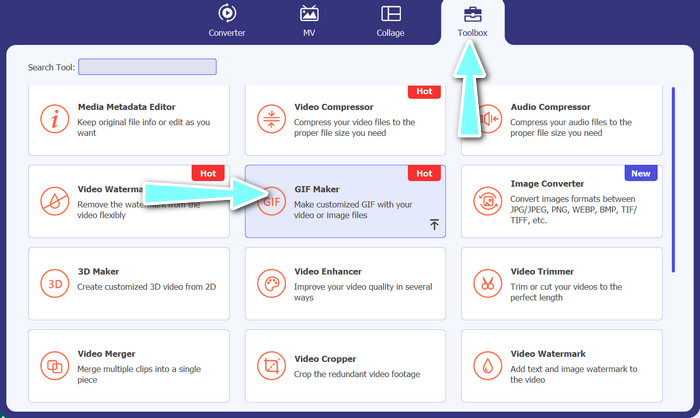
Uygulamayı başlatarak ana menüyü açın. GIF Yapıcı’ya erişmek için Araç Kutusu menüsündeki GIF Maker düğmesine tıklayın. Ardından istediğiniz MOV dosyalarını seçin ve Videodan GIF’e seçeneğine tıklayın.
Adım 3. Videoyu düzenleyin
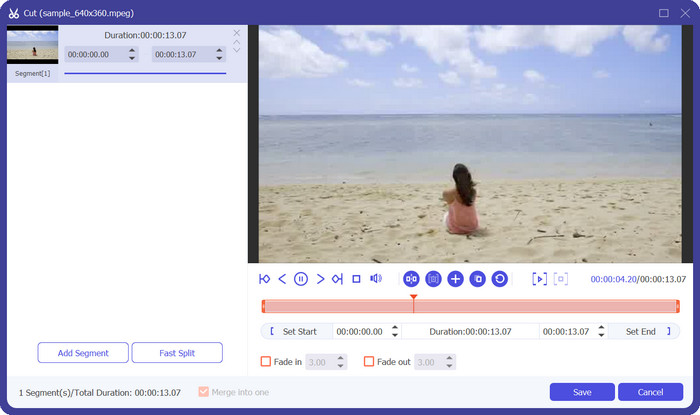
İstenmeyen bölümleri kaldırmak için Kes seçeneğini belirleyin. Çubuğu kaydırarak veya başlangıç ve bitiş süresi girerek GIF’iniz için kullanmak istediğiniz zaman aralığını seçin. Sonra GIF’in özelliklerini dilediğiniz gibi ayarlayın. Bunlar çözünürlük, kare hızı ve kaliteyi içerir. Düzenle seçeneğine tıklarsanız, GIF’i metin ve çıkartmalarla özelleştirebilirsiniz.
Adım 4. Video dosyasını GIF’e dönüştürme
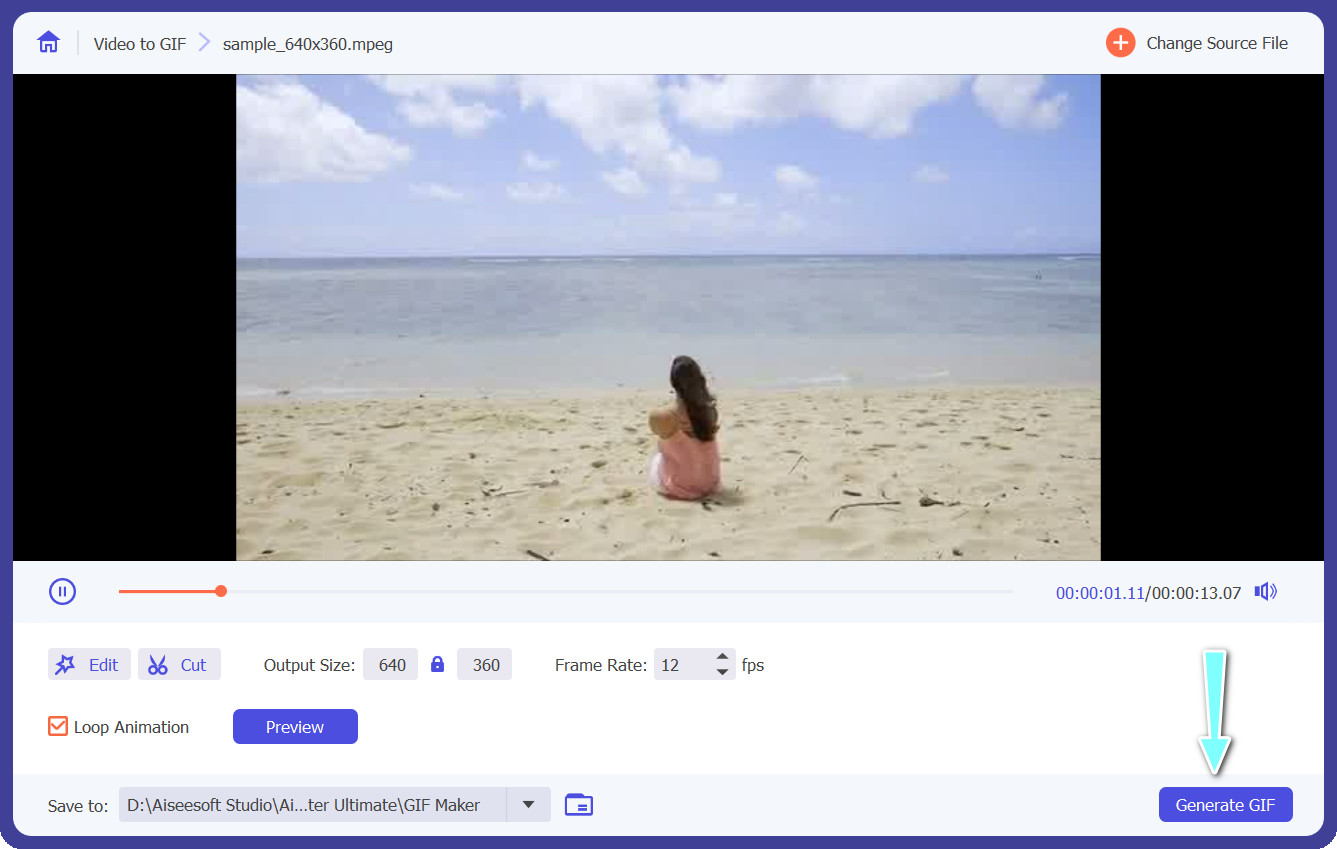
Ön izleme ekranında GIF’in istediğiniz gibi göründüğünden emin olun. Bir GIF oluşturmak için yalnızca GIF Oluştur düğmesine basın. Çıktı ayarlarında, GIF’in bilgisayarınızda nereye kaydedileceğini seçebilirsiniz.
2. Ücretsiz Çevrimiçi Video Dönüştürücü
Video dışa aktarmaya hazır olduğunda, Free Video Converter Online kullanmanız gereken en iyi programdır. Tarayıcınız üzerinden doğrudan dosya dönüştüren çevrimiçi bir programdır. Ayrıca, dosyaları toplu olarak dönüştürme, ses veya video özelliklerini düzenleme ve çok daha fazlası gibi faydalı özelliklere sahiptir. İşte MPEG’i GIF’e veya diğer video formatlarını GIF’e dönüştürmek için öğrenmeniz gereken adımlar.
Adım 1. Önce, tercih ettiğiniz web tarayıcısını açın ve başlamak için Free Video Converter Online web sitesine gidin.
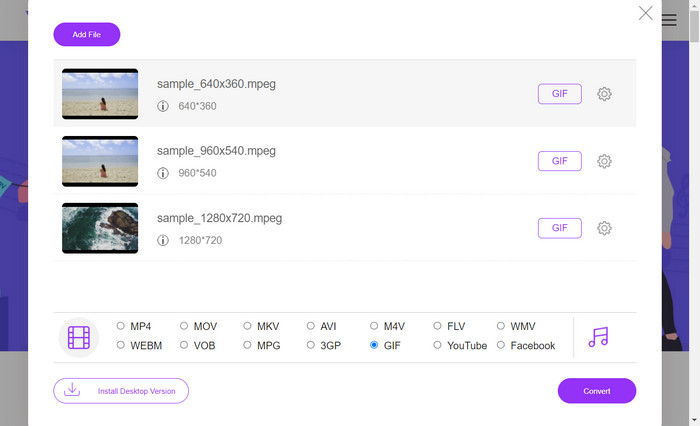
Adım 2. İkinci olarak, Dönüştürülecek Dosyaları Ekle seçeneğine tıkladıktan sonra GIF’e dönüştürmek istediğiniz video dosyasını seçin.
Adım 3. Üçüncü olarak, video menüsünden çıktı formatı olarak GIF dosya türünü belirleyin.
Adım 4. Dönüştürme işlemini başlatmak için Dönüştür düğmesine tıklayın.
Bölüm 2. Sesi GIF'e Dönüştür
Şimdi, OGG'yi GIF'e dönüştürmek istediğinizi varsayalım. Ne yazık ki, OGG dosyaları ses dosyalarıdır ve GIF, resimler ve animasyonlar için bir dosya formatı olduğundan, doğrudan GIF formatına dönüştürülemez. Ancak, OGG sesi içeren bir video dosyanız olduğunu varsayalım. Bu durumda, videonun bir bölümünü ayıklayabilir ve her iki formatı da destekleyen bir video dönüştürücü aracı kullanarak onu bir GIF'e dönüştürebilirsiniz. Alternatif olarak, OGG sesini MP4 gibi uyumlu bir video formatına dönüştürmeyi ve ardından MP4'ten GIF'e dönüştürmeyi destekleyen bir video dönüştürücü aracı kullanmayı düşünebilirsiniz. Öte yandan, ses dosyalarını dönüştürmek için kontrol edebileceğiniz araçlar ve adımlar burada.
1. Video Dönüştürücü Ultimate
Adım 1. Geliştiricinin sitesinden resmi FVC Video Converter Ultimate kurulum dosyasını edinin. Dönüştürülecek bir ses dosyası eklemek için programı başlatın ve artı simgesine tıklayın.
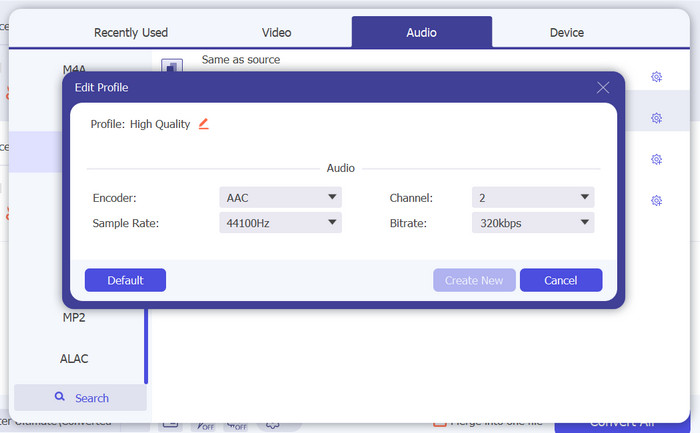
Adım 2. Profil açılır menüsüne tıklayıp desteklenen formatlar listesinden OGG’yi seçerek çıktı formatı olarak OGG’yi belirleyebilirsiniz. Ayarlar seçeneğini belirlediğinizde, çıktı ayarlarını da değiştirebilirsiniz. Bit hızı, örnekleme hızı ve kanal sayısını buna göre ayarlayabilirsiniz.
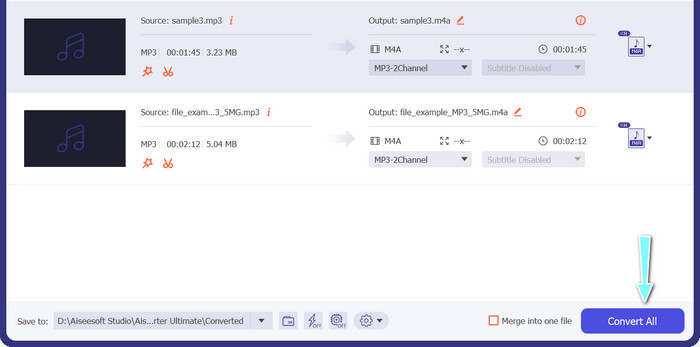
Adım 3. Ayarları istediğiniz gibi yaptıktan sonra dönüştürme işlemini başlatmaya hazır olduğunuzda, Tümünü Dönüştür düğmesine tıklayın. FVC Free Video Converter şimdi ses dosyanızı OGG formatına dönüştürecektir.
2. Ücretsiz Ses Dönüştürücü
Free Audio Converter, MP3, WMA, FLAC, AAC, vb.'den hemen hemen tüm ses formatlarını kabul eder. Ayrıca, çıkış ayarlarını düzenlemek isterseniz, bunu bu programı kullanarak yapabilirsiniz. Genel olarak, ses dosyalarını çevrimiçi dönüştürmenin sorunsuz bir yoludur. İşte başvurabileceğiniz bir kılavuz:
Adım 1. Bilgisayarınızda herhangi bir tarayıcıyı kullanarak programın resmi web sayfasına gidin.
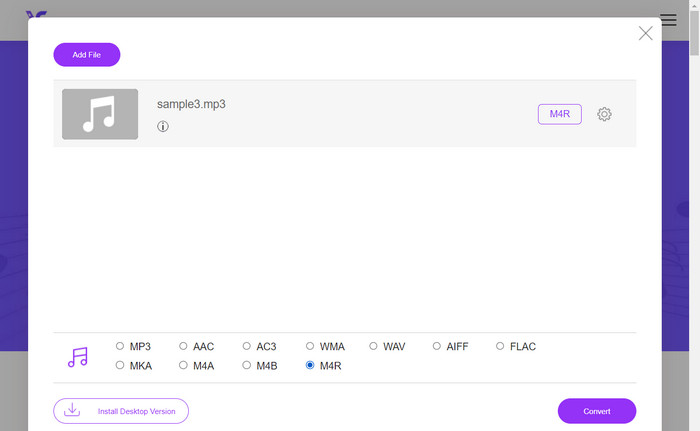
Adım 2. Dönüştürülecek Dosyaları Ekle düğmesini işaretleyin ve dönüştürmek istediğiniz ses dosyalarını seçin.
Adım 3. Ardından, ilgili radyo düğmesini işaretleyerek bir çıktı formatı seçin ve dönüştürme işlemini başlatmak için Dönüştür düğmesine basın.
Bölüm 3. Görüntüyü GIF'e Dönüştür
Free Image Converter Online, kullanıcıların görüntüleri farklı dosya formatları arasında kolaylıkla dönüştürmesine olanak tanıyan web tabanlı bir araçtır. İster bir PNG’yi JPEG’e, ister BMP’yi GIF’e ya da başka bir formata dönüştürmeniz gereksin, Free Image Converter Online bunu hızlı ve kolay bir şekilde yapmanıza yardımcı olabilir. Basit ve kullanıcı dostu arayüzüyle, görüntülerinizi farklı formatlar arasında dönüştürmek için pratik ve verimli bir yol arayan herkes için harika bir seçimdir. Bu nedenle, durağan görüntülerinizi hareketli olanlara dönüştürmek için özel bir araç arıyorsanız, bu programı değerlendirebilirsiniz.
Adım 1. Kullanmaktan hoşlandığınız bir tarayıcıyla FVC Free Image Converter Online web sitesine gidin.
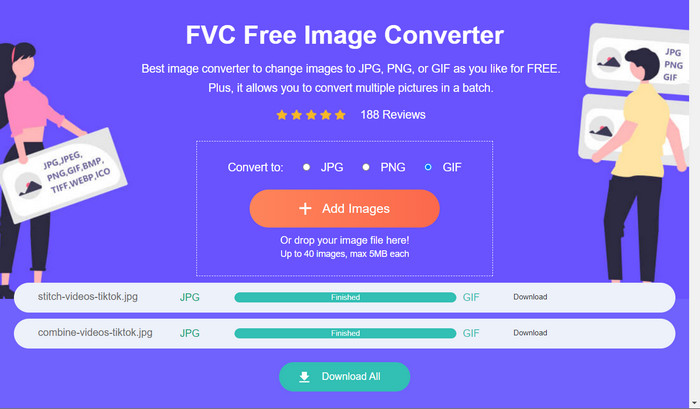
Adım 2. Bir çıktı formatı seçin. Bu durumda, GIF’e karşılık gelen radyo düğmesini işaretleyin.
Adım 3. Ardından, bilgisayarınızdan resim dosyaları yüklemek için Resim Ekle düğmesine basın. Herhangi bir resim dosyası formatını seçebilirsiniz.
Adım 4. Yüklendikten sonra, resim dosyaları otomatik olarak GIF’e dönüştürülecektir. Dönüştürme tamamlandıktan sonra, çıktı dosyalarını almak için Tümünü İndir düğmesine basabilirsiniz.
Bölüm 4. Dosyaları GIF'e Dönüştürme Hakkında SSS
M4V'yi GIF'e dönüştürebilir miyim?
Evet, M4V dosyalarını GIF formatına dönüştürmek, her iki formatı da destekleyen bir video dönüştürücü aracı kullanarak mümkündür. Örneğin FVC Video Converter Ultimate, M4V video formatını destekleyen ve yerleşik bir GIF oluşturma aracına sahip güçlü bir yazılımdır. Bu araçla, M4V videonuzdan GIF’e dönüştürmek istediğiniz bölümü seçebilir, çıktı dosyasının boyutunu ve kalitesini özelleştirebilir ve çeşitli amaçlarla kullanabileceğiniz yüksek kaliteli bir animasyonlu GIF oluşturabilirsiniz.
GIF'imin kalitesini nasıl optimize edebilirim?
GIF'inizin kalitesini optimize etmek için kare hızını, çözünürlüğü, renk paletini ve sıkıştırma ayarlarını değiştirebilirsiniz. GIF'inizin iyi görünmesini ve aynı zamanda web paylaşımı için optimize edilmesini sağlamak için dosya boyutu ve kalite arasında doğru dengeyi bulmak önemlidir.
Dönüştürüldükten sonra GIF'imi düzenleyebilir miyim?
Evet, GIF’inizi GIMP veya Adobe Photoshop gibi çeşitli araçları kullanarak filtreler eklemek, metin veya diğer efektleri uygulamak için düzenleyebilirsiniz. Ancak, bir GIF’i düzenlemenin kaliteyi etkileyebileceğini ve daha büyük dosya boyutuna yol açabileceğini unutmamak önemlidir.
Sonuç
GIF’e dönüştürme işlemi, animasyonlar oluşturmak, büyük dosyaları sıkıştırmak ve çevrim içi paylaşım sırasında bir görüntü veya videonun kalitesini korumak için faydalı bir araç olabilir. GIF’e dönüştürmek için çeşitli yazılım seçenekleri ve çevrimiçi dönüştürücü araçları mevcuttur.
-
 JPG VS GIF: JPG'yi GIF'e Dönüştürmenin 3 Zahmetsiz Yolu
 JPG ve GIF arasındaki farkı bilmek ister misiniz? Yoksa JPG'yi GIF animasyon formatına mı geçirmek istiyorsunuz? O zaman bir fikir edinmek için bu makaleyi okuyun.
-
 Windows ve Mac'te En İyi Animasyonlu GIF Döngüsü ile GIF Döngü
 En iyi döngü GIF'inin sırrını bilmek ister misiniz? Bir tane yapmak ister misin? Eğer öyleyse, doğru yerdesiniz. Bu nedenle, mevcut en iyi ilmek yapıcı ile bir ilmek oluşturmayı öğrenin.
-
 MOV'u GIF'e Dönüştürün ve Animasyonlu İçeriğin Gücünü Açığa Çıkarın
 MOV videolarınızı animasyonlu GIF'lere dönüştürün ve çevrimiçi içerik oyununuzun seviyesini yükseltin! Kullanımı kolay MOV'dan GIF'e dönüştürücülerimiz, göz alıcı grafikler oluşturmanıza yardımcı olacaktır.
