


 Video Dönüştürücü Ultimate
 Ekran kaydedicisi
 Video Onarımı
Çevrimiçi ve Çevrimdışı En İyi M4A - WAV Dönüştürücüler için Dolgun
M4A formatı, MPEG 4 Audio olarak bilinir; tıpkı MP3 gibi yalnızca ses dosyalarını depolamak için kullanılan bir kapsayıcı türüdür. Ancak diğer ses formatlarının aksine M4A hâlâ geliştirilme aşamasındadır. Bu da, bazı medya oynatıcılarının arkasındaki teknoloji nedeniyle M4A formatını oynatamaması anlamına gelir. Çünkü M4A, küçük boyutta ama iyi kalitede ses saklar. Bu yüzden M4A dosyalarını oynatabilmek için önce WAV gibi oynatılabilir bir formata dönüştürmeniz gerekir. Belki “Neden WAV?” diye düşünüyorsunuz; bunun sebebi WAV’in pek çok platformda destekleniyor olmasıdır. Öyleyse, M4A’yı WAV’a nasıl dönüştüreceğimizi ve bu dönüştürme işinde hangi aracın en iyi olduğunu inceleyelim. Araçların her biri hakkında daha fazla bilgi edinmek için aşağıdaki açıklamalara ve verilen dönüştürme adımlarına göz atın.

Bölüm 1. M4A'yı WAV Online'a Dönüştürme [Web tabanlı]
1. FVC Ücretsiz Ses Dönüştürücü
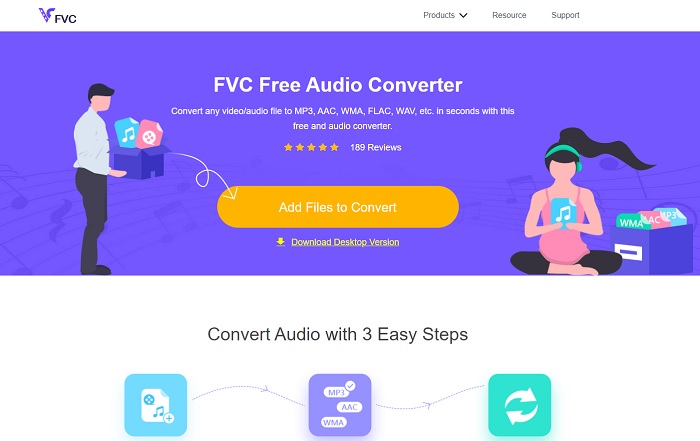
FVC çevrimiçi ortamda en iyi dönüştürücüyü sunuyor: FVC Free Audio Converter. Bu aracı kullanarak M4A dosyalarını çevrimiçi olarak WAV’a dönüştürmeyi öğrenin; çünkü en iyi çıktıyı elde etmenizi sağlar. Ancak, bu yalnızca ücretsiz sürüm olduğu için, ücretli sürümün başlıca özellikleri burada yer almıyor. Yine de şunu söyleyelim: Burada herhangi bir dosyayı dönüştürmek, FVC’nin de istediği gibi güvenli, kolay ve verimlidir. Ayrıca, burada listedeki ve bu yazı dışındaki birçok çevrimiçi araçtan farklı olarak bitrate’i, fps’yi ve çözünürlüğü de değiştirebilirsiniz. Web aracını nasıl kullanacağınızı öğrenmek için, aşağıda verilen adımları uygulamanız yeterli; hadi başlayalım.
Adım 1. Ana siteye gitmek için yukarıda verilen bağlantıya tıklayın.
Adım 2. Aracı başlatmak için Add Files to Convert düğmesine tıklayın ve izin verin.
Dosyaları toplu dönüştürmek için Masaüstü Sürümü indirin.
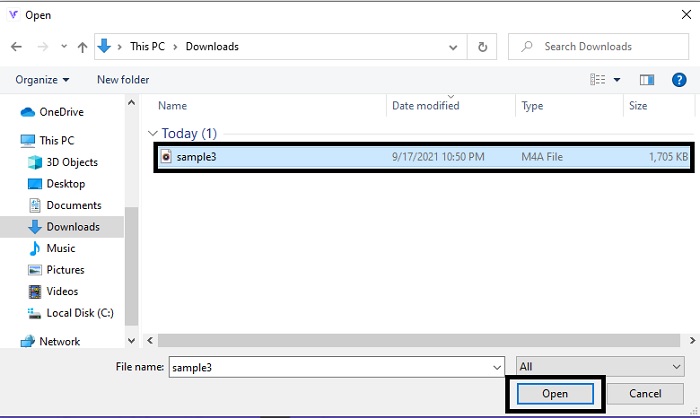
Adım 3. M4A dosyanızı seçin ve M4A dosyasını eklemek için open seçeneğine tıklayın.
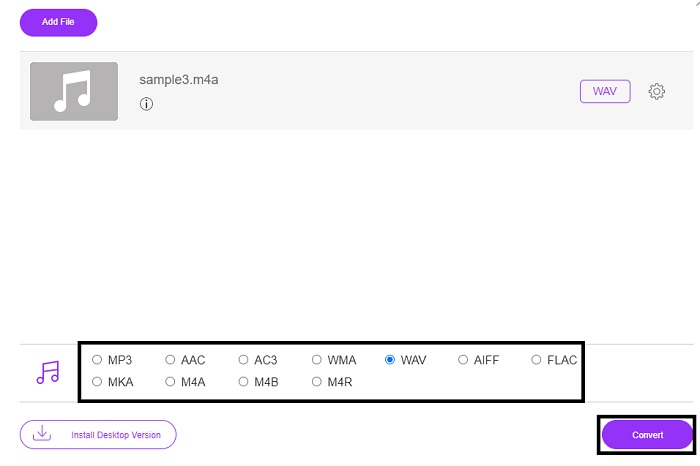
Adım 4. M4A formatını WAV’a dönüştürmek için, aşağıdan istediğiniz formatı seçin. Ardından işlemi başlatmak için Convert düğmesine tıklayın.
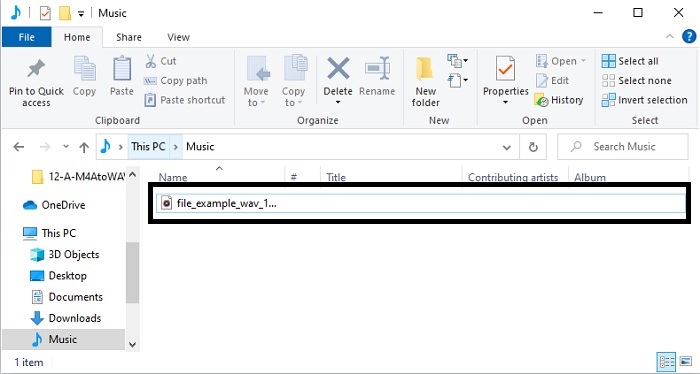
Adım 5. İşlem bittikten sonra dosya yöneticisine giderek az önce dönüştürdüğünüz sesi kontrol edin.
2. Zemzar
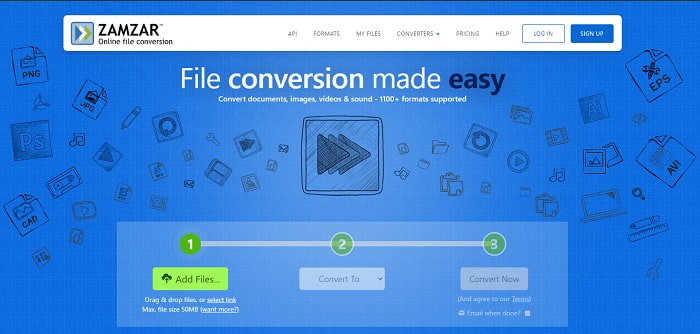
Çevrimiçi olarak Windows 10'da M4A’yı WAV’a dönüştürmek için en iyi araçlardan birinden söz edecek olursak, Zamzar'a yer açmalıyız. Bu araç, açılır menüden format seçebildiğiniz için bir medya dosyasını yeni bir formata dönüştürmenin en kolay yollarından biridir. FVC Free Audio Converter gibi pek çok formatı destekler. Ancak bu aracı kullanmanın dezavantajı, dosyayı size en uygun olacak şekilde özelleştirememektir. Ayar seçenekleri sunulmadığı için, dönüştürme sonrası en iyi ses kalitesini hedefleyen profesyonel kullanıcılar açısından en iyi araç sayılmaz.
3. FreeConvert.com
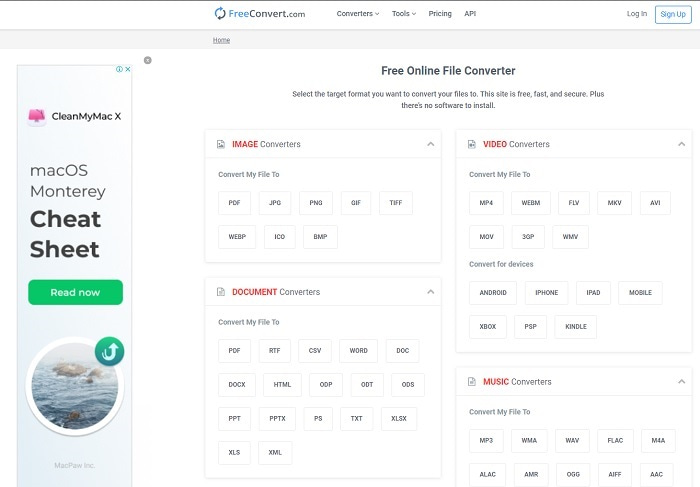
FreeConvert.com içinde her türlü dosyayı dönüştürebilirsiniz; çünkü pek çok farklı dosya formatını destekler. İster resim, ister ses, ister video, isterse belge olsun. Bir diğer avantajı da, tıpkı yukarıdaki ilk iki araç gibi, aracı kullanmak için herhangi bir şey indirmenizin gerekmemesidir. Kullanabileceğiniz ideal dönüştürücülerden biri olmasına karşın, bu araçta her yerde reklam bulunur. Bu nedenle reklamların çoğunda virüs olabileceğinden, tıklarken dikkatli olun. Yine de endişelenmeyin; buradaki reklamlar en azından PG derecelendirmesiyle sınırlandırılmıştır.
Bölüm 2. M4A'yı WAV Çevrimdışına Çevirmenin En İyi 3 Yolu [Masaüstü tabanlı ve Varsayılan Uygulama]
1. FVC Video Dönüştürücü Ultimate
Mac ve PC’de M4A’yı WAV’a dönüştürmek için piyasadaki en iyi dönüştürücülerden FVC Video Converter Ultimate’tan yardım alın. Hızlı dönüştürme süreci ve verimliliği sayesinde milyonlarca kullanıcı tarafından kişisel tercih olarak seçilmektedir. Burada sunulan tüm araçları toplasak bile, bu araç yine de öne çıkar. Dönüştürücünüzde geliştirme ve ses yükseltme gibi yeterli özellikler bulunmadığı için zorlanıyor musunuz? Endişelenmeyin, çünkü bu özellikleri sağlıyoruz. Standartları yüksek sadık kullanıcılar için FVC Video Converter Ultimate her zaman memnuniyet sağlar. O hâlde daha fazla vakit kaybetmeden, aşağıdaki adımları izleyerek bu güçlü dönüştürücünün nasıl çalıştığını öğrenelim.
Adım 1. M4A’yı WAV’a dönüştürmeden önce aracı indirmeniz gerekir. Kurun ve ayarları yaptıktan sonra kaydetmek için bitince “finish”e tıklayın.
Ücretsiz İndirWindows 7 veya üstü içinGüvenli İndirme
Ücretsiz İndirMacOS 10.7 veya üstü içinGüvenli İndirme
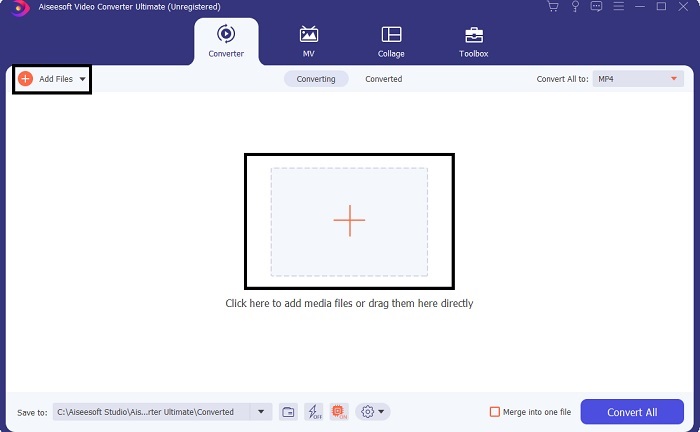
Adım 2. Aracı başlattıktan sonra dosya eklemek için Add Files seçeneğine gidin; isterseniz artı simgesine de tıklayabilirsiniz, her ikisi de dosya eklemek için klasörü açar. Dosya sayısı ikiden fazlaysa, bunları sürükleyip doğrudan arayüze bırakmalısınız.
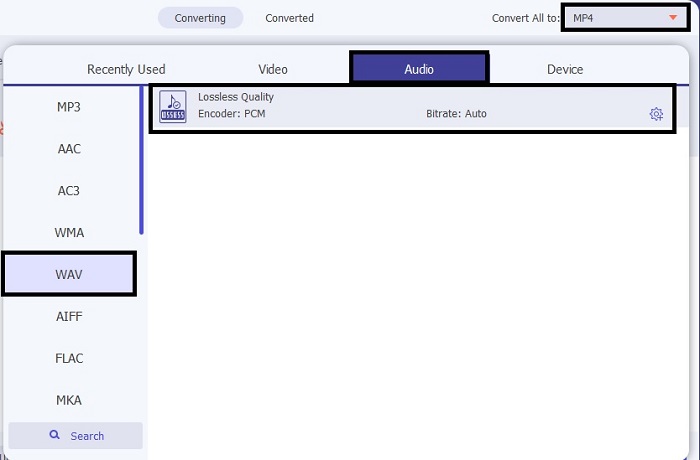
Adım 3. Seçimi yaptıktan sonra, ses formatını değiştirmek için drop-down menüsüne tıklayın ve istediğiniz formatı seçin.
Adım 4. Nihai çıktıyı seçmeyi bitirdiyseniz, dönüştürme sürecini başlatmak için Convert All seçeneğine tıklayın.
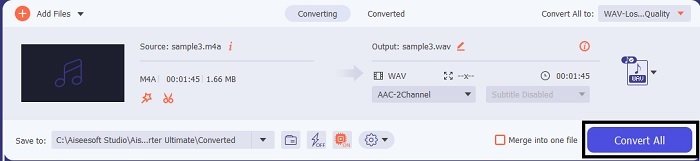
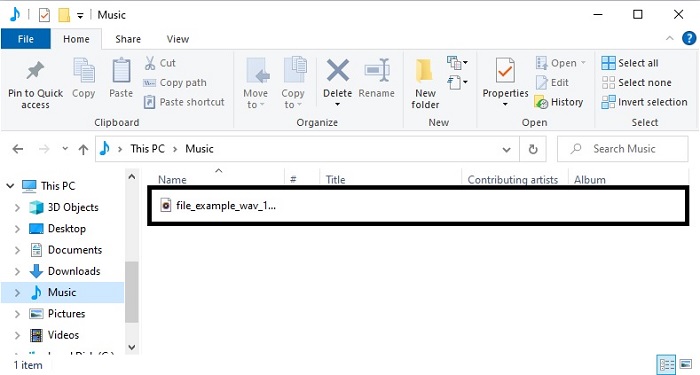
Adım 5. Dönüştürme işlemi tamamlandığında, dosyanızın kaydedildiği klasör ekranda açılır. Dosyaya tıklayın ve az önce dönüştürdüğünüz sesi dinleyin. Ek olarak, sesinizin daha iyi çıkmasını istiyorsanız, dönüştürmeden önce Araç Çubuğu’na gidip önce Audio Booster’ı bulun.
Bu aracı kullanarak ayrıca M4A videolarını MP3, OGG, AAC veya diğer popüler ses formatlarına da kaliteyi bozmadan dönüştürebilirsiniz.
2. Cesaret
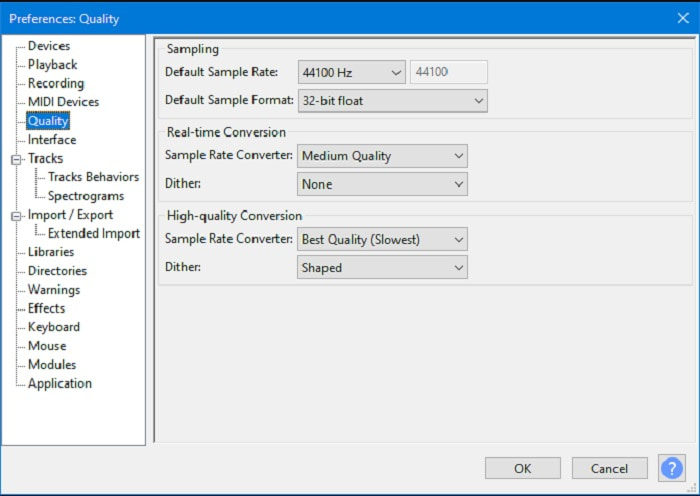
Audacity’yi dönüştürücü olarak kullanmak bir hata değildir; çünkü iyi bir dönüştürme performansı sunar. Audacity ile çevrimdışıyken bile M4A’yı WAV’a dönüştürebilirsiniz. Ancak bu araç, yukarıdaki ilk araca kıyasla o kadar ucuz değildir ve kullanıcı arayüzü de epey sıkıcıdır. Arayüze bakmak bile insanı bir nebze yorgun ve bezgin hissettirebilir. Dönüştürme süreci de göründüğünden daha yavaştır. Yalnızca format seçenekleri sınırlı olmakla kalmaz, ancak en iyi dönüştürücülerden söz edecek olursak Audacity yine de en azından ilk 15’te yer alabilir.
3. iTunes
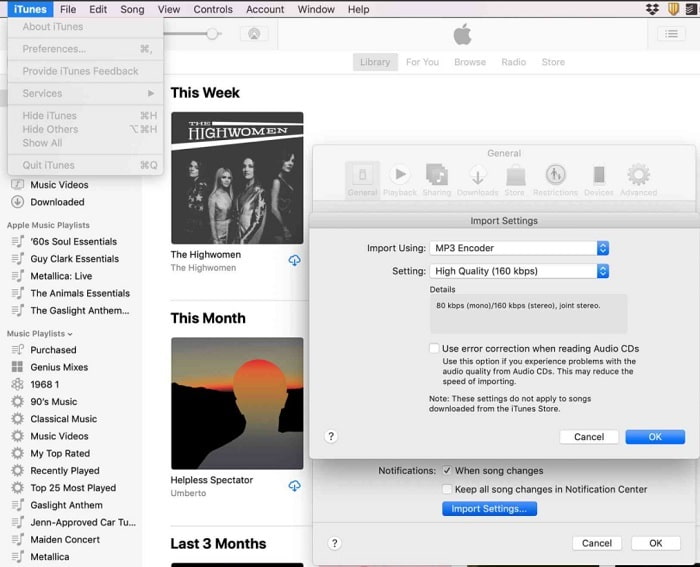
Tüm Apple kullanıcılarının varsayılan medya oynatıcısı artık bir dönüştürücüye de sahip; evet, iTunes da dönüştürme yapabiliyor. Ancak, iTunes’ta M4A’yı WAV’a nasıl dönüştüreceğinizi öğrenmek biraz zordur; çünkü çok fazla adım gerektirir. Buradaki diğer araçların, hatta web tabanlı olanların bile aksine, bu aracı dönüştürücü olarak kullanmak, izlemeniz gereken süreç nedeniyle oldukça güçtür. Ayrıca, bazı durumlarda, destek sınırlı olduğu için bir dosyayı istediğiniz formata dönüştüremeyebilirsiniz. Ve Apple ürünü kullanmıyorsanız iTunes’a erişemezsiniz. Yine de bir Apple hayranıysanız ve formatınızı burada dönüştürmeyi denemek istiyorsanız, bu sizin için bir fırsat olabilir.
M4A ve WAV
Bu Apple biçimi aslında yalnızca sesi depolayan MPEG-4 biçimidir. Bu durumda, MPEG-4'teki dosya, MPEG-4 Audio anlamına gelen .m4a uzantısıyla kaydedilir. Ad değişikliği, onu MPEG-4 video dosyası formatı olan MP4'ten ayırmak içindir.
WAVE formatı olarak da bilinen WAV, Kaynak Değişim Dosyası Formatını (RIFF) temel alır. 1990'ların başında Microsoft ve IBM tarafından birlikte geliştirilmiştir. Microsoft Windows'ta ham, sıkıştırılmamış sesi kaydetmek için bir seçenektir. Bu nedenle, WAV dosyaları Windows bilgisayarlarda daha sık oynatılır.
Bölüm 3. M4A to WAV hakkında SSS
Dönüştürmek için VLC kullanabilir miyim?
Evet, VLC medya oynatıcıyı da dönüştürme için kullanabilirsiniz. Dönüştürme yapabilseniz de, işlemi başlattığınızda format seçeneklerinin sınırlı olacağını unutmayın. Yine de, VLC ile M4A’yı WAV’a dönüştürmek buna değer; ancak bunun bir ses formatı olduğunu ve bu aracı dönüştürücü olarak kullanırken çok fazla şey beklememeniz gerektiğini aklınızda bulundurun.
M4A ve WAV arasındaki fark nedir?
M4A ve WAV bize sesleri çok yüksek kalitede kaydetme şansı veriyor. Ancak ikisinin farkı açıklanacak çok şey var ama ana farklılıkları ayırt edelim. M4A, kayıpsız sıkıştırma kullanan sıkıştırılmış bir ses dosyasıdır. Ve yaygın olarak bir yedek olarak kullanılır veya MP3 formatının halefi mi demeliyiz. Ancak WAV, sıkıştırılmadığı ve en iyi kaliteyi sağladığı için birçok profesyonel tarafından ses kaydetmek ve kaydetmek için kullanılır.
Hangisi daha iyi, M4A veya MP4?
Bu makalede daha önce belirtildiği gibi, M4A yalnızca ses dosyalarını saklayabilir. Öte yandan MP4, hem ses hem de video içerebilen çok amaçlı bir kapsayıcı olduğu için yaygın olarak kullanılır. Sadece ses depolamak istiyorsanız M4A’yı, hem video hem ses depolamak istiyorsanız evrensel MP4 formatını kullanın. MP4’ü M4A’ya dönüştürmek mi istiyorsunuz? Daha fazla ayrıntı öğrenmek için buraya tıklayın.
Sonuç
Sorunu sona erdirmek için uzun vadeli çözümü seçmeniz gerekir, böylece bunu yapmak için başka üçüncü taraf araçları kullanmanıza gerek kalmaz. Tıpkı FVC Video Converter Ultimate gibi, burada bulunan özellikler nedeniyle geleceğe dönük olacak şekilde tasarlanmıştır. Yukarıdaki araçların herhangi birinin aksine, bu nihai araçta dönüştürme yapmak, gözünüzde kör bir kıvrım olsa bile çok kolaydır, yine de dönüştürme işlemini yapabilirsiniz. Aslında, bu araçla ilgili şaşırtıcı olan şey, aynı zamanda çok amaçlı olmasıdır. Size buna bir örnek vermek gerekirse, sadece dönüştürmek için değil, aynı zamanda burada dosyanızı geliştirebilir, oluşturabilir ve düzenleyebilirsiniz. Yani, şehirdeki en iyi dönüştürücüden başka bir şey almayın ve bu FVC Video Converter Ultimate.
-
 MP4'ü Masaüstünde veya Çevrimiçi Olarak Ücretsiz Olarak WAV'a Dönüştürme [2021]
 MP4'ü WAV'a dönüştürmek için çok mu uğraşıyorsunuz? Hangi dönüştürücünün bir kuruş ödemeden bu konuda size mükemmel şekilde yardımcı olabileceğini bilmiyor musunuz? Bu yazıyı okuyun ve tüm sorularınız cevaplanacak.
-
 WAV'tan MP3'e - WAV'ı MP3'e Dönüştüren En İyi 5 Ücretsiz Dönüştürücü
 Bu sayfa, bilgisayardaki WAV'ı MP3'e değiştirmek için ücretsiz WAV - MP3 dönüştürücüsünün (iTunes, Audacity, VLC, Windows Media Player ve Free Audio Converter) uzun bir listesidir.
-
 FLV'den WAV'a - FLV'yi WAV'a Çevrimiçi Ücretsiz ve Mac / PC'de dönüştürün
 Bir FLV dosyasını nasıl dönüştürebilirim? VLC, YouTube FLV'yi WAV'a dönüştürebilir mi? Bu gönderi, kalite kaybı olmadan FLV'yi WAV'a dönüştürmenin 3 ücretsiz yolunu anlatıyor.

