


 Video Dönüştürücü Ultimate
 Ekran kaydedicisi
 Video Onarımı
 Güvenli İndirme
Masaüstünde, Web'de ve Telefonlarda Video Oynatma Hızını Değiştirmenin En Kolay 4 Yolu
Çoğu kullanıcı, bir saatlik bir videoyu bir saatten daha kısa sürede izlemenin etkili bir yolunu bulur. Bu sorunu çözebilecek tek çözüm, o anda izlemekte olduğunuz videonun oynatma hızını değiştirmektir. Piyasada bulacağınız video düzenleyicilerin çoğu bu görevi tamamlamanıza yardımcı olabilir, ancak asıl soru şu: Güvenilirler mi? Her birini araştırırken masaüstünde, çevrimiçi olarak, iOS ve Android cihazlarda video hızını değiştirebileceğinizi keşfettik. Bunu nasıl yapacağınızı öğrenmek istiyorsanız, okumaya devam etmelisiniz; çünkü bu blogda size yardımcı olabilecek araç ve uygulamaları da dahil ediyoruz.

Bölüm 1. Windows ve Mac'te Video Hızını Zahmetsizce Değiştirmenin En İyi Önerilen Yolu
Video hızını kolayca değiştirmek için, yalnızca birkaç basit tıklamayla bile üstün performans sunan en iyi aracı seçmeniz gerekir — karşınızda FVC Video Converter Ultimate. Bu araç, elinizdeki videonun hızını her zaman ve her yerde etkili bir şekilde ayarlayabilir. Ayrıca, video hızını MP4, MOV, AVI, FLV, TS, RMVB ve 1000+ formatta bile değiştirebilirsiniz; dosyanızı buraya yüklemek hızlı ve kolaydır. İster Windows ister Mac kullanıcısı olun, bu yazılımı işletim sisteminize indirmeniz, oynatma hızını yalnızca birkaç tıklamayla değiştirmenize yardımcı olur.
Araç, video hız kontrol işlevinin yanı sıra, diğer görevlere yardımcı olabilecek gururla çok işlevli bir Araç Kutusuna da sahiptir. Meta veri ekleme, GIF oluşturma, filigranları kaldırma ve daha pek çok şey gibi. Araç indirilebilir olmasına rağmen, onu kullanırken, kullanıcı dostu olduğu için düzenleme konusunda çok fazla deneyime ihtiyacınız olmayacağını fark edeceksiniz. Bu ürünü öne çıkaracak henüz yazmadığımız fonksiyonlar ve özellikler var. Ancak bir videonun hızını nasıl değiştireceğinizi öğrenmek istiyorsanız, teknik bilgi için ayrıntıları okuyun.
Ultimate Yazılımı Video Hız Değiştirici Olarak Kullanmanın Avantajları:
◆ Sezgisel arayüz, böylece birkaç dakika içinde nasıl kullanılacağını öğrenecekler.
◆ Oynatmayı hızlandırmak için 1000'den fazla video yükleyin.
◆ Kullanıcıların bundan en iyi şekilde yararlanmalarına yardımcı olmak için Kullanıcı Dostu.
◆ Temel ve gelişmiş video düzenleme gibi diğer işlevler Araç Kutusu'ndadır.
◆ İndiren bir milyona yakın kullanıcının ilk tercihi.
◆ Aracı zahmetsizce indirmek için Windows ve Mac'te mevcuttur.
Ultimate Yazılımı Kullanarak Video Hızını Değiştirme Adımları:
Adım 1. İndirme düğmesine tıklayarak hem Windows hem de Mac sistemlerinde bu gelişmiş yazılıma sahip olabilirsiniz. İndirdiğiniz dosyaya tıkladıktan sonra kurulum işlemini tamamlayın ve devam etmek için yazılımı başlatın.
Ücretsiz İndirWindows 7 veya üstü içinGüvenli İndirme
Ücretsiz İndirMacOS 10.7 veya üstü içinGüvenli İndirme
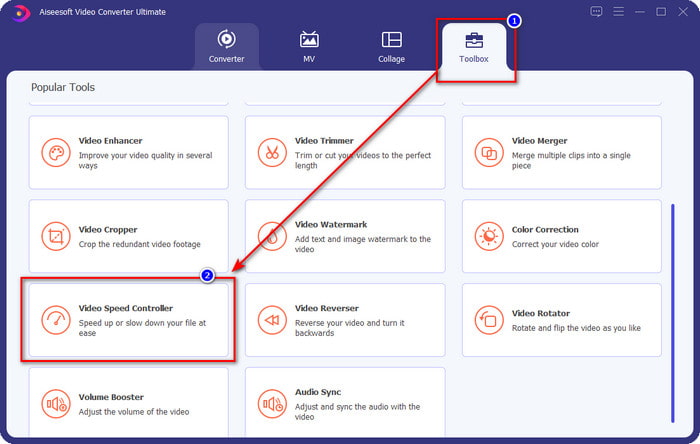
Adım 2. Yazılımı açtıktan sonra Araç Kutusu bölümüne ilerlemeniz gerekir; bu bölümün altında Video Hız Denetleyicisini açın. Endişelenmeyin; aracı kullanmak için ek kaynak veya bileşen indirmeniz gerekmez.
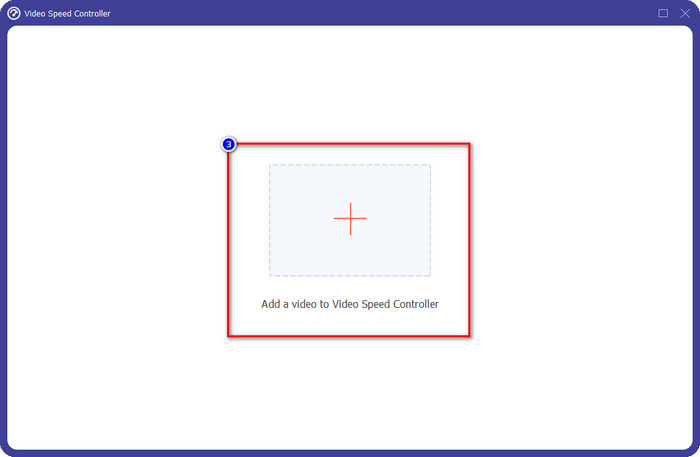
Adım 3. + simgesine basın, klasördeki dosyayı ekleyin, ona tıklayın ve elinizdeki video dosyasını yüklemek için Aç seçeneğine basın.
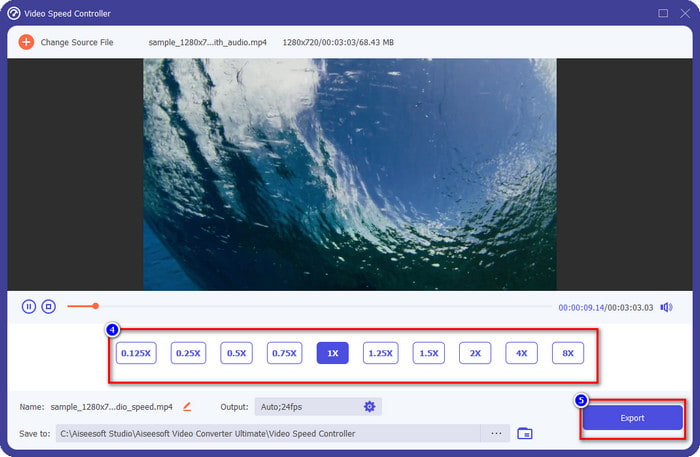
Adım 4. Listeden elde etmek istediğiniz oynatma hızını seçin; hepimizin farklı oynatma hızı tercihleri olabilir. Hızını değiştirdiğiniz videonun son çıktısını kaydetmek için Dışa Aktar seçeneğine tıklayın. Bir dakikadan kısa bir sürede elinizdeki videonun hızını değiştirmiş olursunuz. Artık videoyu daha kısa sürede izlemenin keyfini çıkarabilirsiniz.
Bölüm 2. Web'deki Video Hızını Değiştirmenin En İyi Ücretsiz Yolu
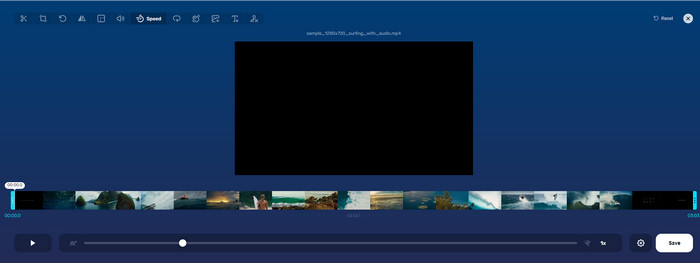
Online Video Cutter sayesinde, video hızını çevrimiçi olarak ücretsiz değiştirebilirsiniz. İlk araçtan farklı olarak, web aracını kullanmak için masaüstünüze ek bir kaynak veya kurulum dosyası indirmenize gerek yoktur. Hız değiştirme işlevine ek olarak, bu aracı temel düzenleme işlemleri için de kullanabilirsiniz. Araç her ne kadar iyi olsa da, desteklediği biçimler sınırlı olduğundan elinizdeki tüm formatları buraya yükleyemezsiniz. Bunu kullanmak için aşağıdaki adımları izleyin.
Adım 1. Kullanmak istediğiniz tarayıcıyı açın ve web aracını aratın.
Adım 2. Web aracını açın, Dosya Aç düğmesine tıklayın, elinizdeki video dosyasını bulun ve yükleyin.
Adım 3. Hızlarını değiştirmek için kaydırıcıları sola veya sağa sürükleyin; hızdan memnun kaldığınızda Kaydet düğmesine tıklayın.
Bölüm 3. Video Hızını Ücretsiz Olarak Değiştirmek için iOS'taki En İyi Video Düzenleyici
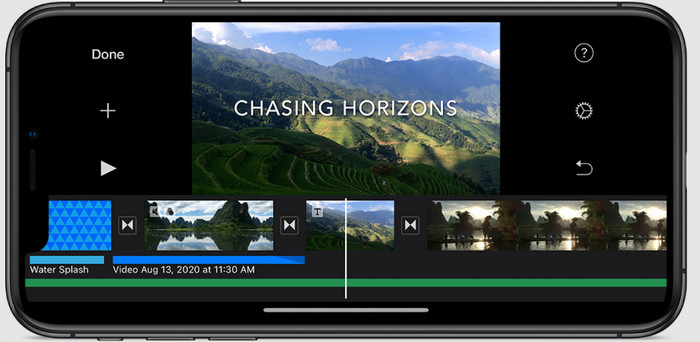
iOS kullanıcıları için, iPhone'da video hızını ücretsiz olarak nasıl değiştireceğinizi öğrenmek için iMovie'yi kullanabilirsiniz. Araç, Mac'te yerel bir video düzenleyici olsa da, uygulamayı cihazınıza indirip indirmeme seçeneğiniz vardır. Bu seçim, iOS kullanıcılarının depolama alanlarında biraz yer kazanmak için düzenleyiciyi tutabileceklerini veya tutamayacaklarını kanıtlıyor. Ancak iPhone'unuzda uygulama varsa, bu aracın nasıl çalıştığını öğrenmek için aşağıda eklediğimiz adımları takip edebilirsiniz.
Adım 1. Uygulamayı iPhone’unuza indirin ve açın, Proje bölümünde + simgesine tıklayın, ardından Filme dokunun.
Adım 2. Hızlandırmak istediğiniz videoya dokunun, ardından ekranınızın alt kısmında Film Oluştura dokunarak onu zaman çizelgesine aktarın.
Adım 3. Yüklediğiniz görüntüye dokunarak hız denetleyicisi simgesine tıklayın ve iPhone’unuzda kaydırıcıları sürükleyerek videonun hızını ayarlayın. Kaydetmek için Bitti seçeneğine tıklayın, ardından isterseniz dışa aktarın.
Bölüm 4. Yerleşik Düzenleyiciyi Kullanarak Android Cihazlarda Video Oynatmayı Değiştirmenin En İyi Yolu

Bir Android kullanıcısıysanız, bir uygulama indirmek söz konusu değildir; Dahili video düzenleyici ile telefonunuzdaki video hızını değiştirin. Bu düzenleyiciyle, videonuzun eskisinden daha iyi görünmesi için gereken temel düzenlemeleri yapabilirsiniz. Bu düzenleyiciyi Android'inizdeki Galeri veya Albüm'de bulabilirsiniz. Nasıl kullanılacağını bilmek istiyorsanız, aşağıdaki bilgiler size yardımcı olacaktır.
Adım 1. Galeri veya Albümünüzü açın, ardından hızını değiştirmek istediğiniz videoya dokunun.
Adım 2. Devam etmek için Düzenleye tıklayın.
Adım 3. Oynatma Hızı bölümüne dokunun, ardından hızı ihtiyacınıza göre değiştirin.
Bölüm 5. Video Hızını Değiştirme Hakkında SSS
YouTube'daki hızı değiştirebilir miyim?
Kesinlikle evet, bunu yapmak için yazılım indirmeseniz bile YouTube'da videonun oynatılmasını değiştirebilirsiniz. YouTube'da videonun hızını nasıl değiştireceğinizi öğrenmek için adımları izleyin. İlk önce YouTube'u açın, değiştirilmiş bir hareketle izlemek istediğiniz videoyu bulun, dişli simgesini ve altındaki Oynatma Hızını tıklayın, elde etmek istediğiniz hızı seçin ve keyfini çıkarın.
Hızı değiştirmek videonun süresini kısaltır mı?
Hızı nasıl değiştirdiğinize bağlıdır; videoyu yavaşlatırsanız, yavaş modda oynattığınız için süresinin uzamasını bekleyin. Ancak hızı yüksek olarak değiştirirseniz, oynattığınız videonun süresi orijinalinden daha kısa olacaktır. Video hızını değiştirme hakkında daha fazla bilgi edinmek için yukarıda eklediğimiz aşağıdaki ayrıntıları okumalısınız.
Hızı değiştirdikten sonra kalitenin bir etkisi olacak mı?
Ayarladığınız video hızına bağlı olarak kalite düşebilir veya kalabilir. Bir videoyu sekiz veya daha fazla kez oynatırsanız, oynatacağınız videoyu bekleyin. Ancak, oynatma dışında pek bir fark görmezsiniz, kalite açısından aynı kalacaktır.
Sonuç
Artık masaüstünde, çevrimiçi ortamda ve telefonlarda video hızının nasıl değiştirileceğine dair bir fikrimiz olduğuna göre, hangisini kullanmamız gerektiğine karar verme zamanı. Diyelim ki masaüstünüze yer kazanmak ve kurulum adımlarından kaçınmak için yazılım indirmek istemiyorsunuz; o zaman bu makalenin ikinci bölümünü okumanız gerekir. Ancak bir iOS veya Android kullanıcısıysanız, sizin için üçüncü ve dördüncü bölümler önemlidir. Windows ve Mac’te en iyi video düzenleyiciyi kullanmak istiyorsanız, mutlaka FVC Video Converter Ultimateı indirmelisiniz. Bu yazılım, masaüstünüzdeki video oynatım hızını zahmetsizce değiştirmek için en iyi video hız denetleyicisidir. Ne bekliyorsunuz? Hemen indirin ve yalnızca size özel kampanyamızdan yararlanın!
-
 Premiere Pro ve Alternatifleriyle Videoyu Hızlandırma
 Bir videoyu hızlandırmak için premiere pro'yu nasıl kullanacağınızı bilmek ister misiniz? O zaman adımlar ve diğer uygun fiyatlı alternatifler sağladığımız için doğru makaledesiniz.
-
 TikTok'ta Video Hızlandırmanın 2 Zahmetsiz Yolu
 TikTok'ta videoyu nasıl hızlandıracağınızın sırrını bilmek ister misiniz? Ardından, nasıl yapılacağı hakkında fikir sahibi olmak ve size yardımcı olacak diğer 2 aracın neler olduğunu öğrenmek için bu makaleyi okuyun.
-
 2021 İçin Mükemmel İpuçları: iMovie'de Video Nasıl Hızlandırılır
 Arkadaşınız, iOS işletim sistemini kullanarak bir videoyu nasıl hızlandıracağınızla ilgili sorununuzda size yardımcı olması için iMovie'yi öneriyor, ancak ne yapacağınızı bilmiyor musunuz? Bu makaleyi daha fazla okurken bununla ilgili daha fazla bilgi edinin.
