


 Video Dönüştürücü Ultimate
 Ekran kaydedicisi
 Video Onarımı
 Güvenli İndirme
50MB - 5MB - MP4 Dosyasını Saniyeler İçinde Sıkıştırma
Birkaç video çektikten sonra bunları Instagram hikayesine yüklemek veya arkadaşlarınızla paylaşmak isteyebilirsiniz. Bununla birlikte, çoğu sosyal medya platformunun yüklemeler için bir dosya boyutu sınırı vardır. Bu nedenle, WhatsApp aracılığıyla bir MP4 videosu gönderdiğinizde veya e-postanıza bir MP4 eki eklediğinizde, bazen bunları yüklemek için çok büyük bulabilirsiniz.
Bu nedenle, bu sorunu çözmek için MP4 dosyalarını sıkıştırmanız, yani başka bir deyişle videolarınızın “kilo vermesine” yardımcı olmanız gerekir.
Aşağıdaki makale, görüntü efektlerinden ödün vermeden MP4 videoların boyutunu küçültmenize rehberlik edecektir.

Bölüm 1. MP4 Videoları Çevrimiçi ve Ücretsiz Olarak Nasıl Sıkıştırılır
Eğer kayıt olmadan, gizli ücretler olmadan çalışan ücretsiz bir çevrim içi MP4 sıkıştırıcı arıyorsanız, filigran olmaksızın herhangi bir 4K, HD veya SD videoyu daha küçük bir dosyaya indirmenize olanak tanıyan FVC Free Video Compressor aracını deneyebilirsiniz. Ve diğer ücretsiz sıkıştırıcıların aksine, dosya boyutu veya video süresi sınırı olmadan istediğiniz kadar MP4 videoyu ücretsiz olarak sıkıştırabilirsiniz.
Dahası, bu sıkıştırıcı web tabanlı bir ürün olduğu için Windows, Mac ve Linux'ta mükemmel çalışıyor. İnternete bağlı olduğunuz sürece, bir tarayıcı ile çevrimiçi olarak kolayca kullanabilirsiniz.
Bu sıkıştırma aracında hızlıca ustalaşmak için lütfen aşağıdaki adımları izleyin.
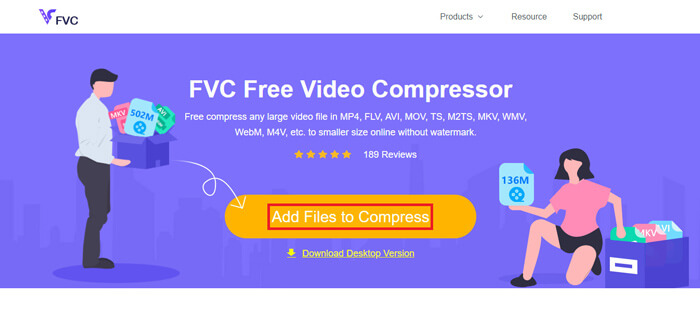
Adım 1. Tarayıcınızda FVC Free Video Compressor sayfasına gidin ve başlatıcıyı çalıştırmak için Add Files to Compress düğmesine tıklayın. Ancak bu aracı ilk kez kullanıyorsanız, lütfen önce başlatıcıyı indirin.
Adım 2. Kurulumdan sonra, lütfen sıkıştırmak istediğiniz MP4 dosyalarını seçin. İhtiyaçlarınıza göre video boyutunu, biçimini, çözünürlüğü ve bit hızını ayarlayın.
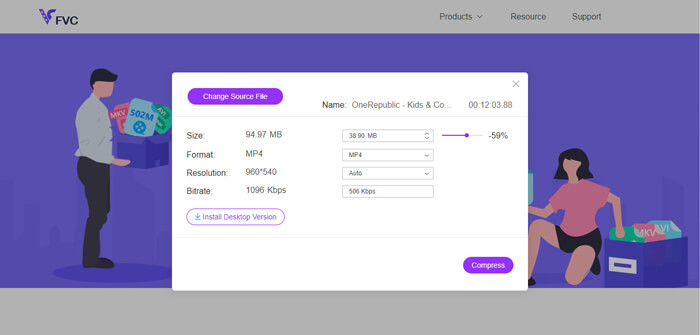
Adım 3. Sıkıştırmayı başlatmak için Compress düğmesine tıklayın.
Bölüm 2. Çevrimdışı Ücretsiz Yazılım Kullanarak MP4 Nasıl Sıkıştırılır
Ağınız o kadar kararlı değilse, videoyu masaüstünüzde çevrimdışı olarak sıkıştırmayı seçseniz iyi olur, bu da ağ durumunun etkisini ortadan kaldırır.
Video Converter Ultimate, bilgisayarınızda video/ses dosyalarını sıkıştırmak, dönüştürmek ve düzenlemek için kullanılan hepsi bir arada ücretsiz bir yazılımdır. 1.000’den fazla biçimi destekler ve seçebileceğiniz 10 adet çıktı çözünürlüğü seçeneği sunar. Sıkıştırmadan önce videonun adını değiştirebilirsiniz; böylece onu diğer MP4 dosyalarından kolayca ayırt edebilirsiniz. Yepyeni Video Converter Ultimate, Metadata düzenleyici, GIF oluşturucu, 3D oluşturucu, Video geliştirici vb. gibi çok sayıda kullanışlı düzenleme özelliği ve harika işlev içerir.
Ücretsiz İndirWindows 7 veya üstü içinGüvenli İndirme
Ücretsiz İndirMacOS 10.7 veya üstü içinGüvenli İndirme
Adım 1. Bilgisayarınızda Video Converter Ultimate programını başlatın.
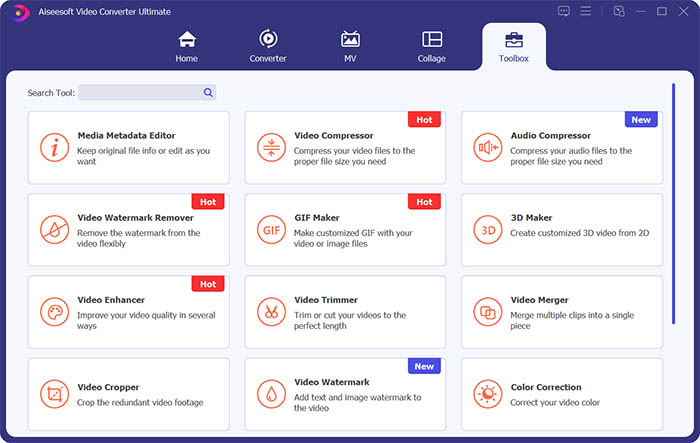
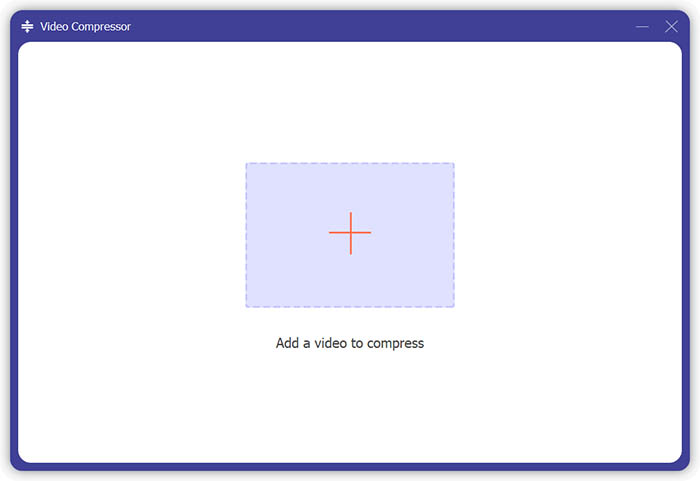
Adım 2. Toolbox'a tıklayın. Toolbox içinde Video Compressor seçeneğini bulun. Sıkıştırılacak bir video eklemek için + simgesine tıklayın.
Adım 3. Çıktı dosyasının boyutunu, adını, biçimini, çözünürlüğünü ve bit hızını ayarlayabilirsiniz.
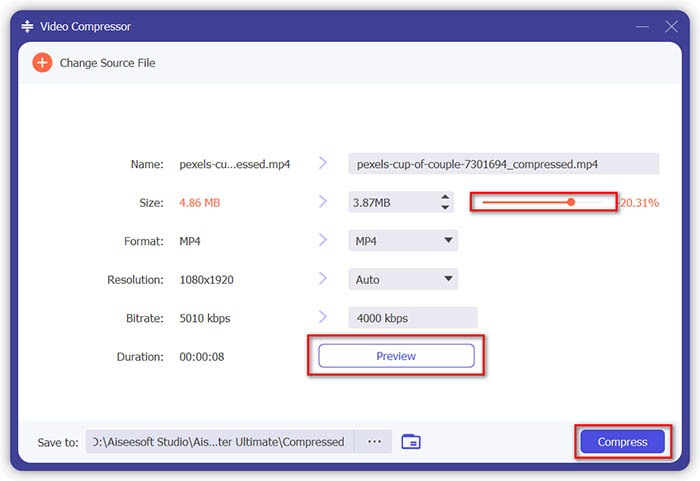
Adım 4. Compress düğmesine tıklayın ve MP4 videonuzun oluşturulmasını bekleyin.
Bölüm 3. MP4 Dosyalarını HandBrake ile Sıkıştırma
HandBrake ayrıca MP4 dosyasının boyutunu en aza indirmenize yardımcı olabilecek ücretsiz bir video sıkıştırma aracıdır.
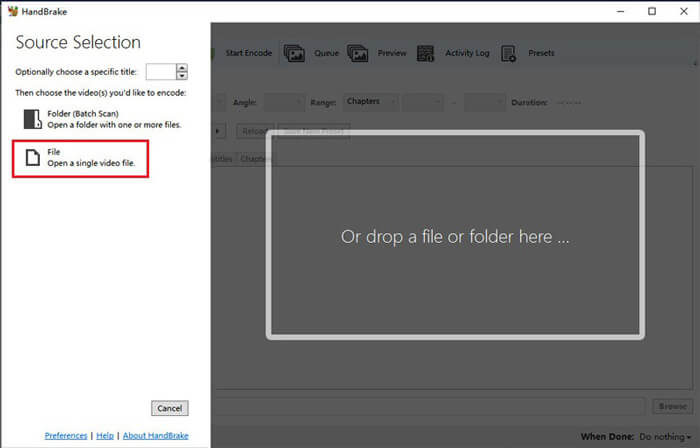
Adım 1. HandBrake’i bilgisayarınıza indirip kurun. Ardından programı açın ve soldan File seçeneğine tıklayın. Sıkıştırmak istediğiniz dosyayı seçin.
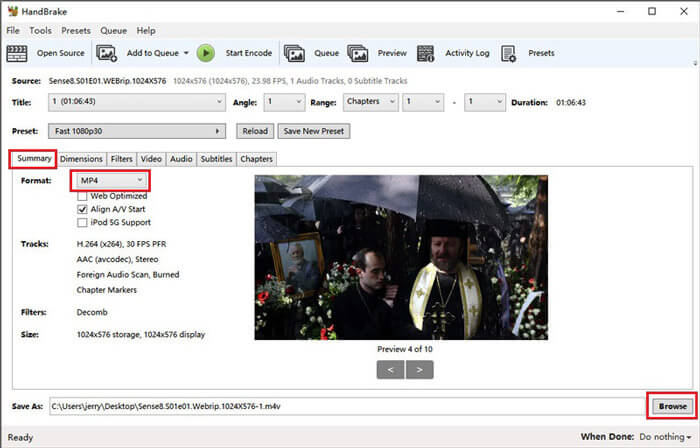
Adım 2. Browse düğmesine tıklayarak sıkıştırılmış videonun kaydedileceği konumu değiştirin. Videonun adını da değiştirebilirsiniz. Ardından çıktı formatı olarak MP4 seçin.
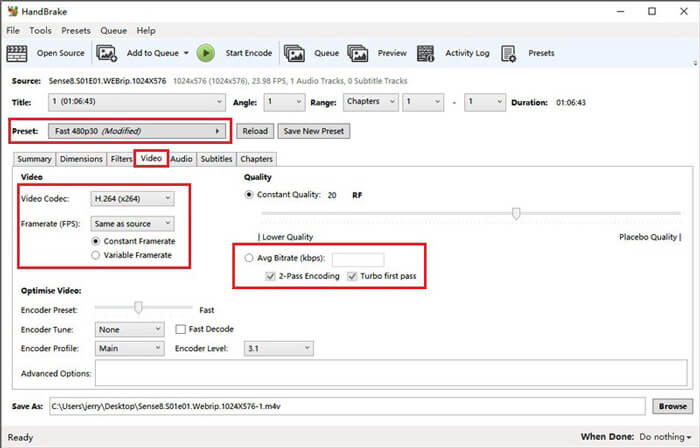
Adım 3. Üstteki Preset bölümünde, Fast 480p30 yeterli olacaktır. Video sekmesine gidin ve video codec’inin H.264 (x264) olup olmadığını kontrol edin. Kaynak videonuza bağlı olarak kare hızını seçin. Nasıl seçeceğinizi bilmiyorsanız, Same as source seçeneğini işaretleyin. Daha iyi uyumluluk için Constant Framerate kutusunu işaretleyin. Video için (5.000 ile 10.000 arasında) bir Average Bitrate (kbps) değeri girin.
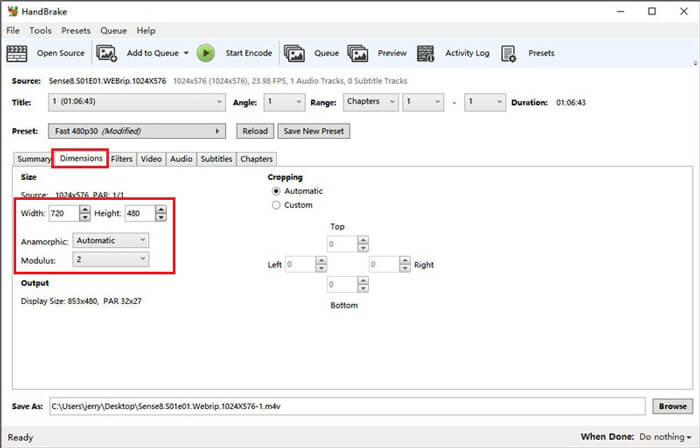
Adım 4. Dimensions bölümüne tıklayın ve video kare boyutunu veya çözünürlüğünü değiştirin. Anamorphic seçeneğini None, Modulus seçeneğini ise 2 olarak değiştirin. Ardından Keep Aspect Ratio kutusunu işaretleyin. Gerekirse, boyutu küçültmek için Width üzerindeki aşağı ok simgesini kullanabilirsiniz.
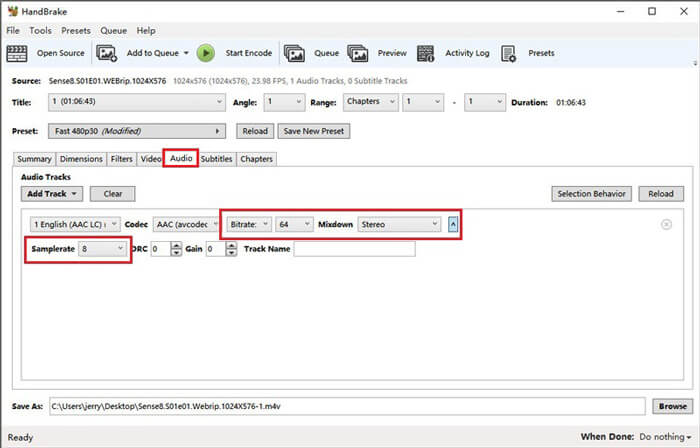
Adım 5. Audio sekmesini seçin ve gizli ayar menüsünü açın. Samplerate için 8, Mixdown için ise Stereo seçeneğini seçin.
Adım 6. Sıkıştırmayı başlatmak için Start Encode düğmesine basın.
Yeni başlayanlar için, aslında El Freni kullanmanızı önermiyoruz çünkü parametreleri anlamak ve ayarlamak zor. Ve sıkıştırılmış dosyayı elde etmek gerçekten uzun zaman alıyor.
Bölüm 4. MP4 Sıkıştırmayla İlgili SSS
1. ffmpeg, MP4'ü sıkıştırabilir mi?
Evet, MP4 dosyasını sıkıştırmak için aşağıdaki karakter dizisini kullanabilirsiniz:
$ ffmpeg -i input.mp4 -vcodec h264 -acodec mp2 output.mp4
Ancak bazı kişiler, video yeterince küçük olduğunda boyutun azalmadığı, aksine arttığını fark edebilir.
2. HandBrake WMV, MOV ve FLV'yi dışa aktarabilir mi?
HandBrake yalnızca videoları MP4(.M4V) ve MKV biçimlerine sıkıştırmanıza imkân tanır; bu da WMV, MOV, FLV, AVI vb. diğer formatlarda çıktı veremeyeceği anlamına gelir. Eğer HandBrake kullanarak sıkıştırılmış videolar elde ederseniz, daha sonra MP4’ü WMV’ye dönüştürme veya diğer biçimlere dönüştürme işlemini kendiniz yapmanız gerekir.
3. MP4 videoları sıkıştırmak kaliteyi kaybeder mi?
MP4'ü tam boyuttan daha küçük bir boyuta sıkıştırdığımızda, kalite az ya da çok mutlaka düşer. Ancak FVC Free Video Compressor ve Video Converter Ultimate gibi profesyonel bir video sıkıştırıcı ile, orijinal görüntü kalitesini mümkün olduğunca koruyabilirsiniz. Ayrıca iyi bir MP4 oynatıcı kullanarak MP4 dosyalarını oynatmak da yüksek kaliteli çıktı almanıza yardımcı olabilir.
Sonuç
Şimdiye kadar, MP4'ü daha küçük boyuta sıkıştırmak için 3 yöntem tanıttık. Bilgisayarınıza çok fazla yazılım kurmaktan hoşlanmıyorsanız, çevrim içi ve ücretsiz olan FVC Free Video Compressor aracını deneyebilirsiniz. Ancak güçlü bir video işleyicisine ihtiyacınız varsa, Video Converter Ultimate sizin için en iyi seçenektir. Bu yazının işinize yaramasını umuyoruz; görüşlerinizi bizimle paylaşmak için bize bir mesaj bırakmayı unutmayın.
-
 MP4 Mac / Windows için WMV'ye Nasıl Dönüştürülür
 Bu gönderi, MP4 videosunun Mac veya Windows'ta WMV formatına nasıl dönüştürüleceğini paylaşıyor. Ayrıca size hem masaüstü yazılımı hem de web tabanlı çevrimiçi dönüştürücüler dahil olmak üzere çeşitli seçenekler sunacağız. En iyi MP4'ten WMV'ye dönüştürme araçlarını öğrenmeye hazır mısınız?
-
 MP4 Video Dosyalarınızı Kalite Kaybı Olmadan Animasyonlu GIF Görüntülerine Dönüştürme
 MP4 videonuzu animasyonlu GIF'lere dönüştürmenin en iyi yolunu mu arıyorsunuz? İşte bunu Photoshop, Windows Movie Maker, çevrimiçi video dönüştürücü ve daha fazlasında yapmak için ayrıntılı bir kılavuz.
-
 MOV VS MP4 - Hangisi Daha İyi
 MOV VS MP4, hangisi daha iyi? Bu gönderi MP4 ve MOV arasındaki farkı anlatıyor, böylece video dosyalarınız için daha iyi bir seçim yapabilirsiniz.
