


 Video Dönüştürücü Ultimate
 Ekran kaydedicisi
 Video Onarımı
 Güvenli İndirme
Çevrimiçi Videoları Kesme Çözümleri [Adım Adım Öğreticiler]
Uzun videonuzu nasıl kısaltırsınız? Bunu yapmak için en iyi yöntemleri bilmiyorsanız, bu rehber yazıyı okumanız için bir sebep var demektir. Bu makaleyi okurken, videonuzun süresini kısaltma hakkında tüm temel bilgileri vereceğiz. Ayrıca kullanabileceğiniz çevrimiçi ve çevrimdışı video düzenleme yazılımlarını tanıtacağız. Böylece hedefinize ulaşmak için daha fazla imkânınız olacak. O hâlde, başka bir şeye geçmeden bu yazıyı okuyun ve çevrimiçi video kesmeyi nasıl yapacağınızı öğrenin.

Bölüm 1. Çevrimiçi Video Kesmek İçin Mükemmel Yöntemler
1. Videoda
Çevrimiçi bulabileceğiniz faydalı video düzenleme araçlarından biri, Video İçi video düzenleyicidir. Bu web tabanlı yazılım, kullanımı kolay bir düzen sunar. Web sitesini ziyaret ettikten sonra aracı yüklemeniz gerekmez. Tek yapmanız gereken videoyu eklemek ve şimdiden kırpmaya devam edebilirsiniz. Ayrıca sade bir düzene sahip olduğu için anlaşılır bir yöntem de olacaktır. Bu şekilde, ister profesyonel ister profesyonel olmayan bir kullanıcı olun, Video İçi'ni kullanabilirsiniz. Ayrıca, InVideo'ya neredeyse tüm web platformlarından erişilebilir. Aracı Google Chrome, Mozilla Firefox, Internet Explorer ve daha fazlasında kullanabilirsiniz. Ancak InVideo'nun bazı dezavantajları vardır. Ücretsiz sürümü kullanırken, InVideo yüksek video kalitesi sunamaz. Ayrıca, yalnızca tatmin edici olmayan düşük video kalitesi sunabilir. Mükemmel video kalitesi istiyorsanız, bir abonelik planı satın almalısınız. Video İçi video kırpıcıyı kullanarak videonuzu kesmek/kırpmak için aşağıdaki adımları izleyin.
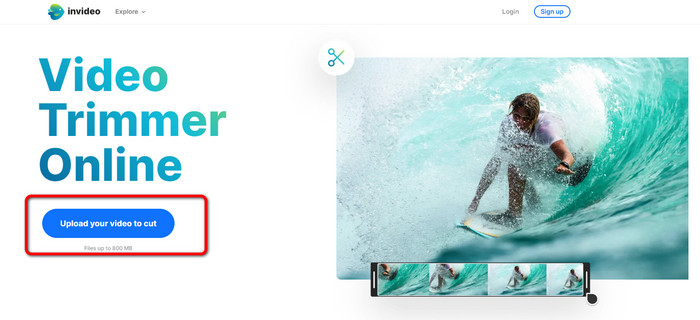
Adım 1. Tarayıcınızı açın ve InVideo’nun resmî web sitesine gidin. Ardından, hâlihazırda web sayfasındaysanız, Videonuzu kesmek için yükleyin düğmesine tıklayın. Dosya klasörü ekranda göründüğünde, kırpmak/kesmek istediğiniz videoyu seçin ve açın.
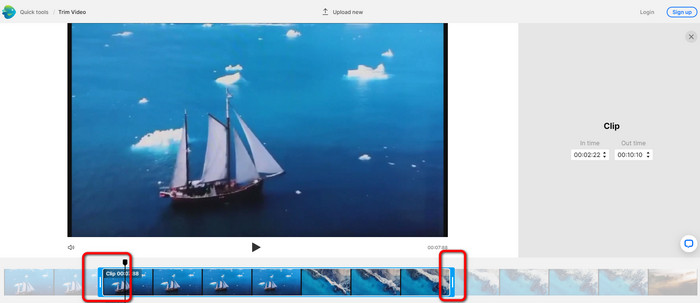
Adım 2. Bir video seçtikten sonra, onu kırpabileceğiniz bölüme yönlendirileceksiniz. Filminizi kırpmak için, videonun her iki ucundaki kaydırıcıları istediğiniz zaman damgasına getirin.
Adım 3. Videonuzu kırptıktan sonra, onu çeşitli formatlarda kaydedebilirsiniz. Arayüzün sol alt kısmındaki Çıkış Formatı seçeneğine gidin. Ardından, format seçenekleri göründüğünde tercih ettiğiniz çıktı formatını seçin. Sonra Bitti’ye tıklayın.
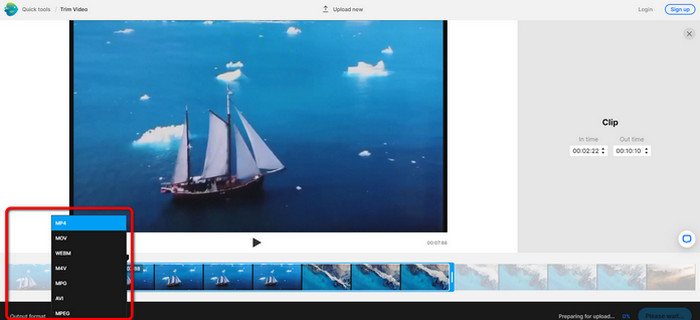
Adım 4. Videonuzu kaydetmeden önce, InVideo’ya bir hesapla kaydolmanız veya mevcut bir hesapla oturum açmanız gerekir. Bilgilerinizi girdikten birkaç saniye sonra videonuz kaydedilebilir hâle gelecektir.
2. Ezgif
Çevrimiçi ve ücretsiz bir diğer video kırpma aracı ise Ezgif’tir. Bir videoyu kısaltmak için basit adımları vardır. Ezgif ücretsiz bir çevrimiçi araçtır; bu yüzden tek kuruş harcama derdiniz yoktur. Ayrıca araca tüm tarayıcılardan erişebilirsiniz. Buna Google, Edge, Firefox, Explorer ve daha fazlası dâhildir. Ancak çevrim içi araç yalnızca GIF formatını destekler. Dolayısıyla başka bir formattaki videoyu kesmeyi planlıyorsanız Ezgif doğru araç değildir. Ayrıca aracı kullanırken ekranda birçok rahatsız edici reklam belirir. Bu yüzden video düzenlerken dikkatiniz dağılabilir.
Adım 1. Ezgif’in web sitesine gidin ve Kes (Cut) seçeneğini seçin.
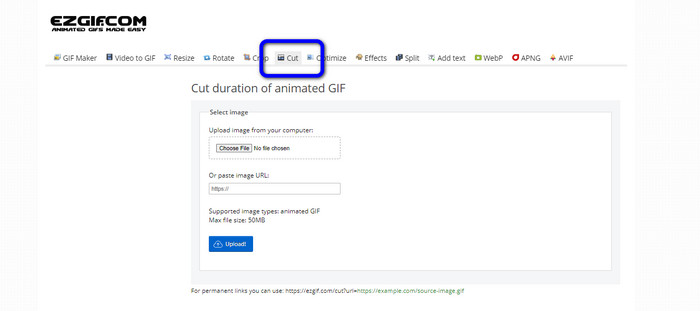
Adım 2. Ardından Dosya Seç (Choose File) düğmesine tıklayın. Sonra bilgisayar klasöründen yüklemek istediğiniz GIF dosyasını ekleyin.
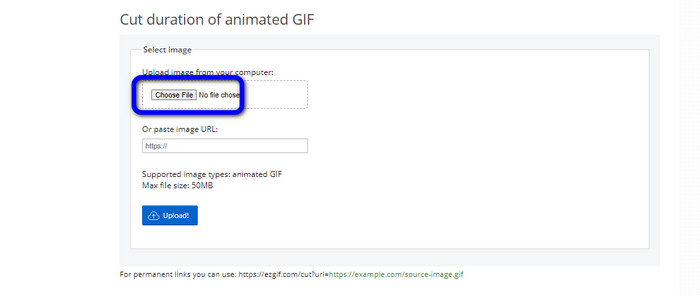
Adım 3. GIF dosyasını yükledikten sonra artık kesme işlemine başlayabilirsiniz. GIF dosyasını kesmenin iki yolu vardır. Kare numarasına göre kesebilir veya süreye göre kesebilirsiniz. Tercih ettiğiniz yönteme göre kesin.
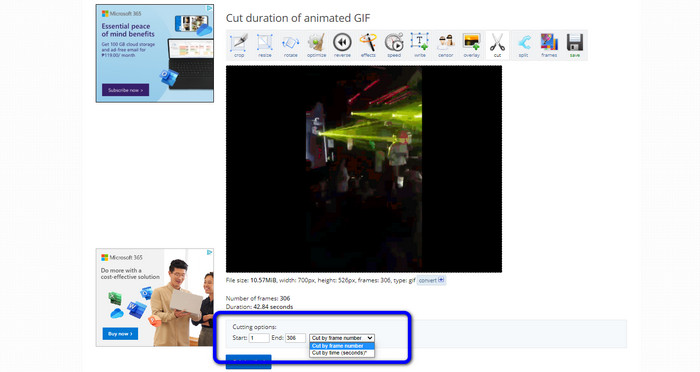
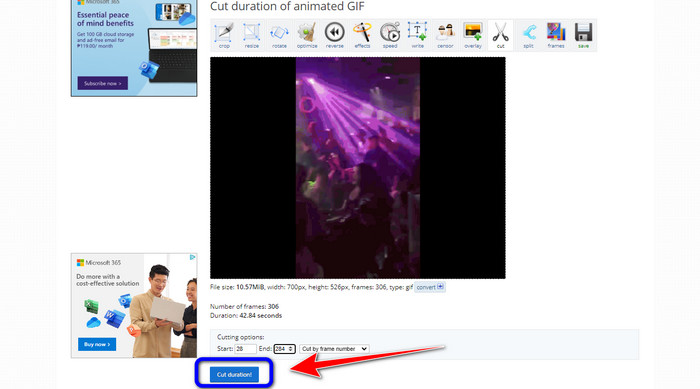
Adım 4. Kesme işlemini başlatmak için Süreyi Kes (Cut Duration) düğmesine tıklayın.
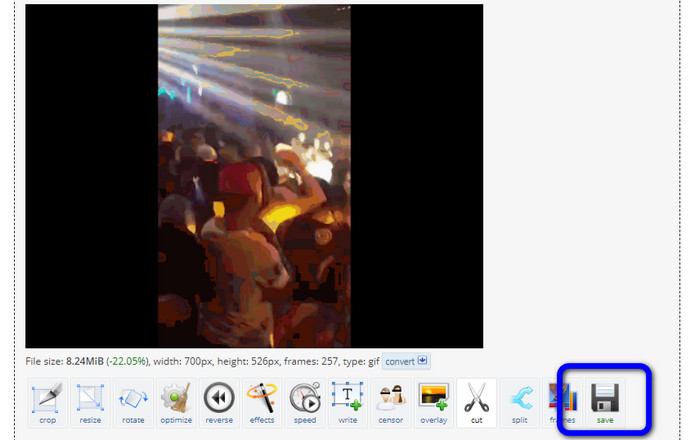
Adım 5. Bundan sonra düzenlenmiş hâli görünecektir. Son çıktıyı bilgisayarınıza indirmek için Kaydet (Save) seçeneğine tıklayın.
3. Kapwing
Videoyu kesmek için Kapwing video trimmer’ı da kullanabilirsiniz. Bu web tabanlı araç, videoyu zahmetsiz bir yöntemle kesebilir. Ayrıca araca çeşitli web tarayıcılarından erişebilirsiniz. Buna Chrome, Mozilla, Edge ve daha fazlası dâhildir. Dahası, Kapwing; MP4, MOV, AVI, FLV, WEBM ve diğerleri gibi farklı video formatlarını destekler; bu da tüm kullanıcılar için oldukça kullanışlıdır. Ancak Kapwing’in bazı dezavantajları vardır. Ekranda sürekli görünen rahatsız edici reklamları bulunur. Ayrıca, ücretsiz sürümü kullanırken yalnızca 720p çözünürlüklü video yüklemenize izin verir. Bunun yanında, videoyu düzenledikten sonra can sıkıcı filigranlar ekler. Videoyu filigransız almak ve daha fazla iyi özelliğin keyfini çıkarmak istiyorsanız bir abonelik planı satın alın.
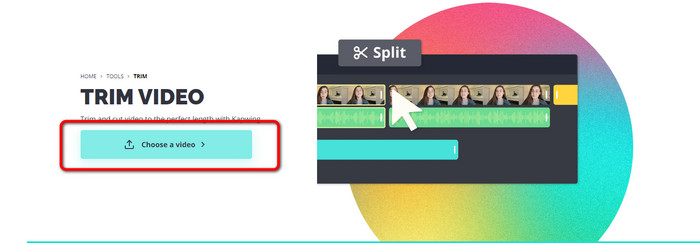
Adım 1. Kapwing web sitesine gidin. Ardından, aracın ana arayüzüne geçmek için Bir video seçin (Choose a video) seçeneğine tıklayın.
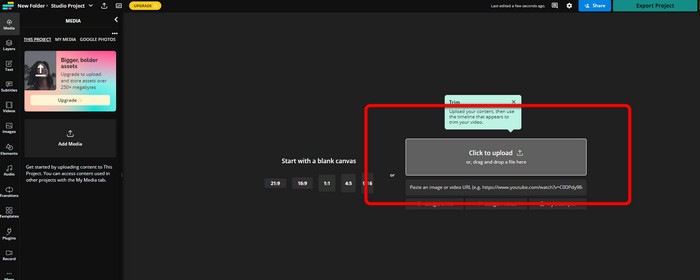
Adım 2. Dosya klasöründen video eklemek için Yüklemek için tıklayın (Click to upload) düğmesine tıklayın.
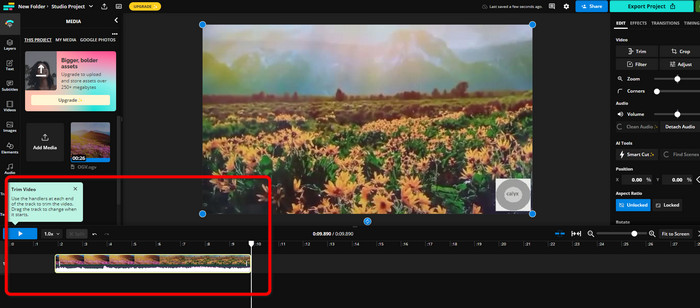
Adım 3. Video zaman çizelgesinde göründüğünde, videoyu kırpmaya başlamak için her iki taraftaki tutamaçlara tıklayabilirsiniz.
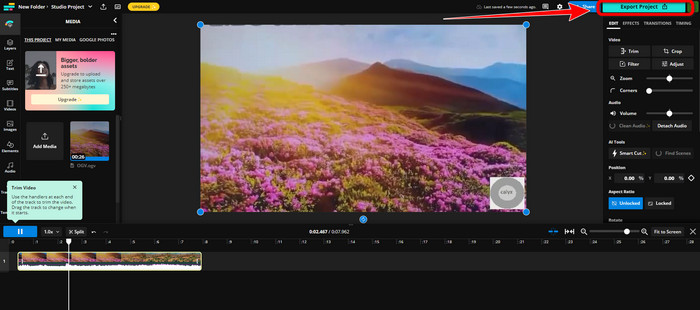
Adım 4. İşiniz bittiğinde, arayüzün sağ üst köşesine gidin ve Projeyi Dışa Aktar (Export Project) düğmesine tıklayın. Böylece düzenlenen videoyu masaüstünüze kaydedebilirsiniz.
Kısım 2. Çevrimdışı Videoyu Kırpmanın Alternatif Yolu
Videoları çevrimdışı olarak en iyi şekilde düzenlemek için Video Converter Ultimate’ı kullanın. Bu araç videonuzu kırpma ve/veya kesme işlemini kolaylaştırır. Ayrıca basit arayüzü ve anlaşılır gezinti yapısıyla tüm kullanıcılar için idealdir. Ortaya çıkan çalışmanızı da çeşitli formatlarda kaydedebilirsiniz. Bunlar arasında MOV, AVI, MP4, MKV ve diğerleri yer alır. Video keserken yapabileceğiniz daha birçok şey vardır. Çıkış seçeneklerine giderek çeşitli ayarlamalar yapabilirsiniz. Videonun kare hızını, çözünürlüğünü, kodlayıcısını, kalitesini vb. değiştirebilirsiniz. Ayrıca Video Converter Ultimate, düzenlenen videoya filigran eklemez. Bu sayede düzenlenmiş videoyu herhangi bir rahatsız edici unsur olmadan izleyebilirsiniz. Bunun yanında, hem Windows hem de Mac kullanıcıları Video Converter Ultimate’a erişebilir. Bu da programın hem Windows hem de Mac kullanıcıları için uygun olduğu anlamına gelir. Videoyu kesmeye başlamak için aşağıdaki ayrıntılı talimatları izleyin.
Adım 1. Bilgisayarınızda Video Converter Ultimate’a erişmek için aşağıdaki İndir düğmesine tıklayın. Kurulum işleminden sonra programı açın.
Ücretsiz İndirWindows 7 veya üstü içinGüvenli İndirme
Ücretsiz İndirMacOS 10.7 veya üstü içinGüvenli İndirme
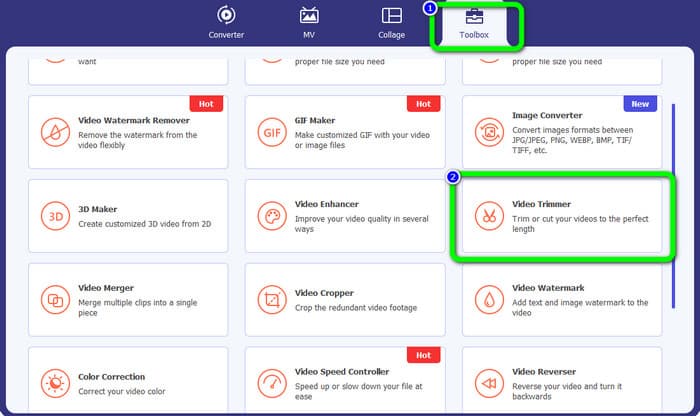
Adım 2. Arayüzde Araç Kutusu (Toolbox) menüsüne tıklayın ve Video Kesici (Video Trimmer) aracını seçin.
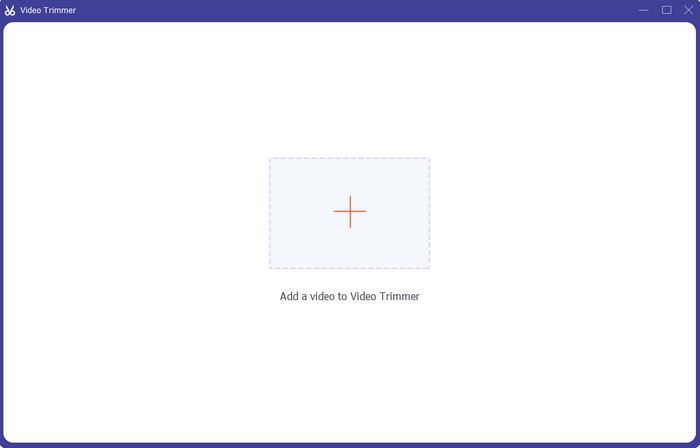
Adım 3. Yeni arayüz ekranda göründüğünde, düzenlemek istediğiniz videoyu eklemek için Artı (Plus) simgesine tıklayın.
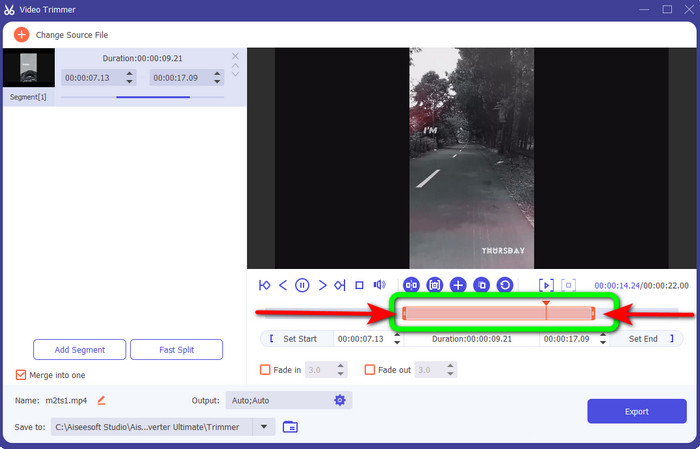
Adım 4. Ardından, bu bölümde videonuzu düzenlemeye başlayabilirsiniz. Videoyu nasıl kesmek/kırpmak istediğinizi kontrol etmek için videonun kenar kısmını hareket ettirebilirsiniz. İhtiyaçlarınıza göre sağ ve sol kenarları sürükleyebilirsiniz.
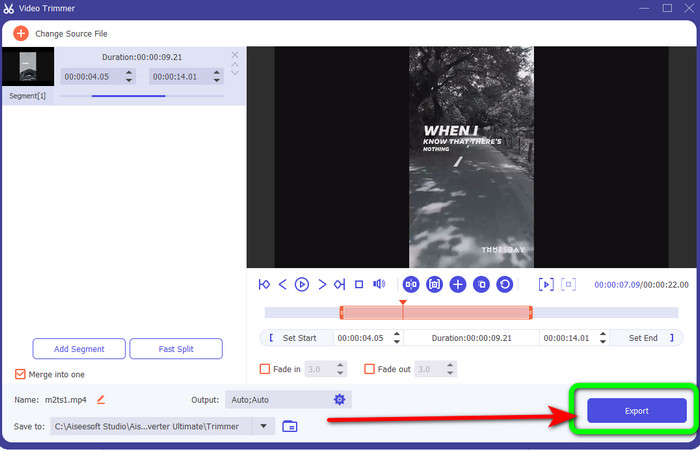
Adım 5. Videodan memnun kaldığınızda Dışa Aktar (Export) düğmesine tıklayarak dışa aktarma işlemine devam edin. Sonra son hâlini almış, düzenlenmiş videonuzu kaydedin.
Bölüm 3. Çevrimiçi Video Nasıl Kesilir Hakkında SSS
Bir iPhone'da bir video nasıl kırpılır?
Başladıktan sonra, Resimler uygulamasında düzenlemek istediğiniz videoya dokunun. Düzenle'yi tıklayın. Video zaman çizelgesinin her iki tarafındaki kaydırıcıları sürükleyerek başlangıç ve bitiş zamanlarını değiştirin. Düzenlenmiş videonuzun önizlemesini görmek için oynat düğmesini kullanın. Bitti'yi seçtikten sonra Videoyu Kaydet veya Videoyu Yeni Klip Olarak Kaydet'i seçin.
Shotcut'ta videolar nasıl kesilir?
Video dosyasını Shotcut'a aktardıktan sonra zaman çizelgesine sürükleyin. Oynatma kafasını kırpmak istediğiniz bölümün başına yerleştirin. Ardından I kısayol tuşuna basın. Oynatma kafasını bölümün sonuna ilerlettikten sonra O tuşuna basın. Segment şimdi videonun geri kalanından ayrılacaktır.
MP4 dosyalarını çevrimdışı kesmek için en iyi yazılım hangisidir?
MP4 dosyalarını çevrimdışı kesmek istiyorsanız, Video Converter Ultimate’ı kullanın. Bu ücretsiz indirilebilen program, MP4 dosyalarını zahmetsizce kesmenizi sağlar.
Sonuç
Bunlar çevrimiçi video kesmenin en iyi yöntemleridir. Videoyu kesmek için yukarıda bahsedilen tüm video düzenleme araçlarını kullanabilirsiniz. Ancak çevrimiçi araç kullanırken, zayıf internet bağlantısı nedeniyle bazen iyi performans göstermeyebilir. Böyle bir durumda Video Converter Ultimate’ı kullanın. Bu, internet bağlantısı olmadan video düzenlemenizi sağlayan indirilebilir bir programdır.
-
 [4 Yol] Videolarınızı Çevrimiçi Olarak Kolayca Hızlandırmanın Yolları
 Çevrimiçi bir videoyu hızlandırmak ister misiniz? Bir videoyu mümkün olan farklı şekillerde hızlandırma hakkında daha fazla bilgi edinmek için bu makaleyi okuyun.
-
 Çevrimiçi Şarkılar Nasıl Kesilir ve Birleştirilir - Bilmeniz Gereken En İyi 4 Yol
 Bir müzik parçası oluşturmak için çevrimiçi şarkıları kesmek ve birleştirmek istediğinizde, makaleden şarkıları kırpmak ve dosyaları birleştirmek için en iyi 4 çevrimiçi araç hakkında daha fazla bilgi edinebilirsiniz.
-
 Prosedür ve Bilgi ile En İyi MP4 Düzelticiyi Keşfedin
 İzlediğiniz vloggerlar gibi videoları nasıl keseceğinizi öğrenmek ister misiniz? Ardından, hangi MP4 düzelticileri kullanabileceğinizi öğrenmek için bu gönderiyi okumaya devam edin.
