


 Video Dönüştürücü Ultimate
 Ekran kaydedicisi
 Video Onarımı
 Güvenli İndirme
Adobe Stock Filigranını Videodan Kolayca Kaldırmak için En İyi Filigran Kaldırıcı
Adobe’nin bir fotoğraf stok sitesi olduğunu biliyor muydunuz? Adobe Stock’u tanıtıyoruz: ihtiyacınız olabilecek hemen her tür grafik tasarımı sunan, en büyük sitelerden biri ve telifsiz lisanslama sayesinde istenmeyen sonuçlar doğmadan kullanabiliyorsunuz. Bir kredi veya abonelik satın almadıysanız HD videoları ücretsiz indirebilirsiniz, ancak üzerinde filigran veya damga bulunur. Muhtemelen “Videodan Adobe Stock filigranını kaldırmak mümkün mü?” diye merak ediyorsunuzdur ve evet, mümkün! Bir sonraki bölümde ihtiyacınız olacak en iyi filigran kaldırıcıyı kullanacağız; bunu daha iyi tanımak için makalenin devamını okuyun!

Bölüm 1. Adobe Stock Filigranını Videodan Kırparak Kaldırma
FVC Video Converter Ultimate, Windows ve Mac sürümlerini destekleyen, tam özellikli ve sade bir görüntü düzenleyicidir. Bu yazılım, Adobe Stock’tan indirdiğiniz videoyu filigransız kaydetmenizi sağlayan güçlü bir kırpma özelliği sunar. Ayrıca videolarınızdaki nesne, damga, filigran, tarih ve saat gibi her şeyi kırpabilir.
Kırpma konusunda deneyimsiz olsanız bile, aşağıda eklediğimiz öğreticiyi izleyerek işiniz bittiğinde yine de yapabilirsiniz. Ancak, boyutu yeniden boyutlandırdığınız ve gereksiz gerçek görüntüleri kestiğiniz için filigran videonun ortasındaysa bu adım ideal değildir.
FVC Video Converter Ultimate ile Video Filigranı Nasıl Kırpılır:
Adım 1. Bu video düzenleyicinin doğru sürümünü masaüstünüze indirmek için aşağıdaki uygun indirme düğmesine tıklayın. Kurulum ve yapılandırma sürecini izleyin, ardından düzenleyiciyi sisteminizde açmak için Şimdi Başlat’a tıklayın.
Ücretsiz İndirWindows 7 veya üstü içinGüvenli İndirme
Ücretsiz İndirMacOS 10.7 veya üstü içinGüvenli İndirme
Adım 2. Araç şimdi açıldığına göre, Araç Kutusu bölümüne geçin ve Video Kırpıcıyı seçin.
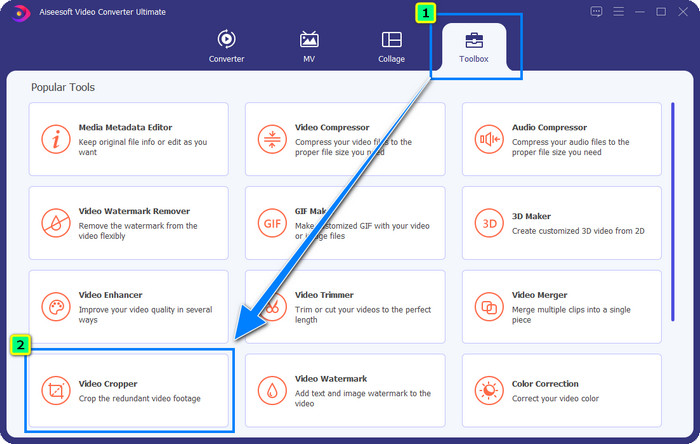
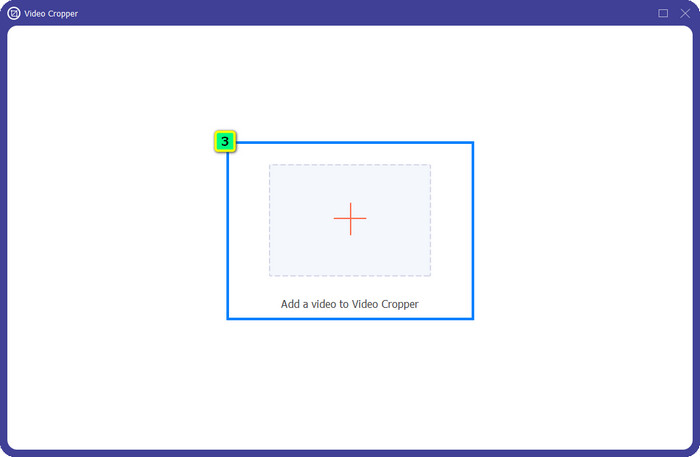
Adım 3. Ekranınızda yeni bir araç penceresi açılacak; kırpmak istediğiniz videoyu yüklemek için + düğmesine dokunun.
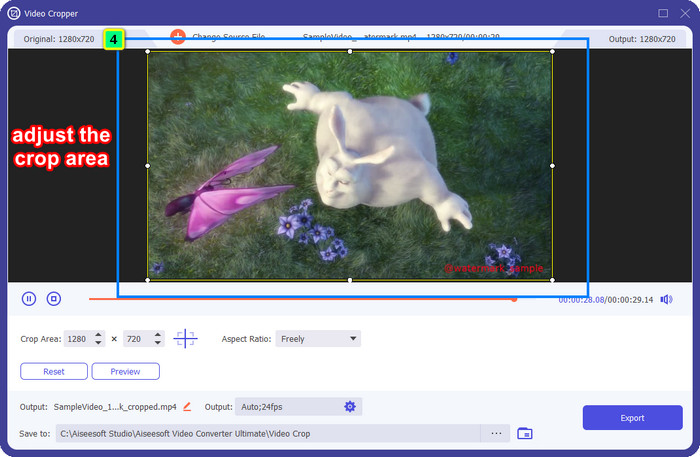
Adım 4. Kırpma alanını tercihinize göre ayarlayın; kaydederken videoda filigran kalmaması için filigranın çerçevenin içinde olmadığından emin olun.
Adım 5. Görüntüyü düzenlemeyi tamamladıktan sonra nihai çıktıyı dışa aktarma zamanı. Şuraya Kaydete basın ve dosyanın kaydedileceği konumu seçin, ardından Dışa Aktara tıklayarak son çıktıyı yerel diskinize indirin.
Bölüm 2. Adobe Stock Filigranını Videodan Kırpmadan Kaldırma
Adobe Stock filigranından kırpma özelliğiyle kurtulma şeklini beğenmediniz mi? O hâlde bu gelişmiş dönüştürücünün filigran kaldırıcı özelliğini kullanabilirsiniz; oldukça güçlüdür ve işlem tamamlandığında filigrandan hiçbir iz bırakmaz. FVC Video Converter Ultimate, ek uzantılar indirmeden özgürce kullanabileceğiniz çok çeşitli özellik ve işlevleri destekleyen güvenilir bir uygulamadır. Son güncelleme ile birlikte gelen video filigran kaldırıcı, videodaki filigran sorununu olan herkesin bunu kolay ve etkili şekilde çözmesini sağlar.
Kırpma özelliğinden farklı olarak, filigran kaldırma özelliği, son çıktının lekesini bırakmadan videonuzdaki filigranı kaldırır. Videonun boyutunu ve kalitesini kesmediği ve kaydırmadığı için görüntüde hiçbir değişiklik yapmaz. Bu nedenle, bir videodan Adobe Stock filigranını nasıl kaldıracağınızla ilgileniyorsanız, bir sonraki ekleyeceğimiz adımları takip edebilirsiniz.
Adım 1. Yazılımı indirdiyseniz bir sonraki adıma geçebilirsiniz; indirmediyseniz bu indirme düğmesine tıklayın, kurun ve düzenleyiciyi başlatın.
Ücretsiz İndirWindows 7 veya üstü içinGüvenli İndirme
Ücretsiz İndirMacOS 10.7 veya üstü içinGüvenli İndirme
Adım 2. Araç masaüstünüzde çalıştığına göre, Araç Kutusuna tıklayın ve yazılımın sunduğu Video Filigran Kaldırıcı özelliğini seçin.
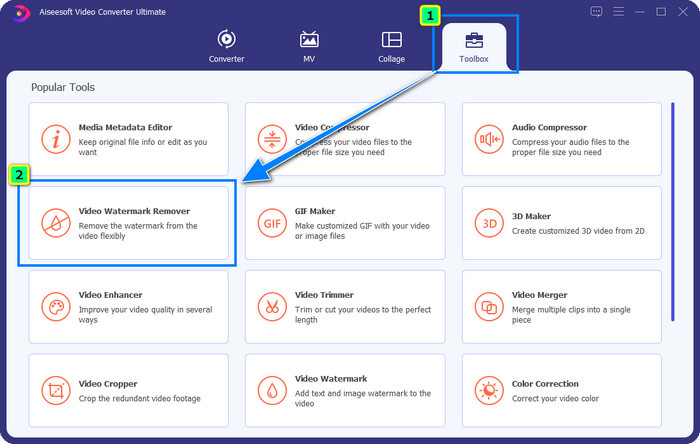
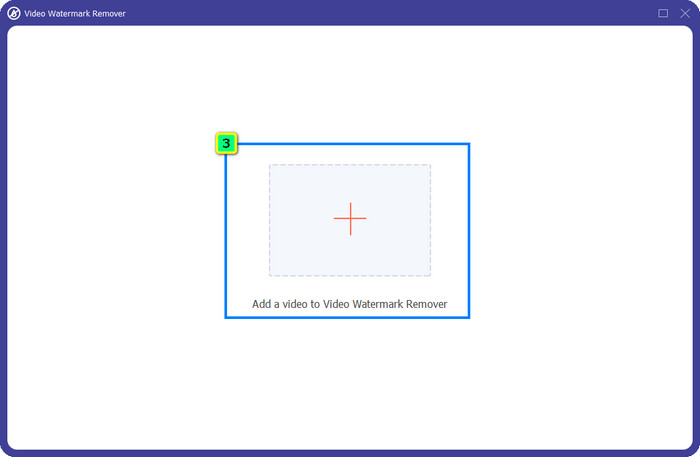
Adım 3. Artı düğmesine basın, ardından ekranda bir klasör açılacak; indirdiğiniz Adobe Stock videosunu yükleyin ve Aça tıklayın.
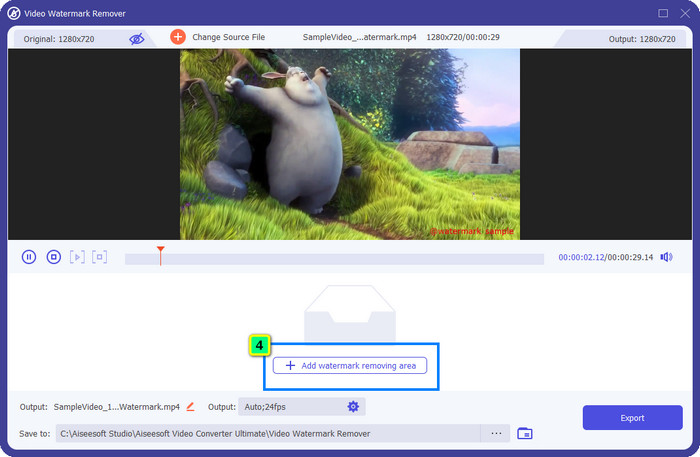
Adım 4. Videonuzdaki filigranı kaldırmak için Filigran Kaldırma Alanı Ekleye basın.
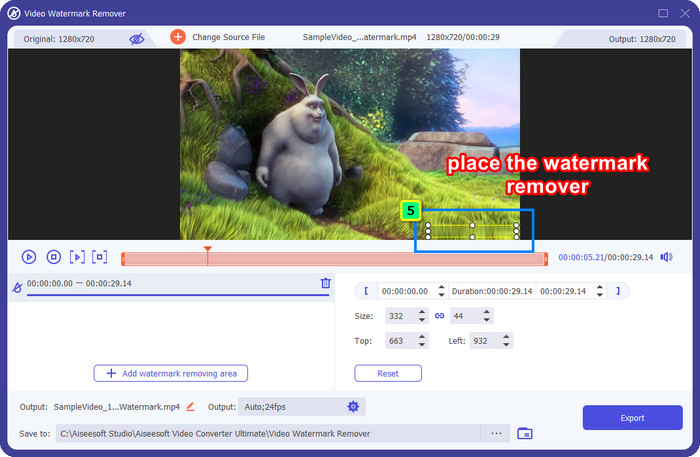
Adım 5. Çerçeveyi filigranın bulunduğu alana yerleştirin ve videonuza ekli filigranla tam örtüşecek şekilde serbestçe ayarlayın.
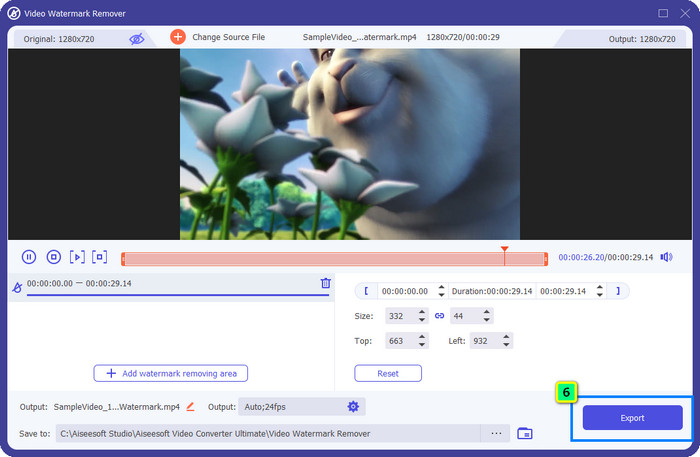
Adım 6. Her şey tamamlandıktan sonra Dışa Aktara tıklayın ve işte bu kadar kolay bir şekilde videoyu filigransız kullanmanın keyfini çıkarın.
Bonus: Çevrimiçi Görüntülerdeki Adobe Stock Filigranını Ücretsiz Olarak Kaldırma
FVC Free Watermark Remover, internette erişebileceğiniz görüntüler için kullanabileceğiniz yetenekli bir filigran kaldırıcıdır. Dolayısıyla, cihazınıza indirdiğiniz veya kaydettiğiniz bir görüntüde filigran sorunu varsa, bu yazılımı kullanmaya başlayabilirsiniz. Sonraki adımda, Adobe Stock filigranını çevrimiçi görüntülerden kaldırmak için aşağıya eklediğimiz eğitimi takip edebilirsiniz.
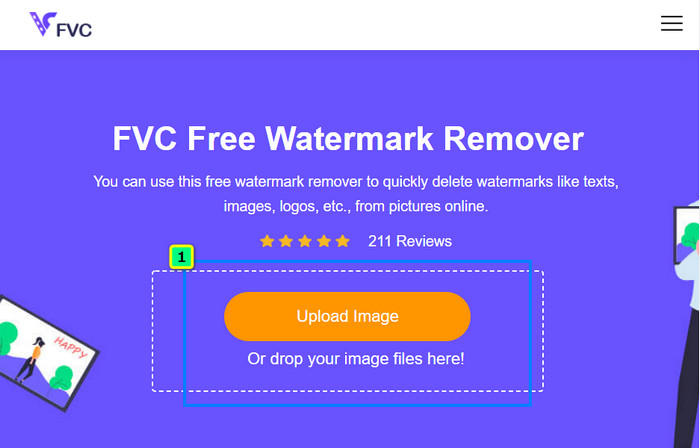
Adım 1. Bu çevrimiçi filigran kaldırıcıyı açmak için şu bağlantıya tıklayabilirsiniz.
Adım 2. Filigranını düzenlemek istediğiniz görüntüyü eklemek için Görüntü Yükleye basın.
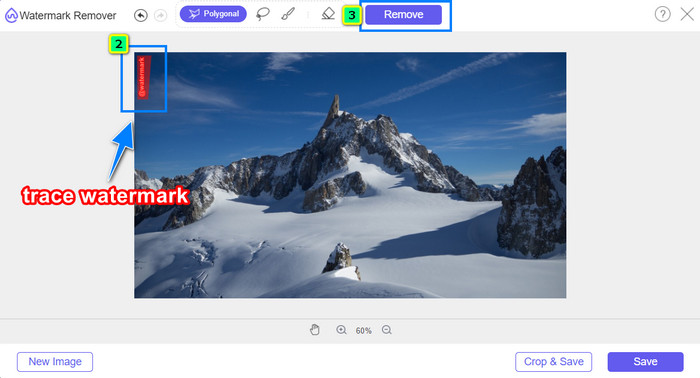
Adım 3. Çokgen aracını kullanarak, farenizin sol tık düğmesine her seferinde bir nokta olacak şekilde basarak filigranı noktalar halinde izleyin. İzlemeyi bitirdikten sonra Kaldıra basın; ardından yapay zeka sizin için filigranı kaldırma işlemini gerçekleştirecektir.
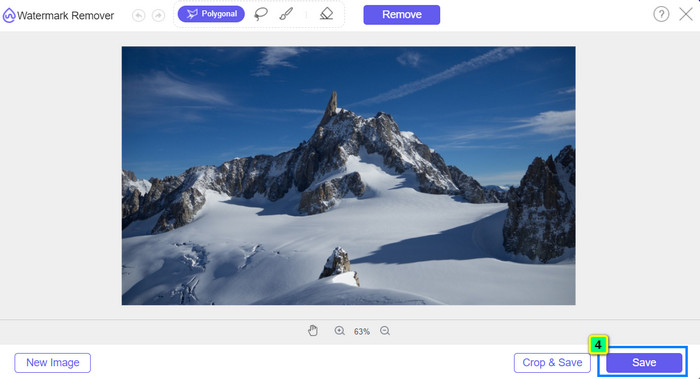
Adım 4. Sonuçtan memnun kaldığınızda ve görüntüyü indirmeye hazır olduğunuzda, doğrudan masaüstünüze kaydetmek için Kaydet düğmesine tıklayın.
Daha Fazla Okuma:
Fotoğraftan Nesne Kaldırmanın En Yeni Yolu [6 Yöntem]
Fotoğraftaki Görüntüyü 3 Yöntemle Nasıl Netleştirirsiniz [Hızlı Eğitim]
Bölüm 3. Adobe Stock Filigranını Videodan Kaldırma Hakkında SSS
Adobe Stock filigranını videodan kaldırmak kaliteyi kötüleştirir mi?
Bazen videodaki filigranı kaldırdığınızda, kullandığınız araç video çıkışını daha da kötüleştirir. Ancak FVC Video Converter Ultimate kullanıyorsanız bu sorunu yaşamazsınız. Aslında, kaliteyi artırmak için video kalite ayarını çok daha yüksek bir değere ayarlayabilirsiniz.
Adobe Stock kredilerini nereden satın alabilirim?
Adobe Stock'un resmi web sitesini açın, ardından Fiyatlandırma'ya gidin. Planlar ve Fiyatlandırma altında, satın alabileceğiniz farklı kredi paketleri göreceksiniz. Daha fazla kredi, daha pahalı olabilir. Kaç tane almak istediğinizi tıklayın, Şimdi Satın Al'a basın, ödeme bilgilerini ekleyin ve ardından Güvenli Sipariş Ver'i tıklayın.
Adobe Stock'taki planlar neden çok pahalı?
Adobe Stock'ta bulunan her ürünün fiyatı nedeniyle çok pahalı görünebilir. Fiyata ek olarak, artış, geliştiricinin Adobe'nin itibar kazanmasıdır. Ürünü adı ile satın alıyorsunuz.
Sonuç
Bu makaledeki gelişmiş filigran kaldırıcı sayesinde, artık resmi sitesinden indirdiğiniz videodan Adobe Stock filigranını kaldırma işlemini tamamlayabilirsiniz. Peki sizce hangisi işe daha çok yarar? Kırpma mı yoksa filigran kaldırma mı? Aslında ikisi de işlevsel ve mükemmel sonuçlar verir. Ancak boyutunuz kesiliyor ya da yeniden ölçekleniyorsa, FVC Video Converter Ultimate’ın Video Filigran Kaldırıcı özelliğini kullanmanız daha iyi olur. Ayrıca FVC, masaüstünüzdeki herhangi bir web tarayıcısından erişebileceğiniz çevrimiçi bir araç yardımıyla elinizdeki görüntülerden de filigran kaldırma imkânı sunar. Sizin için sunduğumuz bilgileri okurken keyif aldığınızı umuyoruz. Daha fazlasını öğrenmek isterseniz aşağıdaki diğer makaleleri okuyun.
-
 Final Cut Pro Kullanarak Videodan Filigran Nasıl Kaldırılır [Komple Kılavuz]
 Videolardaki filigranla ilgili bir sorun mu yaşıyorsunuz? Final Cut Pro kullanarak videodan filigranın nasıl kaldırılacağına dair bir eğitim sağladığımız için daha fazlasını söylemeye gerek yok.
-
 Eksiksiz Eğitim ile Dışa Aktarılan Videolardaki DaVinci Resolve Filigranını Kaldırın
 Davinci Resolve filigranını kaldırmak için bir araç kullanmanız veya resmi sürümünü satın almanız gerekecek, daha fazlasını öğrenmek için bunu okumaya devam edin.
-
 Dahil Edilen Adımlarla Lunapic'te Filigran Nasıl Kaldırılır [3 Yol]
 Bu blogda eklediğimiz yöntemlerle Lunapic'teki filigranı nasıl kaldıracağınızı öğrenin. Daha iyi bilmek için bilgileri okumaya devam edin.
