


 Chuyển đổi video Ultimate
 Trình ghi màn hình
 Sửa chữa video
Học cách sử dụng Premiere Pro để tăng tốc độ video với 2 lựa chọn thay thế Premiere
Premiere Pro là một trong những phần mềm cao cấp do Adobe phát triển để chỉnh sửa video chuyên nghiệp. Bên cạnh đó, hiệu năng của công cụ này đã được rất nhiều người dùng đánh giá cao. Trong bài này, chúng tôi sẽ hướng dẫn bạn tăng tốc video với sự hỗ trợ của công cụ này, để bạn không phải mất công qua quá nhiều bước thiết lập ban đầu. Bây giờ, hãy cùng tìm hiểu cách tăng tốc video trong Premiere Pro và những lựa chọn thay thế cho nó.

Phần 1. Cách tăng tốc độ video trong Premiere Pro
Trình chỉnh sửa video cao cấp mà bạn sẽ muốn mua và sử dụng là Adobe Premiere Pro. Đây là một gói công cụ hoàn chỉnh mà bất kỳ người dùng chuyên nghiệp nào cũng sẽ yêu thích. Phần mềm này có thể xử lý khối lượng công việc chỉnh sửa nặng mà bạn muốn thực hiện nếu bạn là dân chuyên. Ngoài ra, nếu bạn muốn có sản phẩm đầu ra ấn tượng thì bạn cần phải học cách sử dụng công cụ này. Tuy nhiên, việc học Premiere Pro chắc chắn sẽ tốn khá nhiều thời gian, nên nếu bạn là người bận rộn thì đây nên là lựa chọn sau cùng. Ngược lại, nếu bạn quyết tâm học và có nhiều thời gian rảnh thì nhất định nên thử.
Ngoài ra, nếu bạn muốn sử dụng công cụ này thì bạn phải bỏ ra một số tiền lớn vì nó thực sự đắt so với các công cụ chỉnh sửa video khác. Vì vậy, bây giờ, nếu bạn muốn tìm hiểu về cách sử dụng phiên bản Adobe Premiere Pro cc 2018 trở lên để tăng tốc video thì hãy làm theo các bước đơn giản dưới đây.
Các bước để tăng tốc video trong Adobe Premiere Pro:
Bước 1. Mua và tải Adobe Premiere Pro từ trang web chính thức. Sau đó khởi chạy phần mềm để bắt đầu tăng tốc video.
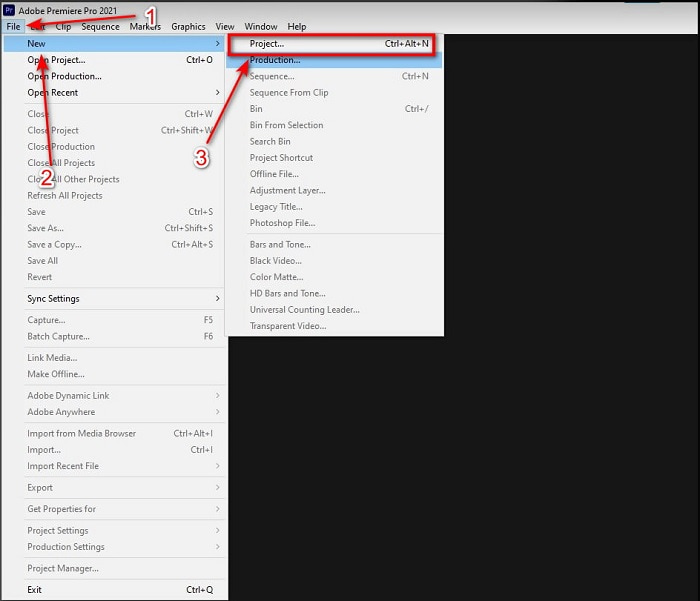
Bước 2. Nhấp vào File, sau đó chọn New và Project, chờ đến khi giao diện như thế này xuất hiện rồi nhấp OK để tiếp tục. Mở thư mục và tìm video, kéo và thả tệp vào Media Browser để đưa nó vào cạnh Timeline.
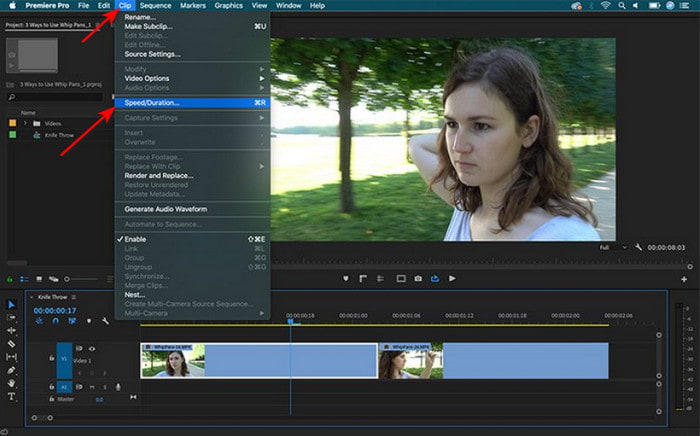
Bước 3. Nhấp vào đoạn video bạn đã chèn trên Timeline và nhấp Clip ở thanh trên cùng. Bên dưới đó chọn Speed/Duration và nhấp vào. Thay đổi phần trăm tốc độ theo ý bạn rồi nhấp OK để lưu thiết lập tăng tốc, và để lưu tệp hãy nhấp nút Export.
Phần 2. 2 của các giải pháp thay thế Premiere Pro tốt nhất để tăng tốc độ video
1. Chuyển đổi video cuối cùng
Nếu tăng tốc video là vấn đề của bạn thì đây chính là giải pháp: Video Converter Ultimate. Khác với nhiều trình chỉnh sửa video khác, công cụ tuyệt vời này là lựa chọn tốt nhất cho mọi nhu cầu như chỉnh sửa, chuyển đổi, tạo GIF, tăng cường, đảo ngược, tăng tốc và còn nhiều hơn thế. Rất nhiều người dùng đã yêu thích phần mềm này vì nó cung cấp các tính năng nâng cao giống như Adobe Premiere Pro nhưng ở dạng giao diện đơn giản hơn. Ngoài ra, hiếm có công cụ nào vừa nhiều tính năng nâng cao lại vừa dễ sử dụng như vậy. Gần như không có phần mềm nào giống Video Converter Ultimate. Mặc dù đây là phần mềm trả phí, nhưng nó hoàn toàn xứng đáng với số tiền bạn bỏ ra và mức giá lại rất rẻ. Vậy nên, nếu bạn muốn biết cách dùng lựa chọn thay thế cho cách tăng tốc video trong Premiere Pro thì hãy làm theo các bước dưới đây.
Các bước tăng tốc video với Video Converter Ultimate:
Bước 1. Tải phần mềm về máy tính, sau đó cài đặt để tiếp tục.
Tải xuống miễn phí cho Windows 7 trở lên. Tải xuống an toàn.
Tải xuống miễn phí cho MacOS 10.7 trở lên. Tải xuống an toàn.
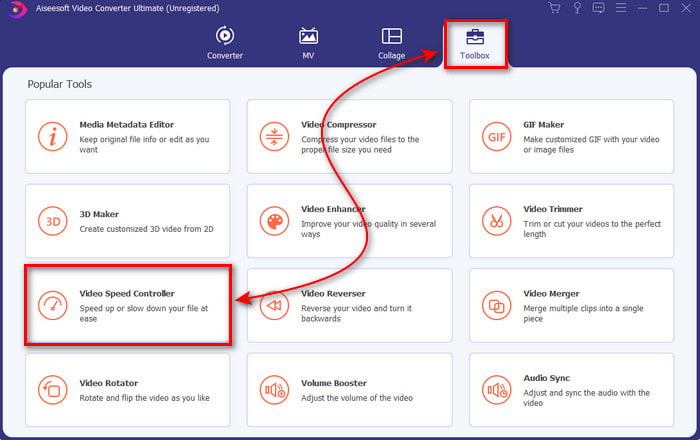
Bước 2. Khởi chạy công cụ rồi nhấp vào Toolbox và tìm Video Speed Controller.
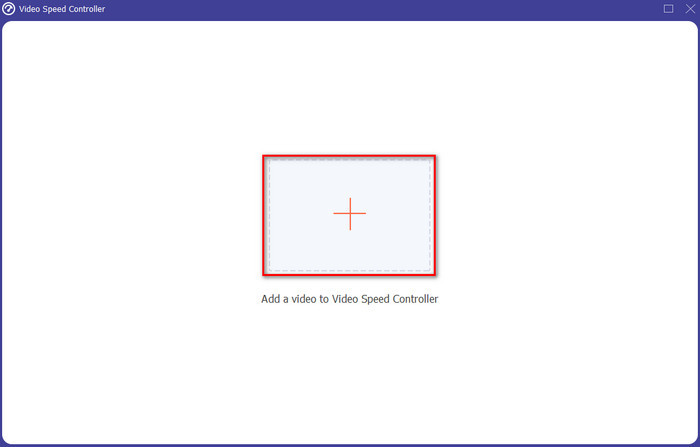
Bước 3. Để thêm video bạn muốn tăng tốc, hãy nhấp nút dấu +. Sau đó tìm tệp trong thư mục và nhấp Open để chèn video.
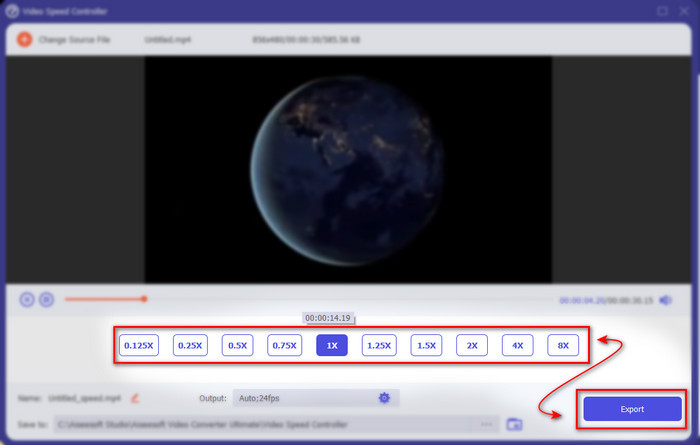
Bước 4. Chọn tốc độ bạn muốn áp dụng cho video bằng cách nhấp vào các ô tuỳ chọn. Khi đã hài lòng với tốc độ của video, nhấp Export để lưu trực tiếp vào máy tính.
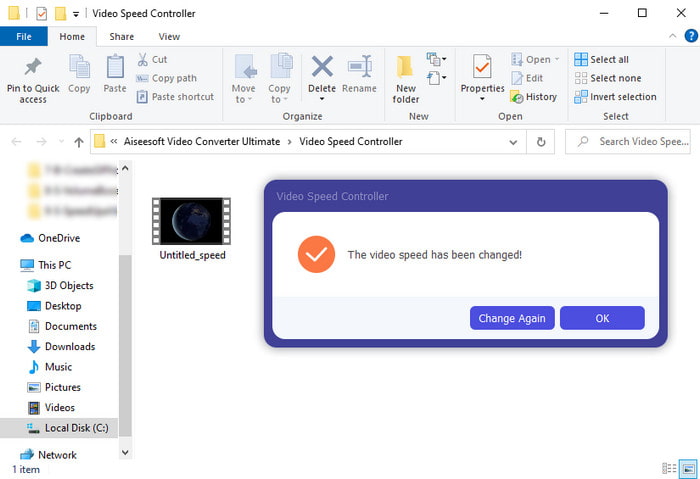
Bước 5. Một thư mục sẽ tự bật lên khi quá trình xuất hoàn tất. Nhấp vào tệp bạn đã tăng tốc trước đó và hãy ngạc nhiên vì video được tăng tốc mà không hề giảm chất lượng.
2. iMovie
Nếu bạn dùng Mac thì nên tận dụng công cụ này vì nó đã được cài sẵn trên máy: đó là iMovie. Đây là một trong những trình chỉnh sửa video phổ biến mà bạn sẽ thích dùng vì những tính năng miễn phí mà nó cung cấp. Nếu bạn là người dùng Windows thì đừng mong có thể sử dụng công cụ này vì nó không có trên PC. Mặc dù là phần mềm miễn phí, nhưng vẫn có những hạn chế như các tính năng chỉnh sửa nâng cao mà bạn có thể cần lại không có. Tuy nhiên, nếu ngân sách eo hẹp thì đây là lựa chọn phù hợp cho người dùng Mac. Đồng thời, nếu bạn muốn đạt được hiệu ứng giống như Premiere Pro tăng tốc video thì hãy làm theo các bước dưới đây.
Cách tăng tốc video trong iMovie:
Bước 1. Mở iMovie trên Mac và nhấp File rồi Import Media, sau đó chọn tệp để tiếp tục.
Bước 2. Kéo video bạn đã chèn trước đó xuống Timeline. Sau đó nhấp vào tệp video trên Timeline để có thể điều chỉnh tốc độ. Ở bên phải, nhấp vào Speed rồi chọn tốc độ bạn muốn áp dụng trong danh sách thả xuống.
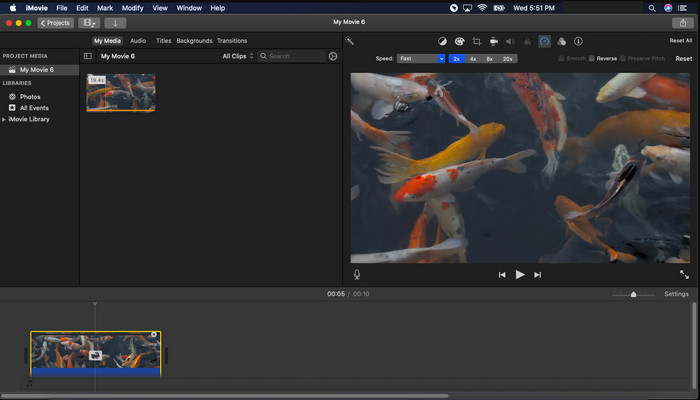
Bước 3. Sau khi áp dụng tăng tốc, nhấp Export và Export File để lưu phiên bản video đã được tăng tốc.
Phần 3. Câu hỏi thường gặp về Premiere Pro Speed Up
Tôi có thể làm chậm video trên Premiere Pro không?
Hoàn toàn có thể, bạn chỉ cần làm theo đúng quy trình như ở phần trên nhưng thay đổi phần trăm tốc độ xuống thấp hơn 100 để làm chậm lại. Hoặc bạn có thể nhấp vào đây để tìm hiểu chi tiết cách làm chậm video.
Tôi có thể đặt video trên Premiere Pro nhanh đến mức nào?
Phần trăm tối đa bạn có thể đặt trên tốc độ của video là 10.000% phần trăm. Vì vậy, nếu bạn muốn biết nó có phải là thật hay không thì hãy tự mình kiểm tra và đặt tốc độ là 10.000%.
Adobe Premiere Pro có yêu cầu hệ thống không?
Trên thực tế, có những yêu cầu tối thiểu mà phần mềm Adobe cần để có thể sử dụng công cụ này một cách chính xác. Như, trong danh sách dưới đây: GPU: Intel® i5-4590 / AMD FX 8350 tương đương hoặc mới nhất; RAM: 8GB ram hoặc cao hơn nữa; hệ điều hành: Microsoft Windows hoặc macOS; màn hình phải là 1920 x 1080 hoặc cao hơn.
Phần kết luận
Khi chúng ta kết thúc, bây giờ chúng ta đã rõ ràng hơn rằng thậm chí có thể tăng tốc độ đơn giản với trình chiếu chuyên nghiệp. Tuy nhiên, bản Premiere Pro siêu đắt nên chúng tôi liệt kê một số phần mềm giá cả phải chăng mà bạn muốn sử dụng để tăng tốc. Thích Video Converter Ultimate vì phần mềm này cung cấp các tính năng chỉnh sửa cao cấp ngay cả khi máy tính của bạn là cấp thấp. Vì vậy, nếu bạn muốn biết cách tăng tốc video trong Premiere Pro một cách dễ dàng thì hãy tải xuống Video Converter Ultimate để trải nghiệm tính năng tương tự nhưng ở một phiên bản dễ dàng.
-
 [4 cách] Cách dễ dàng tăng tốc video trực tuyến của bạn
 Bạn có muốn tăng tốc độ một video trực tuyến? Đọc bài viết này để bạn biết thêm về việc tăng tốc video theo nhiều cách khác nhau có thể.
-
 Các cách dễ dàng hơn để tăng tốc độ video định dạng MP4 [Ngoại tuyến và trực tuyến]
 Bạn có muốn tăng tốc video của mình nhưng nó ở Định dạng MP4 không? Bài viết này có thể giúp bạn biết sự khác biệt về cách tăng tốc độ video của bạn trực tuyến hoặc ngoại tuyến.
-
 4 trình phát video có bộ điều khiển tốc độ hàng đầu năm 2021
 Bạn không nhận thấy tốc độ phát lại của mọi trình phát đa phương tiện bất cứ khi nào bạn phát video? Bài viết này phù hợp để bạn tìm hiểu tất cả về trình phát video có điều khiển tốc độ.
