


 Chuyển đổi video Ultimate
 Trình ghi màn hình
 Sửa chữa video
 Tải xuống an toàn
Các cách tuyệt vời để xóa biểu trưng khỏi video bằng thiết bị của bạn
Xem những video yêu thích luôn rất đã mắt, cho đến khi trong video xuất hiện những đối tượng không cần thiết như logo, watermark, chữ, v.v. Nếu bạn đang tìm những phương pháp hiệu quả và hữu ích nhất, hãy đọc bài viết này để nắm ý tưởng. Nhờ sử dụng các ứng dụng chất lượng, bạn có thể thử nhiều cách khác nhau để xóa logo khỏi video cả khi offline lẫn online. Với sự trợ giúp của những công cụ xóa logo này, bạn có thể thoải mái xem phim, clip, trình chiếu yêu thích và nhiều hơn nữa. Nhờ vậy, bạn sẽ không còn gặp lại cùng vấn đề. Nếu bạn muốn biết những cách hiệu quả để xóa logo khỏi video của mình, đừng bỏ qua bài viết nhiều thông tin này.

Phần 1: Phương pháp tốt nhất để xóa biểu trưng khỏi video
Giả sử bạn đang tìm một công cụ xóa logo miễn phí. Ứng dụng tốt nhất bạn có thể sử dụng là Video Converter Ultimate. Ứng dụng này có thể giúp bạn xóa logo khỏi video. Không chỉ logo, mà còn bất kỳ đối tượng thừa nào khác trên video, như watermark, chữ, hình ảnh, v.v. Ngoài ra, bạn có thể xóa logo rất dễ dàng vì chỉ gồm vài bước đơn giản mà ngay cả người mới bắt đầu cũng có thể làm theo.
Hơn nữa, Video Converter Ultimate có quá trình gỡ bỏ nhanh chóng, không giống như các ứng dụng khác tiêu tốn rất nhiều thời gian để xóa logo khỏi video. Sử dụng ứng dụng này, bạn có thể xóa biểu trưng trong hai công cụ dễ dàng, công cụ xóa hình mờ video và trình cắt video. Hơn nữa, nó có các tính năng mà bạn có thể tận hưởng, như trình chuyển đổi video, bộ điều khiển tốc độ video, máy nén video, hiệu chỉnh màu sắc, trình cắt video, trình tạo ảnh ghép, v.v. Nếu bạn muốn biết hai cách này để xóa logo bằng Video Converter Ultimate, hãy làm theo các bước bên dưới.
1. Sử dụng chức năng Video Watermark Remover
Bước 1: Trước tiên, bạn cần truy cập trang web Video Converter Ultimate và tải phần mềm xuống. Sau khi tải xong, hãy tiến hành cài đặt và khởi chạy Video Converter Ultimate trên máy tính để bàn.
Tải xuống miễn phí cho Windows 7 trở lên. Tải xuống an toàn.
Tải xuống miễn phí cho MacOS 10.7 trở lên. Tải xuống an toàn.
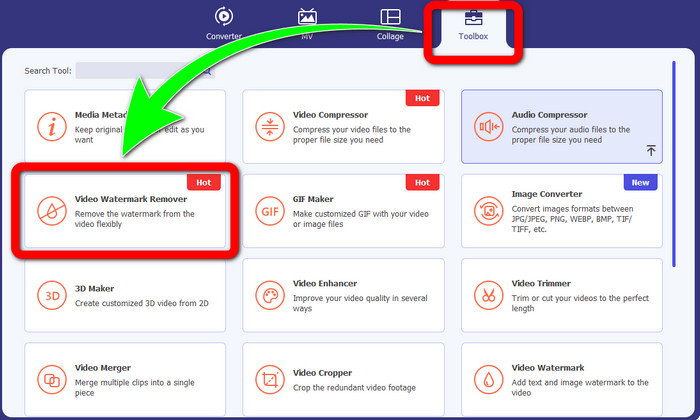
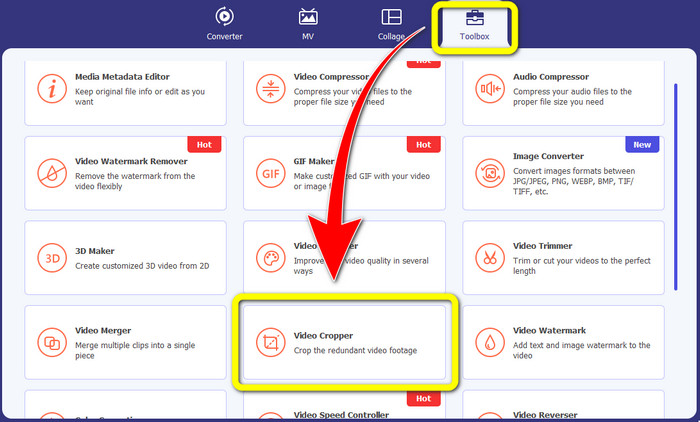
Bước 2: Sau khi khởi chạy phần mềm, hãy chuyển đến bảng Toolbox. Tiếp theo, tìm Video Watermark Remover và nhấp vào đó.
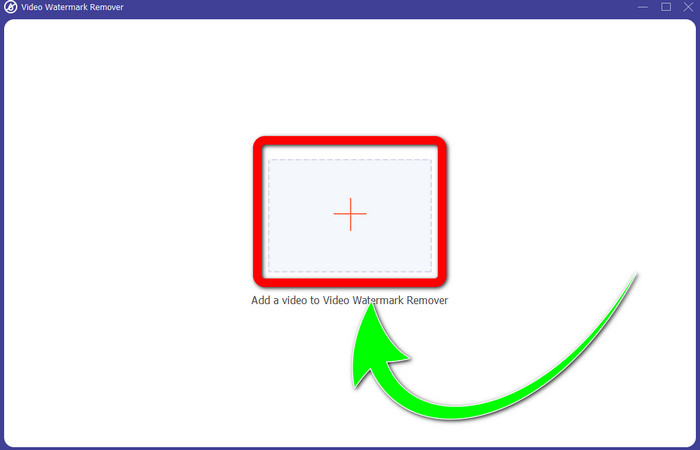
Bước 3: Sau khi nhấp vào Video Watermark Remover, một giao diện khác sẽ bật lên trên màn hình. Chọn nút dấu cộng và nhập video có logo của bạn.
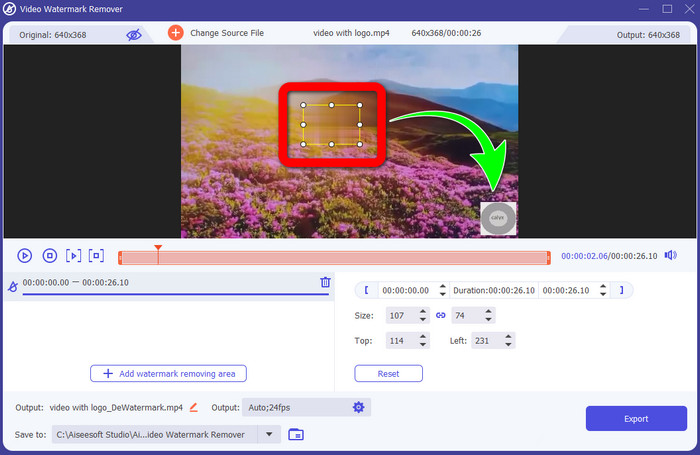
Bước 4: Chọn nút Add Watermark Removing Area. Một ô nhỏ sẽ xuất hiện trên video. Hãy di chuyển ô này đến vị trí logo để che nó lại.
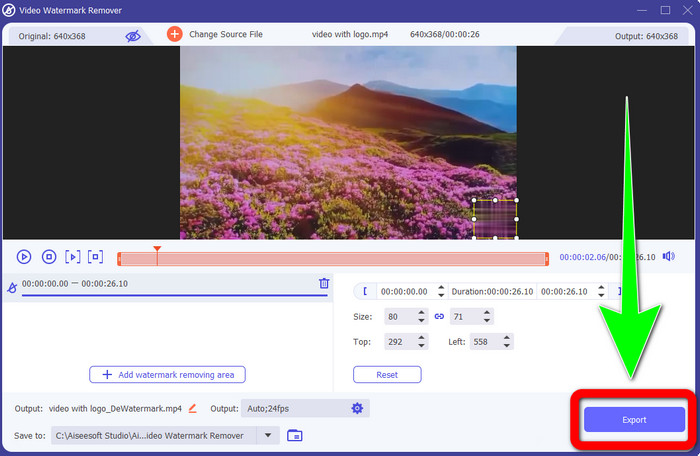
Bước 5: Khi đã di chuyển ô che phủ logo xong, hãy nhấp nút Export để lưu video hoàn chỉnh.
1. Sử dụng chức năng Cắt xén Video
Bước 1: Mở Video Converter Ultimate, chuyển đến Toolbox và nhấp nút Video Cropper. Sau đó một giao diện khác sẽ hiện lên trên màn hình.
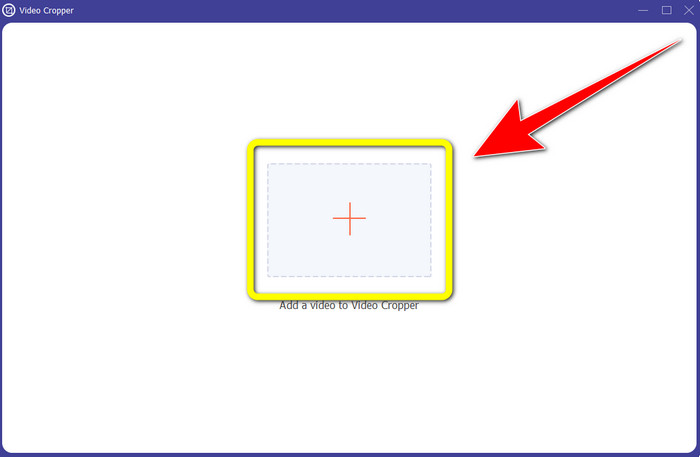
Bước 2: Khi giao diện mới đã xuất hiện trên màn hình, hãy nhấn nút dấu Plus để nhập video có logo của bạn.
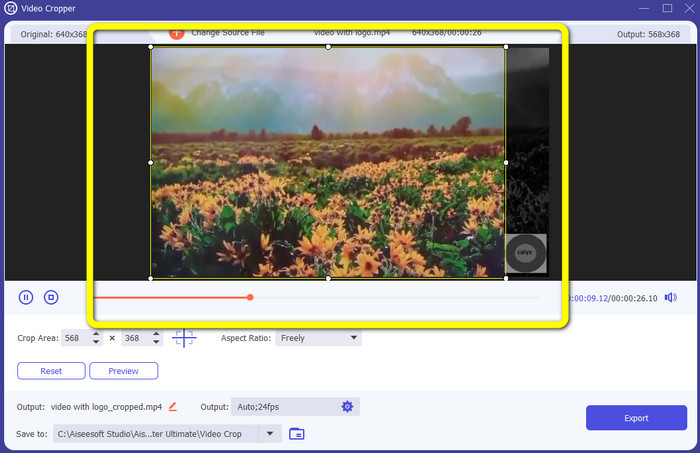
Bước 3: Sau khi nhập video, bạn có thể crop (cắt khung) video để loại bỏ phần có logo.
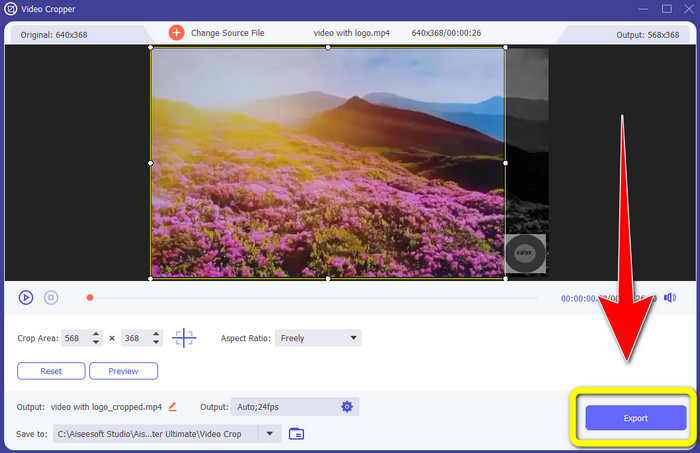
Bước 4: Nhấp nút Export sau khi cắt video xong.
Phần 2: Cách xóa biểu trưng khỏi video trực tuyến
Nếu bạn đang tìm một ứng dụng tuyệt vời để giúp bạn xóa logo khỏi video, bạn có thể dùng 123APPS. Ứng dụng này có thể hỗ trợ bạn xóa logo khỏi video một cách nhanh chóng và dễ dàng, rất phù hợp cho người mới bắt đầu. Thêm vào đó, công cụ online này hoàn toàn miễn phí, nên bạn không cần lo lắng về việc phải mua hay không. Ngoài ra, một trong những chức năng hay của ứng dụng là loại bỏ các đối tượng gây khó chịu trên video, như watermark, chữ, hình ảnh, v.v. Hơn nữa, nó hỗ trợ nhiều định dạng tệp khác nhau như MOV, WMV, AVI, MP4 và nhiều nữa. Tuy nhiên, mỗi lần tải tệp lên sẽ mất khá lâu. Quá trình xóa cũng khá chậm. Nếu bạn muốn xóa logo khỏi video, hãy làm theo các bước đơn giản sau.
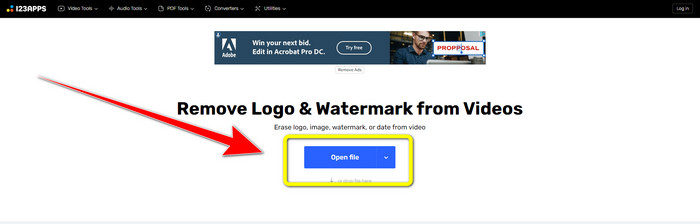
Bước 1: Truy cập trang web 123APPS. Nhấp nút Open file và thêm video có logo TikTok của bạn.
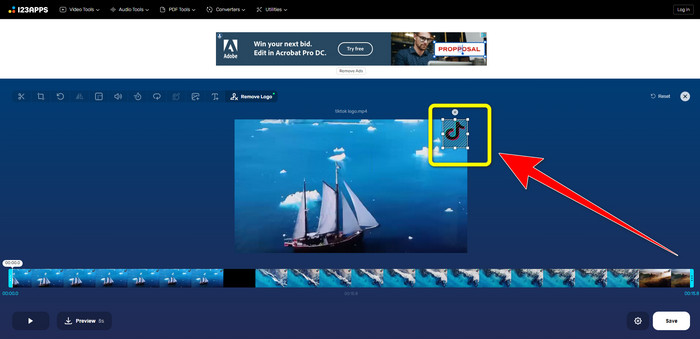
Bước 2: Sau khi tải video lên, hãy dùng chuột tạo một ô trên màn hình và kéo để che logo cần xóa.
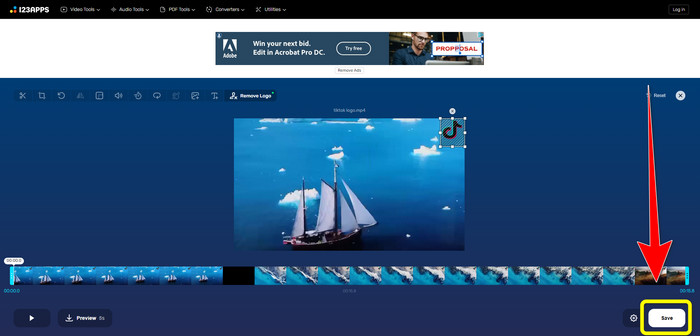
Bước 3: Sau khi che xong logo, bạn có thể nhấp nút Save để lưu video cuối cùng đã được xóa logo.
Phần 3: Cách xóa logo khỏi video trên iPhone và Android
Cách xóa biểu trưng khỏi video trên Android
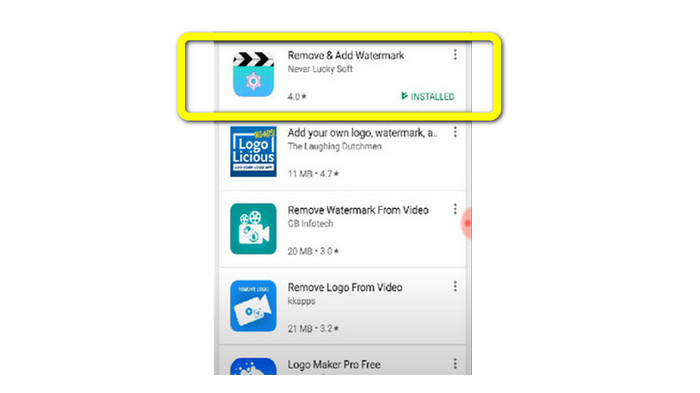
Nếu bạn muốn biết cách xóa logo khỏi video bằng điện thoại Android, Remove and Add Watermark là ứng dụng bạn có thể sử dụng. Phần mềm này có thể giúp bạn xóa logo khỏi video gần như ngay lập tức. Không chỉ đáng tin cậy trong việc xóa các đối tượng thừa khỏi video, bạn cũng có thể xóa logo khỏi hình ảnh, rất tiện lợi cho người dùng. Thêm nữa, công cụ xóa này đơn giản và dễ sử dụng. Cuối cùng, tốc độ lưu video cũng rất nhanh. Nếu bạn muốn loại bỏ logo khỏi video, hãy làm theo các bước đơn giản dưới đây.
Bước 1: Tải ứng dụng Remove and Add Watermark về điện thoại Android của bạn.
Bước 2: Sau khi tải ứng dụng, nhấn nút Select Video > Remove Logo để thêm video có logo.
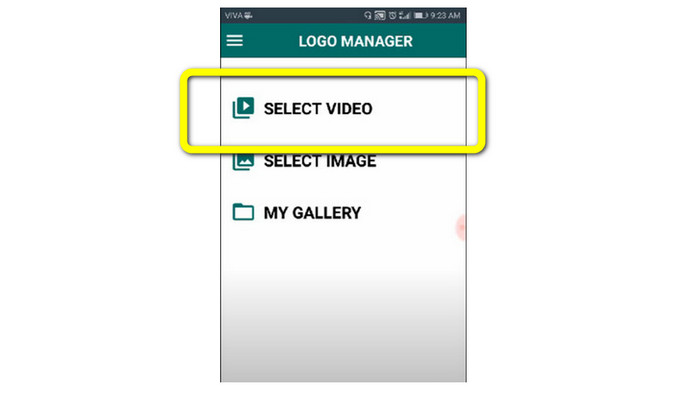
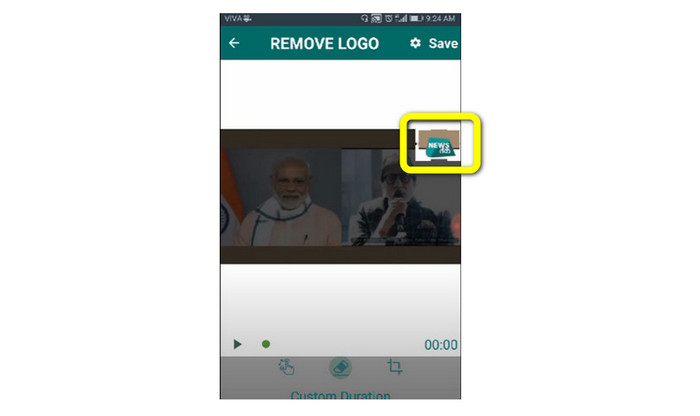
Bước 3: Một ô nhỏ sẽ xuất hiện trên màn hình khi bạn đã thêm video. Hãy dùng ô này để xóa logo.
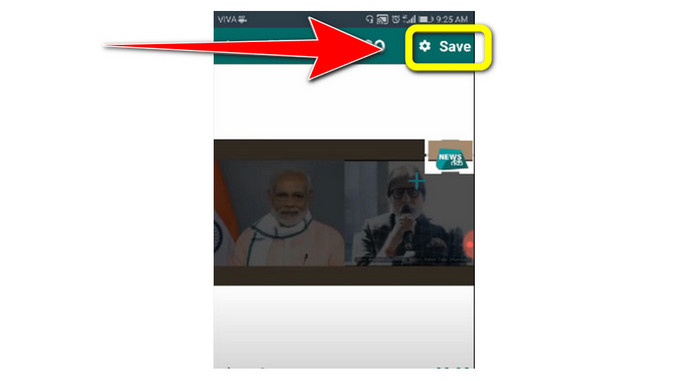
Bước 4: Khi đã che xong logo, nhấn nút Save để lưu video đã được xóa logo.
Cách xóa logo khỏi video trên iPhone
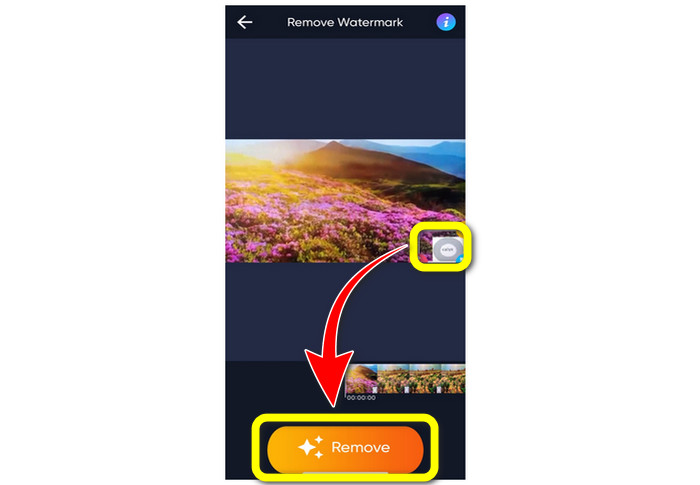
Nếu bạn muốn xóa logo khỏi video bằng iPhone, ứng dụng tốt nhất bạn có thể dùng là Watermark Remover Retouch. Ứng dụng này cho phép bạn xóa các đối tượng thừa trên video như logo, watermark, chữ, hình ảnh, v.v. Bạn cũng có thể xóa chúng nhanh chóng, rất phù hợp với người dùng mới. Thêm nữa, giao diện đơn giản giúp bạn dễ dàng thao tác. Nếu bạn muốn dùng ứng dụng này để xóa logo khỏi video trên iPhone, hãy làm theo các bước dưới đây.
Bước 1: Tải Watermark Remover Retouch trên iPhone của bạn. Sau đó mở ứng dụng và thêm video có logo.
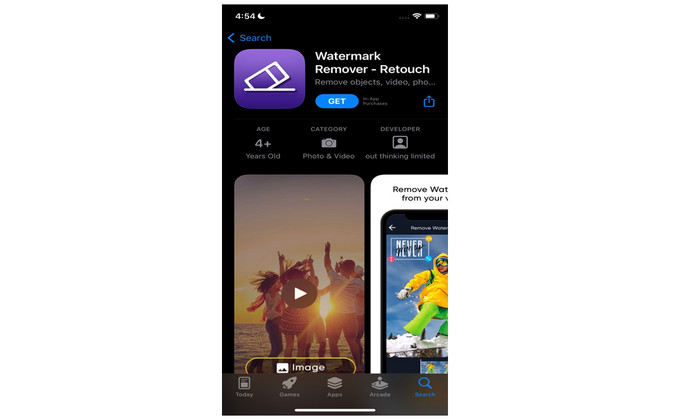
Bước 2: Một ô nhỏ sẽ xuất hiện trên video khi video đã được thêm. Hãy dùng ô này để che logo. Sau đó, nhấn nút Remove và lưu video không còn watermark.
Có liên quan:
Cách xóa watermark Filmora khỏi Video hoặc Dự án của bạn miễn phí
Mẹo nhanh nhất để xóa watermark Adobe Stock khỏi video [Hướng dẫn]
Phần 4: Câu hỏi thường gặp về cách xóa biểu trưng khỏi video
Xóa logo trực tuyến có an toàn không?
Vâng, đúng vậy! Các ứng dụng trực tuyến được bảo mật và an toàn để sử dụng. Điều tốt nhất bạn phải làm là tìm kiếm một ứng dụng có thể giúp bạn xóa logo và sử dụng chúng.
Có thể xóa chữ ký khỏi video của tôi không?
Có, chắc chắn là được. Bạn có thể xóa chữ ký khỏi video bằng Video Converter Ultimate. Chữ ký, watermark, logo và chữ đều có thể được xóa dễ dàng với ứng dụng tuyệt vời này.
Ứng dụng tốt nhất mà tôi có thể sử dụng để xóa logo bằng máy Mac của mình là gì?
Ứng dụng tốt nhất bạn có thể dùng để xóa logo trên máy Mac là Video Converter Ultimate. Ứng dụng này không chỉ có sẵn cho Windows mà còn cho cả Mac, rất tiện lợi cho người dùng.
Phần kết luận
Bài viết này đã cung cấp cho bạn những cách hiệu quả và đáng tin cậy để xóa logo khỏi video. Nhờ đó, bạn có thể thưởng thức các video yêu thích mà không còn logo. Cuối cùng, nếu bạn muốn một phương pháp đơn giản và nhẹ nhàng nhất để xóa logo khỏi video, bạn nên dùng Video Converter Ultimate.
-
 Cách xóa hình mờ Animaker mà không tốn chi phí [Các cách đã được chứng minh]
 Làm cách nào để xóa hình mờ Animaker? Với những công cụ tốt nhất mà chúng tôi tranh thủ trong blog này, bạn có thể sử dụng chúng để loại bỏ hình mờ.
-
 Hướng dẫn xóa hình mờ khỏi đồ thị gốc [100% làm việc]
 Để xóa hình mờ khỏi Đồ thị gốc, bạn sẽ cần trợ giúp. Sự hỗ trợ bạn cần có trong bài viết này, bạn có thể đọc để biết.
-
 Cách xóa Watermark trong SmartDraw một cách dễ dàng [2 cách đã được chứng minh]
 Làm cách nào để xóa hình mờ trong Smart Draw? Nếu bạn có cùng câu hỏi, bạn có thể dựa vào bài viết này vì chúng tôi đã giới thiệu cho bạn!
