


 Chuyển đổi video Ultimate
 Trình ghi màn hình
 Sửa chữa video
 Tải xuống an toàn
Các phương pháp được sử dụng phổ biến để chuyển đổi Xvid sang MP4 Trực tuyến & Ngoại tuyến
Bạn đang gặp một số vấn đề khi phát các video Xvid của mình? Vậy thì chúng tôi mang đến cho bạn những giải pháp tốt nhất. Giải pháp hiệu quả nhất là chuyển đổi Xvid sang các định dạng phổ biến khác, như MP4. Bằng cách này, bạn sẽ không gặp rắc rối khi phát trực tuyến video. Bài viết này sẽ cung cấp cho bạn một trình chuyển đổi Xvid sang MP4 miễn phí để sử dụng. Công cụ này sẽ giúp bạn chuyển đổi các tệp video một cách dễ dàng và tức thì. Nếu chủ đề này khiến bạn hứng thú, hãy đọc các phần sau và tận dụng thời gian để học thêm điều mới!

Phần 1: Cách dễ nhất để chuyển đổi Xvid sang MP4 trên Mac và Windows
Hãy dùng Video Converter Ultimate để chuyển Xvid sang MP4. Bạn có thể sử dụng trình chuyển đổi này trên cả máy Mac và máy tính Windows. Nó chuyển đổi dữ liệu nhanh hơn gấp 30 lần so với các trình chuyển đổi khác. Ngoài ra, nhờ hỗ trợ chuyển đổi hàng loạt, bạn có thể gộp nhiều tệp Xvid thành một tệp MP4 duy nhất. Với tính năng này, bạn có thể chuyển đổi tệp dễ dàng và nhanh chóng. Các định dạng video bổ sung được công cụ này hỗ trợ gồm có AVI, FLV, MKV, MOV, VOB, WMV, M4V và hơn 100 định dạng khác. Nó phù hợp cho cả người dùng Xvid và MP4. Thêm vào đó, nhờ giao diện thân thiện và cách thao tác chuyển đổi đơn giản, trình chuyển đổi này có thể được sử dụng bởi cả người mới lẫn người dùng có kinh nghiệm. Để biết thêm bạn có thể mong đợi gì khi dùng Video Converter Ultimate, hãy tham khảo các tính năng bổ sung bên dưới.
Tính năng
◆ Chuyển đổi nhiều định dạng tệp video khác nhau, chẳng hạn như Xvid, MP4, DIVX, M4V, FLV, AVI, MKV, WMV, SWF, v.v.
◆ Chuyển đổi đồng thời nhiều tệp video.
◆ Nó cung cấp một quy trình chuyển đổi siêu tốc, nhanh hơn 30 lần so với các bộ chuyển đổi khác.
◆ Cung cấp các công cụ chỉnh sửa video, bao gồm bộ tăng cường video, máy nén, tông đơ, bộ cắt, bộ đảo ngược, v.v.
Thực hiện theo các bước chi tiết bên dưới để chuyển đổi Xvid sang MP4 trên máy Mac hoặc Windows của bạn bằng FVC Video Converter Ultimate.
Bước 1: Tải Video Converter Ultimate về Mac hoặc Windows của bạn bằng cách nhấn nút Tải xuống bên dưới. Sau đó, khi cài đặt xong, hãy khởi chạy ứng dụng.
Tải xuống miễn phí cho Windows 7 trở lên. Tải xuống an toàn.
Tải xuống miễn phí cho MacOS 10.7 trở lên. Tải xuống an toàn.
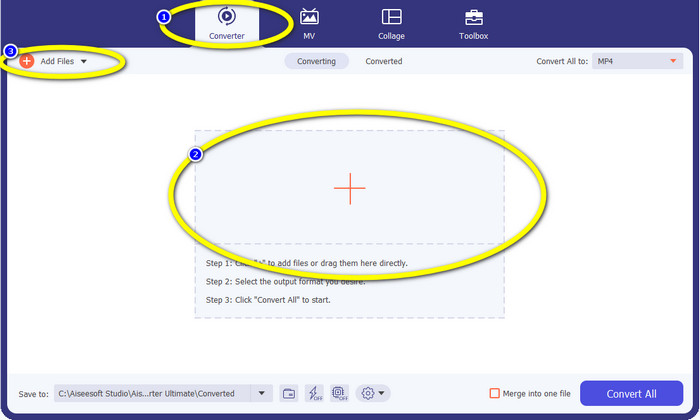
Bước 2: Khi giao diện đã hiển thị trên màn hình, chọn mục Converter và nhấn biểu tượng dấu + để thêm tệp Xvid. Cách khác để thêm tệp video là nhấn nút Add Files.
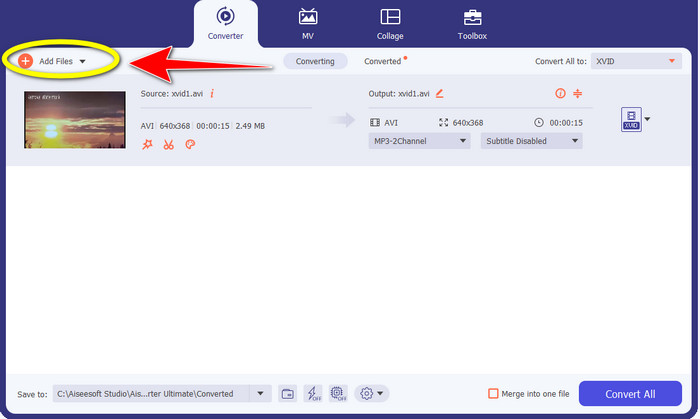
Bước 3: Ứng dụng này cho phép bạn chuyển đổi nhiều tệp. Vì vậy, để thêm một video Xvid khác mà bạn muốn chuyển đổi, hãy nhấn nút Add Files ở góc trên bên trái giao diện.
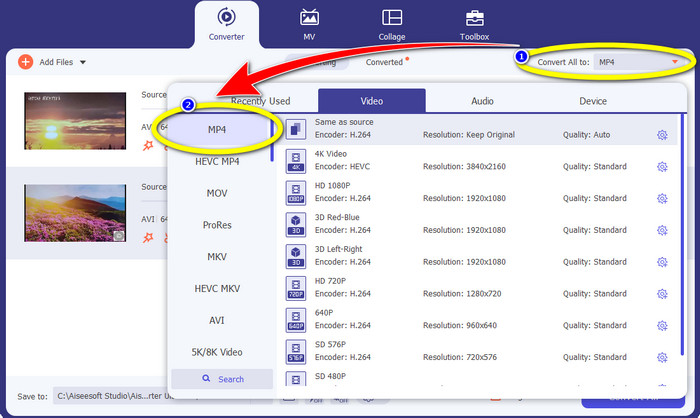
Bước 4: Sau đó, để gộp chúng thành một tệp MP4, hãy nhấn nút Convert All to. Chọn tệp MP4 trong các tùy chọn định dạng và chọn chất lượng video bạn mong muốn.
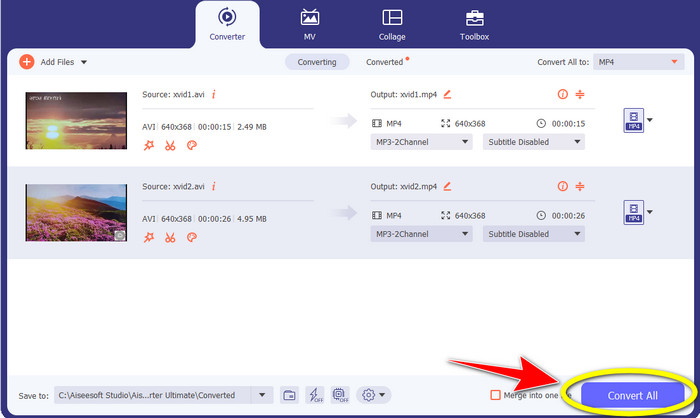
Bước 5: Sau khi chọn định dạng đầu ra mong muốn, bạn có thể tiến hành quá trình chuyển đổi bằng cách nhấn nút Convert All. Sau đó, lưu video MP4 vào thiết bị của bạn.
Phần 2: Cách chuyển đổi Xvid sang MP4 trên VLC
Trong phần này, bạn sẽ biết cách chuyển đổi Xvid sang MP4 bằng VLC. Thêm thông tin là VLC Media Player có thể chuyển đổi nhiều tệp video ngoài chức năng phát video. Nó hỗ trợ các định dạng video như MP4, TS, WEM, OGG và nhiều định dạng khác. Ngoài ra, nó còn có thể chuyển đổi tệp âm thanh như MP3, FLAC, v.v. Vì vậy, VLC cũng là một ứng dụng đáng tin cậy để chuyển đổi nhiều loại tệp. Tuy nhiên, phần mềm này không phù hợp cho người mới bắt đầu. Nó có giao diện khó hiểu, khiến việc sử dụng trở nên phức tạp hơn. Bên cạnh đó, nó cũng mất khá nhiều thời gian để tải xuống và cài đặt trên máy tính.
Bước 1: Tải về và cài đặt VLC Media Player trên máy tính của bạn. Sau đó, khởi chạy ứng dụng.
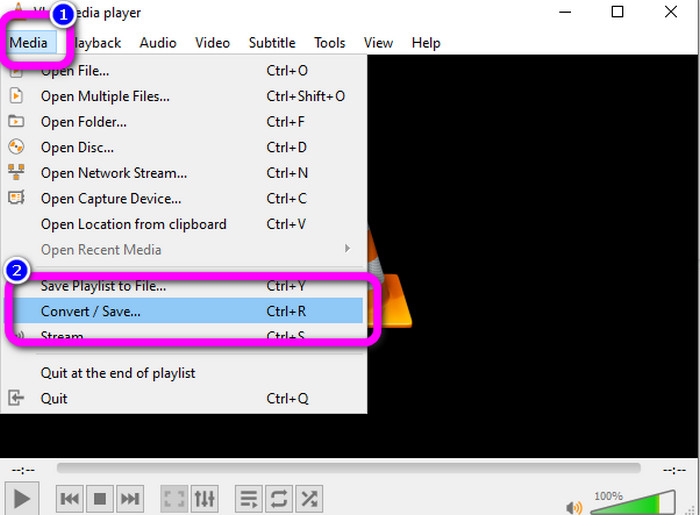
Bước 2: Vào phần trên cùng của giao diện và chọn mục Media. Sau đó nhấn nút Convert/Save.
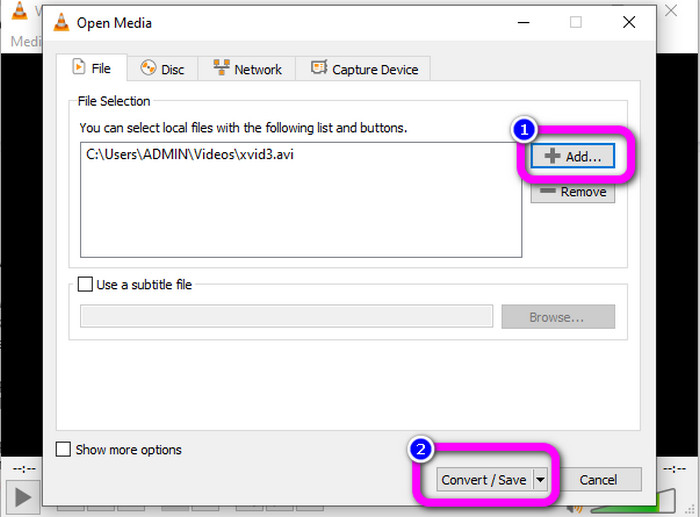
Bước 3: Nhấn nút Add để chèn tệp video Xvid. Khi tệp đã được thêm, hãy nhấn nút Convert / Save.
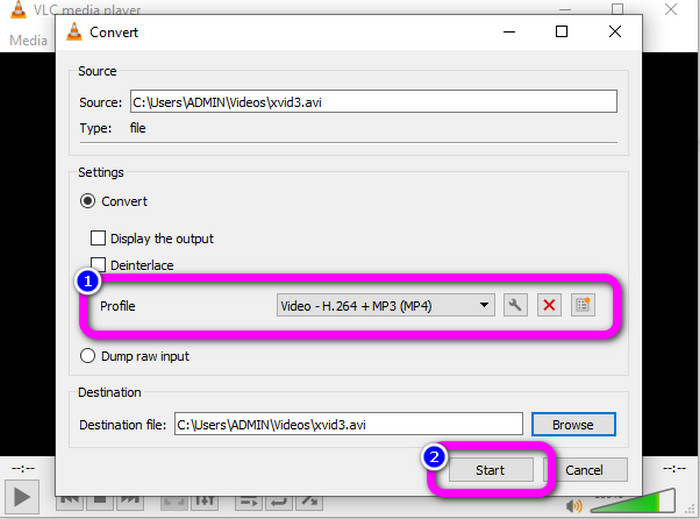
Bước 4: Ở bước cuối cùng, nhấn Profile để xem các tùy chọn định dạng và chọn định dạng tệp MP4. Thiết lập tệp đích và bắt đầu quá trình chuyển đổi bằng cách nhấn nút Start.
Phần 3: Các bước đơn giản để chuyển đổi Xvid sang MP4 trên Handbrake
Phanh tay là một công cụ ngoại tuyến khác mà bạn có thể tin cậy khi chuyển đổi tệp Xvid của mình sang định dạng MP4. Ngoài ra, công cụ này cung cấp quy trình chuyển đổi hàng loạt, trong đó bạn chỉ cần chèn một thư mục chứa nhiều video và chuyển đổi chúng cùng một lúc. Tuy nhiên, nó không dễ sử dụng. Nhiều tùy chọn gây nhầm lẫn cho người mới bắt đầu. Thực hiện theo hướng dẫn đơn giản bên dưới để chuyển đổi Xvid sang MP4 bằng Handbrake.
Bước 1: Tải Handbrake về máy tính của bạn. Khởi chạy chương trình sau khi hoàn tất cài đặt.
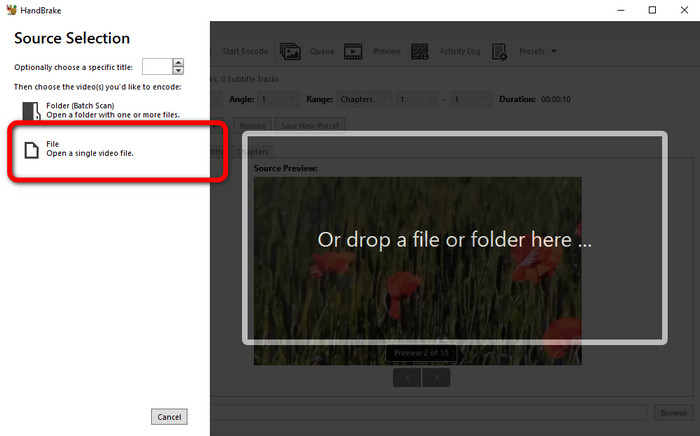
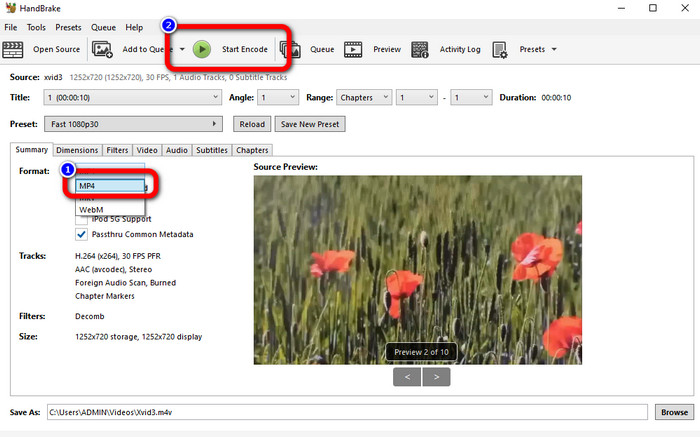
Bước 2: Mở nút File để thêm tệp video Xvid.
Bước 3: Vào mục Format và chọn định dạng tệp MP4. Sau đó, nhấn nút Start Encode để chuyển đổi tệp Xvid sang định dạng MP4.
Phần 4: Quy trình chuyển đổi Xvid sang MP4 trực tuyến
FVC Free Video Converter Online là một công cụ tuyệt vời để chuyển đổi Xvid sang MP4 trực tuyến. Nó cung cấp giao diện thân thiện với người dùng, rất phù hợp cho người mới. Bạn chỉ cần ba bước đơn giản để chuyển đổi tệp. Ngoài ra, bạn còn có thể chuyển đổi nhiều tệp cùng lúc vì nó hỗ trợ quá trình chuyển đổi hàng loạt. Công cụ này hỗ trợ nhiều định dạng video như FLV, AVI, MKV, WMA, MOV, VOB và nhiều định dạng khác. Nếu bạn muốn sử dụng FVC Free Video Converter Online, hãy làm theo hướng dẫn đơn giản dưới đây.
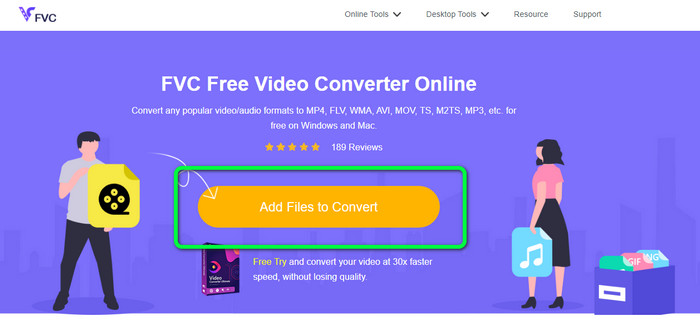
Bước 1: Truy cập trang web FVC Free Video Converter Online. Ở trang chính, chọn nút Add Files to Convert để tải lên tệp video Xvid bạn muốn chuyển đổi.
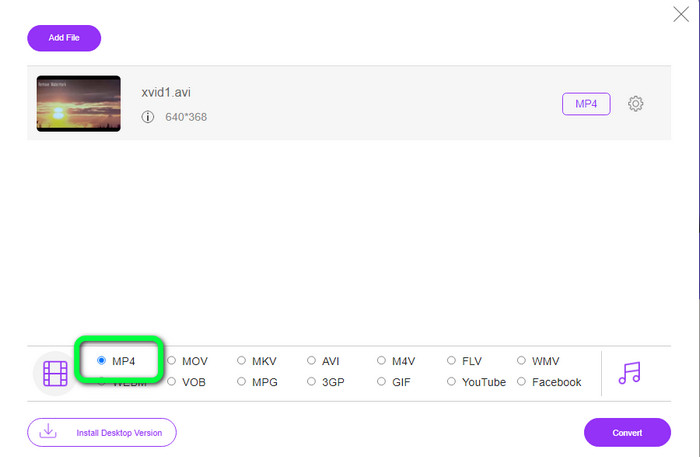
Bước 2: Như bạn thấy ở phần dưới của giao diện, có các tùy chọn định dạng. Chọn MP4 làm định dạng tệp đầu ra.
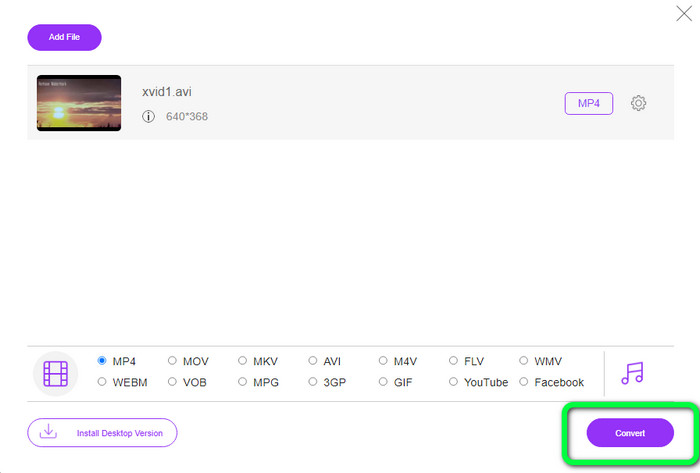
Bước 3: Nhấn nút Convert để chuyển đổi tệp Xvid sang định dạng MP4. Chờ quá trình chuyển đổi và lưu video cuối cùng của bạn.
Phần 5: Phương pháp tuyệt vời để chuyển đổi Xvid sang MP4 bằng Android
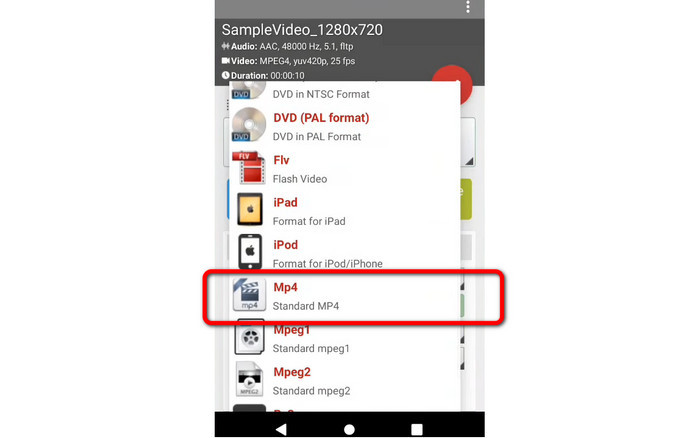
Nếu bạn muốn có trình chuyển đổi Xvid sang MP4 cho Android, bạn có thể dùng Video Format Factory. Bạn có thể dễ dàng đổi định dạng video sang các định dạng khác bằng ứng dụng này. Tuy nhiên, việc chuyển đổi video khá tốn thời gian vì quá trình xử lý diễn ra chậm. Xem các bước dưới đây để chuyển Xvid sang MP4.
Bước 1: Tải và cài đặt Video Format Factory trên điện thoại Android của bạn.
Bước 2: Sau khi khởi chạy ứng dụng, chọn nút Video để chèn tệp Xvid.
Bước 3: Chọn mục Convert và chọn định dạng MP4 trong các tùy chọn định dạng. Sau đó, bắt đầu quá trình chuyển đổi bằng cách nhấn vào biểu tượng Dấu kiểm.
Đọc thêm:
Các phương pháp dễ học để chuyển Xvid sang DivX
Các kỹ thuật xuất sắc để chuyển XviD sang 3GP nhanh chóng
Phần 6: Các câu hỏi thường gặp về Chuyển đổi Xvid sang MP4
1. Định dạng tệp Xvid là gì?
Định dạng tệp Xvid là một codec video theo tiêu chuẩn mã hóa MPEG-4. Codec này nén các tệp video bằng cách sử dụng định dạng MPEG-4 Phần 2 A SP.
2. Xvid có chất lượng tốt không?
Đúng. Tập tin này là phần tiếp theo của Dự án Mayo. Mục tiêu của nó là phát triển một codec mã nguồn mở MPEG-4 chất lượng cao.
3. MP4 có được nén không?
Vâng, đúng vậy. Đã tồn tại tệp MP4 nén. Các codec khác nhau của video có thể được bao gồm trong một tệp MP4. Trong số các codec video phổ biến nhất cho MP4 là H.264, H.265 và MPEG-4. Với tính năng nén H.264, một video dài một giờ có thể được nén thành khoảng 1 GB bằng codec video MP4.
Phần kết luận
Với tất cả thông tin trên, bạn đã biết cách chuyển đổi Xvid sang MP4 trực tuyến, ngoại tuyến và bằng thiết bị Android. Nhưng những trình chuyển đổi tốt nhất bạn có thể sử dụng là Video Converter Ultimate và FVC Free Video Converter Online. Hai trình chuyển đổi này mang đến cho bạn giao diện trực quan, phù hợp với mọi đối tượng người dùng.
-
 Cách chuyển đổi MPG sang M4V trên máy Mac và sử dụng công cụ trực tuyến
 Bạn là người dùng Mac mới và không biết cách chuyển đổi MPG sang M4V? Sau đó, bạn có thể đọc bài viết này để biết thêm và khám phá cách chuyển đổi tệp bằng máy Mac của mình
-
 Các phương pháp thành công để chuyển đổi DIVX sang MP4 ngay lập tức
 Làm cách nào để chuyển đổi DIVX sang MP4? Nếu bạn đang tìm kiếm giải pháp tốt nhất, bạn đang ở đúng bài viết. Chúng tôi sẽ chỉ cho bạn cách chuyển đổi DIVX sang MP4 một cách dễ dàng
-
 Cách chuyển đổi F4V sang MP4 bằng các phương pháp hiệu quả nhất
 Video F4V của bạn có chất lượng không tốt? Sau đó biến nó thành một tệp MP4. Bài đăng này sẽ cung cấp cách tốt nhất về cách chuyển đổi F4V sang MP4 trực tuyến và ngoại tuyến
