


 Chuyển đổi video Ultimate
 Trình ghi màn hình
 Sửa chữa video
 Tải xuống an toàn
Cách cắt video trên Android bằng ứng dụng tông đơ video tốt nhất
Việc quay những thước phim ấn tượng hoặc chỉ ghi lại màn hình trở nên rất đơn giản khi bạn luôn có một chiếc điện thoại thông minh bên mình. Trước đây, chỉnh sửa những video đó trên điện thoại Android khá khó khăn, nhưng giờ thì không còn như vậy nữa. Chủ đề này sẽ giới thiệu những cách đơn giản để cắt video trên thiết bị Android. Chúng ta sẽ sử dụng nhiều ứng dụng/phần mềm chỉnh sửa video khác nhau, mang lại hiệu quả cho bạn. Ngoài ra, nếu muốn cắt video bằng máy tính, bạn cũng có thể thực hiện. Trong bài hướng dẫn này, bạn sẽ học những cách dễ nhất để rút ngắn độ dài video bằng máy tính. Vì vậy, nếu bạn muốn biết tất cả các cách cắt một phần video trên Android và trên máy tính, hãy đọc bài viết ngay bây giờ.

Phần 1. Cách Cắt Video trên Android
Trong phần này, chúng tôi sẽ cung cấp cho bạn hai phương pháp hiệu quả để cắt video bằng Android. Ứng dụng đầu tiên là ứng dụng dựng sẵn và ứng dụng còn lại là ứng dụng có thể tải xuống. Vì vậy, bạn sẽ đưa ra tùy chọn về những gì sẽ sử dụng khi cắt video. Còn chần chừ gì nữa, hãy bắt đầu khám phá những phương pháp này.
Sử dụng thư viện
Nếu bạn không muốn tải xuống bất kỳ ứng dụng nào từ Cửa hàng Play, hãy sử dụng ứng dụng Thư viện. Ứng dụng dựng sẵn này không chỉ có khả năng hiển thị hình ảnh và video. Nó có nhiều tính năng để cung cấp hơn bạn tưởng tượng. Nếu bạn định cắt video của mình bằng ứng dụng này, bạn có thể làm như vậy. Bộ sưu tập có một công cụ cắt cho phép bạn cắt/cắt video dễ dàng và ngay lập tức. Nó cũng có một giao diện trực quan, làm cho nó phù hợp hơn với tất cả người dùng Android. Ngoài ra, ngoài cắt video, ứng dụng còn làm được nhiều hơn thế. Bạn cũng có thể điều chỉnh tốc độ video bằng cách sử dụng bộ điều chỉnh tốc độ video. Tuy nhiên, ứng dụng Thư viện chỉ phù hợp để chỉnh sửa cơ bản. Đây không phải là ứng dụng bạn cần nếu bạn muốn cải thiện video của mình và kết hợp tất cả các video đã cắt. Bạn phải tìm phần mềm chỉnh sửa video nâng cao hơn để có kết quả mong muốn. Nếu bạn muốn biết cách cắt video clip trên Android bằng ứng dụng này, hãy xem các bước bên dưới.
Bước 1. Mở thiết bị Android và khởi chạy ứng dụng Thư viện (Gallery). Sau đó, tìm và mở video bạn muốn cắt/rút ngắn.
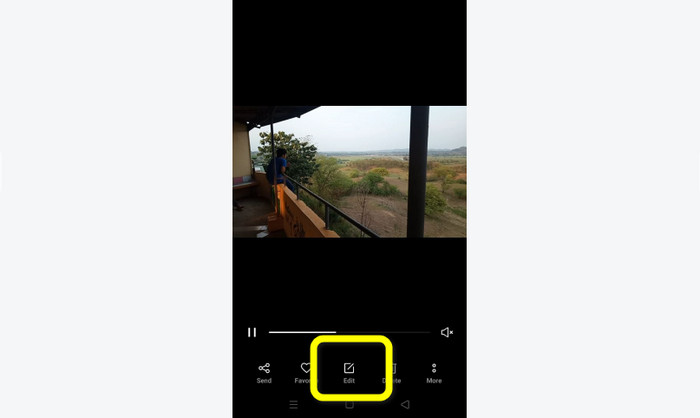
Bước 2. Sau khi mở video cần cắt/rút ngắn, hãy đi tới các tùy chọn bên dưới. Nhấn vào tùy chọn Chỉnh sửa (Edit) để tiếp tục bước tiếp theo.
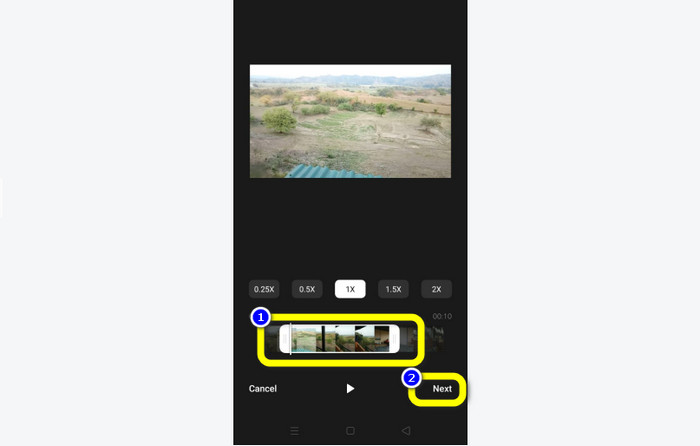
Bước 3. Sau đó, bạn có thể bắt đầu cắt video trên Android. Kéo mép của đoạn video hoặc thanh thời gian. Kéo mỗi bên để cắt video. Sau khi cắt xong, nhấn vào tùy chọn Tiếp (Next) ở góc dưới bên trái giao diện.
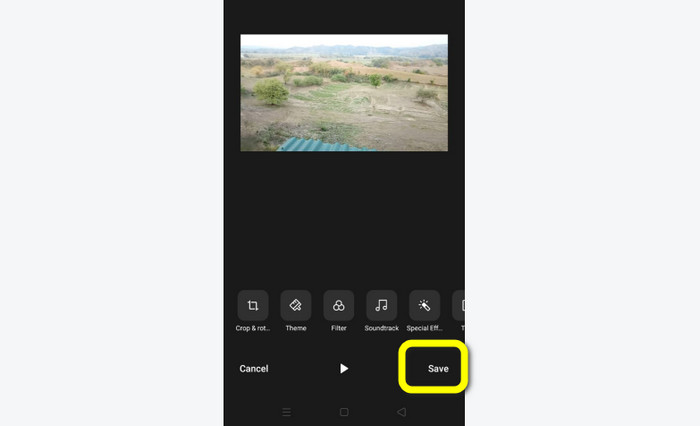
Bước 4. Tiếp theo, bạn có thể nhấn nút Lưu (Save) để lưu video đã chỉnh sửa vào điện thoại. Ngoài ra, nếu muốn chỉnh sửa thêm, bạn có thể cắt khung hình (crop), xoay, thêm bộ lọc (filter) và nhiều thao tác khác.
Sử dụng Vid.Fun
Ngoài ứng dụng Thư viện, bạn cũng có thể dùng một ứng dụng tải về để cắt video trên Android. Bạn có thể tải ứng dụng Vid.Fun để cắt video bằng điện thoại Android. Vid.Fun là ứng dụng miễn phí để tải về. Bên cạnh đó, ứng dụng có giao diện đơn giản với quy trình chỉnh sửa cơ bản. Nhờ vậy, ngay cả người không chuyên cũng có thể sử dụng dễ dàng. Hơn nữa, Vid.Fun còn có nhiều tính năng khác ngoài cắt video. Bạn cũng có thể dùng ứng dụng này nếu muốn chèn chữ vào video. Ngoài ra, bạn có thể dùng công cụ tăng âm lượng để điều chỉnh âm thanh của video. Thêm vào đó, bạn có thể xóa watermark, điều chỉnh tốc độ video, thêm nhãn dán, xoay video và nhiều hơn nữa. Tuy nhiên, Vid.Fun cũng có vài nhược điểm. Quá trình xuất video của Vid.Fun khá chậm, gây tốn thời gian cho người dùng. Thỉnh thoảng ứng dụng cũng hoạt động không ổn định. Xem các bước dưới đây để cắt video bằng ứng dụng Vid.Fun.
Bước 1. Truy cập Google Play Store và tìm ứng dụng Vid.Fun. Sau đó, cài đặt ứng dụng trên điện thoại Android của bạn. Mở ứng dụng sau khi hoàn tất cài đặt.
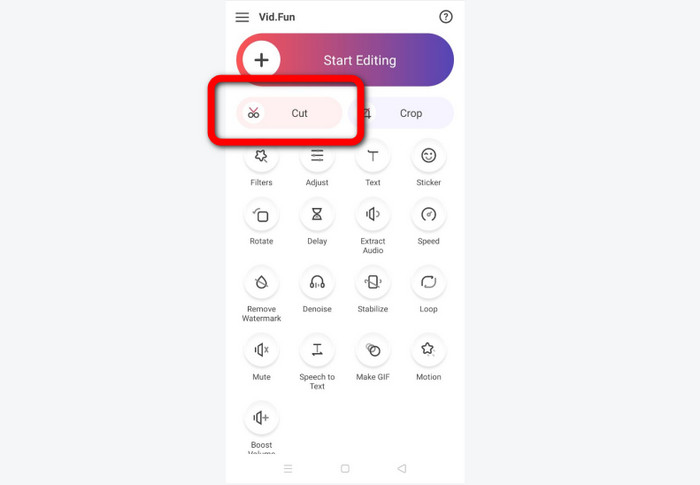
Bước 2. Khi giao diện ứng dụng xuất hiện, hãy chọn tùy chọn Cut (Cắt). Khi đó, các tệp của bạn sẽ hiển thị trên màn hình. Nhấn vào video bạn muốn cắt và bấm nút Yes (Đồng ý).
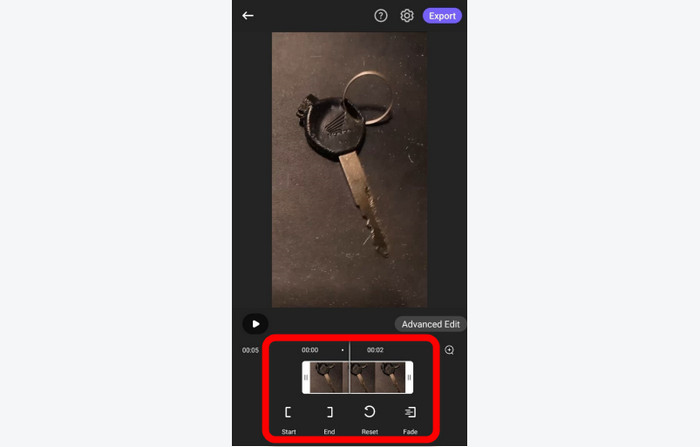
Bước 3. Sau đó, bạn có thể tiến hành cắt video. Kéo mép của đoạn video. Bạn cũng có thể sử dụng các tùy chọn Start (Bắt đầu) và End (Kết thúc) để cắt.
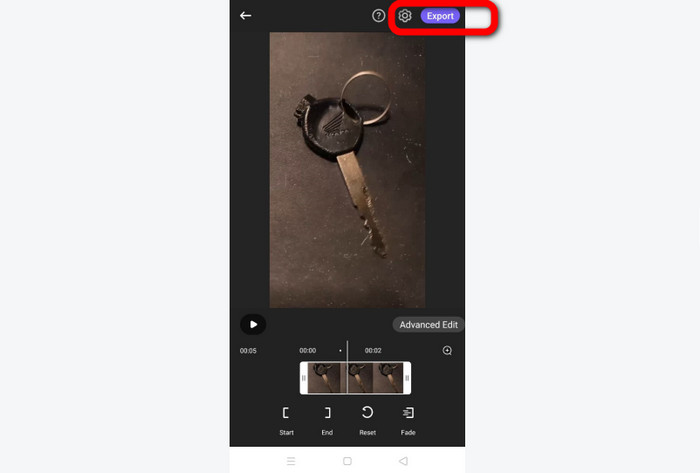
Bước 4. Khi đã hoàn tất việc cắt video, bạn có thể nhấn nút Export (Xuất). Chờ quá trình xuất hoàn tất và lưu video trên thiết bị Android của bạn.
Phần 2. Cách cắt video Android trên PC
Ở phần trước, bạn đã học cách cắt video bằng thiết bị Android. Trong phần này, bạn sẽ học cách cắt video bằng máy tính. Nếu muốn dùng máy tính bàn hoặc laptop để chỉnh sửa video, đặc biệt là cắt hoặc rút ngắn video, hãy sử dụng Video Converter Ultimate. Chương trình ngoại tuyến này có giao diện trực quan, giúp bạn nhanh chóng hiểu và sử dụng các tùy chọn. Quy trình cắt/rút ngắn video cũng rất đơn giản. Bạn có thể cắt video chỉ với vài cú nhấp chuột. Ngoài ra, chương trình còn hỗ trợ xuất video nhanh, rất tiện lợi cho mọi người dùng. Vì dễ sử dụng nên cả người mới lẫn người chuyên nghiệp đều có thể dùng. Hơn nữa, bạn có thể lưu bản xuất cuối cùng sang nhiều định dạng khác nhau như AVI, FLV, MOV, MP4 và nhiều định dạng khác. Bên cạnh đó, Video Converter Ultimate được tải miễn phí và có sẵn cho cả máy tính Mac và Windows. Thêm nữa, chương trình cho phép bạn thay đổi độ phân giải, chất lượng, tốc độ khung hình và bộ mã hóa của video. Bạn cũng có thể thay đổi tần số lấy mẫu (sample rate) và bitrate của âm thanh. Nhờ vậy, bạn có thể đảm bảo nhận được kết quả tốt nhất khi dùng chương trình ngoại tuyến này. Hãy làm theo hướng dẫn đơn giản dưới đây để biết cách cắt video Android trên máy tính.
Bước 1. Tải Video Converter Ultimate trên máy tính Mac hoặc Windows của bạn. Nhấn nút Tải xuống (Download) bên dưới để truy cập chương trình. Có sẵn cả phiên bản Windows và Mac. Sau đó chạy chương trình sau khi cài đặt xong.
Tải xuống miễn phí cho Windows 7 trở lên. Tải xuống an toàn.
Tải xuống miễn phí cho MacOS 10.7 trở lên. Tải xuống an toàn.
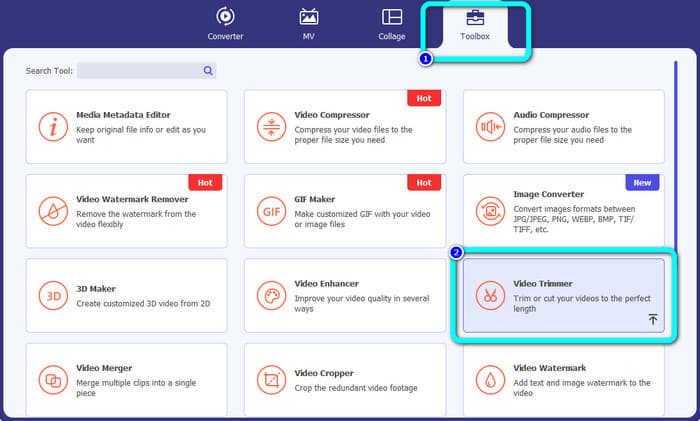
Bước 2. Khi giao diện chương trình hiện ra, hãy chuyển đến mục Toolbox (Hộp công cụ) trên thanh phía trên và chọn Video Trimmer Tool (Công cụ cắt video).
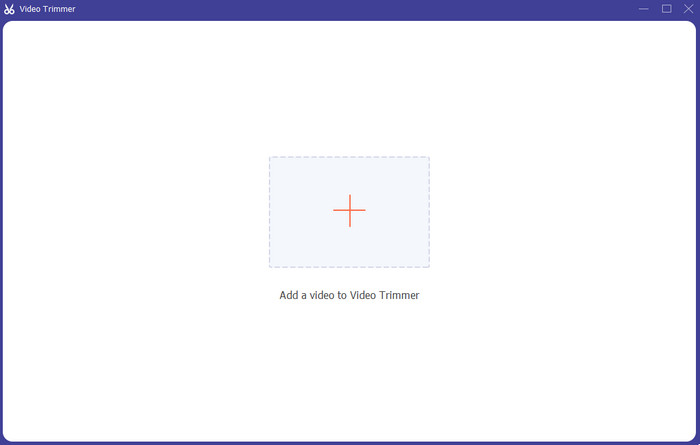
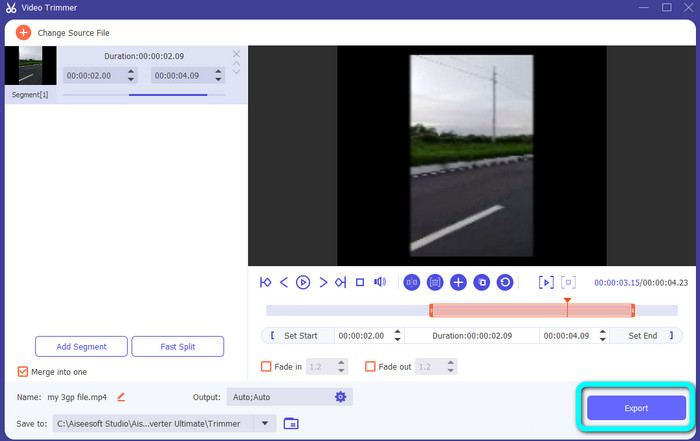
Bước 3. Một giao diện khác sẽ xuất hiện sau khi bạn nhấp vào công cụ Video Trimmer. Nhấn vào biểu tượng Dấu cộng (Plus) để chèn video Android. Lưu ý rằng video từ Android phải được chuyển sang máy tính trước khi dùng chương trình.
Bước 4. Sau đó, bạn sẽ vào bước cắt video. Để cắt, bạn cần điều chỉnh hai đầu của đoạn video. Bạn có thể chỉnh phần đầu và phần cuối của đoạn cần giữ.
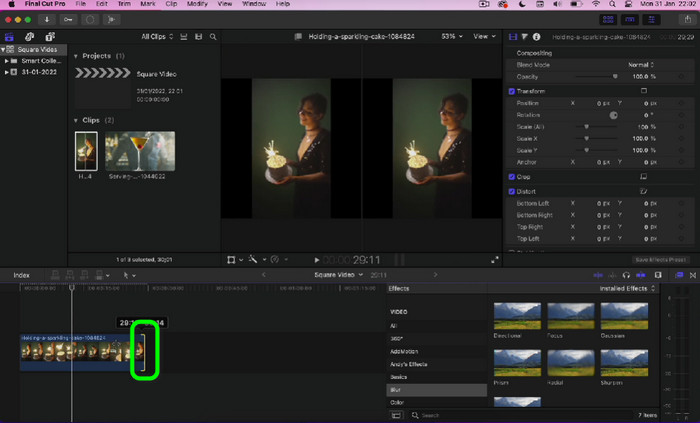
Bước 5. Sau khi hoàn tất, bạn có thể lưu video đã chỉnh sửa bằng cách nhấn nút Export (Xuất). Sau khi quá trình xuất kết thúc, bạn có thể phát video đã chỉnh sửa.
Phần 3. Câu hỏi thường gặp về Cách cắt video trên Android
Làm cách nào để cắt giữa video trên Android?
Nếu muốn cắt bớt phần giữa của video bằng thiết bị Android, bạn vẫn có thể sử dụng các ứng dụng đã giới thiệu ở trên. Bạn có thể làm theo quy trình tương tự và cắt phần giữa của video.
Làm cách nào để khôi phục các video đã cắt trên Android?
Truy cập ứng dụng Thư viện của bạn. Sau đó, nhấp vào các tùy chọn Album. Sau đó, nhấp vào tùy chọn Thùng rác. Bạn sẽ thấy các video đã xóa và nhấp vào nút Khôi phục.
Tôi có thể cắt video trên Android bằng iMovie không?
Tuyệt đối không. iMovie chỉ tương thích với các thiết bị của Apple, như iPhone, iPad và máy Mac.
Phần kết luận
Như vậy là xong! Giờ đây bạn đã biết cách cắt video trên Android và trên máy tính. Nếu bạn là người dùng Android, hãy làm theo các bước đã nêu ở trên. Đồng thời, nếu muốn dùng máy tính để cắt hoặc rút ngắn video từ Android, hãy sử dụng Video Converter Ultimate. Chương trình ngoại tuyến này cho phép bạn cắt và chỉnh sửa video Android một cách dễ dàng và nhanh chóng.
-
 Những cách tuyệt vời về cách cắt video trực tuyến một cách thuận tiện
 Cắt video là cách tốt nhất để tạo video nổi bật. Vì vậy, bài đăng này sẽ cung cấp cho bạn các phương pháp để cắt video trực tuyến một cách dễ dàng. Đọc để tìm hiểu thêm.
-
 Cách rút ngắn video trên iPhone [Hướng dẫn chi tiết]
 Bạn có phải là người dùng iPhone và muốn cắt video của mình không? Đừng lo lắng nữa. Hướng dẫn này sẽ cung cấp đầy đủ chi tiết về cách cắt video trên iPhone và iPad.
-
 Cách dễ nhất để tăng tốc video trên thiết bị Android của bạn [2023]
 Bạn có biết rằng bạn có thể tăng tốc video trên Android của mình không? Vì vậy, nếu bạn muốn biết cách tăng tốc video trên điện thoại Android của mình thì hãy đọc bài viết này.
