


 Chuyển đổi video Ultimate
 Trình ghi màn hình
 Sửa chữa video
 Tải xuống an toàn
Nén FLV để tải lên nhanh chóng - 2 phương pháp hiệu quả mà bạn nên biết
Khi bạn muốn tải FLV lên blog của mình hoặc chia sẻ video với các trang web truyền thông xã hội, có thể mất nhiều thời gian hoặc bị kẹt trong quá trình tải lên, bạn phải nén video FLV. Những cách tốt nhất để thu nhỏ kích thước video FLV là gì? Chỉ cần tìm hiểu thêm chi tiết về 2 phương pháp hiệu quả nhất để giảm dung lượng video FLV từ bài viết.

Phần 1: Cách nén FLV trực tuyến miễn phí
Nếu bạn chỉ có một vài tệp FLV đơn giản, Free Video Compressor là một trình nén video FLV đa năng, cho phép giảm dung lượng video thông qua việc điều chỉnh độ phân giải, bitrate và nhiều tham số khác. Công cụ này cho phép bạn nén hàng loạt video FLV mà không cần đăng ký. Hơn nữa, trình nén video sẽ không lưu bất kỳ thông tin nào của bạn.
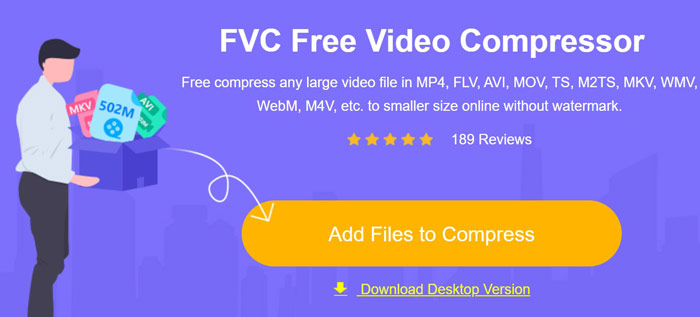
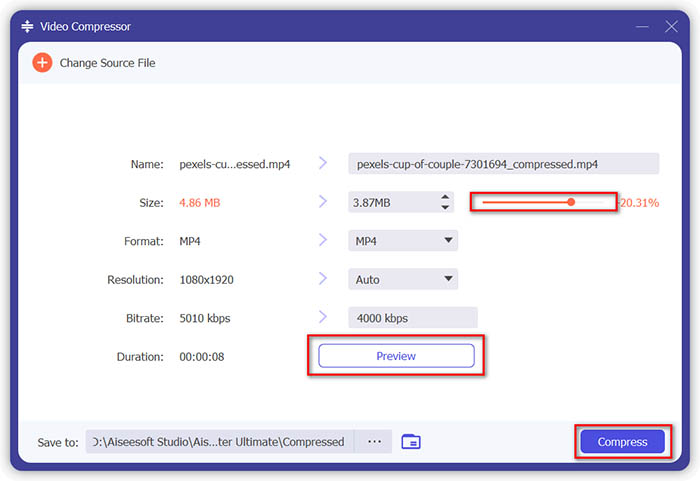
Bước 1: Truy cập trình nén FLV trực tuyến bằng bất kỳ trình duyệt web nào. Nhấp vào nút Add Files to Compress để tải xuống trình cài đặt. Sau đó, bạn có thể nhấp lại vào nút này để nhập các video FLV.
Bước 2: Sau khi đã nhập FLV, bạn có thể tinh chỉnh kích thước video đến dung lượng mong muốn, chuyển sang định dạng MP4, chọn độ phân giải video, và thậm chí thay đổi bitrate cho video.
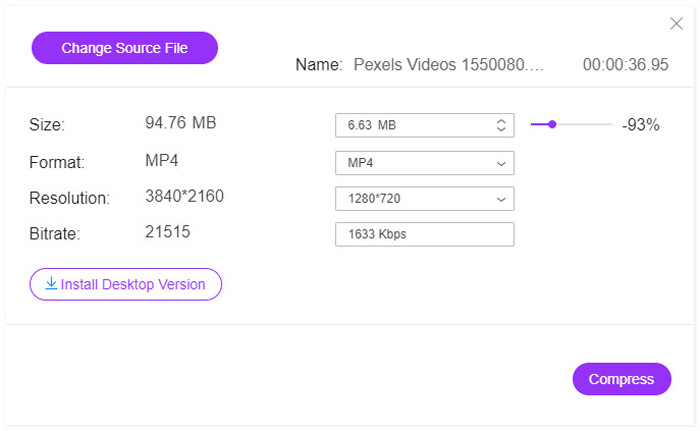
Bước 3: Hãy kiểm tra video FLV xuất ra và nhấp vào nút Compress để nén FLV và rút ngắn thời gian tải lên. Sau đó, bạn có thể chia sẻ video đã nén lên các trang web mạng xã hội.
Phần 2: Cách chuyên nghiệp để nén FLV
Khi bạn cần nén FLV với chất lượng gốc, cắt đoạn video mong muốn, hoặc thậm chí chuyển FLV sang MP4 với dung lượng nhỏ hơn, Video Converter Ultimate là một trình nén FLV đa năng giúp giảm kích thước FLV chỉ với vài cú nhấp chuột. Ngoài ra, bạn còn có thể tinh chỉnh codec video, bitrate, độ phân giải và nhiều tham số khác để giảm dung lượng các tệp FLV.
Tải xuống miễn phí cho Windows 7 trở lên. Tải xuống an toàn.
Tải xuống miễn phí cho MacOS 10.7 trở lên. Tải xuống an toàn.
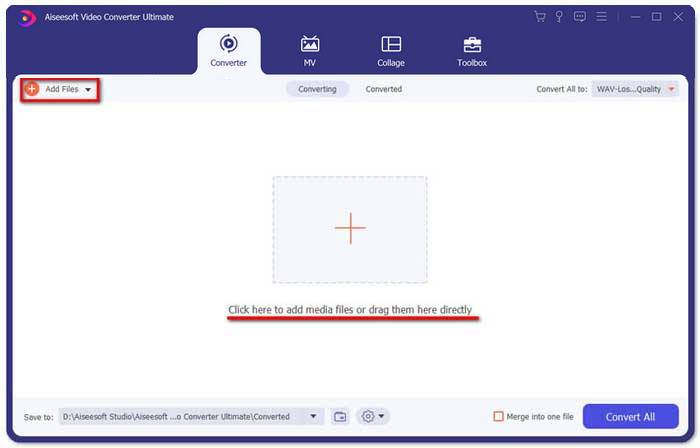
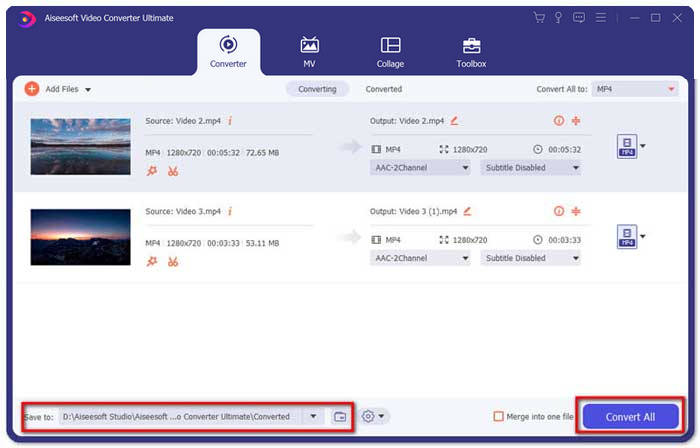
Bước 1: Tải xuống và cài đặt Video Converter Ultimate, sau đó khởi chạy chương trình trên máy tính của bạn. Vào menu Converter và nhấp nút Add Files để nhập các tệp FLV vào chương trình. Tất nhiên, bạn cũng có thể đơn giản kéo và thả các video FLV.
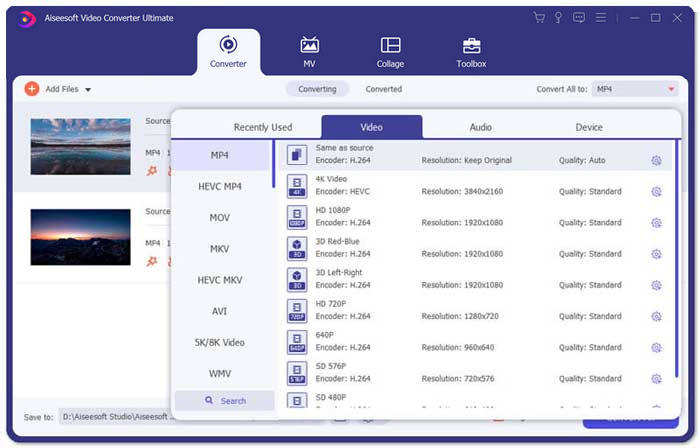
Bước 2: Sau khi đã nhập các video FLV, bạn có thể nhấp vào định dạng đầu ra ở phía bên phải của cột video. Nhấp vào biểu tượng Gear để tinh chỉnh bộ mã hóa video, tốc độ khung hình, độ phân giải, bitrate và nhiều thiết lập khác để nén các tệp FLV.
Bước 3: Khi bạn chỉ cần giảm dung lượng video FLV, hãy vào menu Toolbox và nhập các tệp FLV. Sau đó, bạn có thể điều chỉnh kích thước video, độ phân giải và các thông số khác. Ngoài ra, bạn cũng có thể chỉnh thời lượng video cho phù hợp.
Bước 4: Khi đã có được các video FLV ưng ý, bạn có thể nhấp vào biểu tượng Thư mục bên cạnh mục Save to để chọn thư mục đích. Sau đó, nhấp nút Convert All để nén các video FLV nhằm tải lên nhanh hơn.
Phần 3: Những câu hỏi thường gặp về Nén Video FLV
1. Định dạng Video FLV là gì?
FLV là viết tắt của Flash Video. Phần mở rộng tệp là tệp sử dụng Adobe Flash Player hoặc Adobe Air để truyền video hoặc âm thanh qua Internet. Đây là một trong những định dạng video được sử dụng nhiều nhất bởi tất cả các video nhúng trên Internet, bao gồm blog và các trang web truyền thông xã hội, chẳng hạn như YouTube, Hulu, v.v.
2. Bạn có nên tải video FLV lên YouTube không?
Đúng. YouTube không hỗ trợ các tệp video FLV, chỉ khi được mã hóa bằng codec video Adobe-FLV1 và âm thanh MP3 và AAC. Khi nén video FLV, bạn cũng nên tinh chỉnh codec video và codec âm thanh để tải video FLV lên YouTube.
3. FLV VS MP4, Kích thước Nhỏ gọn?
Cả FLV và MP4 đều là định dạng vùng chứa, nhưng kích thước video phụ thuộc vào codec video trong định dạng video. Khi bạn cần nén video FLV, bạn có thể chỉ cần thay đổi codec video để giảm kích thước của video FLV hoặc MP4.
Phần kết luận
Để nén video FLV để tải lên nhanh chóng, bạn có thể tìm hiểu thêm về 2 phương pháp hiệu quả từ bài viết. Tất nhiên, bạn có thể nén FLV trực tuyến một cách đơn giản không giới hạn với Nén Video Trực tuyến Miễn phí. Khi bạn cần chỉnh sửa và nâng cao các tệp FLV, Video Converter Ultimate luôn là lựa chọn ban đầu.
-
 2 cách để nén video AVCHD thành kích thước tệp nhỏ miễn phí
 Đọc và nhận 2 cách dễ dàng để nén tệp video AVCHD. Bạn có thể sử dụng trình nén video trực tuyến và ngoại tuyến để giảm dung lượng video AVCHD miễn phí trên máy tính của mình.
-
 Cách nén tệp VOB trực tuyến và miễn phí
 Bạn đang tìm kiếm các phương pháp để nén các tập tin VOB? Tìm hiểu cách tốt nhất để làm cho kích thước tệp VOB nhỏ hơn trong bài viết này.
-
 10 trình phát FLV hàng đầu dành cho Windows, Mac, iOS và Android vào năm 2021
 Trình phát FLV giúp bạn dễ dàng truy cập các tệp FLV của mình trên thiết bị Windows, Mac, Android, iOS. Kiểm tra các trình phát tệp FLV tốt nhất mà bạn có thể tải xuống ngay bây giờ.
