


 Chuyển đổi video Ultimate
 Trình ghi màn hình
 Sửa chữa video
 Tải xuống an toàn
2 cách dễ dàng để phát tệp MKV trên iPad
Tôi có thể phát tệp MKV trên iPad không?
Bạn không thể phát trực tiếp MKV trên iPad, dù bạn đang dùng iPad Pro, iPad Air, iPad mini hay iPad 2/4/6/8. MKV là một định dạng vùng chứa đa phương tiện rất phổ biến. Nhưng nó không được hỗ trợ bởi tất cả các sản phẩm Apple, bao gồm iPad, iPhone, iPod và Mac. Vậy làm thế nào để phát MKV trên iPad?

Bạn có thể dùng ứng dụng bên thứ ba để phát tệp MKV trên iPad. Ngoài ra, bạn có thể chọn chuyển đổi MKV sang định dạng được iPad hỗ trợ như MP4 hoặc MOV. Trong bài viết này, chúng tôi sẽ chia sẻ 2 cách hiệu quả để giúp bạn phát tệp MKV trên iPad Pro, Air, mini và các mẫu iPad khác.
Phần 1. Làm thế nào để phát trực tiếp các tập tin MKV trên iPad với VLC
Như đã đề cập ở trên, bạn không thể trực tiếp phát tệp MKV trên iPad Pro, Air, mini hoặc iPad 8/6/4/2. Nhưng có một số ứng dụng trình phát MKV của bên thứ ba được cung cấp trên App Store có thể giúp bạn phát MKV trên iPad, iPhone hoặc iPod touch. Bạn có thể dựa vào trình phát đa phương tiện phổ biến VLC để phát mọi video, bao gồm cả tệp MKV trên thiết bị iOS của mình.
VLC Media Player là một công cụ phát tệp đa phương tiện rất phổ biến, hỗ trợ mọi định dạng video thường dùng như MKV, MOV, MP4, AVI, FLV, v.v. Nó cho phép bạn phát tệp đa phương tiện trên máy tính Windows, Mac và Linux. Hơn nữa, VLC còn cung cấp ứng dụng iOS giúp bạn phát tệp MKV trên iPad và iPhone.
Bước 1. Vào App Store trên iPad và tìm kiếm VLC. Kết quả tìm kiếm đầu tiên sẽ là VLC for Mobile. Nhấn vào đó và sau đó nhấn Get để cài đặt miễn phí trên iPad. Ứng dụng VLC này tương thích với iPad, iPhone, iPod touch và Apple TV.
Bước 2. Nhấn vào biểu tượng VLC để mở. Giờ đây bạn có thể đồng bộ tệp MKV của mình thông qua iTunes, chia sẻ qua Wi‑Fi hoặc các dịch vụ đám mây. Sau đó, bạn có thể xem chúng trong mục Video. Tại đây bạn cũng có thể kiểm tra tệp MKV trong ứng dụng Files. Chọn tệp MKV bạn muốn phát trên iPad rồi nhấn nút Share.
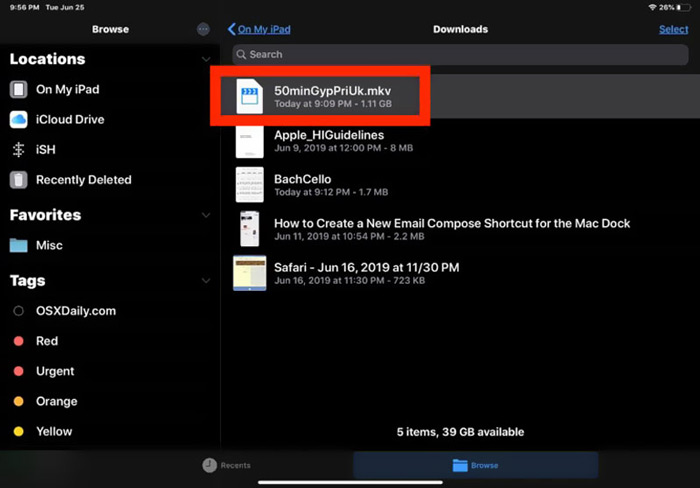
Bước 3. Chọn tùy chọn Open in VLC hoặc Copy to VLC từ danh sách thả xuống. Sau đó bạn có thể phát MKV trên iPad bằng ứng dụng VLC này.
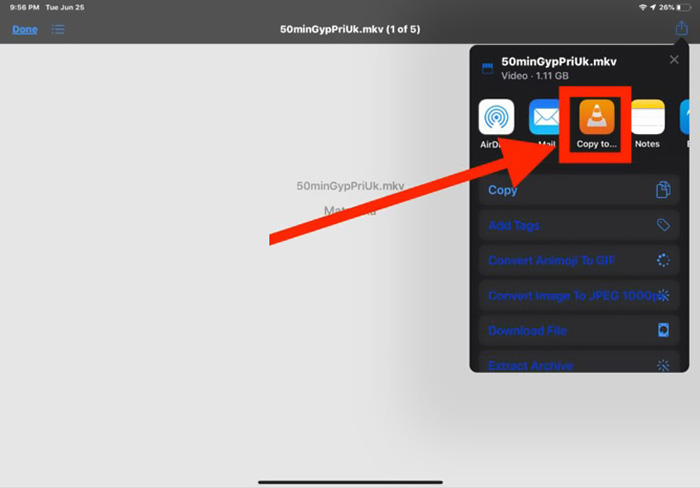
Ngoài tệp MKV, bạn cũng có thể dựa vào VLC để phát các tệp đa phương tiện khác một cách dễ dàng. Dĩ nhiên cũng còn một số trình phát MKV khác như KMPlayer và nhiều ứng dụng khác có thể giúp bạn xem tệp MKV trên iPad.
Phần 2. Làm thế nào để chuyển đổi MKV sang MP4 để phát lại trên iPad
Khi muốn phát tệp MKV trên iPad, bạn cũng có thể chọn chuyển đổi MKV sang định dạng video được iPad hỗ trợ như MP4 hoặc MOV. Để làm điều đó, bạn có thể dựa vào phần mềm chuyển đổi MKV chuyên nghiệp, Free Online Video Converter.
Bộ chuyển đổi MKV sang iPad này hỗ trợ cao mọi định dạng video và âm thanh được sử dụng thường xuyên. Nó cho phép bạn chuyển đổi MKV sang định dạng được hỗ trợ iPad bao gồm MOV và MP4 mà không làm giảm chất lượng. Hướng dẫn sau đây sẽ chỉ cho bạn cách sử dụng nó để chuyển đổi MKV sang iPad.
Bước 1. Mở trình duyệt của bạn như Chrome, IE, Firefox hoặc Safari và truy cập trang Free Online Video Converter này. Khi vào trang, hãy nhấp vào Add Files to Convert rồi nhấp nút download để nhanh chóng cài đặt một trình khởi chạy FVC dung lượng nhỏ cho việc chuyển đổi MKV.

Bước 2. Sẽ có một cửa sổ Open File bật lên trên màn hình để bạn duyệt và nhập tệp MKV. Sau đó, bạn sẽ được chuyển đến cửa sổ chuyển đổi chính. Bạn có thể thấy nhiều định dạng video phổ biến như MP4, MKV, MOV, AVI, FLV, WMV, VOB, WEBM, v.v. được liệt kê ở đó. Tại đây bạn nên chọn MP4 hoặc MOV làm định dạng đầu ra.
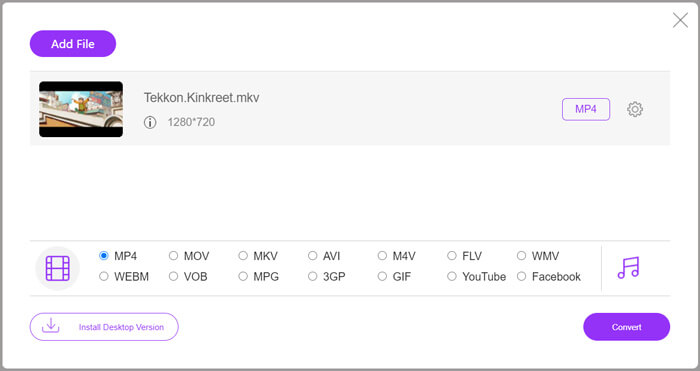
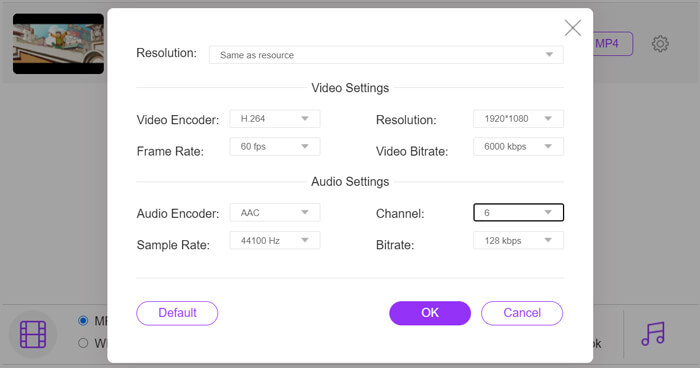
Bước 3. Trước khi chuyển đổi, bạn có thể nhấp vào biểu tượng Settings bên cạnh định dạng đầu ra để tùy chỉnh các thiết lập video và âm thanh khác nhau. Tại đây bạn được phép điều chỉnh độ phân giải video, bộ mã hóa, tốc độ khung hình, bitrate, kênh âm thanh, tần số lấy mẫu và nhiều thông số khác. Nhấp nút OK để lưu thay đổi.
Bước 4. Sau khi hoàn tất tất cả các thao tác này, bạn có thể nhấp vào nút Convert để bắt đầu chuyển đổi MKV sang MP4. Tệp đầu ra sẽ giữ nguyên chất lượng hình ảnh và âm thanh gốc. Sau đó bạn có thể chuyển nó sang iPad để phát lại.
Phần 3. Những câu hỏi thường gặp khi chơi tập tin MKV trên iPad
Câu hỏi 1. iMovie có thể chỉnh sửa các tệp MKV không?
Như chúng tôi đã đề cập ở trên, tất cả các thiết bị Apple và phần mềm liên quan không thể hỗ trợ định dạng MKV. Là trình chỉnh sửa mặc định cho iPad, iPhone và Mac, iMovie không thể mở và chỉnh sửa các tệp MKV.
Câu hỏi 2. VLC có thể chuyển đổi MKV sang MP4 không?
Đúng. VLC Media Player có khả năng chuyển đổi tệp MKV. Bạn có thể mở VLC, nhấp vào menu Media và sử dụng tính năng Chuyển đổi / Lưu. Trong cửa sổ Open Media, bạn có thể nhấp vào nút Thêm để tải tệp MKV của mình. Nhấp vào nút Chuyển đổi và sau đó chọn MP4 làm định dạng mục tiêu. Sau đó, bạn có thể chọn một thư mục đích phù hợp và đổi tên tệp đầu ra. Sau đó, bạn có thể nhấp vào nút Bắt đầu để thực hiện chuyển đổi video từ MKV sang MP4 với VLC.
Câu hỏi 3. Windows 10 có thể phát tệp MKV không?
Bạn không thể dựa vào trình phát mặc định, Windows Media Player để phát tệp MKV trên PC chạy Windows 10. Khi bạn muốn mở tệp MKV, bạn phải dựa vào một số trình phát đa phương tiện của bên thứ ba như VLC, PotPlayer và hơn thế nữa.
Phần kết luận
Sau khi đọc bài viết này, bạn có thể nắm được 2 mẹo hữu ích để phát tệp MKV trên iPad. Dù bạn muốn xem trực tiếp MKV trên iPad hay chuyển đổi MKV sang định dạng được iPad hỗ trợ, bạn đều có thể tìm được công cụ phù hợp. Nếu còn câu hỏi nào khác về việc phát MKV trên iPad, bạn có thể để lại tin nhắn cho chúng tôi.
-
 M2TS to iPad - Cách miễn phí để phát tệp video M2TS trên iPad của bạn
 Đọc và nhận cách tốt nhất để chuyển đổi M2TS sang iPad. Đây là trình chuyển đổi tệp M2TS trực tuyến và ngoại tuyến để phát lại iPad M2TS. Chỉ cần đọc và chọn giải pháp bạn thích.
-
 MKV sang MOV - Cách chuyển đổi MKV sang MOV
 Làm cách nào để chuyển MKV sang MOV trên Mac? IMovie có thể đọc MKV không? Định dạng MOV có nghĩa là gì? Bài đăng này cho biết 2 cách đơn giản để giúp bạn chuyển đổi MKV sang MOV bằng các trình chuyển đổi video trực tuyến và chuyên nghiệp miễn phí.
-
 Hướng dẫn - 4 cách miễn phí để ghép video trên iPhone thành một video mới
 Đọc và nhận 4 cách dễ dàng để hợp nhất video trên iPhone. Tất cả các kiểu iPhone và phiên bản iOS đều được hỗ trợ. Bạn có thể kết hợp 2 video trở lên trên iPhone thành một video mới một cách nhanh chóng.
