


 Chuyển đổi video Ultimate
 Trình ghi màn hình
 Sửa chữa video
 Tải xuống an toàn
Làm thế nào để chuyển đổi MTS sang FLV với 3 MTS to FLV Converter
Muốn chuyển đổi các tệp MTS sang FLV? Các video được quay bằng máy quay AVCHD thường được lưu ở định dạng MTS hoặc M2TS. Tệp MTS không được một số trình phát đa phương tiện hỗ trợ phổ biến, cũng như không thể tải lên YouTube hoặc Facebook. Nếu bạn có máy quay AVCHD như Sony, Panasonic hoặc Cannon, bạn có thể muốn chuyển đổi các video MTS đã quay sang định dạng video Flash để chúng có thể phát trên hầu hết các trình phát đa phương tiện. Đó là lý do bạn nên đọc tiếp bài viết của chúng tôi, vì chúng tôi sẽ cung cấp 3 phương pháp để chuyển đổi tệp MTS sang FLV trên Windows và Mac.

Phần 1. Cách chuyên nghiệp để chuyển đổi MTS sang FLV miễn phí
Để chuyển đổi tệp MTS của bạn sang video Flash để tải lên, bạn cần một công cụ chuyên nghiệp như FVC Free MTS Converter. Đây là trình chuyển đổi MTS sang FLV có thể chuyển đổi hàng loạt tệp MTS sang FLV, MP4, WMV, MOV và các định dạng video và âm thanh khác. Với các công cụ chỉnh sửa video tích hợp, bạn có thể chỉnh sửa tệp MTS trước khi chuyển đổi.

FVC Free MTS Converter
1.286.400+ lượt tải xuống- Chuyển đổi MTS sang FLV trên Windows 10/8/7 / Vista / XP và Mac OS X.
- Nén, hợp nhất và thêm các hiệu ứng video khác vào tệp MTS.
- Thêm các chủ đề đặc biệt vào tệp MTS của bạn, như kỳ nghỉ, gia đình, sinh nhật.
- Chuyển đổi hàng loạt MTS sang FLV, MP4, MKV, v.v. với tốc độ nhanh hơn 50 lần.
Tải miễn phíDành cho Windows 7 trở lênTải xuống an toàn
Tải miễn phíDành cho MacOS 10.7 trở lênTải xuống an toàn
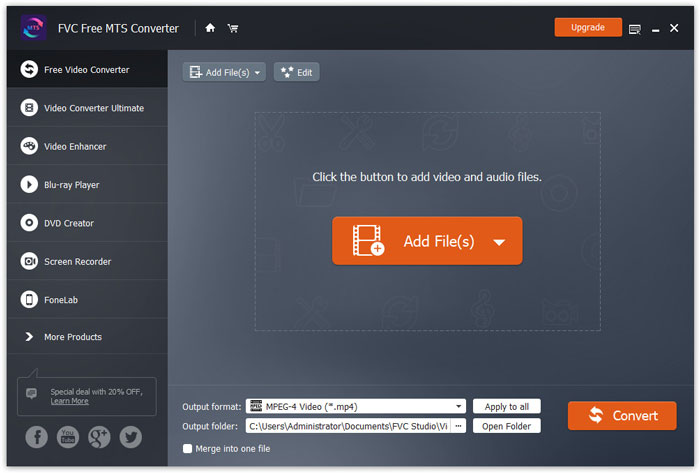
Bước 1. Thêm tệp MTS
Tải miễn phí, cài đặt và khởi chạy FVC Free MTS Converter. Nhấp nút Add File(s) để nhập tệp MTS của bạn. Bạn cũng có thể kéo nhiều hơn một tệp MTS vào chương trình hoàn toàn miễn phí.
Bước 2. Chỉnh sửa tệp MTS
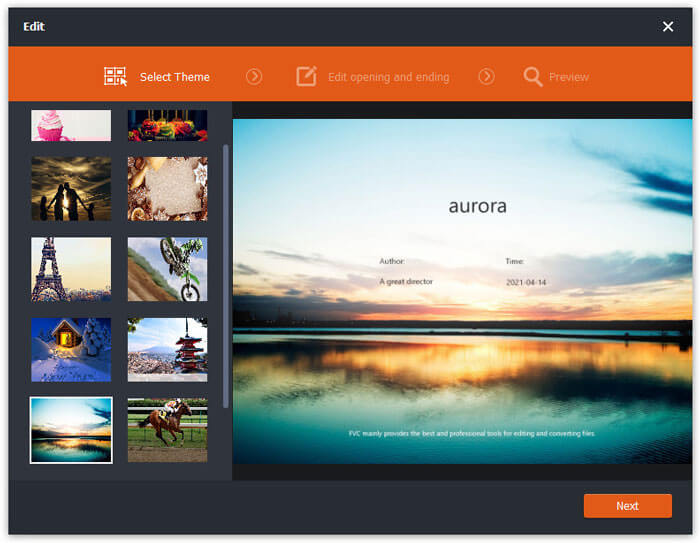
Nhấp nút Edit để bắt đầu chỉnh sửa tệp MTS của bạn. Bạn có thể chọn một chủ đề nhất định, chỉnh sửa tiêu đề, tác giả, thời gian ở phần mở đầu và kết thúc.
Bước 3. Đặt FLV làm đầu ra
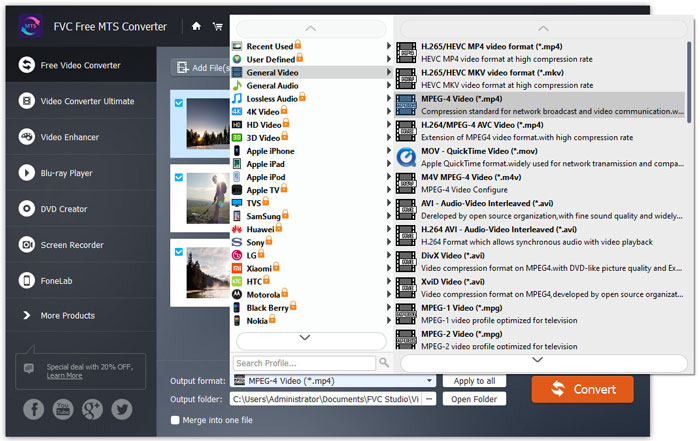
Sau đó, đi tới khu vực Output format và chọn danh mục General Video. Tìm FLV - Flash Video Format (.flv) và đặt làm định dạng đầu ra. Định dạng này là định dạng phương tiện truyền phát video qua mạng được sử dụng rộng rãi.
Bước 4. Chuyển đổi MTS sang FLV
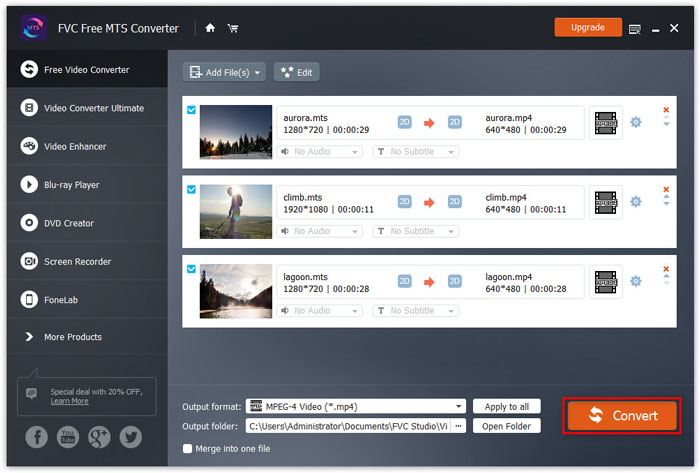
Cuối cùng, đi tới khu vực Output folder và chọn thư mục đích nơi tệp FLV đã chuyển đổi sẽ được lưu. Bạn có thể nhấp nút Convert để bắt đầu chuyển đổi tệp MTS sang FLV miễn phí.
Sau đó, bạn có thể tải tệp FLV đã chuyển đổi lên YouTube, Vimeo, Facebook, Google video hoặc các nền tảng phương tiện khác.
Phần 2. Làm thế nào để thay đổi MTS thành FLV trực tuyến miễn phí
Nếu bạn muốn tìm một công cụ trực tuyến mà không cần tải xuống bất kỳ phần mềm nào, bạn có thể truy cập FVC Free Online Video Converter. Đây là trình chuyển đổi MTS sang FLV trực tuyến miễn phí, dễ sử dụng, giúp chuyển đổi bất kỳ định dạng video/âm thanh phổ biến nào như MTS sang FLV, MP4, WMV, AVI, MOV, MP3, v.v., hoàn toàn miễn phí trên Windows và Mac. Bạn có thể xem các bước chi tiết để đổi MTS sang FLV với công cụ trực tuyến miễn phí này.
Bước 1. Truy cập trang web chính thức của FVC Free Online Video Converter (https://www.free-videoconverter.net/free-online-video-converter/). Nhấp nút Add Files to Convert để tải xuống và cài đặt trình khởi chạy.

Bước 2. Chọn các tệp MTS của bạn từ máy tính để chuyển đổi.
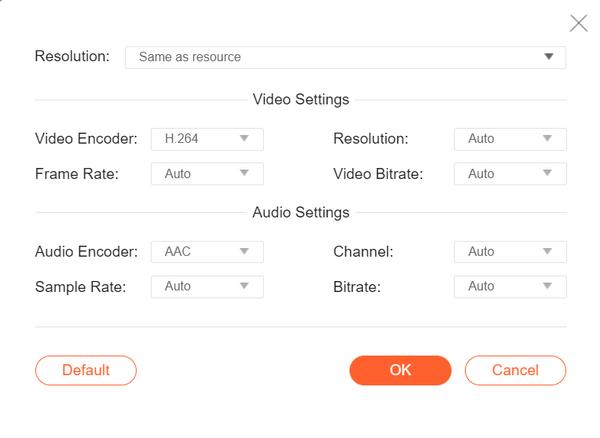
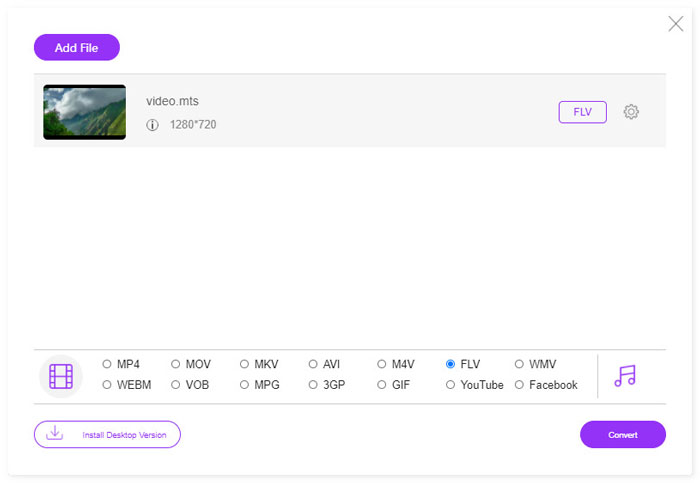
Bước 3. Đặt FLV làm định dạng đầu ra ở phía dưới. Nếu bạn muốn điều chỉnh thêm các cài đặt, bạn có thể nhấp vào biểu tượng bánh răng để điều chỉnh bộ mã hóa video, độ phân giải, tốc độ khung hình, bitrate và các cài đặt âm thanh khác như bộ mã hóa âm thanh, kênh, tần số lấy mẫu và bitrate.
Bước 4. Nhấp nút Covert để bắt đầu chuyển đổi tệp MTS của bạn sang FLV.
Phần 3. Xuất Video Flash miễn phí từ Tệp MTS với VLC
VLC Media Player không chỉ là một trình phát video/âm thanh đơn giản, mà còn là một trình chuyển đổi video được tích hợp nhiều tính năng hữu ích. Nó hoạt động như một trình chuyển đổi MTS sang FLV tốt, có thể xử lý một loạt các tệp được hỗ trợ để chuyển đổi. Phần mềm hoàn toàn miễn phí, không có bất kỳ giới hạn nào. Với VLC, bạn có thể xuất video Flash từ tệp MTS trên Windows hoặc Mac miễn phí. Để chuyển đổi tệp MTS sang FLV, bạn cần tải xuống và cài đặt VLC trên máy tính của mình.
Bước 1. Khởi chạy VLC Media Player, vào Media và nhấp nút Convert / Save.
Bước 2. Nhấp nút Add để thêm tệp MTS, và nhấp nút Convert / Save để tiếp tục.
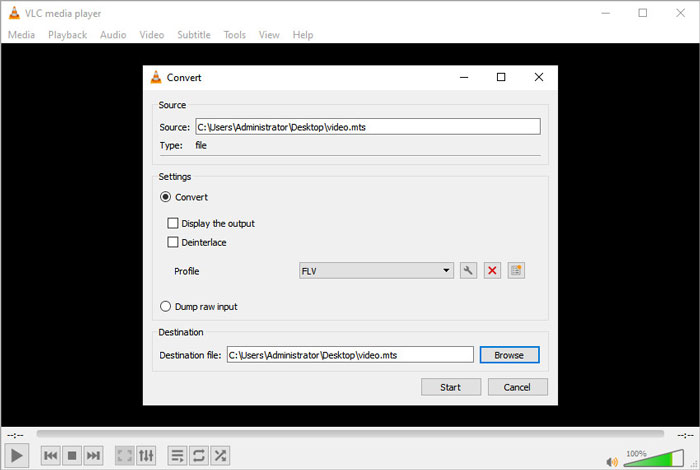
Bước 3. Đánh dấu chọn Convert trong khu vực Settings, và nhấp vào mũi tên thả xuống để chọn FLV làm định dạng đầu ra. Nếu không có lựa chọn đầu ra FLV, bạn có thể nhấp vào biểu tượng Create a new profile và tạo một hồ sơ FLV mới.
Bước 4. Sau đó đi tới khu vực Destination và nhấp nút Browse để đặt thư mục đầu ra.
Bước 5. Đảm bảo bạn đã thiết lập xong tất cả cài đặt, và nhấp nút Start để bắt đầu chuyển đổi MTS sang FLV trong VLC.
Phần 4. Câu hỏi thường gặp về Chuyển đổi MTS sang FLV
Định dạng video MTS là gì?
Tệp MTS là một video được lưu ở định dạng Advanced Video Coding Definition (AVCHD). Tệp MTS là định dạng video tiêu chuẩn được sử dụng bởi nhiều máy quay HD của Sony và Panasonic. Nó cũng được dùng để lưu trữ video độ phân giải cao trên đĩa Blu-ray.
Làm cách nào để chuyển đổi tệp MTS sang MP4?
Với FVC Free MTS Converter, bạn cũng có thể chuyển đổi tệp MTS sang MP4. Nhấp nút Add File(s) để nhập các tệp MTS. Sau đó đi tới Output format và chọn MP4 làm định dạng đầu ra. Sau đó, nhấp nút Convert để bắt đầu chuyển đổi MTS sang MP4 miễn phí.
Windows 10 có thể phát tệp MTS không?
Đúng. Bạn có thể sử dụng Windows Media Player để phát các tệp MTS của mình. Nếu tệp MTS không phát lại được, bạn có thể thử các trình phát MTS khác như VLC Media Player, 5K Player, FVC Free Video Player, v.v.
Phần kết luận
Trong bài viết này, chúng tôi chủ yếu nói về 3 phương pháp để chuyển đổi tệp MTS sang FLV miễn phí. Bạn có thể thử tất cả các trình chuyển đổi MTS sang FLV ở trên để xuất các tệp video flash để tải lên. Trình chuyển đổi MTS Miễn phí này có thể dễ dàng thay đổi các tệp MTS của bạn thành FLV, MP4, WMV, VOB, MP3 và hơn thế nữa với tốc độ nhanh.
-
 10 trình phát FLV hàng đầu dành cho Windows, Mac, iOS và Android vào năm 2021
 Trình phát FLV giúp bạn dễ dàng truy cập các tệp FLV của mình trên thiết bị Windows, Mac, Android, iOS. Kiểm tra các trình phát tệp FLV tốt nhất mà bạn có thể tải xuống ngay bây giờ.
-
 Các cách tốt nhất để chuyển đổi VOB sang FLV
 Bạn muốn chuyển đổi tệp VOB sang tệp FLV? Bạn có thể dễ dàng hoàn thành nhiệm vụ với trình chuyển đổi trên máy tính để bàn hoặc trực tuyến. Đọc hướng dẫn này và tìm hiểu cách chuyển đổi VOB sang FLV một cách dễ dàng và nhanh chóng.
-
 MTS VS M2TS - Sự khác biệt giữa MTS và M2TS
 Tệp MTS hoặc M2TS là gì? Sự khác biệt giữa M2TS và MTS là gì? Tôi có thể xem tệp MTS hoặc M2TS của máy quay bằng cách nào? Tìm tất cả các câu trả lời trong bài đăng này.
