


 Chuyển đổi video Ultimate
 Trình ghi màn hình
 Sửa chữa video
 Tải xuống an toàn
Làm thế nào để chuyển đổi tệp FLV sang video iPhone mà không làm giảm chất lượng
Mọi người đều biết rằng iPhone và iPad được trang bị màn hình thế hệ mới nhất. Vì vậy, việc xem phim trên các thiết bị iOS là một hoạt động rất phổ biến. Tuy nhiên, người dùng iOS luôn gặp rào cản về định dạng khi phát phim. Ví dụ, các tệp FLV khá phổ biến nhưng lại không được phần mềm gốc của Apple hỗ trợ. Đó là lý do chúng tôi chia sẻ hướng dẫn này, giúp bạn chuyển đổi FLV sang định dạng video cho iPhone trên máy tính hoặc trực tuyến một cách dễ dàng.

Phần 1: Phần mềm miễn phí tốt nhất để chuyển đổi video FLV sang iPhone
Vốn dĩ, iPhone chỉ hỗ trợ M4V (một phần của MP4), MOV và một phần AVI. Điều đó khiến việc chuyển đổi FLV sang định dạng iPhone trở nên khó khăn. FVC Free FLV Converter là một công cụ mạnh mẽ. Nó cung cấp các cấu hình cài sẵn để chuyển đổi trực tiếp các tệp đa phương tiện sang định dạng iPhone. Quan trọng hơn, nó hoàn toàn miễn phí.
Các tính năng chính của trình chuyển đổi FLV sang video iPhone miễn phí tốt nhất
- 1. Chuyển đổi các tập tin FLV sang định dạng video iPhone một cách dễ dàng.
- 2. Bao gồm rất nhiều cài đặt trước cho iPhone, iPad và hơn thế nữa.
- 3. Cung cấp các tính năng thưởng mở rộng, như cải tiến video.
Tải Miễn PhíDành cho Windows 7 hoặc mới hơnTải xuống An toàn
Tải Miễn PhíDành cho MacOS 10.7 hoặc mới hơnTải xuống An toàn
Làm thế nào để chuyển đổi FLV sang iPhone Video hàng loạt
Bước 1: Thêm tệp FLV
Chạy trình chuyển đổi FLV sang video iPhone miễn phí tốt nhất sau khi bạn cài đặt nó trên máy tính. Sau đó nhấp vào nút Add File(s) để mở hộp thoại chọn tệp. Tìm và chọn tất cả các tệp FLV mà bạn muốn phát trên iPhone và nhấp vào Open. Trình chuyển đổi hỗ trợ chuyển đổi hàng loạt.

Bước 2: Đặt định dạng đầu ra
Sau khi tải FLV, bạn sẽ thấy tất cả trong khu vực thư viện. Đi tới khu vực dưới cùng, nhấp và mở rộng tùy chọn Output format. Chọn Apple iPhone trong danh sách và chọn đúng mẫu thiết bị của bạn. Khi đó phần mềm sẽ tự động tối ưu các tham số tương ứng. Nó sẽ đặt định dạng đầu ra cho tất cả các tệp FLV. Nếu bạn muốn thay đổi tham số cụ thể, hãy nhấp vào biểu tượng Gear để mở hộp thoại cấu hình.

Bước 3: Chuyển đổi video FLV sang iPhone
Tiếp theo, nhấp vào nút Open Folder, chọn thư mục đích và xác nhận. Theo mặc định, phần mềm sẽ lưu video iPhone vào thư viện video của bạn, nhưng bạn có thể thay đổi tùy theo nhu cầu. Cuối cùng, nhấp vào nút Convert để bắt đầu quá trình chuyển đổi FLV sang video iPhone.

Ngoài ra, chương trình còn hỗ trợ chuyển đổi video FLV sang Xbox, PS4, Samsung, Apple TV và các thiết bị phổ biến khác.
Phần 2: Làm thế nào để chuyển đổi định dạng FLV sang iPhone trực tuyến
Một số người không thích cài đặt phần mềm lên ổ cứng. Thỉnh thoảng, bạn có thể chỉ cần chuyển đổi FLV sang video iPhone trong vài trường hợp. Khi đó, ứng dụng chuyển đổi video trên web, chẳng hạn như FVC Free Online Video Converter, là lựa chọn linh hoạt. Nó có thể đáp ứng nhu cầu của bạn mà không cần cài thêm phần mềm. Thêm vào đó, công cụ này không yêu cầu thanh toán hay đăng ký. Khác với nhiều ứng dụng web khác, nó cũng không giới hạn kích thước tệp, vì vậy bạn có thể tải lên không giới hạn tệp FLV để chuyển đổi.
Bước 1: Mở https://www.free-videoconverter.net/free-online-video-converter/ trong trình duyệt web để vào trang chủ. Nhấn nút Add Files to Convert và tải về trình khởi chạy.

Bước 2: Khi tải xong, trình khởi chạy sẽ tự động bật lên. Sau đó nhấp vào nút Add File ở góc trên bên trái và tải lên các tệp FLV bạn muốn phát trên iPhone.
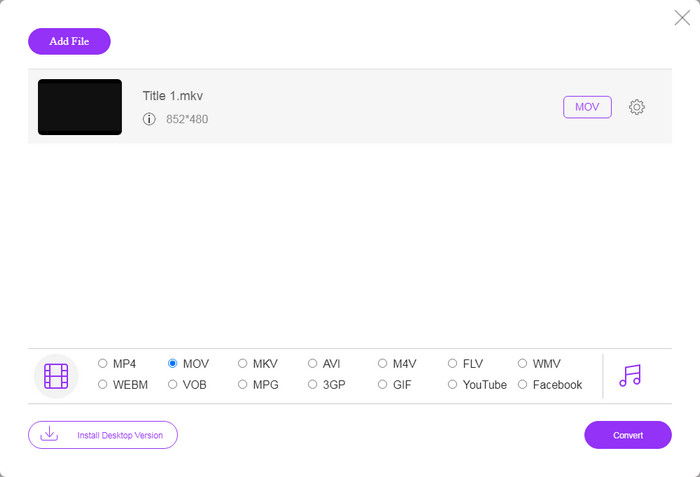
Bước 3: Tìm đến khu vực định dạng ở dưới cùng và chọn MOV, định dạng video được các thiết bị iOS hỗ trợ nhiều nhất. Nhấp vào nút Convert và ứng dụng web sẽ tiến hành chuyển đổi FLV sang định dạng iPhone trực tuyến. Chờ quá trình hoàn tất rồi tải kết quả về ổ cứng của bạn.
Nếu bạn muốn đặt lại các tùy chọn, hãy nhấp vào biểu tượng Cài đặt và bạn sẽ tìm thấy chúng trên hộp thoại Cài đặt, như độ phân giải, codec, v.v.
Phần 3: Câu hỏi thường gặp về chuyển đổi video FLV sang iPhone
Bạn có thể chơi các tệp FLV trên iPhone mà không cần chuyển đổi không?
Cách duy nhất để phát tệp FLV trên iPhone mà không cần chuyển đổi là cài đặt một trình phát FLV của bên thứ ba, chẳng hạn như VLC for iOS. Sau đó bạn có thể dễ dàng xem các bộ phim yêu thích của mình.
Video được lưu ở đâu trên iPhone?
Các video bạn quay và chuyển trên iPhone sẽ được lưu trong ứng dụng Ảnh. Nếu bạn tải video xuống bằng ứng dụng, video đó sẽ được lưu vào ứng dụng. Dù sao, bạn không thể truy cập hệ thống tệp trên iPhone hoặc iPad.
IPhone sử dụng loại tệp nào cho video?
Trên iPhone, H.264 là codec video duy nhất được hỗ trợ. Khi nói đến các định dạng video, MOV và MP4 có liên quan chặt chẽ với nhau. Để quay video trên iOS, Apple sử dụng codec video H.265 mới hơn hoặc HEVC.
Phần kết luận
Bây giờ, bạn sẽ hiểu cách mở và phát các tệp FLV trên iPhone. Rõ ràng, bạn không thể mở video FLV trên iPhone trực tiếp. Cách tốt nhất là chuyển đổi các tệp của bạn sang định dạng được iPhone hỗ trợ, chẳng hạn như MOV. Sau đó, bạn có thể phát các video một cách trơn tru. FVC Free FLV Converter là một trong những trình chuyển đổi video FLV sang iPhone miễn phí tốt nhất. Nó không chỉ dễ sử dụng mà còn có thể tạo ra chất lượng đầu ra tuyệt vời. Thêm câu hỏi? Vui lòng ghi lại bên dưới.
-
 3 phương pháp dễ dàng để chuyển đổi FLV sang AVI trên máy tính để bàn và trực tuyến
 1. Chuyển đổi video FLV sang các định dạng đa phương tiện khác một cách dễ dàng. 2. Hỗ trợ hầu hết các định dạng video, như AVI, MP4, MKV, v.v. 3. Xử lý hàng trăm tệp FLV cho mỗi lần chuyển đổi.
-
 3 cách hàng đầu để chuyển đổi FLV sang WMV trên Windows và Mac
 Bạn đang tìm cách tốt nhất để chuyển đổi FLV sang WMV mà không làm giảm chất lượng trên PC hoặc Mac? Bạn thật may mắn vì ở đây chúng tôi chia sẻ ba phương pháp để thực hiện công việc một cách dễ dàng.
-
 Hướng dẫn cụ thể để tải video FLV của bạn lên YouTube
 Tải FLV lên YouTube nhưng không thành công? Bạn có thể tự giải quyết sự cố này và chuyển đổi FLV sang codec được YouTube hỗ trợ theo hướng dẫn từng bước của chúng tôi.
