


 Chuyển đổi video Ultimate
 Trình ghi màn hình
 Sửa chữa video
Chọn Trình ghi màn hình GIF tốt nhất để ghi GIF [Trực tuyến và Ngoại tuyến]
Thực tế là GIF là định dạng tệp đơn giản nhưng dễ truy cập trên web. Kích thước tệp của ảnh GIF rất nhỏ nên nó đã trở thành một trong những cách hiệu quả nhất để gửi video hoặc hình ảnh chuyển động qua internet. Trong khi xem một bộ phim, bạn đã tìm thấy một cảnh tuyệt vời về bộ phim bạn đang xem và bạn muốn chia sẻ cảnh đó với bạn bè, những người thân yêu hoặc gia đình của mình. Nhưng hầu hết các trình ghi màn hình ở định dạng MP4 và MOV là một trong những định dạng có kích thước tệp lớn nhất. Đối với chúng tôi, việc chuyển loại định dạng tệp này sẽ mất một giờ hoặc hơn và hầu hết thời gian chúng không thành công do gián đoạn internet hoặc trong các trường hợp khác, định dạng trở nên không khả dụng vì không phải tất cả trình phát đa phương tiện cục bộ đều hỗ trợ tất cả các định dạng.
Khi lướt web tìm giải pháp, bạn bắt gặp các ảnh GIF. Định dạng tệp này có kích thước nhỏ hơn nhiều và dễ chia sẻ. Vì vậy, bạn bắt đầu nghĩ đâu là trình ghi GIF tốt nhất để dùng khi muốn ghi lại một cảnh trong bộ phim bạn đang xem. Danh sách dưới đây nói về một số công cụ ghi GIF phổ biến mà có thể bạn đã hoặc chưa từng gặp trên mạng. Hãy đọc tiếp để biết đó là những công cụ nào và cách dùng chúng để ghi lại màn hình dưới dạng GIF động.

Phần 1. Đặc điểm tốt nhất mà máy ghi GIF nên có
Trước hết, việc chọn một trình ghi màn hình tốt là bắt buộc. Nhưng có thể bạn đang băn khoăn nên ưu tiên điều gì khi chọn một trình ghi GIF? Danh sách dưới đây sẽ gợi ý cho bạn những đặc điểm mà một trình ghi tuyệt vời nên có.
● Thân thiện với người dùng – Hãy chọn sản phẩm không gây rắc rối cho bạn trong quá trình ghi hình.
● Tiết kiệm chi phí – Điều này chỉ áp dụng nếu công cụ là dạng trả phí. Rẻ mà hiệu quả vẫn tốt hơn là tốn nhiều tiền cho thứ mà bản trả phí giá rẻ đã làm được. Thực tế, công cụ trả phí thường cho chất lượng tốt nhất. Điều này chỉ quan trọng với các công cụ trả phí. Vì vậy, các công cụ miễn phí online hoặc offline không cần lo lắng về điểm này.
● Tính khả dụng của chương trình – Trường hợp bạn đổi từ PC sang Mac hoặc ngược lại, bạn sẽ không cần làm quen với một trình ghi mới. Vì thế, nhất định nên chọn trình ghi màn hình GIF có mặt trên mọi nền tảng. Ngoài ra, để giảm phiền toái, nếu phần mềm có thay đổi thì lý tưởng là chỉ thay đổi đơn giản, như tên gọi, chứ không phải toàn bộ giao diện.
● Không có mã độc hay vi-rút – Điều này áp dụng cho cả công cụ online và offline. Mọi chương trình nên mang lại cho bạn chất lượng ghi hình tốt nhất kèm mức độ an toàn cao, để tránh mất dữ liệu và rò rỉ thông tin.
Mặc dù đây là những đặc điểm đơn giản mà máy ghi âm nên cung cấp, tính duy nhất của công cụ bạn có thể chọn nằm trong danh sách dưới đây. Tìm sự khác biệt giữa từng công cụ và chọn trình ghi GIF tốt nhất từ danh sách để ghi âm của bạn.
Phần 2. Trình ghi GIF tốt nhất qua web
1. Trình ghi màn hình miễn phí FVC
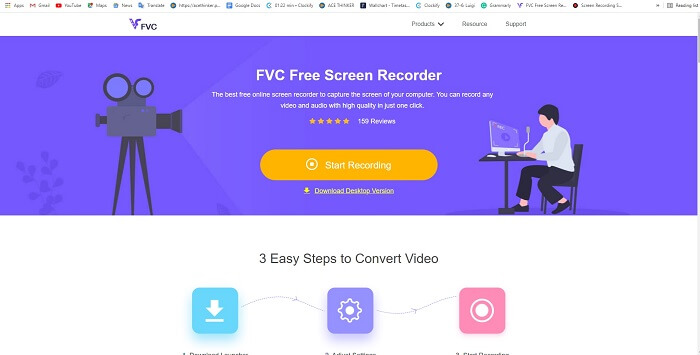
Cách tốt nhất để chia sẻ khoảnh khắc là ghi lại nó, và cách tốt nhất để ghi lại cảnh hoặc hành động trên màn hình là dùng FVC Free Screen Recorder. Công cụ mã nguồn mở này cho phép người dùng ghi hình với sự hỗ trợ của internet. Chỉ cần có kết nối mạng là bạn có thể dùng. Nó còn hỗ trợ các định dạng tệp cơ bản, codec, v.v. Dù là một trình ghi GIF online gọn nhẹ cho PC và Mac, công cụ này vẫn cho bạn cơ hội ghi hình nhiều hơn, không giới hạn và không gắn watermark. Để biết cách sử dụng, hãy làm theo các bước sau.
Bước 1. Nhấp vào liên kết đã cung cấp để đi tới trang chủ.
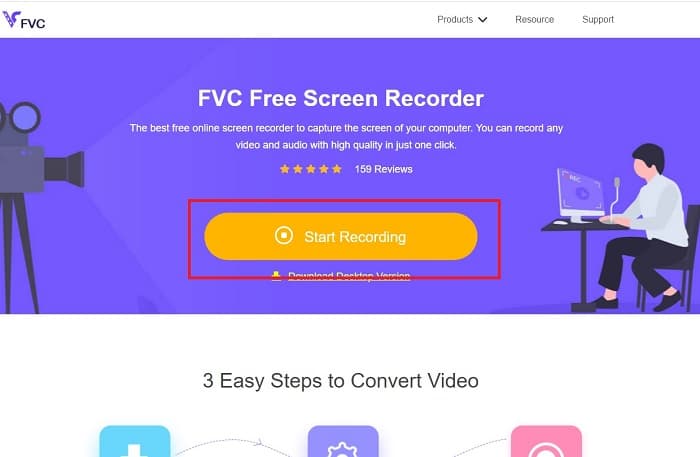
Bước 2. Một trang web như thế này sẽ hiển thị trên màn hình bạn. Nhấp vào Start Recording rồi chọn Allow để khởi chạy công cụ trực tuyến.
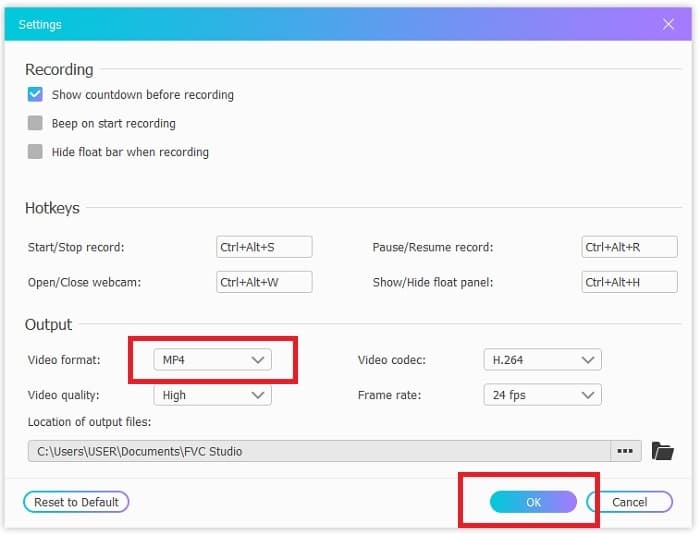
Bước 3. Một thanh công cụ nổi sẽ xuất hiện trên màn hình. Nhấp vào biểu tượng bánh răng để vào cài đặt, đổi định dạng video và các thiết lập khác nếu cần. Nhấp OK để lưu thay đổi.
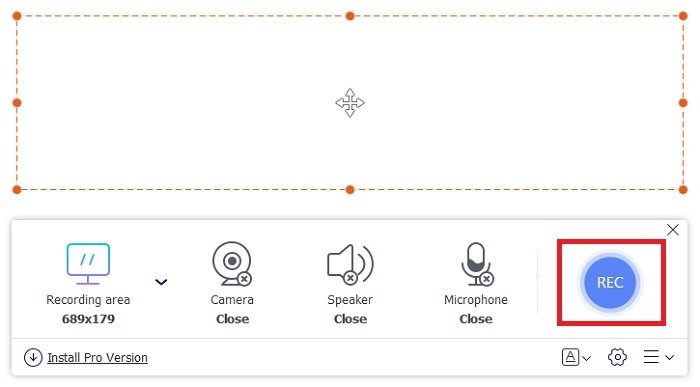
Bước 4. Điều chỉnh vùng ghi hình hoặc nhấp Full screen để ghi toàn màn hình. Loa và Mic không cần thiết khi tạo GIF vì GIF không có âm thanh. Tuy nhiên, bạn có thể thêm khuôn mặt mình bằng cách bật Webcam. Khi đã sẵn sàng ghi hình, hãy nhấp nút REC để bắt đầu.
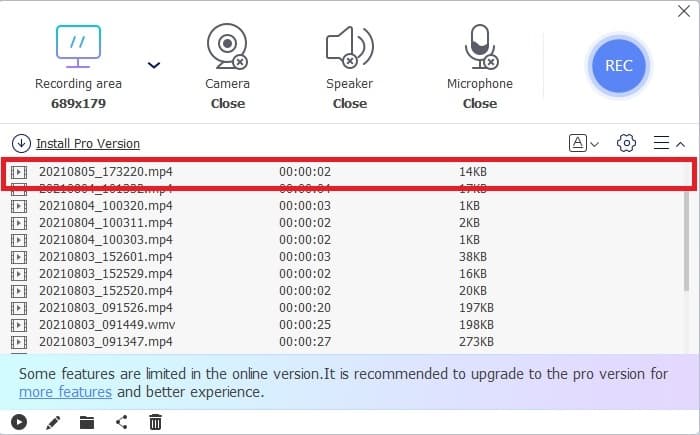
Bước 5. Để kết thúc ghi hình, nhấp nút hình vuông để dừng. Bạn cũng có thể kiểm tra bản ghi đã hoàn thành trong danh sách lịch sử.
2. Trình ghi màn hình FVC
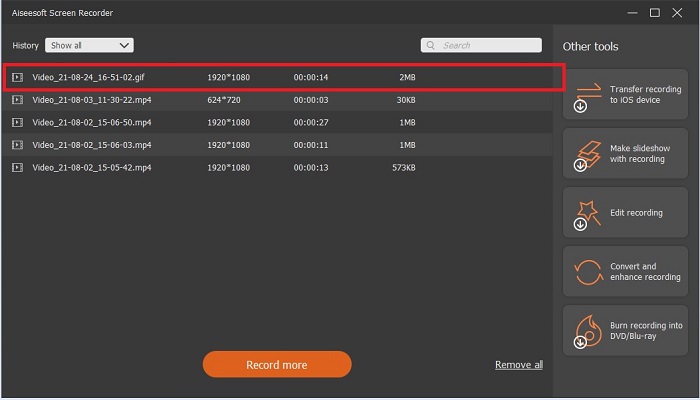
Nếu công cụ online miễn phí của FVC đã khiến bạn “nổi da gà”, thì chỉ cần cài đặt trình ghi GIF tốt nhất – FVC Screen Recorder – bạn sẽ có được “yếu tố wow” mà mình luôn mong đợi. Công cụ này mang lại điều gì để tạo nên “yếu tố wow”? Nó không chỉ dùng để ghi GIF. Nó còn hỗ trợ ghi video & âm thanh, cũng như ghi lại các trận game tuyệt vời. Nhưng đó mới chỉ là tính năng phụ; nó còn xuất được nhiều định dạng khác nhau như MP4, GIF, MOV và nhiều hơn nữa.
Một tính năng khác của nó là tính năng khóa màn hình, đây là tính năng độc đáo của công cụ này ngay cả một máy ghi âm hạng nặng như Bandicam cũng không thể cung cấp tính năng này. Ghi và chụp ảnh màn hình thành định dạng GIF mà không cần hiển thị công cụ. FVC Screen Recorder cung cấp bảng Anh cho vua bảng Anh trong bản ghi âm. Vì vậy, không có vấn đề gì bạn đang ghi, máy ghi âm này có thể ghi lại nó. Để biết cách sử dụng công cụ này, hãy làm theo các bước đơn giản sau trên một cách để ghi GIF thành công.
Bước 1. Tệp cài đặt của công cụ đã được cung cấp. Hãy chọn một trong hai hệ điều hành khả dụng. Cài đặt công cụ vào ổ cứng, điều chỉnh thiết lập theo nhu cầu, rồi nhấp finish để lưu.
Tải miễn phíDành cho Windows 7 hoặc mới hơnTải xuống an toàn
Tải miễn phíDành cho MacOS 10.7 hoặc mới hơnTải xuống an toàn
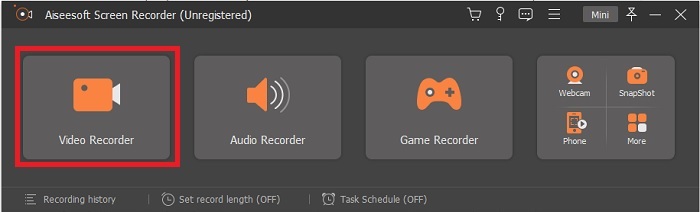
Bước 2. Chọn Video Recorder để ghi lại những gì có trên màn hình. Các tuỳ chọn như trình ghi âm thanh và trình ghi gameplay cũng rất đáng dùng về sau.
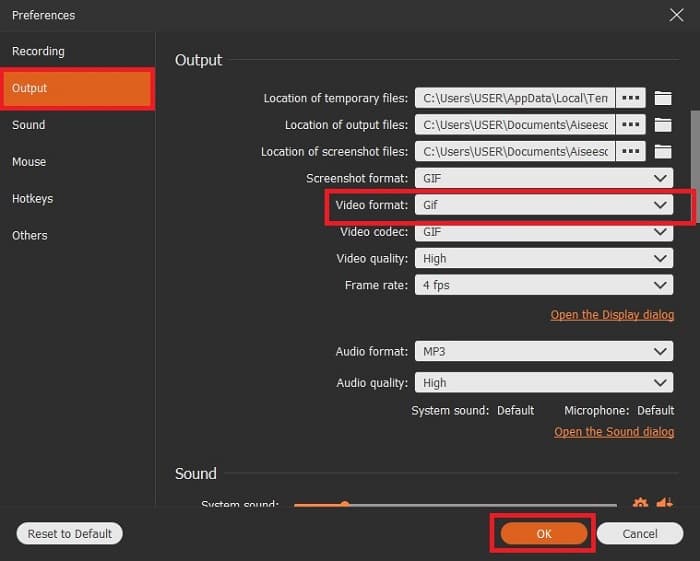
Bước 3. Thanh công cụ nổi sẽ xuất hiện trên màn hình. Nhấp nút bánh răng để vào phần cài đặt và trong mục Output, đổi định dạng sang GIF hoặc định dạng nào bạn muốn dùng. Nhấp OK để lưu thay đổi.
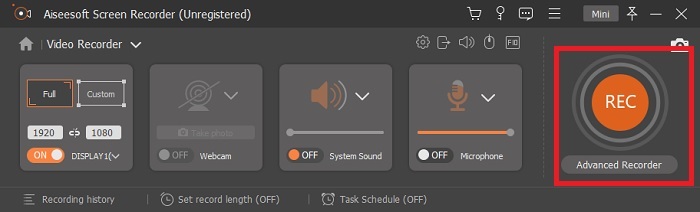
Bước 4. Ở thanh công cụ chính, điều chỉnh tỉ lệ màn hình hoặc nếu muốn ghi toàn màn hình thì nhấp full screen. Khi ghi ở định dạng GIF, âm thanh và mic không quan trọng. Tuy nhiên, bạn có thể bật Webcam để ghi lại phản ứng của mình. Khi đã sẵn sàng, nhấp nút tròn để bắt đầu ghi.
Bước 5. Khi ghi hình xong, bạn có thể nhấp nút hình khối để dừng. Nhấp Save và Next để lưu tiến trình. Để xem lại GIF bạn vừa ghi, hãy nhấp biểu tượng ba gạch, lịch sử bản ghi sẽ hiển thị trên màn hình.
3. ScreenToGif
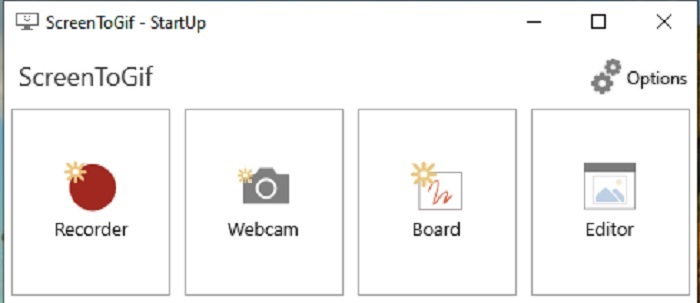
Công cụ này là một trình ghi GIF cho Mac và PC có thể tải về, gồm hai phiên bản: bản Cài đặt và bản Portable. Hãy chọn loại bạn muốn tải. Tuy nhiên, đôi khi trong quá trình chạy, bạn có thể gặp vài lỗi nhỏ. Và định dạng duy nhất mà công cụ này xuất ra là .gif cho tệp cuối cùng. Nếu bạn muốn định dạng khác thì công cụ này không đáp ứng được. Dù vậy, nó vẫn là công cụ miễn phí, nên nếu chỉ cần ghi GIF thì bạn có thể dùng. Chỉ có điều giao diện và các công cụ của nó hơi đơn điệu vì nền trắng, trông có vẻ nhàm chán nhưng vẫn làm được việc.
4. Gyazo
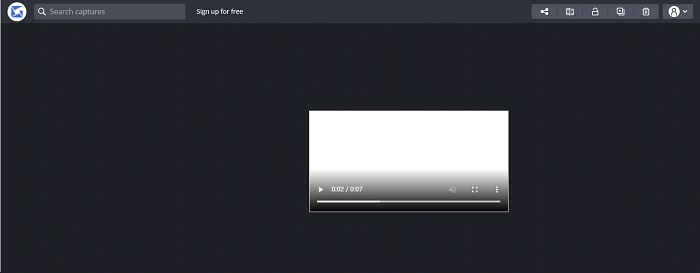
Đây là một trong những trình ghi GIF tốt nhất cho Windows. Gyazo là phần mềm chuyên dùng để ghi GIF. Tuy nhiên, sau khi cài đặt, 3 công cụ sẽ tự động được tải xuống máy của bạn. Chúng đều là một phần của bộ công cụ nhưng khác nhau và chức năng cũng khác. Ba công cụ đó là Gyazo, Gyazo GIF và Gyazo Replay. Ghi GIF trong Gyazo GIF bị giới hạn ở 7 giây. Vì vậy nếu bản ghi của bạn dài hơn 7 giây thì đây không phải lựa chọn tốt. Ngoài ra, video đã lưu sẽ không tự tải về máy. Trình duyệt sẽ mở một thẻ mới và bạn phải tự tải về. Việc tải tệp cuối cùng sẽ phụ thuộc vào kết nối internet, nên hãy chú ý điều này.
5. RecordIt!
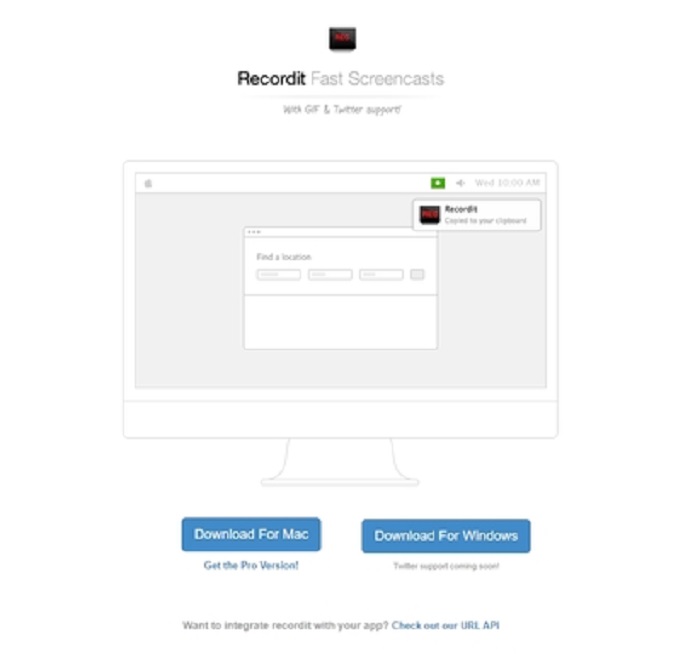
Một công cụ khác dùng để tạo GIF là RecordIt!, trình ghi GIF tốt nhất cho Mac. Công cụ này cũng có phiên bản cho Windows. Nhưng vấn đề nằm ở khâu cài đặt. Sau khi hoàn tất các bước thiết lập, bạn có thể gặp khó khăn khi cài nó vào hệ thống. Điều này là bình thường, vì nếu bạn không cập nhật các ứng dụng trong hệ thống thì công cụ sẽ không thể tải xuống. Vẫn có một lựa chọn khác nhưng có thể gây hại cho máy tính: bạn có thể nhấp bỏ qua (ignore) để tải và bỏ qua mọi thông báo. Vì vậy, hãy tải về với rủi ro do bạn tự chịu; ngoài ra, công cụ có chứa quảng cáo, và hãy cẩn thận với chúng vì một số quảng cáo là không được kiểm soát. Hơn nữa, nó có bản pro giúp loại bỏ quảng cáo và bổ sung thêm tính năng.
Phần 3. Những câu hỏi thường gặp về GIF Recorder
Tôi có thể chuyển đổi GIF thành định dạng MOV không?
Có, bạn có thể chuyển đổi GIF sang định dạng MOV với sự trợ giúp của trình chuyển đổi video trực tuyến như FVC Free Online Video Converter.
Các loại GIF khác nhau là gì?
Có 5 GIF: GIF phát lại, GIF phản ứng, Đồ thị điện ảnh, Vòng lặp hoàn hảo và GIF Kỹ thuật. Tất cả những thứ này có thể là dựa trên hoạt hình, dựa trên video và hình dán.
Các lựa chọn thay thế khác cho GIF là gì?
Mặc dù việc tạo ra ảnh GIF trong hơn 30 năm. Có một số đối thủ cạnh tranh trên web sản xuất ảnh chuyển động cũng như ảnh GIF. Đây là những lựa chọn thay thế tốt nhất cho GIF động: APNG, WebP, AVIF, MNG và FLIF.
Phần kết luận
Đã đến hồi kết, người ta vẫn nói mọi câu chuyện hay đều kết thúc bằng một đoạn kết hay. Tóm lại, GIF thể hiện cảm xúc rất sinh động tới người nhận. Nhưng không phải tất cả video bạn muốn đều ở định dạng GIF. Thay vì ngồi chờ ai đó tạo GIF, tại sao bạn không tự tạo? Với sự trợ giúp của trình ghi GIF tốt nhất là FVC Screen Recorder, bạn có thể ghi lại GIF và thêm dấu ấn cá nhân của mình. Nếu bạn vẫn băn khoăn không biết nên dùng gì, hãy đọc lại phần nói về các đặc điểm cần có – và tất cả những đặc điểm đó đều hội tụ trong “ứng cử viên được chọn”, chính là FVC Screen Recorder.
-
 [2 Giải pháp] Cách chuyển đổi tệp SWF thành tệp GIF một cách dễ dàng miễn phí
 Khi không xuất được định dạng GIF thông qua phần mềm Flash, trước tiên, bạn có thể thử lưu các tệp ở định dạng SWF. Sau đó, bạn có thể tìm hiểu 2 cách dễ dàng để chuyển đổi tệp SWF sang GIF từ bài viết này.
-
 4 cách để kết hợp các video với nhau miễn phí trên Windows / Mac / Trực tuyến
 Dưới đây là 4 cách nhanh chóng để hợp nhất các video với nhau thành một video mới. Không có kích thước tệp video hoặc giới hạn định dạng. Bạn có thể nối thành công 2, 3, 4 và thậm chí nhiều video clip ở các định dạng và độ phân giải khác nhau.
-
 (2 Giải pháp) Cách chuyển đổi video WMV sang tệp GIF miễn phí
 Nếu bạn muốn cắt những phần tuyệt vời của video WMV và tạo ảnh GIF từ chúng, bạn có thể tìm hiểu về 2 phương pháp dễ dàng để chuyển video WMV sang ảnh GIF trong bài viết này.
