


 Chuyển đổi video Ultimate
 Trình ghi màn hình
 Sửa chữa video
 Tải xuống an toàn
Bộ tách GIF: Công cụ hàng đầu để tách và tùy chỉnh hình ảnh hoạt hình
Nếu bạn đã từng muốn sử dụng một phần cụ thể của ảnh GIF nhưng thấy mình bị mắc kẹt với toàn bộ hoạt ảnh, thì bạn không đơn độc. GIF phổ biến nhờ khả năng truyền tải cảm xúc và phản ứng trong thời gian ngắn, nhưng đôi khi chúng ta chỉ cần một phần của ảnh để truyền tải thông điệp của mình. Đây là lúc tầm quan trọng của việc chia nhỏ tệp GIF phát huy tác dụng.
Với sự hỗ trợ của các trình tách GIF, bạn có thể dễ dàng trích xuất chính xác phần GIF mà mình cần và dùng nó cho dự án hoặc bài đăng mạng xã hội. Bài viết này sẽ giới thiệu cho bạn một số trình tách GIF hàng đầu hiện đang có trên thị trường.

Phần 1. Cách dễ dàng để tách ảnh GIF
1. FVC Video Converter Ultimate
Nếu bạn chỉ cần cắt một phần nhỏ của GIF, bạn có thể dùng FVC Video Converter Ultimate. Đây là một công cụ phần mềm đa năng, cung cấp nhiều tính năng chuyển đổi và chỉnh sửa video. Hơn nữa, công cụ này hỗ trợ nhiều định dạng video và cho phép người dùng điều chỉnh các thiết lập video như độ phân giải, bitrate và tốc độ khung hình. Dù không có tính năng chuyên biệt để tách file GIF, chức năng cắt video (video trimmer) vẫn có thể thực hiện được nhiệm vụ này.
FVC Video Converter Ultimate có thể là một công cụ có giá trị cho những ai đang tìm kiếm một cách đơn giản và dễ hiểu để chia nhỏ các tệp GIF. Với giao diện trực quan và tính năng cắt video dễ sử dụng, nó cung cấp một giải pháp thuận tiện cho những người dùng chỉ cần thực hiện các chỉnh sửa nhỏ đối với ảnh GIF của họ. Ngoài ra, nó đi kèm với một loạt các tính năng khác, chẳng hạn như xử lý hàng loạt và tăng tốc GPU, khiến nó trở thành một công cụ chỉnh sửa và chuyển đổi video toàn diện. Nếu bạn muốn tìm hiểu cách tách GIF ngoại tuyến, đây là các bước bạn có thể làm theo:
Bước 1. Tải phần mềm
Để bắt đầu, chỉ cần chọn một liên kết từ danh sách các nút Tải miễn phí bên dưới. Sau đó, hãy làm theo các hướng dẫn trên màn hình để hoàn tất cài đặt chương trình trên thiết bị của bạn. Sau khi cài xong, bạn có thể chạy ứng dụng và vào menu chính.
Tải Miễn PhíDành cho Windows 7 trở lênTải xuống an toàn
Tải miễn phíDành cho MacOS 10.7 trở lênTải xuống an toàn
Bước 2. Thêm file ảnh GIF
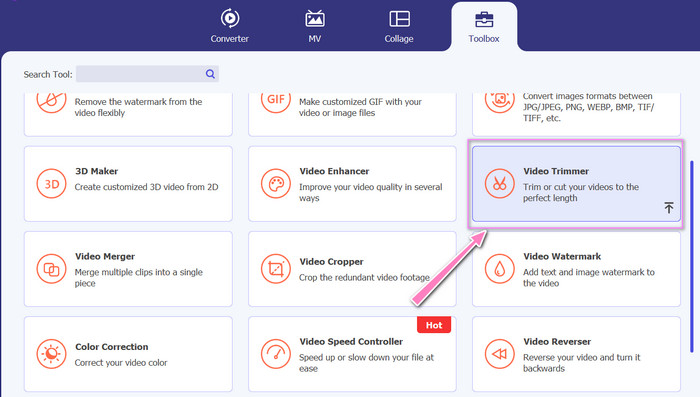
Chọn công cụ Video Trimmer trong menu Toolbox. Sau đó, nhấn nút + để tải GIF lên.
Bước 3. Tách file GIF
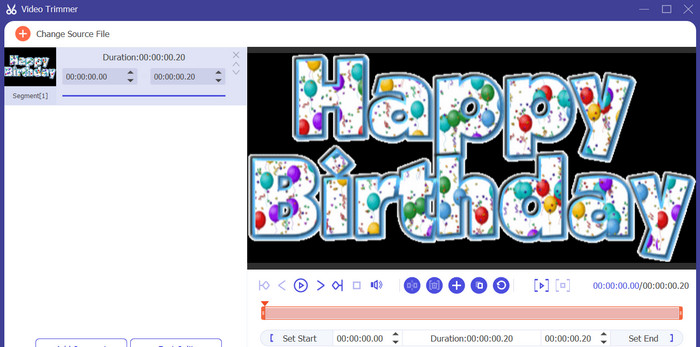
Khi GIF đã được tải lên, nó sẽ được hiển thị trên giao diện của chương trình để thực hiện các thay đổi. Chọn điểm đầu và điểm cuối của GIF bạn muốn xóa bằng thanh trượt.
Bước 4. Lưu GIF bạn đã tạo
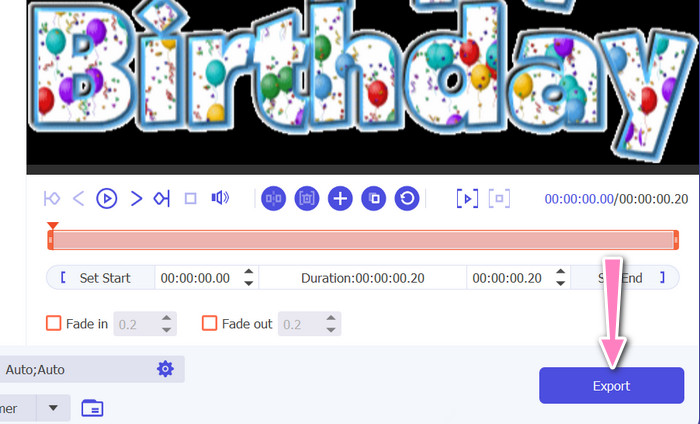
Khi tùy chỉnh GIF xong, hãy nhấp nút Export ở góc dưới bên phải của công cụ để bắt đầu quá trình xuất (render).
2. EZGIF
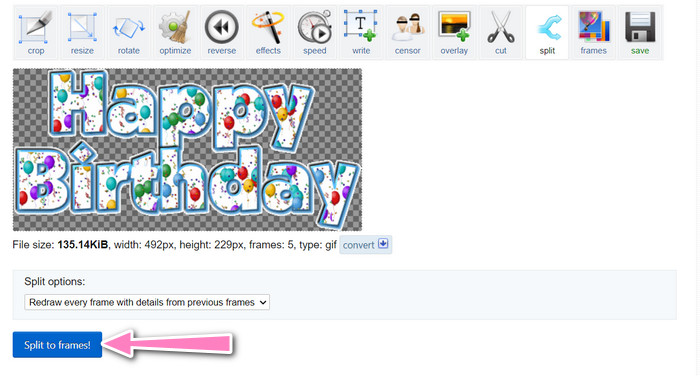
EZGIF là một công cụ trực tuyến cung cấp nhiều tính năng làm việc với file GIF. Trang web mang đến nhiều công cụ để tạo, chỉnh sửa và tối ưu GIF, bao gồm thay đổi kích thước GIF, cắt xén và tách GIF. Nó cũng có các tính năng thêm văn bản và hiệu ứng đặc biệt vào GIF, thậm chí cho phép bạn chuyển đổi video và hình ảnh sang định dạng GIF. Vì vậy, nếu bạn muốn tách GIF thành từng khung hình trực tuyến, đây là lựa chọn hoàn hảo. Bên cạnh đó, EZGIF là một nền tảng thân thiện với người dùng, không cần tải về hay cài đặt, có thể truy cập dễ dàng từ bất kỳ trình duyệt web nào. Tìm hiểu cách công cụ này hoạt động và tách GIF thành hình ảnh.
Bước 1. Để tách GIF bằng Ezgif, hãy mở trang web EZGIF trong trình duyệt của bạn.
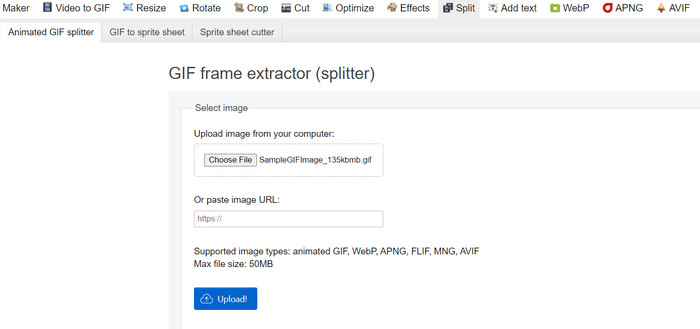
Bước 2. Chọn tùy chọn Split từ menu trên cùng, sau đó điều chỉnh các thiết lập theo nhu cầu.
Bước 3. Nhấp nút Choose File để tải lên file GIF bạn muốn tách. Hoặc, bạn có thể kéo và thả file vào giao diện EZGIF.
Bước 4. Tiếp theo, chọn phương pháp tách mà bạn muốn sử dụng. Bạn có thể tách GIF theo một số lượng khung hình nhất định, theo các khoảng thời gian cụ thể, hoặc chọn những khung hình cụ thể để giữ lại.
Bước 5. Điều chỉnh các thiết lập cho phương pháp tách mà bạn đã chọn. Nhấp nút Split to frames! để bắt đầu quá trình tách. Ngoài ra còn có các tùy chọn tách GIF thành PNG hoặc JPG, tùy theo nhu cầu của bạn.
Phần 2. Cách chuyên nghiệp để chia nhỏ tệp GIF
Việc tách GIF thành các khung hình trong Photoshop hoàn toàn khả thi. Photoshop mang lại rất nhiều sự linh hoạt và khả năng kiểm soát khi làm việc với GIF động. Với Photoshop, bạn có thể mở một file GIF và chỉnh sửa từng khung hình riêng lẻ, cho phép bạn thực hiện các điều chỉnh và thêm bộ lọc cho từng khung riêng. Điều này có nghĩa là bạn có thể tạo các hoạt ảnh phức tạp, thêm văn bản hoặc đồ họa, và điều chỉnh thời lượng của từng khung để tạo nên một hoạt ảnh mượt mà, chỉn chu. Để tìm hiểu thêm về các tùy chọn chỉnh sửa GIF trong Photoshop, hãy tham khảo các bước dưới đây:
Bước 1. Mở file GIF trong Photoshop bằng cách vào File > Open và chọn file.
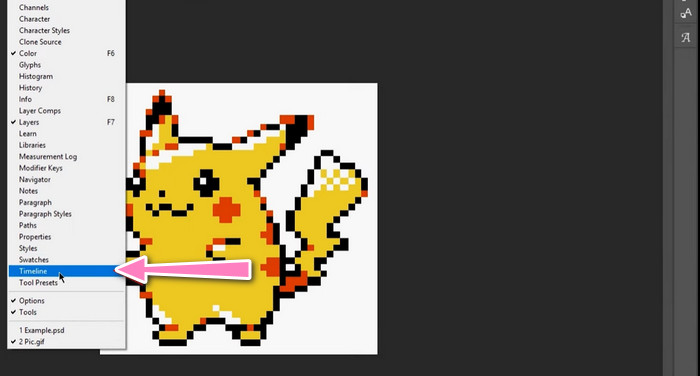
Bước 2. Khi file đã được mở, vào Window > Timeline để mở bảng Timeline.
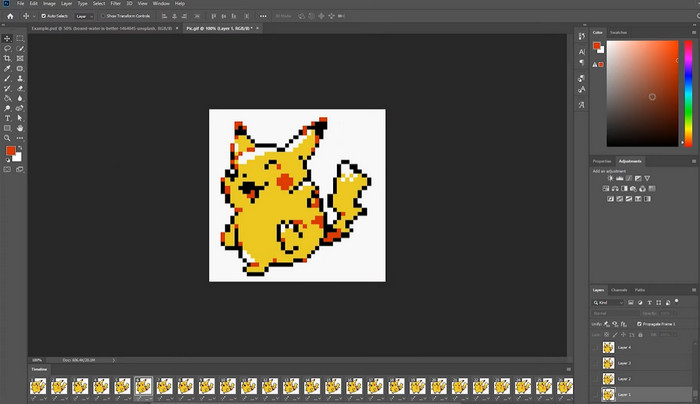
Bước 3. Trong bảng Timeline, bạn sẽ thấy mỗi khung hình của hoạt ảnh được thể hiện dưới dạng một layer riêng biệt. Nếu bạn không thấy bảng Timeline, hãy nhấp vào nút menu ở góc trên bên phải của bảng và chọn Create Frame Animation.
Bước 4. Để tách GIF, nhấp nút menu trong bảng Timeline và chọn Make Frames From Layers. Thao tác này sẽ tạo một khung hình riêng cho mỗi layer trong hoạt ảnh.
Bước 5. Giờ đây bạn có thể chỉnh sửa từng khung riêng lẻ bằng cách chọn khung đó trong bảng Timeline và thực hiện các thay đổi mong muốn.
Bước 6. Vào File > Export > Layers to Files để xuất mỗi khung thành một file riêng. Trong hộp thoại xuất, hãy chọn định dạng file và thư mục đích mà bạn muốn, sau đó nhấp Run để xuất các file.
Phần 3. Các câu hỏi thường gặp về Tách ảnh GIF
Tôi có thể chia GIF thành các phần hoặc khoảng thời gian cụ thể không?
Có, bạn có thể chia GIF thành các phần hoặc khoảng thời gian cụ thể bằng các công cụ trực tuyến hoặc phần mềm chỉnh sửa hình ảnh.
Tôi có thể sử dụng phần mềm chỉnh sửa video để tách GIF không?
Có, nhiều ứng dụng phần mềm chỉnh sửa video có thể được sử dụng để tách ảnh GIF. Ví dụ: FVC Video Converter Ultimate, Adobe Premiere Pro và Final Cut Pro X là những tùy chọn phổ biến.
Làm cách nào để điều chỉnh thời gian của từng khung hình trong GIF?
Bạn có thể điều chỉnh thời gian của từng khung hình trong GIF bằng công cụ trực tuyến hoặc phần mềm chỉnh sửa hình ảnh như Photoshop.
Phần kết luận
Tách một file GIF có thể là một kỹ thuật hữu ích để tạo hoạt ảnh mới, chỉnh sửa những hoạt ảnh hiện có, hoặc chia sẻ các khung hay đoạn nhất định. Dù bạn thích sử dụng công cụ trực tuyến hay phần mềm chỉnh sửa ảnh như Photoshop, vẫn có nhiều lựa chọn khác nhau để tách GIF. Bằng cách làm theo các bước được trình bày trong bài viết này và khám phá các công cụ khác nhau, bạn có thể dễ dàng tách GIF của mình và tạo nên những hoạt ảnh mới.
-
 Các phương pháp nổi bật về cách chia nhỏ video hiệu quả
 Bài viết này sẽ giải thích cách chia video thành nhiều phần. Vì vậy, nếu bạn quan tâm, hãy nhấp vào bài đăng này vì chúng tôi cung cấp cho bạn những cách đơn giản nhất để thử.
-
 Tìm hiểu 4 cách về cách tạo GIF từ hình ảnh [Trực tuyến và Ngoại tuyến]
 Bạn có muốn biết cách tạo GIF từ việc tổng hợp các hình ảnh của mình không? Sau đó nhấp vào liên kết này và đọc các ví dụ sau.
-
 3 cách dễ nhất để thêm hình mờ vào ảnh GIF Trực tuyến và Ngoại tuyến
 Thêm hình mờ vào ảnh GIF có thể dễ dàng như 1-2-3 nếu bạn sử dụng đúng công cụ phù hợp. Các công cụ trên thị trường quá rộng, nhưng chúng tôi sẽ trình bày ba công cụ mà bạn có thể phụ thuộc vào.
