


 Chuyển đổi video Ultimate
 Trình ghi màn hình
 Sửa chữa video
 Tải xuống an toàn
Một ứng dụng nổi bật để thay đổi kích thước hình ảnh - FastStone Photo Resizer
Tìm kiếm một công cụ thay đổi kích thước ảnh trên internet rất dễ dàng. Đặc biệt ngày nay, có rất nhiều phần mềm chỉnh sửa ảnh có sẵn trực tuyến. Khi nói đến việc thay đổi kích thước và chuyển đổi hình ảnh, bạn có thể tìm thấy rất nhiều công cụ tuyệt vời cả online lẫn offline. Nhưng nếu bạn gặp khó khăn trong việc chọn lựa, chúng tôi sẽ giúp bạn dễ dàng chọn được một công cụ phù hợp. FastStone là một nền tảng chỉnh sửa ảnh mà bạn có thể dùng để thay đổi kích thước hình ảnh của mình. Và trong bài viết này, chúng tôi sẽ cung cấp cho bạn đầy đủ thông tin về FastStone và cách sử dụng trình thay đổi kích thước ảnh FastStone.

Phần 1. Đánh giá FastStone Photo Resizer
FastStone Photo Resizer là một ứng dụng chỉnh sửa hình ảnh phải sử dụng. Bạn có thể sử dụng nó trên màn hình Windows của mình và tải xuống dễ dàng. Ngoài ra, nó có một giao diện sạch sẽ và dễ sử dụng, làm cho nó trở thành một công cụ thân thiện với người dùng. FastStone Photo Resizer hỗ trợ nhiều định dạng hình ảnh khác nhau như JPEG, BMP, PNG, TIFF và GIF. Nó cũng chứa nhiều tính năng chỉnh sửa mà bạn có thể sử dụng để chuyển đổi, đổi tên, cắt, thêm văn bản, thay đổi màu sắc, thêm hình mờ và hơn thế nữa.
Hơn nữa, nó cung cấp xử lý hàng loạt, nơi bạn có thể xử lý đồng thời hai hoặc nhiều hình ảnh. Và nếu bạn muốn xem trước chuyển đổi mà bạn đang thực hiện, FastStone cho phép bạn làm điều đó. Bạn có thể tải xuống bộ sửa đổi hình ảnh FastStone miễn phí trên máy tính Windows của mình, nhưng bạn cần phải mua ứng dụng để sử dụng các tính năng rõ ràng của nó. Hãy làm theo hướng dẫn dưới đây nếu bạn muốn biết cách thay đổi kích thước hình ảnh bằng FastStone.
Ưu điểm
- Nó cung cấp nhiều tính năng và công cụ chỉnh sửa.
- Nó có một mức giá thấp.
- Nó có một giao diện người dùng đơn giản.
- Nó có một quá trình chia sẻ tệp dễ dàng.
Nhược điểm
- Nó chỉ có một cơ sở hỗ trợ và giúp đỡ hạn chế.
- Nó không phải là miễn phí để sử dụng.
- Chỉ khả dụng trên phần mềm Windows
Cách sử dụng FastStone Photo Resizer để thay đổi kích thước ảnh:
Bước 1. Trước hết, hãy tải xuống và cài đặt FastStone Photo Resizer trên máy tính Windows của bạn. Sau khi cài đặt xong, hãy mở chương trình trên máy tính. Sau đó, trên giao diện chính của ứng dụng, nhấp vào nút Batch Convert trong Menu để tải lên hình ảnh bạn muốn thay đổi kích thước.
Bước 2. Sau khi nhập hình ảnh của bạn, chúng sẽ xuất hiện trên giao diện. Sau đó, nhấp vào mũi tên thả xuống Output Format để chọn định dạng tệp đầu ra mà bạn muốn. Và để chọn thư mục lưu tệp đầu ra, hãy nhấp nút Browse bên cạnh Output Folder.
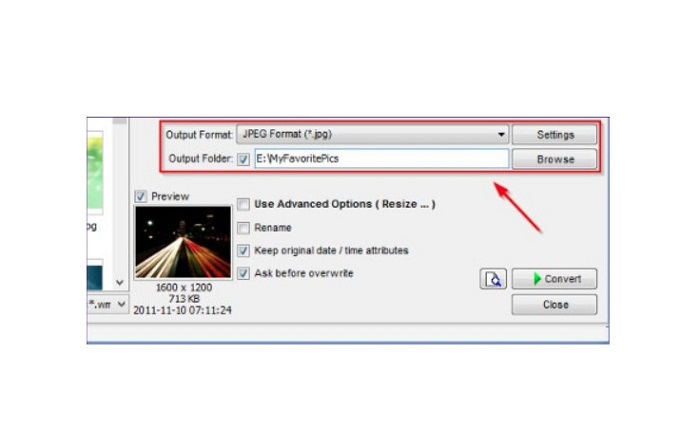
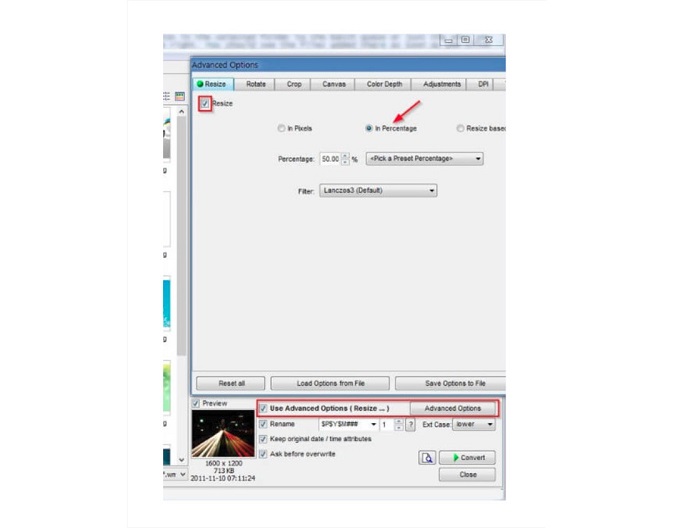
Bước 3. Tiếp theo, nhấp vào Advanced Options, một thẻ mới sẽ xuất hiện. Sau đó, ở thẻ Resize, tích chọn tùy chọn In Percentage để thay đổi kích thước hình ảnh theo phần trăm. Bạn có thể chọn bộ lọc bằng cách nhấp vào mũi tên thả xuống bên cạnh Filter.
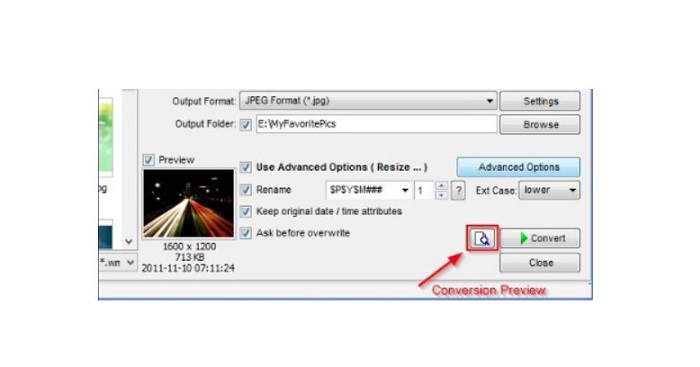
Bước 4. Sau đó, bạn có thể xem trước hình ảnh của mình và so sánh với tệp gốc bằng cách nhấp vào biểu tượng Preview bên cạnh nút Convert.
Bước 5. Cuối cùng, tích chọn nút Convert để bắt đầu quá trình thay đổi kích thước. Công cụ cũng sẽ chuyển đổi tệp hình ảnh của bạn sang định dạng bạn đã chọn ở bước trước. Sau khi FastStone thay đổi kích thước hình ảnh, một cửa sổ mới sẽ xuất hiện, nơi bạn sẽ thấy hình ảnh đầu ra và kích thước của chúng.
Và đó là phần cuối của hướng dẫn FastStone Photo Resizer. Làm theo các bước trên, bạn có thể dễ dàng thay đổi kích thước hình ảnh của mình bằng FastStone.
Phần 2. Các giải pháp thay thế cho FastStone Photo Resizer
FastStone Photo Resizer chỉ có thể truy cập được trên máy tính để bàn Windows. Và một trở ngại khác là bạn phải mua ứng dụng trước khi truy cập các tính năng chỉnh sửa khác của nó. Vì vậy, nếu bạn thích sử dụng ứng dụng cắt video có sẵn trên các thiết bị Windows, Mac hoặc Linux và có sẵn trực tuyến, hãy đọc kỹ phần này.
FVC Free Image Upscaler
FVC Free Image Upscaler là một trong những ứng dụng thay đổi kích thước ảnh được sử dụng nhiều nhất, có thể truy cập trực tuyến trên mọi trình duyệt, bao gồm Google, Firefox và Safari. Công cụ trực tuyến này cũng có thể giúp bạn xử lý những hình ảnh bị mờ. Nếu bạn có một bức ảnh mờ hoặc chất lượng thấp, bạn có thể dùng công cụ online này để khử mờ và cải thiện chất lượng. Ngoài ra, bạn có thể phóng to hình ảnh lên 2x, 4x, 6x và 8x. Điều ấn tượng về FVC Free Image Upscaler là nó sử dụng công nghệ AI, tự động phát hiện những phần bị mờ trong hình ảnh của bạn rồi tăng cường chúng.
Hơn nữa, nó hỗ trợ tất cả các định dạng hình ảnh, chẳng hạn như PNG, JPG, JPEG và BMP. Bạn cũng không cần đăng ký hoặc đăng nhập tài khoản để sử dụng công cụ này. Và nếu bạn muốn kiểm tra bản xem trước của đầu ra trước khi lưu nó, bạn có thể làm như vậy trong khi sử dụng ứng dụng này. Ngoài ra, rất an toàn khi sử dụng và tiện lợi. Và mặc dù nó là một ứng dụng phụ thuộc vào internet, nó có giao diện xử lý nhanh, nơi bạn sẽ không gặp khó khăn khi tải lên hình ảnh để thay đổi kích thước.
Bước 1. Mở trình duyệt và gõ FVC Free Image Upscaler vào ô tìm kiếm. Nhấp vào liên kết được cung cấp để đi thẳng đến trang chính.
Bước 2. Khởi chạy chương trình trên máy tính bằng cách nhấp nút Upload Photo. Sau khi mở ứng dụng, tiếp tục nhấp nút Upload Photo để tải lên hình ảnh bạn muốn thay đổi kích thước/khử mờ.
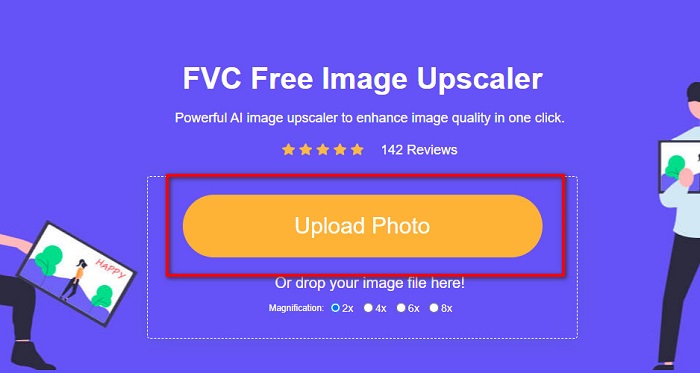
Bước 3. Tiếp theo, bạn sẽ thấy các thiết lập độ phóng đại có thể chọn. Bạn có thể chọn 2x, 4x, 6x, hoặc 8x.
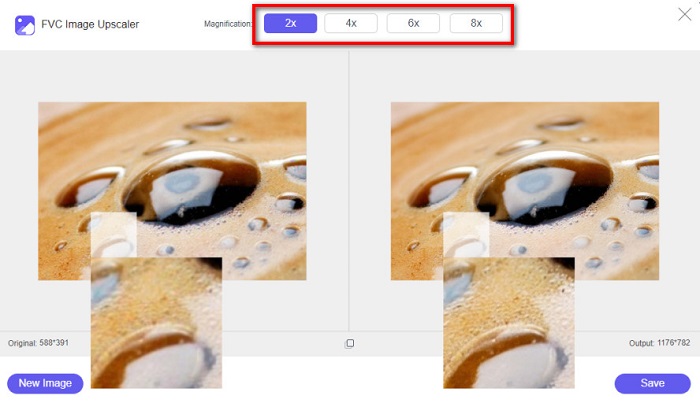
Bước 4. Di chuyển con trỏ chuột để xem bản xem trước hình ảnh của bạn. Nếu bạn hài lòng với kết quả, hãy nhấp nút Save ở góc dưới bên phải giao diện.
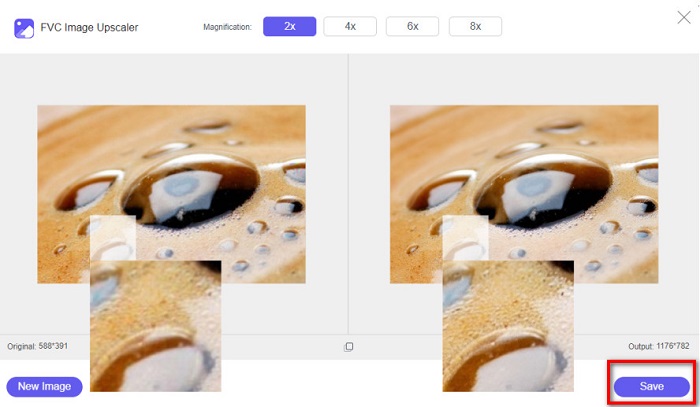
Image Resizer.com
Một công cụ thay đổi kích thước ảnh trực tuyến tuyệt vời khác mà bạn có thể sử dụng là Image Resizer.com. Image Resizer.com cho phép bạn thay đổi kích thước hình ảnh bằng cách điều chỉnh kích thước (chiều rộng, chiều cao) của ảnh. Hơn nữa, nó còn có tính năng cắt hoặc xoay ảnh. Đây cũng là một công cụ thân thiện với người mới vì giao diện rất dễ sử dụng. Tuy nhiên, nó chứa nhiều quảng cáo gây phiền, có thể làm bạn mất tập trung.
Bước 1. Trên trình duyệt, hãy tìm kiếm Image Resizer.com. Ở giao diện chính, nhấp nút Select Image để tải lên bức ảnh bạn muốn thay đổi kích thước.
Bước 2. Ở giao diện tiếp theo, bạn có thể thay đổi kích thước hình ảnh theo kích thước cụ thể hoặc theo phần trăm. Sau đó, nhập Width and Height (chiều rộng và chiều cao) mà bạn muốn cho bức ảnh.
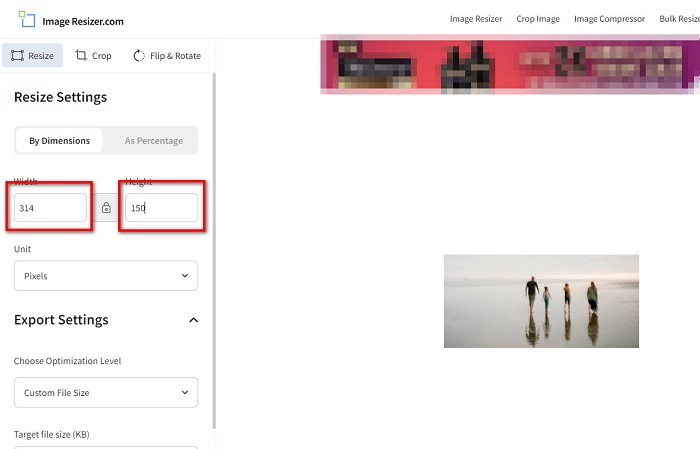
Bước 3. Khi đã thay đổi kích thước ảnh xong, hãy nhấp nút Resize Image để hoàn tất quá trình.
Phần 3. Câu hỏi thường gặp về FastStone Photo Resizer
FastStone Photo Resizer có giá bao nhiêu?
Bạn có thể mua phiên bản đầy đủ của FastStone Photo Resizer cho $19.95 (Giấy phép trọn đời)
Trình xem FastStone có miễn phí không?
FastStone Image Viewer là một trình xem hình ảnh được sử dụng cho Microsoft Windows. Bạn có thể sử dụng FastStone Image Viewer miễn phí và không tính phí.
FastStone Photo Resizer có làm hỏng chất lượng ảnh không?
Không. Khi bạn tối ưu hóa hình ảnh bằng FastStone Photo Resizer, bạn sẽ không bị giảm chất lượng ảnh.
Phần kết luận
FastStone Photo Resizer là một ứng dụng tuyệt vời nếu bạn muốn thay đổi kích thước hình ảnh trên máy tính Windows. Bên cạnh đó, nó có nhiều tính năng chỉnh sửa và cũng là một công cụ thân thiện với người dùng. Tuy nhiên, nếu bạn hỏi có phiên bản FastStone Photo Resizer cho Mac hay không, thì câu trả lời là không. Vì vậy, nếu bạn muốn một công cụ thay đổi kích thước ảnh có sẵn trên mọi nền tảng, hãy dùng FVC Free Image Upscaler ngay bây giờ.
-
 Hướng dẫn hoàn chỉnh về Imglarger - Giải pháp cho nhà thiết kế ảnh
 Imglarger là một trong những công cụ giải pháp hình ảnh ưu việt nhất. Nhấp vào trang này để tìm hiểu mô tả đầy đủ, ưu và nhược điểm, giá cả và các lựa chọn thay thế của Imglarger.
-
 Ứng dụng chỉnh sửa ảnh tốt nhất trực tuyến, ngoại tuyến, Android và iPhone
 Ứng dụng chỉnh sửa ảnh tốt nhất là gì? Nhấp vào trang để tìm hiểu năm ứng dụng thay đổi kích thước ảnh mạnh mẽ nhất mà bạn có thể sử dụng để nâng cao hoặc thay đổi kích thước tệp của mình.
-
 6 cách chỉnh lại kích thước hình ảnh trên web và ngoại tuyến [100% làm việc]
 Với hướng dẫn mà chúng tôi thêm vào ở đây, giờ đây bạn có thể dễ dàng thay đổi kích thước hình ảnh dựa trên kích thước ưa thích của bạn. Tìm hiểu cách làm điều đó tại đây!
