


 Chuyển đổi video Ultimate
 Trình ghi màn hình
 Sửa chữa video
 Tải xuống an toàn
Đánh giá sơ qua về Inpaint Watermark Remover
Bạn có sẵn sàng học cách dùng Inpaint để xóa watermark không? Vậy thì đúng chỗ rồi! Nếu bạn đang đọc hướng dẫn này, có thể bạn đang tìm phương pháp tốt nhất để xóa watermark khỏi hình ảnh của mình. Như vậy bạn sẽ không còn phải tự mình loay hoay nữa. Bài viết này sẽ cung cấp cho bạn những đánh giá khách quan về các chương trình cần dùng, chẳng hạn như Inpaint Watermark Remover. Bạn sẽ hiểu rõ về từng công cụ, bao gồm tính năng, ưu điểm, nhược điểm và chi phí. Ngoài ra, chúng tôi cũng sẽ giới thiệu cho bạn lựa chọn thay thế tốt nhất cho Inpaint trong việc xóa watermark khỏi ảnh. Nhờ đó, bạn sẽ có thêm một lựa chọn khác về công cụ xóa watermark có thể sử dụng. Hãy đọc bài viết này để khám phá thêm những thông tin hữu ích khác.

Phần 1: Tổng quan về Inpaint
Phần mềm tuyệt vời và đáng tin cậy có tên Inpaint được thiết kế chuyên để xóa các chi tiết không mong muốn trên ảnh, như watermark, logo, chữ, con dấu, v.v. Có rất nhiều chương trình chỉnh sửa ảnh nâng cao trên thị trường. Inpaint không nằm trong số đó. Bạn sẽ thích sự đơn giản và tốc độ của Inpaint nếu bạn là nhiếp ảnh gia không chuyên, người mới bắt đầu, hoặc người dùng bận rộn không có nhiều thời gian sử dụng phần mềm chỉnh sửa ảnh phức tạp như Photoshop. Ngoài ra, cả người dùng Windows và Mac đều có thể dùng Inpaint. Bạn có thể tải ứng dụng về hoặc sử dụng trực tiếp trên web. Cuối cùng, công cụ đánh dấu thông minh của Inpaint giúp việc xóa vật thể không mong muốn trở nên vô cùng dễ dàng. Bên cạnh đó, Inpaint còn có thể hỗ trợ bạn khôi phục hoàn hảo các bức ảnh cũ bị hư hỏng. Tuy nhiên, bạn phải mua gói đăng ký nếu muốn lưu ảnh ở độ phân giải cao. Với bản miễn phí, nó chỉ cung cấp chất lượng thấp.
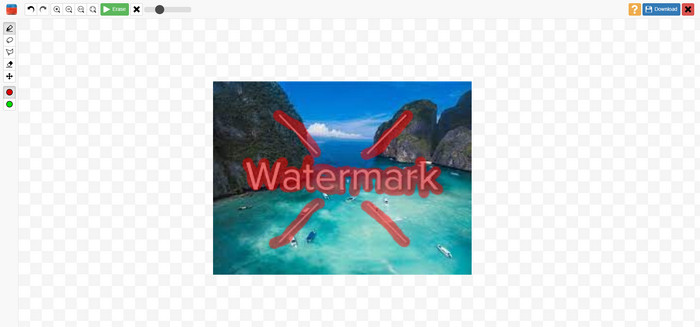
Các tính năng, ưu và nhược điểm của Inpaints
Tính năng
◆ Loại bỏ các yếu tố không mong muốn khỏi ảnh.
◆ Sửa ảnh cũ.
◆ Có khả năng chỉnh sửa khuôn mặt
Ưu điểm
- Cung cấp một giao diện trực quan, dễ sử dụng.
- Nó có thể loại bỏ hình mờ ngay lập tức. Nó có thể loại bỏ hình mờ ngay lập tức.
Nhược điểm
- Không hoạt động tốt trên ảnh có nền phức tạp.
- Mua một thuê bao để trải nghiệm các tính năng tuyệt vời.
Cách sử dụng Inpaint để xóa hình mờ
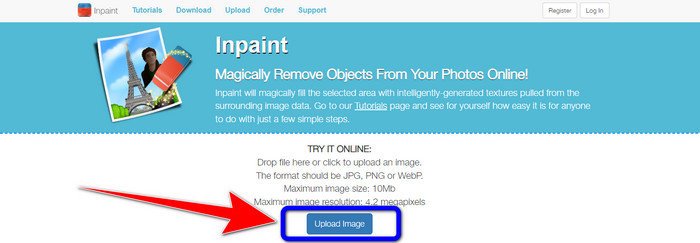
Bước 1: Truy cập trang web của Inpaint. Sau đó, nhấn nút Upload Image để thêm bức ảnh có watermark mà bạn muốn xóa.
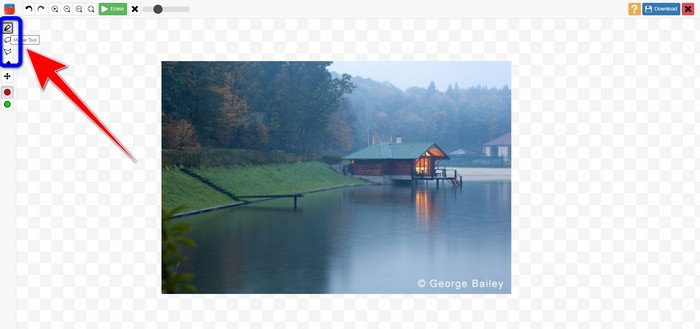
Bước 2: Sau khi thêm ảnh, bạn cần tô vùng watermark bằng các công cụ xóa watermark. Các công cụ này gồm có Marker, Polygonal và Lasso.
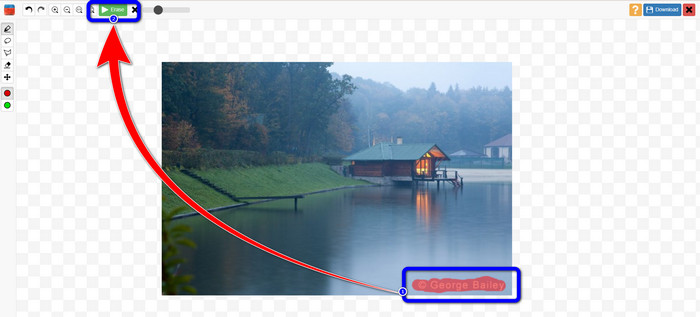
Bước 3: Khi đã tô xong vùng watermark trên ảnh, hãy nhấn nút Erase ở góc trên bên trái màn hình và chờ quá trình xóa hoàn tất.
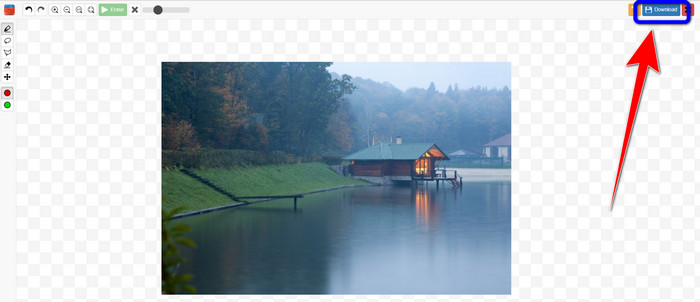
Bước 4: Khi watermark đã biến mất, hãy nhấn nút Download và lưu kết quả về máy tính của bạn.
Phần 2: Giải pháp thay thế tốt nhất cho Inpaint để xóa hình mờ khỏi ảnh trực tuyến
Sau khi biết phương pháp hiệu quả về cách sử dụng Inpaint để xóa hình mờ, đây là giải pháp thay thế tốt nhất bạn có thể sử dụng để xóa hình mờ khỏi ảnh của mình.
FVC Free Watermark Remover
Công cụ trực tuyến tốt nhất mà bạn có thể dùng ngoài Inpaint là FVC Free Watermark Remover. Phần mềm online này cho phép bạn loại bỏ mọi chi tiết không cần thiết khỏi hình ảnh, như watermark, logo, chữ, chữ ký và nhiều hơn nữa. Bạn có thể sử dụng nhiều công cụ xóa khác nhau như Brush, Polygonal và Lasso. Nhưng chưa hết. Phần mềm trực tuyến này còn có tính năng Cắt (Cropping), nghĩa là bạn có thể loại bỏ watermark bằng cách cắt ảnh. Tốc độ xử lý xóa rất nhanh, nên bạn không phải mất nhiều thời gian. Sau khi xóa watermark, bạn có thể lưu kết quả cuối cùng cùng định dạng như ban đầu. Nó cũng hỗ trợ nhiều định dạng hình ảnh, như JPG, PNG, BMP và các định dạng khác. Thêm vào đó, công cụ xóa watermark này có giao diện dễ hiểu với các bước thao tác đơn giản, rất phù hợp cho người dùng không chuyên.
Tính năng
◆ Có khả năng cắt ảnh để loại bỏ hình mờ.
◆ Xuất ảnh với chất lượng gốc.
◆ Loại bỏ các yếu tố đáng ghét khỏi ảnh bằng các công cụ Lasso, Brush và Polygonal.
Ưu điểm
- Hoàn hảo cho người dùng không chuyên nghiệp.
- Nó có một giao diện người dùng dễ hiểu.
- Hoàn toàn miễn phí.
- Nó có một quá trình loại bỏ nhanh chóng.
- Đảm bảo quyền riêng tư của mọi người dùng.
- Không cần cài đặt ứng dụng.
Nhược điểm
- Để vận hành ứng dụng, cần có kết nối internet.
Sử dụng các công cụ Xóa Watermark
Vì khu vực hình mờ nằm ở giữa ảnh của bạn nên chúng tôi sẽ sử dụng công cụ xóa hình mờ thay vì công cụ cắt xén. Thực hiện theo các bước đơn giản bên dưới để xóa hình mờ khỏi ảnh của bạn bằng FVC Free Watermark Remover.
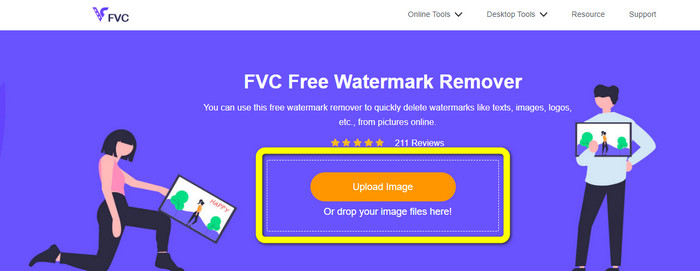
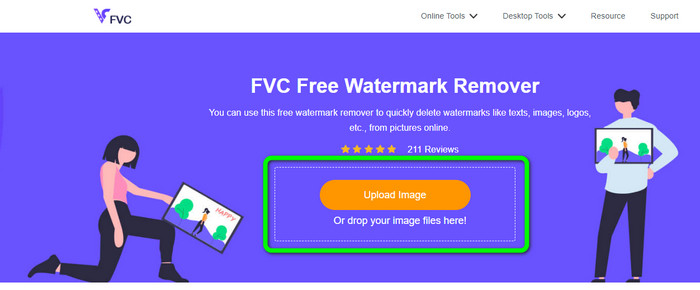
Bước 1: Truy cập trang web FVC Free Watermark Remover. Nhấn nút Upload Image để tải lên hình ảnh có watermark. Bạn cũng có thể kéo thả trực tiếp tệp của mình.
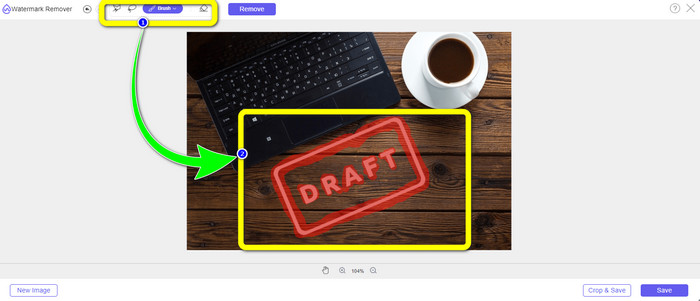
Bước 2: Tô vùng watermark bằng các công cụ xóa mà bạn có thể thấy ở phía trên giao diện.
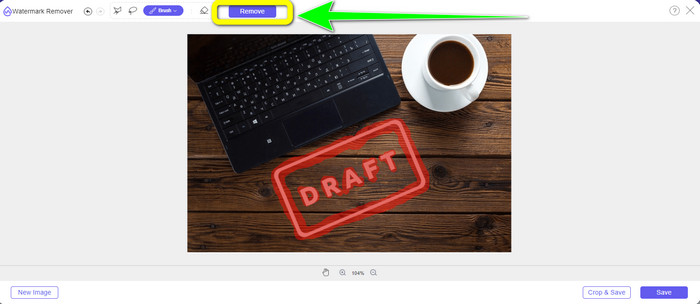
Bước 3: Khi đã tô xong vùng watermark trên ảnh, hãy nhấn nút Remove để xóa watermark và chờ quá trình xóa nhanh chóng hoàn tất.
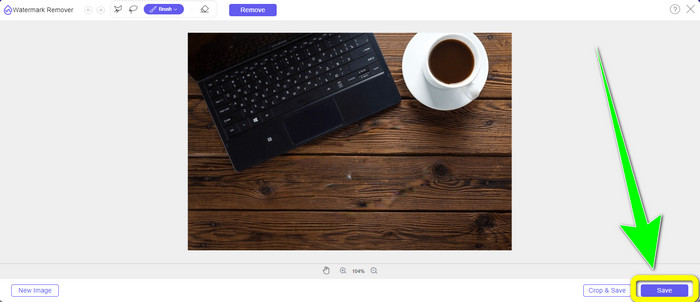
Bước 4: Sau khi xóa hoàn toàn watermark khỏi ảnh, hãy nhấn nút Save để tải về ảnh không còn watermark.
Sử dụng công cụ Cắt (Cropping Tool)
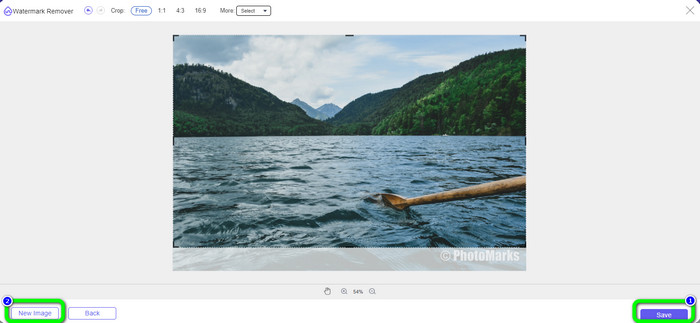
Trong phương pháp này, bạn cần xem xét khu vực hình mờ trên ảnh của mình. Nếu hình mờ nằm ở góc hoặc cạnh của hình ảnh, bạn có thể sử dụng công cụ cắt xén. Thực hiện theo các bước đơn giản dưới đây để tìm hiểu cách cắt ảnh để loại bỏ hình mờ.
Bước 1: Nhấn nút Upload Image để chèn bức ảnh có watermark.
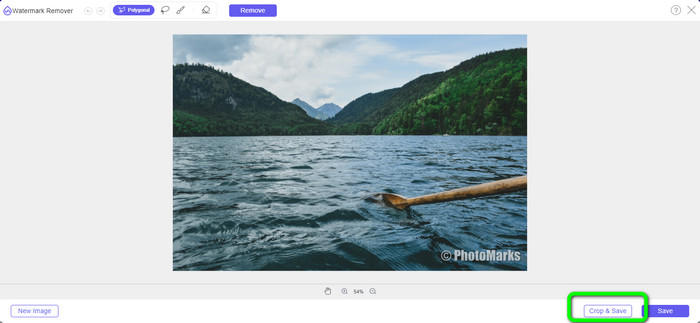
Bước 2: Sau khi chèn ảnh, nhấn nút Crop & Save ở góc dưới bên phải giao diện.
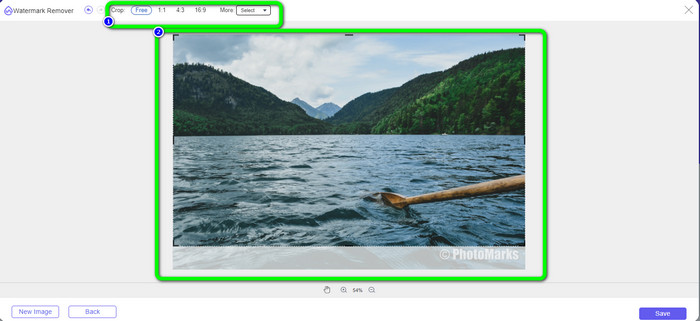
Bước 3: Ở phía trên giao diện, có các tùy chọn cắt ảnh mà bạn có thể chọn. Những tùy chọn này sẽ giúp bạn cắt ảnh. Nhưng nếu muốn cắt thủ công, hãy nhấn vào tùy chọn Free.
Bước 4: Sau khi loại bỏ watermark bằng cách cắt ảnh, hãy nhấn nút Save ở góc dưới bên phải giao diện để tải ảnh không còn watermark. Sau đó, nếu muốn tiếp tục cắt một bức ảnh khác, bạn hãy nhấn nút New Image ở góc dưới bên trái giao diện.
Có liên quan:
Các cách Dễ dàng Xóa Watermark Reddit khỏi Hình ảnh
Cách Xóa Watermark trong Lightroom Mobile [Đã giải quyết]
Phần 3: Các câu hỏi thường gặp về Inpaint Watermark Remover
Khi nào tôi nên sử dụng Inpaint?
Bạn có thể sử dụng Inpaint để loại bỏ các yếu tố không mong muốn khỏi ảnh của mình, chẳng hạn như người, hình mờ, biểu trưng, nhãn dán, v.v. Với công cụ này, bạn có thể làm cho bức ảnh của mình trở nên tuyệt vời hơn và làm hài lòng người xem.
Tôi có thể sử dụng Inpaint trên máy tính của mình không?
Vâng, bạn có thể! Bạn có thể tải xuống Inpaint vì nó cung cấp phiên bản dành cho máy tính để bàn. Ứng dụng có thể tải xuống này có nhiều tính năng tuyệt vời hơn phiên bản trực tuyến. Bạn có thể đính kèm hình ảnh mà không bị giới hạn và nó cung cấp chất lượng phục hồi cao hơn với thuật toán inpainting tốt hơn.
Inpaint có phải là công cụ xóa hình mờ tốt hơn không?
Inpaint rất đáng tin cậy trong việc xóa watermark khỏi ảnh. Tuy nhiên, nó vẫn có những hạn chế. Nó giới hạn dung lượng tệp và độ phân giải, điều này không thuận lợi cho người dùng. Bạn có thể dùng FVC Free Watermark Remover nếu muốn một công cụ xóa watermark tốt hơn. Công cụ này không có giới hạn và bạn có thể xóa watermark khỏi ảnh hoàn toàn miễn phí.
Phần kết luận
Như bạn thấy, bài viết này đã cung cấp cho bạn bài đánh giá khách quan về Inpaint Watermark Remover. Hơn nữa, nó còn giới thiệu những lựa chọn thay thế tốt nhất mà bạn có thể dùng để xóa watermark khỏi ảnh. Nếu bạn muốn một công cụ xóa watermark miễn phí hoàn toàn, bạn có thể sử dụng FVC Free Watermark Remover.
-
 Cách xóa hình mờ khỏi video trong After Effects một cách dễ dàng
 Bài viết này sẽ giúp xóa hình mờ khỏi video bằng After Effects. Ngoài ra, nó sẽ cung cấp các lựa chọn thay thế tốt nhất để loại bỏ các đối tượng làm phiền.
-
 Hướng dẫn từng bước về cách xóa biểu tượng cảm xúc khỏi video
 Bạn cảm thấy khó chịu với biểu tượng cảm xúc trên video của mình? Bài đăng này sẽ cung cấp cho bạn các quy trình tốt nhất để xóa biểu tượng cảm xúc khỏi video của bạn ngay lập tức bằng các công cụ tuyệt vời.
-
 Các cách tuyệt vời về cách xóa nhãn dán khỏi ảnh và video
 Bạn có muốn dễ dàng xóa nhãn dán khỏi video và ảnh không? Dưới đây là những cách hiệu quả, bao gồm cả những phương pháp đáng tin cậy nhất và dễ dàng nhất mà bạn có thể thử.
