


 Chuyển đổi video Ultimate
 Trình ghi màn hình
 Sửa chữa video
 Tải xuống an toàn
Làm cách nào để chuyển MP4 sang WAV trực tuyến miễn phí
MP4 là một định dạng video khá phổ biến mà mọi người thường dùng trong cuộc sống hằng ngày. Đồng thời, WAV cũng là một lựa chọn tuyệt vời để chứa âm thanh không nén, chất lượng cao. Nhưng đôi khi, bạn có thể muốn chuyển MP4 sang WAV để nghe trên các thiết bị của mình. Trong trường hợp đó, bạn cần một trình chuyển đổi chuyên nghiệp có thể trích xuất phần âm thanh từ video mà không làm giảm chất lượng âm thanh.
Vì vậy hôm nay, chúng tôi sẽ so sánh chi tiết MP4 và WAV, đồng thời giới thiệu đến bạn những trình chuyển đổi MP4 sang WAV tốt nhất, cả trực tuyến lẫn ngoại tuyến.

Phần 1. MP4 vs WAV
Thành thật mà nói, không có nhiều thứ để so sánh giữa MP4 và WAV. Xét cho cùng, chúng là hai định dạng khác nhau được sử dụng trong các trường hợp khác nhau, một để lưu trữ video và một để lưu âm thanh. Nhưng cả hai đều là loại tệp và chúng có thể chứa âm thanh kỹ thuật số. Dựa vào đó, bảng dưới đây liệt kê một số điểm khác biệt của chúng.
| MP4 | WAV | |
| Chứa đựng | Video, âm thanh và phụ đề | Chỉ có âm thanh |
| Phần mở rộng tên tệp | .mp4, .m4a, .m4p, .m4b, .m4r và .m4v | .wav và .wave |
| Được phát triển bởi | Tổ chức Quốc tế về Tiêu chuẩn hoá | IBM và Microsoft |
| Tính chất | Nén và mất mát (trong hầu hết thời gian) | Không nén và không mất dữ liệu |
Phần 2. Chuyển đổi MP4 sang WAV trực tuyến tốt nhất
Bây giờ bạn đã học được giá trị của 2 định dạng này. Đã đến lúc tìm cho bạn một công cụ chuyển đổi MP4 sang WAV hữu ích có thể đáp ứng mọi nhu cầu chuyển đổi của bạn.
Ở đây, chúng tôi gợi ý cho bạn một công cụ chuyển đổi dựa trên web có tên FVC Free Audio Converter, có thể giúp bạn dễ dàng chuyển đổi các tệp video MP4 sang WAV trực tuyến miễn phí. Điểm nổi bật nhất của trình chuyển đổi trực tuyến này là bạn có thể chạy nó trên mọi hệ điều hành, như Windows và Mac OS, mà không cần tải về một gói phần mềm cồng kềnh. Bạn chỉ cần một trình duyệt và kết nối mạng ổn định. Sau đó, bạn có thể chuyển các video MP4 như MV hoặc talk show sang tệp WAV một cách dễ dàng.
Tải xuống miễn phí cho Windows 7 trở lên. Tải xuống an toàn.
Tải xuống miễn phí cho MacOS 10.7 trở lên. Tải xuống an toàn.
Thực hiện theo các bước sau và bạn cũng có thể vận hành chuyển đổi như một người chuyên nghiệp.
Bước 1. Nhấp vào đường dẫn bên trên để truy cập trang web chính thức của FVC Free Audio Converter. Nhấp nút Add Files to Convert. Sau đó bạn cần tải về và cài đặt một trình khởi chạy nhỏ.
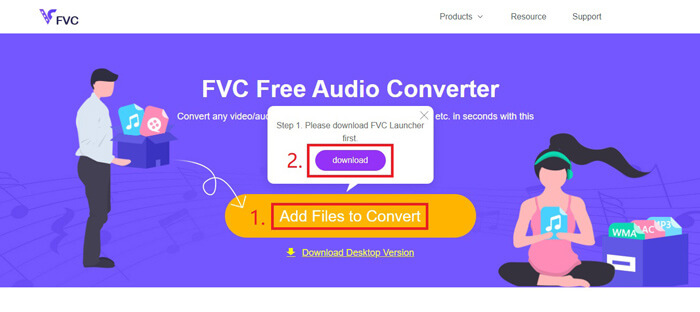
Bước 2. Sau khi cài đặt xong, cửa sổ Open sẽ bật lên ngay lập tức. Lúc này bạn có thể chọn video MP4 mà mình muốn chuyển đổi.
Bước 3. Vì bạn cần một tệp WAV, nên bạn phải đổi định dạng đầu ra thành WAV. Nhấp Convert và chọn thư mục đích để lưu tệp WAV của bạn.
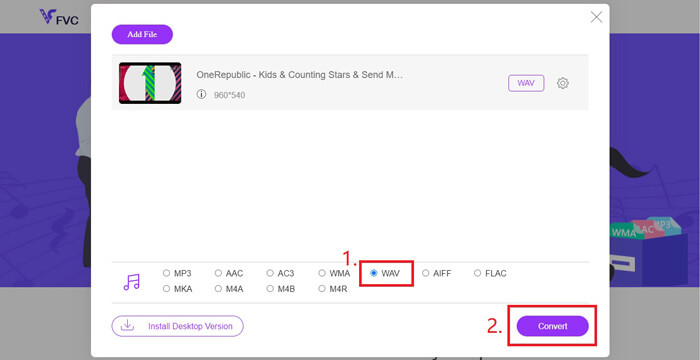
Bước 4. Chờ trong giây lát, tệp đã chuyển đổi sẽ tự động được lưu vào máy tính của bạn.
Phần 3. Chuyển đổi MP4 sang WAV với Audacity
Nhiều người hỏi cách chuyển MP4 sang WAV bằng Audacity. Vì vậy, chúng tôi đã tìm hiểu và nhận thấy phương pháp này hơi phức tạp. Bởi vì Audacity không thể mở trực tiếp tệp MP4 nếu không có thư viện bổ sung FFmpeg. Nhưng thật may là chúng tôi đã giải quyết vấn đề đó bằng cách sử dụng chức năng ghi âm của Audacity.
Đối với những người không quen thuộc với Audacity, đây là một phần mềm miễn phí âm thanh đa nền tảng và mã nguồn mở được phát triển bởi các tình nguyện viên. Thông thường, nó được sử dụng để chỉnh sửa và ghi lại âm thanh đa rãnh. Để xuất tệp WAV từ MP4 bằng Audacity, bạn cần làm theo các bước dưới đây.
Bước 1. Tìm tệp video MP4 mà bạn muốn chuyển đổi và phát nó bằng trình phát media trên máy tính. Để đảm bảo không bị bỏ sót nội dung nào, hãy tạm dừng video ngay khi mở và tua lại về đầu.
Bước 2. Bây giờ bạn có thể mở Audacity. Trước hết, bạn cần tắt tiếng micro bằng cách kéo thanh âm lượng ghi âm về 0. Sau đó điều chỉnh âm lượng hệ thống theo ý bạn. Nhấp nút Record.
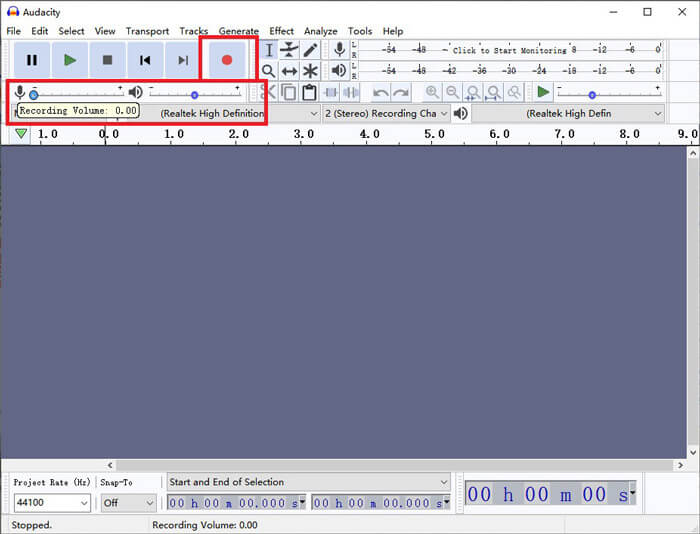
Bước 3. Quay lại trình phát media và phát video MP4. Audacity sẽ ghi lại phần âm thanh của video. Khi video MP4 phát xong, bạn có thể đóng trình phát media.
Bước 4. Quay lại Audacity và nhấp biểu tượng Stop. Sau đó, hãy vào mục File trên thanh menu trên cùng. Chọn Export rồi chọn tiếp Export as WAV.
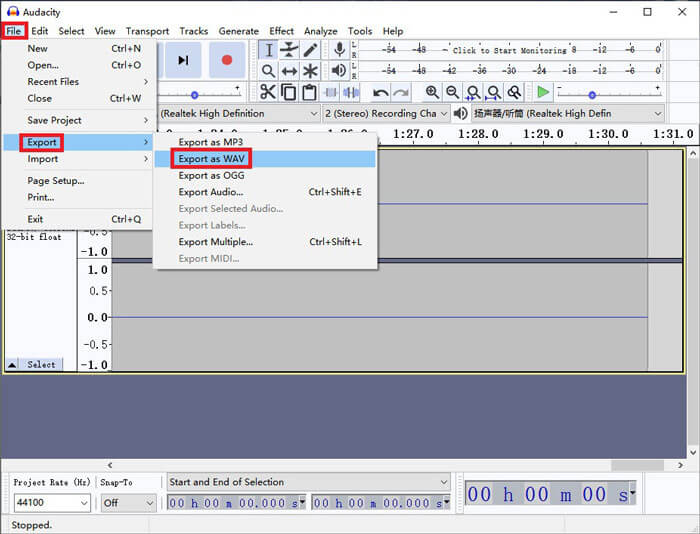
Bước 5. Hãy đặt tên cho tệp âm thanh này trước khi lưu nó về máy tính của bạn.
Phần 4. Các câu hỏi thường gặp về chuyển đổi MP4 sang WAV
1. Làm cách nào để chuyển MP4 sang WAV trong iTunes?
Mở iTunes và tìm mục Edit trên thanh menu trên cùng. Sau đó chọn Preferences. Trong cửa sổ General Preferences, tìm Import Settings. Sau đó đổi mục Import Using từ AAC Encoder sang WAV Encoder. Nhấp OK. Nhấp chuột phải vào tệp video mà bạn muốn chuyển đổi và chọn Create WAV Version.
2. Làm thế nào để chuyển đổi MP4 sang WAV trong Windows Media Player?
Mở tệp MP4 bằng Windows Media Player. Nhấp vào biểu tượng Menu để về trang chủ của Windows Media Player. Nhấp Organize và chọn Options. Sau đó tìm tab Rip Music và đổi định dạng đầu ra thành WAV. Tại đây bạn cũng có thể thay đổi thư mục lưu cho tệp âm thanh. Nhấp nút OK để bắt đầu quá trình chuyển đổi MP4 sang WAV.
3. Cái nào tốt hơn, MP4 hay WAV?
Nếu bạn chỉ muốn so sánh chất lượng âm thanh, thì WAV rõ ràng tốt hơn MP4 vì tệp âm thanh dùng định dạng WAV là không nén và không mất dữ liệu. Tuy nhiên, cũng chính vì lý do đó mà tệp WAV có thể lớn hơn tệp MP4 dù chứa cùng một nội dung âm thanh. Nếu bạn muốn biết thêm thông tin về video MP4, thì ít nhất bạn nên so sánh nó với các định dạng video khác, như AVI so với MP4 hoặc MOV so với MP4.
Phần kết luận
Bao gồm cả những phương pháp đã đề cập trong phần Hỏi & Đáp, hiện bạn đã có 4 cách để chuyển MP4 sang WAV. Nếu bạn chỉ muốn dùng một công cụ chuyển đổi tiết kiệm thời gian để xử lý âm thanh, FVC Free Audio Converter sẽ hoàn thành xuất sắc công việc mà không gây thêm rắc rối.
Nếu bạn thấy bài viết này hữu ích, bạn có thể chia sẻ nó với bạn bè của bạn. Hãy để lại cho chúng tôi ý kiến của bạn.
-
 Cách chuyển đổi MP4 sang WMV cho Mac / Windows
 Bài đăng này chia sẻ cách chuyển đổi video MP4 sang định dạng WMV trên Mac hoặc Windows. Chúng tôi cũng sẽ cung cấp cho bạn một số tùy chọn, bao gồm cả phần mềm máy tính để bàn và trình chuyển đổi trực tuyến dựa trên web. Bạn đã sẵn sàng để biết các công cụ chuyển đổi MP4 sang WMV tốt nhất chưa?
-
 Cách chuyển đổi MP4 sang MP3 trên Windows / Mac / iPhone / Android / Trực tuyến
 Nếu bạn muốn trích xuất âm thanh MP3 từ video MP4, bạn có thể kiểm tra bài viết này và nhận được 8 giải pháp. Có nhiều cách trực tuyến và ngoại tuyến để chuyển đổi MP4 sang MP3 trên điện thoại hoặc máy tính của bạn một cách dễ dàng.
-
 Cách chuyển đổi WMV sang MP3 trên Máy tính để bàn và Trực tuyến
 Bạn có thể tìm thấy bất kỳ phần mềm chuyển đổi video miễn phí nào từ FVC studio. Mọi định dạng video / âm thanh đều được hỗ trợ, bao gồm MP4, MOV, TS, AVI, WMV, FLAC, MP3, v.v.
