


 Chuyển đổi video Ultimate
 Trình ghi màn hình
 Sửa chữa video
4 đầu ghi FLV phù hợp với máy tính Chrome, Windows và Mac
Bạn đã bao giờ tự hỏi điều gì khiến các video bạn xem chạy trên web? Hầu hết các trang web HTML 5 sử dụng định dạng WebM để phát video. Ngoài WebM, FLV cũng đang được sử dụng. Đặc biệt nhất là những trang web miễn phí Phim và chương trình truyền hình miễn phí. Làm thế nào bạn biết nếu nó là một tập tin FLV? Thông thường, nếu video không phát, bạn sẽ thấy thông báo lỗi cho biết cài đặt Adobe Flash Player. Ngày nay, nhiều video được nhúng trong các tệp FLV. Nhưng khi bạn quay video bằng đầu ghi tích hợp của mình hoặc một đầu ghi khác, khả năng chất lượng video bị thay đổi là rất cao.
Vì vậy, sẽ tốt hơn nếu bạn sử dụng một trình ghi có thể tạo tệp FLV hoặc có thể tạo ra chất lượng tốt hơn bất kể định dạng tệp. Nếu bạn lo ngại về việc chất lượng video bị thay đổi, hãy khám phá các Trình ghi FLV không yêu cầu bạn phải đăng ký để sử dụng.

Phần 1. Lựa chọn tốt nhất của người dùng - Trình ghi màn hình FVC
Trong số các Trình ghi FLV xuất hiện trên mạng, FVC Screen Recorder là một trong những lựa chọn hạng nhất, hay nói đơn giản, nó chính là tốt nhất. Nhu cầu của người dùng đôi khi cao hơn những gì sản phẩm có thể mang lại và không phải sản phẩm nào cũng là lựa chọn tốt nhất. Nhiều khách hàng đang tìm kiếm sản phẩm tốt nhất mà họ nên dùng. FVC Screen Recorder vượt qua hơn hàng nghìn trình ghi cao cấp khác, đặc biệt là so với trình ghi hiện tại của bạn. Với hiệu suất ghi hình mượt mà, bạn có thể khai thác tối đa chất lượng từ video mà mình muốn ghi. Hơn nữa, bạn có thể thay đổi bit rate và frame rate của video, nhờ đó chất lượng hình ảnh được cải thiện. Vì vậy, bạn nhất định phải chú ý đến bài đánh giá về trình ghi FLV tốt nhất này. Trong lúc đó, để sử dụng công cụ, dưới đây là hướng dẫn dễ làm theo.
Bước 1. Sử dụng các nút tải xuống bên dưới để tải ứng dụng. Cài đặt và làm theo hướng dẫn cho đến khi ứng dụng được mở.
Tải miễn phíDành cho Windows 7 trở lênTải xuống an toàn
Tải miễn phíDành cho MacOS 10.7 trở lênTải xuống an toàn
Bước 2. Chọn giữa các thẻ. Vì chúng ta đang cố gắng ghi lại một video, hãy nhấp vào Video Recorder. Sau đó một khung chấm sẽ xuất hiện cùng với thanh công cụ nổi.
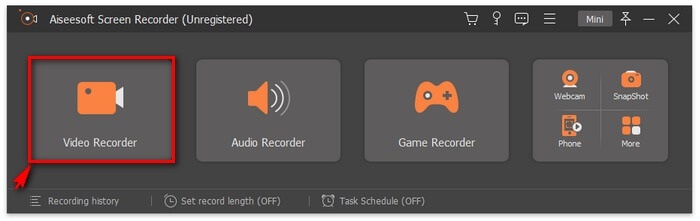
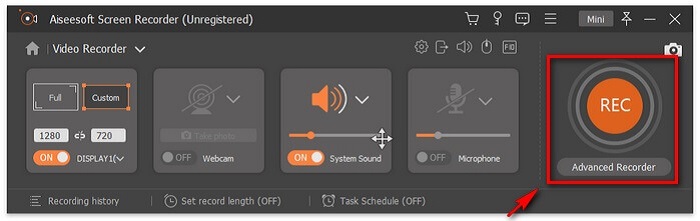
Bước 3. Điều chỉnh khung chấm để đặt tỷ lệ khung hình của màn hình rồi nhấp nút REC để bắt đầu ghi.
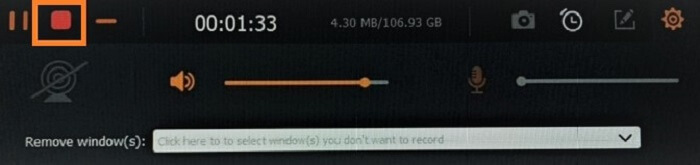
Bước 4. Để dừng ghi, nhấp nút Square màu đỏ trên thanh công cụ nổi. Từ đó, một cửa sổ khác sẽ bật lên. Đây là nơi bạn có thể chọn lưu hoặc ghi lại nếu chưa hài lòng với kết quả.
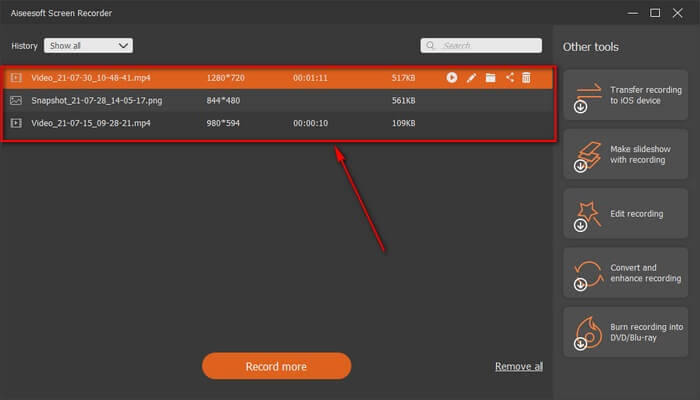
Bước 5. Giả sử bạn đã lưu tệp, cửa sổ tiếp theo sẽ cho phép bạn chọn vị trí lưu tệp. Chọn thư mục và nhấp vào Next.
Phần 2. Máy ghi video FLV miễn phí khác
Trình ghi FLV cho mọi trình duyệt - Trình ghi màn hình miễn phí FVC
FVC Free Screen Recorder được biết đến là nhẹ nhưng vẫn có tính năng mạnh mẽ. Vậy nên, nếu bạn là người mới muốn ghi lại cho vui, bạn có thể dùng công cụ này, hoặc nếu bạn là dân chuyên cần ghi lại cuộc họp kinh doanh, nó cũng đáp ứng được. Dù theo cách nào thì nó vẫn hoạt động tốt. Tính năng hay nhất mà trình ghi này cung cấp là bạn có thể ghi bất kỳ phần nào trên màn hình mà không bị thanh công cụ nổi làm phiền. Nó tự động chỉ ghi lại màn hình. Hãy chụp bao nhiêu ảnh màn hình tùy thích mà không bị gián đoạn với sự hỗ trợ của tính năng Lock-in screen. Không dài dòng nữa, hãy cùng tìm hiểu cách sử dụng trình ghi FLV này. Bạn cần làm theo các bước bên dưới.
Bước 1. Truy cập trang web chính thức của FVC Free Screen Recorder và khởi chạy ứng dụng.
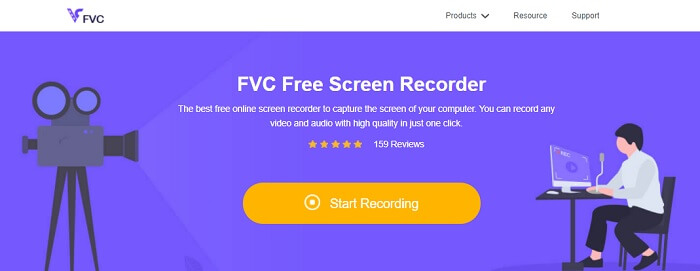
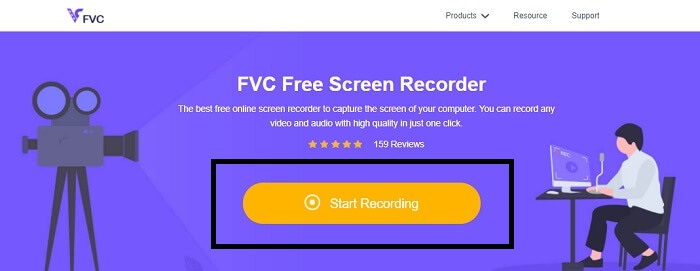
Bước 2. Khởi chạy công cụ bằng cách nhấp vào Start Recording và tiếp tục sang bước tiếp theo.
Bước 3. Trên thanh công cụ, nhấp nút gear để thay đổi cài đặt theo nhu cầu của bạn. Khi đã ở trong menu tùy chọn (preferences), hãy tìm mục Output và thay đổi định dạng video theo mong muốn. Nhấp OK nếu mọi thứ đã được thiết lập xong.
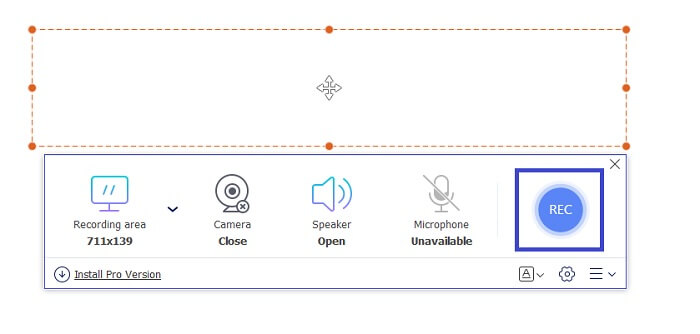
Bước 4. Trên thanh công cụ nổi, giờ đây bạn có thể điều chỉnh tỷ lệ khung của màn hình. Đồng thời, hãy thêm phản ứng gương mặt của bạn bằng cách bật Webcam. System Sound được dùng để thêm âm thanh tự nhiên của chương trình. Cuối cùng, thêm giọng nói của bạn bằng cách bật Micro. Để bắt đầu ghi FLV hãy nhấp nút REC để bắt đầu.
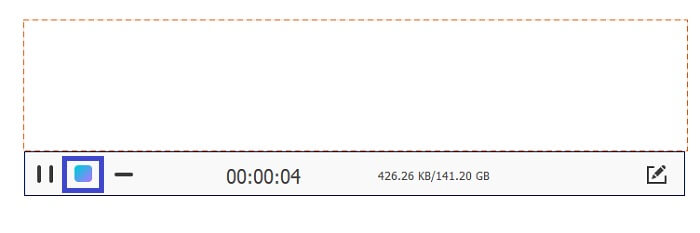
Bước 5. Để kết thúc ghi FLV, nhấp nút cube để dừng. Sau đó, nhấp Save và Next. Tất cả bản ghi bạn thực hiện đều nằm trong History list.
Trình ghi FLV dành cho Chrome - SCREEN.IO
Nếu bạn không muốn tải xuống các tệp bổ sung trong ổ đĩa của mình, bạn có thể sử dụng trình ghi Chrome tích hợp sẵn này. Trình ghi FLV dành cho Chrome này giúp ích cho rất nhiều người trên toàn bộ web. Vì vậy, nếu bạn là người thích tiết kiệm không gian lưu trữ thì bạn phải thử SCREEN.IO này. Mặc dù công cụ này không cung cấp các tính năng đặc biệt tương tự như một máy ghi âm khác. Nhưng khả năng ghi âm của nó rất chuẩn. Nếu chúng ta so sánh máy ghi âm Chrome và máy ghi âm để bàn, thì máy tính để bàn là cách hiệu quả để thực hiện việc ghi âm vì bạn sẽ không phiền nếu kết nối internet bị gián đoạn.
FLV Recorder dành cho Windows - VLC Media Player
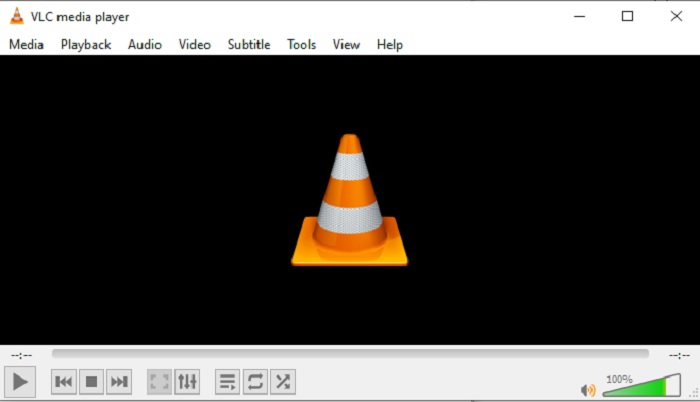
VLC Media Player không chỉ nổi tiếng là trình phát media tốt nhất hiện nay. Nó còn có nhiều tính năng khác như ghi hình, chuyển đổi định dạng, và nhiều hơn nữa. Tuy là trình phát đa phương tiện xuất sắc, nhưng không phải tất cả những tính năng vừa kể đều là tốt nhất. Và trong một vài trường hợp, một số định dạng video hoặc âm thanh không phát được vì codec của chúng là độc quyền. Vì thế, bạn có thể dùng VLC Media Player Alternative hỗ trợ phát cả khi tệp là độc quyền.
Máy ghi FLV dành cho Mac - OBS Studio
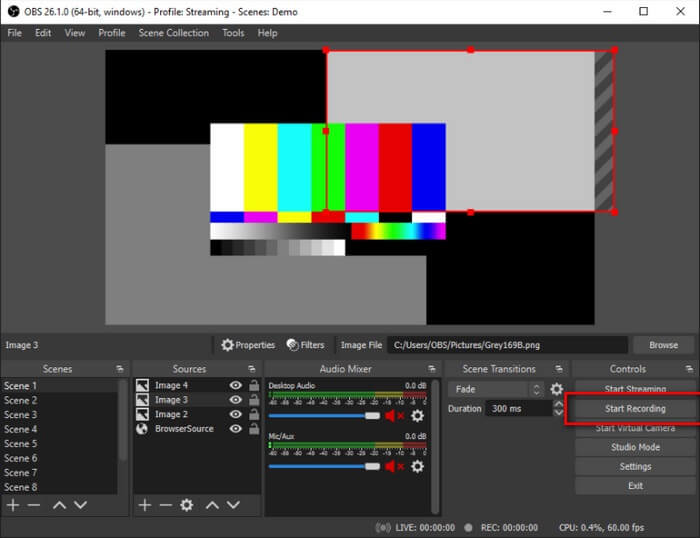
Có thể bạn đang nghĩ rằng chúng tôi đã quên người dùng Mac. Trình ghi FLV cho Mac này là một trong những trình ghi mạnh mẽ trong danh sách vì bạn cũng có thể phát trực tuyến (streaming) trên đó. Mặc dù có tính năng ấn tượng, bản thân công cụ lại hơi khó dùng, đặc biệt nếu bạn mới bắt đầu ghi hình, bởi vì có quá nhiều thứ xuất hiện trên giao diện khi bạn mở công cụ.
Phần 3. Câu hỏi thường gặp về Máy ghi video FLV
Tệp FLV, Có an toàn để tải xuống trên PC của tôi không?
Trên thực tế, nó không phải là tệp mà chúng ta đang nói đến khi nói đến bảo mật. Các tệp FLV được nhúng vào các trang web chia sẻ video, vì vậy câu hỏi của bạn nên là, làm cách nào để xác định xem video tôi đang tải xuống từ một trang web không có phần mềm độc hại? Sử dụng Bảo vệ an toàn cho PC của bạn. Có rất nhiều phần mềm bảo vệ và máy quét mà bạn có thể tìm thấy trực tuyến. Nhưng bản thân tập tin vẫn an toàn. Trừ khi họ đưa phần mềm độc hại vào đó, còn không thì nó an toàn.
Chương trình nào có thể mở tệp FLV?
Có rất nhiều trình phát media ngoài kia, nhưng tôi khuyên bạn nên dùng VLC player. Trình phát này rất linh hoạt và có thể phát hầu như mọi định dạng tệp, bất kể là nén hay không nén. Nhấp vào đây để xem thêm các trình phát FLV phổ biến khác.
Ưu điểm của tệp FLV là gì?
Ưu điểm chính đầu tiên của FLV là khả năng sản xuất video chất lượng cao ở kích thước nhỏ. Về bản chất, tệp này rất linh hoạt. Tại sao? Bạn có thể dễ dàng chuyển đổi tệp này sang định dạng khác ngay cả bằng cách sử dụng trình chuyển đổi trực tuyến.
Phần 4. Biểu đồ so sánh
| Đặc trưng | Trình ghi màn hình FVC | Trình ghi màn hình miễn phí FVC | VLC Media Player | OBS Studio |
| Trình ghi màn hình |  | | | |
| Máy thu âm | | | | |
| Hỗ trợ FLV | | | | |
| Máy nghe nhạc đa phương tiện |  | | | |
| Tốc độ bit và tốc độ khung hình có thể điều chỉnh | | | | |
Phần kết luận
Tất cả các công cụ được liệt kê đều hữu ích trong việc quay video FLV và tạo ra chất lượng video tốt nhất có thể. Ngoài ra, nếu bạn không chắc chắn nên sử dụng công cụ nào, bạn có thể tham khảo biểu đồ so sánh được viết. Nhưng trong số các máy ghi FLV được liệt kê. FVC Screen Recorder có lợi thế hơn nhờ tính năng khóa cửa sổ.
-
 Máy ghi OGG hữu ích nhất năm 2021 [Miễn phí và trực tuyến]
 Bài viết này nói về các công cụ Ghi âm OGG tốt nhất giúp bạn ghi âm OGG. Để thêm thông tin chi tiết hơn cho người dùng hãy tiếp tục đọc nó.
-
 Top 5 phần mềm ghi M4B tốt nhất cho PC và Mac [Miễn phí và trả phí]
 Bản ghi M4B được nén mất dữ liệu cho tệp sách nói MPEG-4. Ở một số khía cạnh, M4A và M4B gần như phổ biến nhưng chúng có những điểm khác biệt. Để biết nó là gì hãy đọc bài báo.
-
 Top 5 công cụ ghi AMR tốt nhất có sẵn cho mọi hệ điều hành
 Bạn muốn biết định dạng AMR là gì và máy ghi AMR tốt nhất mà bạn nên chọn sẽ cung cấp một bản ghi tuyệt vời.
