


 Chuyển đổi video Ultimate
 Trình ghi màn hình
 Sửa chữa video
Cách nhanh chóng thêm hình ảnh vào video trong vòng chưa đầy một phút
Có nhiều lý do tại sao bạn cần thêm hình ảnh vào video. Ví dụ: một số biên tập viên nhận thấy rằng việc thêm hình ảnh vào video của họ sẽ tạo ra một tương tác mới cho những người dùng khác. Bằng cách này, bạn có thể sử dụng điều này để đại diện cho thương hiệu của mình hoặc tạo một bản trình bày trực quan xuất sắc và giúp video của bạn truyền tải đúng thông điệp đến người dùng. Nhưng bạn có biết rằng nhiều công cụ thực hiện cùng một công việc không? Chúng tôi biết rất khó để chọn công cụ nào phù hợp với bạn nhất. Vì vậy, hôm nay, chúng tôi đã chọn ra ba công cụ mà chúng tôi thấy rằng hoạt động tốt. Khi bạn đã đọc bài viết này, bạn sẽ học cách thêm hình ảnh vào video của mình.

Phần 1. Hướng dẫn từng bước về cách thêm hình ảnh vào video bằng Video Converter Ultimate
Muốn thêm một hình ảnh vào video bằng công cụ tối ưu nhất? Vậy thì hãy dùng Video Converter Ultimate. Với sự trợ giúp của công cụ mạnh mẽ này, bạn có thể dễ dàng chèn (overlay) hình ảnh lên video ngay cả khi bạn không phải là người chuyên nghiệp trong lĩnh vực chỉnh sửa. Ngoài khả năng chèn hình vào video, bạn còn có thể dễ dàng dùng công cụ này để thêm nhạc nền, thêm phụ đề và thực hiện nhiều thao tác khác. Nó được xem là giải pháp một cửa cho hầu hết các vấn đề liên quan đến video. Muốn biết những ưu điểm khi sử dụng công cụ này là gì? Nếu vậy, bạn có thể đọc các thông tin chi tiết bên dưới.

FVC Video Converter Ultimate
5.689.200+ lượt tải xuống- Cung cấp hiệu suất vượt trội về chuyển đổi và chỉnh sửa.
- Chỉnh sửa và tạo một video tuyệt vời trong vòng vài cú nhấp chuột.
- Nó hỗ trợ hơn 200 định dạng, chẳng hạn như MP4, MOV, FLV, WMV, AVI, MTV, v.v.
- Có sẵn trên tất cả các nền tảng để tải xuống, chẳng hạn như Windows và Mac.
Tải xuống miễn phí cho Windows 7 trở lên. Tải xuống an toàn.
Tải xuống miễn phí cho MacOS 10.7 trở lên. Tải xuống an toàn.
Thật tuyệt vời khi bạn có thể làm gì với công cụ này phải không? Vâng, chúng tôi biết công cụ này rất ấn tượng theo nhiều cách. Nếu công cụ này thu hút sự chú ý của bạn và bạn muốn tìm hiểu cách thêm ảnh vào video bằng công cụ này, bạn có thể đọc hướng dẫn bên dưới.
Bước 1. Nhấn nút tải xuống bên dưới để tải trực tiếp về máy, làm theo hướng dẫn cài đặt và khởi chạy chương trình. Trước khi bắt đầu, chúng tôi khuyến khích bạn làm quen với giao diện của công cụ để có thể dễ dàng nhận biết và thực hiện các bước tiếp theo.
Tải xuống miễn phí cho Windows 7 trở lên. Tải xuống an toàn.
Tải xuống miễn phí cho MacOS 10.7 trở lên. Tải xuống an toàn.
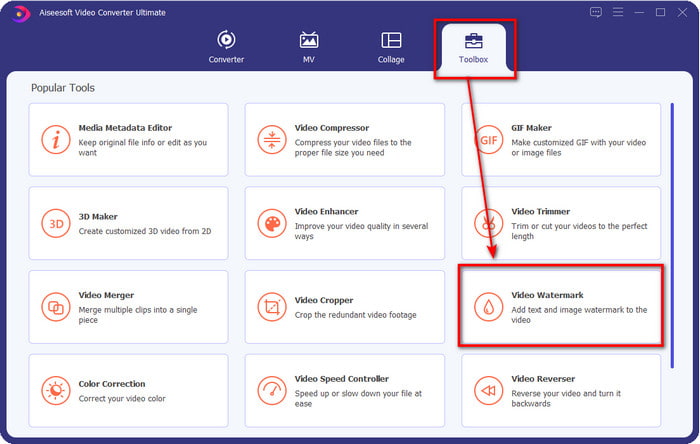
Bước 2. Khi công cụ đã chạy trên hệ thống, hãy nhấp vào Toolbox; bên trong đó, tìm đến Video Watermark và mở nó lên.
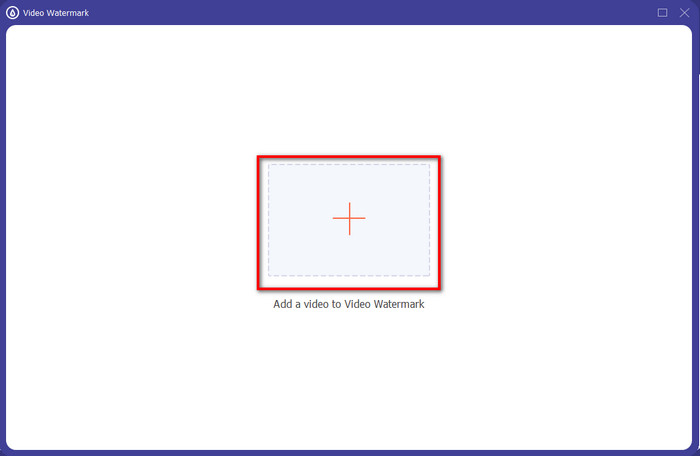
Bước 3. Sau khi bạn nhấp vào nút +, một cửa sổ thư mục sẽ xuất hiện trên màn hình; hãy tìm đến tệp và nhấn Open nếu đó là tệp video bạn muốn dùng.
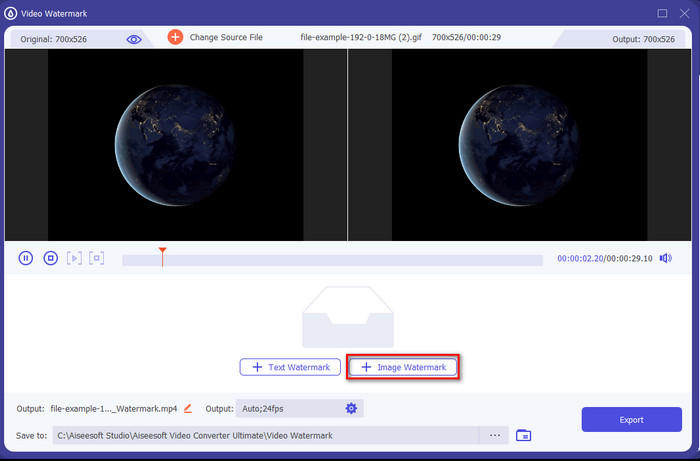
Bước 4. Một cửa sổ mới sẽ xuất hiện, nhấp vào Image Watermark, sau đó một thư mục sẽ hiện ra lần nữa, nhưng lần này bạn hãy chọn hình ảnh muốn thêm vào video rồi nhấn Open.
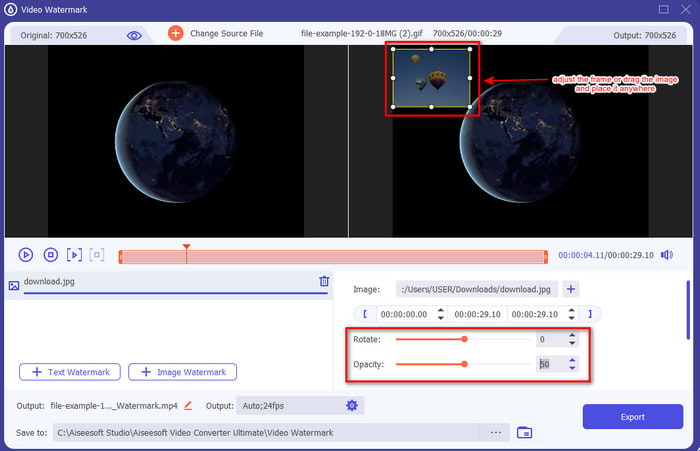
Bước 5. Điều chỉnh kích thước hình ảnh bạn đã chèn vào video và vị trí của nó bằng cách kéo khung của bức ảnh. Bạn có thể đặt nó ở bất kỳ vị trí nào bằng cách giữ và kéo hình ảnh. Ngoài ra, bạn cũng có thể điều chỉnh độ hiển thị của hình bằng cách chỉnh Opacity. Bạn cũng có thể xoay hình ảnh bằng cách kéo thanh trượt của mục Rotate.
Bước 6. Khi đã chỉnh sửa xong hình ảnh, đây là lúc bạn nhấn vào Export.
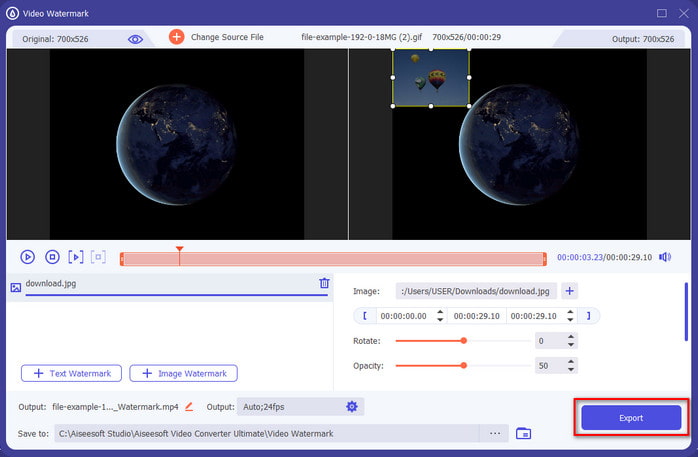
Có liên quan:
Phần 2. Làm thế nào để chồng hình ảnh lên video trên Internet miễn phí
Trình cắt video trực tuyến - Thêm hình ảnh vào video
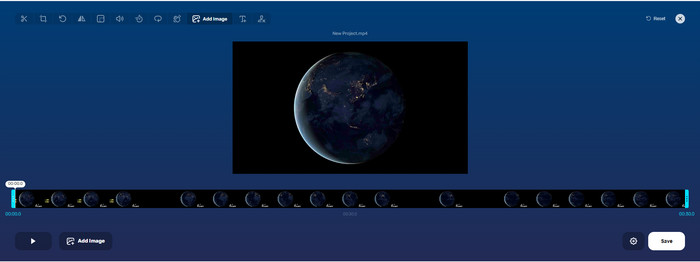
Nếu bạn muốn chèn hình ảnh trực tuyến, bạn có thể dùng Online Video Cutter – Add Image to a Video. Công cụ web này cung cấp cách đơn giản nhưng hiệu quả để thêm ảnh vào bất kỳ video nào. Mặc dù công cụ này khá tốt để sử dụng, việc tải video lên đôi khi hơi bất tiện vì phụ thuộc vào kết nối Internet của bạn. Ngoài ra, bạn không thể thêm hai hình ảnh trở lên vì tính năng đó chưa được hỗ trợ. Nhưng nếu vẫn muốn dùng công cụ này, bạn có thể làm theo các bước bên dưới.
Bước 1. Mở trình duyệt, tìm kiếm công cụ web này trên thanh tìm kiếm rồi mở nó ra.
Bước 2. Nhấn Open File để tải video lên, sau đó nhấn Add Image để tải hình ảnh bạn muốn chèn.
Bước 3. Kéo hình ảnh để thay đổi vị trí của nó, nhấp Save để mã hóa và lưu về máy tính của bạn.
Ưu điểm
- Sử dụng miễn phí và bạn sẽ không cần tải xuống.
- Nó hỗ trợ các tính năng chỉnh sửa cơ bản cho người dùng.
- Nó không có hình mờ trên đầu ra cuối cùng.
Nhược điểm
- Nó không thể thêm tối đa 2 hình ảnh trở lên trên video.
- Tải lên hình ảnh và video cần thời gian để tải lên.
Flixier
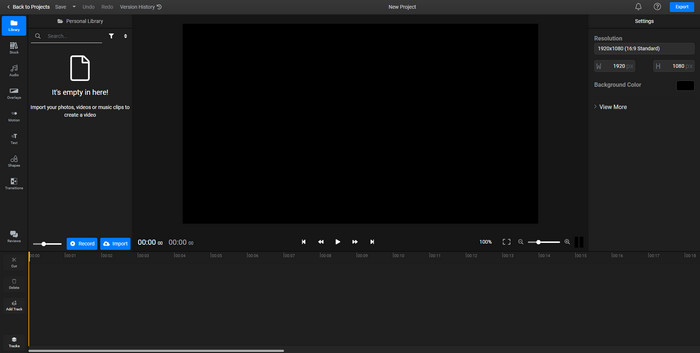
Bạn có thể dùng Flixier để thêm hình ảnh vào video trực tuyến miễn phí. Bạn cũng có thể chỉnh sửa mẫu video của mình với công cụ online này, bao gồm cả việc thêm hình ảnh. Công cụ này cung cấp các tính năng chỉnh sửa tích hợp rất tốt giúp bạn làm cho video trông chuyên nghiệp hơn. Tuy nhiên, dù công cụ web mang lại những tính năng hữu ích, khi xuất video sẽ có hình mờ (watermark) trên sản phẩm cuối cùng vì đây là bản miễn phí. Bạn có thể mua bản trả phí để loại bỏ watermark này.
Bước 1. Mở công cụ tìm kiếm, gõ tên của công cụ rồi nhấp Choose File.
Bước 2. Nhấn Import để tải video và hình ảnh lên, kéo video và hình ảnh xuống Timeline, đảm bảo rằng lớp hình ảnh nằm trên lớp video. Thay đổi vị trí của bức hình bằng cách kéo nó trong khung video.
Bước 3. Nhấn Export, sau đó chọn Export and Download để lưu về ổ đĩa trên máy tính của bạn.
Ưu điểm
- Miễn phí và có thể truy cập trên web.
- Nó cung cấp nhiều tính năng chỉnh sửa hơn so với công cụ trực tuyến đầu tiên.
- Nó hỗ trợ thêm nhiều hình ảnh vào video của bạn.
Nhược điểm
- Kết quả cuối cùng không có hình mờ ở cuối vì nó miễn phí.
- Nó cần phải mua phiên bản VIP để loại bỏ hình mờ trên đầu ra video.
Phần 3. Câu hỏi thường gặp về việc thêm hình ảnh vào video
Việc thêm hình ảnh vào video có ảnh hưởng đến chất lượng không?
Chất lượng video sẽ không ảnh hưởng đến hình ảnh bạn thêm vào. Để đơn giản hóa, việc thêm hình ảnh không có bất kỳ chất lượng video đáng kể nào, ngay cả khi bạn thêm nhiều ảnh. Tuy nhiên, nếu bạn xuất video trên trình chỉnh sửa mà bạn đã sử dụng và đặt nó ở chất lượng thấp, hãy mong đợi đầu ra video bên dưới.
Tại sao hình ảnh tôi thêm vào video bị mờ?
Lý do chính của nó là hình ảnh đã bị mờ ngay từ đầu. Để tránh sự cố này, bạn phải kiểm tra hình ảnh trước và đảm bảo rằng hình ảnh không bị mờ trước khi sử dụng hình ảnh đó trên video của bạn.
Tôi có thể thêm hiệu ứng chuyển tiếp vào hình ảnh trên video không?
Với một số trình chỉnh sửa, có thể thêm hiệu ứng chuyển tiếp vào hình ảnh của bạn. Mặc dù có nhiều quá trình chuyển đổi hoạt hình khác nhau, nhưng cắt, làm mờ, xóa và hòa tan là những cách phổ biến nhất có sẵn. Mặc dù đây là những cách phổ biến nhất, nhưng nó vẫn lý tưởng để thêm hiệu ứng chuyển đổi vào hình ảnh để làm cho video trở nên chuyên nghiệp và thú vị hơn.
Phần kết luận
Sau khi đọc xong bài viết này, việc học cách thêm ảnh vào video sẽ trở nên dễ hiểu hơn nếu bạn theo dõi đầy đủ nội dung bài với các công cụ khác nhau, cả online lẫn offline. Dù đã giới thiệu nhiều bộ công cụ khác nhau, chúng tôi vẫn khuyến nghị người dùng sử dụng công cụ tối ưu để thực hiện nhiệm vụ này. Video Converter Ultimate cung cấp giao diện dễ hiểu, giúp người dùng thao tác hiệu quả. Vẫn chưa chắc nó có phù hợp với bạn không? Vậy thì, tải công cụ về dùng thử là cách duy nhất để bạn tự mình kiểm chứng.
-
 5 Bộ chuyển đổi OGV sang WMV hữu ích để chuyển đổi tệp OGV của bạn
 Có 5 bộ chuyển đổi OGV sang WMV khác nhau mà bạn có thể sử dụng để chuyển đổi các tệp OGV. Bài viết này cung cấp một thông tin chính xác về các bộ chuyển đổi 5 ogv có sẵn.
-
 Hướng dẫn về 2 Phần mềm chuyển đổi AMV sang WMV tốt nhất [2022]
 Bạn có muốn chuyển đổi AMV sang WMV? Nếu vậy, bạn phải đọc bài viết này để có ý tưởng về AMV là gì và cách chuyển đổi tệp sang định dạng WMV.
-
 Các công cụ hữu ích nhất để chuyển đổi SWF sang WMV (Trực tuyến và Ngoại tuyến)
 Bạn có gặp khó khăn khi tìm một trình phát cho các tệp SWF của mình không? Bạn không cần phải lo lắng vì bạn chỉ cần chuyển đổi nó sang định dạng WMV để có trải nghiệm sử dụng video tốt hơn. Đọc bài viết này để biết thêm về quá trình chuyển đổi này.
